HomeNavigation arrowBlogNavigation arrow
Current page
Feature Updates

Weekly Recap: Better PhotoTag Controls & Roster Improvements 📸✨

Weekly Recap: Better PhotoTag Controls & Roster Improvements 📸✨
Hey photo friends! 👋

‍

Candy here with another weekly recap! This week brings some especially useful workflow upgrades, including better PhotoTag management in Manage Images, larger virtual group limits, and several improvements for large rosters and PhotoRosters.

‍

Let’s jump in!

‍

🏷️ Better PhotoTag Management in Manage Images

‍

You could already select multiple images and add a PhotoTag. Now you can clean them up just as easily.

‍

➖ New Remove PhotoTags option

  • Select multiple images in Manage Images and use the new Remove PhotoTags button to remove PhotoTags from the selection.

‍

🧹 Duplicate PhotoTag assignment fix

  • Fixed an issue where Edit Folder could assign the same PhotoTag to the same image multiple times.

‍

👥 Move PhotoTagged Group Photos to the Top

‍

There’s also a new Advanced Offer setting:

‍

PhotoTagged Group to Top of Gallery

‍

When enabled, PhotoTagged Group Photos will appear at the top of Personal Galleries instead of the bottom.

‍

We generally recommend leaving this off, but it can be useful for Events where Personal Galleries contain a very large number of individual images and you want important Group Photos to be easier to find.

‍

📥 Multi-Select Download Change

‍

Downloads started through the Selected Images sheet in Manage Images will now automatically retry if an individual download stalls.

‍

This should be helpful when working on slower or congested networks where one image hanging could otherwise interrupt a larger download.

‍

📋 Roster & PhotoRoster Improvements

‍

Several fixes this week make roster workflows more reliable:

‍

👥 Large roster uploads fixed

  • Fixed uploads for customers with more than 1,000 people in their spreadsheet.

‍

✉️ Malformed email handling improved

  • Fixed an edge case where an email containing a ? instead of an @ could stop the upload process partway through the roster.

‍

🔢 PhotoRoster Event counts fixed

  • Fixed cases where the number of Events associated with a PhotoRoster could display incorrectly.

‍

⚠️ Better PhotoRoster export errors

  • Exporting a PhotoRoster directly from an Event page now provides the same detailed error reporting you’d receive when exporting from the PhotoRoster page itself.

‍

🎨 Candy Image Studio Fix

‍

🔁 More reliable “Try Again” edits

  • Fixed an edge case where editing an Event image during a Try Again sequence could accidentally generate an entirely new image instead of using the existing edit as its starting point.

‍

🖼️ Participant Download Fix

‍

✨ Overlay downloads fixed for faux renders

  • Fixed Download with Overlay not working correctly for faux renders — cutouts displayed with an Event background.

‍

🧑‍🤝‍🧑 Virtual Groups

‍

If you create a lot of Virtual Groups for an Event, and need to download them for some reason - this will save you some time!

‍

📥 New Download All button

  • The Virtual Group List page can now automatically render and download all Virtual Groups for an Event instead of making you process them one at a time.

‍

👥 Up to 200 subjects per Virtual Group

  • The maximum subject limit in Virtual Group Builder has been increased to 200.

‍

That’s the week!

‍

Relatively light changes this week (compared to our usual weekly recaps at least) as we work on some important things behind the scenes!

‍

Keep creating magic,

Candy 🍬
Related articles

Weekly Recap: Tap-A-Face from the Dashboard & Smarter Roster Contacts 👤✨
Feature Updates
August 8, 2025

Weekly Recap: Tap-A-Face from the Dashboard & Smarter Roster Contacts 👤✨

3
 minutes read
Hey there, photo friends!

‍

This week’s updates are small but mighty—because behind the scenes we’re cooking up some bigger projects that we can’t wait to share with you soon.

‍

For now, here’s what’s fresh in your NowCandid™ Dashboard:

‍

👆 Tap-A-Face… from the Web Dashboard!

‍

You’ve always loved Tap-A-Face in the field—now you can do it right from your Dashboard.

‍

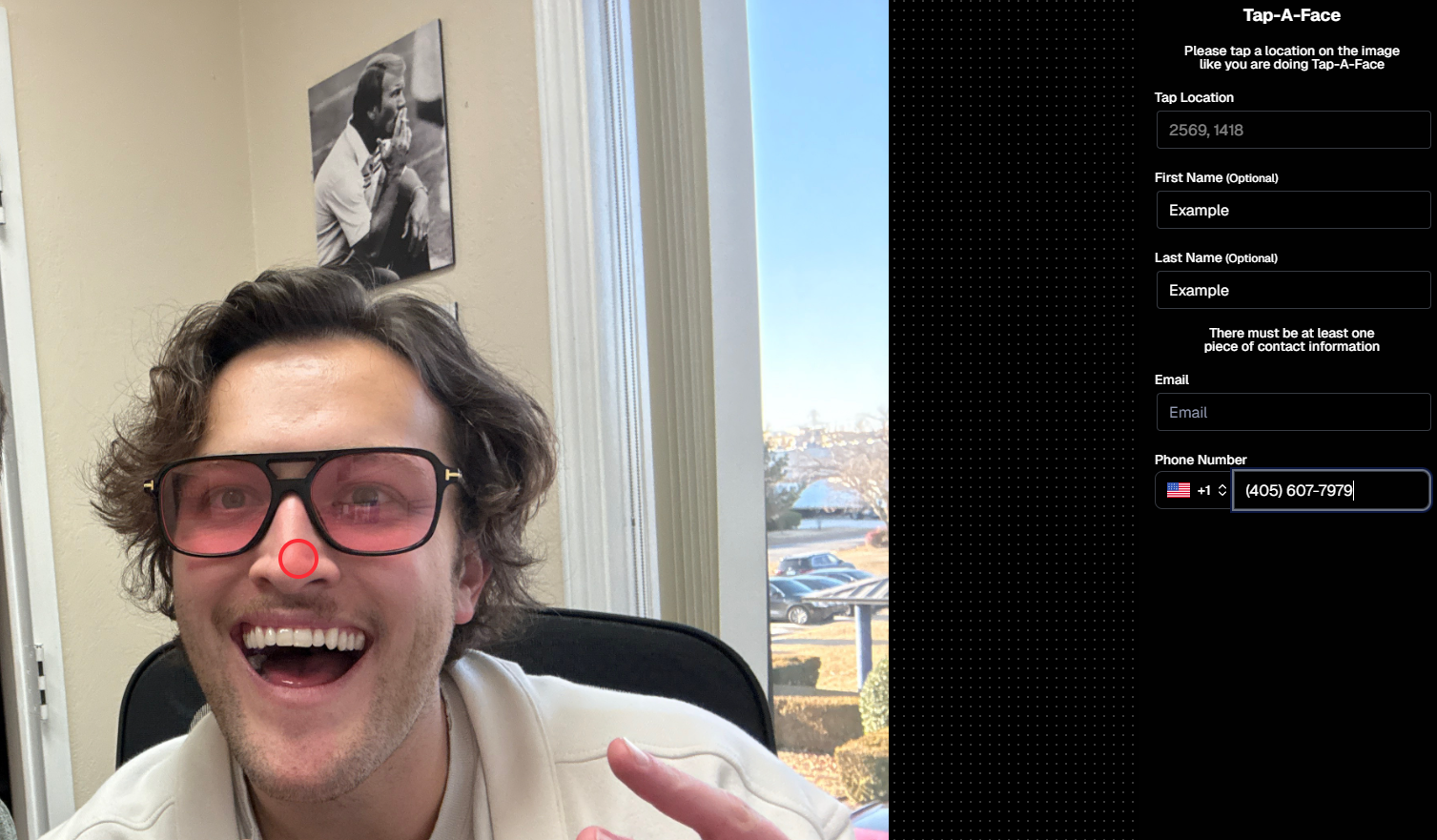
From any image’s Image Details Page, head to the Participants tab and click the new Add via Tap-A-Face button. From there:

‍

  1. Click a spot on the image where a face is
  2. Enter the contact info for the person

‍

This will instantly create a new Participant in your Event, kick off Face Matching™, and start marketing their gallery right away. 📸💌

‍

Manage Images -> Details, Logs, and More-> Participants -> Add via Tap-A-Face

‍

📇 Roster Contacts, Upgraded

‍

Contacts you add through Rosters are now much easier to work with! They’ll behave just like your regular Contacts & Participants—meaning:

‍

  • They’re fully editable
  • They can be assigned multiple images without the previous first-image requirement

‍

No more clunky workarounds—just smoother, faster contact management. 🙌

‍

This change will also improve adding Contacts via the "Create Participant" button, as well as Contacts who add themselves to the Event via a Positive ID Event's Simple Check-In.

‍

These kinds of Contacts will just show a silhouette for now, which we may adjust down the line!

‍

That’s it for this week!

‍

Stay tuned—because some very cool things are coming your way soon. 👀✨

‍

Keep being amazing,‍

Candy 🍬

Weekly Recap: PhotoCoach Support, Acrylic Puzzles & More! 🧠🧩
Feature Updates
August 1, 2025

Weekly Recap: PhotoCoach Support, Acrylic Puzzles & More! 🧠🧩

4
 minutes read
Hey there, photo friends!

‍

Candy here with some sweet new updates from your NowCandid™ Dashboard.

‍

We've got a powerful new coaching tool, a fun new product to sell, and a bunch of workflow-boosting fixes to round it out.

‍

Let’s dive in! ✨

‍

🆕 New Feature: PhotoCoach

‍

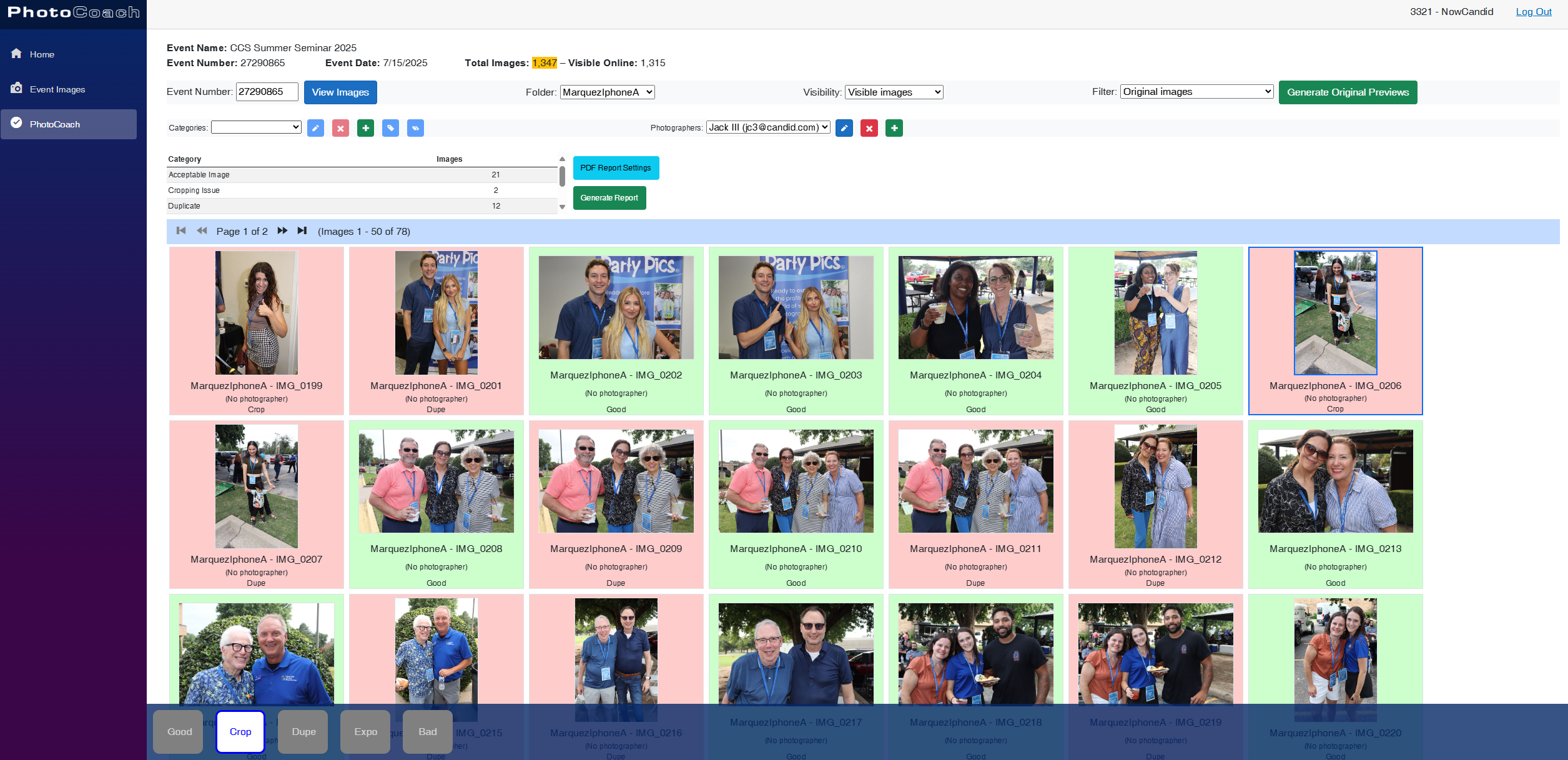
Introducing PhotoCoach—your new secret weapon for improving the quality of your photographers’ photos over time! 🧠📷

‍

With PhotoCoach, you can:

‍

  • • Review images from your Events and flag them with issues like "Acceptable," “Duplicate,” “Exposure Issue,” “Cropping Issue” and more (and make your own categories too!)
    ‍
  • • Track photographer photo quality over time
    ‍
  • • Send automatic feedback reports to your photographers with a breakdown of image counts & issue counts

‍

It’s perfect for helping your team take more sellable images—leading to happier clients and stronger sales!

‍

Find it now under Tools & More on your Dashboard and start coaching like a pro. 💪

‍

Note: PhotoCoach is not new for CORE™ users (CORE™ is our sister-software at Candid Color Systems™), but it's new to NowCandid™! And it's had some feature improvements recently so it is now web-based! Woo!

‍

It takes a little getting used to, but once you are, it's super easy and super fun!

‍

🧩 NEW: 8×10 Acrylic-Backed Puzzle

‍

Puzzle fans, rejoice! 🎉 You can now sell a 56-piece acrylic-backed 8×10 puzzle, complete with cute live-rendered previews on the retail site.

‍

Why customers will love it:

  • • Unique gift or keepsake
  • • Durable acrylic & display-worthy

‍

Even the little detahced pieces in the top right live-render, yay! - Theme: Liquorice

‍

🔗 URL Filtering Just Got Smarter

‍

Now when shoppers apply filters on the retail site, those filters update the URL automatically—making filtered views shareable with friends & family!

‍

Not much more to say about this one, just a cool touch! :)

‍

🛠️ Misc Tweaks & Fixes

‍

A roundup of small but mighty changes:

‍

  • 📥 Dynamic Personal Gallery Downloads can now be purchased by shoppers via Favorites!
    • ○ A great addition for action sports—gives customers a “buy all” option that scales with the number of images selected, even when shopping from an All Gallery.
      ‍
  • 🧑‍🤝‍🧑 Group-by-Face filter popup now shows only unique faces
    • ○ Applies to new Events only—re-run Group-by-Face on past Events if needed!
      ‍
  • 🗂 BGR Folders are editable again via the “Edit Folder” option
    ‍
  • 🖼 Retail site now scrolls past the cover photo if a filter is selected from the initial popup
    • ○ A smoother experience when arriving to an All Images gallery
      ‍
  • 🧍‍♀️ Selfie Check-In button transforms post-Face Matching
    • ○ It now becomes a second Retail Site button after expiration
      ‍
  • 🧾 Invoice History tool now displays all past invoices, not just recent ones

‍

That’s everything for this week! 💫

‍

Whether you're giving photo feedback, selling puzzles, or just tidying up your workflow—we’ve got your back.

‍

More soon!
Candy 🍬

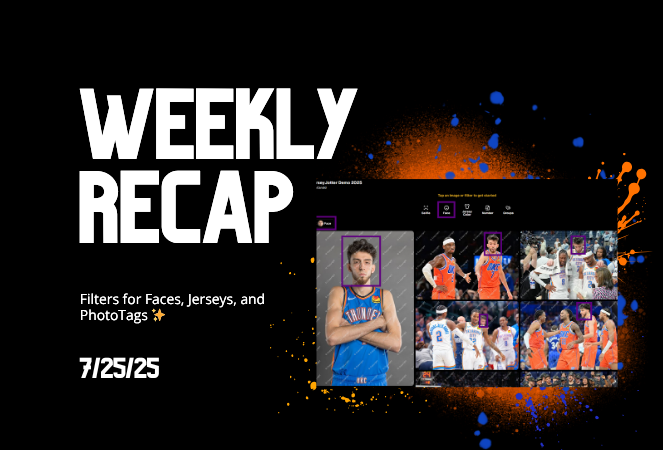
Weekly Recap: Filters for Faces, Jerseys, and PhotoTags ✨
Feature Updates
July 25, 2025

Weekly Recap: Filters for Faces, Jerseys, and PhotoTags ✨

5
 minutes read
Candy here with your scoop on all the sweet new updates from this week! 🍬

‍

Let’s get right into it...

‍

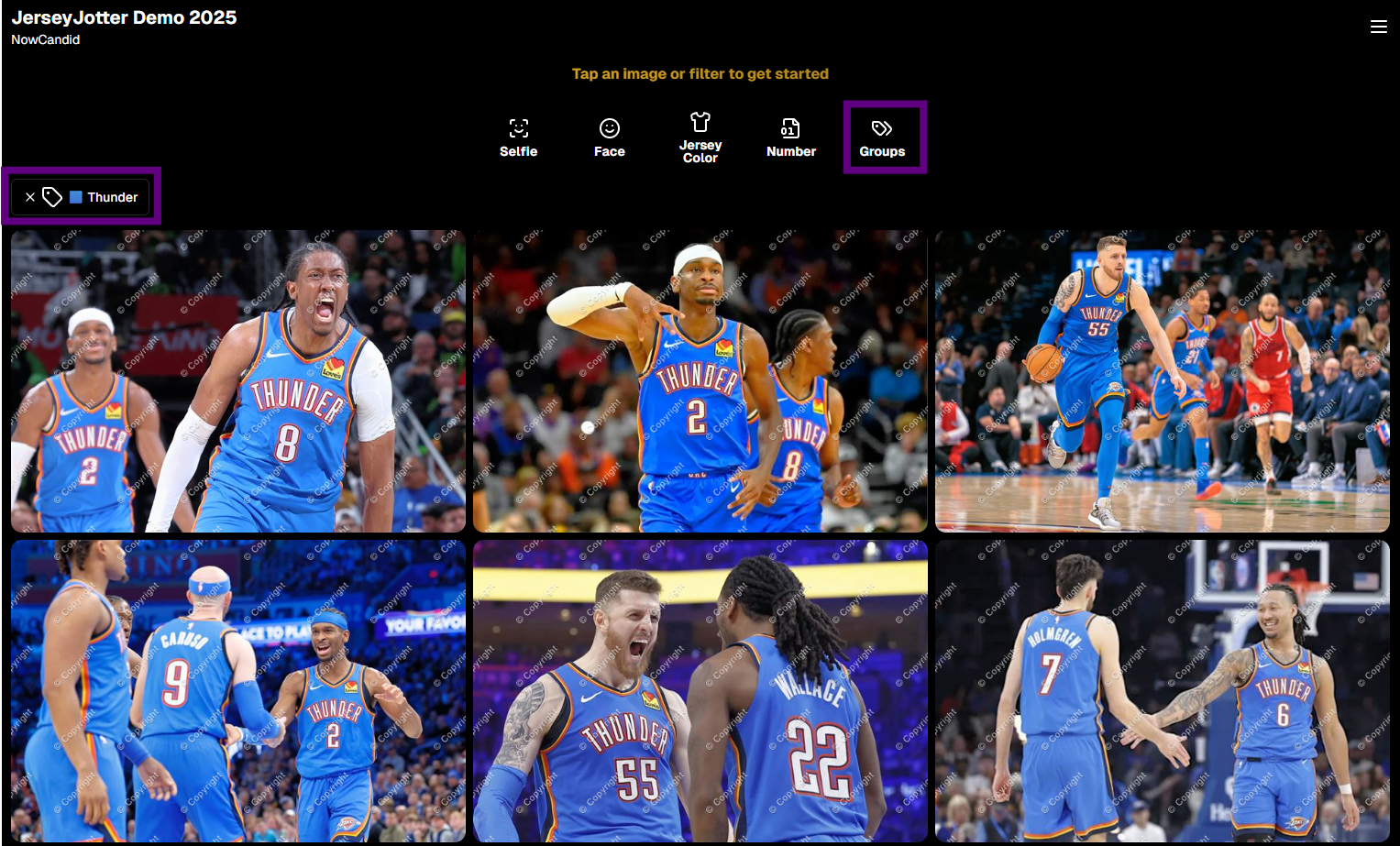
📸 Big News: PhotoTags Now Work as a Filter!

‍

PhotoTags just got a major glow-up! 🌟

‍

Instead of being a separate tab, they’re now integrated directly into the Filters section on the All Images Gallery. That means they now play nicely alongside JerseyJotter™ and Group-by-Face!

‍

Whether you're shopping for cheerleaders, bands, dancers, or any other tagged group—this change makes it smoother than ever to find just the photos you care about.

‍

Did you know? NowCandid is headquartered in Oklahoma City! Thunder Up!

‍

🧠 Big News: Group-by-Face is Now a Filter Too!

‍

Group-by-Face fans rejoice! 🎭

‍

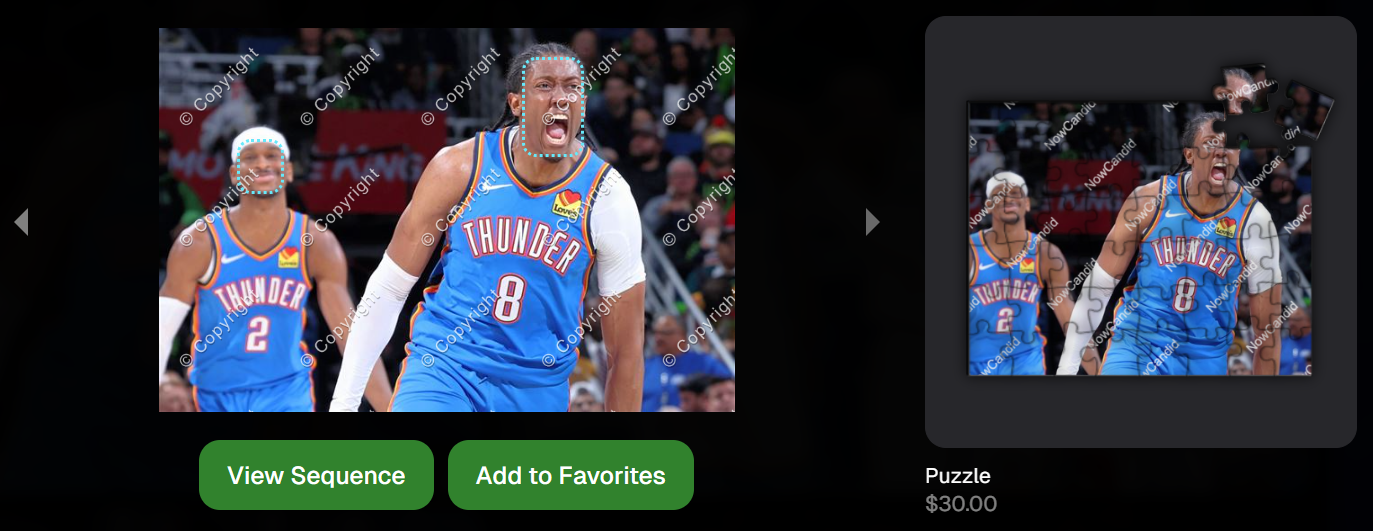
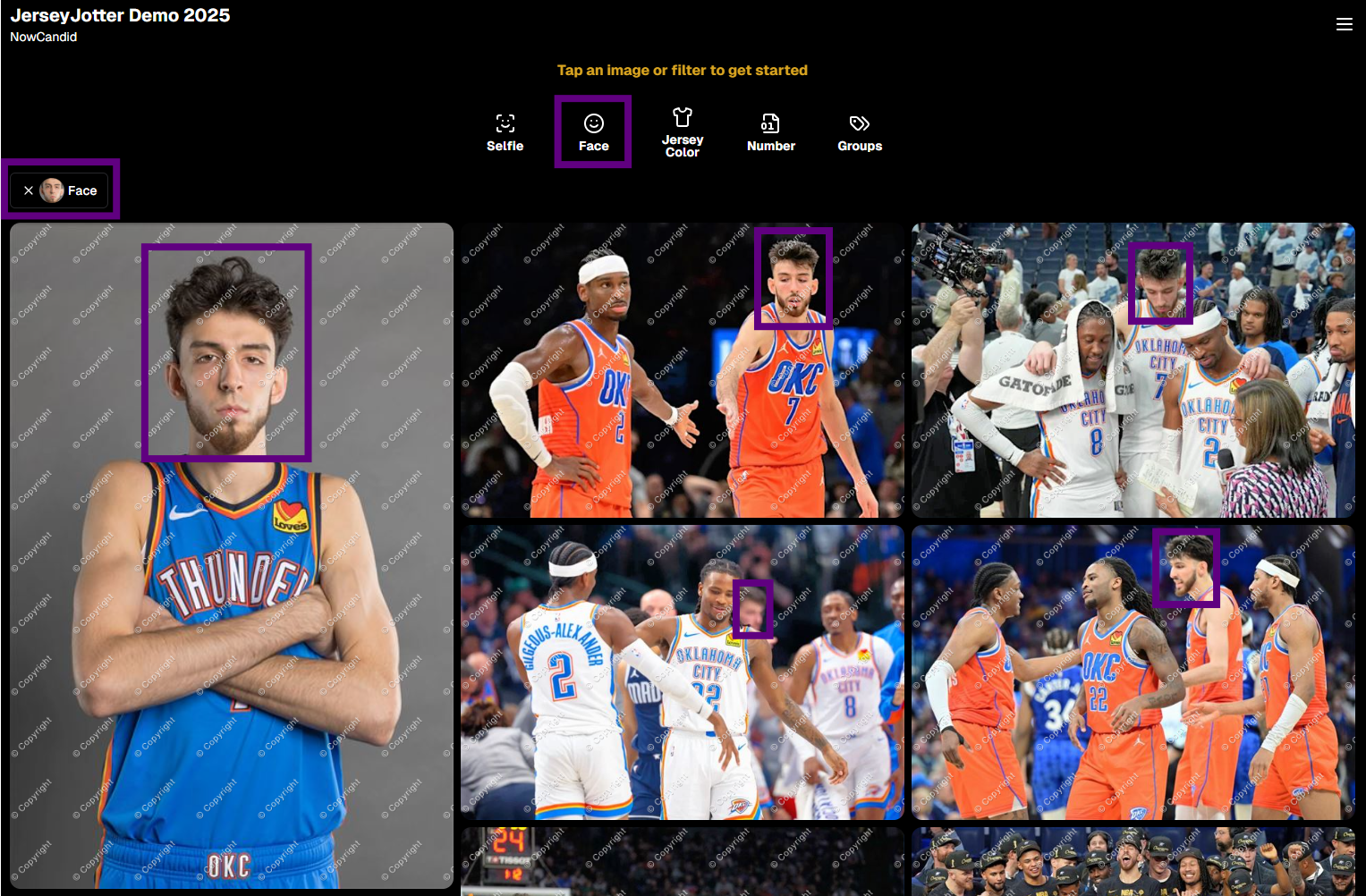
Group-by-Face has been transformed into a Filter, too! Instead of whisking you away to a new page, selecting a face now just filters the All Images Gallery to show photos featuring that face. You can even browse faces via the Face filter menu.

‍

And yes—it works with PhotoTags and JerseyJotter™, so you can filter for a specific face, a jersey number, AND a PhotoTag Group all at once. Woo!

‍

Yup, it even got his blurry face over Cason Wallace's shoulder!

‍

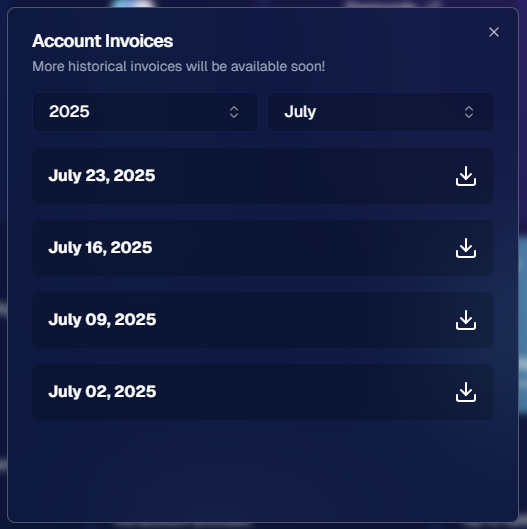
🧾 Big News: Invoice History in Profile Settings

‍

Ever had an invoice go missing in your email inbox? We've got you covered!

‍

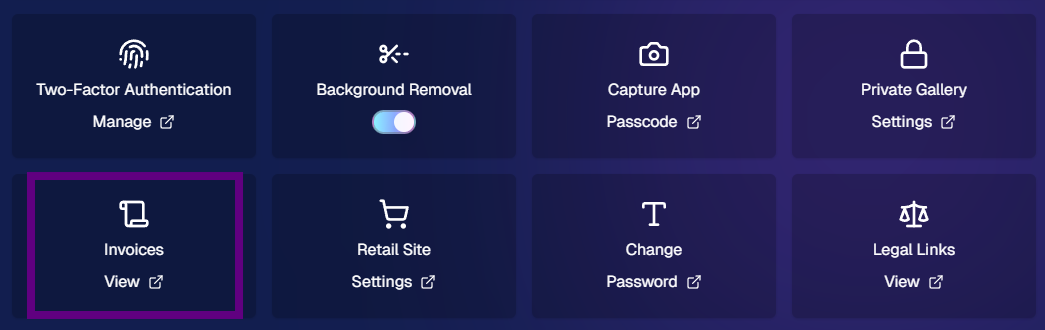
You can now view and download past invoices directly from your Profile Settings page on the Web Dashboard. Whether you're keeping things tidy for tax season, tracking your account activity, or just trying to find that one receipt from a few months ago — this new Invoice History section gives you quick access to every invoice tied to your account.

‍

No more digging through old emails. Just head to Settings → Profile → Invoice History and boom — organized, downloadable, and ready whenever you need it.

‍

Another small quality-of-life boost to keep things running smoother behind the scenes. 🎟️✅

‍

Accessible via Profile on the Web Dashboard.

‍

⚙️ Other Notable Changes

‍

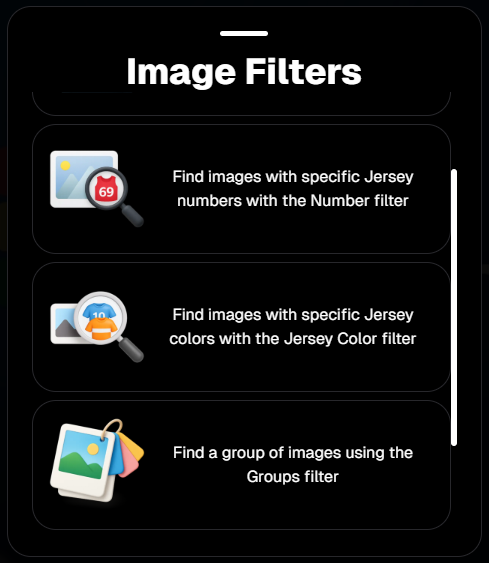
🔍 “Looking for More?” Button + All Images Filter Popups

‍

We’ve added a new “Looking for More?” button at the bottom of personal image galleries — perfect for subjects who didn’t find quite everything they were hoping for. If your Event has the All Images Gallery turned on, this button will guide shoppers over to that gallery for a broader look.

‍

And with all the recent upgrades like PhotoTags™, Group-by-Face, JerseyJotter™, and improved gallery tools, we’re confident that the All Images view is more helpful and shoppable than ever before!

‍

🎛️ Bonus: When filters are enabled for your Event, the All Images Tab and All Gallery URL will now open a popup that clearly explains what filtering options are available for that particular event — making discovery even easier for your customers.

‍

Clicking any option will open up that Filter's popup as well!

‍

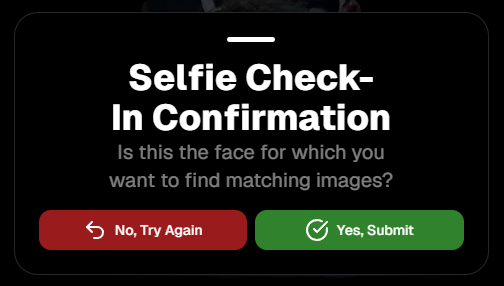
🤳 “Is This the Face?” Popup

‍

When someone takes or uploads a selfie for Selfie Check-In™, we now ask them:

‍

‍“Is this the face for which you want to find matching images?”

‍

This simple question will reduce the number of parents who accidentally upload selfies of themselves instead of their child!

‍

We'll keep trying to get parents to not upload their own selfies :)

‍

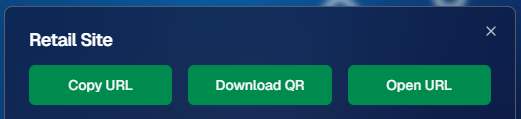
📱 QR Code Download for All Images Gallery

‍

New button alert! You can now easily download the All Images Gallery QR Code to share at events—perfect for action sports and other workflows that rely on promoting the All Images Gallery.

‍

Accessible via "Retail Site" from an Event's Management page.

‍

📦 Order Details Page Improvements

‍

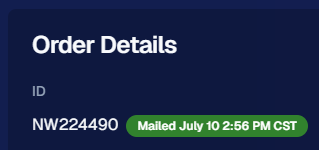
Want to know when an order was mailed out? You got it.

‍

The Order Details page now shows the "mailed" timestamp when applicable, helping both photographers and customers stay informed.

‍

Accessible via "Orders" from an Event's Management page.

‍

🧰 Misc Fixes & Improvements

‍

🧮 The JerseyJotter™' image counts when selecting Filters will now be affected by PhotoTag & Group-by-Face Filters as well

‍

🫥 "Unassigned Images" count now excludes hidden/test images

‍

💖 Favorites tab now works when picking images for multi-image products

‍

🔒 GalleryGuard™ is all set for iOS26 — screenshot blocking stays strong

‍

📴 Texting “NOPE” now unsubscribes users from all marketing campaigns

‍

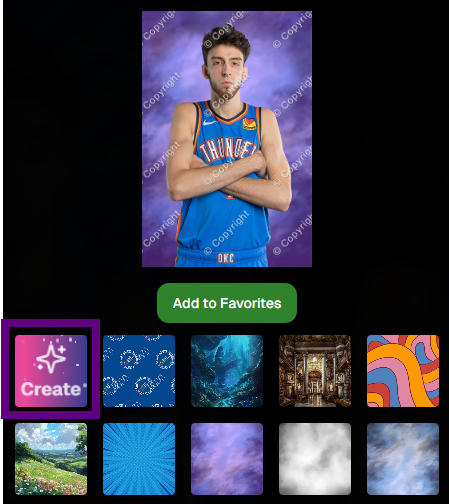
✨ New icon for AI-generated backgrounds — it’s clearer for those unfamiliar with the standard generative AI symbol

‍

Did you know? We provide subjects with free AI background generation!

‍

That’s it for this week!

‍
As always, thanks for tagging along on all the improvements we’re rolling out to make your NowCandid experience smoother, smarter, and more fun 🎉

‍

Cheers,
—Candy 💕

Let’s get in touch

If you’re a photographer looking to add NowCandid™ services to your wheelhouse, set up a call with us!

How to customize formatting for each rich text

How to customize formatting for each rich text

How to customize formatting for each rich text

How to customize formatting for each rich text

How to customize formatting for each rich text

‍

‍

What’s a Rich Text element?

The rich text element allows you to create and format headings, paragraphs, blockquotes, images, and video all in one place instead of having to add and format them individually. Just double-click and easily create content.

A rich text element can be used with static or dynamic content. For static content, just drop it into any page and begin editing. For dynamic content, add a rich text field to any collection and then connect a rich text element to that field in the settings panel. Voila!

Headings, paragraphs, blockquotes, figures, images, and figure captions can all be styled after a class is added to the rich text element using the "When inside of" nested selector system.

  • List One
  • List Two
  • List Three
  • List Four
  • List Five

This is a link

This is bold text

‍

  • ‍

‍