

Weekly Recap: Profile Logos, Faster Packages, and a Revamped Event Management Portal
.png)
Hey photo friends! 👋
This week’s updates are all about cleaner branding, smoother selling, and better visibility across your workflows—from a new profile/business logo system to big package configurator performance improvements, plus a long-awaited refresh of the Event Management Portal (EMP) ahead of grad season.
Let’s jump in. 💫
🖥️ Dashboard Updates
📣 Client Outreach: Texts now require a URL
Client Outreach SMS messages now require a URL to be included—helping ensure every text has a clear destination and call-to-action.
🧾 Reports: “Participants” terminology restored for accuracy
The Events Report, Compare Report, and Faces Report now use Participants instead of Contacts.
Reminder: a Contact is someone with info; a Participant is a contact with at least one image in their gallery. This avoids deflating stats with unmarketable contacts.
🧰 Candy Culler usability win
- Added a Download Image button to the Image Details lightbox on the Candy Culler page.
🖼️ Better controls in Participant lightboxes
- Added a visibility toggle to the Image Details lightbox on the Participant Details page.
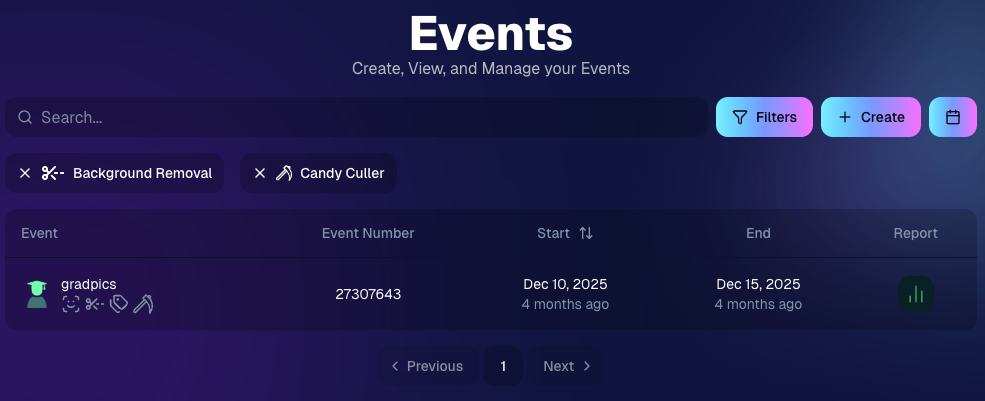
🔍 New Event List filters
The Event List page now includes quick filters for:
- Background Removal events
- JerseyJotter events
- Candy Culler events
🖼️ Offer background minimum lowered
You can now set your Offer background selection minimum to 5 (previously 20).
🚚 New flat-rate shipping option
Added $2.50 flat-rate shipping as an available shipping option.
📱 Mobile Dashboard
- Fixed an issue where Friday weekly sales notifications were not sending.
🏷️ New: Profile / Business Logos (Branding Upgrade)
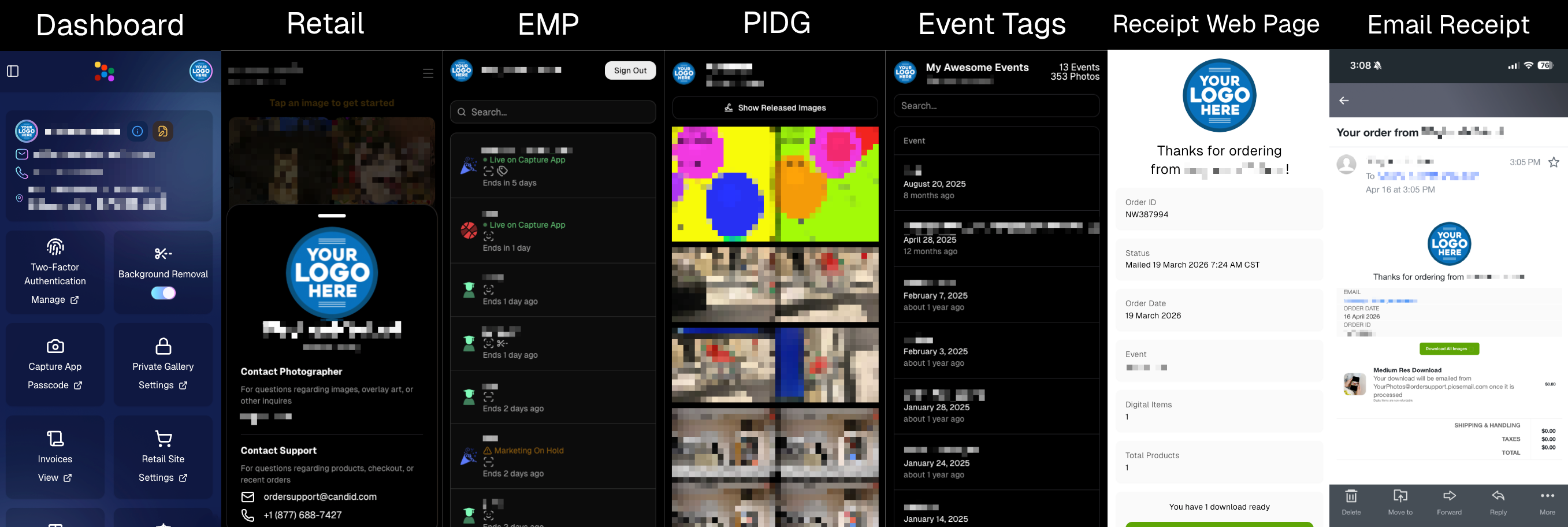
You can now assign a business/profile logo—upload to your profile icon on the dashboard as a 650×650 image and automatically cropped to a circle.
Where it appears:
- Dashboard profile page + navigation
- Retail contact popup above your business name
- Receipt emails, web receipt preview, and the web receipt download page
- Event Management Portal (EMP) header beside your business name
- Private Image Download Gallery (PIDG) header
- Public Event Tag List page header
More placements are planned in the future—this is the first step toward a more consistent, professional brand presence everywhere your customers interact with you.
🏷️ Event Tag List Page
- Improved UI for a cleaner, easier experience.
🔒 Private Image Download Gallery (PIDG)
- Improved UI
- Added a note to the landing popup regarding released images
🛍️ Retail Improvements (Big Week for Packages + Rendering)
🖼️ Captions render earlier for key products
Graduation Plaque and Titled Luxe Prints now render custom captions earlier in the process, rather than waiting until the captions step.
📦 Package configurator upgrades
The package configurator received several improvements:
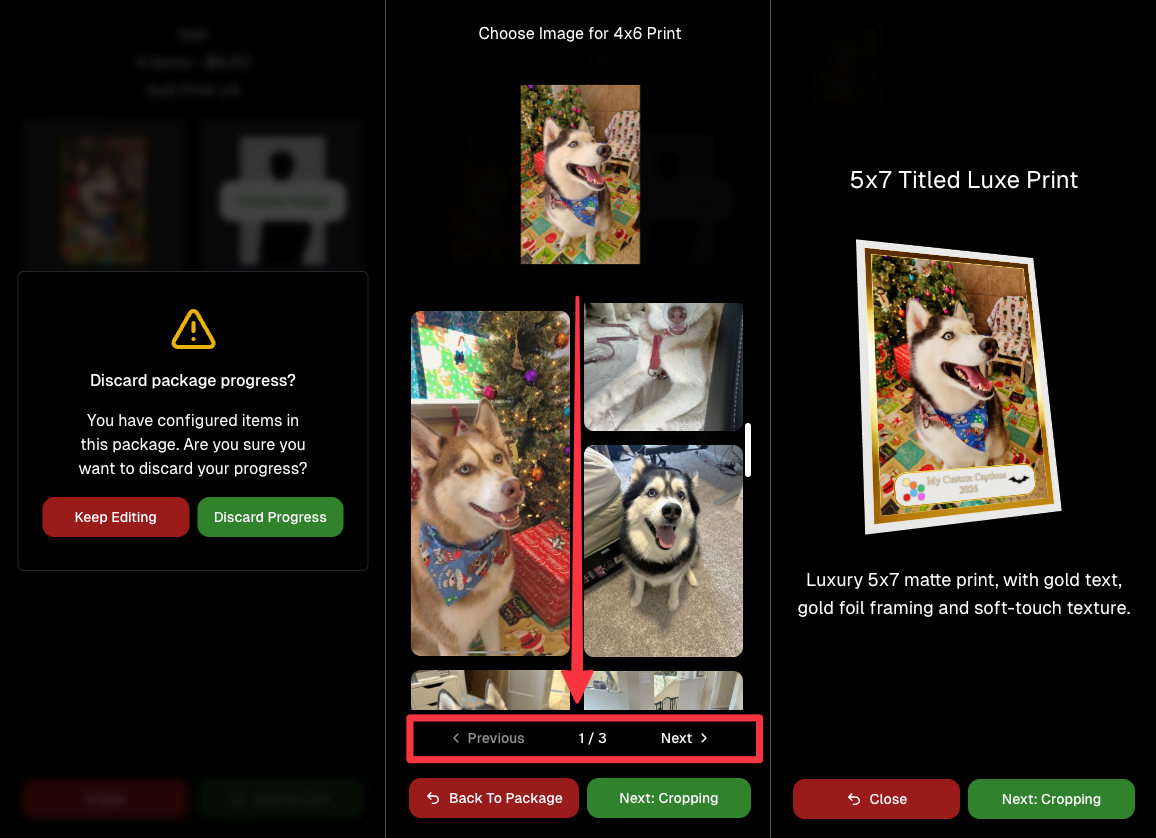
- Added pagination to the All Gallery tab in the “Next Package Item Image Picker” step
- Added a “Discard package progress?” popup when backing out after configuring at least one item to prevent accidental loss of progress
- Fixed an edge-case crash on mobile when configuring large packages in offers with 3D items
- Overall package configurating is now much more performant
🧩 Z-Crop improvements
Several improvements were made to ZCrop images to improve behavior and consistency.
🏷️ Group photo refresh fix
Fixed user-added dynamic gallery group photos showing as not group after refresh.
🎨 Background order consistency
Custom offer background order now matches the order in the offer details editor—drag and drop reordering on the dashboard offer editor.
📸 Capture App (iOS & Android OTA): 5.4.3 + 5.4.4
- 5.4.3: Fixed a crash when toggling a Group Photo without any service
- 5.4.4: Fixed a keypad popup issue on very large screens (like 13” iPad) where opt-in/cancel buttons were being cropped out
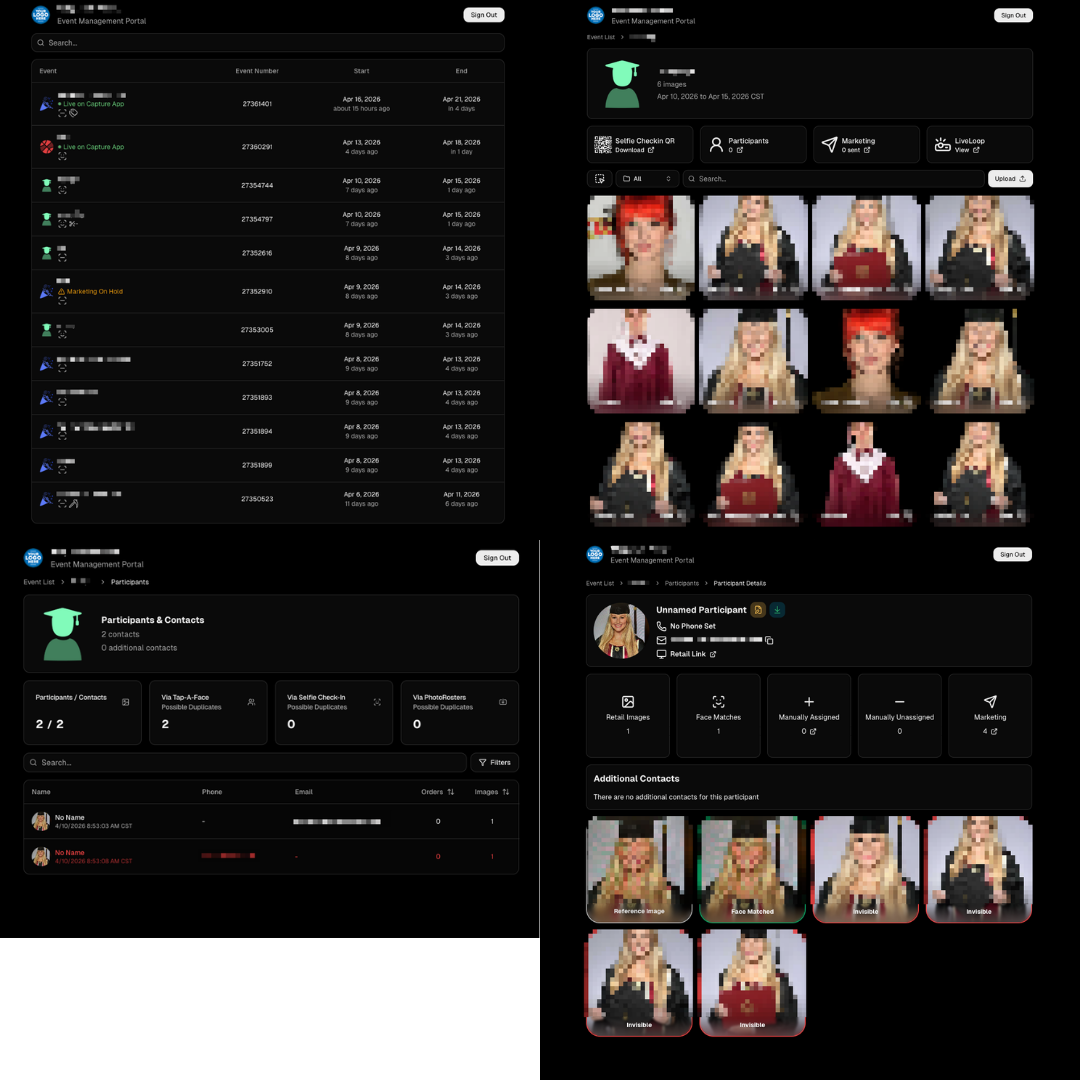
🧾 Event Management Portal (EMP) — Major Refresh (quic.pics/portal)
Quick reminder: the Event Management Portal (EMP) is a mini-dashboard on quic.pics that uses the Capture App login—so you can do “dashboard-like” tasks without downloading an app or using a full account login. It hasn’t been talked about much lately, but this week it got a big refresh in preparation for grad season.
What’s new:
- Improved security
- Tons of UI changes and a new dark-only theme
- Event list page now includes a search bar
- Event list page updated to “Live on Capture App” (instead of “Active”)
- Event list page shows attributes like the main Dashboard + adds an Event Number column
- Header now shows business name and logo
- Fixed a crash on the Marketing History page
- Added text/email filter on Marketing History
- Images now use lightboxes with arrow key navigation
- Participant Details now shows Additional Contacts
- Participant Details now shows Invisible images
That’s the week! 💫
Between profile/business logos, a smoother package configurator, better report accuracy, and the EMP glow-up for grad season, this update should help you move faster, look more professional, and reduce friction across the whole customer experience.
Keep creating magic,
— The NowCandid Team 🍬
.png)
.png)


.svg)


