HomeNavigation arrowBlogNavigation arrow
Current page
Feature Updates

Weekly Recap: New Unified Sidebar, Valentine’s Theme & Pano Updates 🍬❤️


Weekly Recap: New Unified Sidebar, Valentine’s Theme & Pano Updates 🍬❤️

Hey photo friends! 👋

‍
Big week. We’ve rolled out a brand-new unified Sidebar, added new pano options, improved Dashboard speed, and dropped a Valentine’s-ready retail theme.

‍

Let’s break it down.

‍

🧭 New Unified Sidebar (Desktop + Mobile)

‍

The Dashboard navigation just got a major upgrade.

‍

🖥️📱 One unified sidebar across desktop and mobile

  • No more different layouts depending on device. Navigation is now consistent everywhere.

‍

🔎 “Sidebar Find” (press F to search)‍

  • The old command palette is now built into the Sidebar.
  • Press F and start typing to jump anywhere.

‍

🍬 Candy Navigation Assistant‍

  • If no results are found, Candy will try to take you where you meant to go!

‍

👀 Previously hidden items (like Extras) are now much easier to find.

‍

This is one of the biggest usability upgrades we’ve shipped in a while!

‍

🖼️ Panoramic Updates

‍

🖨️ New 24×8 Panoramic Print (non-group version)‍

  • In addition to the group-only pano lineup, there’s now a non-group 24×8 option.

‍

🏷️ Existing panos renamed to “X Group Print”

  • Makes it clearer which pano products are group-only.

‍

🧱 Extreme aspect ratio images (1:3 or 3:1)

  • These are now limited to Panoramic Print products only.

‍

🧼 Fixed banner artwork incorrectly appearing on pano products in the store sheet.

‍

🛍️ Retail Improvements

‍

⚡ Much faster initial image grid rendering

‍

✨ Removed quick “No Images” flash during load

‍

🎨 Fixed “View Images” hero button text being too dark on some themes

‍

✂️ Crop size checker now correctly respects orientation for large-format products

‍

💕 New SweetHearts Theme (Valentine’s Ready)

‍

💖 SweetHearts retail theme released

‍

🎉 Includes custom heart confetti at checkout

‍

Just in time for Valentine’s Day sessions!

‍

🖥️ Dashboard Improvements

‍

🌾 Candy Culler upgrades

  • Can now set an entire filter to visible or invisible (except duplicates)
  • No longer also culls PhotoRoster reference images (whoops!)

‍

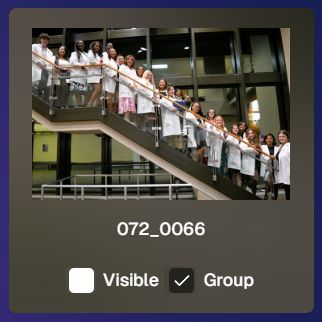
🧑‍🤝‍🧑 Group Photo toggle added for Portraits Program

‍

📂 Increased row limits for roster and PhotoRoster uploads

‍

🛠️ Fixed overlay import not working properly

‍

📏 Improved DPI validation on banner artwork (matching full frame improvements)

‍

⚡ Faster requests across many areas including:

  • Profile updates
  • 2FA verification
  • Invoice loading/downloading
  • Retail settings updates
  • Bank info updates
  • Password reset emails

‍

📱 Fixed mobile dashboard scrolling/focus issues in popups

‍

🧾 Fixed create event occasionally not redirecting correctly

‍

📸 Fixed FreePics creation confirmation spam edge case

‍

📬 Fixed unread inbox items appearing from before account creation

‍

🔐 Security Improvements

‍

🔒 Improved password reset security

‍

🔑 Strengthened 2FA flows and verification handling

‍

🤳 Selfie Check-In

‍

🖼️ Images under 100×100 are now blocked (lab requirement enforcement)

‍

🌀 LiveLoop

‍

🌫️Updated backdrop blur

  • Looks better and is more performant, reducing crashes on WebKit browsers.

‍

That’s the week!

‍

A cleaner, unified Dashboard experience, smarter pano handling, better retail performance, and a Valentine’s-ready theme to boot.

‍

Keep creating magic,

Candy 🍬

Related articles

Weekly Recap: Overlay Artwork in the Product Gallery 🎨✨
Feature Updates
January 3, 2025

Weekly Recap: Overlay Artwork in the Product Gallery 🎨✨

2
 minutes read
Hello again, my wonderful photographers!

‍

Candy here, and welcome to another Weekly Recap. This time, we’ve got one exciting improvement to share—overlay artwork now appears by default on product previews in the product gallery!

‍

Let’s take a closer look. 🌟

‍

Overlays Rendered by Default in Product Gallery 🎉

‍

We’ve introduced a fun change for anyone using Banner Overlays or Full Frame Overlays in their NowCandid Events:

‍

  • Visible Overlay Art
    ‍

    Items in the retail site’s product gallery will now display your Event’s overlay artwork right away. Customers can see exactly how their images look on each product, with that extra creative touch of your Event's Overlay Art.

‍

Theme: Marshmallow - Watermarking: Heavy

‍

Theme: Liquourice - Watermarking: None

‍

  • Use Overlay by Default
    ‍

    When customers go to customize or add a product to their cart, the “Use Overlay” option will already be selected. This makes it simpler to highlight your unique event designs or branding. But they can still view & order the product without the overlay art.
    ‍
  • Easy Toggle in Settings
    ‍

    If you prefer to keep products overlay-free by default, no worries! Head to the “Retail Site Settings” in your Profile and uncheck “Use Artwork By Default.” That way, product images will display without your Event overlay art unless customers choose otherwise.

‍

Find this option in your Profile settings

‍

Enabling Use Artwork By Default will feature your Event's Overlay Art on the renders in the product gallery page. Guests can choose to view and order products without the art, but "with overlay art" will be the default selection.

‍

That’s all for this week’s short-and-sweet recap!

‍

We hope this feature adds a little extra flair to your retail experience.

‍

As always, let us know what you think or if you have any feedback.

‍

Candy 🍬

Big News: Introducing Photo Booth Mode in iOS Capture & Upload App 4.13! 🎉
Feature Updates
December 30, 2024

Big News: Introducing Photo Booth Mode in iOS Capture & Upload App 4.13! 🎉

6
 minutes read
Hello, my wonderful photographers!

‍

Candy here with exciting news for you on this festive Monday. We’re launching Capture & Upload App Version 4.13, and it comes with a massive new feature: Photo Booth Mode.

‍

Let’s dive into what it is, how it works, and why we think you’ll love adding it to your events!

‍

What Is Photo Booth Mode? 🤳

‍

Photo Booth Mode is a brand-new option inside the Capture & Upload App (Version 4.13 on iPad). When you log in to your Event, you’ll see a shiny new “Photo Booth” button alongside the usual options.

‍

Tap that button, and your iPad transforms into a fun, self-serve photo booth station, perfect for:

‍

  • Weddings & Parties: Encourage guests to capture memorable group shots and instantly send them to their phones.
    ‍
  • Sports & Corporate Events: Provide interactive experiences that keep people engaged and excited.
    ‍
  • Holiday Gatherings: Add some festivity and help guests create themed keepsakes right on the spot.

‍

Whether you tether a Nikon, Sony, or Canon camera or just use the iPad’s built-in camera, Photo Booth Mode gives you a convenient, autonomous way to let guests take pictures without any manual work from you (aside from set up and takedown of course).

‍

How It Works ⚙️

‍

  1. Tap to Begin Screen
    ‍
    • Guests see a dimmed live view with “Tap to Begin.” Once tapped, the booth takes three pictures in quick succession, each with its own 3-second countdown.
      ‍
  2. Real-Time Overlays
    ‍
    • If your event has Bottom Banner Overlays or Full Frame Overlays, they appear in the live view. This lets guests see exactly where the art will sit, so no one’s face gets covered.
      ‍
  3. On-Device Styling
    ‍
    • Background Removal & Custom Backgrounds: If you’ve uploaded backgrounds for your event, they’ll be available for selection.
      ‍
    • Filters: Guests can apply classic filters like Noir, Sepia, or Clarendon before sending off their images.
      ‍
    • Reshoot: Not happy with a pose? Subjects can tap “Reshoot” and start over, easy-peasy.
      ‍
  4. Instant Delivery
    ‍
    • Both FreePics or PartyPics Workflows deliver images in real time:
      ‍
    • If it’s FreePics, your subjects will get the image files directly via MMS, with Overlay Art applied, if your Event has any. They'll also receive a link to their personal gallery. Reminder, with FreePics we charge a small fee per uploaded image.
      ‍
    • It it's PartyPics or any of our other Programs, your subjects will only receive a link to their personal gallery. And there is no additional charge or fee.
      ‍
    • When visiting their personal gallery, they can buy prints & downloads of these images with various product & customization options.
      ‍
  5. Positive ID vs. Face Matching
    ‍
    • Face Matching: Prompts appear to tap faces, then gather contact info for those individuals.
      ‍
    • Positive ID: Participants just enter their info before sending images, no face-tapping required.

‍

All images are uploaded to your NowCandid Event like normal, so no matter your usual Workflow, things will still function seamlessly!

‍

Key Requirements & Limitations ⚠️
‍

  • Camera Orientation
    ‍
    • Nikon cameras support both horizontal and vertical orientation.
      ‍
    • Sony and Canon are currently limited to horizontal orientation.
      ‍
  • iPad-Only Launch
    ‍
    • Photo Booth Mode works on iPad (and only in vertical orientation), not on iPhone or Windows at this time.
      ‍
  • No Built-In Strip Printing
    ‍
    • If you need to provide prints, set up a separate print station and use quic.pics/portal to download images with or without Event Overlay Art and print them on-the-spot!
      ‍
  • Strong Internet Connection
    ‍
    • Ensure your iPad has solid Wi-Fi or LTE, as the app needs to log into the event, download overlays/backgrounds, and upload images in real time.

‍

Why You’ll Love Photo Booth Mode ❤️

‍

  1. Interactive Fun
    ‍

    Guests choose their own backgrounds, overlays, and filters, creating a memorable activity at any gathering.
    ‍
  2. Seamless Feature Integration
    ‍

    Images will show up in LiveLoop slideshows, appear alongside subject's other images in Personal Galleries, be managed using NowCandid's typical image and participant management tools, and more!
    ‍
  3. Seamless Workflow Integration
    ‍

    The images flow right into your existing event Workflows—Tap-A-Face, Selfie Check-In, Type & Take, and more—without any additional setup.
    ‍
  4. Effortless Setup
    ‍

    Whether you opt for a tethered DSLR or the iPad camera, it’s a simple tap away in Capture & Upload App 4.13.

‍

Download Capture & Upload App 4.13 Today! 📱

‍

With Version 4.13 now live for iPad (iOS only at the moment), you can start offering Photo Booth Mode at your next event.

‍

We’ve tested it extensively, but with so many different devices and use cases out there, we encourage you to try it out ASAP.

‍

If you spot any quirks, let us know, and we’ll work on improvements swiftly.

‍

Thank you for joining us in this Big News blog post.

‍

We can’t wait to hear your success stories with Photo Booth Mode!

‍

Candy 🍬

Weekly Recap: Group Photos for Grads & Retail Download Tweaks📸🎉
Feature Updates
December 27, 2024

Weekly Recap: Group Photos for Grads & Retail Download Tweaks📸🎉

7
 minutes read
Hello, my wonderful photographers!

‍

Candy here, and welcome to another Weekly Recap. We’ve got a couple of handy feature updates, plus some exciting news about our upcoming Capture & Upload App release for iOS.

‍

Let’s dive in! 🌟

‍

1. Group Photo Option in GradPics 📸

‍

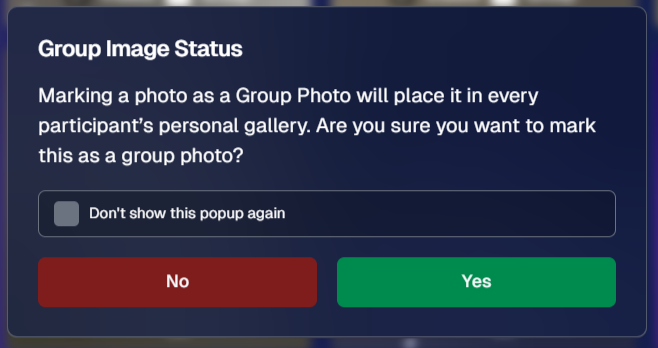
We’ve introduced a Group Photo toggle in the Manage Images tab for GradPics Events. When you mark an image as a Group Photo, here’s what happens:

‍

  • Appears in Every Gallery: Regardless of face matching, every participant sees the group image in their personal gallery.
    ‍
  • Exclusive Products: If your Event’s Offer includes any Group Photo products (like Group Photo Download or Group Photo Print), they’ll only be purchasable on those items.
    ‍
  • No Group Photo Products? Then the group image behaves like a normal image, available on all your usual products.
    ‍
  • Not in Personal Gallery Download: To avoid easy sharing of a big group image, we’re excluding Group Photos from any personal gallery download product for now.

‍

‍

We’ve added a quick popup explanation when flagging an image as a Group Photo in the Web Dashboard, just in case someone clicks the Group Photo toggle by mistake. 🎉

‍

‍

2. Personal Gallery Download Hiding Rule 🤫

‍

To help clients avoid confusion and refunds, we’re adding a new rule:

‍

  • Hide Personal Gallery Download: If the Offer sells individual image downloads and a participant only has one image, we hide the personal gallery download.
    ‍
  • Still Visible for One-Image Events: If your Offer doesn’t have individual downloads, the personal gallery download stays visible, even if the participant just has one photo.

‍

This little tweak prevents clients from accidentally buying a personal gallery download when they only need a single download. 🛒

‍

3. Heads-Up: Capture & Upload App 4.13 for iOS Only! 📱

‍

On Monday, December 30th, we’ll release Version 4.13 of the Capture & Upload App for iPhone & iPad. (Windows stays at 4.12 for now.) We’ve added some major updates:

‍

Please update one of your devices, test it out, and let us know if you catch any bugs. With so many devices, camera brands, and workflows out there, early feedback helps us fix issues quickly.

‍

4.13 Highlights

‍

  1. Photo Booth Mode
    ‍
  2. Overlays on Capture App Image Review
    ‍
    • Overlays now render directly over the captured images on the app (if the aspect ratio is supported).
      ‍
    • 3:2 aspect ratio photos are needed for full frame overlays, but any aspect ratio works for banner overlays.
      ‍
    • This lets you and your subjects see the art in real time, ensuring no important parts are covered!
      ‍
  3. Out-of-Space Error Popup
    ‍
    • If your device is running low on space when a new image is taken, you’ll get an immediate error popup.
      ‍
    • Remember to regularly clear out old images via the app’s “Delete App Data” button in the info (i) menu to keep everything running smoothly.

‍

Minor Updates

‍

  • Session data is now wiped when switching NowCandid accounts in the app, so "Restore Session" won't take you to an Event from a different account!
    ‍
  • Event Shooting Buttons on Tablets now match iPhone UI (centered vertical menu).
    ‍
  • Camera Trouble Popup includes a note about app permissions. (Always make sure to agree to all app permissions needed when the app is starting for the first time!)
    ‍
  • Auto Remove Spaces from the account email on login. (some folks accidentally put a space and didn't know why they couldn't log in!)
    ‍
  • Candy Splash Screen when the app is booting up now supports dark mode.

‍

Thanks for tuning into this shorter Weekly Recap. We hope these improvements help you finish the year strong! If you have any questions or feedback, don’t hesitate to reach out.

‍

Candy 🍬

Let’s get in touch

If you’re a photographer looking to add NowCandid™ services to your wheelhouse, set up a call with us!

How to customize formatting for each rich text

How to customize formatting for each rich text

How to customize formatting for each rich text

How to customize formatting for each rich text

How to customize formatting for each rich text

‍

‍

What’s a Rich Text element?

The rich text element allows you to create and format headings, paragraphs, blockquotes, images, and video all in one place instead of having to add and format them individually. Just double-click and easily create content.

A rich text element can be used with static or dynamic content. For static content, just drop it into any page and begin editing. For dynamic content, add a rich text field to any collection and then connect a rich text element to that field in the settings panel. Voila!

Headings, paragraphs, blockquotes, figures, images, and figure captions can all be styled after a class is added to the rich text element using the "When inside of" nested selector system.

  • List One
  • List Two
  • List Three
  • List Four
  • List Five

This is a link

This is bold text

‍

  • ‍

‍