HomeNavigation arrowBlogNavigation arrow
Current page
Feature Updates

Weekly Recap: More Virtual Group Control, New Sports Backgrounds & Better BGR Tools 🏈✨

Weekly Recap: More Virtual Group Control, New Sports Backgrounds & Better BGR Tools 🏈✨
Hey photo friends! 👋

Candy here with another weekly recap! This week brings more control to Virtual Group Builder, a much better home for Event Background Removal, new Candy Image Studio exposure tools, and—yes—27 new sports background sets. 😎

Let’s jump in!

🧑‍🤝‍🧑 Virtual Group Builder Additions

Ask and you shall receive... sometimes! We’ve gotten some good feedback on Virtual Group Builder, and this week several new controls are here to make layouts easier to fine-tune:

↕️ Force subjects onto different rows

  • While dragging a subject, new Add to Row buttons appear over the other rows. Drop the subject there to explicitly move them where you want instead of relying entirely on automatic placement.
  • Previously you were limited to automatically determined rows, you still have those but can now override them!

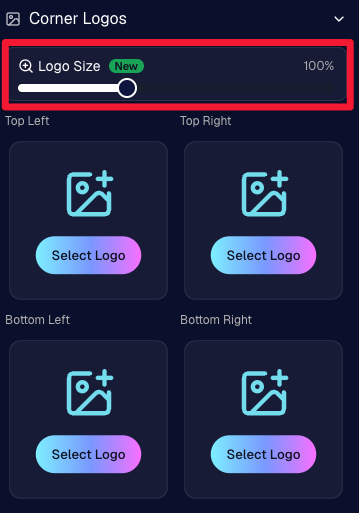
🔍 New logo size slider

  • Adjust your corner logos to be smaller or larger than the default.
  • Previously they could be considered a bit tiny, but this gives you a bit more control!

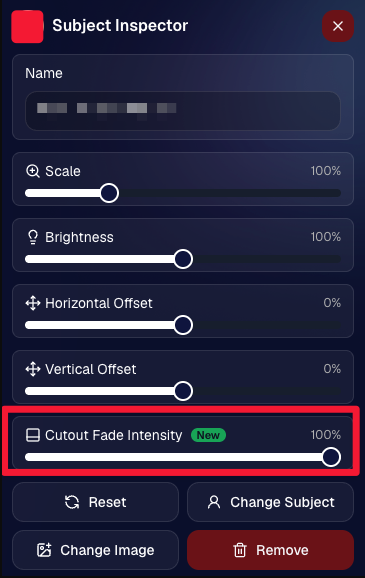
🌫️ Individual cutout fade control

  • The Subject Inspector now has its own cutout fade intensity slider, separate from the global setting, so you can fine-tune individual subjects when needed.
  • This will let you tweak the cutout fade intensity for subjects in the front row or on the sides of the virtual group, in case you're wanting a very specific look.

👥 Smarter merged-participant image selection

  • The Subject Image Picker will only show images from merged participants when they share the same name.
  • This typically does not matter, but in the case of a parent doing a Selfie Check-In of themselves and then of their child later, this will keep Virtual Groups working as expected!

Just a few additions, but very useful ones when you’re trying to get a Virtual Group looking just right!
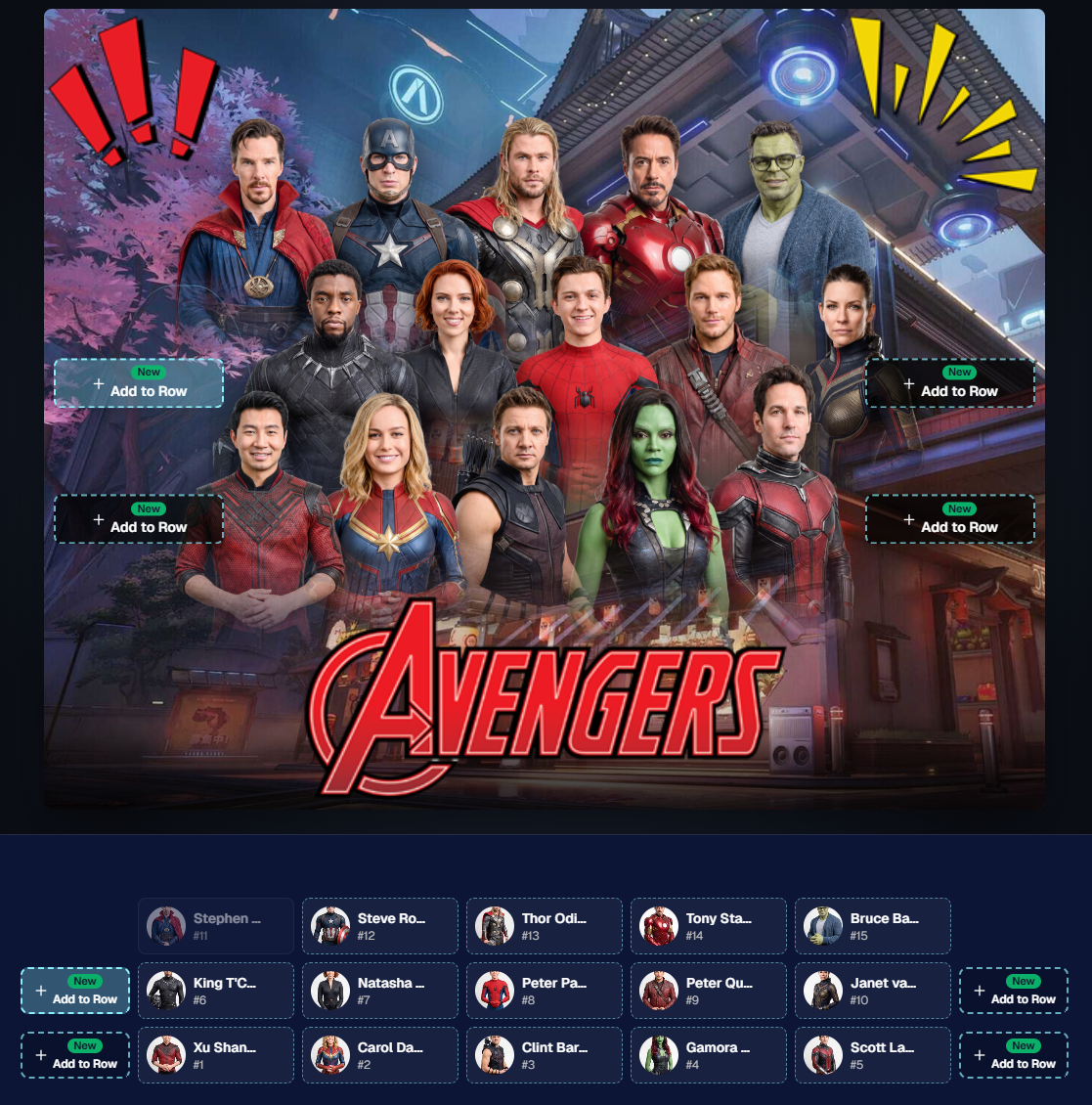
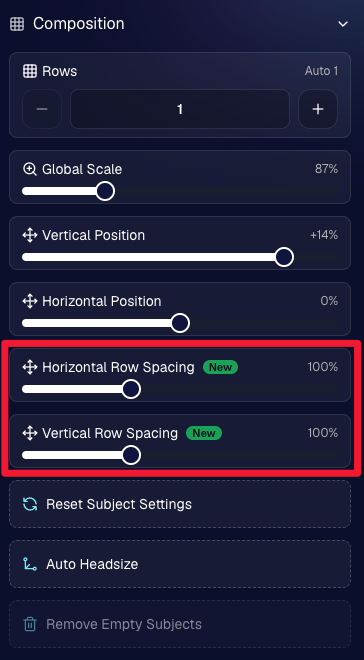
Drag and drop subjects into other rows for more control than ever!

New options to more quickly space out your subjects!

When viewing subject details, adjust them by individual!

Control the size of your logos!

🏈 27 New Sports Background Sets

Alright, shoutout to the random guy who told me (me being Candy, in case you forgot!) that he didn’t like the backgrounds. We heard you! 😂

This week we’ve added 27 new sets of sports backgrounds, including a brand-new Sports – Locker Room background category.

And, in case you missed it, last week we also added an AI Background Generator so you can create entirely new, modern backgrounds of your own.

A quick reminder... you already have a lot of control over which backgrounds your customers actually see:

🎨 Edit the default backgrounds in your Offers

📤 Upload your own custom backgrounds at both the Offer-level and Event-level

🤖 Generate new backgrounds of your own with AI

🏈 Choose from our (now growing) collection of built-in choices

We have a TON of default backgrounds—and yes, many have been around for a while—but you’re never locked into using them. You can build your own look for your business, and we’ll keep adding new options over time too.

✂️ New Dedicated Background Removal Page

Event Background Removal now has its own dedicated Dashboard page, accessible from the Event Sidebar. It is not longer just a popup!

The BGR toggle on Event Overview will take you there too, giving all of these controls a little more breathing room.

On the new page, you can:

✅ Enable or disable Background Removal

🖼️ Manage your Event Backgrounds

🎨 See your Offer Backgrounds with a direct link to the Offer

📊 See how many cutouts have finished and how many are still processing

⏳ Watch a live progress bar while Background Removal is working

📂 See all valid Event folders and which ones are marked for Background Removal

And if your Event is a new Event: ✂️ You can mark an existing folder for Background Removal even if it already contains images!!!

🎨 Candy Image Studio: Better Exposure Fixes

🌙 New Fix Underexposure node

  • Helps recover images that came out too dark.

☀️ Fix Overexposure greatly improved

  • The existing overexposure tool has been reworked for more reliable results.
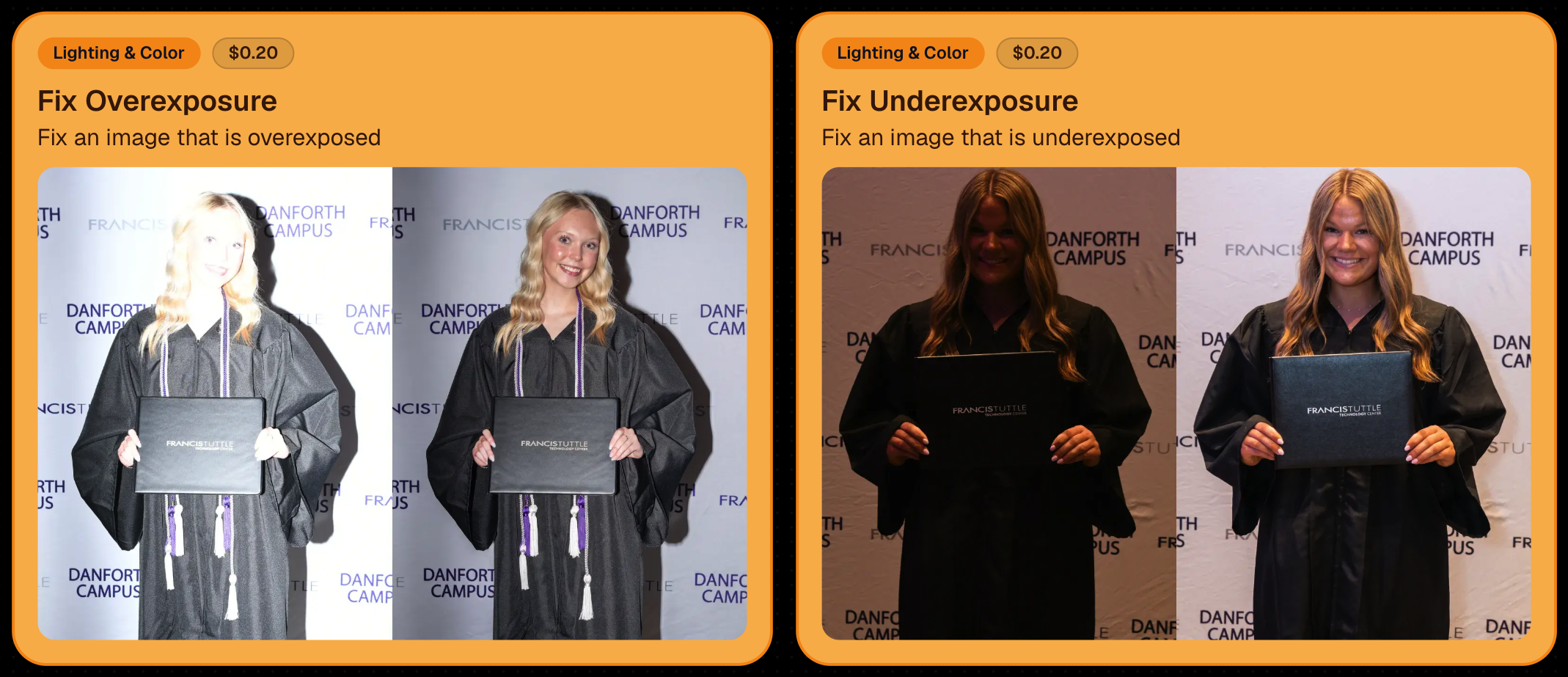
Utilize Candy Image Studio to fix images so they can sell, quickly and affordably!

🏈 Jersey Jotter Progress Tracking

New Jersey Jotter progress bar

  • When Jersey Jotter is active and still has unprocessed images, its dedicated page now shows processing progress—similar to Candy Culler and the new Background Removal page.

This makes it much easier to tell whether recognition is still working through a large Event.

🛍️ Retail Improvements

Titled Luxe Prints now work with package prefill

  • Packages can now automatically prefill eligible Titled Luxe Print products just like other supported products.

🖼️ Titled Luxe Print package rendering fixed

  • Fixed an issue where these products could render incorrectly inside packages.

🤖 AI-generated backgrounds now render correctly on products

🎨 Selected backgrounds now stay visible through the final product step

  • Fixed an issue where the chosen background could sometimes disappear on renders when reaching quantity and finish steps.

📝 Several product descriptions updated

  • Some product descriptions have been refreshed for better clarity.

🖼️ AI Edit + BGR Assignment Fix

👥 BGR versions of AI edits now keep direct participant assignments

  • If the original non-AI image was directly assigned to someone, its Background Removed AI-edited version will now correctly inherit that relationship.

📦 Order Details Fix

📝 Package captions now display correctly

  • Fixed cases where Order Details did not show caption information for certain products contained inside packages.

📱 Capture App 5.9.1 – iOS OTA

📸 Photo Booth fix for iPad

  • Fixed the Photo Booth gallery strip being cut off on certain iPad models.

That’s the week!

More Virtual Group control, a much stronger Background Removal workflow, some useful exposure tools, and plenty of fresh sports backgrounds to work with.

And if you still don’t like the backgrounds... now you’ve got plenty of ways to show us how it’s done. 😉

Keep creating magic,

Candy 🍬
Related articles

Weekly Recap: A Slicker Image Details Page & Some Nice Quality-of-Life Upgrades📸
Feature Updates
June 13, 2025

Weekly Recap: A Slicker Image Details Page & Some Nice Quality-of-Life Upgrades📸

4
 minutes read
Hey friends, Candy here!

This week we’ve got a shiny new Image Details page, some small but mighty tweaks across the board, and a handful of fixes to make your dashboard life just a bit smoother.

Let’s take a peek! 👀

🌟 Brand-New Image Details Page!

Your favorite behind-the-scenes image panel just got a makeover—and it's so much faster now! Whether you’re digging into face match data or reviewing contact info, everything’s loading snappier and more clearly than ever.

You’ll notice:

  • • Cleaner layout 🧼
  • • Larger image preview
  • Speedy load times ⚡
  • Better organization of metadata 🗂️

Details, Participants, and Logs have also been split into three distinct tabs!

Go ahead, give it a click from the Manage Images page or a Participant's Details page!

You can even hover highlighted faces with your mouse to view attached Participants!

In case you need to know how to get to the Image Details page!

🔧 Misc Changes & Improvements

Some smart, helpful little tweaks that add up to a smoother experience:

  • 🔗 Image Details links added to image previews on the Participant Details page (because shortcuts are life).
  • 🖼️ Free Download / Medium-Res Download for QuicPics™ Events are now set to a 2:3 aspect ratio—perfect for showcasing your 2:3 Full Frame overlay art!
  • 📦 Better retail display for big packages: Packages with 5+ items are now prettier, yay!

A look at the new 5+ Item Package graphic! Retail Theme: Liquorice - Event Program: QuicPics

  • 🎯 Face Matching Confidence level is now selectable during Event Creation, not just after. Set your confidence from the start!
  • 🛡 GalleryGuard™ has been updated to work even on iOS 26. The screenshots stay black. The images stay safe.

🐛 Bug Fixes

A few pesky things we squashed this week:

  • 🚫 The Unassigned Images count no longer includes BGR cutouts that have already been matched. More accurate image management FTW.
  • 🔄 Some Events were having trouble loading the Manage Images page. That glitch has now been zapped. 💥

That’s all for now!

Be sure to check out the new Image Details page, and if you haven’t yet, try out GalleryGuard™ on your own iOS device—it’s basically wizardry. 🧙‍♂️

Until next week,
💖 Candy

Weekly Recap: Longer Face Matching™, New PhotoRoster Tools & Retail Tweaks!🗓
Feature Updates
June 6, 2025

Weekly Recap: Longer Face Matching™, New PhotoRoster Tools & Retail Tweaks!🗓

5
 minutes read
Hey friends! 📸

Candy here with another round of updates from the NowCandid™ world.

This week brings big improvements for Face Matching™ Events, new ways to re-use your check-ins across Events, and a couple of helpful tweaks to the retail site and image management tools.

Let’s dive in! 👇

⏳ Face Matching™ Now Lasts 60 Days!

That’s right—your Face Matching™ window has now doubled from 30 to 60 days from your Event's Start Date! 🙌

This means even more time for:

  • • Late uploads to still get matched 🔄
  • • Schools to send out the Selfie Check-In™ link after the Event 📬
  • Stragglers to find their photos 🧍‍♀️🧍‍♂️🧍

But here’s your friendly reminder: the faster you upload, the better your sales! 🏃‍♂️💸

📸 Every image uploaded goes through:

  • • Exposure correction automatically
  • • Optional cart-wide light retouching for customers
  • • Manual review for print color accuracy
  • • Intuitive cropping tools for end users

So don’t sit on your images to batch-edit them all—uploading sooner = more sales.

Every day that passes = potential sales slipping by. Speed matters!

🔁 Create PhotoRosters™ from Selfie Check-Ins!

This one’s a fun one for graduation season! 🎓

Now you can create a PhotoRoster™ directly from the Selfie Check-Ins™ of a previous Event.

Here’s why it’s awesome:

  • • Ran a great Prom with tons of Check-Ins? ✅
  • Reuse that same data to auto-create your graduation PhotoRoster™! 🎓
  • If participants Check-In again or get added via Tap-A-Face™, NowCandid™ automatically merges based on contact info = no duplicate galleries, no confusion!

Perfect for client relationships where you cater to all of their school's Events!

🧰 Misc. Improvements & Fixes

A few extra goodies for your workflow this week:

  • 🔠 New image name sort option on the Manage Images page (great for keeping sequences clean).
  • 📲 Prominent Selfie Check-In™ button added to All Images galleries (so folks can find their pics even faster!).
  • 🧾 A “non-refundable” tag has been added to the shopping cart & receipt for digital items to help set better expectations.
    • (Digital photography = no take-backs! This helps avoid confusion.)

That’s all for now! 🎉

If you have any questions about the new features, you can always reach me from your dashboard! 💬

See you next week for more enhancements and pro tips!

Cheers,

Candy

Weekly Recap: Easier Shopping, Bilingual Check-Ins & More!
Feature Updates
May 30, 2025

Weekly Recap: Easier Shopping, Bilingual Check-Ins & More!

2
 minutes read
Hey there! 👋

Candy here with your weekly dose of NowCandid™ updates!

We’ve rolled out some helpful new features to make check-ins smoother, shopping more intuitive, and checkouts faster. Let’s take a peek! 👀

🌍 ¡Check-In en Español!

We’ve added Spanish language support for all customer check-in pages, including:

  • • Selfie Check-In™
  • • Simple Check-In
  • • Scan Card Check-In

The system will auto-detect the user’s browser language and serve the Spanish version when appropriate.

More languages are planned in the future, so stay tuned! 🌐

Bonus: We also have added Spanish versions of the Privacy Policy & Terms of Use for end customers to use!

🛍 Easier Package Shopping 🖼️

Package selection just got a serious upgrade! 🎁

When a customer is picking images for each item in a Package, they’ll now see:

  • • Tabs to toggle between All Images and their Personal Gallery
  • • Pagination to easily flip through the All Images Tab

This is especially useful when customers are shopping for Packages directly from a link to the All Images Gallery — now it’s easier to browse and find their perfect shot! 💫

🛠 Miscellaneous Fixes & Tweaks

Here’s a quick roundup of other small (but mighty!) improvements this week:

  • 🏷️ Empty PhotoTags™ no longer appear on the retail site — cleaner and simpler for your customers!
  • 💸 Venmo now shows up more consistently as an express checkout option.
  • 📅 Interested in attending Summer Seminar 2025 in OKC? Head to the Profile Page in your dashboard for the invite and sign-up link!
  • 🐞 Tons of small bug fixes and polish across the platform. We’re always working to keep things speedy, intuitive, and delightful!

See you next week with more exciting improvements!

As always, if you need anything — just ask me!😄

Cheers,

Candy

Let’s get in touch

If you’re a photographer looking to add NowCandid services to your wheelhouse – set up a call by clicking the button below.

How to customize formatting for each rich text

How to customize formatting for each rich text

How to customize formatting for each rich text

How to customize formatting for each rich text

How to customize formatting for each rich text

What’s a Rich Text element?

The rich text element allows you to create and format headings, paragraphs, blockquotes, images, and video all in one place instead of having to add and format them individually. Just double-click and easily create content.

A rich text element can be used with static or dynamic content. For static content, just drop it into any page and begin editing. For dynamic content, add a rich text field to any collection and then connect a rich text element to that field in the settings panel. Voila!

Headings, paragraphs, blockquotes, figures, images, and figure captions can all be styled after a class is added to the rich text element using the "When inside of" nested selector system.

  • List One
  • List Two
  • List Three
  • List Four
  • List Five

This is a link

This is bold text