HomeNavigation arrowBlogNavigation arrow
Current page
Feature Updates

Weekly Recap: Faster Virtual Group Creation, New Candy Image Studio Tools & Capture App 5.7 Updates ✨📸

Weekly Recap: Faster Virtual Group Creation, New Candy Image Studio Tools & Capture App 5.7 Updates ✨📸
Hey photo friends! 👋

‍

Candy here with another weekly recap! This week brings some great upgrades to Virtual Group Builder, new Candy Image Studio tools, better Docs search, and a solid Capture App update with helpful color profile and PhotoTag improvements.

‍

Let’s take a look!

‍

🧑‍🤝‍🧑 Virtual Group Builder Improvements

‍

Virtual Group Builder got a nice set of workflow upgrades this week:

‍

🏷️ Create Virtual Groups directly from PhotoTags‍

  • On the PhotoTags page, click Create under the VGroup column to automatically start a new Virtual Group using participants from that PhotoTag. You’ll also get a popup asking whether to use each participant’s first or last cutout.

‍

🚀 Save works-in-progress with placeholders‍

  • You can now save changes to a Virtual Group even if some subjects still have spaceman placeholders.
  • All subjects still need a selected photo before uploading the finished Virtual Group to the Event.

‍

🖼️ Overlay uploads can now be named‍

  • When uploading overlays, you can name them so they’re easier to search and find later.

‍

🔤 More control over subject name styling‍

  • Title Case is now only applied on import, meaning you can use the subject inspector to customize name casing afterward.

‍

📐 New text display option‍

  • There’s a new Display setting to disable justified text.

‍

🌫️ Bottom Vignette improvements‍

  • Bottom Vignette rendering has been reworked for better results.

‍

🔎 More flexible scaling‍

  • Max global scale is now 200%.

‍

🎨 Candy Image Studio: New Editing Nodes

‍

Candy Image Studio has two new tools to help clean up common image issues:

‍

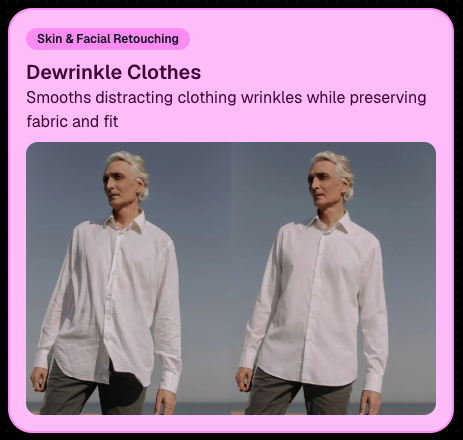
👔 Dewrinkle Clothes‍

  • Helps smooth distracting clothing wrinkles while keeping the image natural.

‍

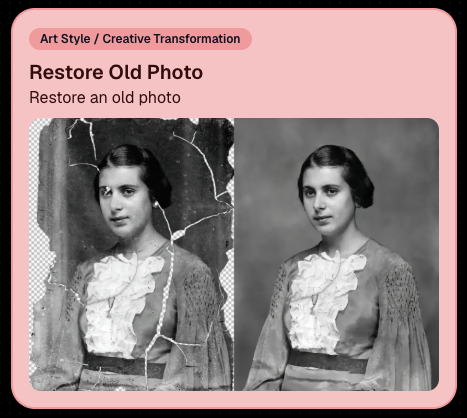
🖼️ Restore Old Photo‍

  • A new restoration-style node for improving older or damaged images.
‍

‍

‍

📱 Capture App 5.7 Updates

‍

App Store update released Monday, June 22

‍

Capture App 5.7 includes some meaningful workflow and compatibility improvements:

‍

🎨 Automatic sRGB conversion‍

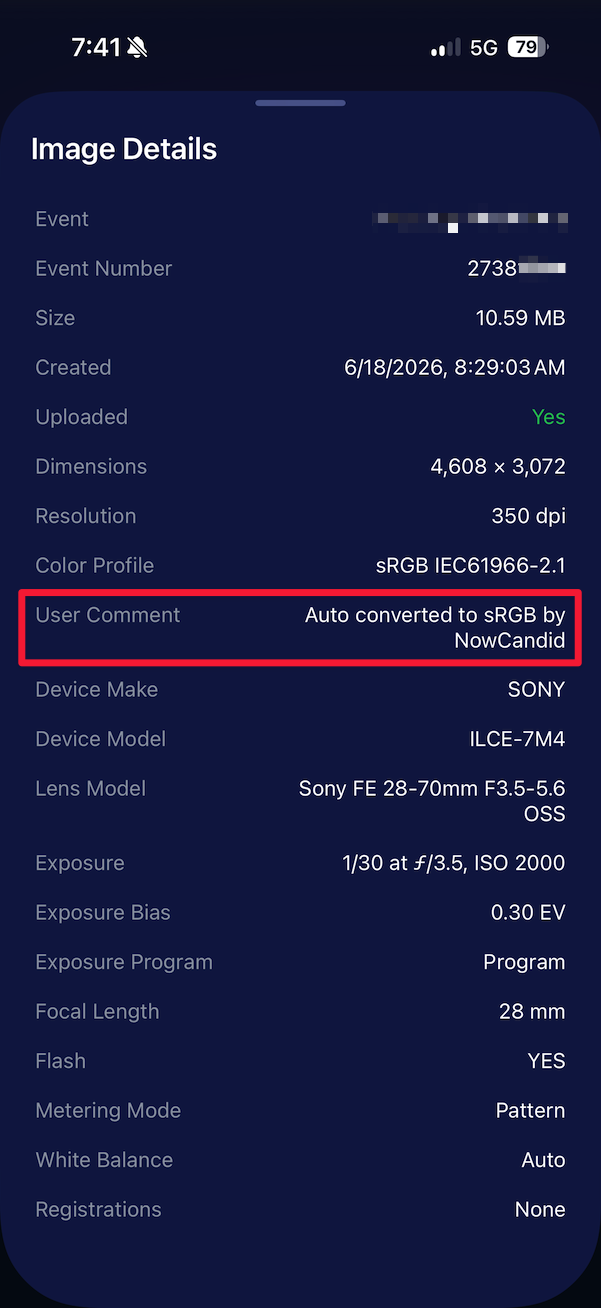
  • If an image is detected as non-sRGB, the app will now try to automatically convert it to sRGB. If it can’t, you’ll still get the existing invalid color profile warning.
  • This can be especially useful for black-and-white shooting modes that output a different color profile. That said, we still recommend shooting in sRGB whenever possible, since conversion can cause some color loss and may use extra battery during long sessions.

‍

🧾 User Comment shown in EXIF details‍

  • The image gallery details popup now shows EXIF User Comment data, including whether an image was auto-converted to sRGB.
‍

‍

✂️ BGR visibility sync‍

  • Visibility changes in BGR folders now affect the cutout too. Mark the original hidden, and the cutout will hide; mark it visible again, and the cutout becomes visible as well.

‍

🏢 Business logo support‍

  • Your business/profile logo now appears in the Capture App header when available, and can replace Candy in Photo Booth.

‍

⚙️ Contact collection settings moved‍

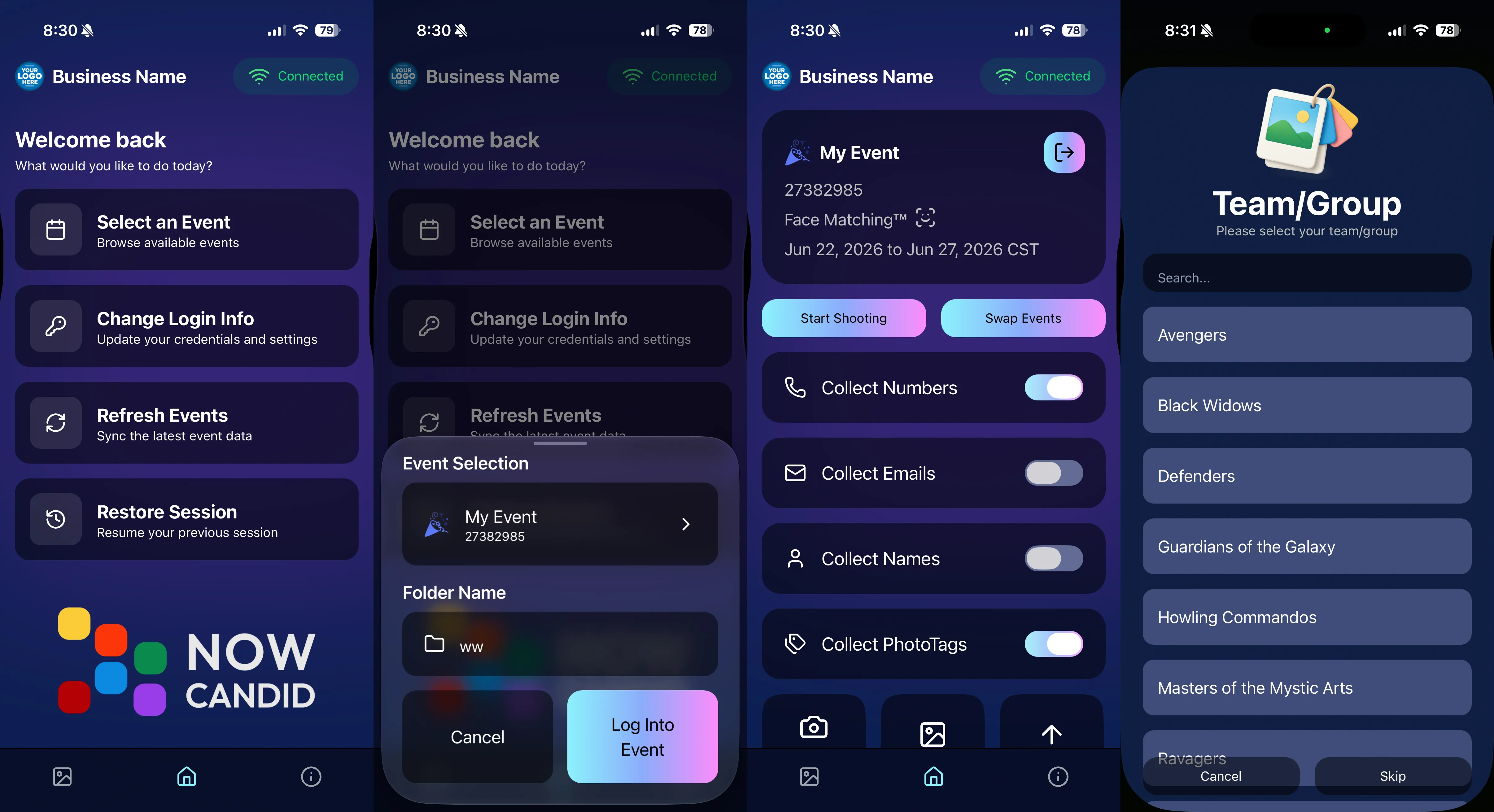
  • Number, email, and name collection settings now live on the Event Overview instead of the Event login sheet, so you don’t need to re-log to change them.

‍

🏷️ Event picker shows PhotoTag attribute‍

  • If an Event has PhotoTags, the Event picker now makes that easier to spot.

‍

📱 Android UI fixes‍

  • Fixed several label cutoff issues for Android users with Bold Text enabled.

‍

🔁 Restore Session fix‍

  • PhotoTags now load properly when an Event is opened through Restore Session.

‍

🎨 Adobe RGB handling fixed on Android‍

  • Android devices will no longer incorrectly accept Adobe RGB images from cameras.

‍

🍎 iOS 27 support tested‍

  • iOS 27 has been tested, and no issues were found. The app also respects the latest Liquid Glass device settings.
  • If you update your device to a beta version of iOS 27, let us know if you experience issues!

‍

🏷️ Collect PhotoTags during check-in‍

  • Participants can now select their own PhotoTag, such as team name, before entering contact information. This option appears when the Event has PhotoTags.
  • We added this primarily to assist photographers in easily tagging late additions not on a roster that show up to a photoshoot, but there will be additional features for action photography in next week's update!
‍

‍

📱 Capture App 5.7.1

‍

OTA update released Friday, June 26

‍

🛠️ Miscellaneous UI fixes‍

  • A small OTA update with additional interface polish and cleanup.

‍

🖥️ Dashboard Improvements

‍

🔎 Docs Search is here‍

  • Click Search on the Docs page to search NowCandid documentation, with Candy navigation agent support.

‍

📂 PhotoRoster image name cleanup‍

  • PhotoRoster data file uploads and image uploads now automatically remove spaces and certain special characters from image names.

‍

🖼️ Full-frame overlay previews are downloadable‍

  • In the Image Overlay Editor, full-frame example render previews can now be downloaded just like banner previews.

‍

🛍️ Retail Update

‍

🪟 Better desktop popup behavior‍

  • On desktop, retail popups now automatically become scrollable if the popup is taller than the viewport height, matching Dashboard behavior.

‍

📣 Marketing Fix

‍

✉️ Email campaigns fixed for email-only PhotoRoster participants‍

  • Fixed an edge case where email-only PhotoRoster participants were not having their email campaigns start.

‍

That’s the week!

‍

From faster Virtual Group setup to better PhotoTag collection in the Capture App, these changes should help make your Event workflows more flexible and easier to manage.

‍

Keep creating magic,

Candy 🍬

Related articles

NowCandid 101: The Capture & Upload App
NowCandid 101
December 5, 2023

NowCandid 101: The Capture & Upload App

8
 minutes read
Capture & Upload Quick Bullet Points:

‍

‍

Hello there photo wizards, Candy here! 📸

‍

It's time for another session of NowCandid 101. Today, we're diving into the Capture & Upload app. Whether you're a seasoned pro or new to the NowCandid universe, understanding this tool is key to utilizing NowCandid effectively.

‍

‍The Two Primary Functions of the Capture & Upload App:

‍

Tethering and Uploading:
‍
  • The device running the Capture & Upload app tethers to your Nikon, Sony, or Canon cameras.
    ‍
  • Images are uploaded to the cloud as you take photos, ready for immediate marketing and sales. 🌐💫
    ‍
  • This not only boosts sales, but also cuts down on post-event workload, and enhances your customer experience.
    ‍
Workflow Wizardry:
‍
  • The app is the backbone of specific NowCandid Workflows like Tap-A-Face, Scanner ID, Name Lookup, or Type & Take.
    ‍
  • It pairs photos with your subjects, ensuring every photo finds its way to the right phone or inbox, right away. 📲
    ‍

Platform Availability and Recommendations:

‍

  • You can find the app on both Apple and Microsoft App Stores.
    ‍
  • Whether a Microsoft Surface Go 3, or an Apple 10th Generation iPad, the app functionality is essentially the same - though the Apple experience may be a bit more consistent.
    ‍
  • Compatible with iPads, iPhones, and Windows tablets (like the trusty Surface Go 3).
    ‍
  • A pro tip: Opt for an LTE-enabled device to stay connected and upload images in real-time, saving you from poor venue WiFi quality and troublesome WiFi hotspots. 🌍✨

‍

Optional but Optimal for Selfie Check-In:

‍

  • Using the Selfie Check-In Workflow? The app here is optional but highly recommended.
    ‍
  • It allows for live-uploading, adding an extra layer of efficiency. However, you can also choose to upload images post-event using the NowCandid Web Dashboard. Once uploaded, images match with Selfies and begin marketing right away.

‍

‍In the dynamic world of event photography, staying ahead is all about using the right tools effectively.

‍

The Capture & Upload app is one such tool, designed to make your work easier, faster, and more profitable. So why wait? Embrace the future of photography with NowCandid’s Capture & Upload app, and watch your business soar! 🚀🌟

‍

That's it for today's NowCandid 101. Stay tuned for more tips, tricks, and insights to keep your photography business on the cutting edge. Links to view the app store pages for each version of the app can be found below:

‍

Download the App (Windows)

‍

‍‍Download the App (Apple iOS)

Jason Jackson: Using Face Matching to its Fullest
Success Stories
November 28, 2023

Jason Jackson: Using Face Matching to its Fullest

6
 minutes read

‍‍Welcome to another inspiring success story from the world of NowCandid!

‍

In this feature, we're shining the spotlight on Jason Jackson, a talented photographer based in Texas.

‍

Jason Jackson of TSS Photography

‍

Jason's recent venture at a collegiate ring ceremony using NowCandid's GradPics Now Program and Selfie Check-In Workflow showcases the transformative power of our platform in the realm of event photography.

‍

The Numbers

‍

‍Jason Jackson's latest Event, a collegiate ring ceremony, has been a resounding success. Utilizing the GradPics Now Program alongside the Selfie Check-In Workflow, he managed to generate an impressive $5000 in sales with 122 participants, all within just two weeks of the Event!

‍

This feat translates to an average of over $39 in sales per participant, all while earning an outstanding 78.8% profit margin as well.

‍

The Power of More Photos

‍

Something that played a part in Jason's success was how many photos he took – well over 2000! For only 122 participants!

‍

Taking a higher number of photos correlates strongly with increased sales, and Jason's recent experience backs up that idea even more.

‍

Jason elaborated, "Our key takeaway: taking more pictures significantly boosts sales. The broader the selection, the more they're inclined to purchase!"

‍

His conclusion is clear – a wider range of images encourages more (and larger) orders, a concept NowCandid's Face Matching technology effortlessly supports by accurately pairing each photo with the right individual, allowing you (the photographer) unlimited freedom to take as many photos as you want.

‍

Multiple poses, family photos, portraits, even shots of your subjects in action! No matter how many photos you take of your subjects, NowCandid's Face Matching has you covered.

‍

Family Photo Station Enhances Sales

‍

‍Jason's introduction of a family photo station also proved to be a strategic move in maximizing sales. This approach demonstrates how creative thinking and adapting to circumstances can substantially elevate sales performance in Event photography.

‍

"We adapted to rain at the event by moving the family photo station indoors during the morning session," Jason explained. "The decision to retain this setup for the afternoon significantly boosted overall participation."

‍

Embracing Opportunities with NowCandid

‍

‍Jason Jackson's story is a powerful story of the potential that new innovations in photography sales have brought about. It also exemplifies how leveraging NowCandid's tools and features can transform standard Events into even more lucrative opportunities for photographers.

‍

For more insights and success stories from the world of NowCandid, stay tuned!
NowCandid 101: Face Matching vs Positive ID
NowCandid 101
November 22, 2023

NowCandid 101: Face Matching vs Positive ID

6
 minutes read

Hello there, Candy here!

‍

Welcome to the first entry in our "NowCandid 101" series! Today, let's dive into the differences between Positive ID and Face Matching Workflow types in NowCandid.

‍

Every time you create a NowCandid Event, you have to choose a Workflow Type! The two options are Face Matching, and Positive ID.

‍

NowCandid has 6 Workflows, that can be split into two categories.

‍

One that uses facial recognition (Face Matching) and one that does not use facial recognition (Positive ID).

‍

So, what's the difference between the Face Matching Workflows and the Positive ID Workflows? Let's get into it.

‍

Face Matching Workflows 🤖

‍

What Are They?

‍

‍Face Matching Workflows consist of Selfie Check-In, Tap-A-Face, and FaceMatch Import. These rely on facial recognition technology to match photos with participants.

‍

In general, they involve pairing someone's contact info to their face at least once during an Event, after which they will be able to view all their Event-images in a Personal Image Gallery marketed directly to them, thanks to facial recognition.

‍

How Do They Work?

‍

‍With Tap-A-Face, faces are tapped post-photo on a device, linking to the subject's contact info.

‍

Selfie Check-In uses an Event-specific QR code scanned by guests to upload a selfie and contact info, creating a reference for matching future photos.

‍

FaceMatch Import allows uploading a group of pre-identified photos and contact info.

‍

‍

Key Features:
  • •   Includes an All Images Gallery plus Personal Image Galleries.
  • •   Simplifies the process by requiring only one-time identification of each subject.

Positive ID Workflows 🆔

‍

What Are They?

‍

‍Positive ID Workflows include Scanner ID, Name Lookup, and Type & Take. These Workflows do not use facial recognition. Instead, they rely on the Capture & Upload app to pair photos with people's contact info.

‍

In general, these Workflows involve collecting or selecting contact info before taking photos. Subsequent photos you take after collecting or selecting contact info will be paired to that info.

‍

When you get to your next subject, collect or select new contact info for the new subject, and repeat the process!

‍

How Do They Work?

‍

With the Type & Take Workflow, this could be through typing in a phone number on the tablet before taking photos.

‍

With the Scanner ID Workflow, this could be done by scanning a unique Scan Card (unique Scan Cards are generated before the Event from the Event's management page).

‍

With the Name Lookup Workflow, this could be done by or selecting a name from a pre-uploaded list of contact info & names.

‍

‍

Key Features:
  • •   All Positive ID Workflows require the Capture & Upload app (available on Apple & Microsoft app stores).
  • •   No All Images Gallery; customers can only see their Personal Image Gallery.
  • •   Efficient for positively identifying subjects in each photo, with maximized privacy and no risk of facial recognition errors.

Choosing the Right Workflow 🤔

‍

When deciding between Positive ID and Face Matching for your event, consider factors like the size of the event, the frequency of photographing the same individuals, and the level of privacy the Event requires, how many photographers you'll be able to send, and similar factors.

‍

Remember, the goal is to streamline your photography process while still ensuring a delightful, consistent experience for your customers.

‍

Stay tuned for more entries in the "NowCandid 101" series!

‍

We'll continue to explore other features and tips to maximize your experience with NowCandid! 🌟

Let’s get in touch

If you’re a photographer looking to add NowCandid™ services to your wheelhouse, set up a call with us!

How to customize formatting for each rich text

How to customize formatting for each rich text

How to customize formatting for each rich text

How to customize formatting for each rich text

How to customize formatting for each rich text

‍

‍

What’s a Rich Text element?

The rich text element allows you to create and format headings, paragraphs, blockquotes, images, and video all in one place instead of having to add and format them individually. Just double-click and easily create content.

A rich text element can be used with static or dynamic content. For static content, just drop it into any page and begin editing. For dynamic content, add a rich text field to any collection and then connect a rich text element to that field in the settings panel. Voila!

Headings, paragraphs, blockquotes, figures, images, and figure captions can all be styled after a class is added to the rich text element using the "When inside of" nested selector system.

  • List One
  • List Two
  • List Three
  • List Four
  • List Five

This is a link

This is bold text

‍

  • ‍

‍