HomeNavigation arrowBlogNavigation arrow
Current page
Photography Tips

Use the Workflow That Fits the Job

Use the Workflow That Fits the Job
Not every event works the same way—so your platform shouldn’t force every job into the same box.


One of the biggest reasons photographers switch to NowCandid™ is workflow flexibility. We give you multiple ways to connect photos to people, so you can choose the approach that makes the most sense for the event, the audience, and the level of privacy sensitivity involved.


That flexibility isn’t just “nice to have.” It’s the difference between a smooth event and a stressful one—between galleries that convert and galleries that never get seen.


The core problem with one-size-fits-all platforms

‍

Many platforms are built around a single assumption: “Every event should be identified and delivered the same way.”

‍

But photographers know better.

  • • A youth sports tournament behaves nothing like a graduation.
  • • A corporate headshot day has different privacy needs than a fundraiser gala.
  • • A high-volume school day requires a totally different on-site flow than a casual community event.

‍

NowCandid™ is built around the belief: the workflow should adapt to the job—not the other way around.


The NowCandid™ workflow toolbox

‍

Here are the primary ways photographers connect images to the right people in NowCandid™:

  • • Scanner ID
  • • Name Lookup
  • • Type & Take
  • • Tap-A-Face
  • • Selfie Check-In™
  • • Roster Check-In
  • • PhotoRosters

‍

Each one has a “best fit,” and knowing how to choose is where photographers gain speed, confidence, and profit.


Quick guide: which workflow should you use?

‍

Scanner ID

‍

Best for: high-volume, highly controlled check-in environments (schools, leagues, credentialed events)
Why photographers use it: fast, structured, low-error identification at scale.
Great when: you have a roster/card system and you want the cleanest, most consistent subject-to-photo connection.

‍

Name Lookup

‍

Best for: rosters and organized groups where names are known(schools, teams, structured lists)
Why it works: quick selection from a list is often faster than typing or post-event matching.
Great when: you can get the list ahead of time and want to keep on-site flow moving.

‍

Type & Take

‍

Best for: smaller events or flexible environments where you can type quickly and keep moving
Why it works: zero dependency on rosters/cards—simple and direct.
Great when: speed matters and you have a staff member who can handle quick data entry.

‍

Tap-A-Face

‍

Best for: fast on-site identification when the “right” person wasn’t captured by check-in/roster
Why it works: it’s the practical fix for real events. If someone slipped through, you can still connect them.
Great when: you need a quick, human-in-the-loop tool to create a participant and kick off matching/marketing.

‍

Selfie Check-In™

‍

Best for: events where guests can self-identify (graduations, dances, large public events, photo ops)
Why it works: it collects contact info and gives you a reference image—without requiring staff to identify everyone manually.
Great when: you want broad participation and easy post-event delivery without a heavy on-site registration process.

‍

And More!

‍

PhotoRosters and Roster Check-In get a bit more involved... and we recommend getting more familiar with the NowCandid platform before utilizing these! But in short:

PhotoRosters allow you to upload headshots and previously collection contact info and consent to easily reuse them as reference images for future Face Matching Events.

Roster Check-In allows you to upload a league- or school-provided roster and then also take a quick pic of each kid, pairing a reference image to their info in the roster to serve as their reference image.


Why flexibility leads to higher sales

‍

When photographers can choose the right identification workflow, three things improve immediately:

‍

1) You deliver galleries faster

Fast delivery matters because excitement decays quickly. The sooner people can find themselves, the more likely they are to buy—especially for emotional, time-sensitive events.

‍

2) You reduce friction for customers

If the workflow is right, customers don’t have to dig, guess, or give up. They get a clear path to their photos.

‍

3) You reduce labor and cleanup

The “wrong workflow” usually means hours of fixing issues later: missing IDs, unlinked galleries, manual sorting, angry parents, and support tickets. The “right workflow” avoids that.


Privacy sensitivity: the hidden factor most platforms ignore

‍

Some events require extra care—especially schools, youth organizations, or sponsor-driven programs. NowCandid’s workflow options allow you to choose identification approaches that align with the privacy and communication expectations of the event.

‍

In plain terms: you can run a more open workflow when it’s appropriate, and a more controlled workflow when it’s not.


The takeaway: choose what makes sense, every time

‍

Whether a shoot demands the versatility of Face Matching-style workflows, the directness of Positive ID-style workflows, or another approach entirely, you need the flexibility to choose what makes sense.

‍

Most importantly, you need to deliver galleries fast enough to turn that initial excitement into actual orders—and NowCandid is built to help you do exactly that.


Want help choosing the right workflow?

‍

If you tell us what you shoot—schools, sports, graduations, events—we’ll recommend the best workflow setup and explain why it fits.

‍

👉 Create a free account or book a quick demo to see the workflows in action.

Related articles

Weekly Recap: Overlay Artwork in the Product Gallery 🎨✨
Feature Updates
January 3, 2025

Weekly Recap: Overlay Artwork in the Product Gallery 🎨✨

2
 minutes read
Hello again, my wonderful photographers!

‍

Candy here, and welcome to another Weekly Recap. This time, we’ve got one exciting improvement to share—overlay artwork now appears by default on product previews in the product gallery!

‍

Let’s take a closer look. 🌟

‍

Overlays Rendered by Default in Product Gallery 🎉

‍

We’ve introduced a fun change for anyone using Banner Overlays or Full Frame Overlays in their NowCandid Events:

‍

  • Visible Overlay Art
    ‍

    Items in the retail site’s product gallery will now display your Event’s overlay artwork right away. Customers can see exactly how their images look on each product, with that extra creative touch of your Event's Overlay Art.

‍

Theme: Marshmallow - Watermarking: Heavy

‍

Theme: Liquourice - Watermarking: None

‍

  • Use Overlay by Default
    ‍

    When customers go to customize or add a product to their cart, the “Use Overlay” option will already be selected. This makes it simpler to highlight your unique event designs or branding. But they can still view & order the product without the overlay art.
    ‍
  • Easy Toggle in Settings
    ‍

    If you prefer to keep products overlay-free by default, no worries! Head to the “Retail Site Settings” in your Profile and uncheck “Use Artwork By Default.” That way, product images will display without your Event overlay art unless customers choose otherwise.

‍

Find this option in your Profile settings

‍

Enabling Use Artwork By Default will feature your Event's Overlay Art on the renders in the product gallery page. Guests can choose to view and order products without the art, but "with overlay art" will be the default selection.

‍

That’s all for this week’s short-and-sweet recap!

‍

We hope this feature adds a little extra flair to your retail experience.

‍

As always, let us know what you think or if you have any feedback.

‍

Candy 🍬

Big News: Introducing Photo Booth Mode in iOS Capture & Upload App 4.13! 🎉
Feature Updates
December 30, 2024

Big News: Introducing Photo Booth Mode in iOS Capture & Upload App 4.13! 🎉

6
 minutes read
Hello, my wonderful photographers!

‍

Candy here with exciting news for you on this festive Monday. We’re launching Capture & Upload App Version 4.13, and it comes with a massive new feature: Photo Booth Mode.

‍

Let’s dive into what it is, how it works, and why we think you’ll love adding it to your events!

‍

What Is Photo Booth Mode? 🤳

‍

Photo Booth Mode is a brand-new option inside the Capture & Upload App (Version 4.13 on iPad). When you log in to your Event, you’ll see a shiny new “Photo Booth” button alongside the usual options.

‍

Tap that button, and your iPad transforms into a fun, self-serve photo booth station, perfect for:

‍

  • Weddings & Parties: Encourage guests to capture memorable group shots and instantly send them to their phones.
    ‍
  • Sports & Corporate Events: Provide interactive experiences that keep people engaged and excited.
    ‍
  • Holiday Gatherings: Add some festivity and help guests create themed keepsakes right on the spot.

‍

Whether you tether a Nikon, Sony, or Canon camera or just use the iPad’s built-in camera, Photo Booth Mode gives you a convenient, autonomous way to let guests take pictures without any manual work from you (aside from set up and takedown of course).

‍

How It Works ⚙️

‍

  1. Tap to Begin Screen
    ‍
    • Guests see a dimmed live view with “Tap to Begin.” Once tapped, the booth takes three pictures in quick succession, each with its own 3-second countdown.
      ‍
  2. Real-Time Overlays
    ‍
    • If your event has Bottom Banner Overlays or Full Frame Overlays, they appear in the live view. This lets guests see exactly where the art will sit, so no one’s face gets covered.
      ‍
  3. On-Device Styling
    ‍
    • Background Removal & Custom Backgrounds: If you’ve uploaded backgrounds for your event, they’ll be available for selection.
      ‍
    • Filters: Guests can apply classic filters like Noir, Sepia, or Clarendon before sending off their images.
      ‍
    • Reshoot: Not happy with a pose? Subjects can tap “Reshoot” and start over, easy-peasy.
      ‍
  4. Instant Delivery
    ‍
    • Both FreePics or PartyPics Workflows deliver images in real time:
      ‍
    • If it’s FreePics, your subjects will get the image files directly via MMS, with Overlay Art applied, if your Event has any. They'll also receive a link to their personal gallery. Reminder, with FreePics we charge a small fee per uploaded image.
      ‍
    • It it's PartyPics or any of our other Programs, your subjects will only receive a link to their personal gallery. And there is no additional charge or fee.
      ‍
    • When visiting their personal gallery, they can buy prints & downloads of these images with various product & customization options.
      ‍
  5. Positive ID vs. Face Matching
    ‍
    • Face Matching: Prompts appear to tap faces, then gather contact info for those individuals.
      ‍
    • Positive ID: Participants just enter their info before sending images, no face-tapping required.

‍

All images are uploaded to your NowCandid Event like normal, so no matter your usual Workflow, things will still function seamlessly!

‍

Key Requirements & Limitations ⚠️
‍

  • Camera Orientation
    ‍
    • Nikon cameras support both horizontal and vertical orientation.
      ‍
    • Sony and Canon are currently limited to horizontal orientation.
      ‍
  • iPad-Only Launch
    ‍
    • Photo Booth Mode works on iPad (and only in vertical orientation), not on iPhone or Windows at this time.
      ‍
  • No Built-In Strip Printing
    ‍
    • If you need to provide prints, set up a separate print station and use quic.pics/portal to download images with or without Event Overlay Art and print them on-the-spot!
      ‍
  • Strong Internet Connection
    ‍
    • Ensure your iPad has solid Wi-Fi or LTE, as the app needs to log into the event, download overlays/backgrounds, and upload images in real time.

‍

Why You’ll Love Photo Booth Mode ❤️

‍

  1. Interactive Fun
    ‍

    Guests choose their own backgrounds, overlays, and filters, creating a memorable activity at any gathering.
    ‍
  2. Seamless Feature Integration
    ‍

    Images will show up in LiveLoop slideshows, appear alongside subject's other images in Personal Galleries, be managed using NowCandid's typical image and participant management tools, and more!
    ‍
  3. Seamless Workflow Integration
    ‍

    The images flow right into your existing event Workflows—Tap-A-Face, Selfie Check-In, Type & Take, and more—without any additional setup.
    ‍
  4. Effortless Setup
    ‍

    Whether you opt for a tethered DSLR or the iPad camera, it’s a simple tap away in Capture & Upload App 4.13.

‍

Download Capture & Upload App 4.13 Today! 📱

‍

With Version 4.13 now live for iPad (iOS only at the moment), you can start offering Photo Booth Mode at your next event.

‍

We’ve tested it extensively, but with so many different devices and use cases out there, we encourage you to try it out ASAP.

‍

If you spot any quirks, let us know, and we’ll work on improvements swiftly.

‍

Thank you for joining us in this Big News blog post.

‍

We can’t wait to hear your success stories with Photo Booth Mode!

‍

Candy 🍬

Weekly Recap: Group Photos for Grads & Retail Download Tweaks📸🎉
Feature Updates
December 27, 2024

Weekly Recap: Group Photos for Grads & Retail Download Tweaks📸🎉

7
 minutes read
Hello, my wonderful photographers!

‍

Candy here, and welcome to another Weekly Recap. We’ve got a couple of handy feature updates, plus some exciting news about our upcoming Capture & Upload App release for iOS.

‍

Let’s dive in! 🌟

‍

1. Group Photo Option in GradPics 📸

‍

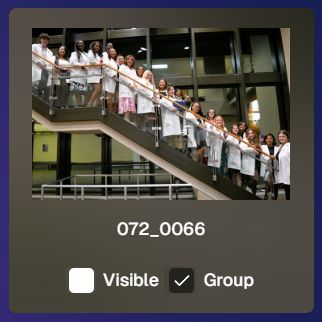
We’ve introduced a Group Photo toggle in the Manage Images tab for GradPics Events. When you mark an image as a Group Photo, here’s what happens:

‍

  • Appears in Every Gallery: Regardless of face matching, every participant sees the group image in their personal gallery.
    ‍
  • Exclusive Products: If your Event’s Offer includes any Group Photo products (like Group Photo Download or Group Photo Print), they’ll only be purchasable on those items.
    ‍
  • No Group Photo Products? Then the group image behaves like a normal image, available on all your usual products.
    ‍
  • Not in Personal Gallery Download: To avoid easy sharing of a big group image, we’re excluding Group Photos from any personal gallery download product for now.

‍

‍

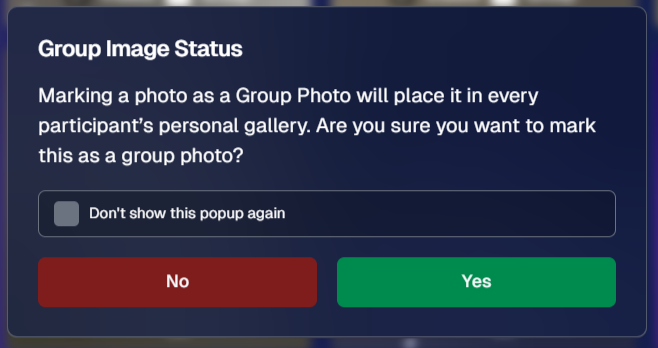
We’ve added a quick popup explanation when flagging an image as a Group Photo in the Web Dashboard, just in case someone clicks the Group Photo toggle by mistake. 🎉

‍

‍

2. Personal Gallery Download Hiding Rule 🤫

‍

To help clients avoid confusion and refunds, we’re adding a new rule:

‍

  • Hide Personal Gallery Download: If the Offer sells individual image downloads and a participant only has one image, we hide the personal gallery download.
    ‍
  • Still Visible for One-Image Events: If your Offer doesn’t have individual downloads, the personal gallery download stays visible, even if the participant just has one photo.

‍

This little tweak prevents clients from accidentally buying a personal gallery download when they only need a single download. 🛒

‍

3. Heads-Up: Capture & Upload App 4.13 for iOS Only! 📱

‍

On Monday, December 30th, we’ll release Version 4.13 of the Capture & Upload App for iPhone & iPad. (Windows stays at 4.12 for now.) We’ve added some major updates:

‍

Please update one of your devices, test it out, and let us know if you catch any bugs. With so many devices, camera brands, and workflows out there, early feedback helps us fix issues quickly.

‍

4.13 Highlights

‍

  1. Photo Booth Mode
    ‍
  2. Overlays on Capture App Image Review
    ‍
    • Overlays now render directly over the captured images on the app (if the aspect ratio is supported).
      ‍
    • 3:2 aspect ratio photos are needed for full frame overlays, but any aspect ratio works for banner overlays.
      ‍
    • This lets you and your subjects see the art in real time, ensuring no important parts are covered!
      ‍
  3. Out-of-Space Error Popup
    ‍
    • If your device is running low on space when a new image is taken, you’ll get an immediate error popup.
      ‍
    • Remember to regularly clear out old images via the app’s “Delete App Data” button in the info (i) menu to keep everything running smoothly.

‍

Minor Updates

‍

  • Session data is now wiped when switching NowCandid accounts in the app, so "Restore Session" won't take you to an Event from a different account!
    ‍
  • Event Shooting Buttons on Tablets now match iPhone UI (centered vertical menu).
    ‍
  • Camera Trouble Popup includes a note about app permissions. (Always make sure to agree to all app permissions needed when the app is starting for the first time!)
    ‍
  • Auto Remove Spaces from the account email on login. (some folks accidentally put a space and didn't know why they couldn't log in!)
    ‍
  • Candy Splash Screen when the app is booting up now supports dark mode.

‍

Thanks for tuning into this shorter Weekly Recap. We hope these improvements help you finish the year strong! If you have any questions or feedback, don’t hesitate to reach out.

‍

Candy 🍬

Let’s get in touch

If you’re a photographer looking to add NowCandid™ services to your wheelhouse, set up a call with us!

How to customize formatting for each rich text

How to customize formatting for each rich text

How to customize formatting for each rich text

How to customize formatting for each rich text

How to customize formatting for each rich text

‍

‍

What’s a Rich Text element?

The rich text element allows you to create and format headings, paragraphs, blockquotes, images, and video all in one place instead of having to add and format them individually. Just double-click and easily create content.

A rich text element can be used with static or dynamic content. For static content, just drop it into any page and begin editing. For dynamic content, add a rich text field to any collection and then connect a rich text element to that field in the settings panel. Voila!

Headings, paragraphs, blockquotes, figures, images, and figure captions can all be styled after a class is added to the rich text element using the "When inside of" nested selector system.

  • List One
  • List Two
  • List Three
  • List Four
  • List Five

This is a link

This is bold text

‍

  • ‍

‍