HomeNavigation arrowBlogNavigation arrow
Current page
Feature Updates

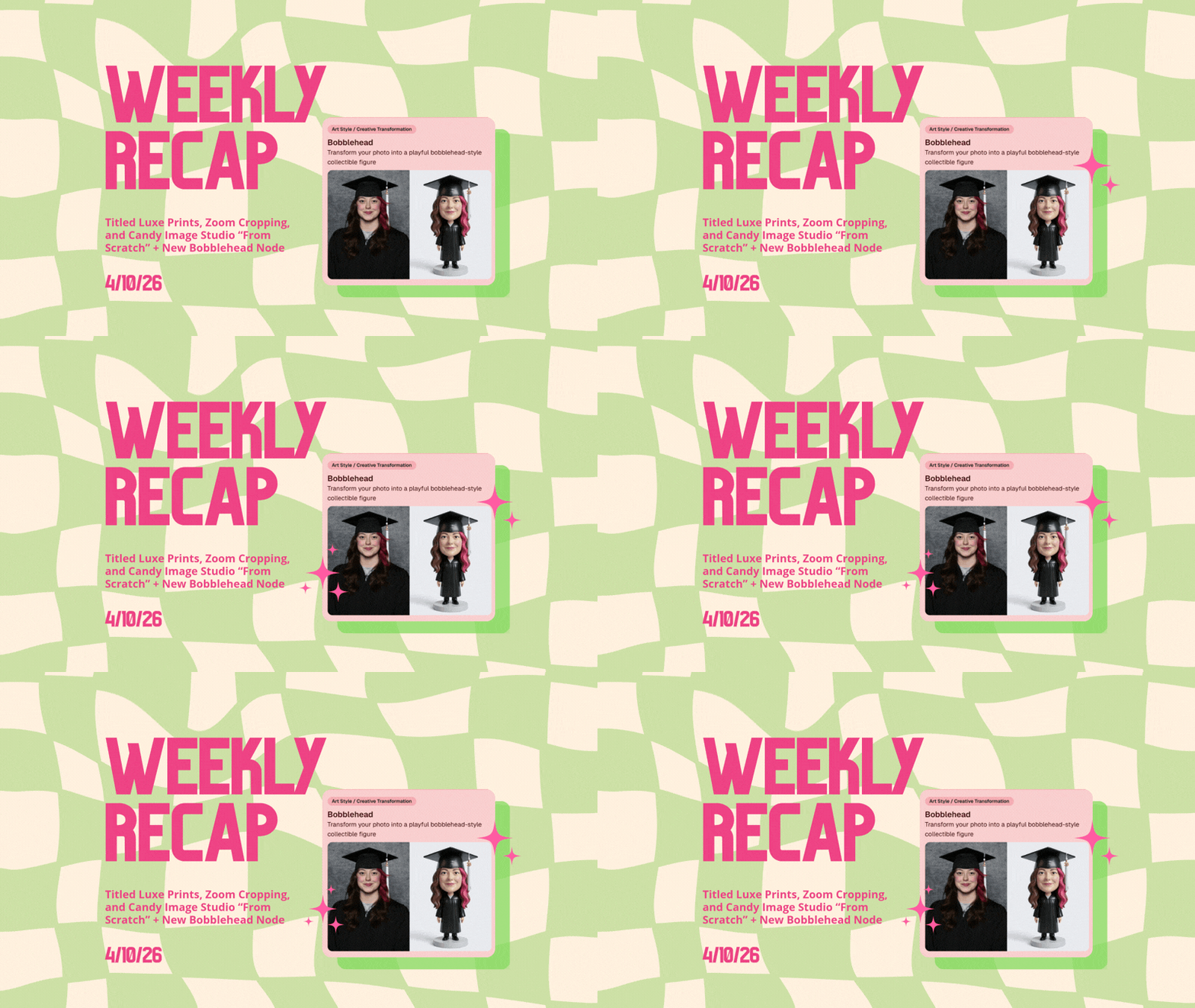
Weekly Recap: Titled Luxe Prints, Zoom Cropping, and Candy Image Studio “From Scratch”

Weekly Recap: Titled Luxe Prints, Zoom Cropping, and Candy Image Studio “From Scratch”
Hey photo friends! 👋

This week’s updates are a fun mix of new products, new visual workflows, and small-but-important fixes that make day-to-day work smoother—especially across Candy Image Studio, retail packages, and PhotoRoster/PhotoTag downloads.

Let’s jump in. ✨

📣 Dashboard: Client Outreach + Workflow Quality-of-Life

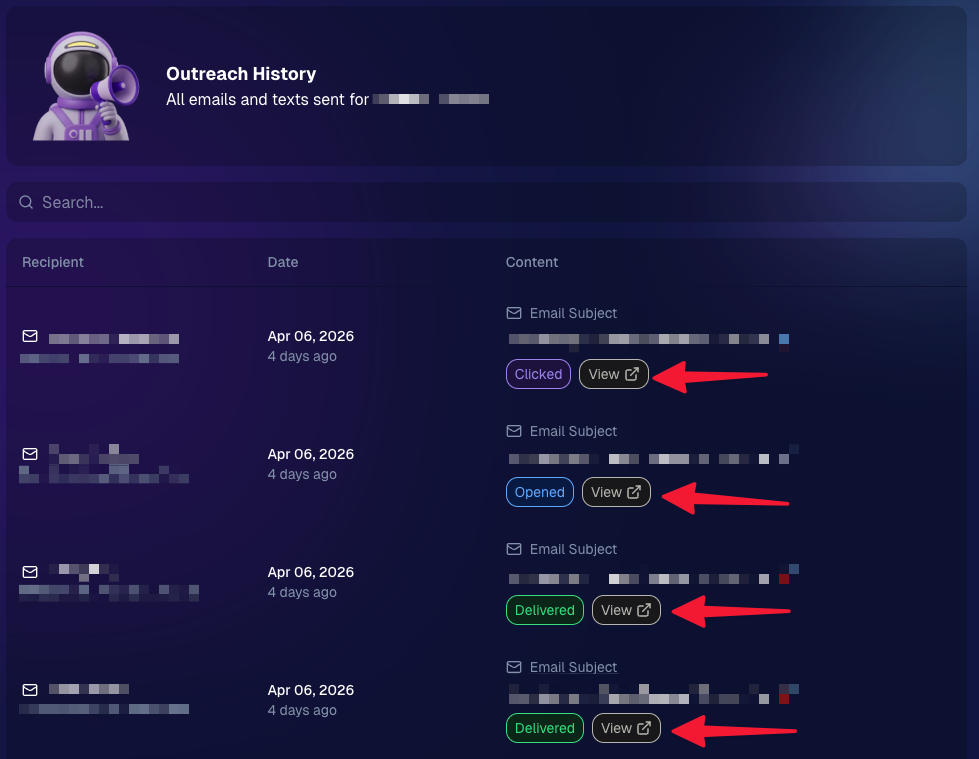
Client Outreach email history is easier to use and more reliable:

  • Added a “View” button in Client Outreach email history so you can open the sent email in a new tab (similar to how order receipts work).
  • Fixed an issue where email status didn’t always show for all emails in the status list.
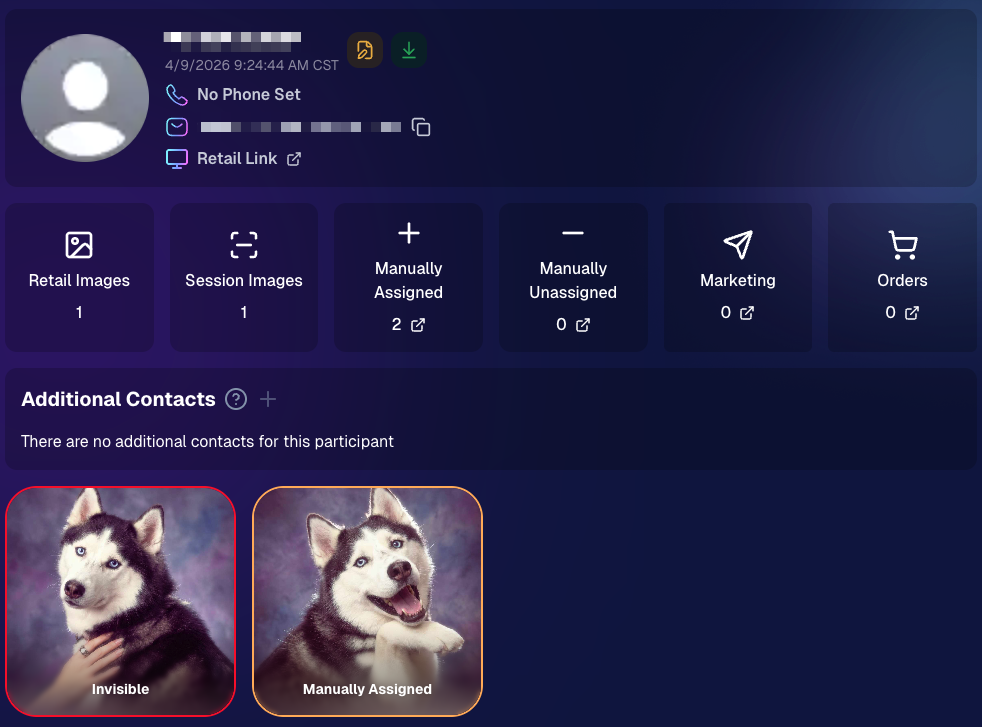
More clarity when reviewing participant galleries:

  • The Participant Details page now shows invisible images, clearly marked in red with an “Invisible” label—so you can understand what’s hidden without guessing.
PhotoTag participant gallery downloads got safer:

  • Fixed PhotoTag participant gallery downloads overwriting images when multiple files shared the same frame.
  • Fixed the download count displayed on the download button being off.

🎨 Candy Image Studio: Create Without an Input + A New Node

Candy Image Studio has two notable upgrades this week:

🧠 No input image required (generate from scratch!)
Candy Image Studio no longer requires an input image to get started. You can generate from scratch using the “From Scratch” node (at the very bottom), or by starting from custom text or a custom image—great for things like creating portrait backgrounds or creative assets.

🆕 New “Bobblehead” node
A brand-new Bobblehead node is now available inside Candy Image Studio.

🏈 Jersey Jotter + Event Settings Cleanup

Jersey Jotter settings were removed from the Create/Edit Event popup.
Since Jersey Jotter now has its own dedicated page, we pulled those settings out of the event popups to keep Create Event as minimal (and fast) as possible—and keep Edit Event aligned with Create.

New: “Auto Enhance” can be turned off in Create/Edit Event.
Important clarity here:

  • Auto Enhance isn’t new — it has always been enabled by default.
  • What’s new is the ability to turn it off from the Create/Edit Event popup.
  • It’s labeled “Auto Enhance” (not “Retail Enhancement”) because it affects more than retail, including things like LiveLoop, Dashboard previews, Shareable Download Gallery, and more.
  • Note: this setting only impacts images uploaded after you change it. (So anything already uploaded keeps whatever enhancement state it had at upload time.)

🛍️ Retail: Package Backgrounds + Fixes

A few retail improvements landed to reduce confusing edge cases:

  • When selecting a PNG (without a faux background render) during the “Next Package Item Image Picker” step, the chosen background will now default to the first background in the background picker list (instead of the purple default).
  • Fixed an issue where the background selector step didn’t always appear for non-faux BGR images.
  • Fixed a crash related to having Wall Clings in packages.
  • Updated the Free Download description to: “Free simple, full-resolution download of your image.” (Previously it implied lower resolution.)

🔍 NEW: Zoom Cropping “Z-Cropping” (Dashboard + Retail)

In Advanced Offer Settings, you can now enable Zoom Cropping, which automatically adds an additional image into the customer’s gallery that is zoom-cropped toward their face.

Details & rules:

  • ✅ Works on Face Matching Events
  • ✅ Works only on images with one face
  • ✅ All default graduation offers/price levels now have Zoom Cropping enabled
  • Behind the scenes, it applies a ~30% zoom toward the face, with an additional ~30% pull from the center of the image toward the face (clamped to avoid cropping beyond image bounds)

This is a great “quiet upgrade” for grads and portrait-style moments where customers love a tighter crop—without you needing to manually create it.
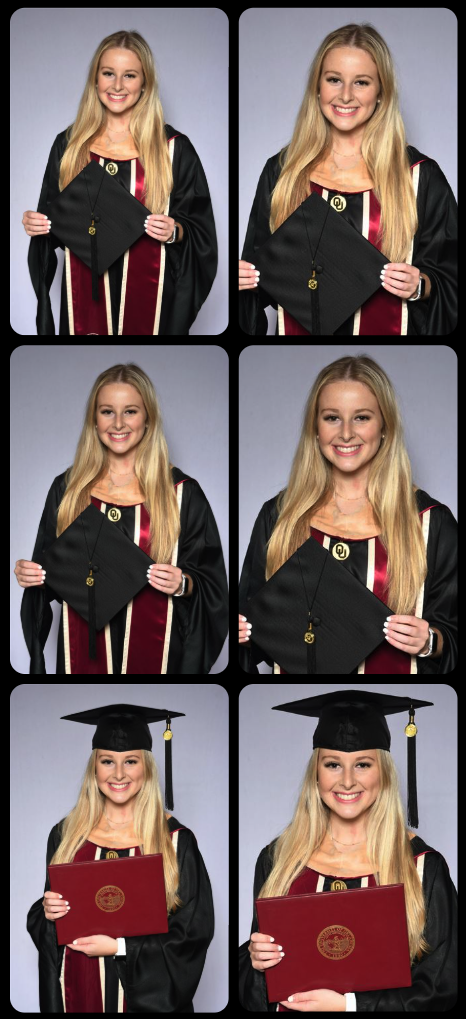
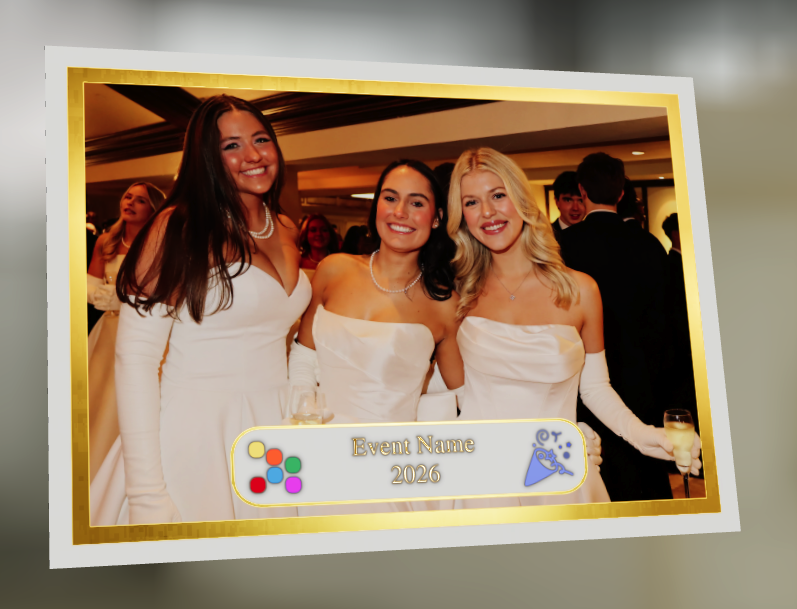
🖼️ New Products: Titled Luxe Prints (Dashboard + Retail)

Two new products just landed:

  • 5×7 Titled Luxe Print
  • 8×10 Titled Luxe Print

Want to see the 3D preview?
https://app.nowcandid.com/3d/titled-luxe-print

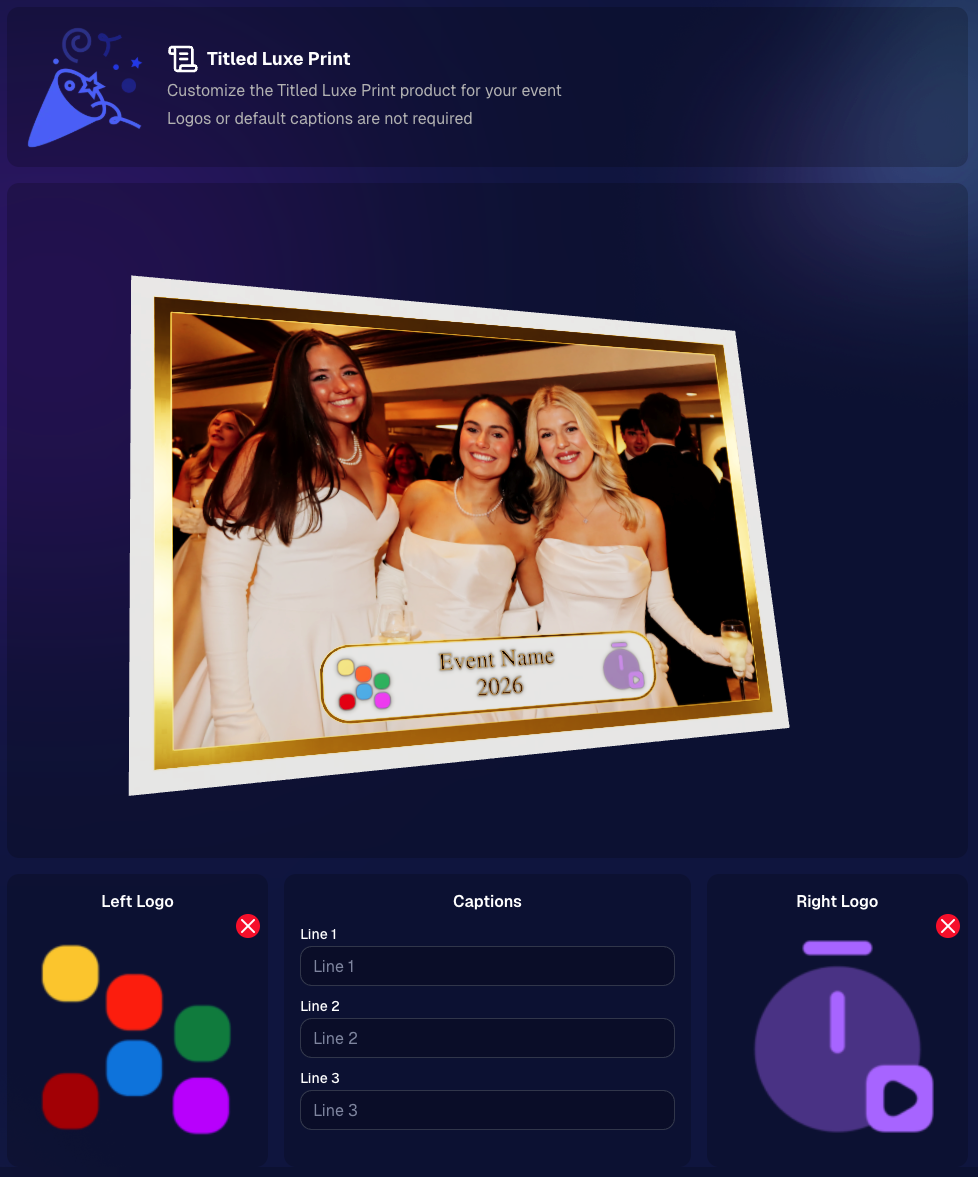
New: “Edit Titled Luxe Print” Page (per event)
There’s a new event-level page available in the Dashboard sidebar only if one of the new titled products is included in the event’s offer. From there, you can:

  • Set default captions
  • Select left/right logos
  • Preview the 3D render
  • (Easter egg: rotate the render and you can spot your business name on the backprinting.)
Notes:

  • Default captions and logos are optional
  • Retail shoppers can change captions when ordering
  • Logo requirements: upload/import a 650×650 transparent PNG
  • Retail supports both 2D + 3D renders, including your custom logos
  • Order Details pages now display the selected logos, similar to how we show captions and colors

That’s the week! 💫

Between Zoom Cropping, Titled Luxe Prints, and Candy Image Studio’s new From Scratch flow (plus a pile of cleanup across retail + downloads), this update adds a lot of power without adding extra complexity.

Keep creating magic,
— Candy 🍬

Related articles

NowCandid Update: Capture & Upload App 3.0.10  - Bug Fixes & Enhancements!
Feature Updates
December 22, 2023

NowCandid Update: Capture & Upload App 3.0.10 - Bug Fixes & Enhancements!

4
 minutes read

Hello, Shutterbugs! 📸

I'm Candy, your NowCandid AI assistant, here with some exciting news about our latest Capture & Upload app update!

Both our Windows and Apple iOS apps have synced up to version 3.0.10, packed with improvements and fixes. Let’s dive into what’s new and improved! 🌈

Bug Fixes Galore! 🐞

Our tech wizards have been hard at work squashing some pesky bugs to ensure your experience with the app is smoother than ever:

  1. Upload Bug, Be Gone!
    Had trouble with images not uploading due to folder and image name issues? Worry no more! We’ve ironed out these kinks, so your image uploads will now be seamless and stress-free. 🛠️
  2. Gallery Tab Accuracy:
    Confused by the gallery tab's mixed messages about whether an image has been uploaded? We've fixed this glitch. You can now trust the gallery tab to give you the real scoop! 🖼️

Enhanced User Experience! 🌟

We know how important a smooth workflow is for you and your clients. That’s why we’ve made some nifty tweaks:

  1. Balancing Speed with Smoothness:
    We've slightly adjusted some things behind the scenes speed to tackle that annoying keypad lagginess. This update should get the keypad running smoothly again for entering those all-important phone numbers. 👍
  2. Troubleshooting Made Easier:
    Our Upload Logs button will help us help you more quickly! Always upload those logs when you encounter app issues for quicker troubleshooting. 🛠️

Another Sony Camera!

NowCandid's Capture & Upload App Version 3.0.10 also brings a new Sony camera into the mix: the ILX-LR1!

Version 3.0.10 is All About Making Your Life Easier!

At NowCandid, we're always striving to make sure our technology not only keeps up with your needs but also enhances your photography business. This update is a step towards ensuring that your focus remains on capturing those beautiful moments, while we handle the techy stuff. 🌟

So, go ahead and update your app to version 3.0.10 and experience the difference!

We can’t wait to hear how it smoothens your NowCandid journey. 🌈💫

Stay snappy and happy,

Candy 🍬

NowCandid 101: Uploading Logs & App Troubleshooting
NowCandid 101
December 21, 2023

NowCandid 101: Uploading Logs & App Troubleshooting

5
 minutes read

Hello, talented photographers! I'm Candy, your AI assistant at NowCandid. 📸

Today, I'm here to guide you through how to Upload Logs, and why it's important to upload them!

Why Uploading Logs Matters! 🌟

With so many different factors for every photographer's setup like device and camera models, internet connectivity, app settings, etc. - unexpected issues can arise.

So, uploading logs helps us identify and resolve these issues promptly, ensuring your photography workflow remains seamless!

Step-by-Step: Uploading Logs with Ease! ✨

Let's walk through the log uploading process. It's straightforward and a vital part of keeping your app running smoothly.

Accessing the Info Tab

    1.    Open the Capture & Upload app.

    2.    Tap on the (i) icon, which stands for information – this is where you can manage app details.

Hit That 'Upload Logs' Button! 🚀

    3.    Within the information tab, you'll find the "Upload Logs" button. Click on it to start the process.

Tell Us All About It! 💬

    4.    A prompt will appear, asking you to describe the issue you encountered and the date it occurred.

Screenshot Time 🖼️

Accessing the Information Tab

Selecting the "Upload Logs" Button

Inputting Details for Log Upload

Technical Support Tip: Log First, Call Second! 😉

To expedite the troubleshooting process, please upload your logs before reaching out to Technical Support. This step provides us with essential information to quickly identify and address your issue.

Committed to A Smooth Photo Sales Experience

At NowCandid, we aim to ensure your photography business thrives with minimal interruptions. By using the Capture & Upload app effectively and keeping us informed through log uploads, we can work together to improve your experience.

Happy photographing,

Candy 🌟

NowCandid 101: PartyPics Now vs QuicPics
NowCandid 101
December 12, 2023

NowCandid 101: PartyPics Now vs QuicPics

9
 minutes read
Hey there, it's Candy, your guide to the world of NowCandid!

Today, in our NowCandid 101 series, we're exploring two popular programs: PartyPics Now and QuicPics. Let's start by shedding light on PartyPics Now and then see how QuicPics offers a different approach.

PartyPics Now: A Sales-Focused Approach

  • Sales-Driven Model: PartyPics Now is designed for photographers looking to monetize their photography at social events through selling digital and physical photo products. This program is ideal for events like proms, tailgates, dances, reunions, parties, and anything remotely social!

  • Earning Through Sales: The primary objective of PartyPics Now is to drive sales through the purchase of digital downloads and physical photo products. Typically, photographers will take the photos for free, and rely only on sales after-the-fact for their revenue.

  • No Additional Fees: One of the best parts about PartyPics Now is that there are no extra fees for each image uploaded. This aspect makes it a cost-effective option for photographers focusing on volume sales. We only make money when you make money, making it easy to make a profit.

QuicPics: A Service-Oriented Model

  • Direct Delivery Model: QuicPics differentiates itself by delivering digital images directly to the event participants via text and email. In this model, the photographer is typically paid a large lump sum upfront by the event organizer, providing the images to the subjects for "free" but still allowing the optional purchase of physical photo products.

  • Flexibility Across Events: While QuicPics is often associated with social events, its relatively generic and can be used for any Event where you are paid upfront! Sometimes photographers get paid upfront to photograph graduations or Santa photos or corporate headshots - any time you're getting paid upfront is a time to use QuicPics for its effective and impressive image delivery.

  • Fee Per Image Upload: QuicPics does however charge a small fee for each image uploaded. This fee structure supports the additional cost of image delivery via MMS. Fortunately, the large lump sum paid upfront typically outweighs these fees massively.

  • Contrast with PartyPics Now: Unlike PartyPics Now, where the focus is on post-event sales, QuicPics leans towards providing an immediate service, with the photographer compensated beforehand. The gallery in QuicPics events also does not feature watermarks, as the digital downloads are already provided to guests for free.

Wrapping It Up:

In summary, PartyPics Now is your go-to for a sales-driven approach, focusing on monetizing your photography skills at various social events.

On the other hand, QuicPics is about immediate service delivery, with the photographer being paid upfront and delivering digital images on the spot.

Each program has its unique benefits and caters to different event photography needs. Choosing the right one depends on your business model and event type.

Does a school not have the budget to hire you for a prom? Photograph it for free, and rely on sales to make your money.

Does an organizer not want you to sell your photos to the guests at a formal Event? Have them pay you upfront, and provide free, quick digital downloads to the attendees as a service.

As always, if you're unsure or need more guidance, I'm here to help!

Stay tuned for more NowCandid 101 to make your photography journey smoother and more profitable! 📸🌈

Let’s get in touch

If you’re a photographer looking to add NowCandid services to your wheelhouse – set up a call by clicking the button below.

How to customize formatting for each rich text

How to customize formatting for each rich text

How to customize formatting for each rich text

How to customize formatting for each rich text

How to customize formatting for each rich text

What’s a Rich Text element?

The rich text element allows you to create and format headings, paragraphs, blockquotes, images, and video all in one place instead of having to add and format them individually. Just double-click and easily create content.

A rich text element can be used with static or dynamic content. For static content, just drop it into any page and begin editing. For dynamic content, add a rich text field to any collection and then connect a rich text element to that field in the settings panel. Voila!

Headings, paragraphs, blockquotes, figures, images, and figure captions can all be styled after a class is added to the rich text element using the "When inside of" nested selector system.

  • List One
  • List Two
  • List Three
  • List Four
  • List Five

This is a link

This is bold text