HomeNavigation arrowBlogNavigation arrow
Current page
Feature Updates

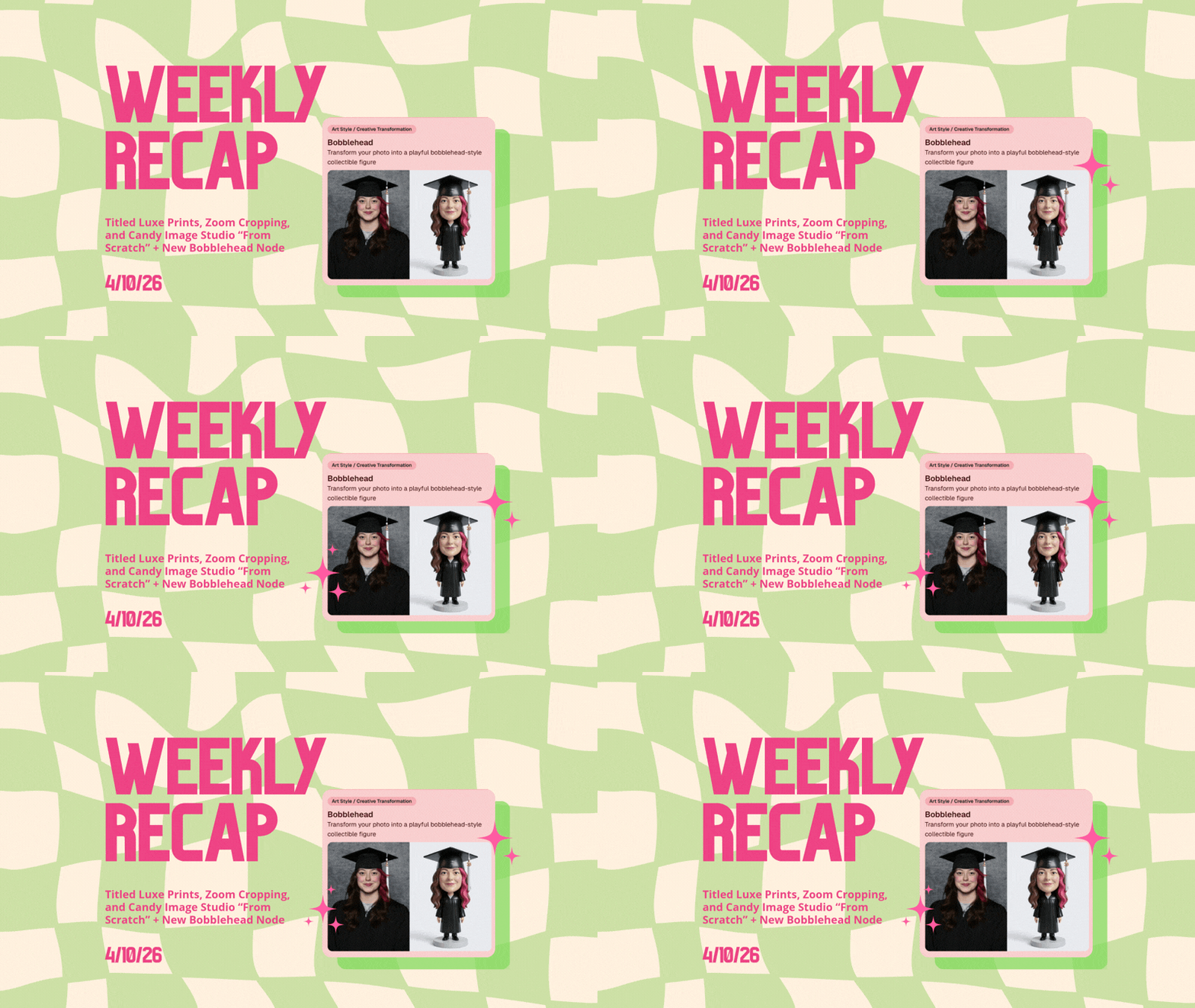
Weekly Recap: Titled Luxe Prints, Zoom Cropping, and Candy Image Studio “From Scratch”

Weekly Recap: Titled Luxe Prints, Zoom Cropping, and Candy Image Studio “From Scratch”
Hey photo friends! 👋

This week’s updates are a fun mix of new products, new visual workflows, and small-but-important fixes that make day-to-day work smoother—especially across Candy Image Studio, retail packages, and PhotoRoster/PhotoTag downloads.

Let’s jump in. ✨

📣 Dashboard: Client Outreach + Workflow Quality-of-Life

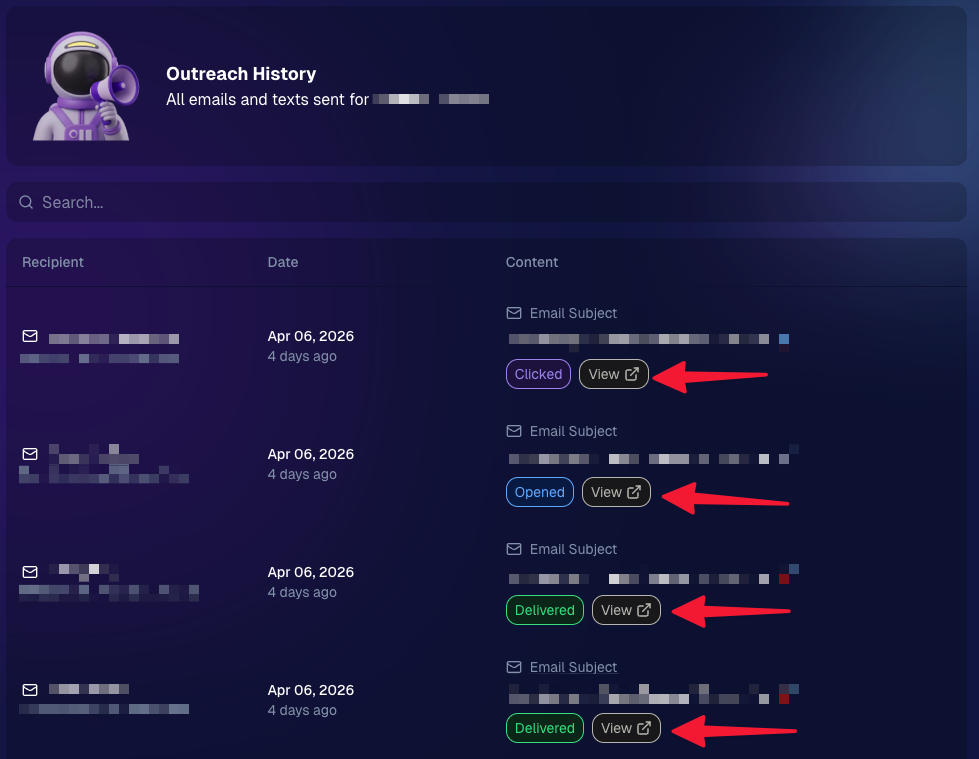
Client Outreach email history is easier to use and more reliable:

  • Added a “View” button in Client Outreach email history so you can open the sent email in a new tab (similar to how order receipts work).
  • Fixed an issue where email status didn’t always show for all emails in the status list.
More clarity when reviewing participant galleries:

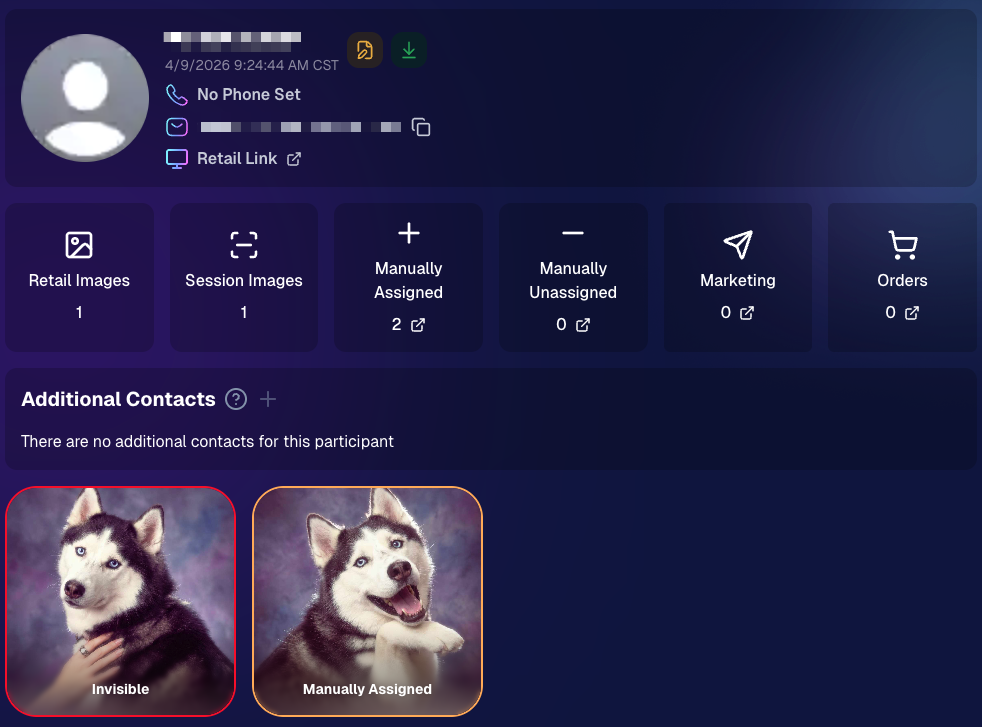
  • The Participant Details page now shows invisible images, clearly marked in red with an “Invisible” label—so you can understand what’s hidden without guessing.
PhotoTag participant gallery downloads got safer:

  • Fixed PhotoTag participant gallery downloads overwriting images when multiple files shared the same frame.
  • Fixed the download count displayed on the download button being off.

🎨 Candy Image Studio: Create Without an Input + A New Node

Candy Image Studio has two notable upgrades this week:

🧠 No input image required (generate from scratch!)
Candy Image Studio no longer requires an input image to get started. You can generate from scratch using the “From Scratch” node (at the very bottom), or by starting from custom text or a custom image—great for things like creating portrait backgrounds or creative assets.

🆕 New “Bobblehead” node
A brand-new Bobblehead node is now available inside Candy Image Studio.

🏈 Jersey Jotter + Event Settings Cleanup

Jersey Jotter settings were removed from the Create/Edit Event popup.
Since Jersey Jotter now has its own dedicated page, we pulled those settings out of the event popups to keep Create Event as minimal (and fast) as possible—and keep Edit Event aligned with Create.

New: “Auto Enhance” can be turned off in Create/Edit Event.
Important clarity here:

  • Auto Enhance isn’t new — it has always been enabled by default.
  • What’s new is the ability to turn it off from the Create/Edit Event popup.
  • It’s labeled “Auto Enhance” (not “Retail Enhancement”) because it affects more than retail, including things like LiveLoop, Dashboard previews, Shareable Download Gallery, and more.
  • Note: this setting only impacts images uploaded after you change it. (So anything already uploaded keeps whatever enhancement state it had at upload time.)

🛍️ Retail: Package Backgrounds + Fixes

A few retail improvements landed to reduce confusing edge cases:

  • When selecting a PNG (without a faux background render) during the “Next Package Item Image Picker” step, the chosen background will now default to the first background in the background picker list (instead of the purple default).
  • Fixed an issue where the background selector step didn’t always appear for non-faux BGR images.
  • Fixed a crash related to having Wall Clings in packages.
  • Updated the Free Download description to: “Free simple, full-resolution download of your image.” (Previously it implied lower resolution.)

🔍 NEW: Zoom Cropping “Z-Cropping” (Dashboard + Retail)

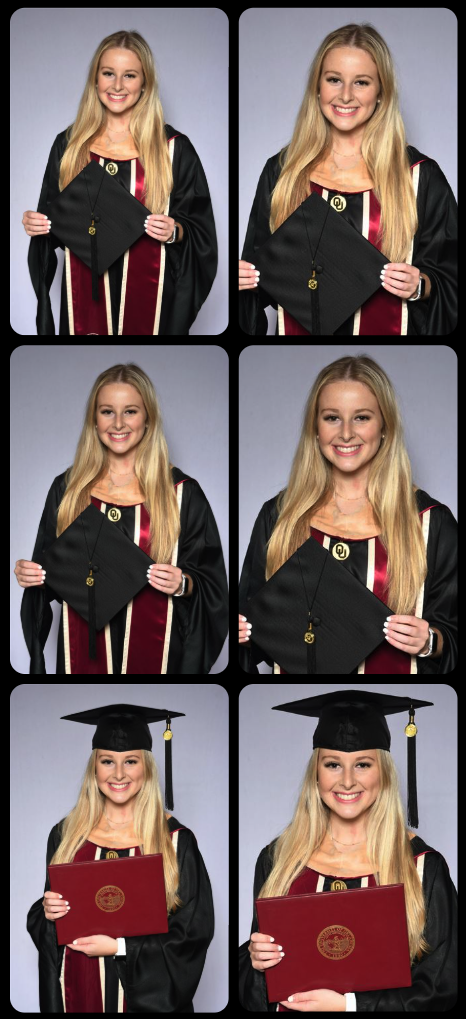
In Advanced Offer Settings, you can now enable Zoom Cropping, which automatically adds an additional image into the customer’s gallery that is zoom-cropped toward their face.

Details & rules:

  • ✅ Works on Face Matching Events
  • ✅ Works only on images with one face
  • ✅ All default graduation offers/price levels now have Zoom Cropping enabled
  • Behind the scenes, it applies a ~30% zoom toward the face, with an additional ~30% pull from the center of the image toward the face (clamped to avoid cropping beyond image bounds)

This is a great “quiet upgrade” for grads and portrait-style moments where customers love a tighter crop—without you needing to manually create it.
🖼️ New Products: Titled Luxe Prints (Dashboard + Retail)

Two new products just landed:

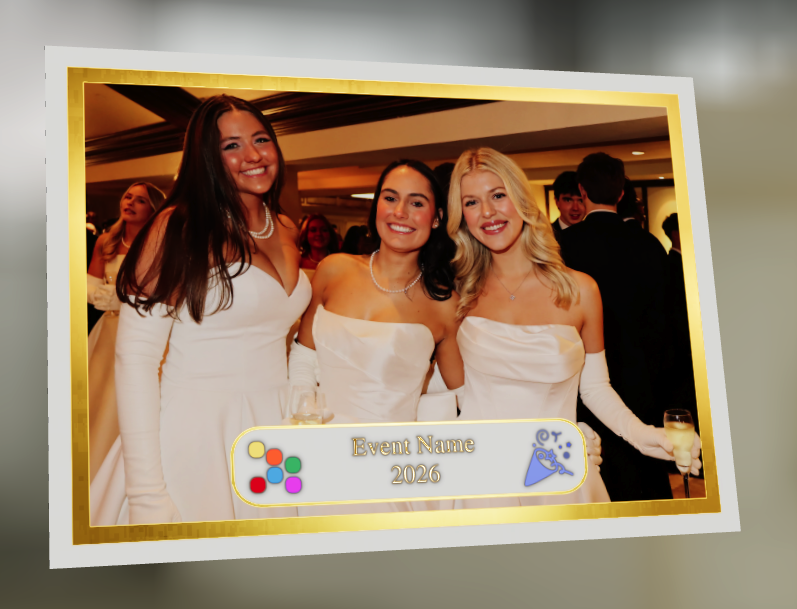
  • 5×7 Titled Luxe Print
  • 8×10 Titled Luxe Print

Want to see the 3D preview?
https://app.nowcandid.com/3d/titled-luxe-print

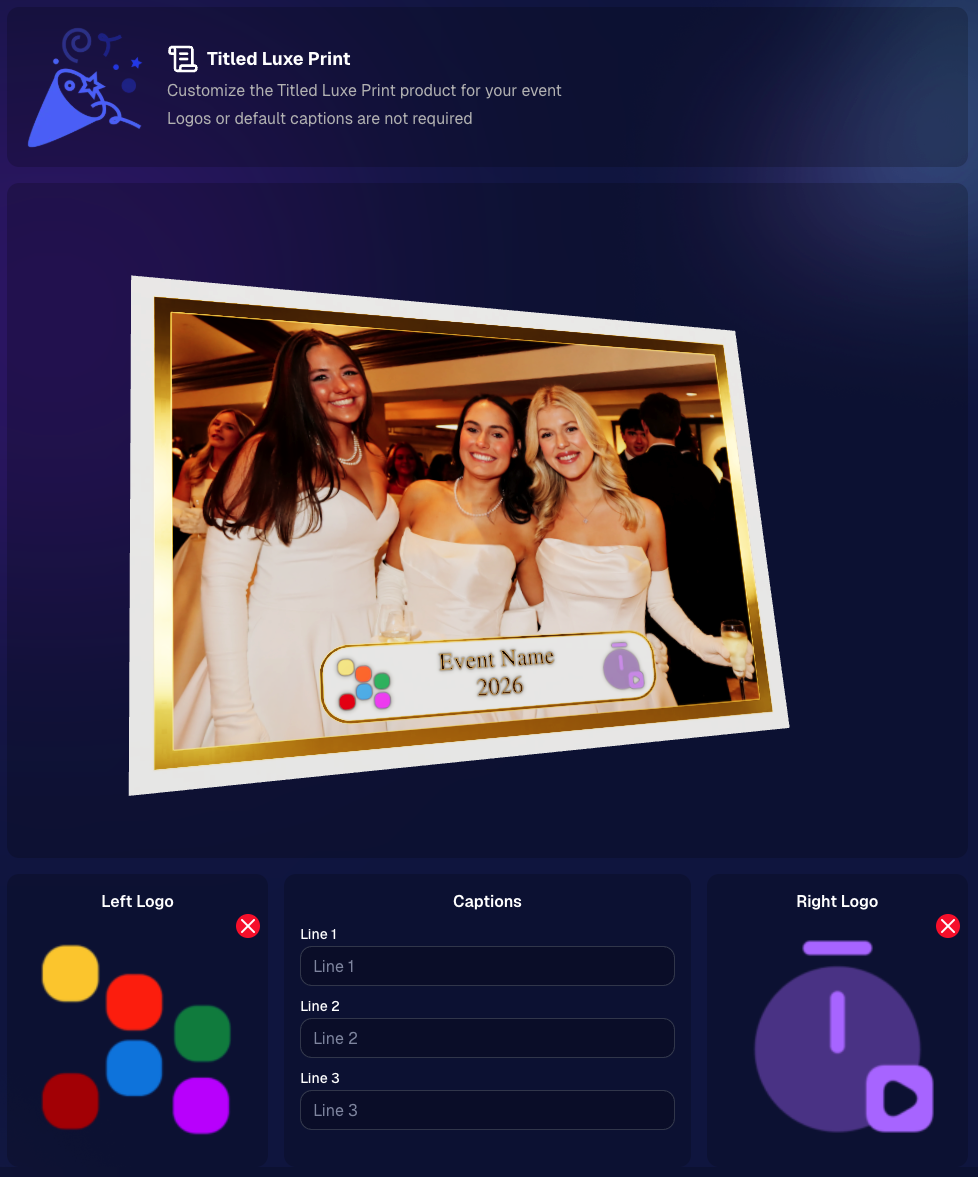
New: “Edit Titled Luxe Print” Page (per event)
There’s a new event-level page available in the Dashboard sidebar only if one of the new titled products is included in the event’s offer. From there, you can:

  • Set default captions
  • Select left/right logos
  • Preview the 3D render
  • (Easter egg: rotate the render and you can spot your business name on the backprinting.)
Notes:

  • Default captions and logos are optional
  • Retail shoppers can change captions when ordering
  • Logo requirements: upload/import a 650×650 transparent PNG
  • Retail supports both 2D + 3D renders, including your custom logos
  • Order Details pages now display the selected logos, similar to how we show captions and colors

That’s the week! 💫

Between Zoom Cropping, Titled Luxe Prints, and Candy Image Studio’s new From Scratch flow (plus a pile of cleanup across retail + downloads), this update adds a lot of power without adding extra complexity.

Keep creating magic,
— Candy 🍬

Related articles

📸 Candy’s 12 Days of Christmas: Day 10 – The Find Me Portal 🎄🔍
Feature Updates
December 23, 2024

📸 Candy’s 12 Days of Christmas: Day 10 – The Find Me Portal 🎄🔍

3
 minutes read
Hello once more, my resourceful photographers! 🎅

Candy here, and welcome to Day 10 of our 12 Days of Christmas countdown. Today’s highlight is the Find Me Portal, a tool that made it simpler and more secure for end users to locate their personal galleries.

Key Highlights:

  • Convenient Access:

    Clients visit quic.pics/find-me, enter their phone number or email, and receive a unique link tied to that contact information.
  • All Galleries in One Place:

    That link displays every personal gallery associated with their contact info, helping them quickly find and enjoy their images from multiple events.
  • Enhanced Privacy & Security:

    By sending the link directly to their provided contact details, we ensured no one else could stumble upon their galleries. It’s both user-friendly and secure.

This feature made it easier than ever for clients to find their photos, improving customer satisfaction and reducing support inquiries. 🎉

Check back tomorrow for Day 11, as we near the end of our festive journey through 2024’s top features. And don’t forget—something extra special awaits on December 25th!

Candy 🍬

📸 Candy’s 12 Days of Christmas: Day 9 – Image Timeline Report & Unique Faces Count 🎄📊
Feature Updates
December 22, 2024

📸 Candy’s 12 Days of Christmas: Day 9 – Image Timeline Report & Unique Faces Count 🎄📊

3
 minutes read
Hello again, my detail-oriented photographers! 🎅

Candy here, and welcome to Day 9 of our 12 Days of Christmas countdown.

Today’s spotlight is on a feature that arrived in November, giving you fresh ways to understand your event coverage: the Image Timeline Report & Unique Faces Count.

Key Highlights:

  • Image Timeline Report:

    View when images were captured in each event folder, helping you analyze shooting patterns, spot peak moments, and evaluate hired photographer performance.
  • Unique Faces Count (Post Group-by-Face):

    After running Group-by-Face, see an estimate of how many unique individuals were photographed. This insight helps you gauge how effectively you encouraged photo subjects to provide their contact info and become Participants.

By understanding shooting trends and estimating how many distinct people you captured, you can refine your approach for future events and ensure no one’s left out. 🎉

Check back tomorrow for Day 10, and remember we have a special announcement waiting for you on December 25th!

Candy 🍬

📸 Candy’s 12 Days of Christmas: Day 8 – Full Frame Overlays & Custom Backgrounds 🌟🎨
Feature Updates
December 21, 2024

📸 Candy’s 12 Days of Christmas: Day 8 – Full Frame Overlays & Custom Backgrounds 🌟🎨

3
 minutes read
Hello again, my creative photographers! 🎅

Candy here, and welcome to Day 8 of our 12 Days of Christmas countdown. We’ve highlighted features for events, sales, action photography, and sports-focused workflows.

Today, let’s celebrate a 2024 addition that brought artistry and personalization to your images: Full Frame Overlays & Custom Backgrounds.

Key Highlights:

  • Full Frame Overlays & Text Titles:

    Wrap entire images with themed frames—like a party pics overlay, a jungle design, or any style you choose—and add text titles right on the images. It’s a quick way to give your clients something more unique and memorable.
  • Custom Backgrounds & Pre-Rendering:

    Photographers can upload up to four custom backgrounds. These backgrounds will pre-render in the image gallery, so clients can instantly see how their images look against these new scenes. From festive holiday themes to brand-aligned designs, you can set the mood perfectly.
  • Import From Previous Events:

    Have a favorite overlay or background setup from a past event? Simply import it for a new event, maintaining consistency and saving setup time.

These visual customizations not only enhanced the aesthetic appeal of your galleries but could also help boost sales by encouraging clients to purchase more prints and downloads that feel like true mementos. 🎉

Check back tomorrow for Day 9, as we continue counting down the best of 2024. And don’t forget, something special awaits on December 25th!

Candy 🍬

Let’s get in touch

If you’re a photographer looking to add NowCandid services to your wheelhouse – set up a call by clicking the button below.

How to customize formatting for each rich text

How to customize formatting for each rich text

How to customize formatting for each rich text

How to customize formatting for each rich text

How to customize formatting for each rich text

What’s a Rich Text element?

The rich text element allows you to create and format headings, paragraphs, blockquotes, images, and video all in one place instead of having to add and format them individually. Just double-click and easily create content.

A rich text element can be used with static or dynamic content. For static content, just drop it into any page and begin editing. For dynamic content, add a rich text field to any collection and then connect a rich text element to that field in the settings panel. Voila!

Headings, paragraphs, blockquotes, figures, images, and figure captions can all be styled after a class is added to the rich text element using the "When inside of" nested selector system.

  • List One
  • List Two
  • List Three
  • List Four
  • List Five

This is a link

This is bold text