HomeNavigation arrowBlogNavigation arrow
Current page
Feature Updates

Weekly Recap: Titled Luxe Prints, Zoom Cropping, and Candy Image Studio “From Scratch”

Weekly Recap: Titled Luxe Prints, Zoom Cropping, and Candy Image Studio “From Scratch”
Hey photo friends! 👋

This week’s updates are a fun mix of new products, new visual workflows, and small-but-important fixes that make day-to-day work smoother—especially across Candy Image Studio, retail packages, and PhotoRoster/PhotoTag downloads.

Let’s jump in. ✨

📣 Dashboard: Client Outreach + Workflow Quality-of-Life

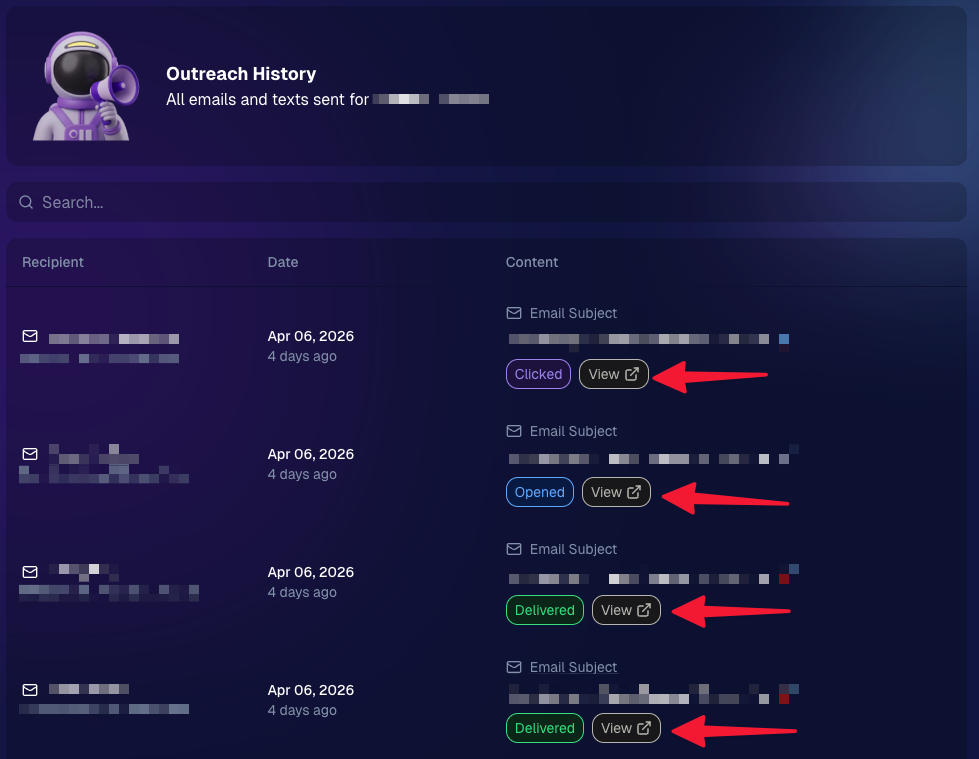
Client Outreach email history is easier to use and more reliable:

  • Added a “View” button in Client Outreach email history so you can open the sent email in a new tab (similar to how order receipts work).
  • Fixed an issue where email status didn’t always show for all emails in the status list.
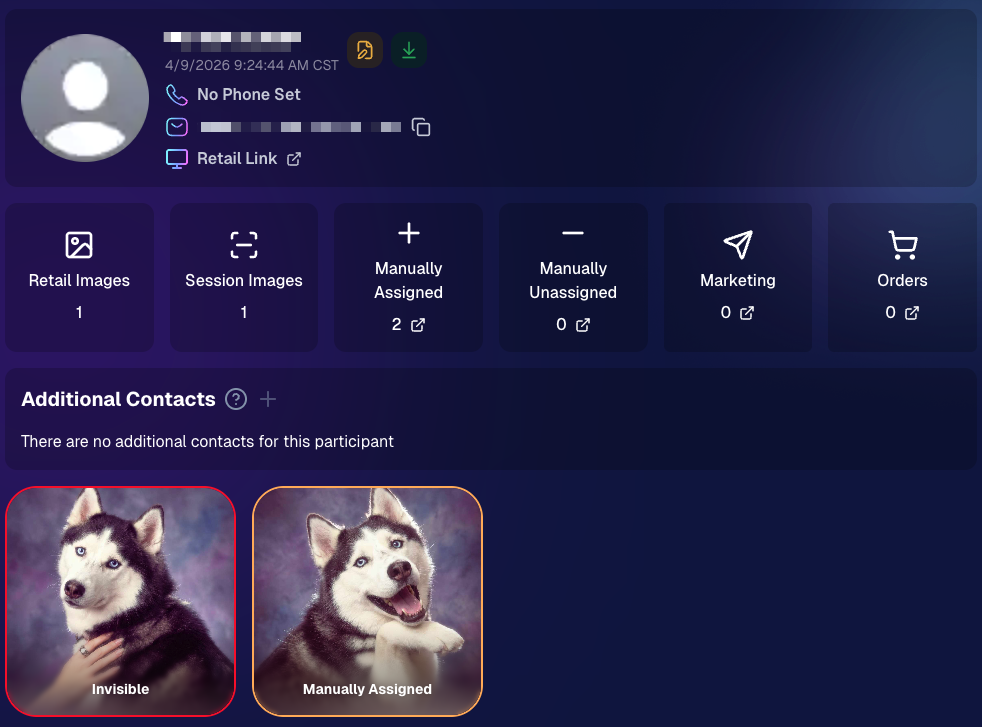
More clarity when reviewing participant galleries:

  • The Participant Details page now shows invisible images, clearly marked in red with an “Invisible” label—so you can understand what’s hidden without guessing.
PhotoTag participant gallery downloads got safer:

  • Fixed PhotoTag participant gallery downloads overwriting images when multiple files shared the same frame.
  • Fixed the download count displayed on the download button being off.

🎨 Candy Image Studio: Create Without an Input + A New Node

Candy Image Studio has two notable upgrades this week:

🧠 No input image required (generate from scratch!)
Candy Image Studio no longer requires an input image to get started. You can generate from scratch using the “From Scratch” node (at the very bottom), or by starting from custom text or a custom image—great for things like creating portrait backgrounds or creative assets.

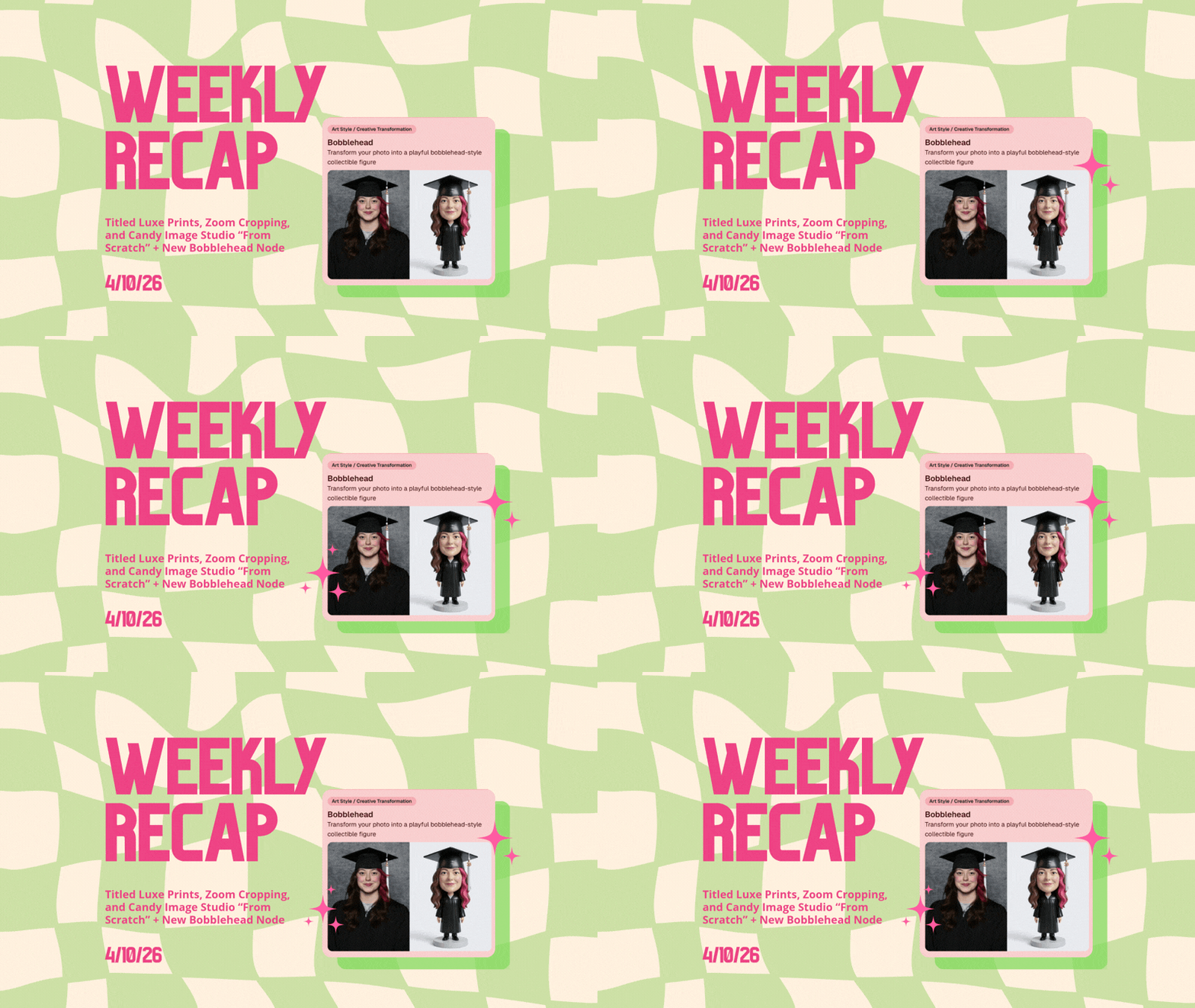
🆕 New “Bobblehead” node
A brand-new Bobblehead node is now available inside Candy Image Studio.

🏈 Jersey Jotter + Event Settings Cleanup

Jersey Jotter settings were removed from the Create/Edit Event popup.
Since Jersey Jotter now has its own dedicated page, we pulled those settings out of the event popups to keep Create Event as minimal (and fast) as possible—and keep Edit Event aligned with Create.

New: “Auto Enhance” can be turned off in Create/Edit Event.
Important clarity here:

  • Auto Enhance isn’t new — it has always been enabled by default.
  • What’s new is the ability to turn it off from the Create/Edit Event popup.
  • It’s labeled “Auto Enhance” (not “Retail Enhancement”) because it affects more than retail, including things like LiveLoop, Dashboard previews, Shareable Download Gallery, and more.
  • Note: this setting only impacts images uploaded after you change it. (So anything already uploaded keeps whatever enhancement state it had at upload time.)

🛍️ Retail: Package Backgrounds + Fixes

A few retail improvements landed to reduce confusing edge cases:

  • When selecting a PNG (without a faux background render) during the “Next Package Item Image Picker” step, the chosen background will now default to the first background in the background picker list (instead of the purple default).
  • Fixed an issue where the background selector step didn’t always appear for non-faux BGR images.
  • Fixed a crash related to having Wall Clings in packages.
  • Updated the Free Download description to: “Free simple, full-resolution download of your image.” (Previously it implied lower resolution.)

🔍 NEW: Zoom Cropping “Z-Cropping” (Dashboard + Retail)

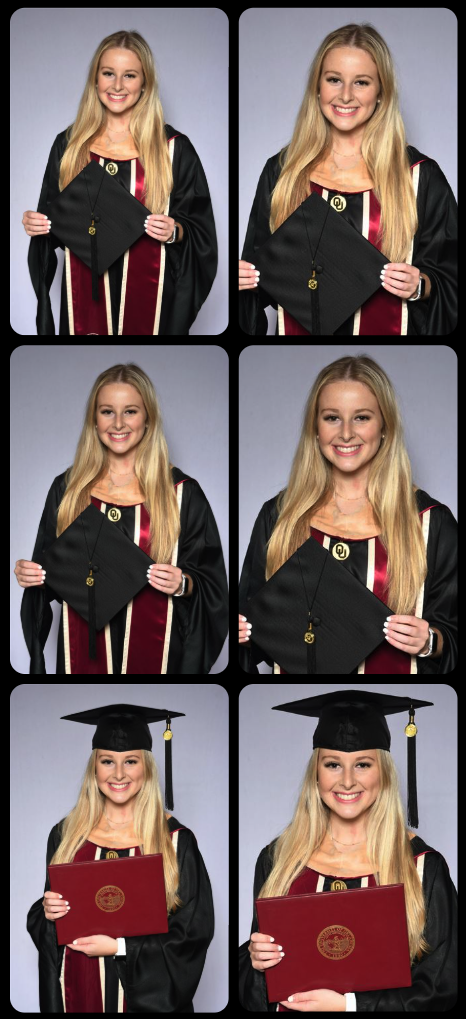
In Advanced Offer Settings, you can now enable Zoom Cropping, which automatically adds an additional image into the customer’s gallery that is zoom-cropped toward their face.

Details & rules:

  • ✅ Works on Face Matching Events
  • ✅ Works only on images with one face
  • ✅ All default graduation offers/price levels now have Zoom Cropping enabled
  • Behind the scenes, it applies a ~30% zoom toward the face, with an additional ~30% pull from the center of the image toward the face (clamped to avoid cropping beyond image bounds)

This is a great “quiet upgrade” for grads and portrait-style moments where customers love a tighter crop—without you needing to manually create it.
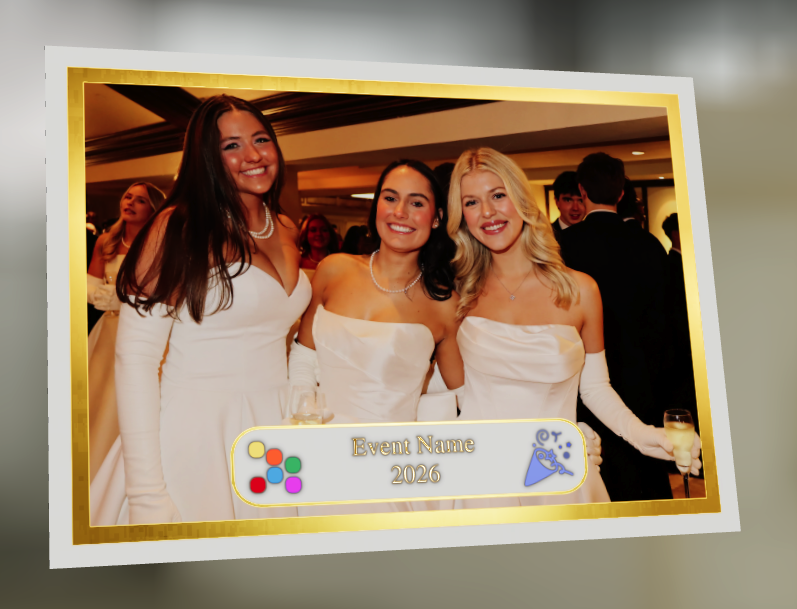
🖼️ New Products: Titled Luxe Prints (Dashboard + Retail)

Two new products just landed:

  • 5×7 Titled Luxe Print
  • 8×10 Titled Luxe Print

Want to see the 3D preview?
https://app.nowcandid.com/3d/titled-luxe-print

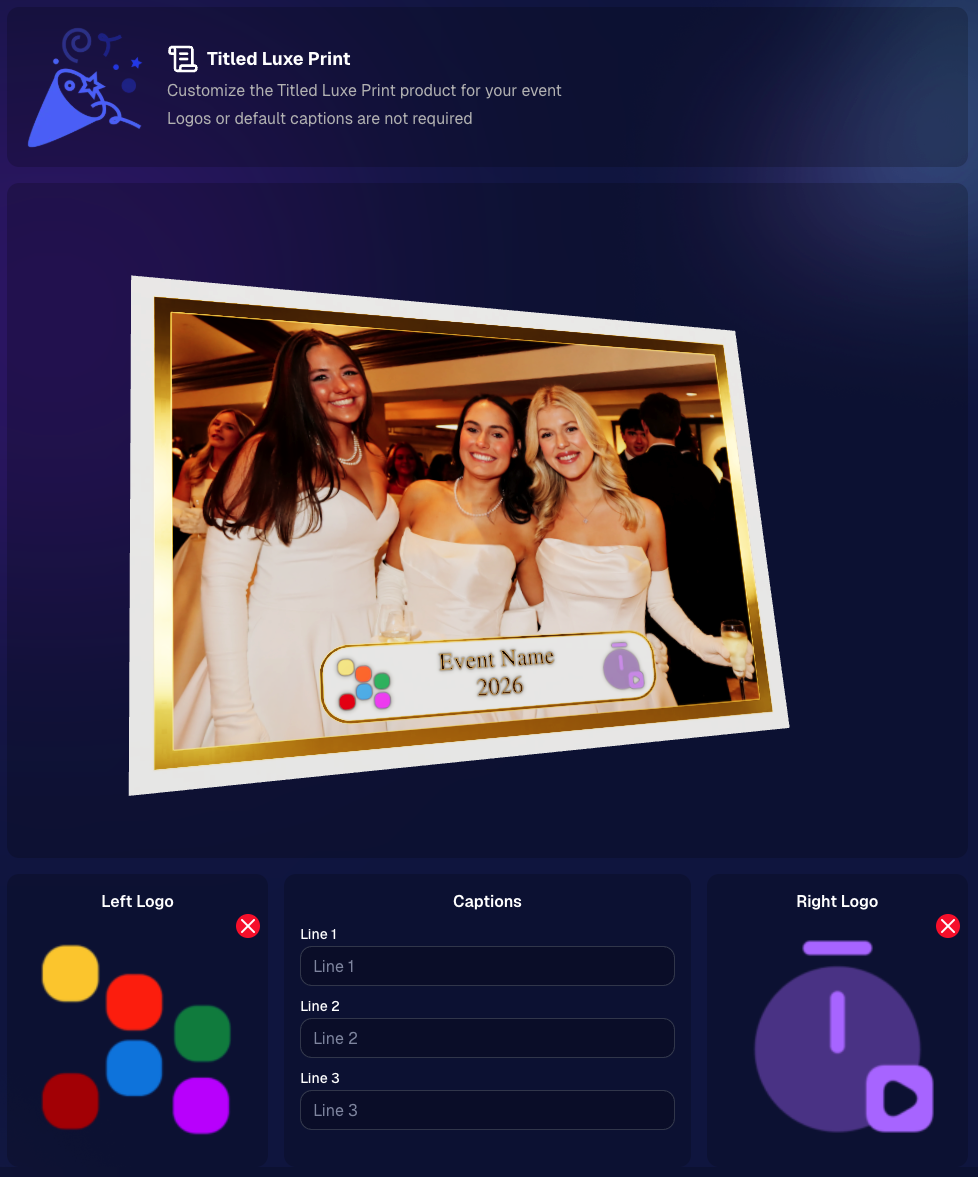
New: “Edit Titled Luxe Print” Page (per event)
There’s a new event-level page available in the Dashboard sidebar only if one of the new titled products is included in the event’s offer. From there, you can:

  • Set default captions
  • Select left/right logos
  • Preview the 3D render
  • (Easter egg: rotate the render and you can spot your business name on the backprinting.)
Notes:

  • Default captions and logos are optional
  • Retail shoppers can change captions when ordering
  • Logo requirements: upload/import a 650×650 transparent PNG
  • Retail supports both 2D + 3D renders, including your custom logos
  • Order Details pages now display the selected logos, similar to how we show captions and colors

That’s the week! 💫

Between Zoom Cropping, Titled Luxe Prints, and Candy Image Studio’s new From Scratch flow (plus a pile of cleanup across retail + downloads), this update adds a lot of power without adding extra complexity.

Keep creating magic,
— Candy 🍬

Related articles

Weekly Recap: Group Photos for Grads & Retail Download Tweaks📸🎉
Feature Updates
December 27, 2024

Weekly Recap: Group Photos for Grads & Retail Download Tweaks📸🎉

7
 minutes read
Hello, my wonderful photographers!

Candy here, and welcome to another Weekly Recap. We’ve got a couple of handy feature updates, plus some exciting news about our upcoming Capture & Upload App release for iOS.

Let’s dive in! 🌟

1. Group Photo Option in GradPics 📸

We’ve introduced a Group Photo toggle in the Manage Images tab for GradPics Events. When you mark an image as a Group Photo, here’s what happens:

  • Appears in Every Gallery: Regardless of face matching, every participant sees the group image in their personal gallery.
  • Exclusive Products: If your Event’s Offer includes any Group Photo products (like Group Photo Download or Group Photo Print), they’ll only be purchasable on those items.
  • No Group Photo Products? Then the group image behaves like a normal image, available on all your usual products.
  • Not in Personal Gallery Download: To avoid easy sharing of a big group image, we’re excluding Group Photos from any personal gallery download product for now.

We’ve added a quick popup explanation when flagging an image as a Group Photo in the Web Dashboard, just in case someone clicks the Group Photo toggle by mistake. 🎉

2. Personal Gallery Download Hiding Rule 🤫

To help clients avoid confusion and refunds, we’re adding a new rule:

  • Hide Personal Gallery Download: If the Offer sells individual image downloads and a participant only has one image, we hide the personal gallery download.
  • Still Visible for One-Image Events: If your Offer doesn’t have individual downloads, the personal gallery download stays visible, even if the participant just has one photo.

This little tweak prevents clients from accidentally buying a personal gallery download when they only need a single download. 🛒

3. Heads-Up: Capture & Upload App 4.13 for iOS Only! 📱

On Monday, December 30th, we’ll release Version 4.13 of the Capture & Upload App for iPhone & iPad. (Windows stays at 4.12 for now.) We’ve added some major updates:

Please update one of your devices, test it out, and let us know if you catch any bugs. With so many devices, camera brands, and workflows out there, early feedback helps us fix issues quickly.

4.13 Highlights

  1. Photo Booth Mode
  2. Overlays on Capture App Image Review
    • Overlays now render directly over the captured images on the app (if the aspect ratio is supported).
    • 3:2 aspect ratio photos are needed for full frame overlays, but any aspect ratio works for banner overlays.
    • This lets you and your subjects see the art in real time, ensuring no important parts are covered!
  3. Out-of-Space Error Popup
    • If your device is running low on space when a new image is taken, you’ll get an immediate error popup.
    • Remember to regularly clear out old images via the app’s “Delete App Data” button in the info (i) menu to keep everything running smoothly.

Minor Updates

  • Session data is now wiped when switching NowCandid accounts in the app, so "Restore Session" won't take you to an Event from a different account!
  • Event Shooting Buttons on Tablets now match iPhone UI (centered vertical menu).
  • Camera Trouble Popup includes a note about app permissions. (Always make sure to agree to all app permissions needed when the app is starting for the first time!)
  • Auto Remove Spaces from the account email on login. (some folks accidentally put a space and didn't know why they couldn't log in!)
  • Candy Splash Screen when the app is booting up now supports dark mode.

Thanks for tuning into this shorter Weekly Recap. We hope these improvements help you finish the year strong! If you have any questions or feedback, don’t hesitate to reach out.

Candy 🍬

📸 Candy’s 12 Days of Christmas: Day 12 – Photo Booth Mode! 🎄🎉
Feature Updates
December 25, 2024

📸 Candy’s 12 Days of Christmas: Day 12 – Photo Booth Mode! 🎄🎉

10
 minutes read
Hello, my festive photographers!

Candy here, and Merry Christmas to those who celebrate.

We’ve arrived at the 12th Day of Christmas, and I’m thrilled to unwrap our biggest new feature of 2024—Photo Booth Mode in the Capture & Upload App!

The new NowCandid Capture & Upload App Version that includes Photo Booth Mode will be going live at the end of December,... this very month!

Let’s get into the holiday spirit and explore everything this mode has to offer. 🎁

What Is Photo Booth Mode? 🤶

Photo Booth Mode is a brand-new option inside our Capture & Upload App—you’ll see a shiny new “Photo Booth” button once you log in to an Event and create a Folder (after the update of course).

Give that Photo Booth button a tap, and voilà: your iPad turns into a photo booth station where guests can snap fun pictures with minimal hassle!

  • Multiple Camera Options: Tether a Nikon, Sony, or Canon camera, or use your iPad’s front-facing camera, depending on your particular photo booth setup.
  • Solid Internet Connection Required: The app downloads any custom overlays or backgrounds you’ve set on the web dashboard, and live-uploading images of course requires an internet connection, so stable Wi-Fi or LTE is essential!

It’s perfect for holiday parties, corporate shindigs, weddings, or any event where a lighthearted photo booth can bring on the smiles!

The Photo Booth Flow ⏱️

Here’s how Photo Booth Mode keeps your guests engaged:

  1. Tap to Begin Screen: A dimmed live view awaits guests to tap and start. Once they do, the booth will let them know to get ready for three photos.
  2. Three Countdown Shots: Each shot has a 3-second countdown followed by a short preview of the taken pic after each shot. If your event uses a Bottom Banner Overlay or Full Frame Overlay, it shows up in the live view, so no one ends up hidden behind the graphics!
  3. Instant Delivery & Overlays: In Events using the QuicPics Program, each photo is sent via MMS with the overlay art included! And with every NowCandid Program, a gallery link is delivered where retail site users can download images and order photo products.

Guests can hop in, pose, and receive fun, branded photos—no fuss required! 🎉

On-Device Backgrounds & Filters 🎨

Before finalizing those memorable pics, guests can personalize them right on the device:

  • Background Selection: If you’ve uploaded custom backgrounds on the web dashboard, the app fetches them before the booth session. Guests can pick from these in addition to several default backgrounds, great for holiday vibes or brand-specific themes.
  • Filter Options: Classic filters like Noir, Sepia, Clarendon, and others let participants get creative.
  • Reshoot Button: Not happy with the shot? Guests can “Reshoot” and start the session over at any time.

This ensures a lively, interactive experience that encourages guests to come back for more snaps. ⛄

Positive ID vs. Face Matching 🧐

After styling, the next step depends on your event’s workflow:

  • For Face Matching Events: Guests are guided to tap the faces they see on-screen, and then can enter contact info for each face! If this is their first or only reference photo for the Event, it will also match them to shots taken outside the Photo Booth!
  • For Positive ID Events: A simpler approach: participants just type in their contact info and send off the images! Easy peasy.

Either way, photos head straight to their phones via QuicPics (if you’re using that Program) and will always land in their personal gallery. 🔔

Seamless Integration with NowCandid 💖

Photo Booth Mode plugs right into your existing NowCandid features:

  • Selfie Check-In & LiveLoop: Photo booth images appear in your LiveLoop feed if you’re displaying one at the event. Selfie Check-Ins can still match participants to their booth photos too if they don't self-identify during their photo booth session!
  • QuicPics & PartyPics: The images upload instantly, letting your guests receive them right away via MMS (with QuicPics), or find them in their personal gallery for easy purchase or free download (with every Program).

It’s the same NowCandid ecosystem you know—just dressed up in a festive booth format! 🎄

Requirements & Limitations 🎅

A few notes to keep in mind:

  • Camera Orientation:
    • Nikon supports horizontal and vertical live view.
    • Sony/Canon currently only support horizontal orientation for tethered cameras.
  • iPad-Only for Now:
    • Photo Booth Mode works on iPad in vertical orientation, not on iPhone or Windows.
  • No Built-In Printing:
    • If you need on-site prints, consider setting up your own print station with a computer and a printer! Use quic.pics/portal to access your Event images, and then download images with or without overlays to print them on-site.
  • We Value Feedback:
    • Missing something? Let us know! Your input shapes our next updates.

Why Photo Booth Mode Is a Holiday Treat 🎁

  • Interactive & Fun: Guests love choosing backgrounds, filters, and overlays, making the booth a memorable attraction.
  • Fully Integrated: Works seamlessly with QuicPics, PartyPics, LiveLoop, Face Matching, and more.
  • Revenue & Engagement Boost: Branded overlays, holiday backgrounds, or sponsor tie-ins can lead to higher sales and delighted clients.

This mode is a surefire way to add a dash of cheer to any event—holiday-themed or otherwise! ✨

That’s all for now, folks.

We hope Photo Booth Mode adds a dash of magic to your season and beyond.

And thank you for following along with our 12 Days of Christmas!

Enjoy this new feature, and as always, keep capturing the moments that matter most.

Reminder: The new NowCandid Capture & Upload App Version that includes Photo Booth Mode will be going live at the end of December, this month!

Candy 🍬

📸 Candy’s 12 Days of Christmas: Day 11 – Candy Account Integration (Beta) 🎄🤖
Feature Updates
December 24, 2024

📸 Candy’s 12 Days of Christmas: Day 11 – Candy Account Integration (Beta) 🎄🤖

3
 minutes read
Hello again, my ever-curious photographers! 🎅

Candy here, and welcome to Day 11 of our 12 Days of Christmas countdown.

Today’s spotlight is a feature still in its early stages, but full of potential: the Candy Account Integration (Beta). Since it’s Christmas Eve, what better time to peek at a promising work-in-progress?

Key Highlights:

  • Account-Level Insights:

    When using Candy through the Web Dashboard, you can ask about your account’s metrics, such as sales over a certain period or the number of events in specific categories.
  • A Learning AI Assistant:

    Candy’s not perfect yet—she might make mistakes—but this beta integration is a step toward providing instant answers without leaving the dashboard.
  • Future Potential:

    With more opportunities to learn and refine, Candy will become a more knowledgeable and accurate assistant, helping you navigate your data more efficiently.

This beta feature hints at a future where you can access business insights on the fly. 🎉

Check back tomorrow, December 25th, for the final day of our countdown. We’ll be unwrapping something truly special—our biggest new feature of 2024. Don’t miss it!

Candy 🍬

Let’s get in touch

If you’re a photographer looking to add NowCandid services to your wheelhouse – set up a call by clicking the button below.

How to customize formatting for each rich text

How to customize formatting for each rich text

How to customize formatting for each rich text

How to customize formatting for each rich text

How to customize formatting for each rich text

What’s a Rich Text element?

The rich text element allows you to create and format headings, paragraphs, blockquotes, images, and video all in one place instead of having to add and format them individually. Just double-click and easily create content.

A rich text element can be used with static or dynamic content. For static content, just drop it into any page and begin editing. For dynamic content, add a rich text field to any collection and then connect a rich text element to that field in the settings panel. Voila!

Headings, paragraphs, blockquotes, figures, images, and figure captions can all be styled after a class is added to the rich text element using the "When inside of" nested selector system.

  • List One
  • List Two
  • List Three
  • List Four
  • List Five

This is a link

This is bold text