HomeNavigation arrowBlogNavigation arrow
Current page
Feature Updates

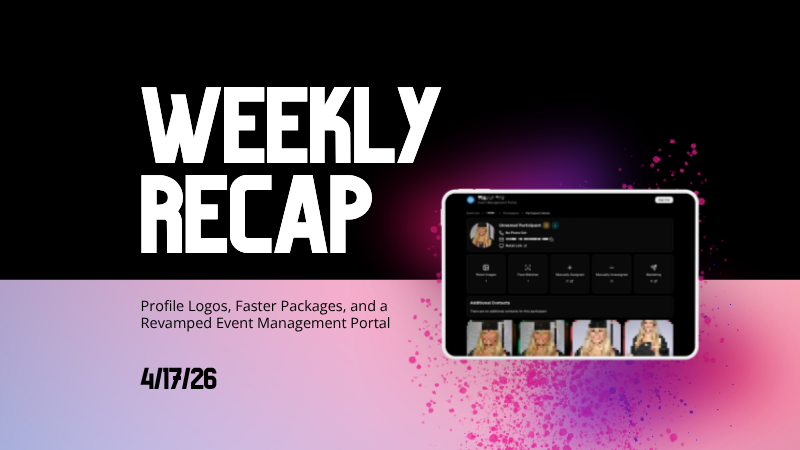
Weekly Recap: Profile Logos, Faster Packages, and a Revamped Event Management Portal

Weekly Recap: Profile Logos, Faster Packages, and a Revamped Event Management Portal

Hey photo friends! 👋

This week’s updates are all about cleaner branding, smoother selling, and better visibility across your workflows—from a new profile/business logo system to big package configurator performance improvements, plus a long-awaited refresh of the Event Management Portal (EMP) ahead of grad season.

Let’s jump in. 💫

🖥️ Dashboard Updates

📣 Client Outreach: Texts now require a URL

Client Outreach SMS messages now require a URL to be included—helping ensure every text has a clear destination and call-to-action.

🧾 Reports: “Participants” terminology restored for accuracy

The Events Report, Compare Report, and Faces Report now use Participants instead of Contacts.
Reminder: a Contact is someone with info; a Participant is a contact with at least one image in their gallery. This avoids deflating stats with unmarketable contacts.

🧰 Candy Culler usability win

  • Added a Download Image button to the Image Details lightbox on the Candy Culler page.

🖼️ Better controls in Participant lightboxes

  • Added a visibility toggle to the Image Details lightbox on the Participant Details page.

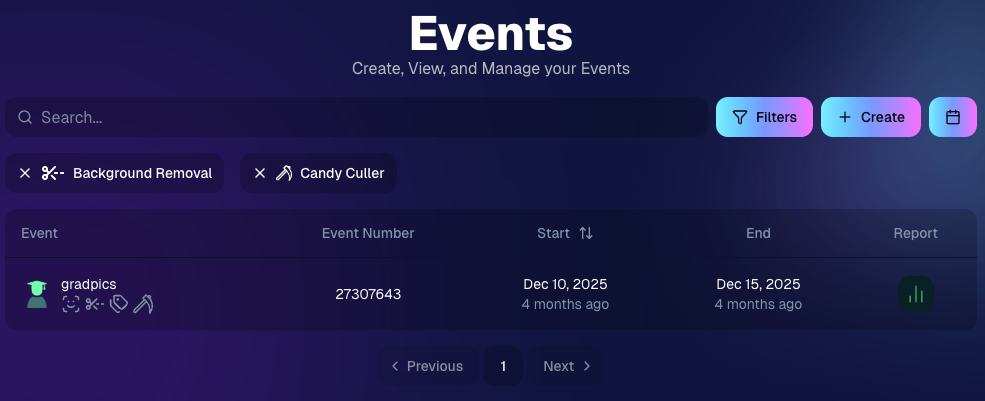
🔍 New Event List filters

The Event List page now includes quick filters for:

  • Background Removal events
  • JerseyJotter events
  • Candy Culler events

🖼️ Offer background minimum lowered

You can now set your Offer background selection minimum to 5 (previously 20).

🚚 New flat-rate shipping option

Added $2.50 flat-rate shipping as an available shipping option.

📱 Mobile Dashboard

  • Fixed an issue where Friday weekly sales notifications were not sending.

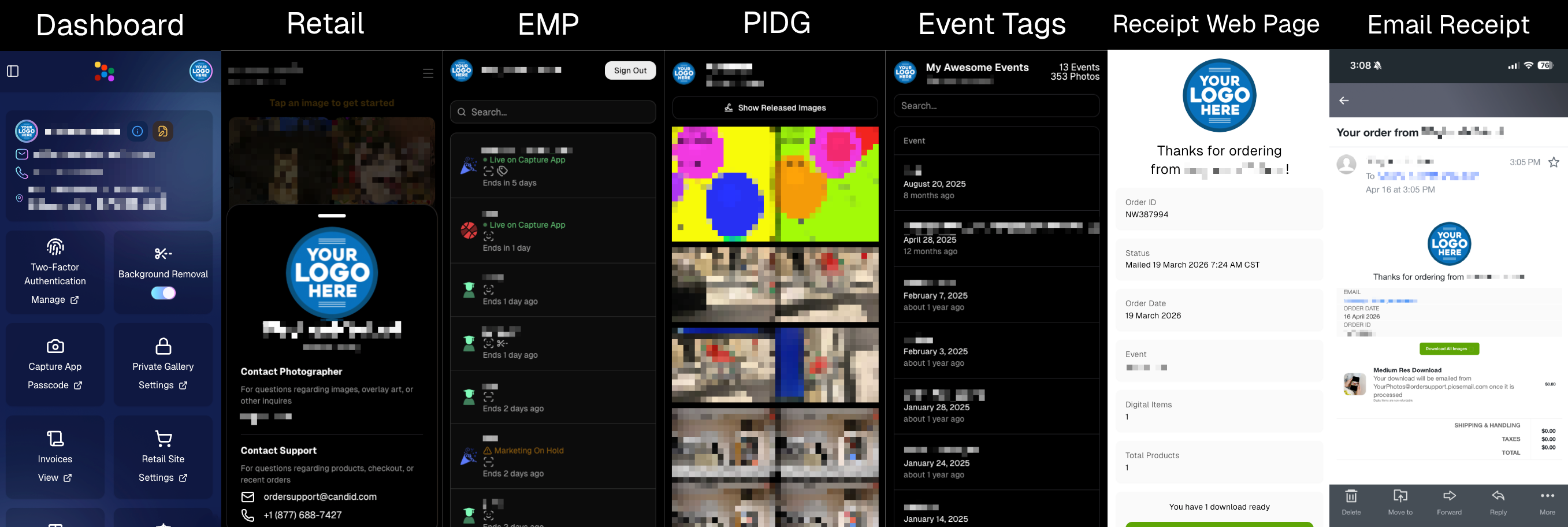
🏷️ New: Profile / Business Logos (Branding Upgrade)

You can now assign a business/profile logo—upload to your profile icon on the dashboard as a 650×650 image and automatically cropped to a circle.

Where it appears:

  • Dashboard profile page + navigation
  • Retail contact popup above your business name
  • Receipt emails, web receipt preview, and the web receipt download page
  • Event Management Portal (EMP) header beside your business name
  • Private Image Download Gallery (PIDG) header
  • Public Event Tag List page header

More placements are planned in the future—this is the first step toward a more consistent, professional brand presence everywhere your customers interact with you.
🏷️ Event Tag List Page

  • Improved UI for a cleaner, easier experience.

🔒 Private Image Download Gallery (PIDG)

  • Improved UI
  • Added a note to the landing popup regarding released images

🛍️ Retail Improvements (Big Week for Packages + Rendering)

🖼️ Captions render earlier for key products

Graduation Plaque and Titled Luxe Prints now render custom captions earlier in the process, rather than waiting until the captions step.

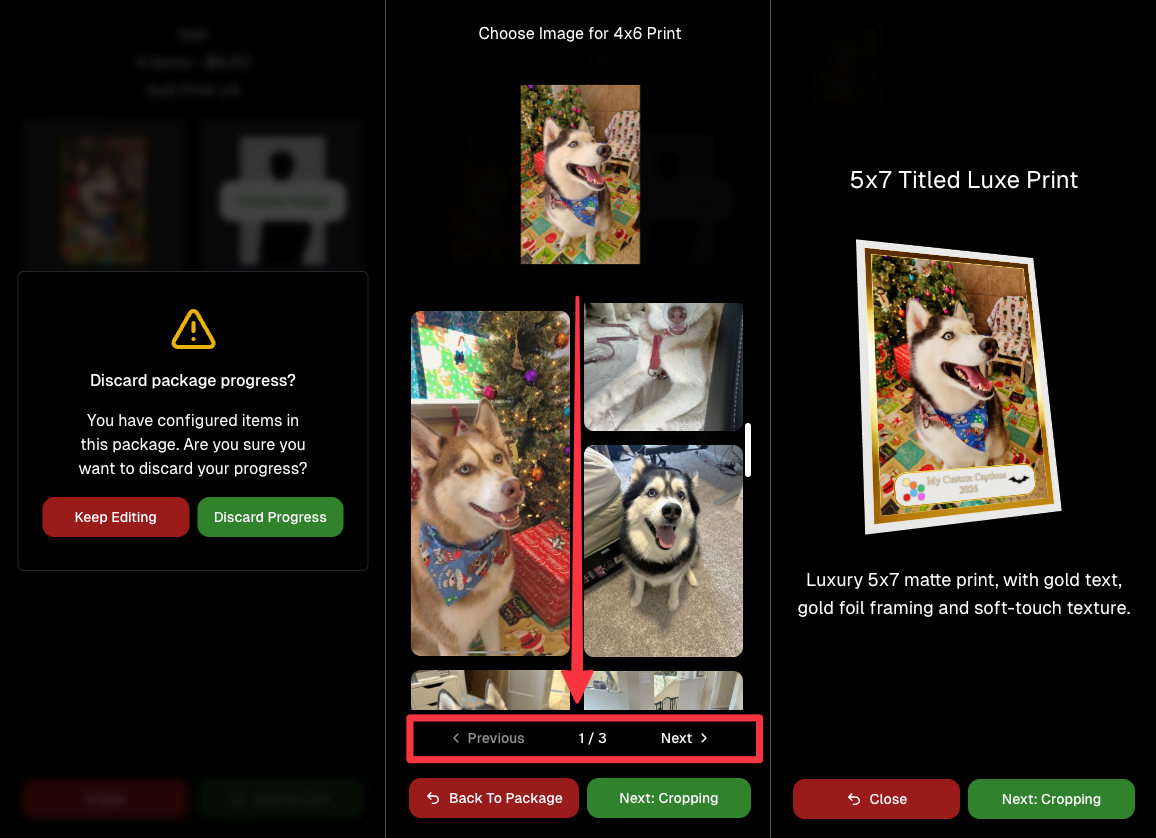
📦 Package configurator upgrades

The package configurator received several improvements:

  • Added pagination to the All Gallery tab in the “Next Package Item Image Picker” step
  • Added a “Discard package progress?” popup when backing out after configuring at least one item to prevent accidental loss of progress
  • Fixed an edge-case crash on mobile when configuring large packages in offers with 3D items
  • Overall package configurating is now much more performant
🧩 Z-Crop improvements

Several improvements were made to ZCrop images to improve behavior and consistency.

🏷️ Group photo refresh fix

Fixed user-added dynamic gallery group photos showing as not group after refresh.

🎨 Background order consistency

Custom offer background order now matches the order in the offer details editor—drag and drop reordering on the dashboard offer editor.

📸 Capture App (iOS & Android OTA): 5.4.3 + 5.4.4

  • 5.4.3: Fixed a crash when toggling a Group Photo without any service
  • 5.4.4: Fixed a keypad popup issue on very large screens (like 13” iPad) where opt-in/cancel buttons were being cropped out

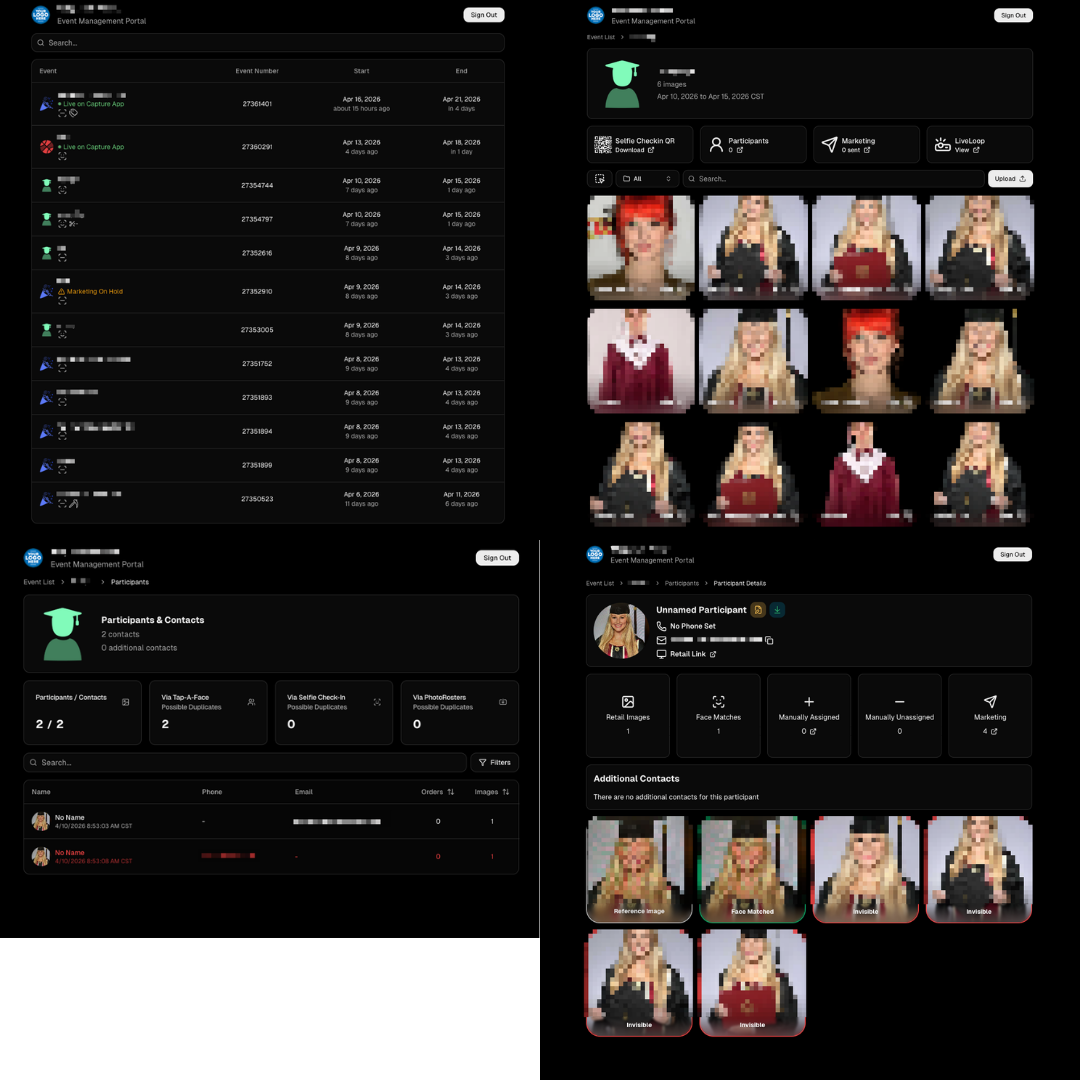
🧾 Event Management Portal (EMP) — Major Refresh (quic.pics/portal)

Quick reminder: the Event Management Portal (EMP) is a mini-dashboard on quic.pics that uses the Capture App login—so you can do “dashboard-like” tasks without downloading an app or using a full account login. It hasn’t been talked about much lately, but this week it got a big refresh in preparation for grad season.

What’s new:

  • Improved security
  • Tons of UI changes and a new dark-only theme
  • Event list page now includes a search bar
  • Event list page updated to “Live on Capture App” (instead of “Active”)
  • Event list page shows attributes like the main Dashboard + adds an Event Number column
  • Header now shows business name and logo
  • Fixed a crash on the Marketing History page
  • Added text/email filter on Marketing History
  • Images now use lightboxes with arrow key navigation
  • Participant Details now shows Additional Contacts
  • Participant Details now shows Invisible images
That’s the week! 💫

Between profile/business logos, a smoother package configurator, better report accuracy, and the EMP glow-up for grad season, this update should help you move faster, look more professional, and reduce friction across the whole customer experience.

Keep creating magic,
— The NowCandid Team 🍬
Related articles

Weekly Recap: Action Mode for Sports, Faster Package Ordering & Favorites Sign-In 📸⭐
Feature Updates
July 2, 2026

Weekly Recap: Action Mode for Sports, Faster Package Ordering & Favorites Sign-In 📸⭐

5
 minutes read
Hey photo friends! 👋

Candy here with a weekly recap—there’s a very exciting Capture App addition this week: Action Mode for Sports events! We’ve also got a few Dashboard and Check-In fixes to keep things moving smoothly.

Let’s take a look.

📱 Capture App 5.8: New Action Mode

Capture App 5.8 introduces a brand-new Action Mode shooting mode for Sports events.

🏷️ Automatically tag photos with PhotoTags while shooting

  • Action Mode lets you select a PhotoTag and automatically apply it to the photos you take, using a familiar PhotoTag selection flow similar to managing PhotoTags for group images.

🏈 Built for sports workflows

  • Action Mode appears for Sports events:
    • On Positive ID events, it shows up all the time
    • On Face Matching events, it shows up when the Event has PhotoTags

📸 Shoot freely in Positive ID

  • This also allows you to shoot freely in Positive ID events without first adding a participant—something that wasn’t previously possible.

👥 Not the same as Group Photos

  • Action Mode applies PhotoTags while shooting, but it does not mark images as group images.

🤖 Android RAW+JPEG reconnect improvement

  • Improved behavior on Android when shooting in RAW+JPEG while reconnecting the camera multiple times.

Why it’s helpful:

Action photographers can now organize images into PhotoTags while they shoot, making it much easier for subjects accessing the gallery live at the Event to browse the All Images Gallery to filter down to the right team, game, division, or group on the retail site when you are live-uploading your action shots.

This is especially useful when you’re promoting an All Images Gallery QR code at an event and sending subjects directly to retail. Combined with the new sign-in requirement for Favorites, subjects can save favorite images and access them later from any device—setting the stage for even more action-event workflow improvements in the future.

You can even utilize the new Auto Edit feature to potentially review and edit your action photos before they go live to the gallery with AI! Try out the beta "Improve Action Shot" node in Candy Image Studio on some test photos to see how it works for you.

🛍️ Retail Updates

📦 Packages now prefill with the selected image

  • When a shopper starts a package from an image, eligible package items will now auto-fill with that image. Customers can still change any product, but this makes ordering larger packages much faster.
  • Note: Group images won’t prefill non-group products, non-group images won’t prefill group products, downloads beyond the first won't prefill, and products requiring captions or multiple images won’t be prefilled.

🧩 Package editor UI refreshed

  • Configured products now show a clearer Change Image button, and product names + image controls are grouped together to reduce confusion.

🛒 Packages now have a landing screen

  • Packages now open with an overview of what’s included before the shopper continues into the editor.

Sign-in required for Favorites

  • Shoppers now sign in before adding Favorites, which lets their Favorites sync across devices when they use the same account.

🖼️ Dynamic Gallery additions fixed

  • User-added Dynamic Gallery images now persist correctly after refresh and appear properly in Dynamic Gallery purchases.

🛡️ GalleryGuard improvements

  • Additional GalleryGuard improvements were made to help protect retail images.

😊 Face Finder visibility fixes

  • The Show Face Match Groups Offer setting now hides the Face Finder filter as expected, including when Zoom Cropping is enabled.

🖥️ Dashboard Improvements

PhotoRoster pages are faster

  • All PhotoRoster pages should feel a little quicker.

🚫 Clearer upload error for invalid XMP metadata

  • The Upload Images page now shows “Invalid Metadata (XMP)” for a rare export issue that can happen with some Adobe workflows.

🎨 Image Converter Display P3 fix

  • The Image Converter Tool now correctly converts Display P3 images to sRGB when Convert to sRGB is enabled.

🤳 Check-In Website Fix

🏷️ Team/group selection false error fixed

  • Fixed an issue where selecting a team or group could incorrectly show an error saying the selfie failed to upload.

That’s the update for this week!

Action Mode is the big highlight—especially for sports photographers who want instant PhotoTag organization while shooting.

Keep creating magic,

Candy 🍬

Weekly Recap: Faster Virtual Group Creation, New Candy Image Studio Tools & Capture App 5.7 Updates ✨📸
Feature Updates
June 26, 2026

Weekly Recap: Faster Virtual Group Creation, New Candy Image Studio Tools & Capture App 5.7 Updates ✨📸

5
 minutes read
Hey photo friends! 👋

Candy here with another weekly recap! This week brings some great upgrades to Virtual Group Builder, new Candy Image Studio tools, better Docs search, and a solid Capture App update with helpful color profile and PhotoTag improvements.

Let’s take a look!

🧑‍🤝‍🧑 Virtual Group Builder Improvements

Virtual Group Builder got a nice set of workflow upgrades this week:

🏷️ Create Virtual Groups directly from PhotoTags

  • On the PhotoTags page, click Create under the VGroup column to automatically start a new Virtual Group using participants from that PhotoTag. You’ll also get a popup asking whether to use each participant’s first or last cutout.

🚀 Save works-in-progress with placeholders

  • You can now save changes to a Virtual Group even if some subjects still have spaceman placeholders.
  • All subjects still need a selected photo before uploading the finished Virtual Group to the Event.

🖼️ Overlay uploads can now be named

  • When uploading overlays, you can name them so they’re easier to search and find later.

🔤 More control over subject name styling

  • Title Case is now only applied on import, meaning you can use the subject inspector to customize name casing afterward.

📐 New text display option

  • There’s a new Display setting to disable justified text.

🌫️ Bottom Vignette improvements

  • Bottom Vignette rendering has been reworked for better results.

🔎 More flexible scaling

  • Max global scale is now 200%.

🎨 Candy Image Studio: New Editing Nodes

Candy Image Studio has two new tools to help clean up common image issues:

👔 Dewrinkle Clothes

  • Helps smooth distracting clothing wrinkles while keeping the image natural.

🖼️ Restore Old Photo

  • A new restoration-style node for improving older or damaged images.

📱 Capture App 5.7 Updates

App Store update released Monday, June 22

Capture App 5.7 includes some meaningful workflow and compatibility improvements:

🎨 Automatic sRGB conversion

  • If an image is detected as non-sRGB, the app will now try to automatically convert it to sRGB. If it can’t, you’ll still get the existing invalid color profile warning.
  • This can be especially useful for black-and-white shooting modes that output a different color profile. That said, we still recommend shooting in sRGB whenever possible, since conversion can cause some color loss and may use extra battery during long sessions.

🧾 User Comment shown in EXIF details

  • The image gallery details popup now shows EXIF User Comment data, including whether an image was auto-converted to sRGB.

✂️ BGR visibility sync

  • Visibility changes in BGR folders now affect the cutout too. Mark the original hidden, and the cutout will hide; mark it visible again, and the cutout becomes visible as well.

🏢 Business logo support

  • Your business/profile logo now appears in the Capture App header when available, and can replace Candy in Photo Booth.

⚙️ Contact collection settings moved

  • Number, email, and name collection settings now live on the Event Overview instead of the Event login sheet, so you don’t need to re-log to change them.

🏷️ Event picker shows PhotoTag attribute

  • If an Event has PhotoTags, the Event picker now makes that easier to spot.

📱 Android UI fixes

  • Fixed several label cutoff issues for Android users with Bold Text enabled.

🔁 Restore Session fix

  • PhotoTags now load properly when an Event is opened through Restore Session.

🎨 Adobe RGB handling fixed on Android

  • Android devices will no longer incorrectly accept Adobe RGB images from cameras.

🍎 iOS 27 support tested

  • iOS 27 has been tested, and no issues were found. The app also respects the latest Liquid Glass device settings.
  • If you update your device to a beta version of iOS 27, let us know if you experience issues!

🏷️ Collect PhotoTags during check-in

  • Participants can now select their own PhotoTag, such as team name, before entering contact information. This option appears when the Event has PhotoTags.
  • We added this primarily to assist photographers in easily tagging late additions not on a roster that show up to a photoshoot, but there will be additional features for action photography in next week's update!

📱 Capture App 5.7.1

OTA update released Friday, June 26

🛠️ Miscellaneous UI fixes

  • A small OTA update with additional interface polish and cleanup.

🖥️ Dashboard Improvements

🔎 Docs Search is here

  • Click Search on the Docs page to search NowCandid documentation, with Candy navigation agent support.

📂 PhotoRoster image name cleanup

  • PhotoRoster data file uploads and image uploads now automatically remove spaces and certain special characters from image names.

🖼️ Full-frame overlay previews are downloadable

  • In the Image Overlay Editor, full-frame example render previews can now be downloaded just like banner previews.

🛍️ Retail Update

🪟 Better desktop popup behavior

  • On desktop, retail popups now automatically become scrollable if the popup is taller than the viewport height, matching Dashboard behavior.

📣 Marketing Fix

✉️ Email campaigns fixed for email-only PhotoRoster participants

  • Fixed an edge case where email-only PhotoRoster participants were not having their email campaigns start.

That’s the week!

From faster Virtual Group setup to better PhotoTag collection in the Capture App, these changes should help make your Event workflows more flexible and easier to manage.

Keep creating magic,

Candy 🍬

Weekly Recap: Auto Headsize for Virtual Groups, New BGR Report, HEIC Conversion & More
Feature Updates
June 19, 2026

Weekly Recap: Auto Headsize for Virtual Groups, New BGR Report, HEIC Conversion & More

5
 minutes read

This week’s updates include some helpful improvements across Virtual Group Builder, reporting, image conversion, participant management, and folder downloads.

The biggest highlight is a new Auto Headsize option in Virtual Group Builder, designed to give you a much better starting point when building virtual groups. We also added a new BGR Report to help you see which backgrounds are being ordered most, plus a few quality-of-life improvements throughout the Dashboard.

Let’s take a look!

🧑‍🤝‍🧑 Virtual Group Builder Improvements

✨ New Auto Headsize button

Virtual Group Builder now has a new Auto Headsize button.

This feature automatically detects faces and adjusts the scale and vertical offset of all cutouts so that subjects have roughly the same head size and are closer to eye level.

That means when you’re building a virtual group, you should have a much better starting point before making your final manual adjustments.

🏷️ Improved PhotoTag import behavior

We improved the behavior when importing a PhotoTag into Virtual Group Builder, helping that workflow feel smoother when adding subjects from a specific PhotoTag.

🚀 Upload fix for new from-scratch Virtual Groups

Fixed an issue where uploads were not uploading properly when working from /new on a from-scratch Virtual Group instead of an existing one.

👥 Smarter default subject behavior

Virtual Group Builder now skips the initial “add to group or replace group” popup when the only subjects in the group are the default 8 subjects.

🖼️ Bottom logo spacing improved

Bottom logos are now spaced the same distance from the bottom as top logos are from the top.

📊 Reporting Updates

📈 Events and Sales Report tables now have sortable columns

The Events Report and Sales Report tables now support sortable columns, making it easier to review and organize report data directly in the table.

🎨 New BGR Report

There is now a new BGR Report that shows the most ordered backgrounds for BGR images.

The report shows:

  • How many orders a background has
  • How many items a background has

Important note: if you upload the same background to multiple Events, those will show up as different backgrounds in the report. To avoid that, use the background import feature.

🖼️ Image Converter Update

📱 HEIC conversion is now supported

The Image Convert page at tools/convert now supports converting from HEIC files.

This should be helpful when working with images from devices that commonly save in HEIC format.

👥 Participant List Update

🏷️ Set PhotoTags for selected participants

On the Participant List page, the selected participants popup now includes a new option to set PhotoTags for those selected participants.

This gives you another way to update participant organization in bulk.

📂 Manage Images Update

⬇️ Download Folder improvements

The Download Folder feature on the Manage Images page now includes an X/X counter while downloading.

We also improved the behavior when downloading a folder with hundreds of images, which should make larger folder downloads clearer and more manageable.

That’s the week!

This week’s updates should make several everyday workflows smoother: Virtual Group Builder now has a stronger starting point with Auto Headsize, BGR background performance is easier to review, HEIC files are easier to convert, participant PhotoTags are easier to update, and large folder downloads are clearer.

Keep creating magic,
Candy 🍬

Let’s get in touch

If you’re a photographer looking to add NowCandid services to your wheelhouse – set up a call by clicking the button below.

How to customize formatting for each rich text

How to customize formatting for each rich text

How to customize formatting for each rich text

How to customize formatting for each rich text

How to customize formatting for each rich text

What’s a Rich Text element?

The rich text element allows you to create and format headings, paragraphs, blockquotes, images, and video all in one place instead of having to add and format them individually. Just double-click and easily create content.

A rich text element can be used with static or dynamic content. For static content, just drop it into any page and begin editing. For dynamic content, add a rich text field to any collection and then connect a rich text element to that field in the settings panel. Voila!

Headings, paragraphs, blockquotes, figures, images, and figure captions can all be styled after a class is added to the rich text element using the "When inside of" nested selector system.

  • List One
  • List Two
  • List Three
  • List Four
  • List Five

This is a link

This is bold text