

Weekly Recap: New Discounts, Batch AI Editing & More Upload Controls 💸✨
.png)
Hey photo friends! 👋
Candy here with a big one this week: Discounts are officially here! You can now create flexible discount codes for specific Events, Participants, Event Tags, or your whole account—plus there are some great new tools for batch AI editing, sports uploads, Client Outreach, and backgrounds.
Let’s jump in!
💸 NEW: Discounts
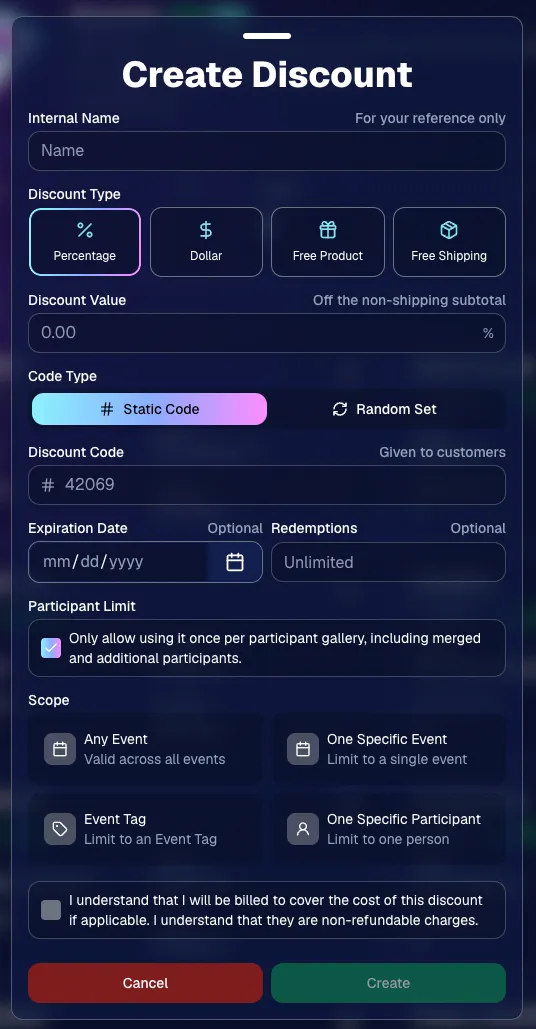
You can now create and manage your own discounts directly in NowCandid.
Discounts you create can apply to:
- 🎟️ A specific Event
- 🏷️ An entire Event Tag
- 👤 A specific Participant
- 🌐 All of your Events
And you can choose from several discount types:
- 📉 Percentage off
- 💵 Dollar amount off
- 🎁 Free product
- 🚚 Free shipping
🔐 Flexible code options
- 🔤 Create a static 4–8 character code
- Best for creating a limited time discount for all of your customers
- Best for creating a limited time discount for all of your customers
- 🎲 Generate random one-time-use codes
- Best for distributing "coach gifts" for sports leagues
- Best for distributing "coach gifts" for sports leagues
- 👤 You can also limit a discount to one use per Participant Gallery
- Automatically on for random one-time-use codes
A few important rules:
- Discounts apply to the pre-shipping subtotal (except for Free Shipping discounts)
- If a discount exceeds the product cost, you are responsible for the difference and will be billed
- The maximum discount value is $500
- For example, a 100% off discount on a $1,000 order would still leave the customer responsible for $500.
📚 Full documentation:
https://app.nowcandid.com/docs/discounts
🎨 Batch AI Editing from Manage Images
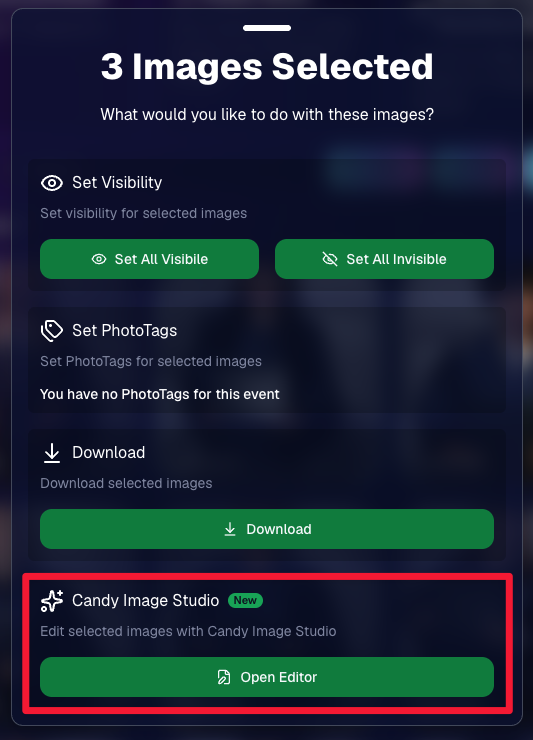
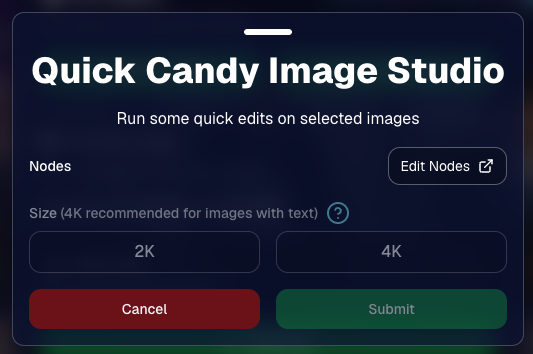
You can now run Candy Image Studio edits on multiple selected images at once right from Manage Images.
- ✨ Select multiple images
- 🍬 Open the new mini Candy Image Studio editor
- 🖼️ Apply an edit to the selected group
This gives you a nice middle ground between editing images one-by-one and setting up Auto Editor for an entire roll or Event.
📤 Better SportsPics Upload Controls
SportsPics Events now have more useful options directly in the Image Upload settings:
👥 Mark All Images Group
- Automatically mark every uploaded image as a Group Photo.
🏷️ Assign a PhotoTag during upload
- If the Event has PhotoTags, you can choose one and automatically apply it to every uploaded image.
This is especially handy when uploading to a Face Matching Event, to ensure the images don't go out to subjects via Face Matching before you have a chance to mark them as Group/Team Photos!
✉️ Client Outreach email designer improved
- Candy is better at remembering and sticking to instructions from earlier revisions when you’re making revisions to an outreach email.
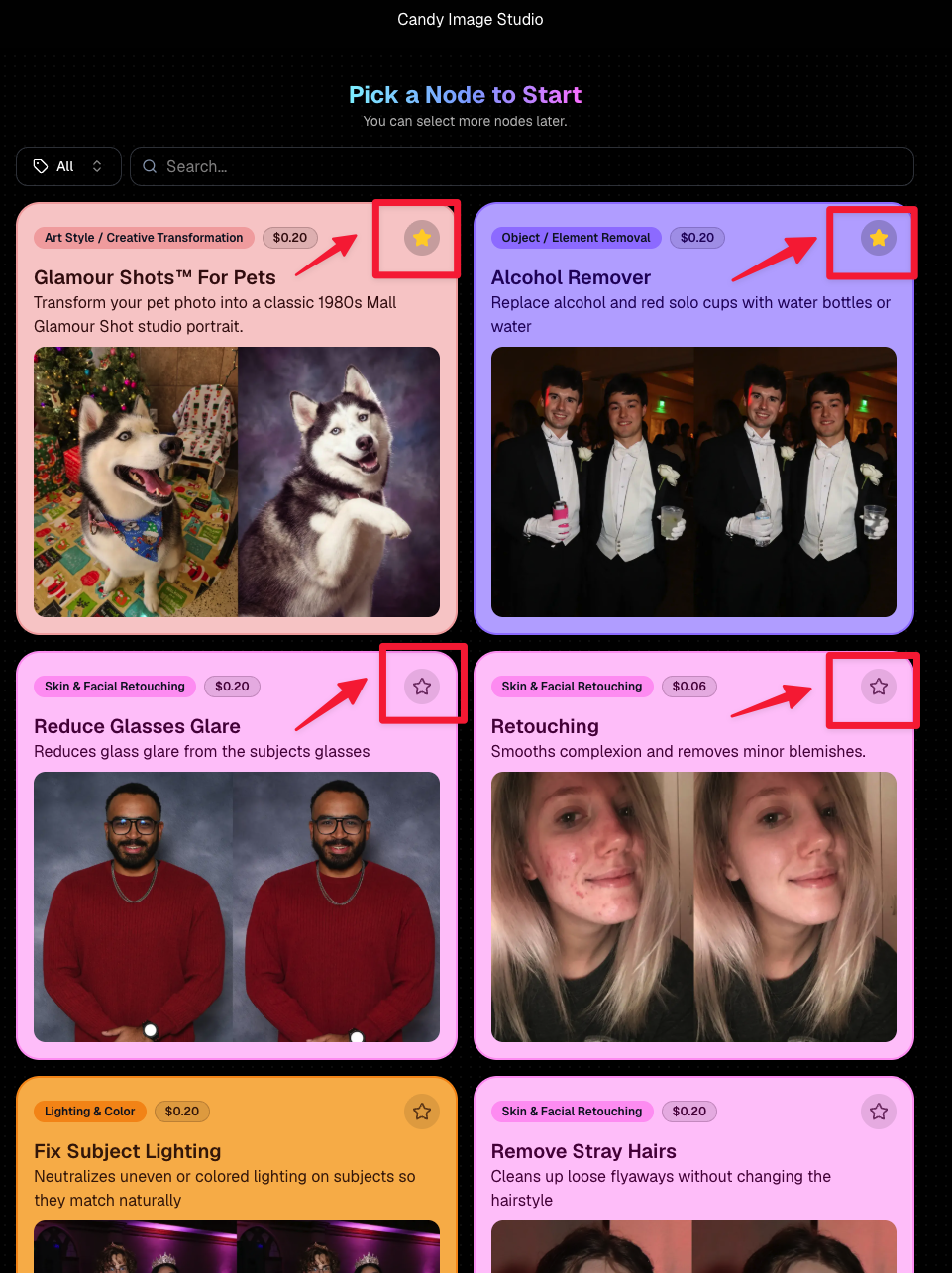
⭐ Favorite your most-used nodes
- Click the star in the top-right of a node to move it toward the top of the list in Candy Image Studio or Auto Editor.
- Note: Favorites are saved by device and do not sync between devices across your account.
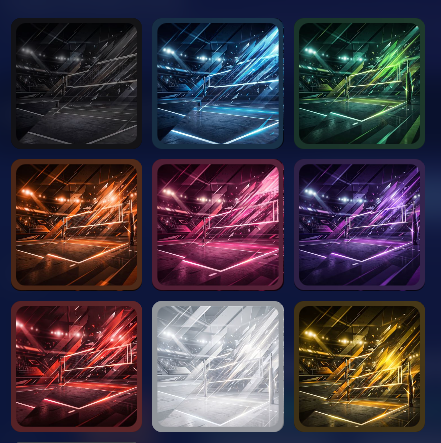
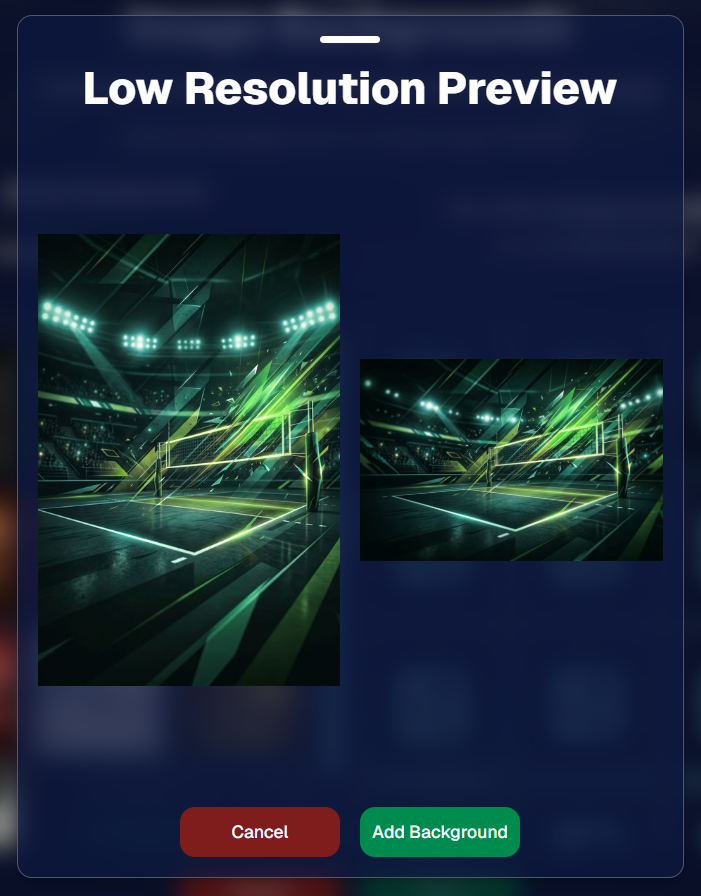
🖼️ 39 New Default Background Sets
We added 39 new background sets for Offers and Virtual Groups!
New additions span categories like:
- 🔥 Flames
- 🏭 Industrial
- 💡 Light – Bars
- ⚡ Lightning
- 🏈 Locker Room
- ⚽ Soccer
- 🏐 Volleyball
- ⛳ Golf
- 🎬 Spotlight
Between these new additions, custom uploads, and the AI Background Generator, you’ve got plenty of ways to build a look that fits your Events.
🧑🤝🧑 PhotoRoster & PhotoTag Improvements
🏷️ PhotoTags carry into new PhotoRosters
- When creating a PhotoRoster by importing Selfie Check-Ins, participant PhotoTags will now save into the PhotoRoster too!
🧹 Duplicate PhotoTag import fix
- Fixed an edge case where PhotoTags could be imported twice creating duplicates.
✂️ Background Removal Update
- 👥 Background Removal no longer runs on Group Photos
Group Photos are not meant to go through Background Removal! Though it can kind of work, typical team photo poses are not recommended for Background Removal (picture floating subjects who were previously sitting on a bench or bleachers).
🛍️ Retail: Duplicate Download Warning
Retail now helps prevent accidental duplicate digital purchases.
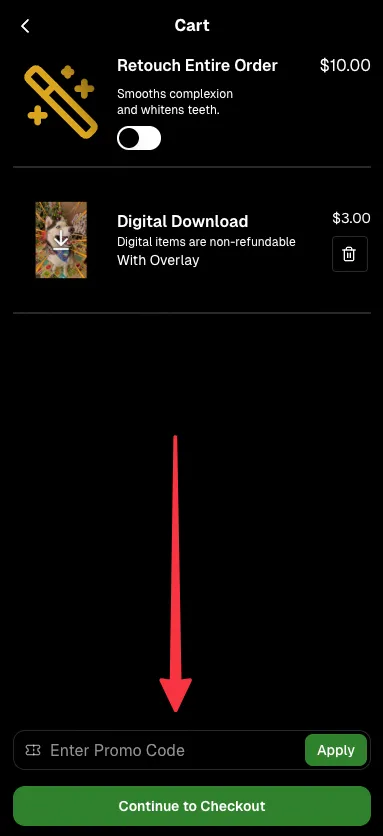
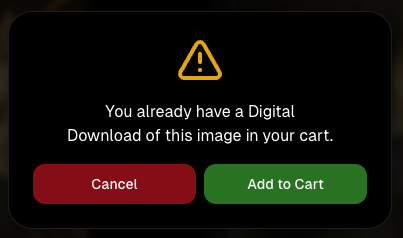
- ⚠️ If a shopper tries to add a digital download product (or package that includes one) that already contains the same image, crop, and artwork settings as a digital image already in their cart, they’ll see a new: “You already have a Digital Download of this image in your cart” popup.
- ➕ They can still add it anyway if they really want to!
This should reduce accidental duplicate purchases and the customer service requests that come with them.
🛠️ Dashboard Fixes & Cleanup
- 🪟 Fixed popups flickering when background data refreshed
- 🎯 Fixed Unassigned filters/counts in edge cases involving cutouts of AI edits
- 🧑🤝🧑 Fixed Virtual Group row settings reverting to auto after deleting a subject
That’s the week!
Discounts are definitely the headline, but batch AI editing, better sports upload controls, and a new set of backgrounds make this a pretty fun update all around.
Keep creating magic,
Candy 🍬
.png)

.jpg)

.svg)


