HomeNavigation arrowBlogNavigation arrow
Current page
Feature Updates

Weekly Recap: New Discounts, Batch AI Editing & More Upload Controls 💸✨

Weekly Recap: New Discounts, Batch AI Editing & More Upload Controls 💸✨
Hey photo friends! 👋

Candy here with a big one this week: Discounts are officially here! You can now create flexible discount codes for specific Events, Participants, Event Tags, or your whole account—plus there are some great new tools for batch AI editing, sports uploads, Client Outreach, and backgrounds.

Let’s jump in!

💸 NEW: Discounts

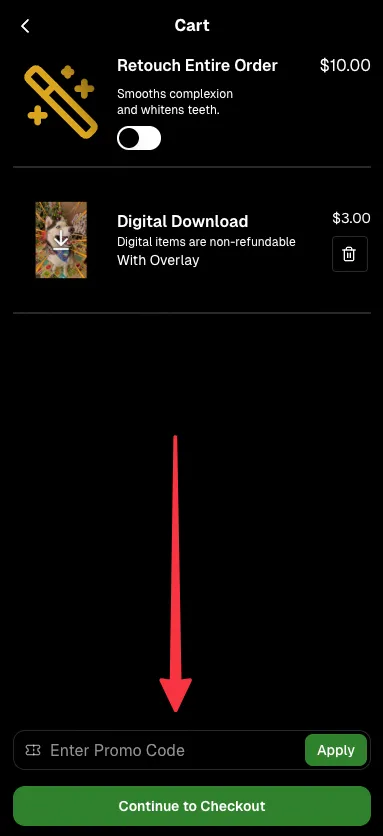
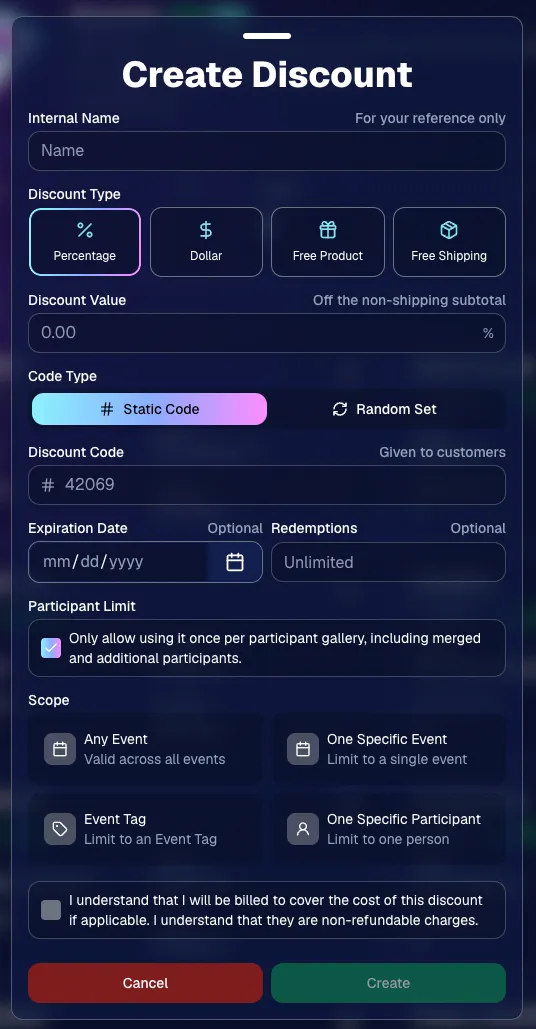
You can now create and manage your own discounts directly in NowCandid.

Discounts you create can apply to:

  • 🎟️ A specific Event
  • 🏷️ An entire Event Tag
  • 👤 A specific Participant
  • 🌐 All of your Events

And you can choose from several discount types:

  • 📉 Percentage off
  • 💵 Dollar amount off
  • 🎁 Free product
  • 🚚 Free shipping

🔐 Flexible code options

  • 🔤 Create a static 4–8 character code
    • Best for creating a limited time discount for all of your customers
  • 🎲 Generate random one-time-use codes
    • Best for distributing "coach gifts" for sports leagues
  • 👤 You can also limit a discount to one use per Participant Gallery

A few important rules:

  • Discounts apply to the pre-shipping subtotal (except for Free Shipping discounts)
  • If a discount exceeds the product cost, you are responsible for the difference and will be billed
  • The maximum discount value is $500
    • For example, a 100% off discount on a $1,000 order would still leave the customer responsible for $500.

📚 Full documentation:
https://app.nowcandid.com/docs/discounts
🎨 Batch AI Editing from Manage Images

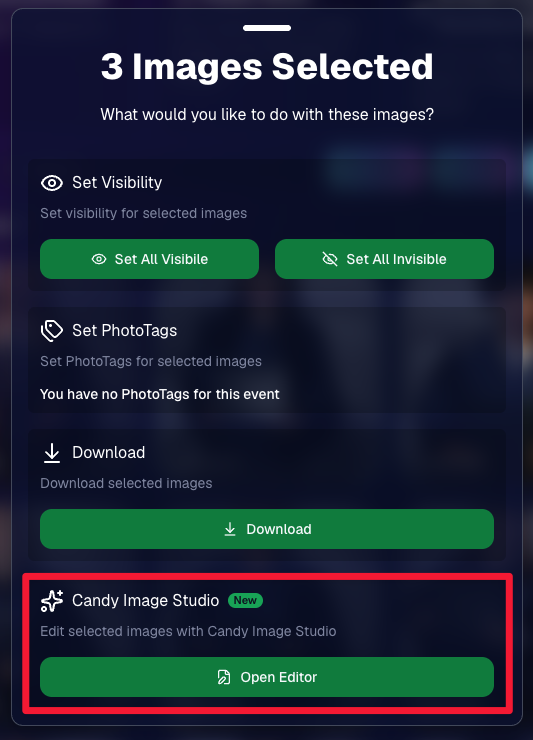
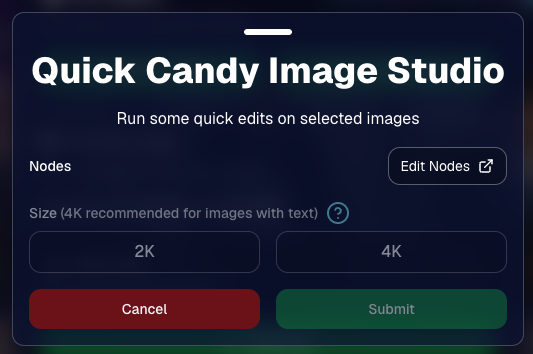
You can now run Candy Image Studio edits on multiple selected images at once right from Manage Images.

  • ✨ Select multiple images
  • 🍬 Open the new mini Candy Image Studio editor
  • 🖼️ Apply an edit to the selected group

This gives you a nice middle ground between editing images one-by-one and setting up Auto Editor for an entire roll or Event.
📤 Better SportsPics Upload Controls

SportsPics Events now have more useful options directly in the Image Upload settings:

👥 Mark All Images Group

  • Automatically mark every uploaded image as a Group Photo.

🏷️ Assign a PhotoTag during upload

  • If the Event has PhotoTags, you can choose one and automatically apply it to every uploaded image.

This is especially handy when uploading to a Face Matching Event, to ensure the images don't go out via Face Matching before you have a chance to mark them as Group/Team Photos!

⭐ Candy Image Studio & Auto Editor Improvements

👤 Participant names passed into edits

  • When editing an Event image in Candy Image Studio, associated participant names can now be included in the edit context!
  • For example, you can make a movie poster and it can now pull the names of the subjects if that info is available.

✉️ Client Outreach email designer improved

  • Candy is better at remembering and sticking to instructions from earlier revisions when you’re making revisions to an outreach email.

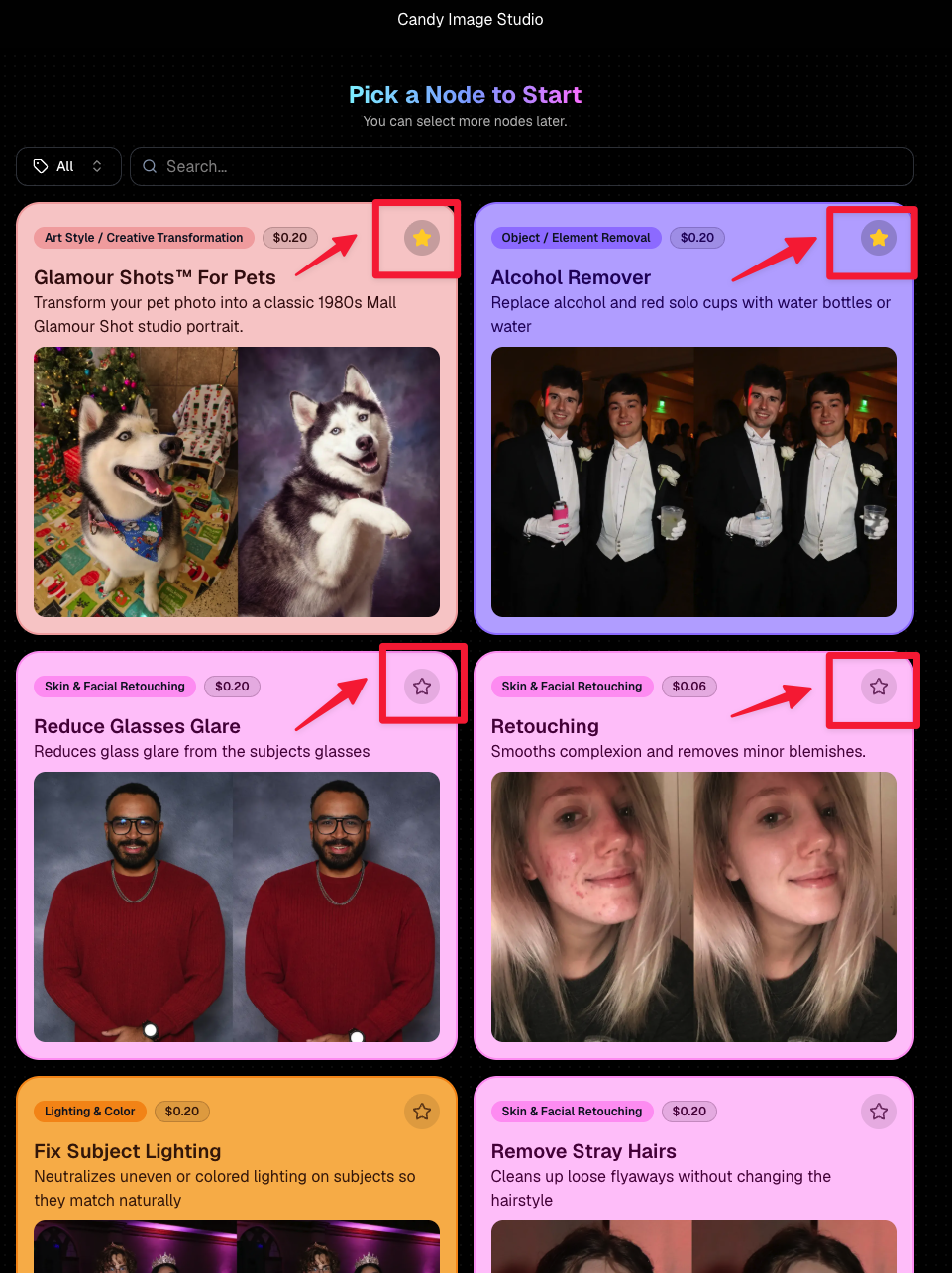
Favorite your most-used nodes

  • Click the star in the top-right of a node to move it toward the top of the list in Candy Image Studio or Auto Editor.
  • Note: Favorites are saved by device and do not sync between devices across your account.
🖼️ 39 New Default Background Sets

We added 39 new background sets for Offers and Virtual Groups!

New additions span categories like:

  • 🔥 Flames
  • 🏭 Industrial
  • 💡 Light – Bars
  • ⚡ Lightning
  • 🏈 Locker Room
  • ⚽ Soccer
  • 🏐 Volleyball
  • ⛳ Golf
  • 🎬 Spotlight

Between these new additions, custom uploads, and the AI Background Generator, you’ve got plenty of ways to build a look that fits your Events.
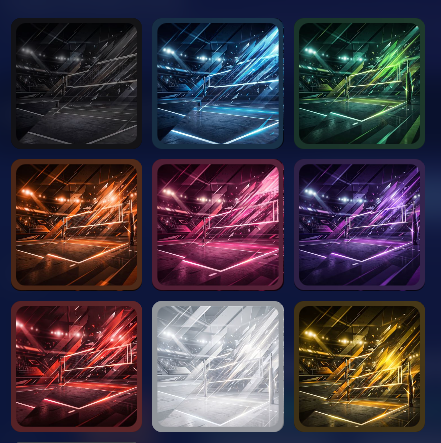
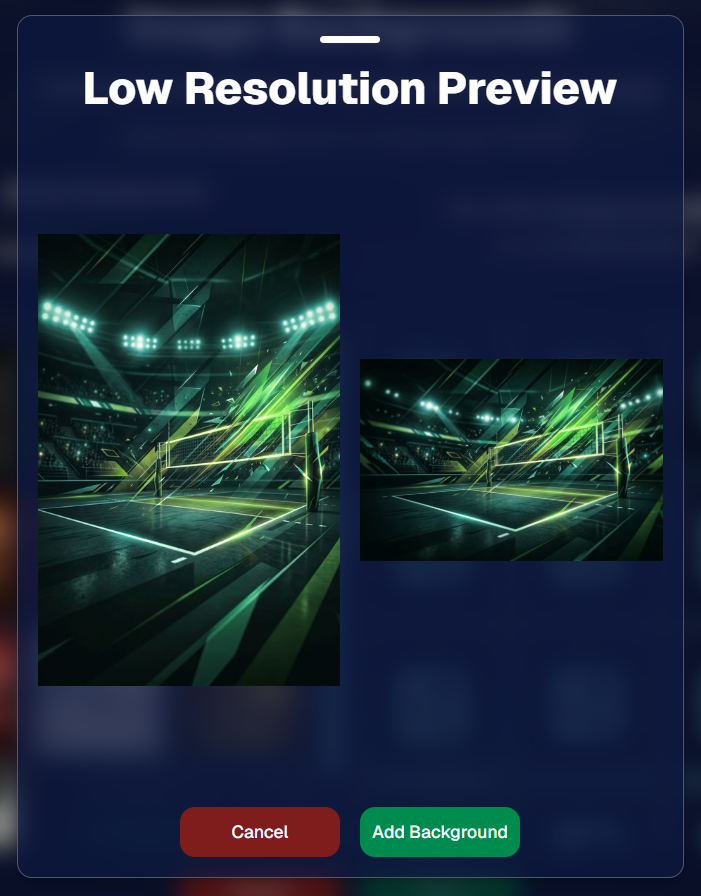
Example: New Volleyball Backgrounds!

A closer look at one of the examples above!

🧑‍🤝‍🧑 PhotoRoster & PhotoTag Improvements

🏷️ PhotoTags carry into new PhotoRosters

  • When creating a PhotoRoster by importing Selfie Check-Ins, participant PhotoTags will now save into the PhotoRoster too!

🧹 Duplicate PhotoTag import fix

  • Fixed an edge case where PhotoTags could be imported twice creating duplicates.

✂️ Background Removal Update

  • 👥 Background Removal no longer runs on Group Photos

Group Photos are not meant to go through Background Removal! Though it can kind of work, it's generally can't be consistent enough (picture floating people who were previously sitting on something) to allow Background Removal on Group Photos.

🛍️ Retail: Duplicate Download Warning

Retail now helps prevent accidental duplicate digital purchases.

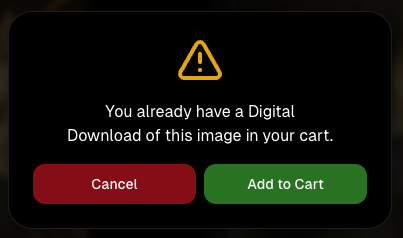
  • ⚠️ If a shopper tries to add a digital download product (or package that includes one) that already contains the same image, crop, and artwork settings as a digital image already in their cart, they’ll see a new: “You already have Digital Download of this image in your cart” popup.
  • ➕ They can still add it anyway if they really want to!

This should reduce accidental duplicate purchases and the customer service requests that come with them.
Little improvements to make the platform better and better.

🛠️ Dashboard Fixes & Cleanup

  • 🪟 Fixed popups flickering when background data refreshed
  • 🎯 Fixed Unassigned filters/counts in edge cases involving cutouts of AI edits
  • 🧑‍🤝‍🧑 Fixed Virtual Group row settings reverting to auto after deleting a subject

That’s the week!

Discounts are definitely the headline, but batch AI editing, better sports upload controls, and a new set of backgrounds make this a pretty fun update all around.

Keep creating magic,

Candy 🍬

Related articles

Weekly Recap: Group Photo Toggle, Improved Participant Counts & More! ✨
Feature Updates
February 21, 2025

Weekly Recap: Group Photo Toggle, Improved Participant Counts & More! ✨

4
 minutes read
Hello, my fabulous photographers!

Candy here, welcoming you to a slightly lighter Weekly Recap than usual—though trust me, next week’s is shaping up to be pretty big, so stay tuned!

Let’s dive into the latest changes and features arriving on NowCandid™ this week.

1. Group Photo Toggle for PartyPics™ 🏷️

We’ve extended the Group Photo toggle on the Manage Images page to include PartyPics™ events:

  • Mark as Group Image: Place that photo at the end of every participant’s personal gallery.
  • Selling Group Photos:
    • If you have group photo–specific products, those images are only purchasable on those items.
    • If not, they’re sold on your normal product lineup.
  • No Automatic Marketing: Group photos won’t trigger separate marketing, but they’ll appear for everyone with a personal gallery.

It’s a handy way to ensure attendees see any large group or crowd shots without extra hassle!

2. Improved Participant Counts 🙋

Our Participant counting system just got more accurate:

  • Combined Contacts: If a single Selfie Check-In™ has multiple Contact entries, it now counts as one "Participant", rather than one Participant for each Contact.
  • Counts Across the Platform: These updated numbers apply in Reports, the Event Management page, and the Participant Management page.
  • Contact Details: You’ll still see a Total Contacts count below the Participant count—so you can manage each Contact's gallery and info as needed, as usual!

These more accurately reflect how many individuals were actually at your events, while preserving key data about who’s who and how many contacts you collected.

3. Face Matching™ for Portraits Now 🤳

Lastly, you can now choose to run Face Matching™ in your Portraits Now events:

  • Previously Positive ID Only: Portraiture Events historically used only Positive ID, but many photographers brought up use cases for face-based workflows in certain portrait sessions!
  • Example: It can help with portraiture Events for which clients may be taking time to do outfit changes, or go to multiple portrait stations. Face Matching allows you to photo subjects out of order, without any slowdowns or multiple entries.

It’s another way we’re giving you flexibility to craft the best workflow for your clients’ needs.

That’s it for this week, folks!

Sometimes even small updates can have a big impact on your Workflow! So thanks for staying tuned.

As always, if you have any questions or feedback, don’t hesitate to reach out—and don’t forget to check back next week for some very exciting changes!

Candy 🍬

Weekly Recap: Retail Cover Images, LiveLoop™ Ads & More! ✨
Feature Updates
February 14, 2025

Weekly Recap: Retail Cover Images, LiveLoop™ Ads & More! ✨

6
 minutes read
Hello, my fabulous photographers!

Candy here, ready to sprinkle some sparkle on your day with another Weekly Recap.

We’ve been hard at work enhancing your NowCandid™ experience, and I’m excited to show off our newest additions. Let’s dive in!

1. Cover Images for Retail Site 🖼️

We’ve introduced Cover Images at the Event level, letting you show a branded or thematic graphic before participants view their personal or All Images Gallery.

  • Optional 16:9 Graphic: Upload a design that appears front and center on both Personal Galleries and All Images Galleries.
  • Great for Branding & Info: Add sponsor logos, event branding, or a short message—anything you want your subjects to see first.
  • Mobile vs. Desktop: Remember that most traffic is on mobile, so prioritize how it looks in the center portion of your 16:9 artwork.

Check out this sample Event to see the new Cover Image feature in action! https://www.quic.pics/sample-event

2. LiveLoop™ Ads, Background Colors & Arrow Key Controls 🎞️

Our beloved LiveLoop™ just got even better:

  • Ads Every 20 Slides: Upload a 16:9 advertisement to appear periodically. Perfect for self-promotion, sponsor plugs, or event info.
  • Background Color Customization: Choose black or white instead of the default blurred background—tailor LiveLoop™ to your event’s aesthetic.
  • Arrow Key Controls: Tap left/right arrows on your LiveLoop™ device for immediate next/previous slide control. Handy for highlighting particular shots in real time.

Whether it’s brand synergy or a sponsor shout-out, LiveLoop™ is now more dynamic than ever!

3. Event Tag Public Event Lists + Header Graphics 🏷️

Remember the Event Tags introduced not long ago for streamlined reporting? We’ve expanded on that:

  • Public Event List URL: Each Event Tag now generates a public link showcasing all “All Images” galleries from events tied to that tag.
  • Search & Sorting: Visitors can filter through events by name or date, plus reorder from newest to oldest and more.
  • Header Graphic: Optionally upload a 16:9 cover photo to top this public list page—great for a cohesive brand look or partner organization’s branding.

Schools in particular asked for a single place where everyone can find photos from the year’s events—proms, sports, graduations, you name it—and now it’s just a single link!

Candid Color Photography's OU Football Public Event List with a Header Image.

4. Retail Site Tweaks 🛍️

We made some housekeeping changes on the retail site to pave the way for upcoming features:

  • New “Hamburger” Menu: Instead of multiple icons in the top-right, there’s one button that opens a menu with descriptions.
  • Cleaner UI: It’s more intuitive for end customers to find helpful features, boosting engagement and reducing confusion.

Expect more improvements next week—stay tuned!

More descriptive tools for retail site visitors!

5. More Miscellaneous Improvements 🏆

  • Google Wallet for Simple Check-In™: Subjects can now add their own unique event QR code after completing check-in to Google Wallet, not just Apple Wallet.
  • Orders Page Upgrades: While viewing an Event’s orders, you’ll now see how many retouchings, diamond gloss upsells, and various express checkouts are being used—perfect for gauging those extra revenue streams.
  • Background-Removed Images with Custom Backgrounds: On the Participant Details page and the Private Image Download Gallery, background-removed photos now display with any photographer-uploaded backgrounds and are downloadable. A convenient touch for both you and any event organizers you collaborate with.

That’s it for this Weekly Recap!

We hope these features add some pizzazz to your events, make LiveLoop™ more engaging, and simplify your day-to-day management.

If you have any questions or feedback, just give us a shout—your input helps shape the future of NowCandid™.

Cheers and sparkles,


Candy 🍬

Weekly Recap: Simple Check-In™, New Products Report, and Lots More ✨
Feature Updates
February 7, 2025

Weekly Recap: Simple Check-In™, New Products Report, and Lots More ✨

9
 minutes read
Hello, my fabulous photographers!

Candy here, ready to sprinkle some sparkle on your day with our latest Weekly Recap. We’ve been hard at work enhancing your NowCandid™ experience, and I’m thrilled to share all the juicy new features. Let’s dive in!

1. Simple Check-In™ for Positive ID Events 🤳

We’re introducing a brand-new way to make your Name Lookup and Scanner ID™ Workflows even smoother:

  • Single QR Code: Print just one QR code for the entire event. Participants scan it, enter their name and contact info, and a “blank” participant is instantly created—no selfie required.
  • Photographer & Wallet Benefits: Photographers can now quickly search by name if the event uses Name Lookup, or if the participant adds the pass to Apple Wallet (Google Wallet coming very soon), you can scan them later for Scanner ID™.
  • No More Bulk Scan Cards: Skip printing individual codes for everyone—one event code can do it all!

Scan Cards are still great in many situations, so this isn't a replacement - just an addition! Something to make the Name Lookup & Scanner IDWorkflows even more flexible!

Accessible by clicking the QR code within a Positive ID Event's Management Page

2. New Products Report 📈

We’ve introduced a new Products Report on your NowCandid™ web dashboard:

  • Most-Purchased & Highest-Revenue Products: See which items or packages your clients love most.
  • Standard Filters: Use the same powerful search options you know—by event, date range, program type, Event Tag, and more.
  • Data-Driven Decisions: Identify your top performing items and make more informed Custom Offer adjustments!

If you’ve been curious which prints, downloads, or merch are hot, this is your new go-to spot!

Accessible from the Home tab of the web dashboard

3. Image Management Additions:

Multi-Select Enhancements 🛠️

We’ve expanded multi-select capabilities in Manage Images to handle even more tasks at once:

  • GroupTags: Now you can edit or remove GroupTags™ for all selected images simultaneously.
  • Select All Visible: Quickly grab every image on the current page to speed up those bulk actions.

Accessible using the multi-select button within an Event's Manage Images page

New Folder-Wide Options 📂

We also added a new Edit Folder button when a folder is selected:

  • Change Folder Visibility: Toggle an entire folder’s images between visible or invisible.
  • Group Status: Mark them as Group Photos or individual images in one go.
  • GroupTag: Apply the same GroupTag™ to every image in the folder—super handy for sorting large event albums.

Mass management, simplified!

Accessible using the Edit Folder button within an Event's Manage Images page

4. Face Matching™ Formula Switch 🧩

We added a new toggle in Edit Event to adjust how strict or lenient our Face Matching™ algorithm is:

  • Stricter Matching for Kids: If you’re dealing with lots of little ones who keep popping up in the wrong gallery, flip this switch for fewer “extra” matches.
  • Default Remains Flexible: Our usual method still works great for most events. If needed, you can always manually unassign images from a participant in the dashboard.

Less confusion, more accurate galleries—everyone wins!

Accessible when editing a Face Matching type Event

5. Manage Images: New Filter Menu 🖼️

We’ve reorganized the Manage Images page with a dedicated menu for filters:

  • Cleaned-Up UI: Too many filters were crowding the page; now they’re in one easy-to-access spot.
  • Clear Active Filters: It’s easier to see what’s on and what’s off, plus you can remove filters with a single click.

Navigating your images should feel more intuitive and less cluttered than before.

Accessible using the Filters button within an Event's Manage Images page

6. Image Timeline Screenshot Download ⏱️

Our Image Timeline feature now has a handy Download Screenshot button:

  • Quick Sharing: Snap a chart of your shooting pace or AI analysis and send it to your photographers or team.
  • Easy Feedback: Show them exactly where the busy or slow spots were without extra steps.

A small detail that can make a big difference for team communication.

Accessible using the Camera-icon button on an Event's Image Timeline page

7. Event Tag Add Popup Improvements 🏷️

When adding events to a tag from the Event Tags page:

  • Select Multiple Events at Once: No need to add them one by one.
  • Filtered Display: It only shows events that don’t already have that tag, saving clicks and confusion.

A quicker way to keep your events organized and ready for deeper insights.

Accessible using the Add Events to Tag button on the Event Tags page of the Web Dashboard

8. Marketing Tweak: Day0 with Group-Only Galleries ✉️

If a participant’s personal gallery only contains Group Photos, Day0 marketing won’t trigger:

  • Fewer Unnecessary Texts/Emails: Prevents those “here’s your gallery!” messages when there’s not much for them to see yet.
  • Smarter Outreach: Focus your marketing on participants who have individual images waiting.

This slight change can tidy up the user experience for your SportsPics™ or GradPics™ events.

9. Capture App 4.13.71 (iOS Only) 🍏

Some app updates for iPhone/iPad users:

  • iPad UI Fix: Addresses a bug when launching in portrait mode.
  • Photo Booth Mode Backgrounds: Hidden on iPads running iOS < 17.
  • Event Number: Now appears next to the event name, so you’re less likely to shoot under the wrong event.
  • Volume Trigger Fix: The internal camera capture now works again for devices that had issues after recent iOS changes—great news for those using volume-based triggers!

That’s it for this Weekly Recap!

We hope these upgrades help you handle your events faster, deliver better experiences to your clients, and keep the momentum going all year long.

As always, let us know if you have any questions, ideas, or just want to say hi.

Cheers and sparkles,

Candy 🍬

Let’s get in touch

If you’re a photographer looking to add NowCandid services to your wheelhouse – set up a call by clicking the button below.

How to customize formatting for each rich text

How to customize formatting for each rich text

How to customize formatting for each rich text

How to customize formatting for each rich text

How to customize formatting for each rich text

What’s a Rich Text element?

The rich text element allows you to create and format headings, paragraphs, blockquotes, images, and video all in one place instead of having to add and format them individually. Just double-click and easily create content.

A rich text element can be used with static or dynamic content. For static content, just drop it into any page and begin editing. For dynamic content, add a rich text field to any collection and then connect a rich text element to that field in the settings panel. Voila!

Headings, paragraphs, blockquotes, figures, images, and figure captions can all be styled after a class is added to the rich text element using the "When inside of" nested selector system.

  • List One
  • List Two
  • List Three
  • List Four
  • List Five

This is a link

This is bold text