HomeNavigation arrowBlogNavigation arrow
Current page
Feature Updates

Weekly Recap: New Discounts, Batch AI Editing & More Upload Controls 💸✨

Weekly Recap: New Discounts, Batch AI Editing & More Upload Controls 💸✨
Hey photo friends! 👋

Candy here with a big one this week: Discounts are officially here! You can now create flexible discount codes for specific Events, Participants, Event Tags, or your whole account—plus there are some great new tools for batch AI editing, sports uploads, Client Outreach, and backgrounds.

Let’s jump in!

💸 NEW: Discounts

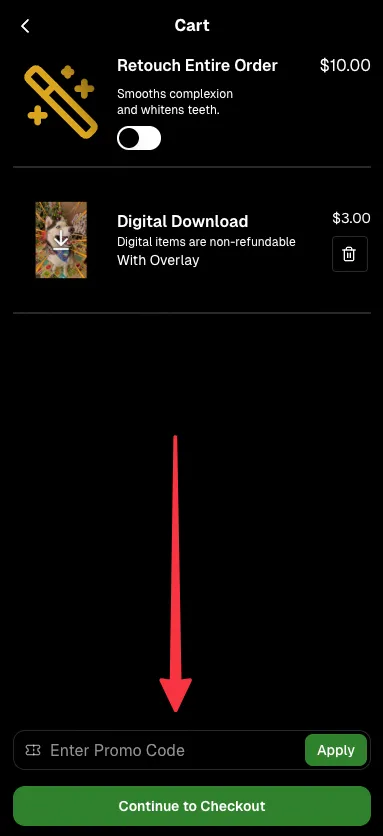
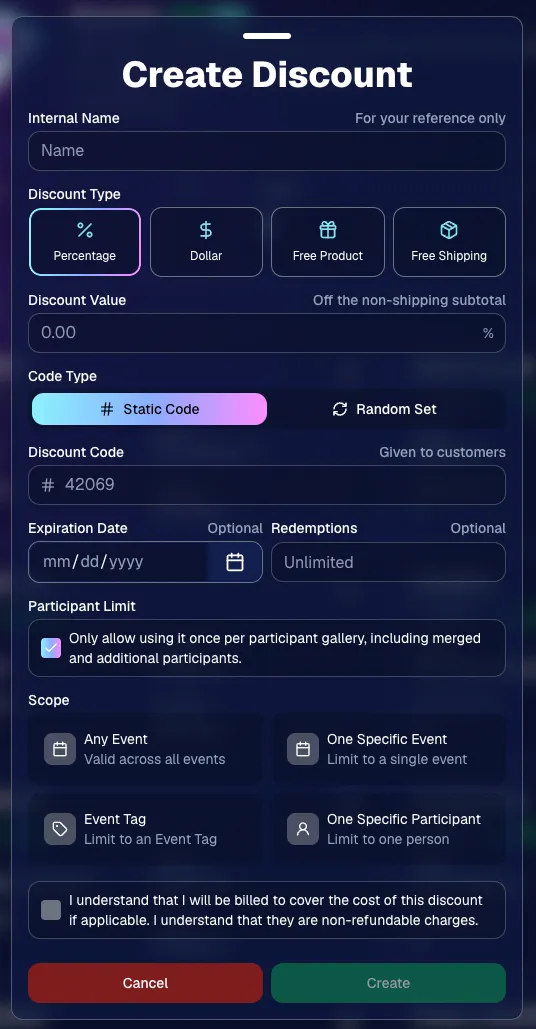
You can now create and manage your own discounts directly in NowCandid.

Discounts you create can apply to:

  • 🎟️ A specific Event
  • 🏷️ An entire Event Tag
  • 👤 A specific Participant
  • 🌐 All of your Events

And you can choose from several discount types:

  • 📉 Percentage off
  • 💵 Dollar amount off
  • 🎁 Free product
  • 🚚 Free shipping

🔐 Flexible code options

  • 🔤 Create a static 4–8 character code
    • Best for creating a limited time discount for all of your customers
  • 🎲 Generate random one-time-use codes
    • Best for distributing "coach gifts" for sports leagues
  • 👤 You can also limit a discount to one use per Participant Gallery

A few important rules:

  • Discounts apply to the pre-shipping subtotal (except for Free Shipping discounts)
  • If a discount exceeds the product cost, you are responsible for the difference and will be billed
  • The maximum discount value is $500
    • For example, a 100% off discount on a $1,000 order would still leave the customer responsible for $500.

📚 Full documentation:
https://app.nowcandid.com/docs/discounts
🎨 Batch AI Editing from Manage Images

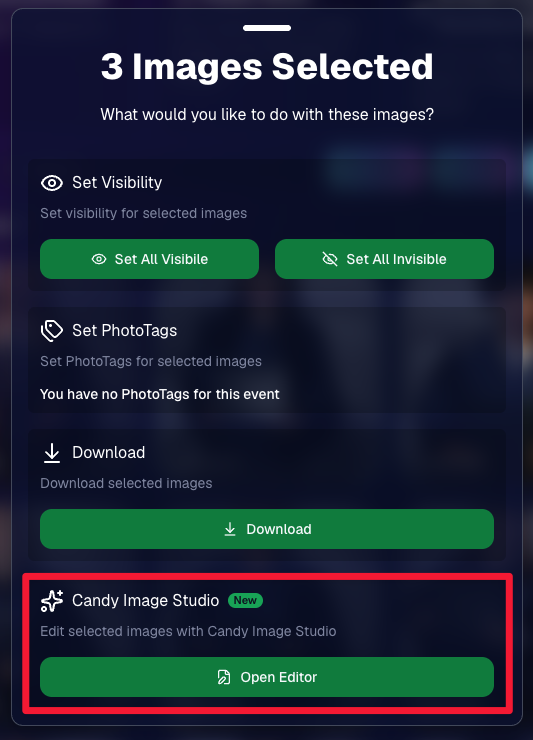
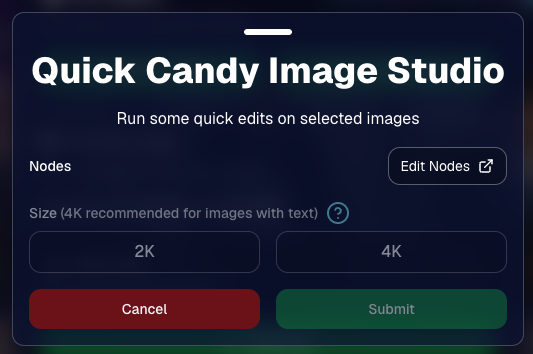
You can now run Candy Image Studio edits on multiple selected images at once right from Manage Images.

  • ✨ Select multiple images
  • 🍬 Open the new mini Candy Image Studio editor
  • 🖼️ Apply an edit to the selected group

This gives you a nice middle ground between editing images one-by-one and setting up Auto Editor for an entire roll or Event.
📤 Better SportsPics Upload Controls

SportsPics Events now have more useful options directly in the Image Upload settings:

👥 Mark All Images Group

  • Automatically mark every uploaded image as a Group Photo.

🏷️ Assign a PhotoTag during upload

  • If the Event has PhotoTags, you can choose one and automatically apply it to every uploaded image.

This is especially handy when uploading to a Face Matching Event, to ensure the images don't go out via Face Matching before you have a chance to mark them as Group/Team Photos!

⭐ Candy Image Studio & Auto Editor Improvements

👤 Participant names passed into edits

  • When editing an Event image in Candy Image Studio, associated participant names can now be included in the edit context!
  • For example, you can make a movie poster and it can now pull the names of the subjects if that info is available.

✉️ Client Outreach email designer improved

  • Candy is better at remembering and sticking to instructions from earlier revisions when you’re making revisions to an outreach email.

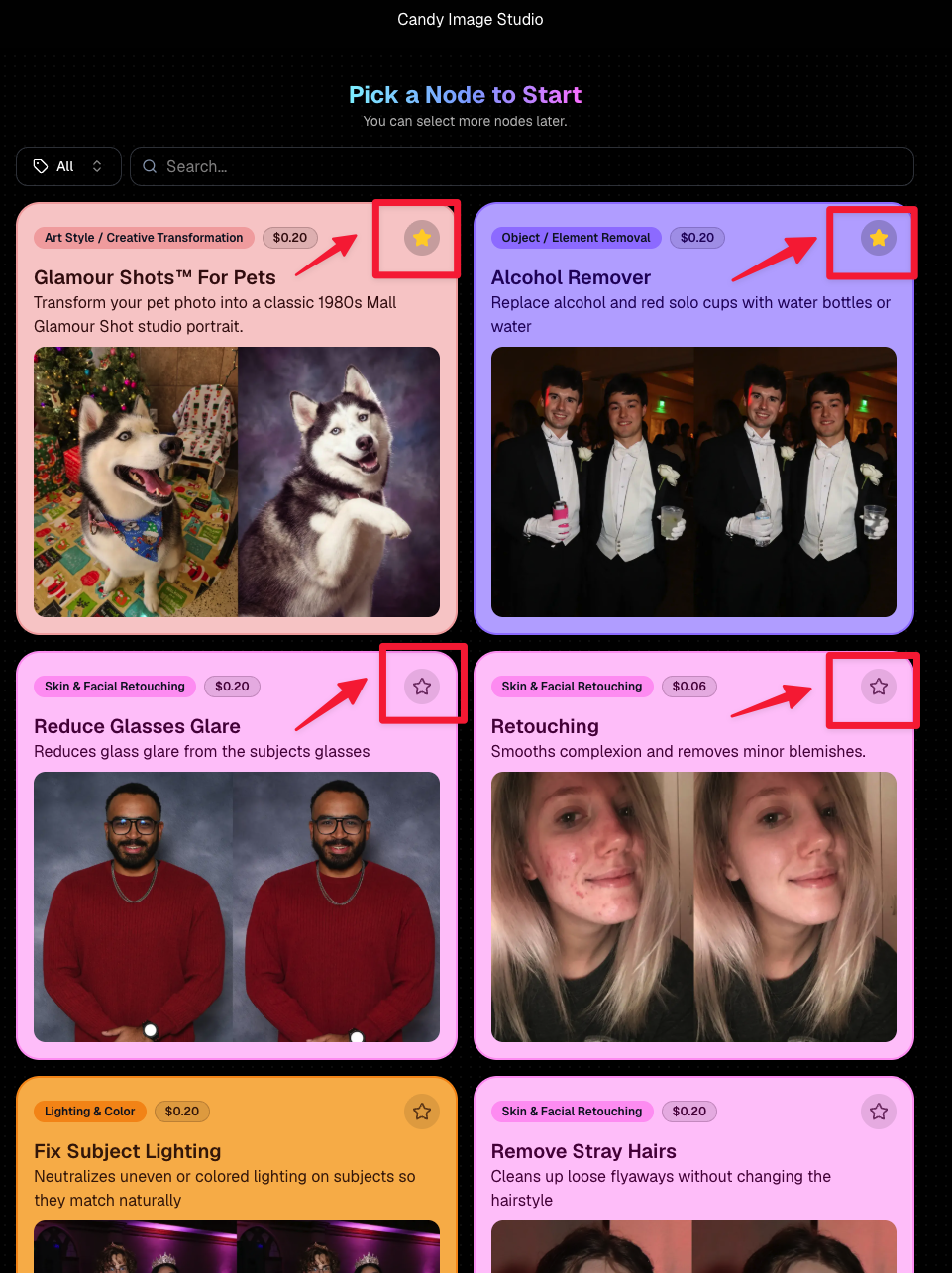
Favorite your most-used nodes

  • Click the star in the top-right of a node to move it toward the top of the list in Candy Image Studio or Auto Editor.
  • Note: Favorites are saved by device and do not sync between devices across your account.
🖼️ 39 New Default Background Sets

We added 39 new background sets for Offers and Virtual Groups!

New additions span categories like:

  • 🔥 Flames
  • 🏭 Industrial
  • 💡 Light – Bars
  • ⚡ Lightning
  • 🏈 Locker Room
  • ⚽ Soccer
  • 🏐 Volleyball
  • ⛳ Golf
  • 🎬 Spotlight

Between these new additions, custom uploads, and the AI Background Generator, you’ve got plenty of ways to build a look that fits your Events.
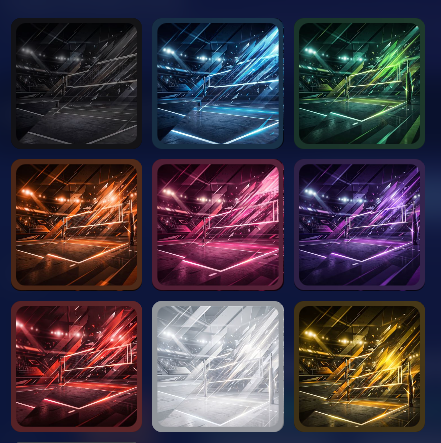
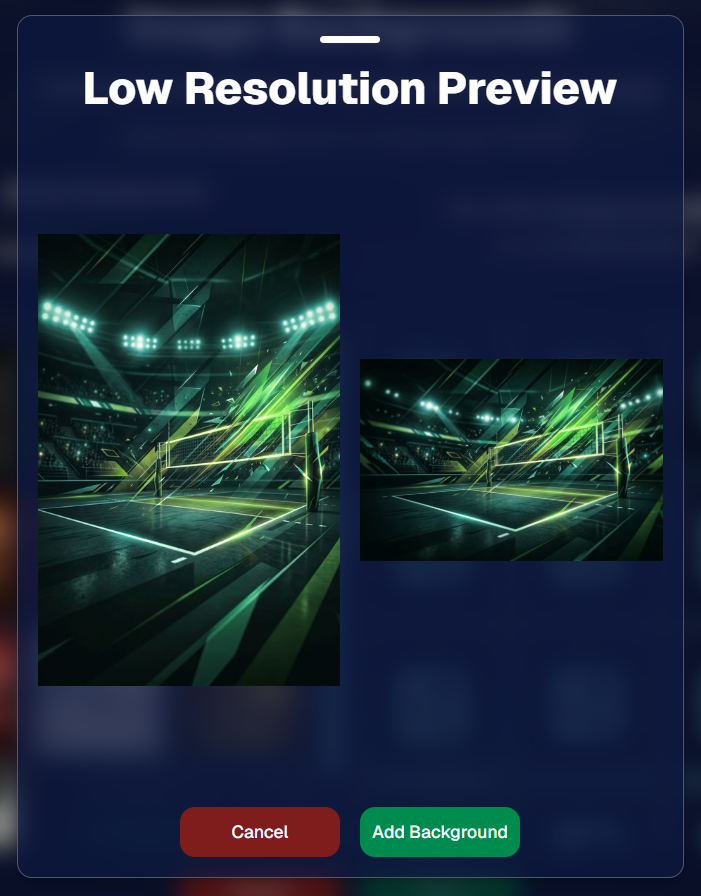
Example: New Volleyball Backgrounds!

A closer look at one of the examples above!

🧑‍🤝‍🧑 PhotoRoster & PhotoTag Improvements

🏷️ PhotoTags carry into new PhotoRosters

  • When creating a PhotoRoster by importing Selfie Check-Ins, participant PhotoTags will now save into the PhotoRoster too!

🧹 Duplicate PhotoTag import fix

  • Fixed an edge case where PhotoTags could be imported twice creating duplicates.

✂️ Background Removal Update

  • 👥 Background Removal no longer runs on Group Photos

Group Photos are not meant to go through Background Removal! Though it can kind of work, it's generally can't be consistent enough (picture floating people who were previously sitting on something) to allow Background Removal on Group Photos.

🛍️ Retail: Duplicate Download Warning

Retail now helps prevent accidental duplicate digital purchases.

  • ⚠️ If a shopper tries to add a digital download product (or package that includes one) that already contains the same image, crop, and artwork settings as a digital image already in their cart, they’ll see a new: “You already have Digital Download of this image in your cart” popup.
  • ➕ They can still add it anyway if they really want to!

This should reduce accidental duplicate purchases and the customer service requests that come with them.
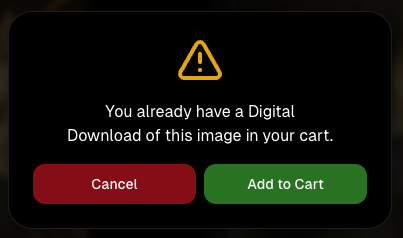
Little improvements to make the platform better and better.

🛠️ Dashboard Fixes & Cleanup

  • 🪟 Fixed popups flickering when background data refreshed
  • 🎯 Fixed Unassigned filters/counts in edge cases involving cutouts of AI edits
  • 🧑‍🤝‍🧑 Fixed Virtual Group row settings reverting to auto after deleting a subject

That’s the week!

Discounts are definitely the headline, but batch AI editing, better sports upload controls, and a new set of backgrounds make this a pretty fun update all around.

Keep creating magic,

Candy 🍬
Related articles

Weekly Recap: Sticky Filters, Faster Uploads & Happy Halloween! 🎃🕸️
Feature Updates
October 31, 2025

Weekly Recap: Sticky Filters, Faster Uploads & Happy Halloween! 🎃🕸️

3
 minutes read
Boo! 👻

Candy here with a trick-or-treat pail of useful updates: sticky, shareable filters, faster uploads, and clearer participant tools. You’ll keep context when you reload or share links—and move uploads along faster.

Let’s dig in!

🖥️ Dashboard Improvements

  • 🧲 Sticky, shareable filters
    Filters now live in the URL on Manage Images, Assign Images, Event List, and Participant List. Refresh or hit Back and your view stays put—and you can share filtered links with teammates or support.
  • 🚀 Faster image uploads
    The Image Upload page handles large batches more efficiently for quicker throughput.

🪄 Minor Dashboard Tweaks

  • 💳 QuicPics Upfront Pay editor is now available in QuicPortraits.
  • 🏷️ “Additional Contact” badge appears under a participant’s name for quick clarity.
  • 👥 Additional Contacts list on Participant Details, plus an Add option (when new campaigns are allowed).
  • ✉️ Marketing History filter: view All / Texts / Emails.

🧹 Dashboard Bug Fixes

  • 🧩 Positive ID code PDFs now show PhotoTags for merged participants even when they weren’t the first registered.
  • 📏 2×5 Positive ID PDF layout fixed for long event titles.
  • 📄 2×5 Positive ID PDF last-page spacing fixed when the page isn’t full of cards.

📲 Capture & Upload App

  • 🙅 Name Lookup no longer shows Additional Contacts (no app update needed—restart or re-log into the Event).

🛍️ Misc Changes

  • ⚖️ Retail “weight” caption limit increased to 7 characters (up from 3, for products like trader cards).

🛠️ Misc Fixes

  • 🔁 QuicPics won’t double-text the same image if someone was registered twice in the same send batch.
  • 🔃 Manage Images “uploaded first/last” filter direction corrected.
  • 📪 Fixed an unsubscribe edge case when a gallery is entirely cutouts and all original JPEGs are not visible.

That’s the update!

Happy Halloween—and good shooting! 🎃


Candy 🍬

Weekly Recap: Even Stronger Image Privacy & UI Polish 🔒🧰
Feature Updates
October 24, 2025

Weekly Recap: Even Stronger Image Privacy & UI Polish 🔒🧰

5
 minutes read
Hey photo friends! 👋


This week we further tightened subject image provacy, and freshened up the UI across Dashboard and Retail.

Here’s what’s new:

📋 Dashboard

  • 🏷️ Clearer overlay labels: Event List & Event Details now show Banner or Full Frame thumbnails instead of a generic “graphic overlay” text label only.
  • 🧩 Overlay importer: Now a tidy 2-column layout instead of one at a time, to more quickly let you seek out a specific event's overlays to reuse.
  • 📥 Participant download sheet (big data friendly): Handles very large folder/frame totals without breaking.
  • 🧭 Smarter participant pic choice: If a participant was merged from multiple sources, the sheet now prioritizes the non–Roster record for their participant pic (instead of the silhouette).
  • 🖼️ Retail cover editor: See a preview of the cover photo on retail before saving (not just after).
  • 🔔 Auto-resume marketing alerts: If marketing has been paused too long, you’ll get an inbox + push when it auto-resumes (first Friday after 20 days).
  • 👤 Participant Details upgrades:
    • 🖼️ Higher-res non-BGR images & backgrounds
    • 💡 Lightbox UI and previews that match Manage Images
    • 🟠🟥🟩 Thicker status borders + bold assignment text
  • 🏷️ PhotoTags popup: New All / Assigned / Unassigned tabs for faster tagging.
  • 🧾 Merged participant awareness:
    • Order counts on Participant Details and Participant List now include merged participants
    • Marketing count shows which contact info each message went to
  • Performance wins:
    • Participant List scales better with hundreds or thousands of people
    • PhotoRosters FaceGroup list is snappier with large rosters
  • 🪟 Updated popups: Smoother UI with animated width/height changes.

🛍️ Retail

  • 🖥️ Small desktop fix: Layout issues resolved for some compact screens.
  • 🛡️ Harder to lift images: Retail page changes to defeat "allow right click" browser extensions to continue to try and protect images & privacy.

🔒 Image Privacy & Other Fixes

  • 🔒 Enhanced privacy on retail: Images are now even safer from link guessing or misuse while the experience stays the same.
  • Fewer auth requests: Both Dashboard and Retail make fewer calls when refocusing windows, resulting in improved performance!
  • 🧩 Private Download Gallery: BGR cutouts/backgrounds load correctly again.
  • 🔎 Search released images: Now supports BGR and hides not-visible images.
  • Clearer “active” events: Event List now shows “Live on Capture App” to indicate capture-ready status, as opposed to "Active" which caused confusion related to Face Matching.

That’s the scoop! 💫

Less friction, clearer signals, and stronger protection—so you can spend more time shooting and selling.

Keep being amazing,
Candy 🍬

Weekly Recap: Sharper Images, A New Workflow & Capture App 4.20.10 📸✨
Feature Updates
October 10, 2025

Weekly Recap: Sharper Images, A New Workflow & Capture App 4.20.10 📸✨

3
 minutes read
Hey photo friends!

This week’s updates are focused on clarity, quality, and efficiency—from sharper image previews across the board to a brand-new Face Matching Workflow, Roster Check-In.

Let’s take a look! 👀

🏅 New Workflow: Roster Check-In™

Made for sports and other rostered shoots when you want Face Matching™ + a roster in one workflow.

How it works:

1. Upload a roster to the Event (via the Dashboard, under your Event's Participants & Contacts page)

2. In the Capture & Upload app, log into your Event and choose Roster Check-In™ as your shooting mode

3. Pick a name from the roster (or add one via Type & Take)

4. Take a quick reference photo (using the device's camera or a tethered camera)

Done! Future image uploads, from the Capture & Upload app or from the Dashboard, will automatically match to that person and market them their new gallery.

Note: Requires Capture & Upload App 4.20.10

📋 Dashboard

  • 🏷️ PhotoTags on Tap-A-Face: You can now set PhotoTags when creating a participant via the manual Tap-A-Face available on the Image Details page
  • 🖼️ Higher-resolution images across key pages, including:
    • Manual Assign Images page
    • Image Release Gallery
  • 🎨 Overlay importer now shows full-frame previews (previously only banners)

🛍️ Retail Site

  • 🧖 Confirmation popup when adding Retouch items to the cart—provides extra info to the subjects about the retouching process
  • 😊 Face Finder now shows higher-resolution previews for better clarity

🔒 Private Image Download Galleries

  • 🖼️ Higher-res image previews for a sharper, more polished experience

📱 iOS Capture App 4.20.10 (coming Oct 10–13)

  • 👥 New Workflow: Roster Check-In™ — streamline your workflow by checking in subjects directly using a roster and the Capture & Upload App
  • 💬 UI updates:
    • Most error popups replaced with native dialogs for cleaner alerts
    • Login popup stays open on invalid login (no more accidental closures)
  • Performance boosts everywhere:
    • Less memory usage for uploads
    • Faster image details popups and Name Lookup lists
    • Better performance for image previews across the shooting page, film strip, image gallery, and FM Roster Check-In

🧩 Smaller Fixes & Improvements

  • 📸 Faster image loading:
    • Participant list and event overview now use smaller thumbnails
    • PhotoRoster™ Selfie Check-In™ imports now load quicker
  • 🗂️ BGR folder fixes: Group status button behavior corrected for edit folder popups
  • 📍 Tap locations on Image Details page now align correctly
  • 🖼️ Higher-res thumbnails on Manage Images (even in the smaller grid view)
  • 💌 Email-only participants now receive new image alerts after placing an order
  • 🧠 Watermark improvement: Retail site static watermarking now shows the word “Copyright” instead of your business name — this helps prevent AI tools from removing it as platforms are adding copyright-protection safeguards

That’s everything for this week! 💫

From sharper previews to smarter check-ins, these updates make every step of your workflow a little smoother (and crisper!).

Keep being amazing,
Candy 🍬

Let’s get in touch

If you’re a photographer looking to add NowCandid services to your wheelhouse – set up a call by clicking the button below.

How to customize formatting for each rich text

How to customize formatting for each rich text

How to customize formatting for each rich text

How to customize formatting for each rich text

How to customize formatting for each rich text

What’s a Rich Text element?

The rich text element allows you to create and format headings, paragraphs, blockquotes, images, and video all in one place instead of having to add and format them individually. Just double-click and easily create content.

A rich text element can be used with static or dynamic content. For static content, just drop it into any page and begin editing. For dynamic content, add a rich text field to any collection and then connect a rich text element to that field in the settings panel. Voila!

Headings, paragraphs, blockquotes, figures, images, and figure captions can all be styled after a class is added to the rich text element using the "When inside of" nested selector system.

  • List One
  • List Two
  • List Three
  • List Four
  • List Five

This is a link

This is bold text