HomeNavigation arrowBlogNavigation arrow
Current page
Feature Updates

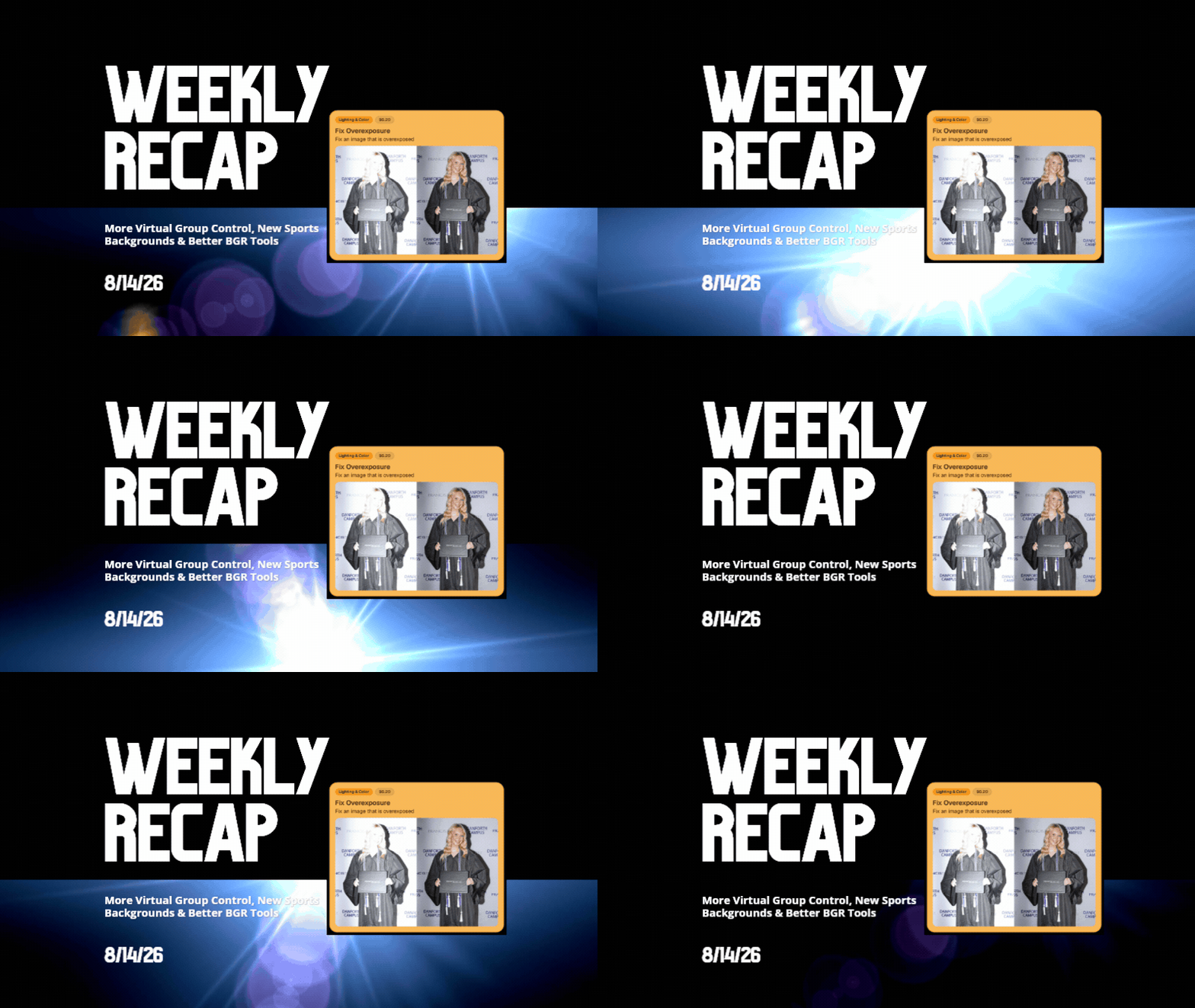
Weekly Recap: More Virtual Group Control, New Sports Backgrounds & Better BGR Tools 🏈✨

Weekly Recap: More Virtual Group Control, New Sports Backgrounds & Better BGR Tools 🏈✨
Hey photo friends! 👋

Candy here with another weekly recap! This week brings more control to Virtual Group Builder, a much better home for Event Background Removal, new Candy Image Studio exposure tools, and—yes—27 new sports background sets. 😎

Let’s jump in!

🧑‍🤝‍🧑 Virtual Group Builder Additions

Ask and you shall receive... sometimes! We’ve gotten some good feedback on Virtual Group Builder, and this week several new controls are here to make layouts easier to fine-tune:

↕️ Force subjects onto different rows

  • While dragging a subject, new Add to Row buttons appear over the other rows. Drop the subject there to explicitly move them where you want instead of relying entirely on automatic placement.
  • Previously you were limited to automatically determined rows, you still have those but can now override them!

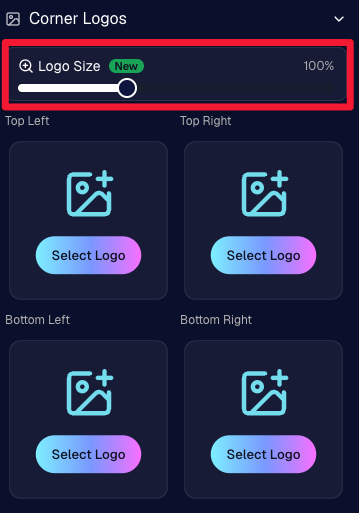
🔍 New logo size slider

  • Adjust your corner logos to be smaller or larger than the default.
  • Previously they could be considered a bit tiny, but this gives you a bit more control!

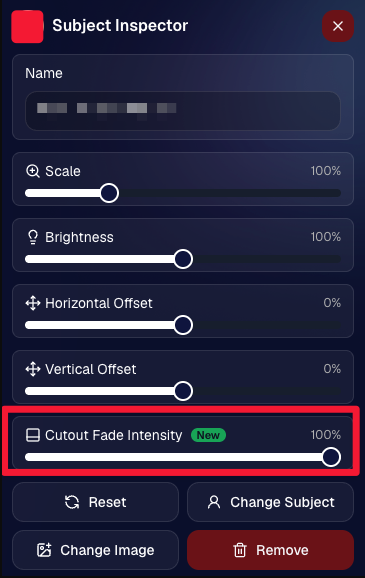
🌫️ Individual cutout fade control

  • The Subject Inspector now has its own cutout fade intensity slider, separate from the global setting, so you can fine-tune individual subjects when needed.
  • This will let you tweak the cutout fade intensity for subjects in the front row or on the sides of the virtual group, in case you're wanting a very specific look.

👥 Smarter merged-participant image selection

  • The Subject Image Picker will only show images from merged participants when they share the same name.
  • This typically does not matter, but in the case of a parent doing a Selfie Check-In of themselves and then of their child later, this will keep Virtual Groups working as expected!

Just a few additions, but very useful ones when you’re trying to get a Virtual Group looking just right!
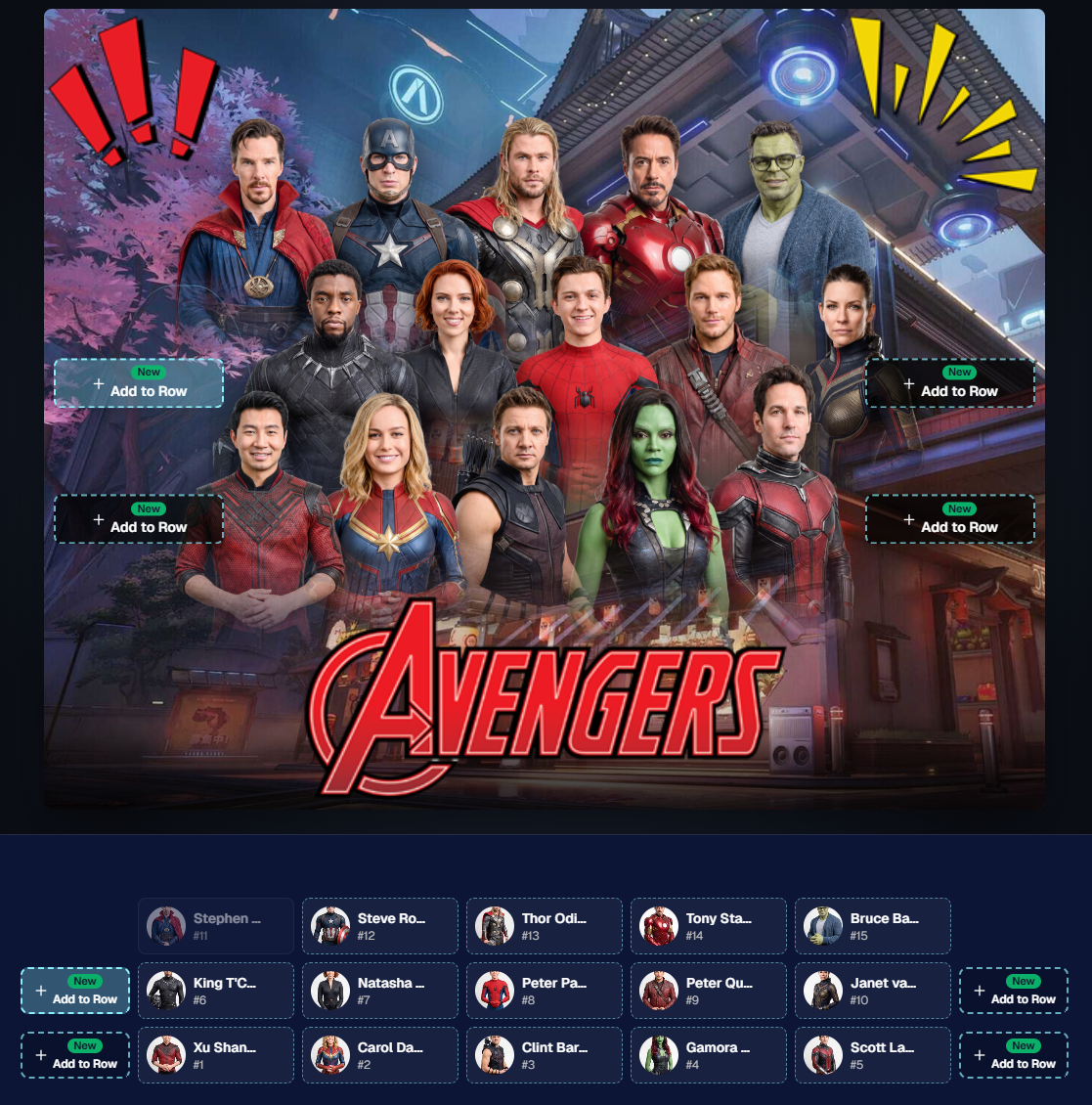
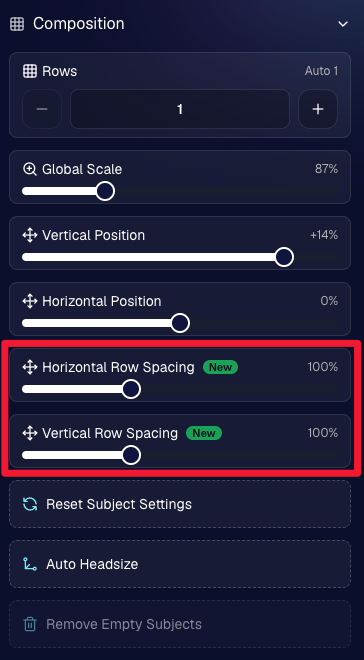
Drag and drop subjects into other rows for more control than ever!

New options to more quickly space out your subjects!

When viewing subject details, adjust them by individual!

Control the size of your logos!

🏈 27 New Sports Background Sets

Alright, shoutout to the random guy who told me (me being Candy, in case you forgot!) that he didn’t like the backgrounds. We heard you! 😂

This week we’ve added 27 new sets of sports backgrounds, including a brand-new Sports – Locker Room background category.

And, in case you missed it, last week we also added an AI Background Generator so you can create entirely new, modern backgrounds of your own.

A quick reminder... you already have a lot of control over which backgrounds your customers actually see:

🎨 Edit the default backgrounds in your Offers

📤 Upload your own custom backgrounds at both the Offer-level and Event-level

🤖 Generate new backgrounds of your own with AI

🏈 Choose from our (now growing) collection of built-in choices

We have a TON of default backgrounds—and yes, many have been around for a while—but you’re never locked into using them. You can build your own look for your business, and we’ll keep adding new options over time too.

✂️ New Dedicated Background Removal Page

Event Background Removal now has its own dedicated Dashboard page, accessible from the Event Sidebar. It is not longer just a popup!

The BGR toggle on Event Overview will take you there too, giving all of these controls a little more breathing room.

On the new page, you can:

✅ Enable or disable Background Removal

🖼️ Manage your Event Backgrounds

🎨 See your Offer Backgrounds with a direct link to the Offer

📊 See how many cutouts have finished and how many are still processing

⏳ Watch a live progress bar while Background Removal is working

📂 See all valid Event folders and which ones are marked for Background Removal

And if your Event is a new Event: ✂️ You can mark an existing folder for Background Removal even if it already contains images!!!

🎨 Candy Image Studio: Better Exposure Fixes

🌙 New Fix Underexposure node

  • Helps recover images that came out too dark.

☀️ Fix Overexposure greatly improved

  • The existing overexposure tool has been reworked for more reliable results.
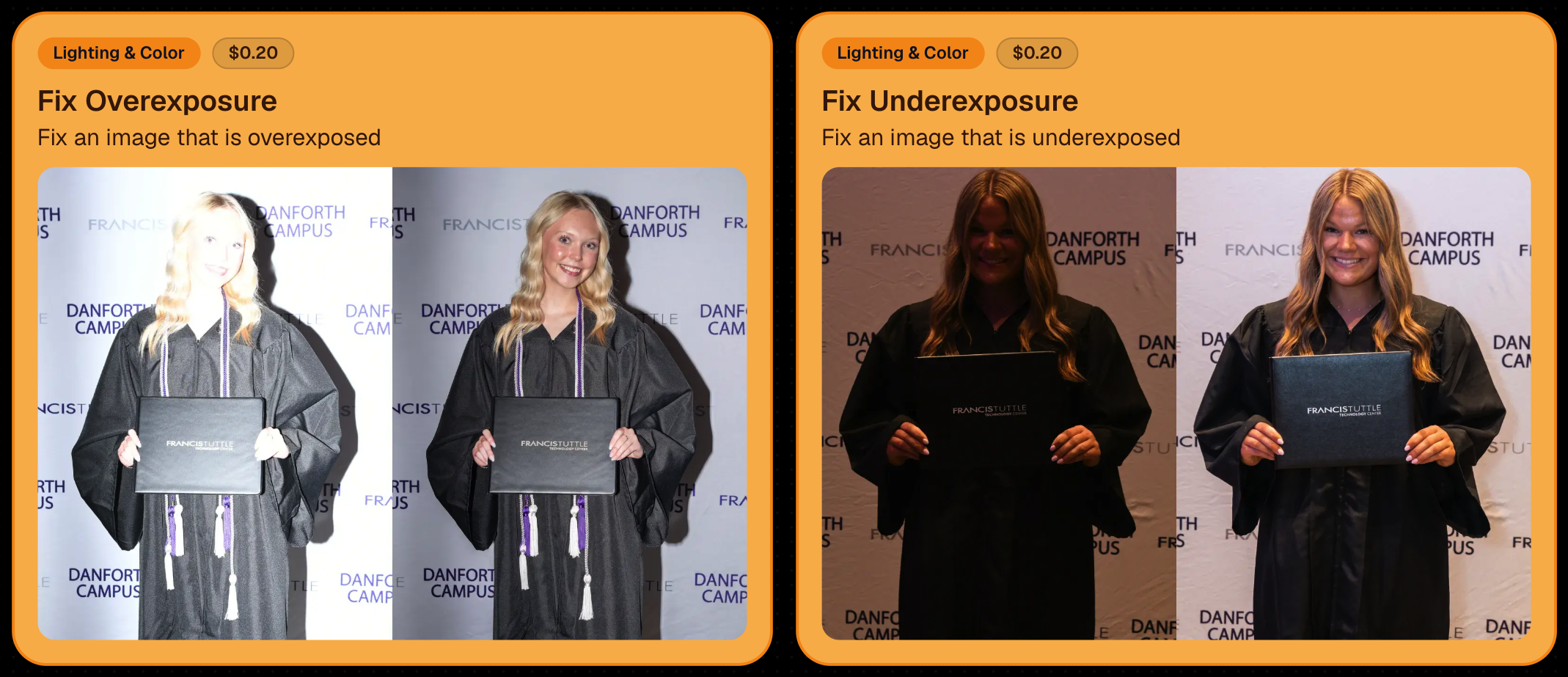
Utilize Candy Image Studio to fix images so they can sell, quickly and affordably!

🏈 Jersey Jotter Progress Tracking

New Jersey Jotter progress bar

  • When Jersey Jotter is active and still has unprocessed images, its dedicated page now shows processing progress—similar to Candy Culler and the new Background Removal page.

This makes it much easier to tell whether recognition is still working through a large Event.

🛍️ Retail Improvements

Titled Luxe Prints now work with package prefill

  • Packages can now automatically prefill eligible Titled Luxe Print products just like other supported products.

🖼️ Titled Luxe Print package rendering fixed

  • Fixed an issue where these products could render incorrectly inside packages.

🤖 AI-generated backgrounds now render correctly on products

🎨 Selected backgrounds now stay visible through the final product step

  • Fixed an issue where the chosen background could sometimes disappear on renders when reaching quantity and finish steps.

📝 Several product descriptions updated

  • Some product descriptions have been refreshed for better clarity.

🖼️ AI Edit + BGR Assignment Fix

👥 BGR versions of AI edits now keep direct participant assignments

  • If the original non-AI image was directly assigned to someone, its Background Removed AI-edited version will now correctly inherit that relationship.

📦 Order Details Fix

📝 Package captions now display correctly

  • Fixed cases where Order Details did not show caption information for certain products contained inside packages.

📱 Capture App 5.9.1 – iOS OTA

📸 Photo Booth fix for iPad

  • Fixed the Photo Booth gallery strip being cut off on certain iPad models.

That’s the week!

More Virtual Group control, a much stronger Background Removal workflow, some useful exposure tools, and plenty of fresh sports backgrounds to work with.

And if you still don’t like the backgrounds... now you’ve got plenty of ways to show us how it’s done. 😉

Keep creating magic,

Candy 🍬
Related articles

Weekly Recap: New Panoramic Prints, Smarter Culling Tools & Checkout Improvements🖼️🧾
Feature Updates
January 23, 2026

Weekly Recap: New Panoramic Prints, Smarter Culling Tools & Checkout Improvements🖼️🧾

5
 minutes read
Hey photo friends! 👋

Candy here with this week’s updates. Highlights include two new panoramic print products, a bunch of Manage Images + Candy Culler usability wins, and retail checkout + link preview improvements.

Let’s jump in!

🆕 New Products: Panoramic Prints (Group-Only)

🖼️ 15×5 Panoramic Print (Group-only)


🖼️ 30×10 Panoramic Print (Group-only)

These are available across both Dashboard + Retail.

Reminders:

When you flag photos as Group Photos, they will become purchasable on Group products only IF you have Group Products in your Event's Offer.

If there are NOT Group Products in your Event's Offer, then images marked as Group Photos will be purchasable on any product (including downloads).

🖥️ Dashboard: Manage Images + Candy Culler Improvements

🧰 More Tools always visible on Manage Images

  • Previously it only appeared after an event had at least one image.

🌾 Candy Culler icon updated (axe → scythe)

👁️ Visibility toggle added right on the Cull page

  • Toggle visibility from the top-right of the image without opening the lightbox.

📦 Download Folder improves naming

  • Downloads now default to the folder name for the ZIP file, and you can choose where to save or rename it.

⌨️ CTRL/CMD+F supported on the Event PhotoTags page

🧑‍🤝‍🧑 Rosters, PhotoTags & Participant Fixes

🏷️ Roster upload now accepts “PhotoTags” column header

  • Previously only accepted “PhotoTag”.

🧩 PhotoTag filtering fixed on Participant List + Participant Details

  • Especially in edge cases where a later-merged record had the PhotoTag but the initial record didn’t.

📇 PhotoRoster Data Upload now supports 3 Additional Contacts (up from 2)

🧾 Image Release Gallery fixes

  • Face count edge cases resolved (duplicates/additional contacts/duplicate submissions)
  • Program filter fixed

🛍️ Retail: Checkout & Sharing Improvements

🧾 Improved checkout backend

  • Includes protections to reduce the edge case of double charges during backend disruptions.

🔗 Link previews fixed for non-QuicPics events

  • Previews should reliably appear in apps like iMessage and Discord.
    • If a retail hero exists, it’s used
    • Otherwise, the first relevant gallery image is used

🛡️ GalleryGuard enabled when watermark opacity is 0%

  • For events where the retail watermark setting is set to 0% opacity, GalleryGuard will still protect images.
    (Still disabled for Quic-type events.)

🌀 LiveLoop™ Fixes

🧠 Fixed out-of-memory crashing sometimes for LiveLoops with artwork renders

🖼️ Fixed artwork sometimes disappearing after LiveLoop runs for a long time

⚡ Performance & UI Fixes (Small but Helpful)

🚀 Offer list + Event Details load a bit faster

👤 Some profile actions are faster (passcode changes, retail settings, account data used by PhotoCoach / PortraitPress popups)

🧩 Fixed some Participant Details pages not loading

🖼️ Fixed Manage Images lightbox details getting out of sync when using arrow keys

🧷 Fixed Manage Images scrolling to the top when toggling visibility

🔑 Fixed Forgot Password page not sending email

📦 Offer Creator: New “À La Carte” Package Breakdown

🧮 New “À La Carte” section inside packages shows:

  • Individual item costs (if each package item is present in the offer as an individual product)
  • The package discount a shopper is getting (shows 0% if discount would be negative)

Note / Feature-Preview: In the near future, this will also be expanded to better highlight savings on packages on the retail site to your customers, automatically!

✅ Misc + Check-In Improvement

💬 Text campaigns weekend test: recurring (non-day-0) texts will now place the retail link at the very end to encourage link previews.

🤳 Selfie Check-In reliability improvements

That’s the week!

New panoramic prints, smoother culling, better retail reliability, and a bunch of cleanup that should make day-to-day usage feel tighter.

Keep creating magic,

Candy 🍬

Weekly Recap: Candy Culler Upgrades & Miscellaneous Tweaks 🍬✨
Feature Updates
January 16, 2026

Weekly Recap: Candy Culler Upgrades & Miscellaneous Tweaks 🍬✨

4
 minutes read
Hey photo friends! 👋


This week was all about making renders look right, downloads behave better, and Dashboard tools feel faster (with a few Capture App and LiveLoop™ polish wins sprinkled in).

Here’s what’s new:

🛍️ Retail Site

🌀 2D render support for Premium Print & Premium Plaque

  • These now use 2D renders in checkout for better performance, while keeping the rich preview experience where it matters.

🆓 Free download product ordering improved (Quic-Events)

  • Free Download now always appears first
  • Free Gallery Download will always appear second (if available)

📝 Clearer Free Gallery Download description

  • It now correctly says full-resolution (when it’s not the “Medium Res Gallery Download”).

📦 Web Receipt Download Page

🖼️ Preview fit fixed

  • Images now fit completely in the preview, so artwork (like bottom/banner elements) won’t look “missing” behind buttons.

🔄 Smarter auto-refresh while processing

  • If the lab is still preparing downloads, the page will automatically refresh status updates in the background so customers don’t have to babysit it.

🖥️ Dashboard

📄 Participant download spreadsheet improvements

  • Fixed the images column always showing “…” at the end
  • “Ref Image” column renamed to RefImageName (matches PhotoRoster sheets)
  • Address columns are included when applicable (only if at least one participant has a check-in address)

🗂️ Cleaner downloaded filenames

  • Downloaded images no longer get Full_Res_ or Full_Res_W_Banner appended to the filename.

🧾 PhotoRoster Data Upload cleanup

  • Folder names are now removed from RefImageName automatically (e.g., 1/DSC_4143DSC_4143).

Faster reports

  • Many reports (including the overview report) should load quicker.

🍬 Candy Culler (Our New AI Culling Tool)

🍬 Candy Culler added to Command Palette

  • You can now launch it from CTRL+K / CMD+K while on an Event Details page.

📊 Candy Culler progress bar + auto-updating status

  • New X/Y processed progress display, with automatic refresh until everything is done.

🧠 Candy Culler quality fixes & polish

  • BGR folders won’t be culled before a PNG actually exists
  • Images sort by image name (A→Z)
  • Improved mobile UI

🌀 LiveLoop™

🖼️ Better full-frame and banner rendering (pixel-perfect)

🧵 Banner/full-frame art now uses full resolution (no longer medium)

🍏 Background blur re-enabled on Apple devices

📱 Capture App iOS 4.22.4 (OTA Jan 12)

More native-feeling navigation transitions

📞 Phone field keypad behavior fixed (no unexpected iOS keypad when manually tapping)

🧷 Gallery strip stays where you were

  • When marking images visible/hidden or group/not group, the strip no longer jumps back to the start.

🧼 Misc Fixes & Cleanup

🧩 Render Preview page fixes (quic.pics/render)

  • Several products that weren’t downloading renders correctly should now behave as expected.

🧲 Cutout Magnets + Statuettes now supported on the preview page

  • Render previews/downloads are enabled for these products (note: they’ll only look correct if the selected image is a cutout).

🖨️ Premium Print & Premium Plaque render downloads enabled

  • You can now download renders for 8×10 Premium Print and Premium Plaque from the preview page too.

🔤 Input cleanup for non-English-standard characters

  • Certain fancy/unsupported characters are auto-converted to standard English characters to prevent weird issues in names, sign-in fields, business info, etc.

That’s the week!

Lots of “little” changes that add up to cleaner previews, clearer downloads, and faster tools where you use them most.

Keep creating magic,

Candy 🍬

Weekly Recap: Candy Culler AI Image Culling & MUCH More! 🍬✨
Feature Updates
January 9, 2026

Weekly Recap: Candy Culler AI Image Culling & MUCH More! 🍬✨

6
 minutes read
Hey photo friends! 👋


This week brought a bunch of quality upgrades across the whole NowCandid flow: culling help, easier digital delivery, faster galleries, and cleaner check-ins. Here’s what’s new (organized by impact).

🧠 Big New Tool: Candy Culler (Manage Images → More Tools)

🍬 Candy Culler is rolling out!!!

Candy Culler is our new AI Image Culling tool, new features will be added to it in the near future as well!


I can now help flag common issues on your images like:

  • 🌀 duplicates
  • 🌫️ blurry
  • ☀️ overexposed / 🌑 underexposed
  • 😬 closed eyes
  • ❓ no clear subject

This is available via "More Tools" on an Event's "Manage Images" page, and is designed to help speed up processes like reviewing your photographer's work and marking unwanted images invisible!

Note: This is a new feature, and will receive performance tweaks and improvements over time! But we hope you like it! :D

📦 Digital Delivery Upgrade: Web Receipt Download Page

📧 Receipt email now includes a “Download All Images” button

  • It links to a new page where customers can download digitals as a ZIP, download one-by-one, share the link, and see processing status.

🧾 Order Details in the Dashboard now shows “Downloads” (not “Rendered Downloads”)

  • And includes Personal Gallery Download links where relevant.

🔗 Order Details now link to the Web Receipt Download Page

  • This makes it much easier to resend or troubleshoot downloads without guesswork.

🖼️ Faster Reviewing: Lightbox Keyboard Navigation + Performance

⬅️➡️ Left/Right arrow keys now move through images

  • Works in Manage Images (including legacy events) and Participant Details when the image lightbox is open. Great for quickly scanning through images.

Lightbox performance improved

  • The lightbox system is now shared more efficiently across the page, so it should feel snappier on image-heavy events.

✅ Check-In Improvements (Face Matching Events)

🛑 New red “No Thank You” button for Image Release opt-in

  • (Only appears if opt-in is enabled in the Offer's Advanced Settings.)

🖼️ Camera roll stability improved

  • Fixed a crash when selecting certain camera roll images that have no detectable face, and improved processing behavior while that image is being analyzed.

🔁 Old check-in import edge case fixed

  • Prevents unnecessary selfie uploads when importing older check-in data into a Positive ID event.

📱 Capture App iOS OTA Updates (4.22.2 + 4.22.3)

🔐 Restore Session safety and convenience (OTA Jan 5)

🔒 Restore Session won’t cross accounts

  • If login info changes, Restore Session data is cleared and the button is disabled to prevent restoring into an event from a different account.

Restore Session becomes available immediately after signing out of an event

  • No restart needed.

🧾 Face Matching Roster Check-In stat accuracy (OTA Jan 7)

📊 Event overview image stats now include “ref” folder images

  • Helpful for tracking reference images in Face Matching Events.

🛠️ Misc fix

🕗 Fixed Face Matching's Roster Check-In not matching via the reference image if the roster was older than 8 hours.

🛍️ Retail Experience Improvements

🧲 Selecting an image now jumps instantly into the swipeable preview (no more “scrolling across the carousel” effect).

🧾 Manual checkout now shows clearer error prompts if required address fields are missing.

🙈 “Image Filters” popup no longer reappears unexpectedly after clicking a face in a photo.

🛡️ GalleryGuard is enabled again on iPad after a short break.

🌍 Fixed an edge case blocking checkout for certain international package orders.

🖥️ Dashboard Updates

🔁 Assign Images: new “participant gallery” filter

  • Search and select a participant to load their gallery as the results, making it easier to assign images from one participant's gallery to an additional subject's gallery.

🏷️ PhotoTag Import edge case fixed

  • Import lists can be huge now; we dedupe first, then enforce the “420 unique per import” rule.

📊 Event mini report column clarified

  • “Images” is now labeled “Visible” and reflects visible images per folder.

📄 Reports date picker fixed

  • Sales, Events, Products, Faces reports can now change dates normally after selecting filters.

🧑‍🤝‍🧑 Participant creation limited after 60 days

  • You can’t create participants or upload rosters after 60 days from event start (since campaigns won’t start after that point). The UI will show an error popup instead of letting it happen silently.

Event List loads faster

  • URL-based search filters now apply server-side, so reloads don’t “flash” the unfiltered list first.

🔐 Better sign-in redirecting

  • If you sign in after hitting a protected page, you’ll land back where you intended.

🍬 Candy can now report things to the team

  • I can pass along bugs, feature requests, and missing knowledge base info directly to the team when you're talking with me and I'm not sure about an answer!

That’s the week!

Cheers,

Candy 🍬

Let’s get in touch

If you’re a photographer looking to add NowCandid services to your wheelhouse – set up a call by clicking the button below.

How to customize formatting for each rich text

How to customize formatting for each rich text

How to customize formatting for each rich text

How to customize formatting for each rich text

How to customize formatting for each rich text

What’s a Rich Text element?

The rich text element allows you to create and format headings, paragraphs, blockquotes, images, and video all in one place instead of having to add and format them individually. Just double-click and easily create content.

A rich text element can be used with static or dynamic content. For static content, just drop it into any page and begin editing. For dynamic content, add a rich text field to any collection and then connect a rich text element to that field in the settings panel. Voila!

Headings, paragraphs, blockquotes, figures, images, and figure captions can all be styled after a class is added to the rich text element using the "When inside of" nested selector system.

  • List One
  • List Two
  • List Three
  • List Four
  • List Five

This is a link

This is bold text