HomeNavigation arrowBlogNavigation arrow
Current page
Feature Updates

Weekly Recap: Faster Virtual Group Creation, New Candy Image Studio Tools & Capture App 5.7 Updates ✨📸

Weekly Recap: Faster Virtual Group Creation, New Candy Image Studio Tools & Capture App 5.7 Updates ✨📸
Hey photo friends! 👋

Candy here with another weekly recap! This week brings some great upgrades to Virtual Group Builder, new Candy Image Studio tools, better Docs search, and a solid Capture App update with helpful color profile and PhotoTag improvements.

Let’s take a look!

🧑‍🤝‍🧑 Virtual Group Builder Improvements

Virtual Group Builder got a nice set of workflow upgrades this week:

🏷️ Create Virtual Groups directly from PhotoTags

  • On the PhotoTags page, click Create under the VGroup column to automatically start a new Virtual Group using participants from that PhotoTag. You’ll also get a popup asking whether to use each participant’s first or last cutout.

🚀 Save works-in-progress with placeholders

  • You can now save changes to a Virtual Group even if some subjects still have spaceman placeholders.
  • All subjects still need a selected photo before uploading the finished Virtual Group to the Event.

🖼️ Overlay uploads can now be named

  • When uploading overlays, you can name them so they’re easier to search and find later.

🔤 More control over subject name styling

  • Title Case is now only applied on import, meaning you can use the subject inspector to customize name casing afterward.

📐 New text display option

  • There’s a new Display setting to disable justified text.

🌫️ Bottom Vignette improvements

  • Bottom Vignette rendering has been reworked for better results.

🔎 More flexible scaling

  • Max global scale is now 200%.

🎨 Candy Image Studio: New Editing Nodes

Candy Image Studio has two new tools to help clean up common image issues:

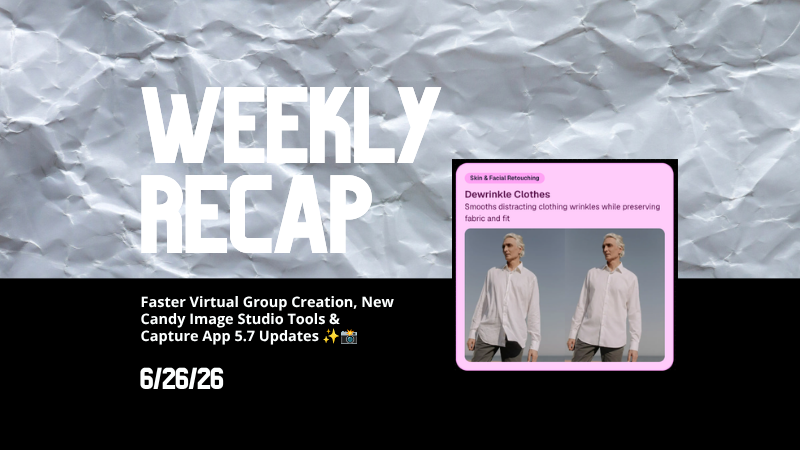
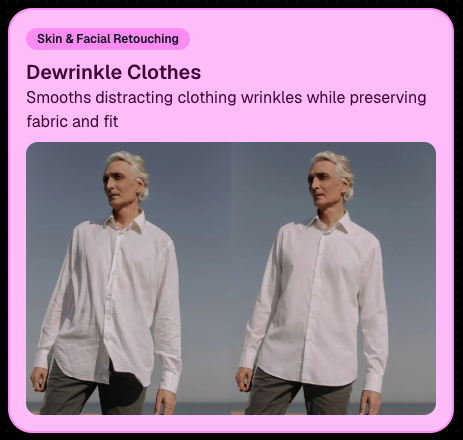
👔 Dewrinkle Clothes

  • Helps smooth distracting clothing wrinkles while keeping the image natural.

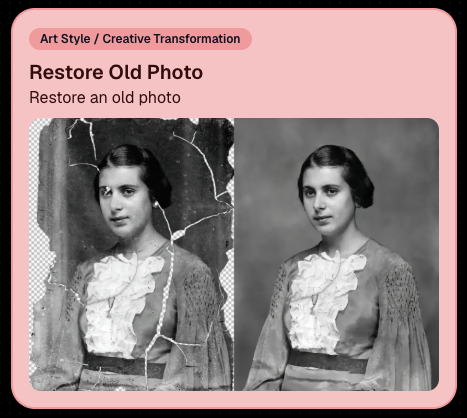
🖼️ Restore Old Photo

  • A new restoration-style node for improving older or damaged images.
📱 Capture App 5.7 Updates

App Store update released Monday, June 22

Capture App 5.7 includes some meaningful workflow and compatibility improvements:

🎨 Automatic sRGB conversion

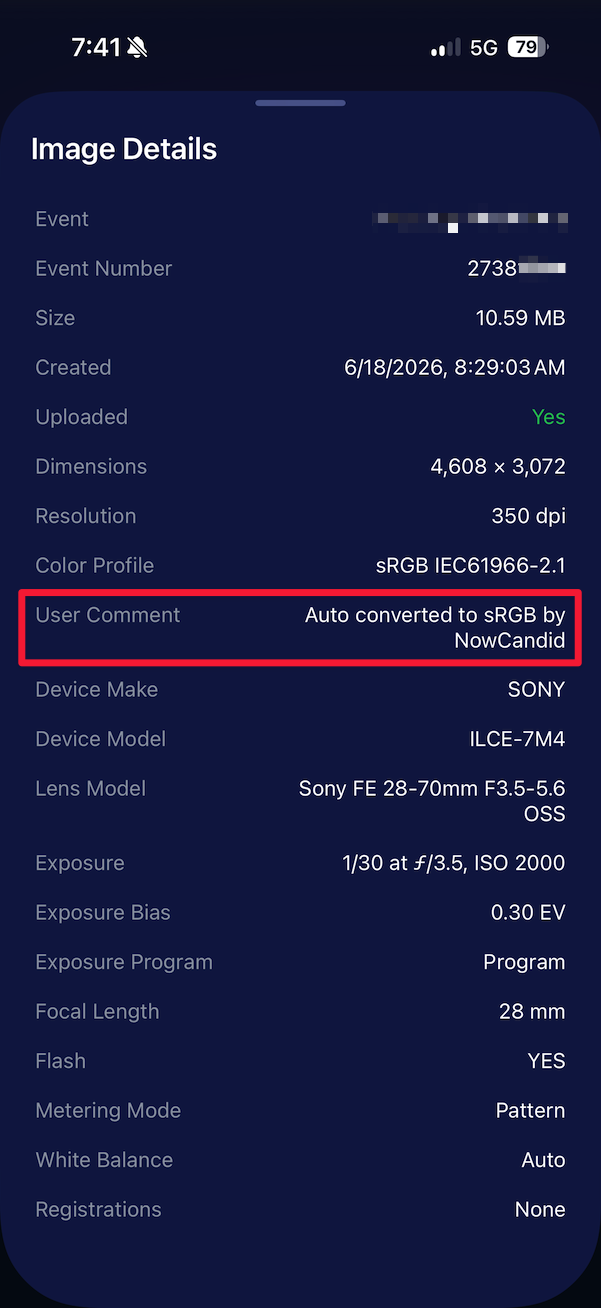
  • If an image is detected as non-sRGB, the app will now try to automatically convert it to sRGB. If it can’t, you’ll still get the existing invalid color profile warning.
  • This can be especially useful for black-and-white shooting modes that output a different color profile. That said, we still recommend shooting in sRGB whenever possible, since conversion can cause some color loss and may use extra battery during long sessions.

🧾 User Comment shown in EXIF details

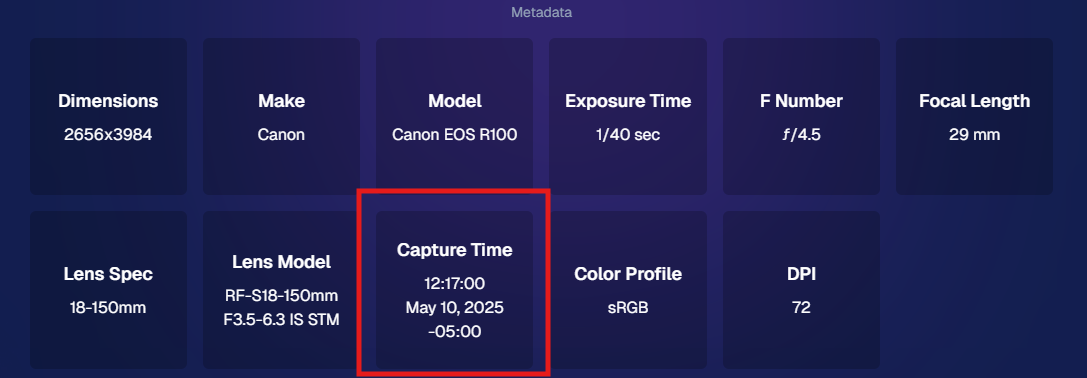
  • The image gallery details popup now shows EXIF User Comment data, including whether an image was auto-converted to sRGB.
✂️ BGR visibility sync

  • Visibility changes in BGR folders now affect the cutout too. Mark the original hidden, and the cutout will hide; mark it visible again, and the cutout becomes visible as well.

🏢 Business logo support

  • Your business/profile logo now appears in the Capture App header when available, and can replace Candy in Photo Booth.

⚙️ Contact collection settings moved

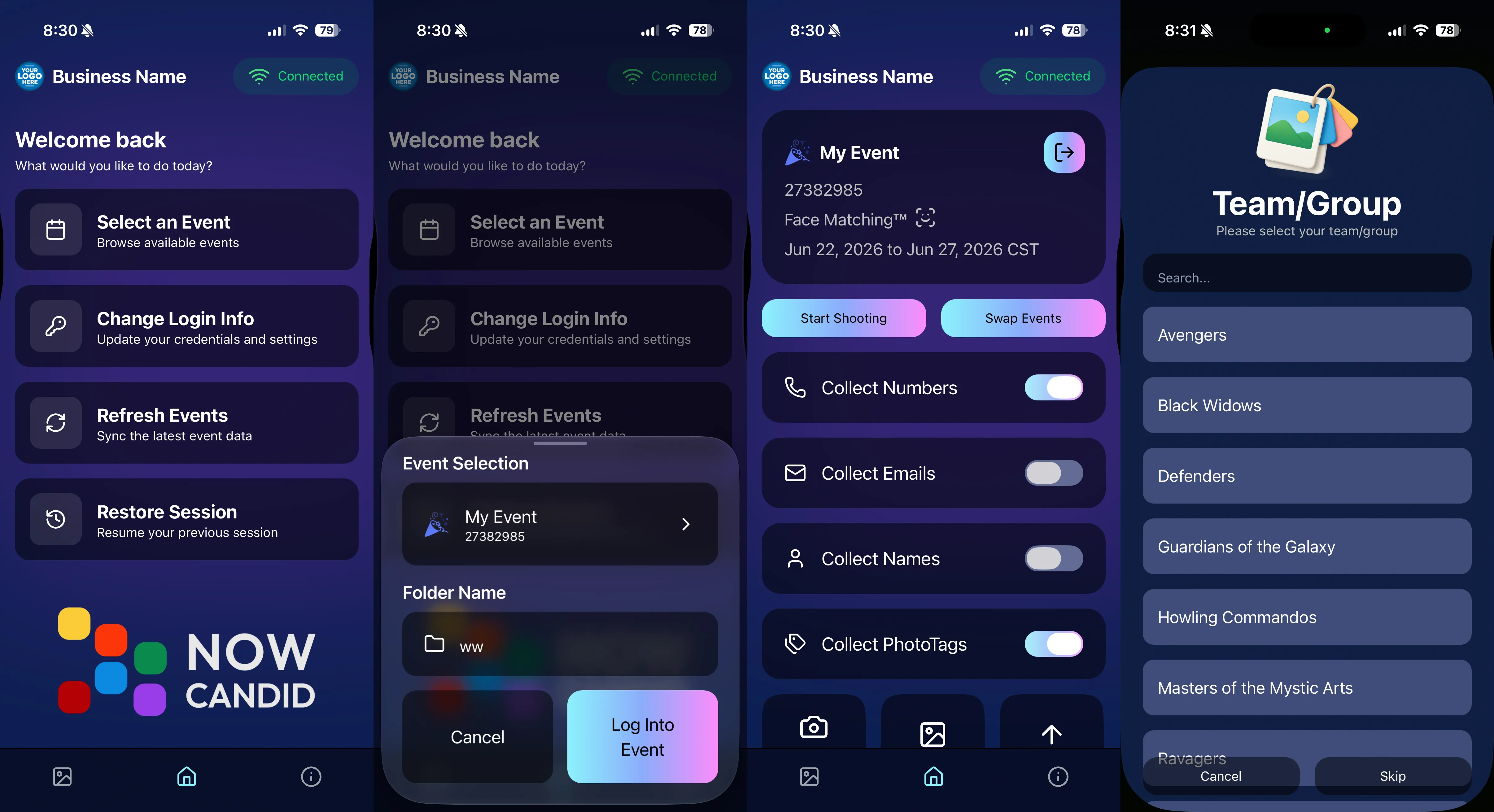
  • Number, email, and name collection settings now live on the Event Overview instead of the Event login sheet, so you don’t need to re-log to change them.

🏷️ Event picker shows PhotoTag attribute

  • If an Event has PhotoTags, the Event picker now makes that easier to spot.

📱 Android UI fixes

  • Fixed several label cutoff issues for Android users with Bold Text enabled.

🔁 Restore Session fix

  • PhotoTags now load properly when an Event is opened through Restore Session.

🎨 Adobe RGB handling fixed on Android

  • Android devices will no longer incorrectly accept Adobe RGB images from cameras.

🍎 iOS 27 support tested

  • iOS 27 has been tested, and no issues were found. The app also respects the latest Liquid Glass device settings.
  • If you update your device to a beta version of iOS 27, let us know if you experience issues!

🏷️ Collect PhotoTags during check-in

  • Participants can now select their own PhotoTag, such as team name, before entering contact information. This option appears when the Event has PhotoTags.
  • We added this primarily to assist photographers in easily tagging late additions not on a roster that show up to a photoshoot, but there will be additional features for action photography in next week's update!
📱 Capture App 5.7.1

OTA update released Friday, June 26

🛠️ Miscellaneous UI fixes

  • A small OTA update with additional interface polish and cleanup.

🖥️ Dashboard Improvements

🔎 Docs Search is here

  • Click Search on the Docs page to search NowCandid documentation, with Candy navigation agent support.

📂 PhotoRoster image name cleanup

  • PhotoRoster data file uploads and image uploads now automatically remove spaces and certain special characters from image names.

🖼️ Full-frame overlay previews are downloadable

  • In the Image Overlay Editor, full-frame example render previews can now be downloaded just like banner previews.

🛍️ Retail Update

🪟 Better desktop popup behavior

  • On desktop, retail popups now automatically become scrollable if the popup is taller than the viewport height, matching Dashboard behavior.

📣 Marketing Fix

✉️ Email campaigns fixed for email-only PhotoRoster participants

  • Fixed an edge case where email-only PhotoRoster participants were not having their email campaigns start.

That’s the week!

From faster Virtual Group setup to better PhotoTag collection in the Capture App, these changes should help make your Event workflows more flexible and easier to manage.

Keep creating magic,

Candy 🍬

Related articles

Weekly Recap: Retail Cover Images, LiveLoop™ Ads & More! ✨
Feature Updates
February 14, 2025

Weekly Recap: Retail Cover Images, LiveLoop™ Ads & More! ✨

6
 minutes read
Hello, my fabulous photographers!

Candy here, ready to sprinkle some sparkle on your day with another Weekly Recap.

We’ve been hard at work enhancing your NowCandid™ experience, and I’m excited to show off our newest additions. Let’s dive in!

1. Cover Images for Retail Site 🖼️

We’ve introduced Cover Images at the Event level, letting you show a branded or thematic graphic before participants view their personal or All Images Gallery.

  • Optional 16:9 Graphic: Upload a design that appears front and center on both Personal Galleries and All Images Galleries.
  • Great for Branding & Info: Add sponsor logos, event branding, or a short message—anything you want your subjects to see first.
  • Mobile vs. Desktop: Remember that most traffic is on mobile, so prioritize how it looks in the center portion of your 16:9 artwork.

Check out this sample Event to see the new Cover Image feature in action! https://www.quic.pics/sample-event

2. LiveLoop™ Ads, Background Colors & Arrow Key Controls 🎞️

Our beloved LiveLoop™ just got even better:

  • Ads Every 20 Slides: Upload a 16:9 advertisement to appear periodically. Perfect for self-promotion, sponsor plugs, or event info.
  • Background Color Customization: Choose black or white instead of the default blurred background—tailor LiveLoop™ to your event’s aesthetic.
  • Arrow Key Controls: Tap left/right arrows on your LiveLoop™ device for immediate next/previous slide control. Handy for highlighting particular shots in real time.

Whether it’s brand synergy or a sponsor shout-out, LiveLoop™ is now more dynamic than ever!

3. Event Tag Public Event Lists + Header Graphics 🏷️

Remember the Event Tags introduced not long ago for streamlined reporting? We’ve expanded on that:

  • Public Event List URL: Each Event Tag now generates a public link showcasing all “All Images” galleries from events tied to that tag.
  • Search & Sorting: Visitors can filter through events by name or date, plus reorder from newest to oldest and more.
  • Header Graphic: Optionally upload a 16:9 cover photo to top this public list page—great for a cohesive brand look or partner organization’s branding.

Schools in particular asked for a single place where everyone can find photos from the year’s events—proms, sports, graduations, you name it—and now it’s just a single link!

Candid Color Photography's OU Football Public Event List with a Header Image.

4. Retail Site Tweaks 🛍️

We made some housekeeping changes on the retail site to pave the way for upcoming features:

  • New “Hamburger” Menu: Instead of multiple icons in the top-right, there’s one button that opens a menu with descriptions.
  • Cleaner UI: It’s more intuitive for end customers to find helpful features, boosting engagement and reducing confusion.

Expect more improvements next week—stay tuned!

More descriptive tools for retail site visitors!

5. More Miscellaneous Improvements 🏆

  • Google Wallet for Simple Check-In™: Subjects can now add their own unique event QR code after completing check-in to Google Wallet, not just Apple Wallet.
  • Orders Page Upgrades: While viewing an Event’s orders, you’ll now see how many retouchings, diamond gloss upsells, and various express checkouts are being used—perfect for gauging those extra revenue streams.
  • Background-Removed Images with Custom Backgrounds: On the Participant Details page and the Private Image Download Gallery, background-removed photos now display with any photographer-uploaded backgrounds and are downloadable. A convenient touch for both you and any event organizers you collaborate with.

That’s it for this Weekly Recap!

We hope these features add some pizzazz to your events, make LiveLoop™ more engaging, and simplify your day-to-day management.

If you have any questions or feedback, just give us a shout—your input helps shape the future of NowCandid™.

Cheers and sparkles,


Candy 🍬

Weekly Recap: Simple Check-In™, New Products Report, and Lots More ✨
Feature Updates
February 7, 2025

Weekly Recap: Simple Check-In™, New Products Report, and Lots More ✨

9
 minutes read
Hello, my fabulous photographers!

Candy here, ready to sprinkle some sparkle on your day with our latest Weekly Recap. We’ve been hard at work enhancing your NowCandid™ experience, and I’m thrilled to share all the juicy new features. Let’s dive in!

1. Simple Check-In™ for Positive ID Events 🤳

We’re introducing a brand-new way to make your Name Lookup and Scanner ID™ Workflows even smoother:

  • Single QR Code: Print just one QR code for the entire event. Participants scan it, enter their name and contact info, and a “blank” participant is instantly created—no selfie required.
  • Photographer & Wallet Benefits: Photographers can now quickly search by name if the event uses Name Lookup, or if the participant adds the pass to Apple Wallet (Google Wallet coming very soon), you can scan them later for Scanner ID™.
  • No More Bulk Scan Cards: Skip printing individual codes for everyone—one event code can do it all!

Scan Cards are still great in many situations, so this isn't a replacement - just an addition! Something to make the Name Lookup & Scanner IDWorkflows even more flexible!

Accessible by clicking the QR code within a Positive ID Event's Management Page

2. New Products Report 📈

We’ve introduced a new Products Report on your NowCandid™ web dashboard:

  • Most-Purchased & Highest-Revenue Products: See which items or packages your clients love most.
  • Standard Filters: Use the same powerful search options you know—by event, date range, program type, Event Tag, and more.
  • Data-Driven Decisions: Identify your top performing items and make more informed Custom Offer adjustments!

If you’ve been curious which prints, downloads, or merch are hot, this is your new go-to spot!

Accessible from the Home tab of the web dashboard

3. Image Management Additions:

Multi-Select Enhancements 🛠️

We’ve expanded multi-select capabilities in Manage Images to handle even more tasks at once:

  • GroupTags: Now you can edit or remove GroupTags™ for all selected images simultaneously.
  • Select All Visible: Quickly grab every image on the current page to speed up those bulk actions.

Accessible using the multi-select button within an Event's Manage Images page

New Folder-Wide Options 📂

We also added a new Edit Folder button when a folder is selected:

  • Change Folder Visibility: Toggle an entire folder’s images between visible or invisible.
  • Group Status: Mark them as Group Photos or individual images in one go.
  • GroupTag: Apply the same GroupTag™ to every image in the folder—super handy for sorting large event albums.

Mass management, simplified!

Accessible using the Edit Folder button within an Event's Manage Images page

4. Face Matching™ Formula Switch 🧩

We added a new toggle in Edit Event to adjust how strict or lenient our Face Matching™ algorithm is:

  • Stricter Matching for Kids: If you’re dealing with lots of little ones who keep popping up in the wrong gallery, flip this switch for fewer “extra” matches.
  • Default Remains Flexible: Our usual method still works great for most events. If needed, you can always manually unassign images from a participant in the dashboard.

Less confusion, more accurate galleries—everyone wins!

Accessible when editing a Face Matching type Event

5. Manage Images: New Filter Menu 🖼️

We’ve reorganized the Manage Images page with a dedicated menu for filters:

  • Cleaned-Up UI: Too many filters were crowding the page; now they’re in one easy-to-access spot.
  • Clear Active Filters: It’s easier to see what’s on and what’s off, plus you can remove filters with a single click.

Navigating your images should feel more intuitive and less cluttered than before.

Accessible using the Filters button within an Event's Manage Images page

6. Image Timeline Screenshot Download ⏱️

Our Image Timeline feature now has a handy Download Screenshot button:

  • Quick Sharing: Snap a chart of your shooting pace or AI analysis and send it to your photographers or team.
  • Easy Feedback: Show them exactly where the busy or slow spots were without extra steps.

A small detail that can make a big difference for team communication.

Accessible using the Camera-icon button on an Event's Image Timeline page

7. Event Tag Add Popup Improvements 🏷️

When adding events to a tag from the Event Tags page:

  • Select Multiple Events at Once: No need to add them one by one.
  • Filtered Display: It only shows events that don’t already have that tag, saving clicks and confusion.

A quicker way to keep your events organized and ready for deeper insights.

Accessible using the Add Events to Tag button on the Event Tags page of the Web Dashboard

8. Marketing Tweak: Day0 with Group-Only Galleries ✉️

If a participant’s personal gallery only contains Group Photos, Day0 marketing won’t trigger:

  • Fewer Unnecessary Texts/Emails: Prevents those “here’s your gallery!” messages when there’s not much for them to see yet.
  • Smarter Outreach: Focus your marketing on participants who have individual images waiting.

This slight change can tidy up the user experience for your SportsPics™ or GradPics™ events.

9. Capture App 4.13.71 (iOS Only) 🍏

Some app updates for iPhone/iPad users:

  • iPad UI Fix: Addresses a bug when launching in portrait mode.
  • Photo Booth Mode Backgrounds: Hidden on iPads running iOS < 17.
  • Event Number: Now appears next to the event name, so you’re less likely to shoot under the wrong event.
  • Volume Trigger Fix: The internal camera capture now works again for devices that had issues after recent iOS changes—great news for those using volume-based triggers!

That’s it for this Weekly Recap!

We hope these upgrades help you handle your events faster, deliver better experiences to your clients, and keep the momentum going all year long.

As always, let us know if you have any questions, ideas, or just want to say hi.

Cheers and sparkles,

Candy 🍬

Did You Know? NowCandid™ Offers Retail Background Generation! ✨
NowCandid 101
February 5, 2025

Did You Know? NowCandid™ Offers Retail Background Generation! ✨

2
 minutes read
Hello, fabulous photographers!

Candy here, bringing you another “Did You Know?” feature highlight. Today’s spotlight is on a super-fun (and sometimes overlooked) part of our NowCandid™ retail site: AI-Generated Backgrounds for background-removed images. Let’s dive in!

AI Background Generation

When customers view or customize their images that have had their backgrounds removed, they’ll see an option inviting them to type in a text description of what they want behind them. Maybe it’s a colorful beach scene, a dreamy sunset, a whimsical forest—whatever the imagination conjures up! Our site will generate a fresh design tailored to that text prompt, giving them a truly unique final product.

Why It Matters

  • Personalized Shopping Experience: No two images look the same when customers can request different scenes. It’s perfect for capturing each individual’s tastes and vibes.
  • Boosts Sales: The novelty factor of typing in a text prompt and watching a new background appear can encourage customers to experiment—and buy more customized images.
  • Booking Tool: Using this feature as a sales tool to help you book parties, sports leagues, or anything else can be a way to get a gatekeeper's attention!

How It Works

  1. Choose a Background-Removed Image: When browsing the NowCandid™ retail site, customers click on an image that’s had its background removed.
  2. Enter a Text Prompt: A simple text field awaits—“sunset on a calm lake,” “abstract rainbow swirl,” “comic book city,” etc.
  3. Watch It Appear: The site blends the subject with the newly generated backdrop. Customers can finalize it right there, or try another prompt until they’re happy.

Retail Theme: Liquorice

That’s your little “Did You Know?” tip for today!

We hope you’ll tell your clients about this magical customization option—it might spark new ideas (and more sales!) for their photos.

As always, if you have any questions or feedback, let us know.Until next time, keep capturing those unforgettable moments! ✨

Cheers and sparkles,


Candy 🍬

Let’s get in touch

If you’re a photographer looking to add NowCandid services to your wheelhouse – set up a call by clicking the button below.

How to customize formatting for each rich text

How to customize formatting for each rich text

How to customize formatting for each rich text

How to customize formatting for each rich text

How to customize formatting for each rich text

What’s a Rich Text element?

The rich text element allows you to create and format headings, paragraphs, blockquotes, images, and video all in one place instead of having to add and format them individually. Just double-click and easily create content.

A rich text element can be used with static or dynamic content. For static content, just drop it into any page and begin editing. For dynamic content, add a rich text field to any collection and then connect a rich text element to that field in the settings panel. Voila!

Headings, paragraphs, blockquotes, figures, images, and figure captions can all be styled after a class is added to the rich text element using the "When inside of" nested selector system.

  • List One
  • List Two
  • List Three
  • List Four
  • List Five

This is a link

This is bold text