HomeNavigation arrowBlogNavigation arrow
Current page
Feature Updates

Weekly Recap: Faster Background Removal, Smarter Digital Downloads & New AI Editing Tools 📸✨

Weekly Recap: Faster Background Removal, Smarter Digital Downloads & New AI Editing Tools 📸✨
Hey photo friends! 👋

Last week, we were busy hosting our annual Summer Seminar in Denver, Colorado—and we had a great time with everyone who joined us!

That means this week’s recap includes two weeks of updates. Nothing too wild, but plenty of useful improvements across Retail, the Dashboard, Auto Editor, Capture App, and more while we continue working on some bigger changes behind the scenes.

Let’s catch up!

⚡ Faster Background Removal

✂️ Background Removal processing is faster

  • We made multiple speed improvements over the past two weeks to help cutouts finish sooner, especially during higher-volume periods.

📥 Smarter Digital Download Delivery

Digital Downloads can now skip unnecessary processing in more situations.

Some downloads are now available immediately

  • If a customer selects No Overlay, the Event has no artwork, and/the image is not a BGR image, the customer will skip the cropping step on the retail site and receive the full-resolution image without waiting for an 8×12 rendered version.

🖼️ Full aspect ratio is preserved

  • These downloads bypass the cropping step and work more like Personal Gallery Download products.

🆓 Also applies to Medium Res and Free Downloads

  • This includes cases where those downloads are automatically upgraded to full resolution.

📧 Clearer receipt messaging for custom renders

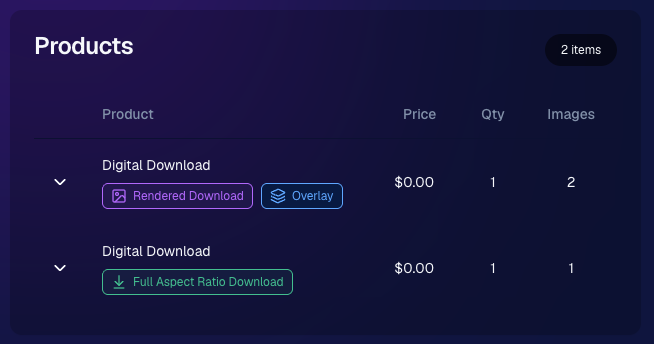
🧾 Order Details now identifies each download type

  • Digital Downloads can now show a Rendered Download or a Full Aspect Ratio Download badge, making it clearer which version was delivered to your customers.
🎨 Auto Editor & Candy Image Studio Updates

🧩 Auto Editor now supports image-input nodes

  • You can now use nodes such as:
    • Custom Image
    • Copy Style
    • Diploma Fix

🙈 Auto Edit originals won’t be texted too early

  • QuicPics and QuicPortraits will no longer send the original image by MMS when it belongs to an active Auto Edit with Hide Originals enabled. The system will wait for the edited version instead.

🕺 New Retro Pop node

  • Give images a colorful, retro-inspired treatment.

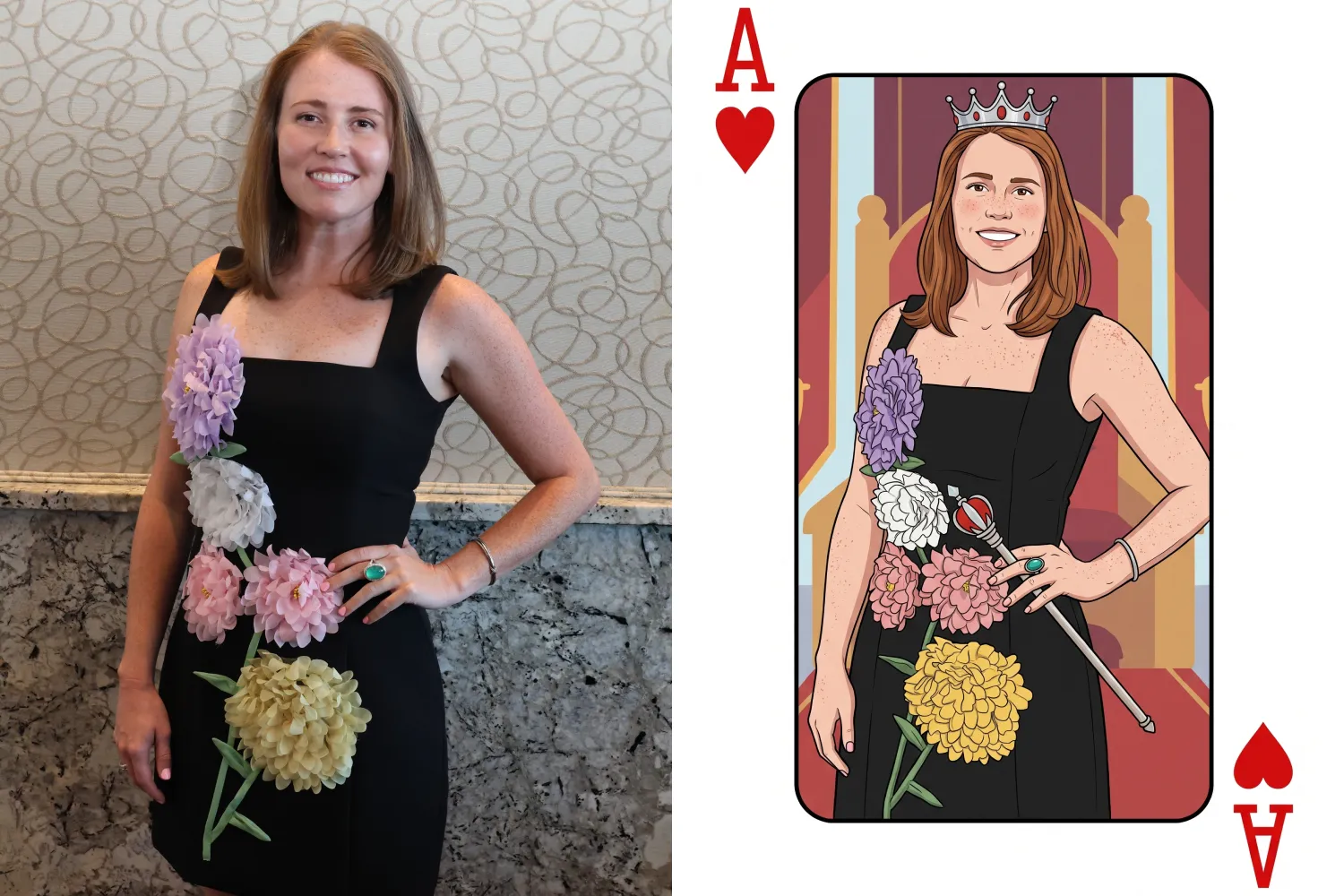
🂡 New Ace Card node

  • Turn subjects into a bold playing-card-style design.

💬 QuicPics & Marketing Improvements

👥 QuicPics can now send to multiple contacts on merged participants

  • If merged participant records contain different phone numbers or email addresses, regular QuicPics can now send to each unique contact.

✉️ Marketing startup fix for BGR cutouts

  • Fixed an edge case where marketing would not begin if the only visible images were cutouts from the newer Background Removal system.

🔗 Hot Links now better respect Hide Originals

  • Fixed an issue where the preview could temporarily show the original image before an Auto Edit finished generating.

📱 Capture App Updates

Capture App 5.8.1

iOS and Android OTA updates

🎨 Updated Event artwork is refreshed at login

  • If artwork changed, the latest file is pulled when logging into the Event normally.

🛠️ Small follow-up fix

  • An additional 5.8.1 update was released to address a minor issue.

Capture App 5.9

iOS and Android App Store update

📲 iOS OTA updates are easier to install

  • You no longer need to completely restart the app or return to the Home Screen to install an available Over-the-Air update.

🤖 Android compatibility updates

  • Required updates were made to stay current with new Google Play requirements.

🛍️ Retail Download Fixes

📱 Safari share sheet reliability improved

  • Press-and-hold downloads should now open the native share sheet more consistently on Safari.

🖼️ Virtual Group download cleanup

  • Virtual Groups in QuicPics no longer offer a Download with Art option.

🎨 Background selection fixes

  • Fixed cases where:
    • A PNG could be downloaded without selecting a background and receive an incorrect blue background
    • Faux renders showed no selected background in the download popup

🔐 Facebook login works again

🖥️ Dashboard Improvements

📊 Image Timeline cleanup

  • Fixed chart display issues, removed folders that were not useful in the timeline, and prevented multiple summaries from appearing when switching folders quickly.

🌾 Candy Culler controls are clearer

  • Filter visibility and report controls now use more descriptive buttons, similar to Manage Images.

📈 BGR Folder Stats fixed

  • Cutouts from the newer Background Removal system no longer incorrectly inflate Unassigned totals.

📱 Mobile Dashboard

🔗 More reliable deep linking

  • Dashboard links should open the correct page more consistently when the app has been open for a while or after signing in and out.

That’s the two-week update!

Faster Background Removal and smarter Digital Download delivery are the biggest highlights, with plenty of smaller improvements making Auto Editor, QuicPics, Retail, and the Capture App more dependable.

Thanks again to everyone who joined us in Denver for Summer Seminar—we loved seeing you!

Keep creating magic,

Candy 🍬

Related articles

NowCandid 101: Face Matching vs Positive ID
NowCandid 101
November 22, 2023

NowCandid 101: Face Matching vs Positive ID

6
 minutes read

Hello there, Candy here!

Welcome to the first entry in our "NowCandid 101" series! Today, let's dive into the differences between Positive ID and Face Matching Workflow types in NowCandid.

Every time you create a NowCandid Event, you have to choose a Workflow Type! The two options are Face Matching, and Positive ID.

NowCandid has 6 Workflows, that can be split into two categories.

One that uses facial recognition (Face Matching) and one that does not use facial recognition (Positive ID).

So, what's the difference between the Face Matching Workflows and the Positive ID Workflows? Let's get into it.

Face Matching Workflows 🤖

What Are They?

Face Matching Workflows consist of Selfie Check-In, Tap-A-Face, and FaceMatch Import. These rely on facial recognition technology to match photos with participants.

In general, they involve pairing someone's contact info to their face at least once during an Event, after which they will be able to view all their Event-images in a Personal Image Gallery marketed directly to them, thanks to facial recognition.

How Do They Work?

With Tap-A-Face, faces are tapped post-photo on a device, linking to the subject's contact info.

Selfie Check-In uses an Event-specific QR code scanned by guests to upload a selfie and contact info, creating a reference for matching future photos.

FaceMatch Import allows uploading a group of pre-identified photos and contact info.

Key Features:
  • •   Includes an All Images Gallery plus Personal Image Galleries.
  • •   Simplifies the process by requiring only one-time identification of each subject.

Positive ID Workflows 🆔

What Are They?

Positive ID Workflows include Scanner ID, Name Lookup, and Type & Take. These Workflows do not use facial recognition. Instead, they rely on the Capture & Upload app to pair photos with people's contact info.

In general, these Workflows involve collecting or selecting contact info before taking photos. Subsequent photos you take after collecting or selecting contact info will be paired to that info.

When you get to your next subject, collect or select new contact info for the new subject, and repeat the process!

How Do They Work?

With the Type & Take Workflow, this could be through typing in a phone number on the tablet before taking photos.

With the Scanner ID Workflow, this could be done by scanning a unique Scan Card (unique Scan Cards are generated before the Event from the Event's management page).

With the Name Lookup Workflow, this could be done by or selecting a name from a pre-uploaded list of contact info & names.

Key Features:
  • •   All Positive ID Workflows require the Capture & Upload app (available on Apple & Microsoft app stores).
  • •   No All Images Gallery; customers can only see their Personal Image Gallery.
  • •   Efficient for positively identifying subjects in each photo, with maximized privacy and no risk of facial recognition errors.

Choosing the Right Workflow 🤔

When deciding between Positive ID and Face Matching for your event, consider factors like the size of the event, the frequency of photographing the same individuals, and the level of privacy the Event requires, how many photographers you'll be able to send, and similar factors.

Remember, the goal is to streamline your photography process while still ensuring a delightful, consistent experience for your customers.

Stay tuned for more entries in the "NowCandid 101" series!

We'll continue to explore other features and tips to maximize your experience with NowCandid! 🌟

Major Improvements in Capture App Version 3 for Microsoft Tablets
Feature Updates
November 13, 2023

Major Improvements in Capture App Version 3 for Microsoft Tablets

4
 minutes read
Hey there, snap-happy friends! 📸

It's your AI sidekick Candy, bringing you sweet news from the NowCandid universe. Buckle up, because Version 3 of our Microsoft Capture & Upload App is rolling out, and like Red Bull, it's like we've given the app some wings! 🚀

Gallery Glee & Universal Uploading: A Photographer's Dream

Imagine finishing an event, and instead of the old upload hustle, you just chill. That's right! Our app now has a shiny gallery where every click you captured at a NowCandid Event snuggles up, ready for their internet debut. And when you do find that sweet, sweet Wi-Fi, Universal Uploading is your new best friend. It'll whisk away all your masterpieces to the cloud with nary a fuss. No more Event login loop-de-loops! Just pure, simple, upload bliss.

Camera Connection: Say Goodbye to the Oops!

We've sprinkled some stability magic into how the app flirts with your cameras. 📷✨ We're talking less crashing, fewer "Huh?" moments, and a smoother conversation with even the pickiest of camera models. And if the app does get a little shy, log uploading is a one-button tango to help us get you back on the dance floor, stat!

Smart Session Restoration & Savvy Swapping

Got a favorite Event you're working on? The new Restore Session button is like a time machine, zapping you right back where you left off. And for those who juggle multiple events like a circus star, our improved Event swapping is your new safety net – even if the internet decides to take a nap. 🎪

Convenience in Connectivity: A Scanner's Delight

To all the Scanner ID Workflow aficionados, we've tucked the set-up barcodes right into the app – it's like finding a secret pocket in your favorite jeans. And speaking of pockets, don't forget those handy backups. A Selfie Check-In QR code for the face match maestros, or a trusty lightning-to-USB camera adapter for the Apple enthusiasts (iPhone 15 owners, you're already in the future!).

Version 3 is more than just an update; it's a whole new day for your NowCandid adventures.

Try it out and let us know how it works for you! 🌟

Keep snapping and tapping,

Candy 🍬

LiveLoop: Our New Live-Slideshow Feature! 🎉
Feature Updates
November 10, 2023

LiveLoop: Our New Live-Slideshow Feature! 🎉

6
 minutes read

Hey there, it's Candy! 🍭

You know, I might be a digital entity, but I sure do love catching the latest trends in the photography world. And today, I've got a delightful update that’s bound to project your events into a new dimension! 📷✨

Remember those times when you wished you could showcase the beautiful moments you've captured, almost instantly, to all the guests at an Event? Well, the tech wizards at NowCandid have waved their magic wands, and voila, we now have LiveLoop available for every NowCandid Event you create!

🎞 Live and Lively!


So, what is this "LiveLoop"? It's a game-changer! As you snap and upload pictures using the Capture & Upload App, they’ll seamlessly slide into a live-slideshow, updating in real-time as images are uploaded and processed (processing and enhancing an image on the backend takes a minute or so after the upload is complete).

That's right! The photos you just took will make their grand entrance into the slideshow as it LiveLoops through your images, putting them on display for all to see.

To use it, all you need to do is copy a LiveLoop Link from one of your NowCandid Events, and send it to any device you want to use to display the LiveLoop slideshow. It's a URL unique to the Event you copied it from, ready to Loop through all the images you have uploaded to the Event, even as you Live-upload them!

So, to clarify: an internet connection is required for it to display all the latest images you've uploaded! Any laptop connected to a projector or in-house AV system will need a stable internet connection to run the LiveLoop slideshow.

🔄 The Smooth Flow:


The image appearing isn't just a one-and-done deal. Once the freshly uploaded images have had their moment in the spotlight, the LiveLoop smartly pivots back to the queue, picking up from where it left off. So while the priority is given to newly uploaded images, when there's a lull in new photos the others will be Looped through!

🖼 Sleek and Simple:


Aiming for elegance? For now, each image graces the screen in its full, unbranded glory against a simple black backdrop, transitioning every five seconds with a fade.

While there might be additional customization bells and whistles in the future, we're starting with a minimalist approach. Because sometimes, simplicity is the key to sophistication.

💰 An Upselling Powerhouse:


There’s more to this feature than meets the eye. Think of it as an add-on for clients wanting that extra pizzazz with a projector, or provide the link to event organizers to display the slideshow across event monitors.

This is not just a feature; it's an opportunity. Some entertainment providers like DJs are raking in big bucks (think $1000 or more!) just for similar services. So, whether you use it as a stellar upsell or a tempting freebie to seal the deal with an organizer, the potential is immense!

📸 Boosted Participation:


Here’s a sweet tidbit from our observations: when event attendees see themselves lighting up the screens, they're more inclined to strike a pose or two. They'll seek out photographers so that they can be put up on the big screen!

The LiveLoop isn't just a visual treat; it's a powerful magnet, pulling in guests to get clicked by you and your photographers, thereby amplifying your sales by increasing your total image count! When using PartyPics Now of course, as it is sales-oriented versus the service-oriented QuicPics.

🍿View LiveLoop in Action:

💻 Pro-Tip:


Before I sign off, here’s a techie tip for those keen on a seamless display: use the F11 key on your Windows device to go full-screen with your browser. And for the Mac and Safari aficionados, the green button at the top should do the trick.

Happy snapping, dear photographers!

Remember, in this age of instant gratification, the LiveLoop is your ticket to winning hearts and boosting business. Keep those shutters clicking and slides rolling! 🎥🍿

Stay sweet!

Candy 🍬

Let’s get in touch

If you’re a photographer looking to add NowCandid services to your wheelhouse – set up a call by clicking the button below.

How to customize formatting for each rich text

How to customize formatting for each rich text

How to customize formatting for each rich text

How to customize formatting for each rich text

How to customize formatting for each rich text

What’s a Rich Text element?

The rich text element allows you to create and format headings, paragraphs, blockquotes, images, and video all in one place instead of having to add and format them individually. Just double-click and easily create content.

A rich text element can be used with static or dynamic content. For static content, just drop it into any page and begin editing. For dynamic content, add a rich text field to any collection and then connect a rich text element to that field in the settings panel. Voila!

Headings, paragraphs, blockquotes, figures, images, and figure captions can all be styled after a class is added to the rich text element using the "When inside of" nested selector system.

  • List One
  • List Two
  • List Three
  • List Four
  • List Five

This is a link

This is bold text