HomeNavigation arrowBlogNavigation arrow
Current page
Feature Updates

Weekly Recap: Express Checkout Confirmations, Capture App Speed Testing, and a New Lightroom Classic Plugin

Weekly Recap: Express Checkout Confirmations, Capture App Speed Testing, and a New Lightroom Classic Plugin
Hey photo friends! 👋


This week’s updates are all about clearer customer actions, smoother retail performance, and new tools that speed up upload workflows. Plus, a strong round of Capture App polish (iOS & Android OTA) and some important Dashboard + Marketing fixes.

Let’s jump in. ✨

🛍️ Retail: Fewer Mis-clicks, Better Previews, Faster Feel

✅ Express Checkout confirmation (all express checkouts)

All express checkout flows now show a confirmation popup that clearly displays the shipping address selected, with options to place the order or go back. It also includes an invalid address popup.

Previously, people would sometimes purchase without double checking their express-checkout-method's default shipping address. So, this change is designed to reduce address mistakes and improve customer experience!
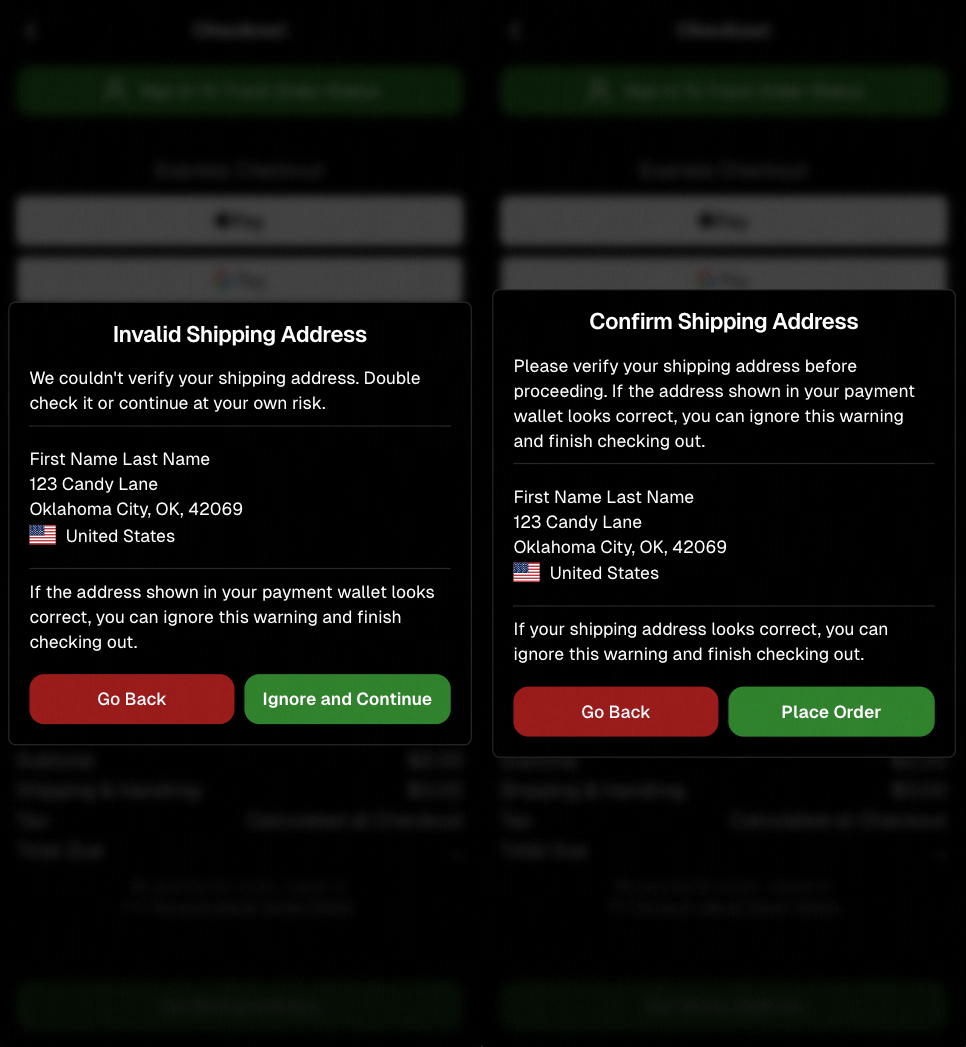
Confirmation popup now clearly displays shipping address confirmation.

🧠 Better UI + performance improvements

  • Improved local rendering (performance, memory usage, and task handling) — originally aimed to improve the retail experience on low-end devices, but it should make most devices feel faster!

  • Native “leave page” confirmation on supported browsers/devices (desktop + Samsung back button) when navigating away from an event page (refresh/back).
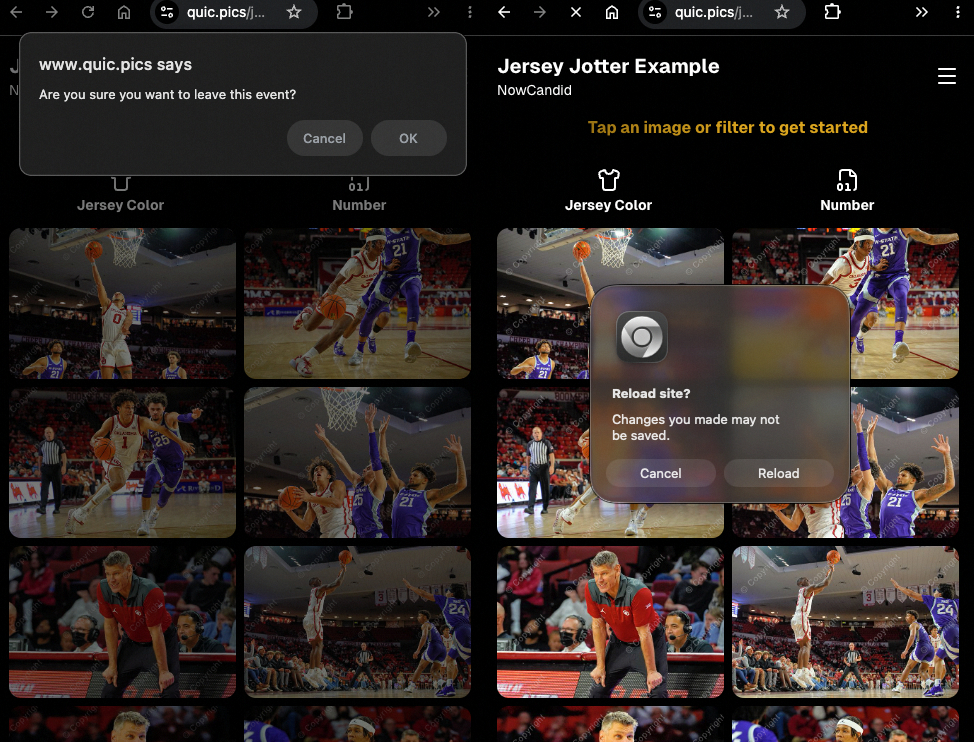
Leave page confirmation

🖼️ Clearer package download expectations + better pickers

  • Personal Gallery Downloads on store sheet and package editor now show “+X Images” in the configurator when there are more than 4 images—so customers don’t think they only get what’s previewed.
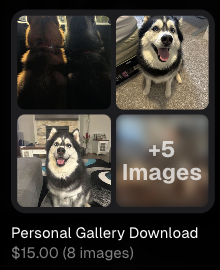
Personal Gallery Download "+X Images"

    • Personal Gallery Download products inside packages can now be clicked to preview contents.

    • Desktop product/package image pickers are now two columns (like mobile), allowing larger image preview during selection.
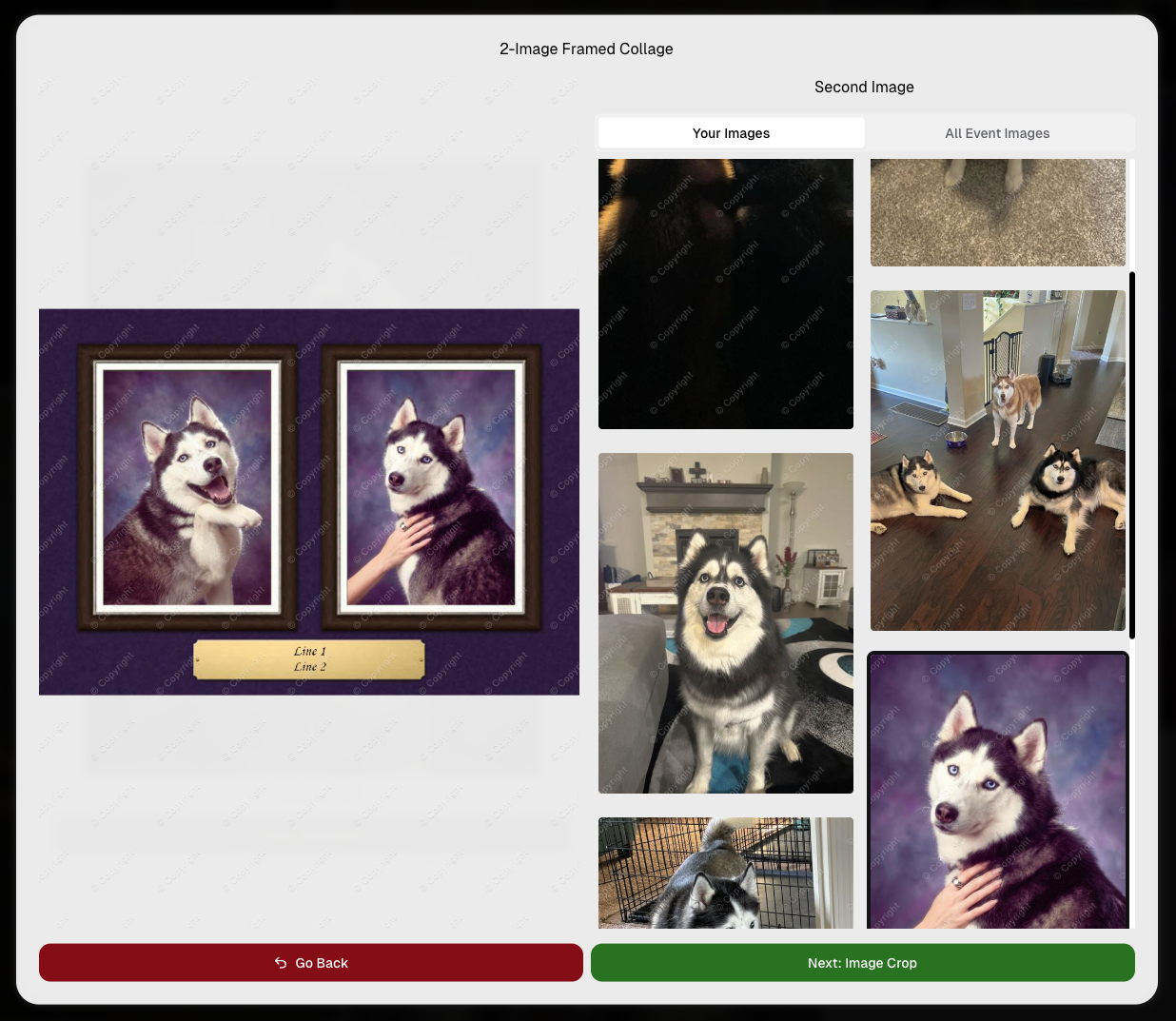
    Larger two column image previews

      • Image Filters landing popup now includes “Browse all photos without a filter” so customers who think they must pick a filter know they can also just browse!
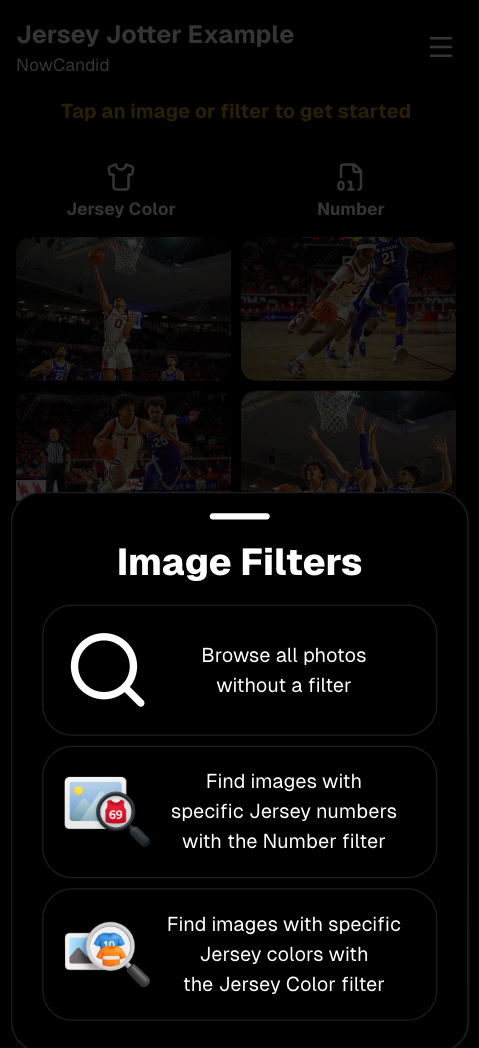
      Image Filters landing popup

      🧩 Retail fixes worth noting

      • Fixed a slashed discount amount showing on week 3 when there is no higher amount.
      • Fixed a GalleryGuard edge case that could close the retail site on some Android devices that support mobile context menus when long-pressing.
      • Fixed a race condition where a Group-by-Face gallery loaded from URL params could show default results instead of the filtered view.
      • Fixed an edge case where manually assigned images marked as group could behave like non-group images on retail.

      📱 Capture App OTA: 5.6.1 & 5.6.2 (iOS & Android)

      🌐 NEW: Network Speed Test (5.6.1)

      A new Network Speed Test button is available in Resources. Tap Run Test to check download speed, upload speed, and latency to NowCandid servers (so results may differ from Google/Ookla). It’s a quick test (downloads 5 MB, uploads 2 MB) and is useful for diagnosing weak or congested service during events.

      Mbps is a standard measurement for connection speeds, and 1 megabit per second (Mbps) is 0.125 Megabytes per second (MB/s). So 8 Mbps is 1 Megabyte per second, max. For example, with images that are 10 Megabytes in size, a speed of 8 Mbps would take a minimum of 10 seconds to upload. When speeds are very slow, image uploads may be impossible due to uploads timing out and restarting. In these cases, open the app when you have a stronger connection and all your images will start going up!
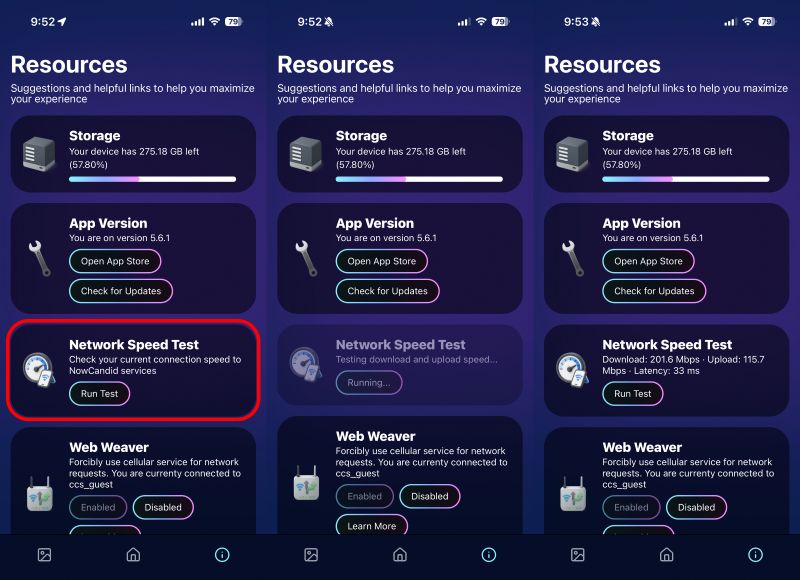
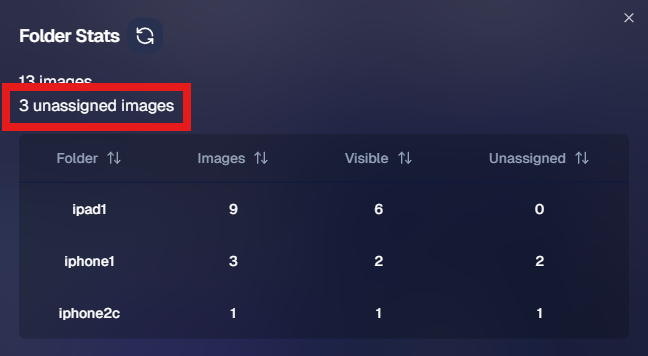
      Network Speed Test

      🎪 Photo Booth + Selfie Check-In Station UI upgrades (5.6.2)

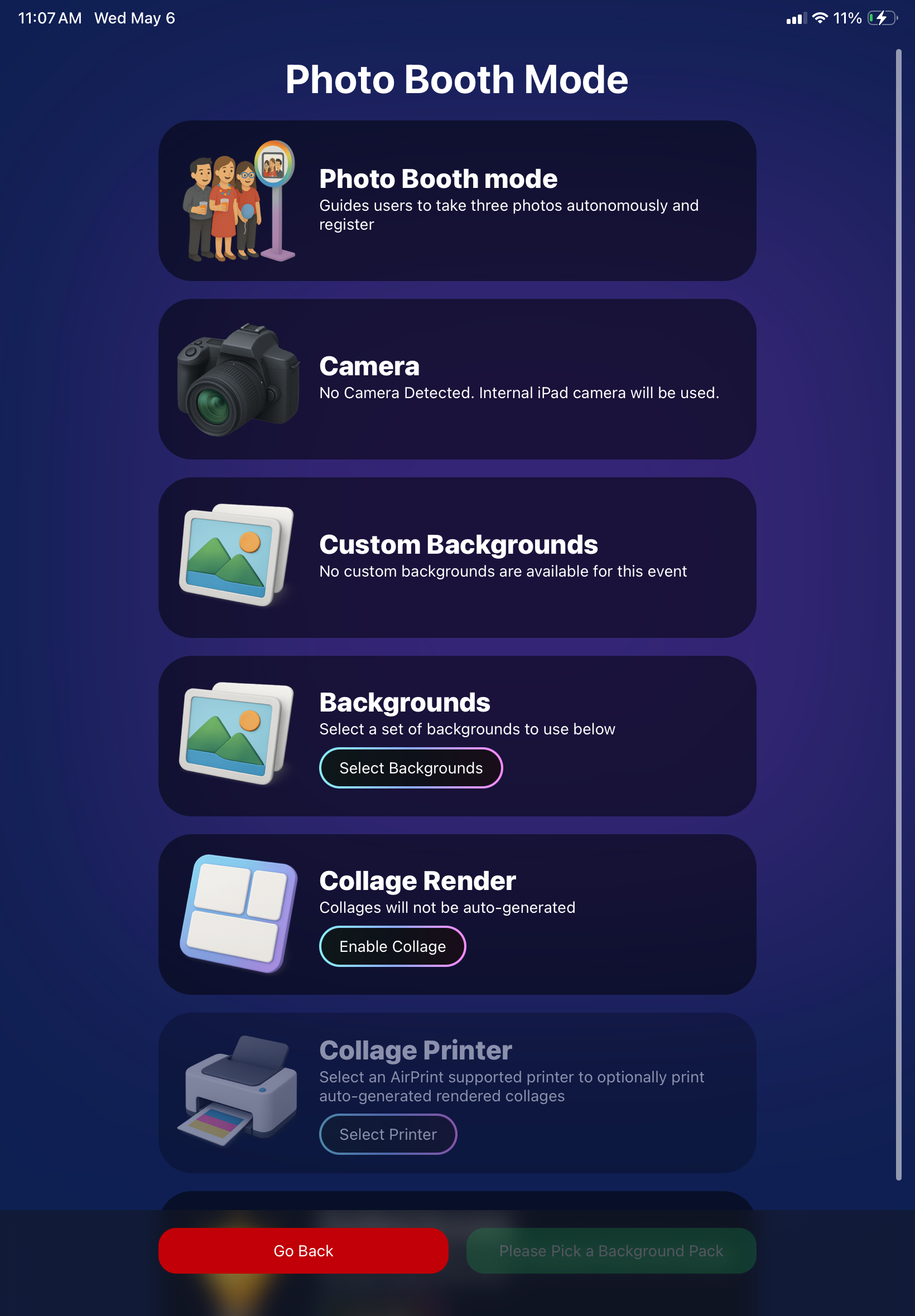
      • Photo Booth landing page updated to be more user-friendly (always-visible scrollbar, updated text, sticky go back/continue buttons, red/green emphasis, and a popup explaining why Continue is greyed out).
      • Selfie Check-In Station landing page updated with red/green Go Back / Begin buttons.
      • New dropdown icon beside Group Photo toggle (when an event has PhotoTags) to better display there are additional options to assign PhotoTags.
      • Fixed edge case cancel/continue behavior on Selfie Check-In Station when no contact info was entered.
      🧩 NEW: Lightroom Classic Plugin (Official)

      We’ve launched an official Lightroom Classic plugin to upload images to NowCandid events directly from Lightroom Classic.

      Key notes:

      • Lightroom Classic only
      • Same image rules apply (color profile, DPI, etc.)
      • Uses Capture App login
      • Only events within 60 days of event start date show in the selector
      • Image Details → Logs will show “Uploaded from NowCandid Lightroom Plugin”
      • Docs include guide/download/installation: https://app.nowcandid.com/docs/tools-more/lightroom
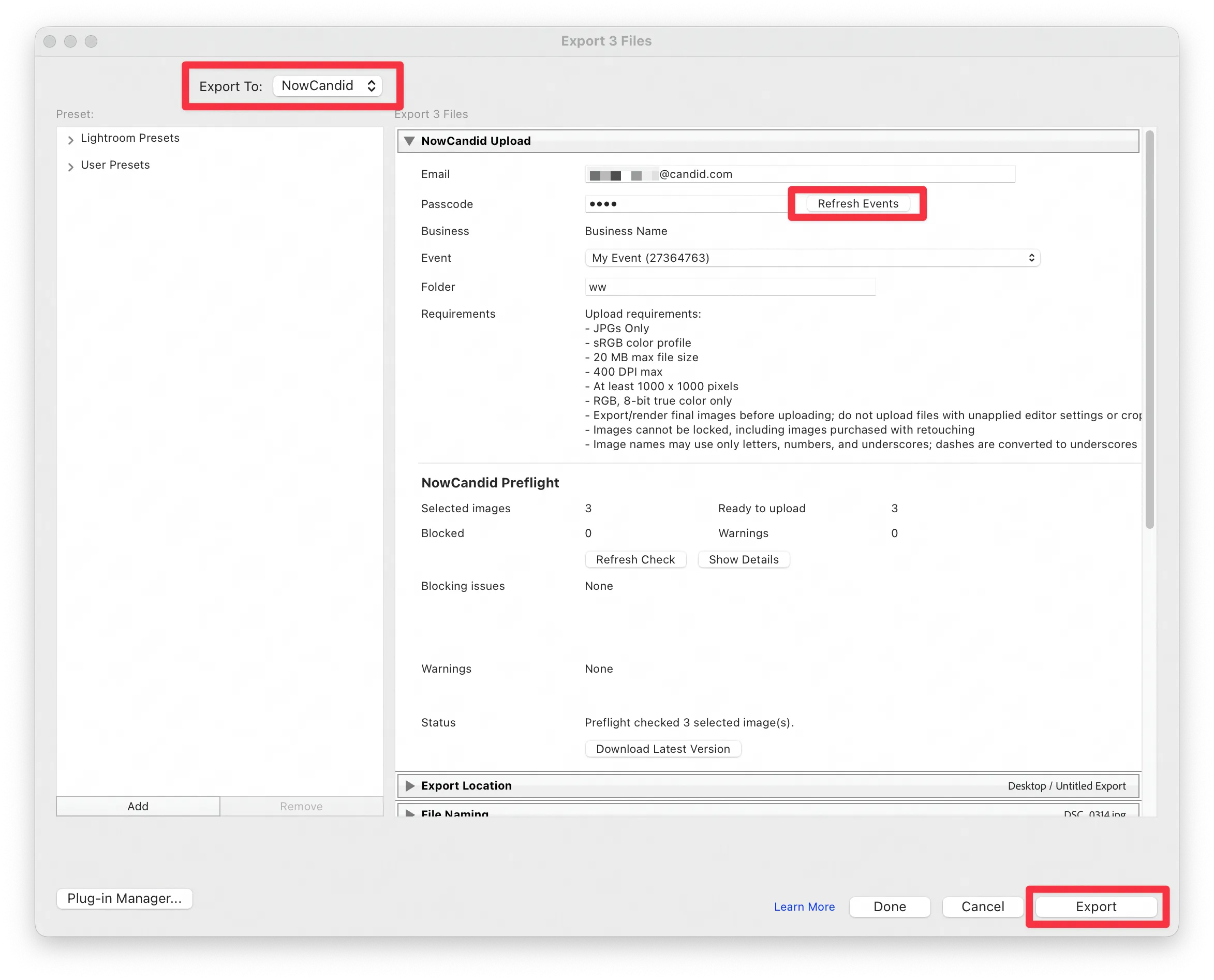
      Lightroom Classic Plugin

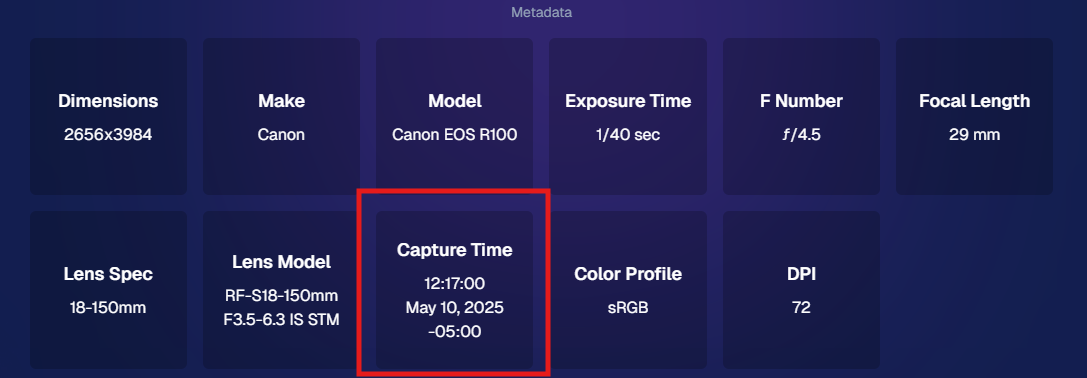
      Upload from NowCandid Lightroom Plugin

      🖥️ Dashboard: Upload & Roster Clarity + Small UX Wins

      • Event roster upload and PhotoRoster upload now warn about every unrecognized column, making it easier to spot misspellings (especially for optional columns).
      • Participant list page download now puts additional contacts into columns instead of rows.
      • Participant list download now puts merged contacts into their own row if they have different first/last names.
      • Image upload naming cleanup:
        • spaces/parentheses now automatically become underscores (e.g., Image (2)Image_2)
        • names ending in z now get a trailing underscore (e.g., ImagezImagez_)
      • Candy got even better at using the new Docs for responses.
      • Password reset now shows a clear “Your link has expired” screen (links expire after 24 hours).
      • Fixed participant filter inside another participant’s manual assign/unassign page not working properly.
      • Participant Details PhotoTag assignment UI: merged participants no longer incorrectly show PhotoTags as assigned.
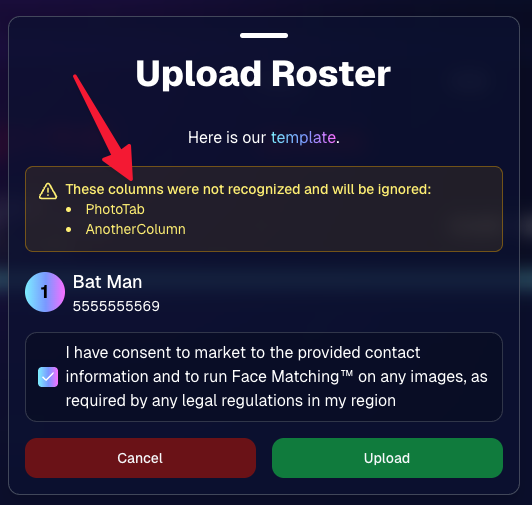
      Upload Roster now warns about every unrecognized column.

      📣 Marketing Fixes

      • Fixed edge cases where galleries that were only AI-edited images could cause follow-up email marketing issues and show as 0 images on Participant List.
      • Fixed Day0 marketing edge case not starting if gallery is just AI-edited images.
      • SMS gallery links now include “View photos:” before the gallery URL to reduce confusion where some users thought the gallery link was an unsubscribe link.

      That’s the week! 💫

      Between the Lightroom Classic plugin, the Capture App’s new Network Speed Test, and retail improvements that reduce confusion (and improve performance), this week was packed with practical wins you’ll feel right away.

      Keep it sparkly,

      Candy

      Related articles

      Weekly Recap: Overlay Artwork in the Product Gallery 🎨✨
      Feature Updates
      January 3, 2025

      Weekly Recap: Overlay Artwork in the Product Gallery 🎨✨

      2
       minutes read
      Hello again, my wonderful photographers!

      Candy here, and welcome to another Weekly Recap. This time, we’ve got one exciting improvement to share—overlay artwork now appears by default on product previews in the product gallery!

      Let’s take a closer look. 🌟

      Overlays Rendered by Default in Product Gallery 🎉

      We’ve introduced a fun change for anyone using Banner Overlays or Full Frame Overlays in their NowCandid Events:

      • Visible Overlay Art

        Items in the retail site’s product gallery will now display your Event’s overlay artwork right away. Customers can see exactly how their images look on each product, with that extra creative touch of your Event's Overlay Art.

      Theme: Marshmallow - Watermarking: Heavy

      Theme: Liquourice - Watermarking: None

      • Use Overlay by Default

        When customers go to customize or add a product to their cart, the “Use Overlay” option will already be selected. This makes it simpler to highlight your unique event designs or branding. But they can still view & order the product without the overlay art.
      • Easy Toggle in Settings

        If you prefer to keep products overlay-free by default, no worries! Head to the “Retail Site Settings” in your Profile and uncheck “Use Artwork By Default.” That way, product images will display without your Event overlay art unless customers choose otherwise.

      Find this option in your Profile settings

      Enabling Use Artwork By Default will feature your Event's Overlay Art on the renders in the product gallery page. Guests can choose to view and order products without the art, but "with overlay art" will be the default selection.

      That’s all for this week’s short-and-sweet recap!

      We hope this feature adds a little extra flair to your retail experience.

      As always, let us know what you think or if you have any feedback.

      Candy 🍬

      Big News: Introducing Photo Booth Mode in iOS Capture & Upload App 4.13! 🎉
      Feature Updates
      December 30, 2024

      Big News: Introducing Photo Booth Mode in iOS Capture & Upload App 4.13! 🎉

      6
       minutes read
      Hello, my wonderful photographers!

      Candy here with exciting news for you on this festive Monday. We’re launching Capture & Upload App Version 4.13, and it comes with a massive new feature: Photo Booth Mode.

      Let’s dive into what it is, how it works, and why we think you’ll love adding it to your events!

      What Is Photo Booth Mode? 🤳

      Photo Booth Mode is a brand-new option inside the Capture & Upload App (Version 4.13 on iPad). When you log in to your Event, you’ll see a shiny new “Photo Booth” button alongside the usual options.

      Tap that button, and your iPad transforms into a fun, self-serve photo booth station, perfect for:

      • Weddings & Parties: Encourage guests to capture memorable group shots and instantly send them to their phones.
      • Sports & Corporate Events: Provide interactive experiences that keep people engaged and excited.
      • Holiday Gatherings: Add some festivity and help guests create themed keepsakes right on the spot.

      Whether you tether a Nikon, Sony, or Canon camera or just use the iPad’s built-in camera, Photo Booth Mode gives you a convenient, autonomous way to let guests take pictures without any manual work from you (aside from set up and takedown of course).

      How It Works ⚙️

      1. Tap to Begin Screen
        • Guests see a dimmed live view with “Tap to Begin.” Once tapped, the booth takes three pictures in quick succession, each with its own 3-second countdown.
      2. Real-Time Overlays
        • If your event has Bottom Banner Overlays or Full Frame Overlays, they appear in the live view. This lets guests see exactly where the art will sit, so no one’s face gets covered.
      3. On-Device Styling
        • Background Removal & Custom Backgrounds: If you’ve uploaded backgrounds for your event, they’ll be available for selection.
        • Filters: Guests can apply classic filters like Noir, Sepia, or Clarendon before sending off their images.
        • Reshoot: Not happy with a pose? Subjects can tap “Reshoot” and start over, easy-peasy.
      4. Instant Delivery
        • Both QuicPics or PartyPics Workflows deliver images in real time:
        • If it’s QuicPics, your subjects will get the image files directly via MMS, with Overlay Art applied, if your Event has any. They'll also receive a link to their personal gallery. Reminder, with QuicPics we charge a small fee per uploaded image.
        • It it's PartyPics or any of our other Programs, your subjects will only receive a link to their personal gallery. And there is no additional charge or fee.
        • When visiting their personal gallery, they can buy prints & downloads of these images with various product & customization options.
      5. Positive ID vs. Face Matching
        • Face Matching: Prompts appear to tap faces, then gather contact info for those individuals.
        • Positive ID: Participants just enter their info before sending images, no face-tapping required.

      All images are uploaded to your NowCandid Event like normal, so no matter your usual Workflow, things will still function seamlessly!

      Key Requirements & Limitations ⚠️

      • Camera Orientation
        • Nikon cameras support both horizontal and vertical orientation.
        • Sony and Canon are currently limited to horizontal orientation.
      • iPad-Only Launch
        • Photo Booth Mode works on iPad (and only in vertical orientation), not on iPhone or Windows at this time.
      • No Built-In Strip Printing
        • If you need to provide prints, set up a separate print station and use quic.pics/portal to download images with or without Event Overlay Art and print them on-the-spot!
      • Strong Internet Connection
        • Ensure your iPad has solid Wi-Fi or LTE, as the app needs to log into the event, download overlays/backgrounds, and upload images in real time.

      Why You’ll Love Photo Booth Mode ❤️

      1. Interactive Fun

        Guests choose their own backgrounds, overlays, and filters, creating a memorable activity at any gathering.
      2. Seamless Feature Integration

        Images will show up in LiveLoop slideshows, appear alongside subject's other images in Personal Galleries, be managed using NowCandid's typical image and participant management tools, and more!
      3. Seamless Workflow Integration

        The images flow right into your existing event Workflows—Tap-A-Face, Selfie Check-In, Type & Take, and more—without any additional setup.
      4. Effortless Setup

        Whether you opt for a tethered DSLR or the iPad camera, it’s a simple tap away in Capture & Upload App 4.13.

      Download Capture & Upload App 4.13 Today! 📱

      With Version 4.13 now live for iPad (iOS only at the moment), you can start offering Photo Booth Mode at your next event.

      We’ve tested it extensively, but with so many different devices and use cases out there, we encourage you to try it out ASAP.

      If you spot any quirks, let us know, and we’ll work on improvements swiftly.

      Thank you for joining us in this Big News blog post.

      We can’t wait to hear your success stories with Photo Booth Mode!

      Candy 🍬

      Weekly Recap: Group Photos for Grads & Retail Download Tweaks📸🎉
      Feature Updates
      December 27, 2024

      Weekly Recap: Group Photos for Grads & Retail Download Tweaks📸🎉

      7
       minutes read
      Hello, my wonderful photographers!

      Candy here, and welcome to another Weekly Recap. We’ve got a couple of handy feature updates, plus some exciting news about our upcoming Capture & Upload App release for iOS.

      Let’s dive in! 🌟

      1. Group Photo Option in GradPics 📸

      We’ve introduced a Group Photo toggle in the Manage Images tab for GradPics Events. When you mark an image as a Group Photo, here’s what happens:

      • Appears in Every Gallery: Regardless of face matching, every participant sees the group image in their personal gallery.
      • Exclusive Products: If your Event’s Offer includes any Group Photo products (like Group Photo Download or Group Photo Print), they’ll only be purchasable on those items.
      • No Group Photo Products? Then the group image behaves like a normal image, available on all your usual products.
      • Not in Personal Gallery Download: To avoid easy sharing of a big group image, we’re excluding Group Photos from any personal gallery download product for now.

      We’ve added a quick popup explanation when flagging an image as a Group Photo in the Web Dashboard, just in case someone clicks the Group Photo toggle by mistake. 🎉

      2. Personal Gallery Download Hiding Rule 🤫

      To help clients avoid confusion and refunds, we’re adding a new rule:

      • Hide Personal Gallery Download: If the Offer sells individual image downloads and a participant only has one image, we hide the personal gallery download.
      • Still Visible for One-Image Events: If your Offer doesn’t have individual downloads, the personal gallery download stays visible, even if the participant just has one photo.

      This little tweak prevents clients from accidentally buying a personal gallery download when they only need a single download. 🛒

      3. Heads-Up: Capture & Upload App 4.13 for iOS Only! 📱

      On Monday, December 30th, we’ll release Version 4.13 of the Capture & Upload App for iPhone & iPad. (Windows stays at 4.12 for now.) We’ve added some major updates:

      Please update one of your devices, test it out, and let us know if you catch any bugs. With so many devices, camera brands, and workflows out there, early feedback helps us fix issues quickly.

      4.13 Highlights

      1. Photo Booth Mode
      2. Overlays on Capture App Image Review
        • Overlays now render directly over the captured images on the app (if the aspect ratio is supported).
        • 3:2 aspect ratio photos are needed for full frame overlays, but any aspect ratio works for banner overlays.
        • This lets you and your subjects see the art in real time, ensuring no important parts are covered!
      3. Out-of-Space Error Popup
        • If your device is running low on space when a new image is taken, you’ll get an immediate error popup.
        • Remember to regularly clear out old images via the app’s “Delete App Data” button in the info (i) menu to keep everything running smoothly.

      Minor Updates

      • Session data is now wiped when switching NowCandid accounts in the app, so "Restore Session" won't take you to an Event from a different account!
      • Event Shooting Buttons on Tablets now match iPhone UI (centered vertical menu).
      • Camera Trouble Popup includes a note about app permissions. (Always make sure to agree to all app permissions needed when the app is starting for the first time!)
      • Auto Remove Spaces from the account email on login. (some folks accidentally put a space and didn't know why they couldn't log in!)
      • Candy Splash Screen when the app is booting up now supports dark mode.

      Thanks for tuning into this shorter Weekly Recap. We hope these improvements help you finish the year strong! If you have any questions or feedback, don’t hesitate to reach out.

      Candy 🍬

      Let’s get in touch

      If you’re a photographer looking to add NowCandid services to your wheelhouse – set up a call by clicking the button below.

      How to customize formatting for each rich text

      How to customize formatting for each rich text

      How to customize formatting for each rich text

      How to customize formatting for each rich text

      How to customize formatting for each rich text
      How to customize formatting for each rich text

      What’s a Rich Text element?

      The rich text element allows you to create and format headings, paragraphs, blockquotes, images, and video all in one place instead of having to add and format them individually. Just double-click and easily create content.

      A rich text element can be used with static or dynamic content. For static content, just drop it into any page and begin editing. For dynamic content, add a rich text field to any collection and then connect a rich text element to that field in the settings panel. Voila!

      Headings, paragraphs, blockquotes, figures, images, and figure captions can all be styled after a class is added to the rich text element using the "When inside of" nested selector system.

      • List One
      • List Two
      • List Three
      • List Four
      • List Five

      This is a link

      This is bold text