HomeNavigation arrowBlogNavigation arrow
Current page
Feature Updates

Weekly Recap: Auto Headsize for Virtual Groups, New BGR Report, HEIC Conversion & More


Weekly Recap: Auto Headsize for Virtual Groups, New BGR Report, HEIC Conversion & More

This week’s updates include some helpful improvements across Virtual Group Builder, reporting, image conversion, participant management, and folder downloads.

The biggest highlight is a new Auto Headsize option in Virtual Group Builder, designed to give you a much better starting point when building virtual groups. We also added a new BGR Report to help you see which backgrounds are being ordered most, plus a few quality-of-life improvements throughout the Dashboard.

Let’s take a look!

🧑‍🤝‍🧑 Virtual Group Builder Improvements

✨ New Auto Headsize button

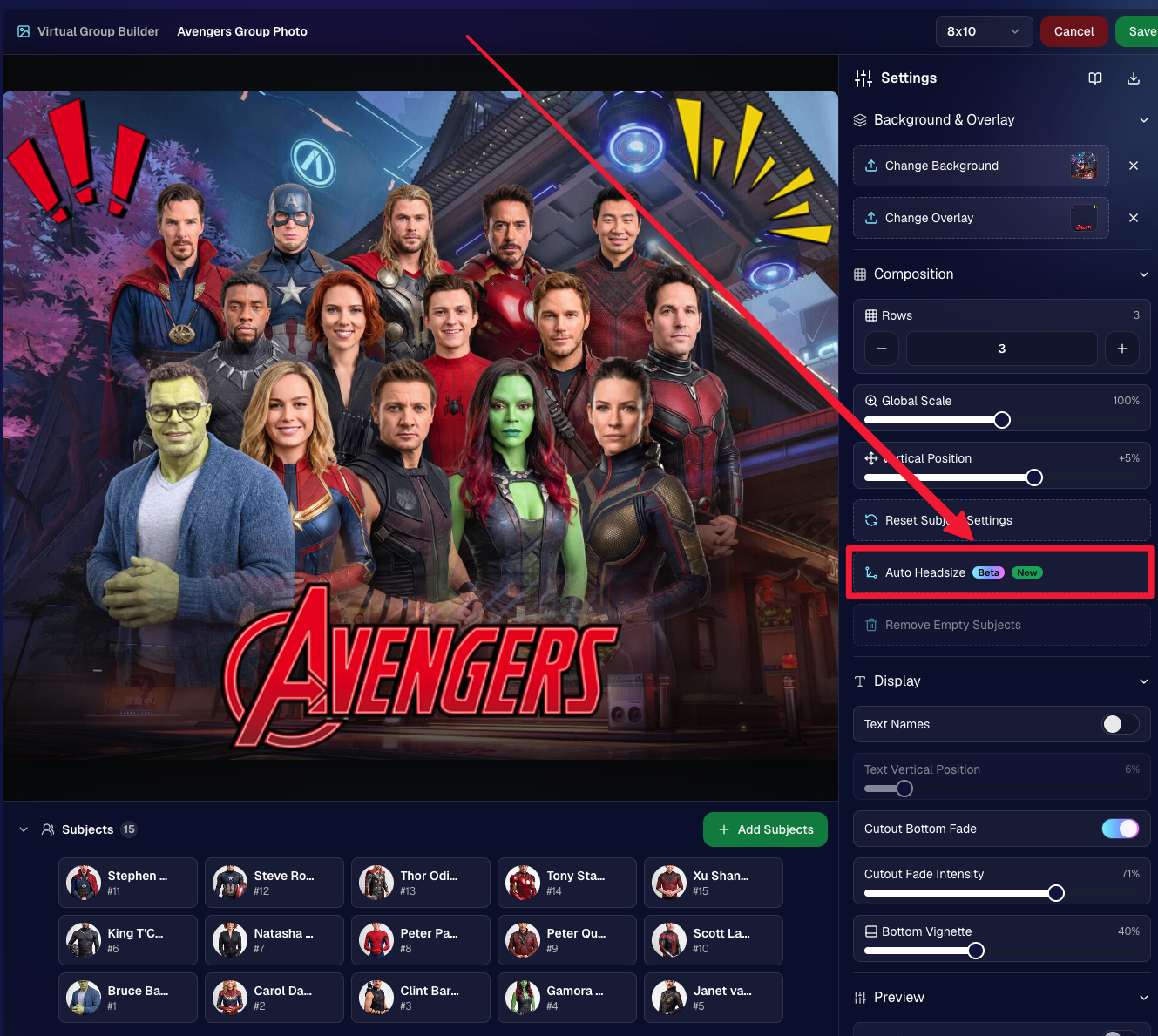
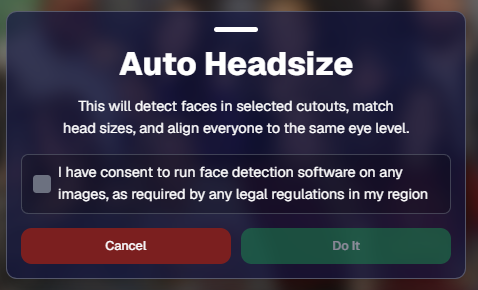
Virtual Group Builder now has a new Auto Headsize button.

This feature automatically detects faces and adjusts the scale and vertical offset of all cutouts so that subjects have roughly the same head size and are closer to eye level.

That means when you’re building a virtual group, you should have a much better starting point before making your final manual adjustments.
🏷️ Improved PhotoTag import behavior

We improved the behavior when importing a PhotoTag into Virtual Group Builder, helping that workflow feel smoother when adding subjects from a specific PhotoTag.

🚀 Upload fix for new from-scratch Virtual Groups

Fixed an issue where uploads were not uploading properly when working from /new on a from-scratch Virtual Group instead of an existing one.

👥 Smarter default subject behavior

Virtual Group Builder now skips the initial “add to group or replace group” popup when the only subjects in the group are the default 8 subjects.

🖼️ Bottom logo spacing improved

Bottom logos are now spaced the same distance from the bottom as top logos are from the top.

📊 Reporting Updates

📈 Events and Sales Report tables now have sortable columns

The Events Report and Sales Report tables now support sortable columns, making it easier to review and organize report data directly in the table.

🎨 New BGR Report

There is now a new BGR Report that shows the most ordered backgrounds for BGR images.

The report shows:

  • How many orders a background has
  • How many items a background has

Important note: if you upload the same background to multiple Events, those will show up as different backgrounds in the report. To avoid that, use the background import feature.

🖼️ Image Converter Update

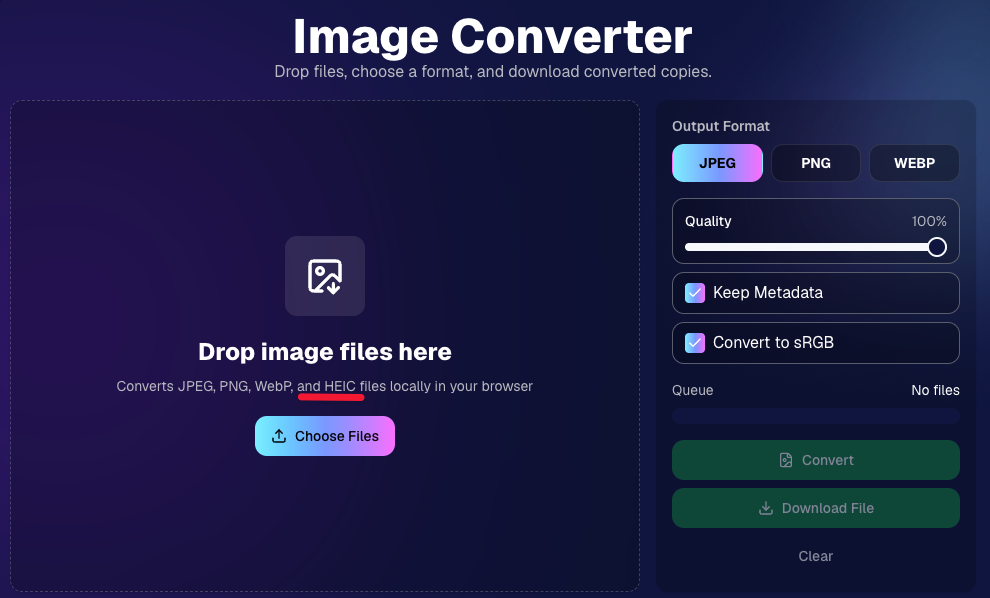
📱 HEIC conversion is now supported

The Image Convert page at tools/convert now supports converting from HEIC files.

This should be helpful when working with images from devices that commonly save in HEIC format.
👥 Participant List Update

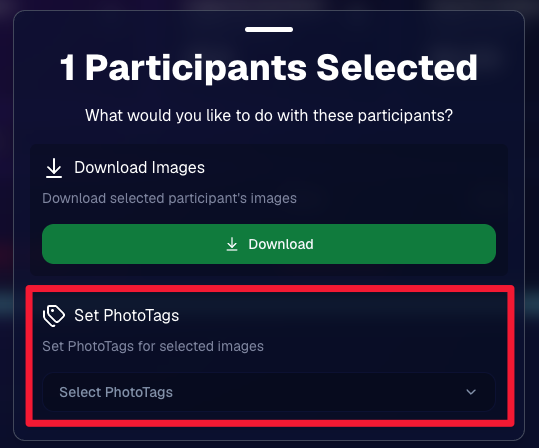
🏷️ Set PhotoTags for selected participants

On the Participant List page, the selected participants popup now includes a new option to set PhotoTags for those selected participants.

This gives you another way to update participant organization in bulk.
📂 Manage Images Update

⬇️ Download Folder improvements

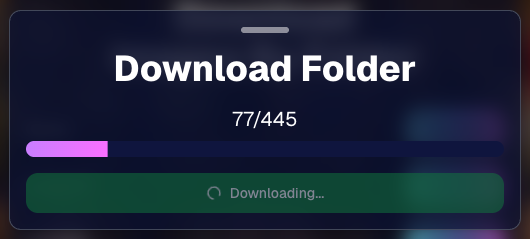
The Download Folder feature on the Manage Images page now includes an X/X counter while downloading.

We also improved the behavior when downloading a folder with hundreds of images, which should make larger folder downloads clearer and more manageable.
That’s the week!

This week’s updates should make several everyday workflows smoother: Virtual Group Builder now has a stronger starting point with Auto Headsize, BGR background performance is easier to review, HEIC files are easier to convert, participant PhotoTags are easier to update, and large folder downloads are clearer.

Keep creating magic,
Candy 🍬

Related articles

Drive Sales Using Party Pics Now
Success Stories
April 18, 2022

Drive Sales Using Party Pics Now

2
 minutes read

“We had a very successful Father/Daughter dance. The assistant principal was shocked at how organized and fast the pictures were this year. She also said that she didn't think dads would buy photos online. I told her that with my system, they will (this was our first year covering this event). Last year, dads had to pay with a paper order form, and many of them left the dance without taking photos because the line was so long. This year, we used Now Candid’s Party Pics Now, with Tap-A-Face. And when dads entered a phone number, we asked them to put mom's cell phone number in.” - Eric Miller

(screenshot of the event report taken before $2,100 was reached)
  • In one week, this event has done over $2,100 in sales and has ~$13.65 in sales per father’s face tapped.
  • Father/Daughter pairs were shot with a sparkling golden backdrop for most photos.
  • Price Level 11 (the most expensive PPN price level) was used for this event. Accounting for the 85% margin digital downloads and Price Level 11's 80% margin on physical products: Miller’s total profit margin was 82% of all sales and shipping.
  • No additional fees, charges, or unexpected costs makes for easy and instant accounting, and funds were deposited to his account within the week

Overall, this event was a homerun for MillerFoto and a great example of how effective Now Candid’s systems can be when you shoot quality photography and book quality events.

Thanks for sharing, Eric!

NowCandid's Microsoft App: Out Now!
Feature Updates
March 9, 2022

NowCandid's Microsoft App: Out Now!

3
 minutes read

New features you'll find in the app:

  • Supports several new Nikon and Canon models that the previous NOW Candid app did not
  • Customizable App Passcode - ensures you are uploading directly to events in your account & is protected from other user's image uploads
  • New modern design for ease of use
  • More event information now available right from the tablet when logged in
  • Choose between dark or light mode (dark mode looks pretty slick! Try it out!)
  • Added button in settings that instantly pulls up the image hot folder
  • Easier installation and less issues with Window Defender
  • Smarter log out protocols (warnings if all images have not been uploaded)
  • "Upload from SD card" to manually add all images from an SD card to an event.
  • Useful if a camera was not connected to a tablet when images were shot, this provides another way to manually upload
  • OR if you had a second photographer on site without a tablet, they could upload their images through a tablet/laptop before leaving the event

How to uninstall the previous version of the app:

If you have previous versions of the Party Pics® Now app or Now Candid app installed on your device, you will want to uninstall them. Make sure all data and images from any previous events have been transferred prior to uninstalling.

1. Navigate to "Add or remove programs"

2. Search for NowCandid to uninstall

    a. This can be done for "Party Pics Now" or SNAP as well

How to install the new version of the NowCandid app:

You can install the new app by going directly to the Microsoft App Store using this direct link: www.microsoft.com/store/apps. Alternatively,  you can find a link to the store on NowCandid.com/download (must be logged into account to access this page).

How to find your App Passcode to log in on the new tablet:

1. Log in to your account on NowCandid.com

2. Click on App Settings

3. Find or change your App Passcode

Let’s get in touch

If you’re a photographer looking to add NowCandid services to your wheelhouse – set up a call by clicking the button below.

How to customize formatting for each rich text

How to customize formatting for each rich text

How to customize formatting for each rich text

How to customize formatting for each rich text

How to customize formatting for each rich text

What’s a Rich Text element?

The rich text element allows you to create and format headings, paragraphs, blockquotes, images, and video all in one place instead of having to add and format them individually. Just double-click and easily create content.

A rich text element can be used with static or dynamic content. For static content, just drop it into any page and begin editing. For dynamic content, add a rich text field to any collection and then connect a rich text element to that field in the settings panel. Voila!

Headings, paragraphs, blockquotes, figures, images, and figure captions can all be styled after a class is added to the rich text element using the "When inside of" nested selector system.

  • List One
  • List Two
  • List Three
  • List Four
  • List Five

This is a link

This is bold text