HomeNavigation arrowBlogNavigation arrow
Current page
Feature Updates

Weekly Recap: Auto Editor (Beta), Pay Later Badges, and Faster Manage Images

Weekly Recap: Auto Editor (Beta), Pay Later Badges, and Faster Manage Images

Hey photo friends! 👋
This week’s updates bring a mix of AI editing power, cleaner review tools, and a small boost to retail conversion clarity—plus a helpful Android Capture App fix.

Let’s jump in. 💫

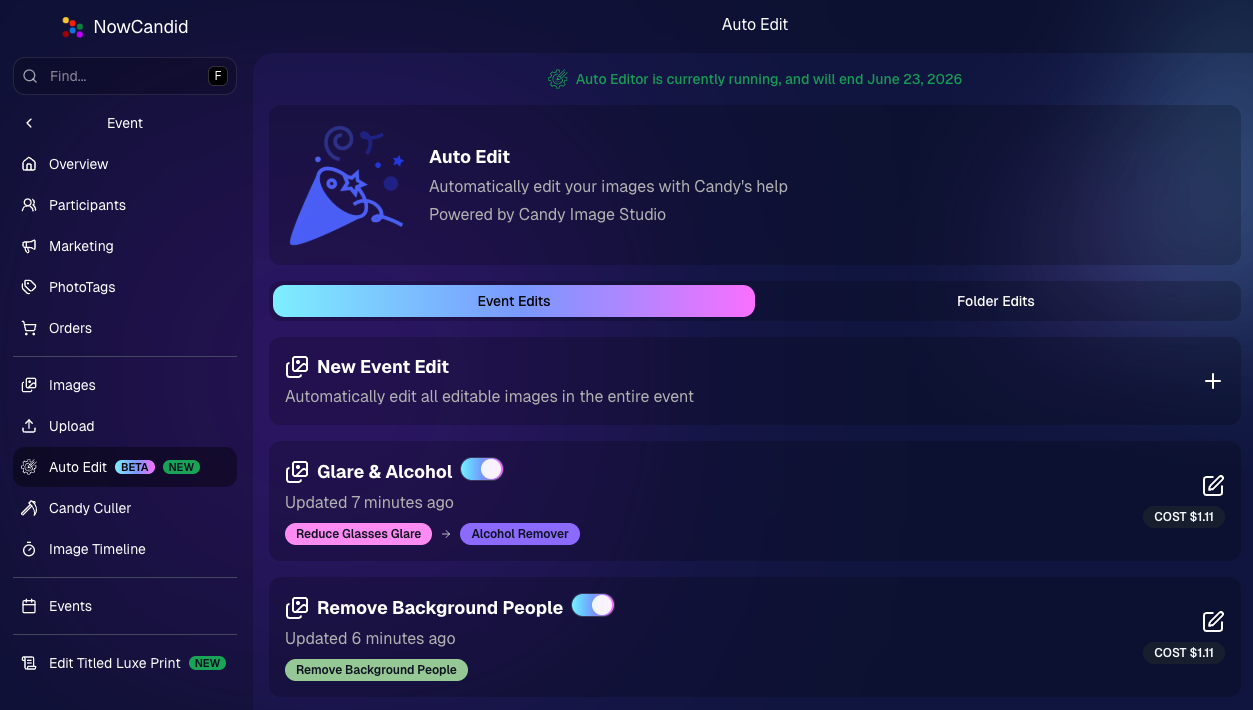
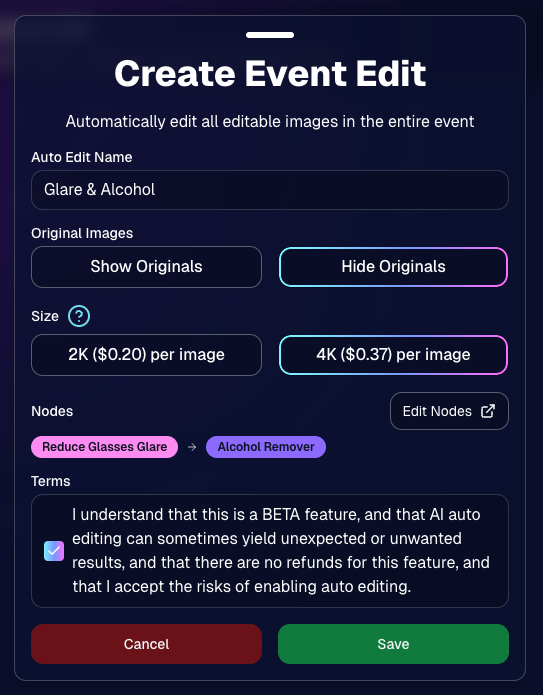
🧠 Auto Editor (BETA)— AI Edit an Entire Event or Folder

We’re rolling out an Auto Editor (Beta) that can automatically AI-edit:

  • All images in an event, or
  • All images in a specific folder

Auto Editor is powered by Candy Image Studio (same nodes, same pricing), and edited images keep their existing matches—just like when you run Candy Image Studio on an event image.

Important notes:

  • You are billed per image edit.
  • This is a BETA feature—we recommend testing on yourself (or doing one-offs in Candy Image Studio) before relying on it for a real event.
  • Auto Editor can run up to 60 days after the event start date, similar to other event workflows.

Common use cases

  • Light face retouching
  • Fix subject lighting
  • Reduce glare on glasses
  • Remove alcohol
  • Add green screens

Fun use cases

  • Automatic glamour looks
  • Anime style
  • Chibi style
  • Anything you can build with a custom text node

Where to find it

  • On an Event page in the Dashboard sidebar, near JerseyJotter and Candy Culler
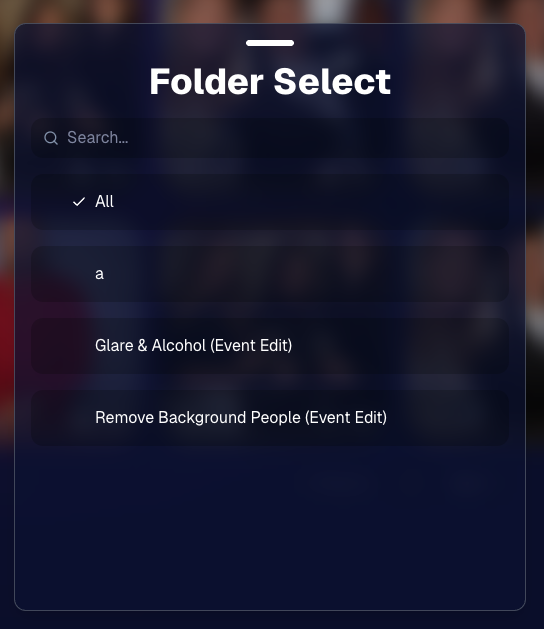
  • The folder selector will show whether you’re running an Event Edit or a Folder Edit
  • The Event List will show an Auto Editor attribute for events that used it (and includes an Auto Editor filter)
  • EMP also shows the Auto Editor attribute on its event list page
🎨 Candy Image Editor + Manage Images Improvements

A few upgrades landed that make AI editing and review smoother:

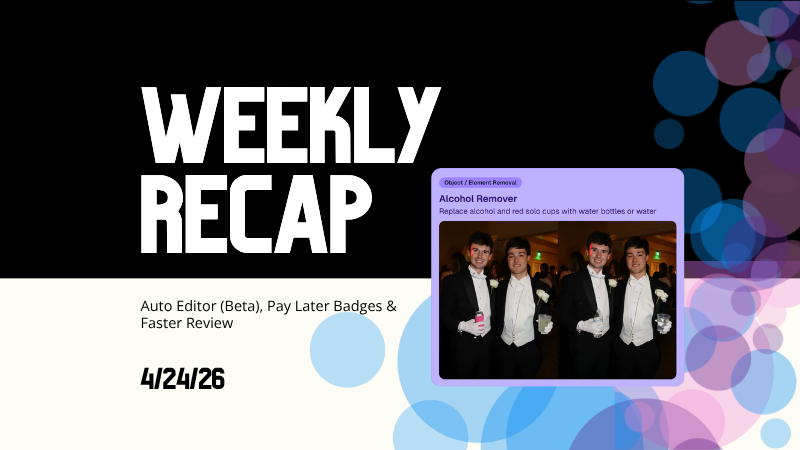
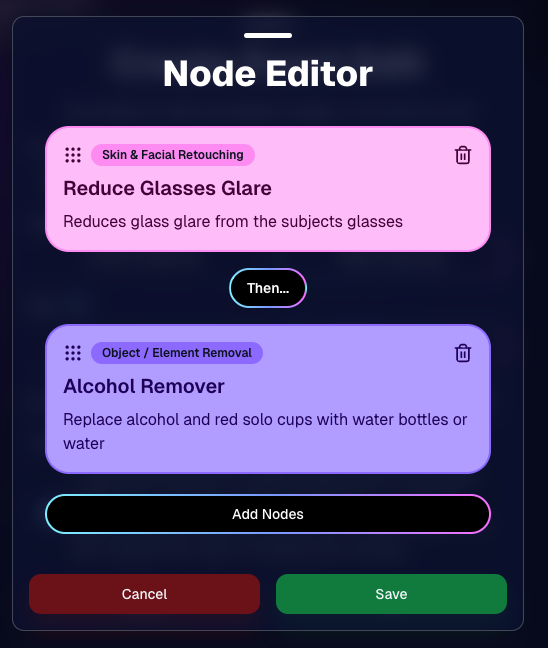
  • New node: Alcohol Remover is now available in Candy Image Editor.
  • Replace uploaded images more easily (non-event images): you can drag a new image onto the one you already uploaded to replace it, instead of starting over.
  • New “Preview Original” option on Manage Images lightbox for AI-edited images uploaded from Candy Image Studio
    • You can also toggle this view using \.
  • Manage Images search is faster (image searching performance improved).
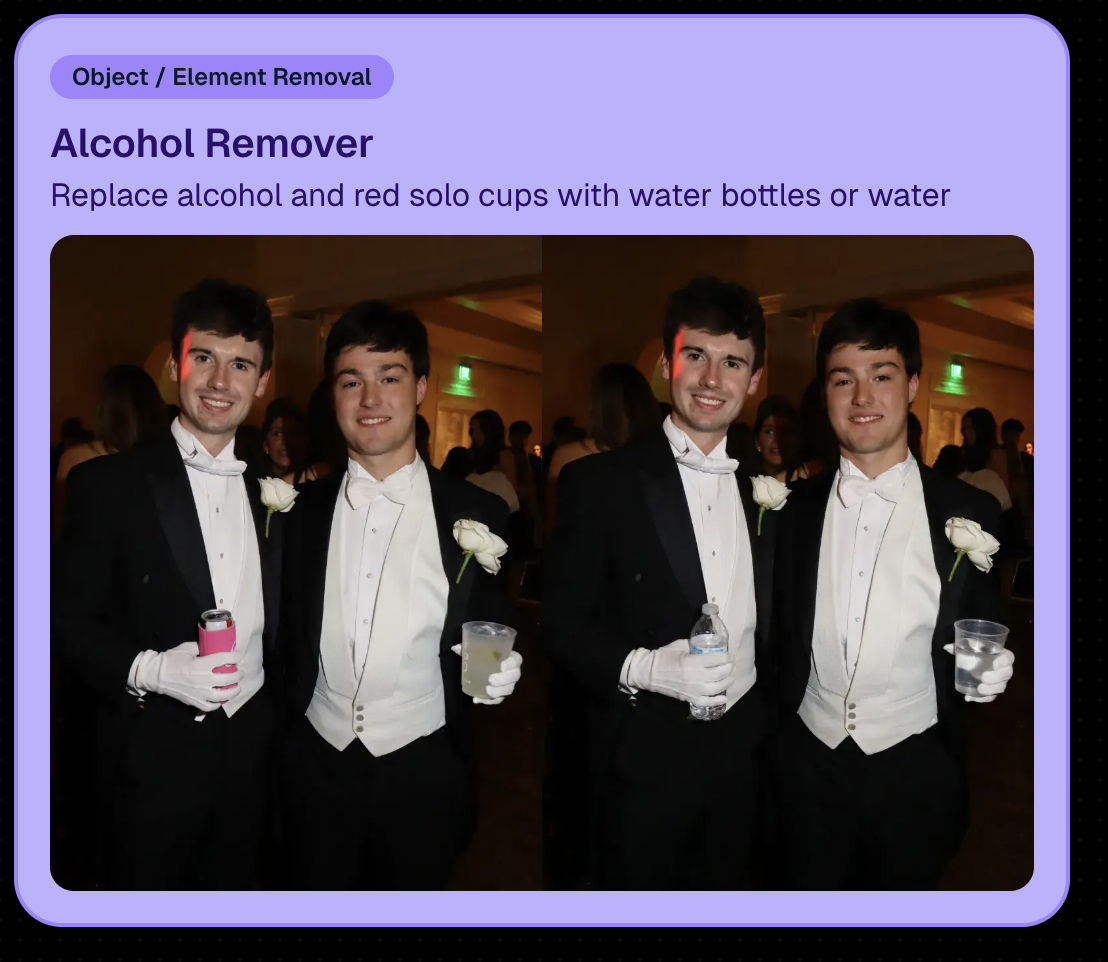
New Alcohol Remover Node

Preview Original Image Option

📣 Client Outreach: URL No Longer Required for Texts

Client Outreach texts no longer require a URL, but the system will show a warning if you try to send one without a link.

One important reminder: the number Client Outreach texts send from is different than the number used for automated event marketing—so recipients may not have any message history for context when they receive it.

🏷️ PhotoTags Page: Clearer Counts

The Event PhotoTags page now shows Contacts and Participants as separate columns for better clarity.

🛍️ Retail: Pay Later Badges (more visible financing options)

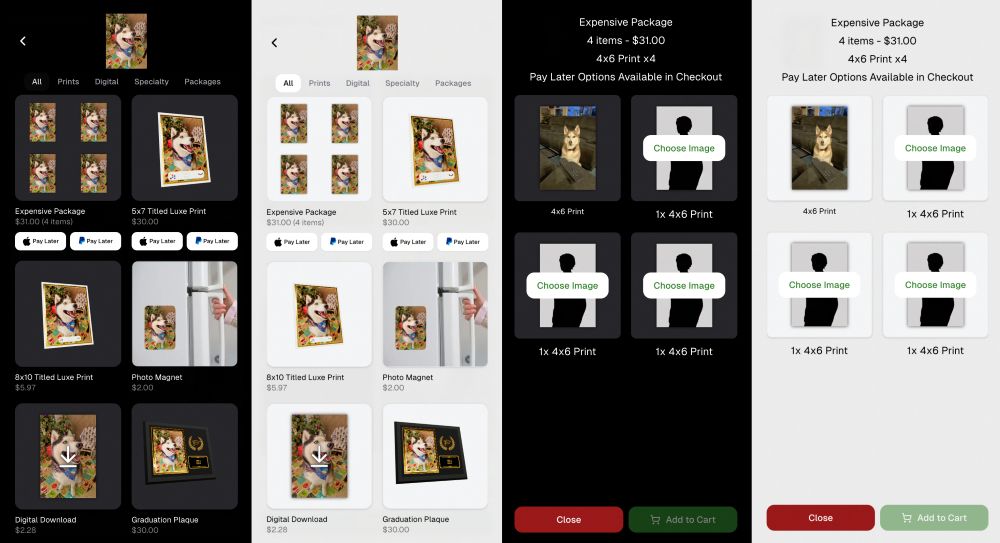
Retail now shows Apple Pay Later and PayPal Pay Later badges on the store sheet for items $30 or more.

A few notes:

  • • Pay Later options have always been available—this change just makes them more obvious to customers.
  • • This UI may be temporary and could be removed at any time.

Reminders on existing Pay Later availability:

  • Klarna & Affirm are available through Apple Pay for orders $35+
  • Some credit cards offer Pay Later through Apple Pay (eligibility varies)
  • Klarna, Affirm, and Zip are available through Google Pay for orders $35+
  • PayPal Pay Later (Pay in 4) is available for $30+
  • PayPal Pay Later (Pay Monthly) is available for $49+
🤖 Android Capture App 5.5: Duplicate Image Fix

The Capture App on Android (v5.5, Google Play) now fixes an issue where some cameras were sending duplicate images to the app.

That’s the week! 💫

Between the new Auto Editor (Beta), smoother “preview original” review flows, and clearer Pay Later messaging on retail, this update is all about saving time and helping customers convert with less friction.

Keep creating magic,
— The NowCandid Team 🍬
Related articles

Weekly Recap: Simple Check-In™, New Products Report, and Lots More ✨
Feature Updates
February 7, 2025

Weekly Recap: Simple Check-In™, New Products Report, and Lots More ✨

9
 minutes read
Hello, my fabulous photographers!

Candy here, ready to sprinkle some sparkle on your day with our latest Weekly Recap. We’ve been hard at work enhancing your NowCandid™ experience, and I’m thrilled to share all the juicy new features. Let’s dive in!

1. Simple Check-In™ for Positive ID Events 🤳

We’re introducing a brand-new way to make your Name Lookup and Scanner ID™ Workflows even smoother:

  • Single QR Code: Print just one QR code for the entire event. Participants scan it, enter their name and contact info, and a “blank” participant is instantly created—no selfie required.
  • Photographer & Wallet Benefits: Photographers can now quickly search by name if the event uses Name Lookup, or if the participant adds the pass to Apple Wallet (Google Wallet coming very soon), you can scan them later for Scanner ID™.
  • No More Bulk Scan Cards: Skip printing individual codes for everyone—one event code can do it all!

Scan Cards are still great in many situations, so this isn't a replacement - just an addition! Something to make the Name Lookup & Scanner IDWorkflows even more flexible!

Accessible by clicking the QR code within a Positive ID Event's Management Page

2. New Products Report 📈

We’ve introduced a new Products Report on your NowCandid™ web dashboard:

  • Most-Purchased & Highest-Revenue Products: See which items or packages your clients love most.
  • Standard Filters: Use the same powerful search options you know—by event, date range, program type, Event Tag, and more.
  • Data-Driven Decisions: Identify your top performing items and make more informed Custom Offer adjustments!

If you’ve been curious which prints, downloads, or merch are hot, this is your new go-to spot!

Accessible from the Home tab of the web dashboard

3. Image Management Additions:

Multi-Select Enhancements 🛠️

We’ve expanded multi-select capabilities in Manage Images to handle even more tasks at once:

  • GroupTags: Now you can edit or remove GroupTags™ for all selected images simultaneously.
  • Select All Visible: Quickly grab every image on the current page to speed up those bulk actions.

Accessible using the multi-select button within an Event's Manage Images page

New Folder-Wide Options 📂

We also added a new Edit Folder button when a folder is selected:

  • Change Folder Visibility: Toggle an entire folder’s images between visible or invisible.
  • Group Status: Mark them as Group Photos or individual images in one go.
  • GroupTag: Apply the same GroupTag™ to every image in the folder—super handy for sorting large event albums.

Mass management, simplified!

Accessible using the Edit Folder button within an Event's Manage Images page

4. Face Matching™ Formula Switch 🧩

We added a new toggle in Edit Event to adjust how strict or lenient our Face Matching™ algorithm is:

  • Stricter Matching for Kids: If you’re dealing with lots of little ones who keep popping up in the wrong gallery, flip this switch for fewer “extra” matches.
  • Default Remains Flexible: Our usual method still works great for most events. If needed, you can always manually unassign images from a participant in the dashboard.

Less confusion, more accurate galleries—everyone wins!

Accessible when editing a Face Matching type Event

5. Manage Images: New Filter Menu 🖼️

We’ve reorganized the Manage Images page with a dedicated menu for filters:

  • Cleaned-Up UI: Too many filters were crowding the page; now they’re in one easy-to-access spot.
  • Clear Active Filters: It’s easier to see what’s on and what’s off, plus you can remove filters with a single click.

Navigating your images should feel more intuitive and less cluttered than before.

Accessible using the Filters button within an Event's Manage Images page

6. Image Timeline Screenshot Download ⏱️

Our Image Timeline feature now has a handy Download Screenshot button:

  • Quick Sharing: Snap a chart of your shooting pace or AI analysis and send it to your photographers or team.
  • Easy Feedback: Show them exactly where the busy or slow spots were without extra steps.

A small detail that can make a big difference for team communication.

Accessible using the Camera-icon button on an Event's Image Timeline page

7. Event Tag Add Popup Improvements 🏷️

When adding events to a tag from the Event Tags page:

  • Select Multiple Events at Once: No need to add them one by one.
  • Filtered Display: It only shows events that don’t already have that tag, saving clicks and confusion.

A quicker way to keep your events organized and ready for deeper insights.

Accessible using the Add Events to Tag button on the Event Tags page of the Web Dashboard

8. Marketing Tweak: Day0 with Group-Only Galleries ✉️

If a participant’s personal gallery only contains Group Photos, Day0 marketing won’t trigger:

  • Fewer Unnecessary Texts/Emails: Prevents those “here’s your gallery!” messages when there’s not much for them to see yet.
  • Smarter Outreach: Focus your marketing on participants who have individual images waiting.

This slight change can tidy up the user experience for your SportsPics™ or GradPics™ events.

9. Capture App 4.13.71 (iOS Only) 🍏

Some app updates for iPhone/iPad users:

  • iPad UI Fix: Addresses a bug when launching in portrait mode.
  • Photo Booth Mode Backgrounds: Hidden on iPads running iOS < 17.
  • Event Number: Now appears next to the event name, so you’re less likely to shoot under the wrong event.
  • Volume Trigger Fix: The internal camera capture now works again for devices that had issues after recent iOS changes—great news for those using volume-based triggers!

That’s it for this Weekly Recap!

We hope these upgrades help you handle your events faster, deliver better experiences to your clients, and keep the momentum going all year long.

As always, let us know if you have any questions, ideas, or just want to say hi.

Cheers and sparkles,

Candy 🍬

Did You Know? NowCandid™ Offers Retail Background Generation! ✨
NowCandid 101
February 5, 2025

Did You Know? NowCandid™ Offers Retail Background Generation! ✨

2
 minutes read
Hello, fabulous photographers!

Candy here, bringing you another “Did You Know?” feature highlight. Today’s spotlight is on a super-fun (and sometimes overlooked) part of our NowCandid™ retail site: AI-Generated Backgrounds for background-removed images. Let’s dive in!

AI Background Generation

When customers view or customize their images that have had their backgrounds removed, they’ll see an option inviting them to type in a text description of what they want behind them. Maybe it’s a colorful beach scene, a dreamy sunset, a whimsical forest—whatever the imagination conjures up! Our site will generate a fresh design tailored to that text prompt, giving them a truly unique final product.

Why It Matters

  • Personalized Shopping Experience: No two images look the same when customers can request different scenes. It’s perfect for capturing each individual’s tastes and vibes.
  • Boosts Sales: The novelty factor of typing in a text prompt and watching a new background appear can encourage customers to experiment—and buy more customized images.
  • Booking Tool: Using this feature as a sales tool to help you book parties, sports leagues, or anything else can be a way to get a gatekeeper's attention!

How It Works

  1. Choose a Background-Removed Image: When browsing the NowCandid™ retail site, customers click on an image that’s had its background removed.
  2. Enter a Text Prompt: A simple text field awaits—“sunset on a calm lake,” “abstract rainbow swirl,” “comic book city,” etc.
  3. Watch It Appear: The site blends the subject with the newly generated backdrop. Customers can finalize it right there, or try another prompt until they’re happy.

Retail Theme: Liquorice

That’s your little “Did You Know?” tip for today!

We hope you’ll tell your clients about this magical customization option—it might spark new ideas (and more sales!) for their photos.

As always, if you have any questions or feedback, let us know.Until next time, keep capturing those unforgettable moments! ✨

Cheers and sparkles,


Candy 🍬

Weekly Recap: Multi-Select, Event Tags & More! ✨
Feature Updates
January 24, 2025

Weekly Recap: Multi-Select, Event Tags & More! ✨

9
 minutes read
Hello, my fabulous photographers!

Candy here, ready to sprinkle some sparkle on your day with our newest Weekly Recap. We’ve been hard at work improving your NowCandid™ experience, and I’m excited to share all the juicy details. Let’s dive in!

1. Select System in Manage Images 🖼️

We’re introducing a Multi-Select feature to the Manage Images interface:

  • Multi-Select Button: Highlight multiple images at once.
  • Bulk Actions: After choosing your set, tap “Select” at the bottom. You can:
    • Mark them Invisible or Visible
    • Download them all in a single zip file
    • Toggle them as Group Photos or Individual all at once
  • Speedy Management: No more one-by-one adjustments. This should help you power through large batches of images in a fraction of the time!

2. Event Tags 🏷️

There’s a brand-new Extras tab in the Web Dashboard navigation, featuring our new Event Tags tool:

  • Creating Tags: Assign tags to your events (e.g., “Prom,” “Winter Formal,” etc.).
  • Filtering by Tag: On the Events List or in your Events Report, choose an Event Tag to instantly see only those events.
  • Performance Insights: Group your events by theme and get a quick view of how each set is performing all at once.

Tagging is perfect for photographers juggling multiple event types, letting you spot patterns and trends with ease.

Just two Events on this Event tag, but you can add lots!

3. Updates to the Faces Report 👥

Our Faces Report—released last week—has already received some polish:

  • New Revenue Line: Alongside face counts in the chart, you’ll now see a revenue line.
  • Compare Image Types & Sales: See whether couples, solos, or big group shots bring in the most orders.
  • Informed Future Shooting: Focus your time at events on what sells best—maybe it’s the big friend groups or the sweet one-on-one moments.

This view helps you refine your event coverage strategy for max impact.

Ignore the low sales, it was a test Event!

4. Image Details Page 📝

While managing images in your events, you’ll notice a “Details, Logs, and more” link on each image:

  • Expanded Meta Data: Discover camera settings, image size, camera type, and more.
  • Face Matching™ Logs: See if and when a face got paired to a participant; even jump directly to that participant’s gallery.
  • Advanced Troubleshooting: Ideal for debugging customer issues or satisfying your own curiosity about each shot.

It’s more info than we’ve ever provided, so have fun geeking out over the details!

So much image file info and image history now!

5. Big Improvements to the Web Dashboard Image Uploader

Finally, a behind-the-scenes upgrade that’ll make your day-to-day life easier:

  • Upload Up to 5000 Images: Jumping from 1000, so you can batch bigger events in fewer steps.
  • Faster Transfers: As long as you have decent upload speeds, the process should feel snappier overall.
  • Lower CPU Demand: Less strain on your computer, letting you multi-task without slowing to a crawl.

Sometimes it’s the quiet changes under the hood that make the biggest difference.

6. Tiered Pricing Now Live 🎉

After last week’s preview, Tiered Pricing is officially rolled out to SportsPics™, PartyPics™, GradPics™, and other sales-driven events:

  • Upgraded Text & Email Campaigns: We’ve refined the promotional messages to match your Week 1, Week 2, and Week 3 pricing tiers, giving your buyers a clear sense of each week’s small price bump.
  • 365-Day Marketing SMS Replaced with 180: We’ve shortened the final reminder’s timeline from a year to 180 days, aligning better with your event marketing cycle and typical follow-up patterns.

If you haven’t explored Tiered Pricing yet, check it out in your Offer Creator and see how these incremental price changes (and updated marketing) might boost your sales!

That’s all for this week, my wonderful NowCandid™ community.

I hope these new features and improvements empower you to breeze through event management and deliver an even better experience to your clients. As always, if you have questions or feedback, give us a shout.

Until next time—keep capturing those unforgettable moments! ✨

Candy 🍬

Let’s get in touch

If you’re a photographer looking to add NowCandid services to your wheelhouse – set up a call by clicking the button below.

How to customize formatting for each rich text

How to customize formatting for each rich text

How to customize formatting for each rich text

How to customize formatting for each rich text

How to customize formatting for each rich text

What’s a Rich Text element?

The rich text element allows you to create and format headings, paragraphs, blockquotes, images, and video all in one place instead of having to add and format them individually. Just double-click and easily create content.

A rich text element can be used with static or dynamic content. For static content, just drop it into any page and begin editing. For dynamic content, add a rich text field to any collection and then connect a rich text element to that field in the settings panel. Voila!

Headings, paragraphs, blockquotes, figures, images, and figure captions can all be styled after a class is added to the rich text element using the "When inside of" nested selector system.

  • List One
  • List Two
  • List Three
  • List Four
  • List Five

This is a link

This is bold text