HomeNavigation arrowBlogNavigation arrow
Current page
Feature Updates

Weekly Recap: Titled Luxe Prints, Zoom Cropping, and Candy Image Studio “From Scratch”

Weekly Recap: Titled Luxe Prints, Zoom Cropping, and Candy Image Studio “From Scratch”
Hey photo friends! 👋

This week’s updates are a fun mix of new products, new visual workflows, and small-but-important fixes that make day-to-day work smoother—especially across Candy Image Studio, retail packages, and PhotoRoster/PhotoTag downloads.

Let’s jump in. ✨

📣 Dashboard: Client Outreach + Workflow Quality-of-Life

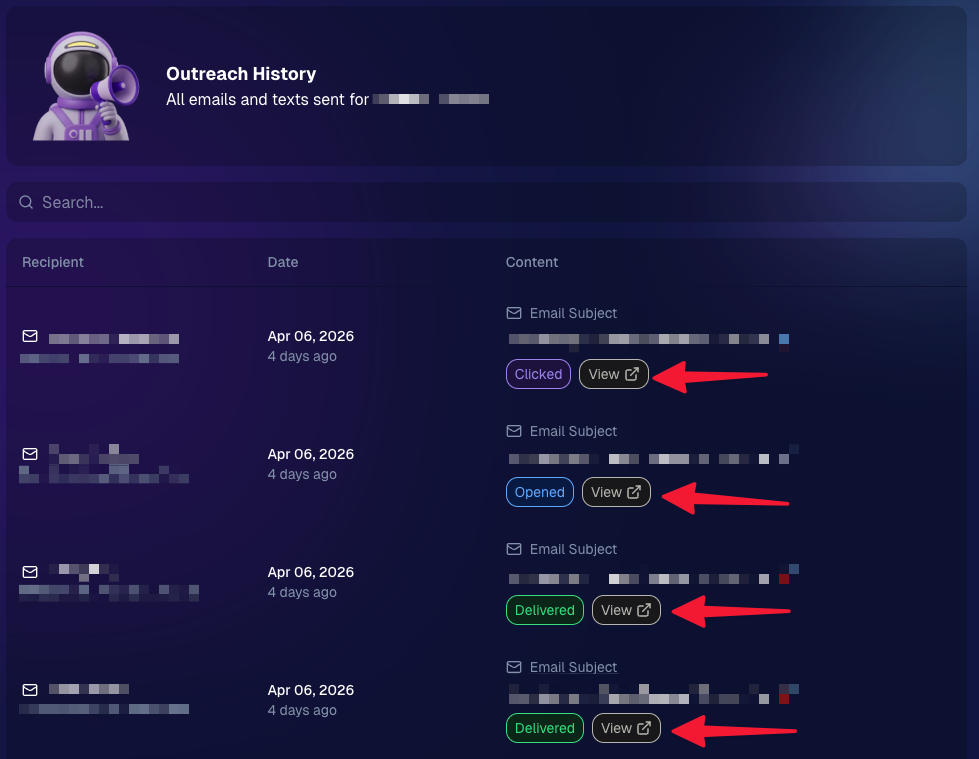
Client Outreach email history is easier to use and more reliable:

  • Added a “View” button in Client Outreach email history so you can open the sent email in a new tab (similar to how order receipts work).
  • Fixed an issue where email status didn’t always show for all emails in the status list.
More clarity when reviewing participant galleries:

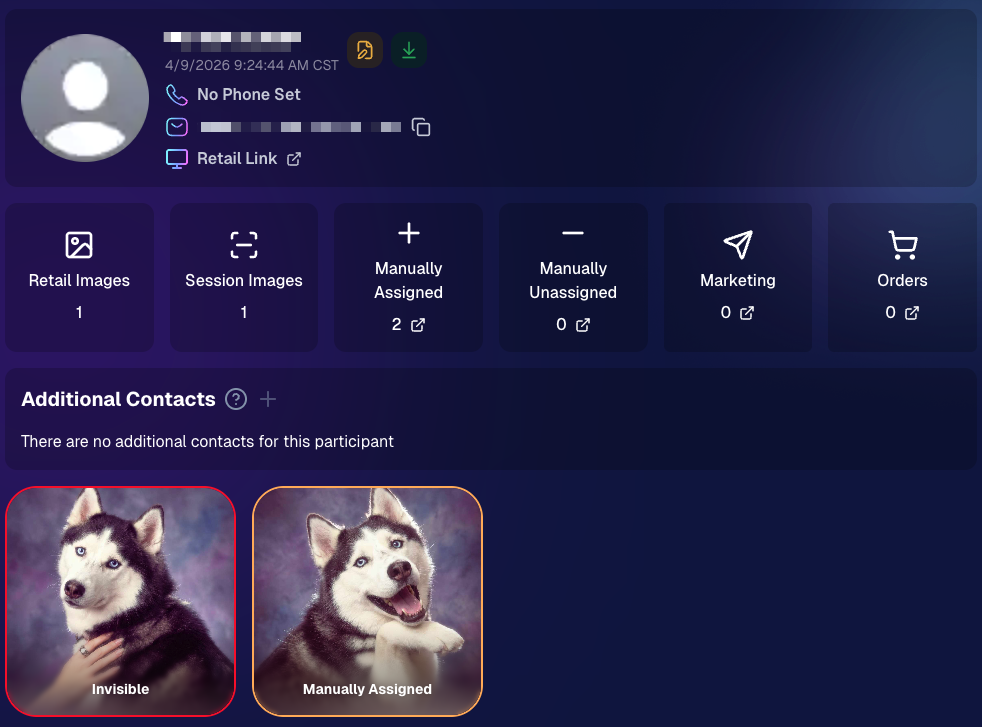
  • The Participant Details page now shows invisible images, clearly marked in red with an “Invisible” label—so you can understand what’s hidden without guessing.
PhotoTag participant gallery downloads got safer:

  • Fixed PhotoTag participant gallery downloads overwriting images when multiple files shared the same frame.
  • Fixed the download count displayed on the download button being off.

🎨 Candy Image Studio: Create Without an Input + A New Node

Candy Image Studio has two notable upgrades this week:

🧠 No input image required (generate from scratch!)
Candy Image Studio no longer requires an input image to get started. You can generate from scratch using the “From Scratch” node (at the very bottom), or by starting from custom text or a custom image—great for things like creating portrait backgrounds or creative assets.

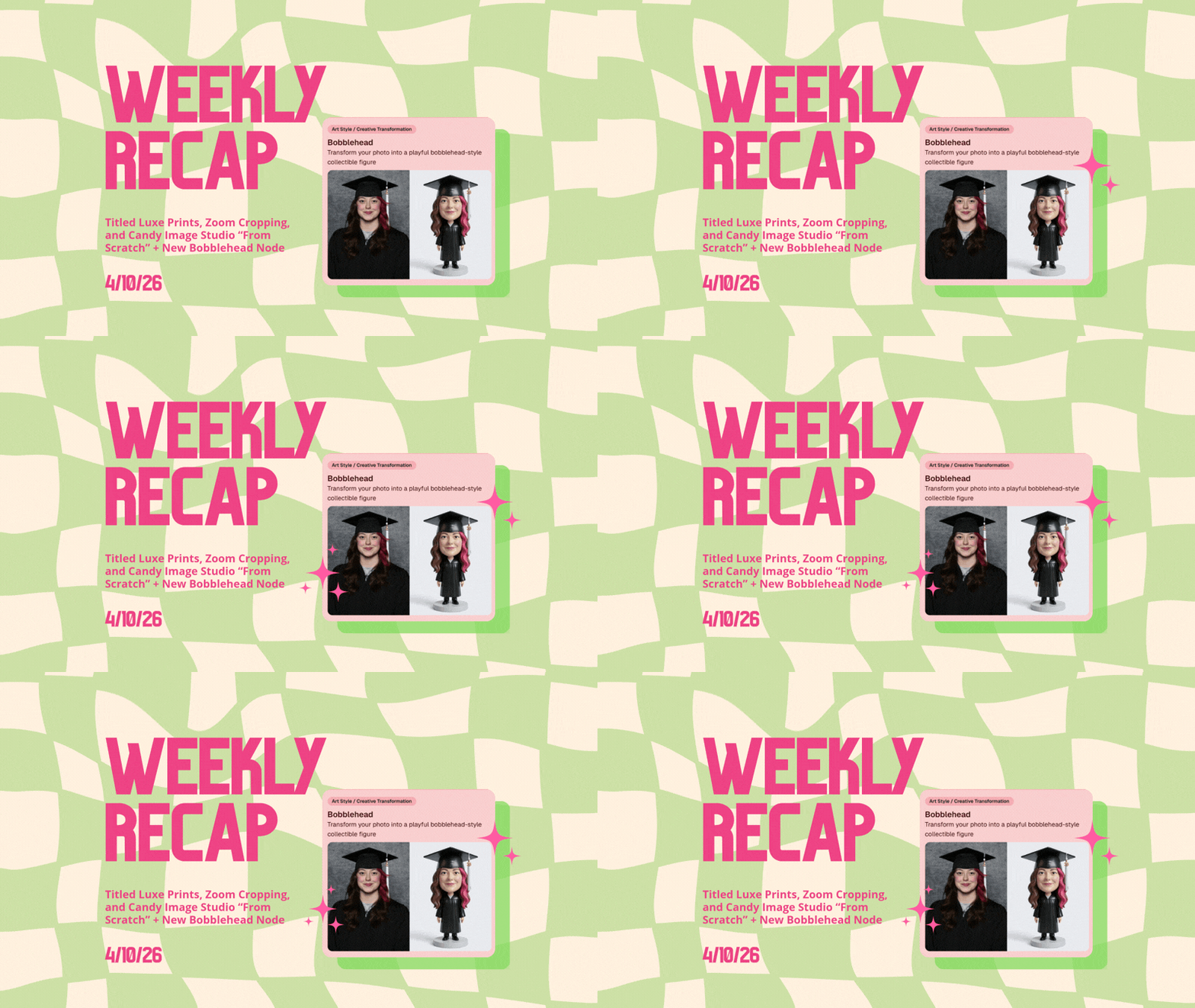
🆕 New “Bobblehead” node
A brand-new Bobblehead node is now available inside Candy Image Studio.

Disclaimer: This is not a new product. This is an image node in the Candy Image Studio.

🏈 Jersey Jotter + Event Settings Cleanup

Jersey Jotter settings were removed from the Create/Edit Event popup.
Since Jersey Jotter now has its own dedicated page, we pulled those settings out of the event popups to keep Create Event as minimal (and fast) as possible—and keep Edit Event aligned with Create.

New: “Auto Enhance” can be turned off in Create/Edit Event.
Important clarity here:

  • Auto Enhance isn’t new — it has always been enabled by default.
  • What’s new is the ability to turn it off from the Create/Edit Event popup.
  • It’s labeled “Auto Enhance” (not “Retail Enhancement”) because it affects more than retail, including things like LiveLoop, Dashboard previews, Shareable Download Gallery, and more.
  • Note: this setting only impacts images uploaded after you change it. (So anything already uploaded keeps whatever enhancement state it had at upload time.)

🛍️ Retail: Package Backgrounds + Fixes

A few retail improvements landed to reduce confusing edge cases:

  • When selecting a PNG (without a faux background render) during the “Next Package Item Image Picker” step, the chosen background will now default to the first background in the background picker list (instead of the purple default).
  • Fixed an issue where the background selector step didn’t always appear for non-faux BGR images.
  • Fixed a crash related to having Wall Clings in packages.
  • Updated the Free Download description to: “Free simple, full-resolution download of your image.” (Previously it implied lower resolution.)

🔍 NEW: Zoom Cropping “Z-Cropping” (Dashboard + Retail)

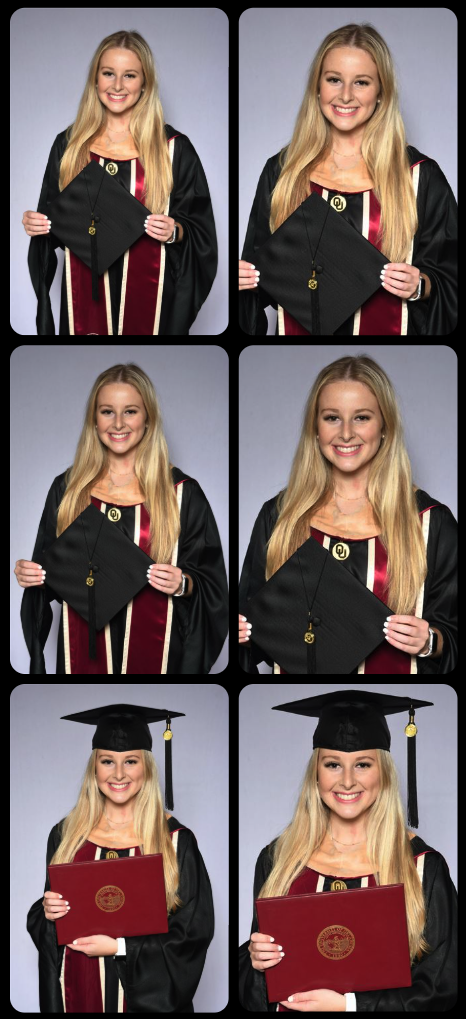
In Advanced Offer Settings, you can now enable Zoom Cropping, which automatically adds an additional image into the customer’s gallery that is zoom-cropped toward their face.

Details & rules:

  • ✅ Works on Face Matching Events
  • ✅ Works only on images with one face
  • ✅ All default graduation offers/price levels now have Zoom Cropping enabled
  • Behind the scenes, it applies a ~30% zoom toward the face, with an additional ~30% pull from the center of the image toward the face (clamped to avoid cropping beyond image bounds)

This is a great “quiet upgrade” for grads and portrait-style moments where customers love a tighter crop—without you needing to manually create it.
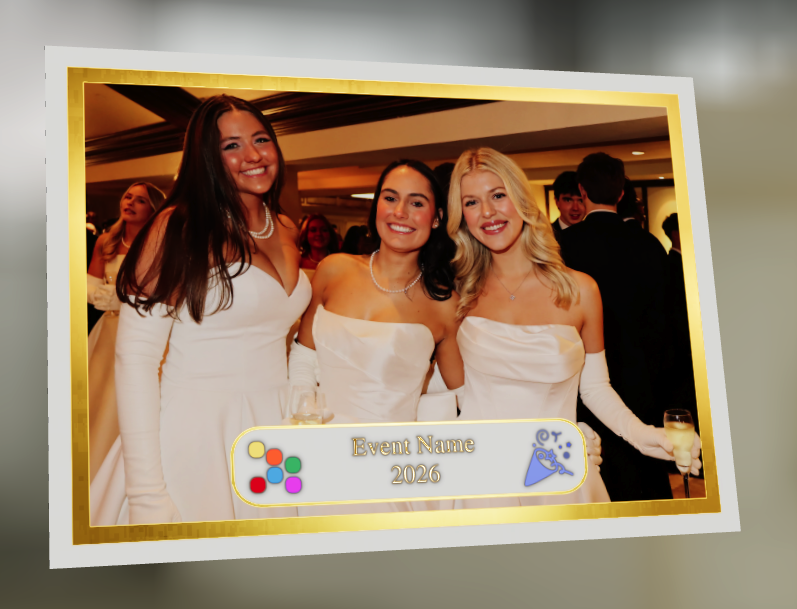
🖼️ New Products: Titled Luxe Prints (Dashboard + Retail)

Two new products just landed:

  • 5×7 Titled Luxe Print
  • 8×10 Titled Luxe Print

Want to see the 3D preview?
https://app.nowcandid.com/3d/titled-luxe-print

New: “Edit Titled Luxe Print” Page (per event)
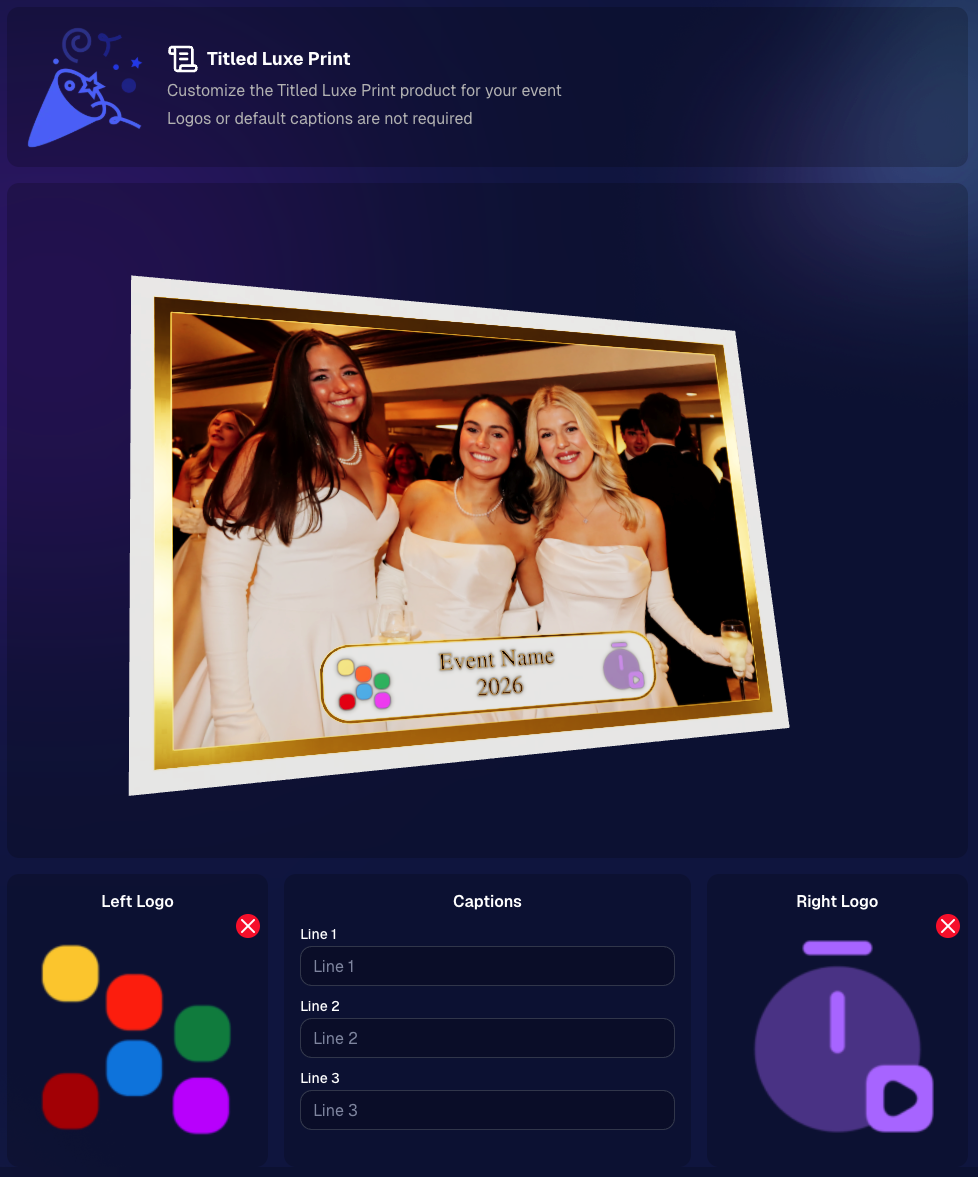
There’s a new event-level page available in the Dashboard sidebar only if one of the new titled products is included in the event’s offer. From there, you can:

  • Set default captions
  • Select left/right logos
  • Preview the 3D render
  • (Easter egg: rotate the render and you can spot your business name on the backprinting.)
Notes:

  • Default captions and logos are optional
  • Retail shoppers can change captions when ordering
  • Logo requirements: upload/import a 650×650 transparent PNG
  • Retail supports both 2D + 3D renders, including your custom logos
  • Order Details pages now display the selected logos, similar to how we show captions and colors

That’s the week! 💫

Between Zoom Cropping, Titled Luxe Prints, and Candy Image Studio’s new From Scratch flow (plus a pile of cleanup across retail + downloads), this update adds a lot of power without adding extra complexity.

Keep creating magic,
— Candy 🍬

Related articles

Weekly Recap: Smarter Upload Errors, Better Luxe Renders & Invoice Fixes 🍬✨
Feature Updates
March 27, 2026

Weekly Recap: Smarter Upload Errors, Better Luxe Renders & Invoice Fixes 🍬✨

2
 minutes read
Hey photo friends! 👋

This week’s updates are all about clearer feedback, smoother retail rendering, and a few helpful fixes across the Dashboard, Check-In, and Capture App.

🖼️ Retail: Better Luxe 3D Renders

A few important improvements landed for Luxe products on retail:

Luxe Prints 3D renders now work correctly for horizontal images

💡 Luxe render lighting improved so products look more natural and less over-bright

📱 Mobile cropping on 3D renders is much more stable and performant

  • Fixed an issue where gesture-based cropping could crash on mobile devices

If you’re selling Luxe products, this should make the preview experience feel more polished.

📤 Dashboard: Clearer Image Upload Errors

The Image Uploader now does a better job explaining what actually went wrong:

🚫 Oversized files now show the real reason

  • Instead of a vague “Error uploading,” files over the limit will correctly say the image is too large

📏 File size is now included in the error message

  • Example: File size is over 20 MB (25.3 MB)

🌐 Network issues now say “Network Error”

  • Much clearer than a generic upload failure

🔁 Automatic retry for network errors

  • The uploader will now retry up to 5 times before giving up

A small change, but a much better experience when uploads hit a snag.

🧾 Dashboard Fixes & Improvements

📄 Profile invoices fixed

  • Invoices from January onward should now load correctly
  • Invoices are also now easier to find through Sidebar Find and Candy navigation

👥 PhotoRosters wording updated

  • “Members” is now “Contacts” for better consistency across NowCandid

📊 Participant image counts fixed on the Event Participant List for certain Positive ID edge cases

🎨 Fixed an overlay importer edge case that could make Events appear twice in the list

🤳 Check-In Improvements

📋 Fixed the list of existing check-ins going off-screen for accounts with a lot of check-ins

✍️ Some check-in copy was updated for clarity

📱 Capture App 5.4.1 (iOS OTA)

🔒 Fixed PhotoBooth and Selfie Check-In Station close buttons not working on devices without a passcode set up

That’s the update for this week! Better Luxe previews, clearer upload feedback, and a handful of fixes to keep things running smoothly.

Keep creating magic,

Candy 🍬

Weekly Recap: Jersey Jotter Page, Smarter AI Edits & Android Improvements 🍬📸
Feature Updates
March 20, 2026

Weekly Recap: Jersey Jotter Page, Smarter AI Edits & Android Improvements 🍬📸

4
 minutes read
Hey photo friends! 👋

This week brings a mix of sports-focused tools, AI editing upgrades, and performance improvements across the Dashboard and Capture App.

Let’s get into it.

🏈 New: Dedicated Jersey Jotter Page (Sports Events)

Jersey Jotter just got a big usability upgrade with its own dedicated page:

🔢 Search images by jersey number or color (just like retail search)

🎛️ Easily enable/disable number & color recognition

📊 View totals for detected numbers and colors

📍 Automatically appears for Sports events only

If you’re working high-volume sports, this should make organizing and finding images much faster.

Same filters your customers have come to expect, right in the Dashboard!

🎨 Candy Image Studio: Better Results + New Styles

Candy Image Studio continues to level up:

Improved edit quality across multiple nodes

🛡️ Smarter safety system for safer outputs

🖼️ Example thumbnails added to many nodes (so you know what to expect)

🆕 New AI Styles:

🧸 Chibi

🧍 3D Cartoon

🦸 Action Figure

Not sure when this one specifically would be helpful, but it's cool isn't it!

⚡ Dashboard Improvements

🚀 Faster overall performance across the Dashboard

🎬 Smoother transitions (faster, and some now morph instead of just fading)

🧹 Roster uploads now auto-clean whitespace
Prevents frustrating validation errors from accidental empty spaces in spreadsheets

🔎 Fixed “Find a Participant” link in Sidebar Find

🧪 Fixed false positives in Image Tester filename validation

🏷️ Data & Upload Improvements

📄 CORE spreadsheets now supported in roster and PhotoRoster uploads (for those working across CORE workflows)

🛠️ Marketing & Check-In Fixes

📩 Fixed duplicate text message edge cases

🤳 Fixed “Upload From Camera Roll” issue on Check-In

🤖 Capture App 5.4 (Android Improvements)

This update focuses on improving the Android experience:

📱 Immersive mode UI

  • Reduces accidental navigation and keeps the app more stable on devices like Samsung

🎨 Dark-themed native dialogs for alerts and messages

🔒 Orientation locked to vertical (matching iOS behavior)

App size reduced ~20% (faster downloads, less storage)

🔌 Fixed devices showing as generic “USB Camera Device” instead of model name

🔄 Fixed Over-The-Air updates not working on some devices

That’s the week!

A strong mix of sports workflow improvements, better AI editing tools, and faster, cleaner performance across the board.

See you next week,

Candy 🍬

Weekly Recap: Android Capture App Launch, PhotoTag Downloads & Upload Improvements 📸🍬
Feature Updates
March 13, 2026

Weekly Recap: Android Capture App Launch, PhotoTag Downloads & Upload Improvements 📸🍬

4
 minutes read
Hey photo friends! 👋

This week’s updates include something many of you have been waiting for: the first public release of the Capture App on Android. Alongside that launch, we’ve also improved PhotoRoster workflows, tightened up retail safeguards, and rolled out several capture app fixes across platforms.

Let’s take a look.

🤖 Capture App Now Available on Android (Beta)

The first Android version of the Capture App (v5.0.1) is now available on Google Play.

IMPORTANT: This is very new! So it's in BETA at the moment. Meaning, if you want to use Android, we encourage you to try a test Event at your home or office and make sure your flow works with your particular equipment! If you run into any issues, let us know right away!

This release brings feature parity with the iOS app (with the exception of Photo Booth Mode and AirPrint, which currently are not planned for Android):

📷 Supports all of our capture workflows

⚡ Same improved upload system introduced in iOS v5

🔁 Camera-triggered auto-launch support

🎨 Android themed icon support

📱 Edge-to-edge Android UI support

If you’ve been wanting to run Capture on Android devices, the foundation is now here!

Screenshots from our new Android Capture & Upload App!

📱 Capture App Improvements

iOS – Version 5.0.1 (OTA)

A few fixes and small usability improvements landed this week:

🔎 Participant not found message when scanning cards

  • Instead of defaulting to the first participant, the app now clearly shows when a scan doesn’t match anyone.

📊 Image gallery stats now update correctly during uploads.

📂 TKO popup now dismisses properly when setting a folder as TKO.

🖥 Windows Capture App – Version 4.21

New image upload API improves upload speed and reduces device resource usage

📡 Better behavior when signing into events with no connectivity

📂 Event selector now shows only active events when offline, matching iOS behavior

🏷️ Workflow Improvements

📥 Download PhotoTags directly from the PhotoTags page

  • This makes it simple to reuse or share tags between events.

📂 PhotoRoster uploads increased

  • Individual image uploads now support up to 5,000 images at once (previously 1,000).

🎨 Candy Image Studio Reliability Fix

Candy Image Studio uploads now behave more consistently.

Edited images will now reliably appear in all the same places as the original image, including:

  • All galleries
  • QuicPics texts
  • Personal galleries

Previously, images only appeared if they happened to match faces or were manually assigned.

🛍️ Retail Improvements

A couple improvements help prevent confusing edge cases for customers:

👥 Group products now properly enforce group images

  • If someone tries selecting a non-group image for a group product, they’ll now see a clear error message.

🌍 New international shipping notice

  • For non-US shipping addresses, customers now see a helpful reminder that customs or import fees may be charged by their country in addition to international shipping fees.

🖥️ Dashboard Improvements

Some smaller UI improvements landed this week:

✨ Toggle switches now animate smoothly instead of appearing choppy.

That’s the week!

The Android Capture App launch is a big step toward expanding device flexibility, and the PhotoTag downloads and PhotoRoster improvements should make event setup a little easier as well.

See you next week,

Candy 🍬

Let’s get in touch

If you’re a photographer looking to add NowCandid services to your wheelhouse – set up a call by clicking the button below.

How to customize formatting for each rich text

How to customize formatting for each rich text

How to customize formatting for each rich text

How to customize formatting for each rich text

How to customize formatting for each rich text

What’s a Rich Text element?

The rich text element allows you to create and format headings, paragraphs, blockquotes, images, and video all in one place instead of having to add and format them individually. Just double-click and easily create content.

A rich text element can be used with static or dynamic content. For static content, just drop it into any page and begin editing. For dynamic content, add a rich text field to any collection and then connect a rich text element to that field in the settings panel. Voila!

Headings, paragraphs, blockquotes, figures, images, and figure captions can all be styled after a class is added to the rich text element using the "When inside of" nested selector system.

  • List One
  • List Two
  • List Three
  • List Four
  • List Five

This is a link

This is bold text