HomeNavigation arrowBlogNavigation arrow
Current page
Feature Updates

Weekly Recap: Titled Luxe Prints, Zoom Cropping, and Candy Image Studio “From Scratch”

Weekly Recap: Titled Luxe Prints, Zoom Cropping, and Candy Image Studio “From Scratch”
Hey photo friends! 👋

This week’s updates are a fun mix of new products, new visual workflows, and small-but-important fixes that make day-to-day work smoother—especially across Candy Image Studio, retail packages, and PhotoRoster/PhotoTag downloads.

Let’s jump in. ✨

📣 Dashboard: Client Outreach + Workflow Quality-of-Life

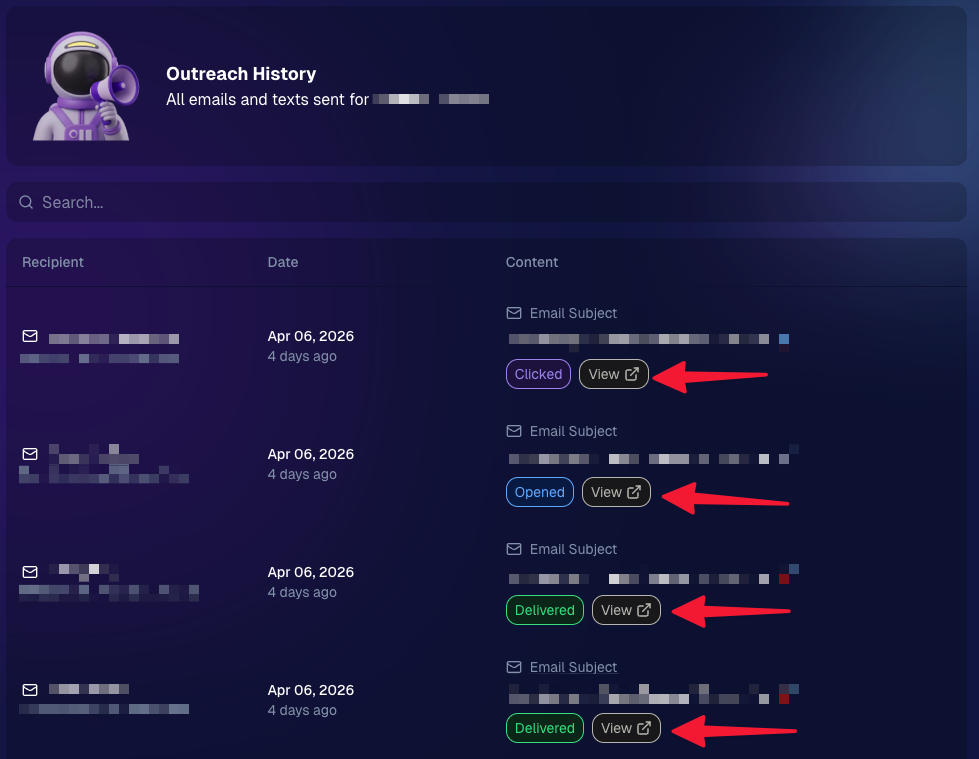
Client Outreach email history is easier to use and more reliable:

  • Added a “View” button in Client Outreach email history so you can open the sent email in a new tab (similar to how order receipts work).
  • Fixed an issue where email status didn’t always show for all emails in the status list.
More clarity when reviewing participant galleries:

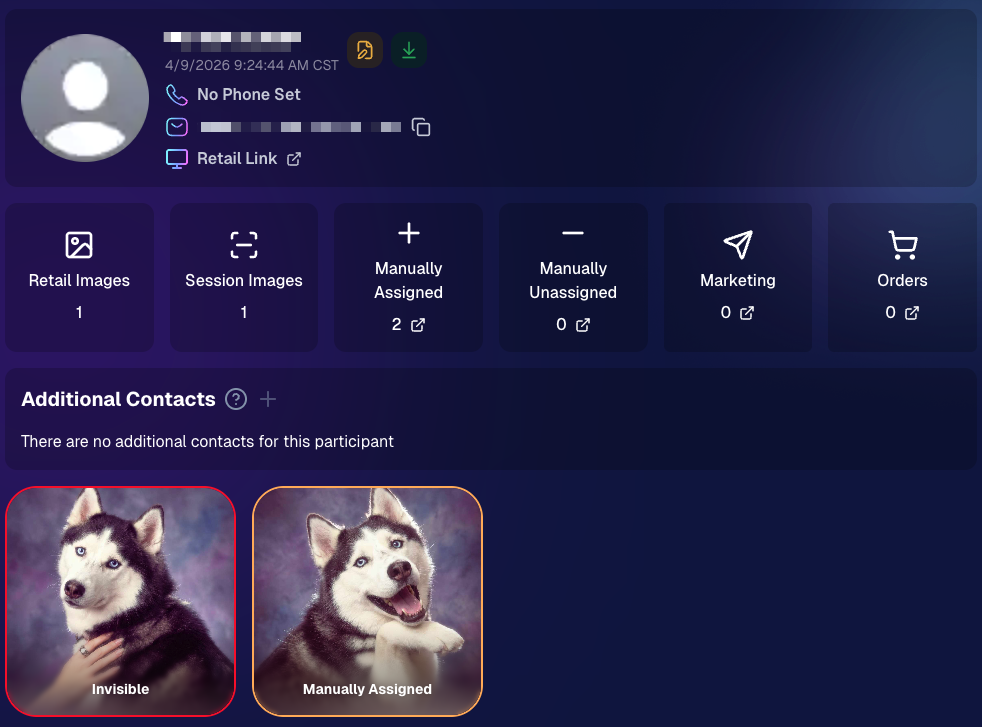
  • The Participant Details page now shows invisible images, clearly marked in red with an “Invisible” label—so you can understand what’s hidden without guessing.
PhotoTag participant gallery downloads got safer:

  • Fixed PhotoTag participant gallery downloads overwriting images when multiple files shared the same frame.
  • Fixed the download count displayed on the download button being off.

🎨 Candy Image Studio: Create Without an Input + A New Node

Candy Image Studio has two notable upgrades this week:

🧠 No input image required (generate from scratch!)
Candy Image Studio no longer requires an input image to get started. You can generate from scratch using the “From Scratch” node (at the very bottom), or by starting from custom text or a custom image—great for things like creating portrait backgrounds or creative assets.

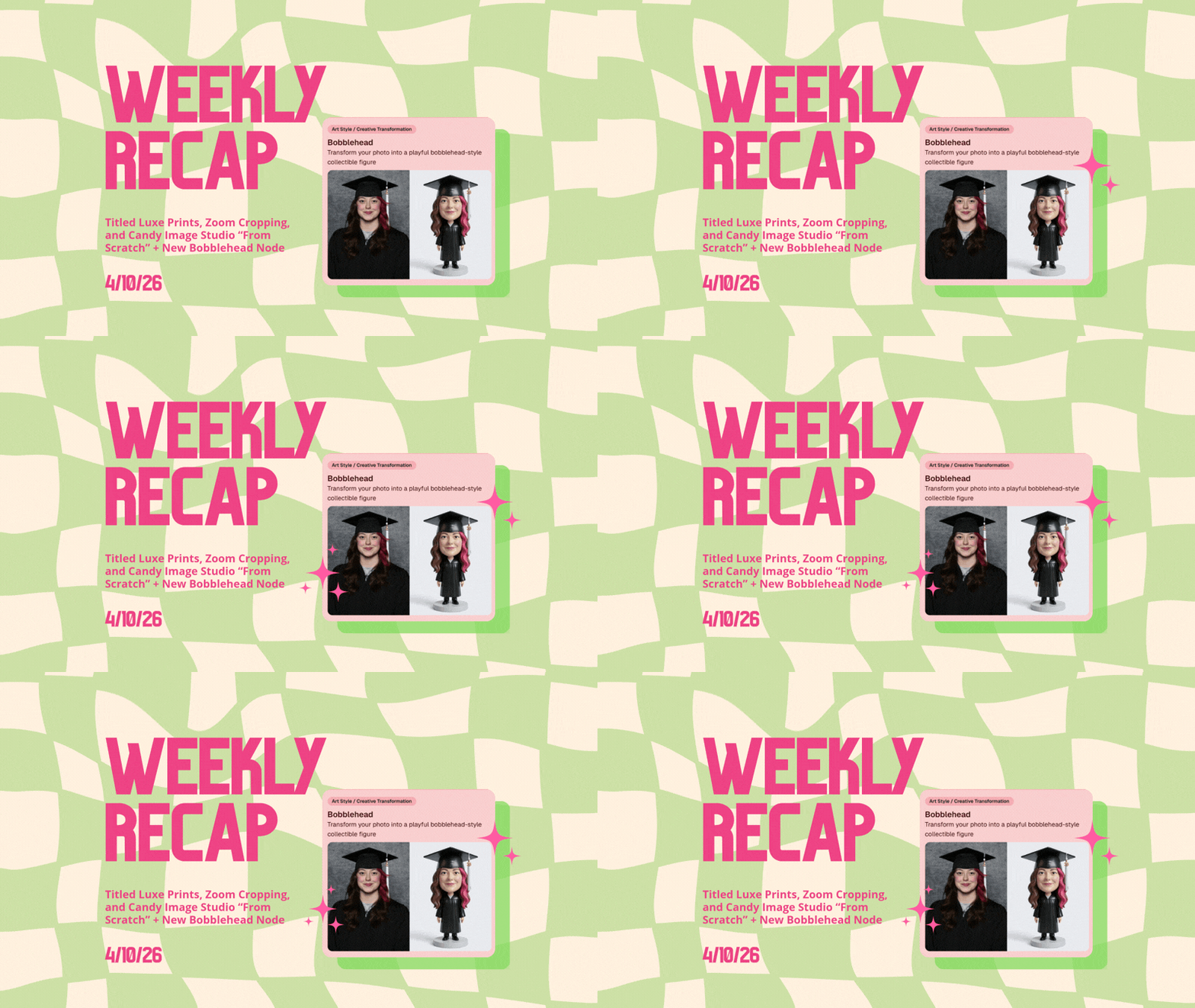
🆕 New “Bobblehead” node
A brand-new Bobblehead node is now available inside Candy Image Studio.

Disclaimer: This is not a new product. This is an image node in the Candy Image Studio.

🏈 Jersey Jotter + Event Settings Cleanup

Jersey Jotter settings were removed from the Create/Edit Event popup.
Since Jersey Jotter now has its own dedicated page, we pulled those settings out of the event popups to keep Create Event as minimal (and fast) as possible—and keep Edit Event aligned with Create.

New: “Auto Enhance” can be turned off in Create/Edit Event.
Important clarity here:

  • Auto Enhance isn’t new — it has always been enabled by default.
  • What’s new is the ability to turn it off from the Create/Edit Event popup.
  • It’s labeled “Auto Enhance” (not “Retail Enhancement”) because it affects more than retail, including things like LiveLoop, Dashboard previews, Shareable Download Gallery, and more.
  • Note: this setting only impacts images uploaded after you change it. (So anything already uploaded keeps whatever enhancement state it had at upload time.)

🛍️ Retail: Package Backgrounds + Fixes

A few retail improvements landed to reduce confusing edge cases:

  • When selecting a PNG (without a faux background render) during the “Next Package Item Image Picker” step, the chosen background will now default to the first background in the background picker list (instead of the purple default).
  • Fixed an issue where the background selector step didn’t always appear for non-faux BGR images.
  • Fixed a crash related to having Wall Clings in packages.
  • Updated the Free Download description to: “Free simple, full-resolution download of your image.” (Previously it implied lower resolution.)

🔍 NEW: Zoom Cropping “Z-Cropping” (Dashboard + Retail)

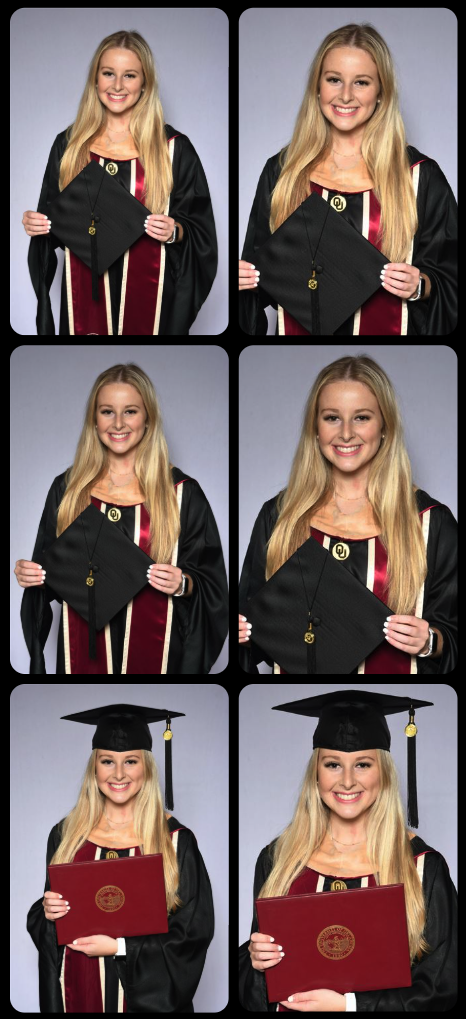
In Advanced Offer Settings, you can now enable Zoom Cropping, which automatically adds an additional image into the customer’s gallery that is zoom-cropped toward their face.

Details & rules:

  • ✅ Works on Face Matching Events
  • ✅ Works only on images with one face
  • ✅ All default graduation offers/price levels now have Zoom Cropping enabled
  • Behind the scenes, it applies a ~30% zoom toward the face, with an additional ~30% pull from the center of the image toward the face (clamped to avoid cropping beyond image bounds)

This is a great “quiet upgrade” for grads and portrait-style moments where customers love a tighter crop—without you needing to manually create it.
🖼️ New Products: Titled Luxe Prints (Dashboard + Retail)

Two new products just landed:

  • 5×7 Titled Luxe Print
  • 8×10 Titled Luxe Print

Want to see the 3D preview?
https://app.nowcandid.com/3d/titled-luxe-print

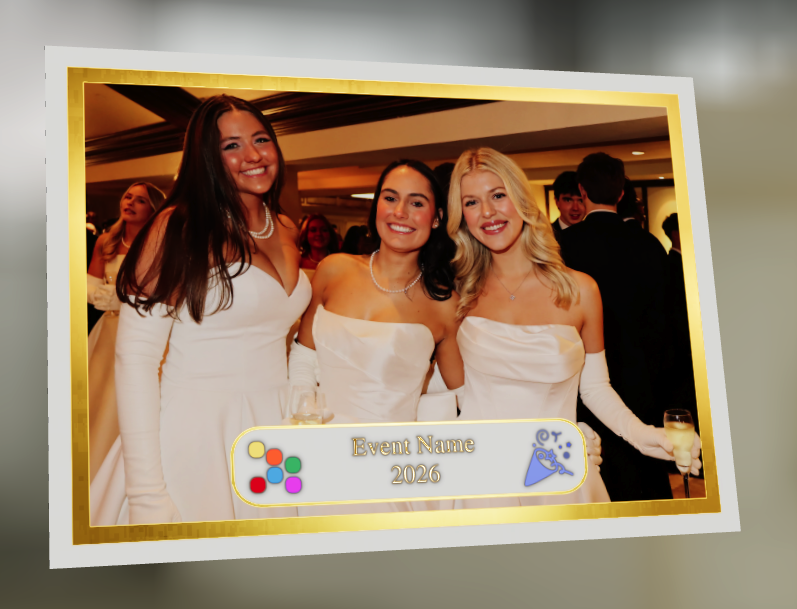
New: “Edit Titled Luxe Print” Page (per event)
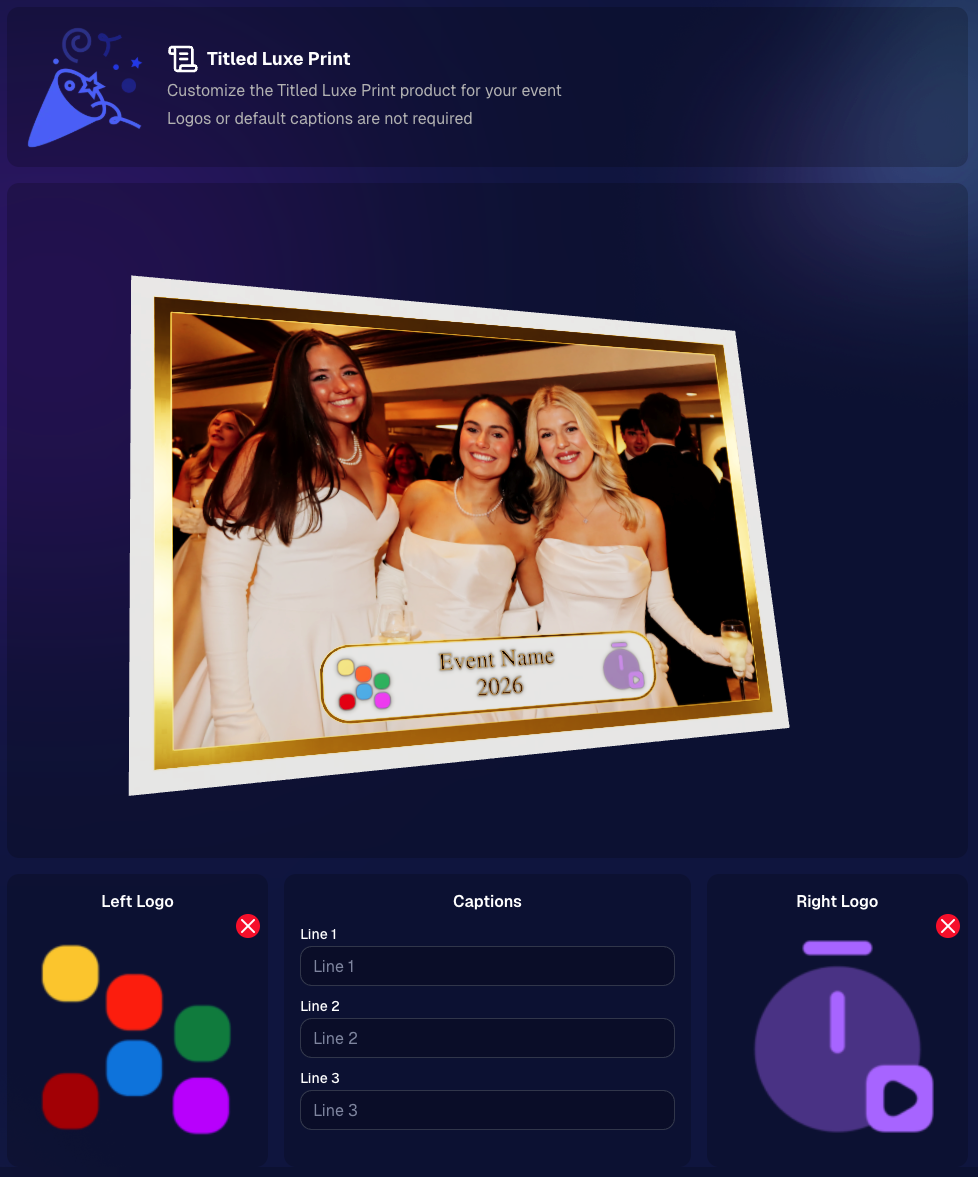
There’s a new event-level page available in the Dashboard sidebar only if one of the new titled products is included in the event’s offer. From there, you can:

  • Set default captions
  • Select left/right logos
  • Preview the 3D render
  • (Easter egg: rotate the render and you can spot your business name on the backprinting.)
Notes:

  • Default captions and logos are optional
  • Retail shoppers can change captions when ordering
  • Logo requirements: upload/import a 650×650 transparent PNG
  • Retail supports both 2D + 3D renders, including your custom logos
  • Order Details pages now display the selected logos, similar to how we show captions and colors

That’s the week! 💫

Between Zoom Cropping, Titled Luxe Prints, and Candy Image Studio’s new From Scratch flow (plus a pile of cleanup across retail + downloads), this update adds a lot of power without adding extra complexity.

Keep creating magic,
— Candy 🍬
Related articles

Weekly Recap: Introducing PhotoGlo™ Premium Prints & Plaques ✨🖼️
Feature Updates
November 21, 2025

Weekly Recap: Introducing PhotoGlo™ Premium Prints & Plaques ✨🖼️

5
 minutes read
Hey photo friends! 👋


Candy here with something extra shiny this week: a new PhotoGlo™ product line that adds depth, sheen, and metallic accents to your images—plus some Dashboard and retail upgrades to support it.

Let’s start with the fun stuff. 😏

✨ New PhotoGlo™ Products

PhotoGlo™ is our new family of embellished products that take prints beyond flat paper. These products can include:

  • 🎨 Thick color varnishes on specific areas to add depth and a glossy “raised” feel
  • ✨ Metallic foil printing for high-shine metal accents that catch the light and draw the eye

First up in the line:

  • 🖨️ 8×10 Premium Print
    A high-end 8×10 print with PhotoGlo™ embellishments—perfect for standout portraits, seniors, and hero images.
  • 🪧 Premium Plaque
    A mounted plaque (about 9.5×11.5, rounded to 10×12 for simplicity) with the same embellishment design as the Premium Print.

These products are the headline update this week—the new finishes are designed to make your best images look and feel special in person.

Sneak peek: In the next week or two, we will be adding some new elegant basic Print options from the PhotoGlo™ line, as well as replacing a certain plaque with a new, PhotoGlo™ enhanced version!

🌀 3D Renders to Show Off PhotoGlo™

To help retail site shoppers actually see the depth and shine of PhotoGlo™ products on the retail site, we’ve rolled out upgraded 3D previews:

📦 Live 3D product renders

For Premium Print and Premium Plaque, the 3D preview supports:

  • • BGR backgrounds
  • • Crops
  • • Captions
  • • Primary colors / accents

🖥️ Where 3D appears

  • • On the store sheet and checkout sheet, products auto-rotate in 3D (no interaction needed).
  • • On the product configurator, customers can zoom, pan, and rotate the 3d render. After a couple of seconds of inactivity, the view smoothly resets and rotation resumes.

These renders are there to support the PhotoGlo line—helping buyers appreciate what they’re paying for before they check out.

Wanna take a closer look? Click here to view a demo! (app.nowcandid.com/3d/premium-plaque-print)

🛍️ Retail Tweaks

🧱 New desktop layout while customers customize products

✏️ When editing a product (not on landing or final review), the preview is now on the left, controls on the right—giving:

  • • Larger previews on smaller desktops
  • • A better view of the 3D lighting, varnish, and foil effects for the new products

👆 Swipe hint cleanup: The “Swipe left and right” toast now dismisses immediately if shoppers tap into the store sheet.

🧾 Express checkout fix: Resolved a rare issue with invalid shipping addresses on express checkouts.

🖥️ Dashboard Improvements

Faster image loading on events with very large image counts.

🧰 Manage Images – Tools & Extras popup:

  • • Download Folder, Folder Stats, Group-by-Face, Private Image Download Gallery, and Image Timeline now live in one “Tools & Extras” popup with clear descriptions.

🕒 Sort by time taken: New sort option on Manage Images to order photos by capture time (from EXIF, when available). Images without a timestamp are hidden from this specific sort view.

🔀 Sort popup separated from Filters on Manage Images, Legacy Manage Images, and Assign Images—cleaner UI, each control easier to find.

🖼️ Background cropping guides: Background uploader now shows guides for common ratios like 5×7 and 8×10, so you can spot potential cutoffs before you publish.

📊 Event sales & stats modal:

  • • Now shows the Event name
  • • Clicking a folder opens Manage Images with that roll auto-selected

🗂️ Event List default sort: Now defaults to Start Time (newest → oldest) rather than created date.

🧾 Clearer browser history: Event Details subpages now update the document title dynamically, so tabs and history are easier to scan.

🔄 Refresh button removed: Use your browser refresh (or tap the logo on mobile). One less button, same control.

That’s the scoop for this week!

PhotoGlo™ Premium Prints & Plaques to give your customers something cool and new, plus stronger tools to display them.

Keep creating beautiful things,
Candy 🍬

Weekly Recap: New Ornaments, Better Marketing History & Big Windows Capture App Update 🎄📸
Feature Updates
November 14, 2025

Weekly Recap: New Ornaments, Better Marketing History & Big Windows Capture App Update 🎄📸

5
 minutes read
Hey photo friends! 👋


Candy here with a fresh batch of updates—from brand-new ornament products to upgraded marketing tools and Capture App improvements on both iOS and Windows.

Let’s jump in!

🎁 New Holiday Ornaments

  • 🎄 Statuette Ornament

    A new hanging statuette-style ornament—complete with a red ribbon.
    • Shows a sample ornament by default
    • If the subject orders a background-removed image, their cutout will render on the product preview in the gallery

  • 🪙 Aluminum Ornament

    A flat aluminum ornament that renders any photo in the product gallery.
    • Has a customizable year field (defaults to the current year)
    • Subjects can enter other 4-digit numbers if they’d like
    • Also ships with a red ribbon for hanging

Perfect timing for holiday sales. 🎅

✉️ Marketing History & Dashboard Improvements

📬 Marketing History Page (Big Upgrade!)

  • 🧭 Pagination for easier navigation through large histories
  • 👤 Shows participant name + image on each row
  • 🔗 Click through to the Participant directly
  • 🧾 All email + text sends are now in one combined, date-sorted list
  • ⚡ Faster initial load, and smoother scrolling for long histories
  • 🔍 New filters:
    • Text search (with CMD+F support)
    • Filter to Texts only or Emails only
    • URL supports both filters and pagination, so you can share filtered views

🖥️ Other Dashboard Updates

  • 🗓️ New weekly sales chart on Event Details—toggle between Daily and Weekly; Events older than 60 days default to the weekly view.
  • 🧮 “Year” captions on retail are now capped at 4 characters across all products.
  • 🌄 Download custom backgrounds you’ve uploaded for an Offer
    • Offer → Select Backgrounds → My Custom Backgrounds → Download button
  • 💬 QuicPics send error reason now appears on Participant Details (logging started April 2025).
  • 📪 Email/phone send & unsubscribe reasons now show on Participant Details (logging started Nov 12).
  • 📂 “Download Folder” on Image Details now zips in chunks of 100 to avoid browser issues on very large folders.

🧹 Small Dashboard Fixes

  • 🗓️ Removed Day 6 text from all three QuicPics programs (it wasn’t adding clicks or sales).
  • 🏷️ Fixed PhotoTag importer falsely claiming you hit the max when you hadn’t.
  • 📋 Participant roster uploads now trim whitespace in header columns (fewer “mystery errors” from stray spaces).
  • 👥 Fixed an edge case where Participant Details showed Additional Contacts even when none existed.

📱 Capture App iOS 4.21.4 (OTA)

  • 🤳 Front camera photos mirrored

    Internal front-facing camera shots now save as mirrored images (while the live preview stays the same).
    • Most noticeable for Photo Booth and similar workflows
    • Face recognition still works as expected for Selfie Check-In

(If you’re on 4.21 already, this will arrive as an over-the-air update.)

💻 Capture App Windows 4.20 Highlights

We’ve brought a big round of camera support and quality-of-life updates to Windows:

  • 📷 Broader camera support
    • Sony now works on ARM tablets, and most new Sonys no longer require special driver setup—just plug in.
    • Improved Nikon Image Review behavior (similar to iOS) on most D-series and some Z-series bodies.
    • Added support for Panasonic cameras.
    • Added support for a wide range of FUJIFILM X and GFX models.
    • New Canon support: EOS R5 Mark II, EOS R1, EOS R50V.
  • 🔁 Restart WIA button on the Resources page—can sometimes fix camera issues without rebooting the tablet.
  • ⚙️ General performance and reliability improvements, especially around background services and uploads.
  • 🎨 Updated app icon & name to match the iOS version.

That’s it for this week!

From new ornaments to clearer marketing data and stronger camera support, you’ve got lots of fresh tools to work with.

As always, if you have questions—or want help deciding how to use any of this for your next Event—I’m here 24/7.

Keep creating magic,

Candy 🍬

Weekly Recap: Capture App 4.21 OTA, New Dashboard Filters & Helpful Fixes 📲🧭
Feature Updates
November 7, 2025

Weekly Recap: Capture App 4.21 OTA, New Dashboard Filters & Helpful Fixes 📲🧭

2
 minutes read
Hey photo friends! 👋

Here’s what’s new this week! Changes focused on faster updates, more filters, and a handful of useful fixes.

📱 Capture & Upload App (iOS) — Version 4.21

  • 🚀 Over-the-Air (OTA) updates: Most app updates no longer require the App Store. Updates download in the background and install on app restart/launch—no interruptions during Events. You can also manually check via Resources → “Check for updates” (tap the (i) button).
  • 📶 See your Wi-Fi name: The current network name now shows on the Web Weaver item in Resources.
  • Faster, lighter uploads: Additional memory and performance improvements when uploading image files.

Smaller iOS app changes

  • 🖨️ AirPrint prompt returns if a printer isn’t available (avoids an iOS security hiccup).
  • 🌐 Web Weaver manual toggle fixed.
  • 🔎 Image preview UI fixed when switching after zoom/pan.
  • 🧾 Name Lookup now populates correctly on first launch.
  • 🖼️ QuicPortraits icon color updated in Event select (those icons are single-color).
  • 🗂️ Block log-ins to flagged TKO folders (e.g., if you flagged “a”, you can’t log into “ac”).
  • ↔️ Horizontal zoom issue on iPhone resolved.

FYI on versions: The App Store shows 4.21; the current OTA version is 4.21.3. We’ve already shipped three OTAs this week to help teams while they’re still on-site! Pretty cool, right?

🖥️ Dashboard

  • 👁️ Manage Images → Visibility filter: All / Visible only / Hidden only.
  • 🎯 Assign Images → New filters: Name order, Purchased only, Visibility.
  • 🔗 Events Report: Clicking an Event now opens its Event Details page.

Smaller dashboard changes

  • 📨 Email campaign guard: Prevents a campaign from starting if the only image is a group PhotoTag.
  • 📥 Inbox UI: On mobile, updated header; on desktop, the selected item area stays sticky while you scroll.
  • 🧰 Trader Card fixes: Two styles now say League (not LD), and one style’s production print now matches the retail render.
  • 🖼️ Art uploader validation: Shows an error if an image is under 100 px in width or height.
  • 😊 Retail face boxes aligned on very small desktop viewports.

That’s the update for the week!

Thanks for reading—and happy shooting!

Candy 🍬

Let’s get in touch

If you’re a photographer looking to add NowCandid services to your wheelhouse – set up a call by clicking the button below.

How to customize formatting for each rich text

How to customize formatting for each rich text

How to customize formatting for each rich text

How to customize formatting for each rich text

How to customize formatting for each rich text

What’s a Rich Text element?

The rich text element allows you to create and format headings, paragraphs, blockquotes, images, and video all in one place instead of having to add and format them individually. Just double-click and easily create content.

A rich text element can be used with static or dynamic content. For static content, just drop it into any page and begin editing. For dynamic content, add a rich text field to any collection and then connect a rich text element to that field in the settings panel. Voila!

Headings, paragraphs, blockquotes, figures, images, and figure captions can all be styled after a class is added to the rich text element using the "When inside of" nested selector system.

  • List One
  • List Two
  • List Three
  • List Four
  • List Five

This is a link

This is bold text