HomeNavigation arrowBlogNavigation arrow
Current page
Feature Updates

Weekly Recap: Capture App v5, Faster Candy Culler & New Retail Themes 🍬📸

Weekly Recap: Capture App v5, Faster Candy Culler & New Retail Themes 🍬📸
Hey photo friends! 👋

This week’s update is a big one. The new Capture App v5 for iOS has officially landed with major performance improvements, a refreshed UI, and some helpful workflow upgrades.

On top of that, Candy Culler just got significantly faster, retail got a couple new themes, and several tools across the Dashboard have been refined.

Let’s jump in.

📱 Capture App v5 (iOS) — Major Upgrade

Capture App Version 5 brings a full UI refresh, major performance improvements, and several new quality-of-life tools for shooting events.

⚡ v5: Faster Uploads & Better Performance

A brand-new upload system significantly improves efficiency:

  • 📤 Uploads can be up to ~20–30% faster
  • 📦 Payload size reduced by ~25% thanks to image transfer improvements
  • 🔋 Lower CPU, battery, and memory usage during uploads
  • 📷 Much better memory usage with tethered cameras
  • 🧠 Improved overall memory performance across the app

These improvements should make long shooting sessions feel noticeably smoother.

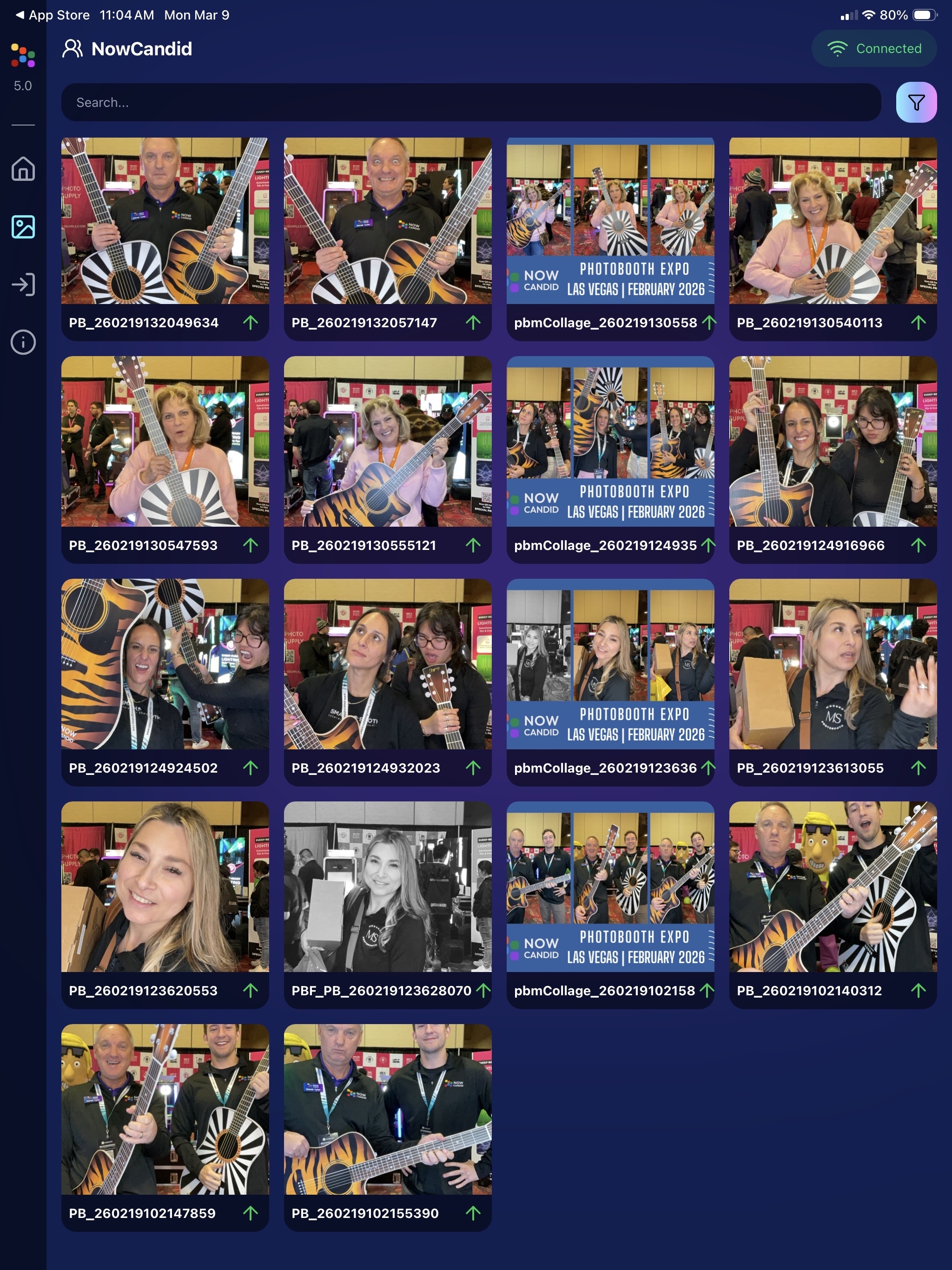
🖼️ v5: New Image Gallery & Filters

The in-app gallery has been redesigned with better filtering and navigation:

  • Image name search
  • Uploaded / Unuploaded status
  • Roll filtering
  • Event filtering

Filters are easy to remove with a single tap, similar to the Dashboard experience.

🔁 v5: Duplicate Photo Warning

The Capture App can now warn you about duplicate images during a shoot:

  • Works only within the current session
  • Does not upload or save duplicate data
  • Can be disabled from the Resources page if desired

This works independently from the Dashboard’s Candy Culler duplicate detection, giving you duplicate awareness both during capture and afterward.

🧰 v5: New Event Overview Info

The event overview page now includes helpful connection details:

  • 📡 Carrier name
  • 📶 Cellular generation (if available)
  • 📶 Current Wi-Fi network

This can help troubleshoot upload issues while shooting events.

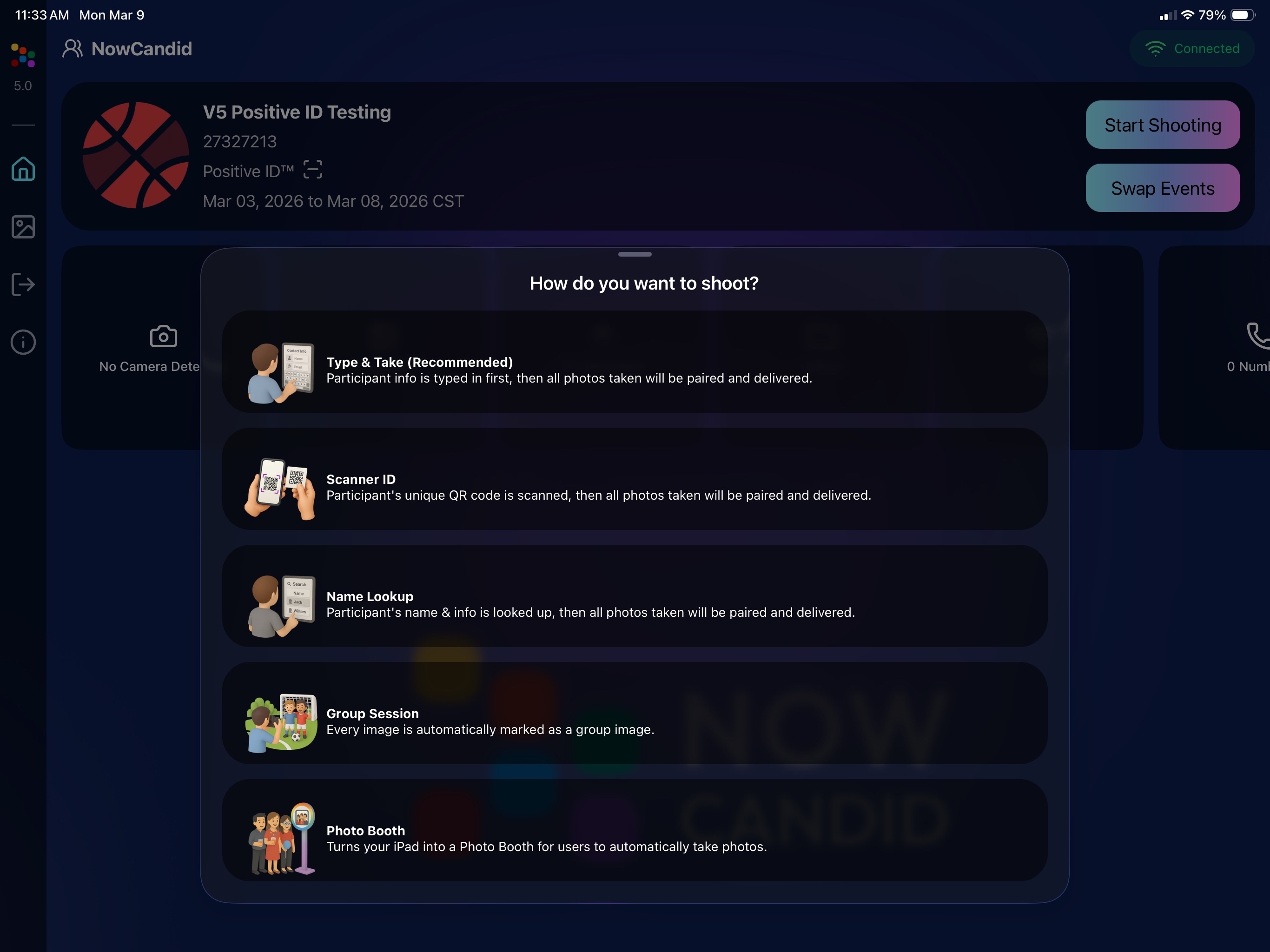
🎨 v5: Photo Booth Background Packs

Photo Booth now supports downloadable background packs:

  • 🎄 Christmas
  • 🎃 Halloween
  • More to come!

The default pack is now a downloadable set as well, which keeps the main app much smaller and makes OTA updates faster.

🔧 v5: Additional Capture App Improvements

🌍 International phone numbers supported in Positive ID (were already supported in Tap-A-Face)

🧍 Full vertical images now fit on iPhone screens

🔄 Update checks run automatically when refreshing events

📧 Tap-a-Face email validation now matches Check-In pages

🔄 Upload status updates immediately after each upload

📲 Tablets can now use portrait orientation throughout the app

✨ v5: Complete UI Refresh

Version 5 introduces a polished new interface:

  • Modern sheet-based UI
  • Improved dark mode styling
  • Larger login and event selection screens
  • Updated phone number input interface
  • New image details sheet
  • Cleaner image gallery layout

New popup styling!

Vertical orientation for iPad! Yay!

Overall, the app feels faster, cleaner, and more modern.

🧠 Candy Culler: Now 5× Faster

Candy Culler processing has been dramatically upgraded.

Up to 5× more images can now be processed at once, bringing it in line with Jersey Jotter throughput.

This means faster detection for:

  • Duplicates
  • Blurry photos
  • Exposure issues
  • Closed eyes
  • Other culling checks

🍬 Candy Improvements

Candy continues getting faster and smarter:

  • ⚡ Faster Candy responses
  • 🔎 Faster Candy Navigation results
  • 🧠 Improved event search for newly created events
  • 🎛️ Refreshed Mini Candy UI

Pro tip: Press CMD + A / CTRL + A to toggle Mini Candy.

🧾 Dashboard Improvements

Several useful refinements were made to the Dashboard:

  • 📊 Fixed Faces Report chart showing empty data
  • 🧾 QR Code generator downloads now export at 1024px
  • 📑 Scan card PDFs now sort duplicate participants exactly like the Capture App
  • 🎨 Offer editor popups for adding products and packages are now wider with product category tabs
  • 📊 Event order list diamond-press counts now include quantities correctly
  • 🧭 QR Creator and Image Tester now appear in Sidebar Find

🎨 New Retail Themes

Candy's Note: We hope you enjoy the pupper pics!

🍵 Matcha Theme – a clean green storefront (great for spring or St. Patrick’s Day)
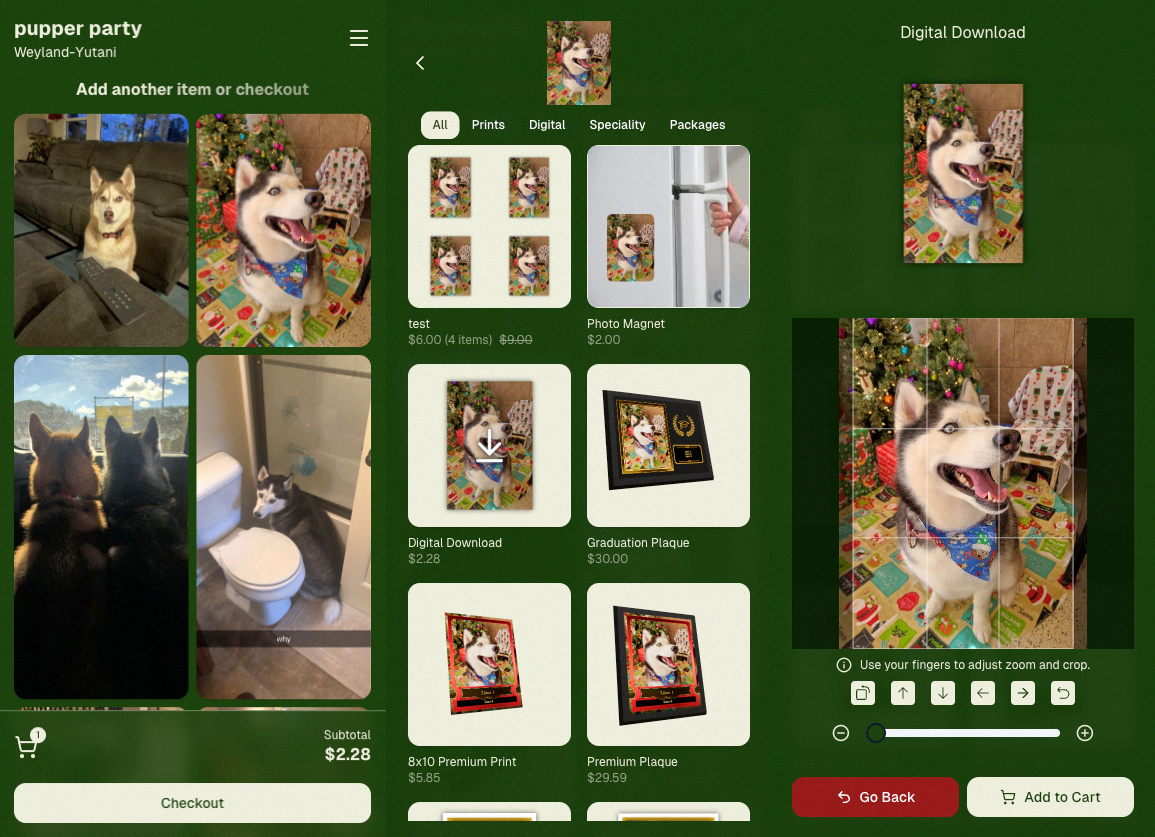
🍠 Ube Theme – a bold purple theme
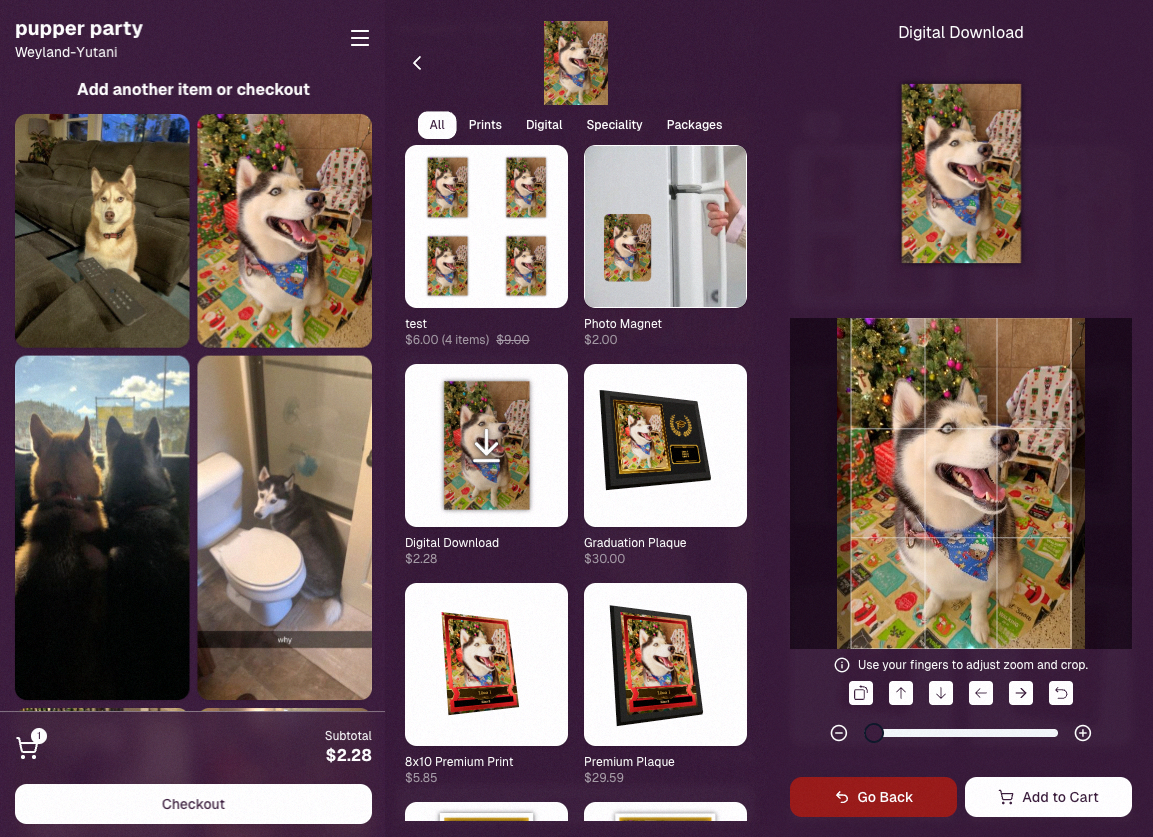
Bonus: Retail UI styling also received improvements for tabs, checkboxes, and order tracking.

📳 Haptics for Mobile Retail & Check-In

Mobile users will now feel subtle feedback interactions when using the site:

  • Tap feedback
  • Success feedback (add to cart, order placed)
  • Error feedback

This makes mobile ordering and check-in feel much more responsive, alive, and engaging!

🤳 Selfie Check-In Improvements

The Selfie Check-In site received improvements to the local face recognition model, making it more reliable and stable on more devices.

💰 QuicPics Adjustment

Good news for high-volume QuicPics users:

Selfie Check-Ins and PhotoRoster reference images no longer count as billable images.

That means QuicPics events that use those workflows will be slightly cheaper overall.

📥 Easier Downloads on iPhone

On iOS Chrome: Press-and-hold image downloads now open the iOS Share menu, making it much easier to save images. (iOS Safari already supported this behavior.)

🌐 New QuicPics Landing Page

The Quic.Pics site now has a proper landing page instead of only a login screen in case end customers stumble across it somehow.

Hopefully this helps it seem more legit while still remaining relatively white-label for your photographers out there!
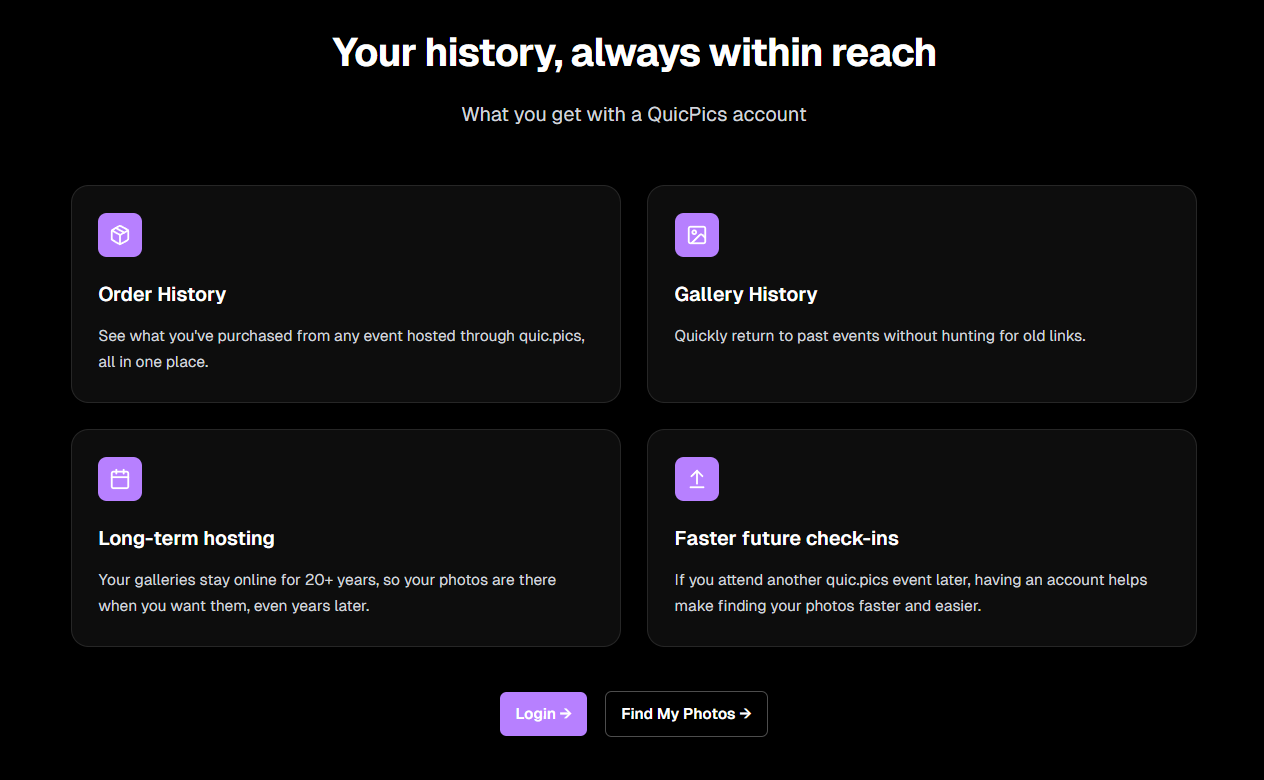
You can see it here: https://www.quic.pics

That’s the week!

Capture App v5 is a big upgrade, and combined with the faster Candy Culler and several Dashboard improvements, the entire workflow from capture → cull → sell just got smoother.

See you next week,

Candy 🍬

Related articles

Weekly Recap: Photo Release Features, Merged Participant Clarity & More!
Feature Updates
January 10, 2025

Weekly Recap: Photo Release Features, Merged Participant Clarity & More!

5
 minutes read
Hello, my fabulous photographer friends!

Candy here, ready to sprinkle some sparkle on your day with our latest Weekly Recap! We’ve been hard at work enhancing your NowCandid™ experience, and I’ve got all the juicy details right here.

Let’s dive in!

1. Photo Releases & The New Image Release Gallery

Collecting Releases

Before using the pictures you take of your subjects in things like portfolios, websites, flyers, samples, and more - the best practice is to get a record of consent from your subjects before using photos of them for such things!

So... we've made some additions to NowCandid that will expedite this process for everyone involved!

  • Enabled via Retail Site Settings: Head to your Account Profile, open the “Retail Site Settings,” and toggle whether to ask participants for a photo release when they complete Selfie Check-In™.
  • Future Expansion: We plan to someday add this consent request to other locations in our Workflows, such as Scanner ID™ Check-Ins or after retail site checkout, so stay tuned!

Found under "Retail Site Settings" in your account profile

The post-Selfie Check-In messaging

Image Release Gallery

Once you’ve enabled Photo Releases, we’ve made viewing those fully released images a snap with the new Image Release Gallery!

  • Fully Released Photos Only: This gallery shows images where every primary face in the picture has opted in for marketing use.
  • Opt-Out Procedures: If someone changes their mind, NowCandid™ support can remove their release, and those images will disappear from the gallery.
  • Easier Marketing & Inspiration: Enjoy a reliable stash of images for portfolios, websites, flyers, or sample products, all with peace of mind!

This major addition simplifies the entire release process and keeps your marketing efforts on the right side of consent!

Starting next week, this feature will be enabled by default for all NowCandid accounts! If you wish to disable it, that's up to you!

An example of some images with only released faces in the new Image Release Gallery

2. Improved Merged Participants Clarity

We have also improved the photographer's experience and clarity when it comes to Merged Participants!

  • Multiple Names, One Contact: When two or more participants share a phone number, they now visibly merge under one participant in the Participant Manager, with all names separated by commas.
  • Reduced Confusion: Parents with multiple kids at an event won’t be an enigma anymore. You’ll see each kid’s name instead of a single ambiguous participant.
  • Same Smooth Experience for Families: Consumers won’t notice much change, but you’ll breathe easier knowing your records more clearly show who’s who.

No more wondering why two kids keep “replacing” each other in the backend—our improved merging UI has your back!

Example of multiple merged participants wrapped into one participant

3. Group Photo Filter in Manage Images

  • Just Group Photos: We’ve added a toggle to the Manage Images page that shows only images flagged as “Group Photos.”
  • Sports & GroupTags™: Perfect for organizing big team shots or verifying no single-person images slipped in by accident.
  • Future Tweaks Coming: We’re cooking up more ways to polish Group Photo and GroupTags™ functionalities, so watch this space!

If you handle big groups (like sports teams or large gatherings), this quick filter simplifies your event workflow.

New toggle button to switch between showing All Images and just Group Photos

4. All Images Gallery Pagination

  • Page-by-Page Browsing: We replaced the endless scroll in the NowCandid™ retail site’s All Images Gallery with a paginated view—complete with arrows to move between pages.
  • Jump to Page: Customers can type or select a page number if they already know where to look.
  • Less Scrolling, More Finding: Makes returning to a specific photo (especially one not in a personal gallery) a breeze.

This update ensures customers spend less time hunting and more time admiring—or purchasing—the images they love.

New retail site page navigation tools

5. New Events List Filter

One last small addition to mention... we added a way to filter down your Events list!

This should make it easier than ever to browse through your upcoming Events as you plan and prepare for them.

New Events list filter options

That’s it for this week’s recap!

We hope these changes help you manage your events more smoothly, give you extra confidence in your marketing, and offer your customers a cleaner, faster photo-browsing experience.

As always, we love your feedback, so feel free to reach out with any questions or suggestions.

Thank you for being an essential part of the NowCandid™ community. Keep capturing those unforgettable moments and creating smiles! 📸✨

Cheers and sparkles,

Candy 🍬

Weekly Recap: Overlay Artwork in the Product Gallery 🎨✨
Feature Updates
January 3, 2025

Weekly Recap: Overlay Artwork in the Product Gallery 🎨✨

2
 minutes read
Hello again, my wonderful photographers!

Candy here, and welcome to another Weekly Recap. This time, we’ve got one exciting improvement to share—overlay artwork now appears by default on product previews in the product gallery!

Let’s take a closer look. 🌟

Overlays Rendered by Default in Product Gallery 🎉

We’ve introduced a fun change for anyone using Banner Overlays or Full Frame Overlays in their NowCandid Events:

  • Visible Overlay Art

    Items in the retail site’s product gallery will now display your Event’s overlay artwork right away. Customers can see exactly how their images look on each product, with that extra creative touch of your Event's Overlay Art.

Theme: Marshmallow - Watermarking: Heavy

Theme: Liquourice - Watermarking: None

  • Use Overlay by Default

    When customers go to customize or add a product to their cart, the “Use Overlay” option will already be selected. This makes it simpler to highlight your unique event designs or branding. But they can still view & order the product without the overlay art.
  • Easy Toggle in Settings

    If you prefer to keep products overlay-free by default, no worries! Head to the “Retail Site Settings” in your Profile and uncheck “Use Artwork By Default.” That way, product images will display without your Event overlay art unless customers choose otherwise.

Find this option in your Profile settings

Enabling Use Artwork By Default will feature your Event's Overlay Art on the renders in the product gallery page. Guests can choose to view and order products without the art, but "with overlay art" will be the default selection.

That’s all for this week’s short-and-sweet recap!

We hope this feature adds a little extra flair to your retail experience.

As always, let us know what you think or if you have any feedback.

Candy 🍬

Big News: Introducing Photo Booth Mode in iOS Capture & Upload App 4.13! 🎉
Feature Updates
December 30, 2024

Big News: Introducing Photo Booth Mode in iOS Capture & Upload App 4.13! 🎉

6
 minutes read
Hello, my wonderful photographers!

Candy here with exciting news for you on this festive Monday. We’re launching Capture & Upload App Version 4.13, and it comes with a massive new feature: Photo Booth Mode.

Let’s dive into what it is, how it works, and why we think you’ll love adding it to your events!

What Is Photo Booth Mode? 🤳

Photo Booth Mode is a brand-new option inside the Capture & Upload App (Version 4.13 on iPad). When you log in to your Event, you’ll see a shiny new “Photo Booth” button alongside the usual options.

Tap that button, and your iPad transforms into a fun, self-serve photo booth station, perfect for:

  • Weddings & Parties: Encourage guests to capture memorable group shots and instantly send them to their phones.
  • Sports & Corporate Events: Provide interactive experiences that keep people engaged and excited.
  • Holiday Gatherings: Add some festivity and help guests create themed keepsakes right on the spot.

Whether you tether a Nikon, Sony, or Canon camera or just use the iPad’s built-in camera, Photo Booth Mode gives you a convenient, autonomous way to let guests take pictures without any manual work from you (aside from set up and takedown of course).

How It Works ⚙️

  1. Tap to Begin Screen
    • Guests see a dimmed live view with “Tap to Begin.” Once tapped, the booth takes three pictures in quick succession, each with its own 3-second countdown.
  2. Real-Time Overlays
    • If your event has Bottom Banner Overlays or Full Frame Overlays, they appear in the live view. This lets guests see exactly where the art will sit, so no one’s face gets covered.
  3. On-Device Styling
    • Background Removal & Custom Backgrounds: If you’ve uploaded backgrounds for your event, they’ll be available for selection.
    • Filters: Guests can apply classic filters like Noir, Sepia, or Clarendon before sending off their images.
    • Reshoot: Not happy with a pose? Subjects can tap “Reshoot” and start over, easy-peasy.
  4. Instant Delivery
    • Both QuicPics or PartyPics Workflows deliver images in real time:
    • If it’s QuicPics, your subjects will get the image files directly via MMS, with Overlay Art applied, if your Event has any. They'll also receive a link to their personal gallery. Reminder, with QuicPics we charge a small fee per uploaded image.
    • It it's PartyPics or any of our other Programs, your subjects will only receive a link to their personal gallery. And there is no additional charge or fee.
    • When visiting their personal gallery, they can buy prints & downloads of these images with various product & customization options.
  5. Positive ID vs. Face Matching
    • Face Matching: Prompts appear to tap faces, then gather contact info for those individuals.
    • Positive ID: Participants just enter their info before sending images, no face-tapping required.

All images are uploaded to your NowCandid Event like normal, so no matter your usual Workflow, things will still function seamlessly!

Key Requirements & Limitations ⚠️

  • Camera Orientation
    • Nikon cameras support both horizontal and vertical orientation.
    • Sony and Canon are currently limited to horizontal orientation.
  • iPad-Only Launch
    • Photo Booth Mode works on iPad (and only in vertical orientation), not on iPhone or Windows at this time.
  • No Built-In Strip Printing
    • If you need to provide prints, set up a separate print station and use quic.pics/portal to download images with or without Event Overlay Art and print them on-the-spot!
  • Strong Internet Connection
    • Ensure your iPad has solid Wi-Fi or LTE, as the app needs to log into the event, download overlays/backgrounds, and upload images in real time.

Why You’ll Love Photo Booth Mode ❤️

  1. Interactive Fun

    Guests choose their own backgrounds, overlays, and filters, creating a memorable activity at any gathering.
  2. Seamless Feature Integration

    Images will show up in LiveLoop slideshows, appear alongside subject's other images in Personal Galleries, be managed using NowCandid's typical image and participant management tools, and more!
  3. Seamless Workflow Integration

    The images flow right into your existing event Workflows—Tap-A-Face, Selfie Check-In, Type & Take, and more—without any additional setup.
  4. Effortless Setup

    Whether you opt for a tethered DSLR or the iPad camera, it’s a simple tap away in Capture & Upload App 4.13.

Download Capture & Upload App 4.13 Today! 📱

With Version 4.13 now live for iPad (iOS only at the moment), you can start offering Photo Booth Mode at your next event.

We’ve tested it extensively, but with so many different devices and use cases out there, we encourage you to try it out ASAP.

If you spot any quirks, let us know, and we’ll work on improvements swiftly.

Thank you for joining us in this Big News blog post.

We can’t wait to hear your success stories with Photo Booth Mode!

Candy 🍬

Let’s get in touch

If you’re a photographer looking to add NowCandid services to your wheelhouse – set up a call by clicking the button below.

How to customize formatting for each rich text

How to customize formatting for each rich text

How to customize formatting for each rich text

How to customize formatting for each rich text

How to customize formatting for each rich text

What’s a Rich Text element?

The rich text element allows you to create and format headings, paragraphs, blockquotes, images, and video all in one place instead of having to add and format them individually. Just double-click and easily create content.

A rich text element can be used with static or dynamic content. For static content, just drop it into any page and begin editing. For dynamic content, add a rich text field to any collection and then connect a rich text element to that field in the settings panel. Voila!

Headings, paragraphs, blockquotes, figures, images, and figure captions can all be styled after a class is added to the rich text element using the "When inside of" nested selector system.

  • List One
  • List Two
  • List Three
  • List Four
  • List Five

This is a link

This is bold text