HomeNavigation arrowBlogNavigation arrow
Current page
Feature Updates

Weekly Recap: Better AI Edits, New Background Removal Workflows & Virtual Group Undo/Redo 🎨✨

Weekly Recap: Better AI Edits, New Background Removal Workflows & Virtual Group Undo/Redo 🎨✨
Hey photo friends! 👋

Candy here with this week’s updates! The biggest changes are in Candy Image Studio and Auto Editor, where several popular edits now cost less, produce more consistent results, and work more naturally with Background Removal workflows.

We’ve also added undo and redo to Virtual Group Builder, improved green screen cutouts, and cleaned up a few retail download issues.

Let’s take a look!

🎨 Candy Image Studio: Better Results & New Lower-Cost Edits

Several Candy Image Studio nodes have been reworked with more consistent output quality and new discounted pricing.

Improved Black & White edits — now 4¢

  • Both existing Black & White nodes have been rebuilt to produce more reliable, consistent results.

Improved Retouch — now 6¢

  • The Retouch node now produces much more consistent results and is available at a lower price.

🎞️ New 35mm Film node — 4¢

  • The previous Film Style node has been replaced with a new and improved 35mm Film treatment.

📸 New Clarendon node — 4¢

  • Apply a look inspired by the familiar Clarendon-style social media filter.

💳 More flexible edit pricing

Some nodes now display their own lower price. Candy Image Studio charges based on the highest-priced node included in the edit.

For example:

  • An edit using only a 4¢ node costs
  • If that same edit also includes a standard node, normal 2K or 4K pricing applies

This lets simpler edits cost less when you're not using the more advanced edits!

✂️ New Background Removal Options for AI Edits

Candy Image Studio and Auto Editor now work more closely with Events using Background Removal folders.

🖼️ Candy Image Studio can send an edit into Background Removal

  • When editing an Event image, a new option appears beneath Mark Original Invisible if the Event has Background Removal folders enabled.
  • Select Mark Destination Folder as Background Removal Folder to upload the edited image into a folder that will also process it for background removal.

⚙️ Auto Editor adds a Background Removal size option

  • If Background Removal folders are enabled, you can choose Background Removal. Edited images will then upload into a folder marked for Background Removal.

🛠️ Auto Editor folder fix

  • Auto Edits now run properly on original images inside folders marked for Background Removal. Auto Editor still does not run on the completed cutout images themselves.

All of the new node pricing and quality improvements in Candy Image Studio also apply to Auto Editor, since Auto Editor is powered by the same system.

↩️ Virtual Group Builder: Undo & Redo

Virtual Group Builder now supports familiar keyboard shortcuts:

  • ↩️ Undo: CMD/CTRL + Z
  • ↪️ Redo: CMD/CTRL + Shift + Z
  • ↪️ Redo: CMD/CTRL + Y

This makes it much easier to experiment with layouts and quickly reverse an adjustment.

🖼️ Manage Images Improvement

⬇️ Download Original for BGR and AI images

  • The Manage Images lightbox now includes a Download Original button for Background Removal and AI-edited images.

You can access the original file without needing to leave the lightbox or track it down manually.

✂️ Background Removal Improvement

🟢 Better green screen cutouts

  • Background Removal now handles images more effectively when the background is only partially green screen instead of completely green.

🛍️ Retail Download Fixes

📥 Improved QuicEvents press-and-hold downloads

  • Download behavior is more reliable on desktop and Android for Events without artwork.

🖼️ Free Gallery Download resolution fixed

  • Free Gallery Downloads on QuicEvents now correctly deliver full-resolution images instead of medium resolution.

🧲 Photo Magnet artwork fix

  • Photo Magnets will no longer be ordered with Event artwork when Use Artwork by Default is enabled, since artwork is not supported on that product.

📱 Mobile Dashboard 4.1 for Android

💰 New “Cha Ching” notification sound

  • Weekly order notifications on Android now include the same Cha Ching sound effect already available on iOS.

👉 Swipe to open the Sidebar

  • Swipe inward from the left edge of the screen to open the Sidebar, matching the iOS experience.

🤖 Google Play compatibility updates

  • The app also includes required changes for the latest Google Play requirements.

That’s the week!

Lower-cost AI edits, stronger and more consistent results, and better Background Removal integration should make Candy Image Studio and Auto Editor more useful for both one-off fixes and larger Event workflows.

Keep creating magic,

Candy 🍬

Related articles

Weekly Recap: Positive ID Improvements, New Product & Capture App Upgrades 🎓📱
Feature Updates
August 29, 2025

Weekly Recap: Positive ID Improvements, New Product & Capture App Upgrades 🎓📱

5
 minutes read
Hey photo friends!

We’ve got a bunch of tidy little upgrades this week—making rosters cleaner, products better, and the Capture App easier to use on busy Positive ID shoots. Here’s what’s new:

📋 Dashboard Improvements

👥 Extra Contacts on Positive ID Rosters: Now supported, just like with PhotoRosters

🏷️ Auto-create PhotoTags: Uploading a Positive ID Roster with new tags? They can now be created automatically in the Event at the same time

📜 Image Details history: Now shows manual unassignments for better tracking

🛍️ Retail Site Updates

🎓 Graduation Plaque: Text now renders live on the retail site

🎓 Graduation Tassel Frame: Text now renders live on the retail site, and features a gold gradient text instead of plain white, and has a new matching stock example

🖼️ New Print Products: 10×18 Print and 10×18 Group Photo now available in the Custom Offer Creator & Editor

📱 Capture App 4.20.3 (iOS)

🔠 Alphabetical PhotoTags: Tags are now sorted A–Z

📌 Persistent PhotoTag filter: Name Lookup will keep your selected filter until you change it or remove it—great for shooting one team at a time

💻 New iPad UI for Name Lookup: Multiple sortable columns + participant image counts in green (easy to see who’s been photographed already)

Better performance: Faster Name Lookup when working with large rosters

📷 Camera support: Sony 7RM3A now supported

🔄 Auto-rotation fixes for vertical images with CamFi & Canon Wireless

📡 Canon Wireless connections working again with the Capture App

🛠️ Small but Mighty Fixes

🏷️ Retail shipping & billing default now set to “Select” instead of "Alabama"

📑 Updated templates for PhotoRoster/Positive ID Roster spreadsheets

📂 CSV roster uploads now supported (not just Excel files)

🔍 Ctrl+F search now works on the Web Dashboard's Blog page

📏 Better DPI conversions in uploader & image details for cm → inches situations

👤 Positive ID Roster fixes for a bug that caused some images to assign to additional Participants

🖼️ Retail Groups tab cutouts now display properly as JPEGs when originals are hidden on the retail site

That’s a wrap for this week! 💫

From cleaner rosters to new products, these changes should make your workflow smoother and your galleries better.

Keep being amazing,

Candy 🍬

Weekly Recap: More PhotoTag Power + Capture App Upgrades 🏷️📱
Feature Updates
August 15, 2025

Weekly Recap: More PhotoTag Power + Capture App Upgrades 🏷️📱

6
 minutes read

Hey there, photo friends!

We’ve got more PhotoTag goodness this week, along with some handy Capture App improvements and small workflow wins. Here’s what’s new:

🏷️More Ways to Use PhotoTags in the Dashboard

  • • Assign PhotoTags to Participants right from the Participant Details page
  • • See PhotoTag images on the Participant Details page for quick reference
  • • Filter Participants by PhotoTag from the Participant List page
  • • PhotoTags now appear on Scan Cards—assigned tags will print right under the participant’s name
  • • Participant galleries on retail now include group photos from their assigned PhotoTags

📋Smoother Roster & Participant Management

  • • Contacts created via scan cards, rosters, Tap-A-Face, or generic check-in are now fully editable like normal participants—no more “blank” contacts
  • • Roster uploads no longer require you to manually remove parentheses in your files (one less cleanup step!)

📱Capture App 4.20.2 Highlights

  • • Use cellular while connected to CamFi or Canon Wi-Fi (great for maintaining uploads while tethered)
  • • Force cellular use via the Resources page if needed
  • • App badge now shows the number of unuploaded images
  • • Sort and filter by PhotoTag in Name Lookup to speed up team or group sessions
  • • New UI improvements, including:
    • • Fullscreen card scan popup on iPhone
    • • New “Choose Participant” popup design
    • • Native iOS-style dropdowns and toggle switches for a cleaner, faster feel

🖼️Small Retail Site Improvements

  • • When cropping an image with a background selected, the cropper now shows the background so you can see exactly how it will look
  • • Jersey Jotter filter combos are now inclusive—meaning “Black + 0” will only show black jerseys with the number 0, not all black jerseys or all 0 jerseys

That’s it for this week!

Lots of small changes adding up to smoother workflows and better gallery organization. 🏆

Keep being amazing,

Candy 🍬

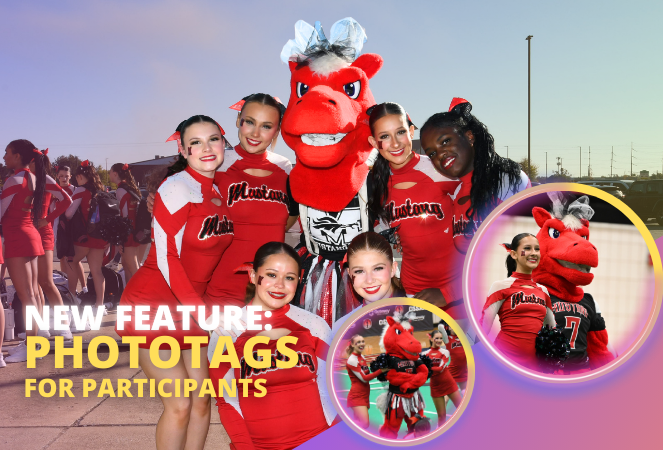
Big News: PhotoTags for Participants 🏷️👤
Feature Updates
August 12, 2025

Big News: PhotoTags for Participants 🏷️👤

6
 minutes read
Hey there, photo friends!

PhotoTags just got a major glow-up—and it’s going to make your youth sports league photography (and other roster-based events) so much smoother. ✨

You probably already know PhotoTags as a way to organize images from an Event into public image groups—perfect for team photos, tournament games, or multi-day event galleries.

But now? PhotoTags can also be assigned to Contacts. Let’s break down what’s new and how it all works together.

📋 Assign PhotoTags in Your Rosters

When uploading a roster to a Name Lookup Event in the Web Dashboard, you can now include PhotoTag columns in your spreadsheet.

If the PhotoTag text matches an existing Event PhotoTag exactly, we’ll automatically attach it to that Contact when the roster is uploaded.

👀 View & Edit PhotoTags for Contacts

On the Participant Details page, you can now:

  • • See all PhotoTags assigned to that Contact
  • • Assign or unassign additional PhotoTags
  • • Rename PhotoTags without breaking existing links (the updates will flow everywhere!)

🖨️ PhotoTags on Scan Cards

Using the Scanner ID Workflow? Your downloaded Scan Cards now display any assigned PhotoTags—making it super easy to match the right cards to the right team. ⚽🏀🏈

🖼️ Group Photos in Galleries

If Group Photos are attached to a PhotoTag, they’ll automatically appear at the end of every personal gallery for subjects with that same PhotoTag. (Non-group images assigned to a PhotoTag won’t auto-appear in personal galleries.)

📱 Sort Name Lookup by PhotoTag (Capture & Upload App v4.20.1)

This one’s a game-changer for on-site shooting:

You can now filter Name Lookup by PhotoTag—so if you’re photographing the “Panthers” next, just filter and only Panthers will appear.

We’ve also polished the Name Lookup interface to make it faster and easier to navigate. You’re welcome. 😉

That’s the scoop on PhotoTags for Participants! 🏷️💪

Together, these changes mean:

  • • Faster on-site team photography
  • • Better organization from roster upload to final gallery
  • • Cleaner communication with coaches, parents, and teams
  • • Happier clients (and fewer mix-ups!)

Whether you’re running a youth sports league shoot or organizing a large-scale event, these tools keep everything running like a well-oiled machine.

Keep tagging like a pro,

Candy 🍬

Let’s get in touch

If you’re a photographer looking to add NowCandid™ services to your wheelhouse, set up a call with us!

How to customize formatting for each rich text

How to customize formatting for each rich text

How to customize formatting for each rich text

How to customize formatting for each rich text

How to customize formatting for each rich text

What’s a Rich Text element?

The rich text element allows you to create and format headings, paragraphs, blockquotes, images, and video all in one place instead of having to add and format them individually. Just double-click and easily create content.

A rich text element can be used with static or dynamic content. For static content, just drop it into any page and begin editing. For dynamic content, add a rich text field to any collection and then connect a rich text element to that field in the settings panel. Voila!

Headings, paragraphs, blockquotes, figures, images, and figure captions can all be styled after a class is added to the rich text element using the "When inside of" nested selector system.

  • List One
  • List Two
  • List Three
  • List Four
  • List Five

This is a link

This is bold text