HomeNavigation arrowBlogNavigation arrow
Current page
Photography Tips

Use the Workflow That Fits the Job

Use the Workflow That Fits the Job
Not every event works the same way—so your platform shouldn’t force every job into the same box.


One of the biggest reasons photographers switch to NowCandid™ is workflow flexibility. We give you multiple ways to connect photos to people, so you can choose the approach that makes the most sense for the event, the audience, and the level of privacy sensitivity involved.


That flexibility isn’t just “nice to have.” It’s the difference between a smooth event and a stressful one—between galleries that convert and galleries that never get seen.


The core problem with one-size-fits-all platforms

Many platforms are built around a single assumption: “Every event should be identified and delivered the same way.”

But photographers know better.

  • • A youth sports tournament behaves nothing like a graduation.
  • • A corporate headshot day has different privacy needs than a fundraiser gala.
  • • A high-volume school day requires a totally different on-site flow than a casual community event.

NowCandid™ is built around the belief: the workflow should adapt to the job—not the other way around.


The NowCandid™ workflow toolbox

Here are the primary ways photographers connect images to the right people in NowCandid™:

  • • Scanner ID
  • • Name Lookup
  • • Type & Take
  • • Tap-A-Face
  • • Selfie Check-In™
  • • Roster Check-In
  • • PhotoRosters

Each one has a “best fit,” and knowing how to choose is where photographers gain speed, confidence, and profit.


Quick guide: which workflow should you use?

Scanner ID

Best for: high-volume, highly controlled check-in environments (schools, leagues, credentialed events)
Why photographers use it: fast, structured, low-error identification at scale.
Great when: you have a roster/card system and you want the cleanest, most consistent subject-to-photo connection.

Name Lookup

Best for: rosters and organized groups where names are known(schools, teams, structured lists)
Why it works: quick selection from a list is often faster than typing or post-event matching.
Great when: you can get the list ahead of time and want to keep on-site flow moving.

Type & Take

Best for: smaller events or flexible environments where you can type quickly and keep moving
Why it works: zero dependency on rosters/cards—simple and direct.
Great when: speed matters and you have a staff member who can handle quick data entry.

Tap-A-Face

Best for: fast on-site identification when the “right” person wasn’t captured by check-in/roster
Why it works: it’s the practical fix for real events. If someone slipped through, you can still connect them.
Great when: you need a quick, human-in-the-loop tool to create a participant and kick off matching/marketing.

Selfie Check-In™

Best for: events where guests can self-identify (graduations, dances, large public events, photo ops)
Why it works: it collects contact info and gives you a reference image—without requiring staff to identify everyone manually.
Great when: you want broad participation and easy post-event delivery without a heavy on-site registration process.

And More!

PhotoRosters and Roster Check-In get a bit more involved... and we recommend getting more familiar with the NowCandid platform before utilizing these! But in short:

PhotoRosters allow you to upload headshots and previously collection contact info and consent to easily reuse them as reference images for future Face Matching Events.

Roster Check-In allows you to upload a league- or school-provided roster and then also take a quick pic of each kid, pairing a reference image to their info in the roster to serve as their reference image.


Why flexibility leads to higher sales

When photographers can choose the right identification workflow, three things improve immediately:

1) You deliver galleries faster

Fast delivery matters because excitement decays quickly. The sooner people can find themselves, the more likely they are to buy—especially for emotional, time-sensitive events.

2) You reduce friction for customers

If the workflow is right, customers don’t have to dig, guess, or give up. They get a clear path to their photos.

3) You reduce labor and cleanup

The “wrong workflow” usually means hours of fixing issues later: missing IDs, unlinked galleries, manual sorting, angry parents, and support tickets. The “right workflow” avoids that.


Privacy sensitivity: the hidden factor most platforms ignore

Some events require extra care—especially schools, youth organizations, or sponsor-driven programs. NowCandid’s workflow options allow you to choose identification approaches that align with the privacy and communication expectations of the event.

In plain terms: you can run a more open workflow when it’s appropriate, and a more controlled workflow when it’s not.


The takeaway: choose what makes sense, every time

Whether a shoot demands the versatility of Face Matching-style workflows, the directness of Positive ID-style workflows, or another approach entirely, you need the flexibility to choose what makes sense.

Most importantly, you need to deliver galleries fast enough to turn that initial excitement into actual orders—and NowCandid is built to help you do exactly that.


Want help choosing the right workflow?

If you tell us what you shoot—schools, sports, graduations, events—we’ll recommend the best workflow setup and explain why it fits.

👉 Create a free account or book a quick demo to see the workflows in action.

Related articles

Weekly Recap: Quic-Download Tracking, Faster PhotoRoster Exports & 2K Background Generation 📥✨
Feature Updates
July 10, 2026

Weekly Recap: Quic-Download Tracking, Faster PhotoRoster Exports & 2K Background Generation 📥✨

4
 minutes read
Hey photo friends! 👋

Candy here with another round of updates! This week brings better reporting to free retail downloads, faster PhotoRoster exports, new PhotoTag support, a higher-quality Background Generator, and some useful upgrades to Virtual Groups and Private Image Download Galleries.

Let’s take a look!

🎨 New 2K Background Generator

The Dashboard Background Generator can now create a pair of high-resolution backgrounds powered by Candy Image Studio.

🖼️ Generates two 2K backgrounds

📐 Uses a 2×3 aspect ratio

🍬 Powered by the same higher-quality editing system used by Candy Image Studio

💳 Costs the equivalent of two 2K Candy Image Studio edits

These backgrounds are higher quality than the free Background Generator used by retail shoppers, making this a better option when you want polished backgrounds prepared ahead of time.

Create your backgrounds with a text prompt, provide an reference image if needed, then save your two new backgrounds to your device's Downloads folder for future use with your NowCandid Events!

📥 New Quic-Download Tracking

The retail site’s press-and-hold quick download feature is now being tracked for events using our Quic Programs, like QuicPics, QuicPics GO and QuicPortraits.

Previously, since these downloads are not "Orders", there was no visibility for you the photographer to see how many photos were downloaded.

Starting July 6, 2026, NowCandid now records:

🖼️ Which images were downloaded

🕒 When they were downloaded

🎨 Which background was included (if using BGR)

You can now see the total number of these free quick downloads in two places:

📊 The Orders square on the Event Overview page shows a download total

📄 The Participant List spreadsheet download shows a download total per participant

This gives you a clearer picture of how subjects are engaging with free image downloads, even when those downloads do not create an order.

Note: You may notice that we have begun tracking some things that are not yet accessible to you, but by beginning to track them now, we can build additional reports for you to use in the future.

📋 Faster PhotoRoster Exports & More PhotoTags

PhotoRoster exports are much faster

  • Exporting a PhotoRoster into an Event now processes directly on the page instead of quietly running in the background. Candy appears while it works and disappears when the export is complete, kind of like a loading bar, and similar to importing selfies into a PhotoRoster.

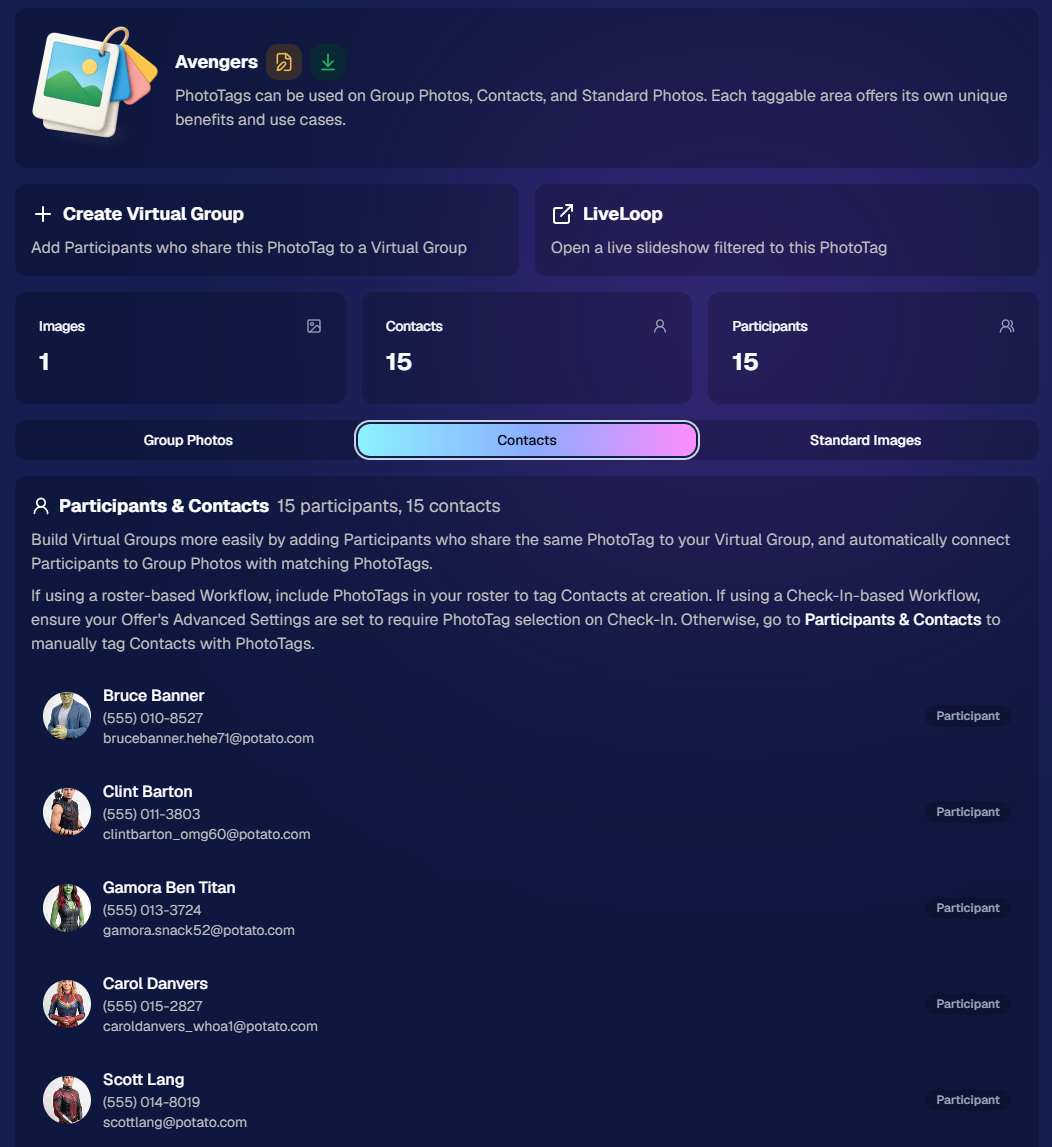
🏷️ Up to three PhotoTags per PhotoRoster contact

  • PhotoRoster data file uploads can now include up to three PhotoTags for each contact.

PhotoTags are created automatically

  • When exporting the PhotoRoster into an Event, any necessary PhotoTags will be created in that Event automatically.

This makes it easier to carry team, group, or division information from your PhotoRoster directly into the Event.

🧑‍🤝‍🧑 Virtual Group Builder Updates

🧬 Duplicate Virtual Groups more easily

  • Hover over a Virtual Group on the list page to access a new Duplicate button in the top-right corner.

🖼️ Full-size render consistency fix

  • Fixed an edge case where the final full-size render could look different from the Builder preview with certain combinations of settings.

🔒 Private Image Download Gallery Improvements

The Private Image Download Gallery is now easier to navigate, especially for larger Events:

🔎 Search images by file name

  • A new search bar lets you and the organizations you share the PIDG with quickly find specific images and supports CTRL/CMD+F search commands.

👤 Filter by participant

  • Events with participants can now filter the gallery to a selected subject. The filter only lists participants who actually have images.

🪟 Scrollable popups on smaller screens

  • Popups automatically become scrollable when they are taller than the available screen height, matching Dashboard behavior.

🖥️ Manage Images & Assignment Fixes

🎯 Unassigned Only filter improved

  • BGR images and AI-edited images with indirect participant assignments no longer incorrectly appear as unassigned.

📊 Folder Stats clarified

  • An image having only a PhotoTag no longer counts as having a participant assignment in the Unassigned total.

👥 Group image assignment cleanup

  • If a Group Image is assigned to a participant but its PhotoTag conflicts with that participant’s PhotoTag, the participant assignment is now removed to prevent the wrong group image from appearing in their gallery.

🛍️ Retail Fix

🍬 Peppermint theme readability fixed

  • Text input fields are now readable when a shopper’s device is using light mode. Whoops!

That’s the week!

Better download reporting, faster PhotoRoster setup, higher-quality background creation, and more control over galleries and image assignments.

Keep creating magic,

Candy 🍬

Weekly Recap: Action Mode for Sports, Faster Package Ordering & Favorites Sign-In 📸⭐
Feature Updates
July 2, 2026

Weekly Recap: Action Mode for Sports, Faster Package Ordering & Favorites Sign-In 📸⭐

5
 minutes read
Hey photo friends! 👋

Candy here with a weekly recap—there’s a very exciting Capture App addition this week: Action Mode for Sports events! We’ve also got a few Dashboard and Check-In fixes to keep things moving smoothly.

Let’s take a look.

📱 Capture App 5.8: New Action Mode

Capture App 5.8 introduces a brand-new Action Mode shooting mode for Sports events.

🏷️ Automatically tag photos with PhotoTags while shooting

  • Action Mode lets you select a PhotoTag and automatically apply it to the photos you take, using a familiar PhotoTag selection flow similar to managing PhotoTags for group images.

🏈 Built for sports workflows

  • Action Mode appears for Sports events:
    • On Positive ID events, it shows up all the time
    • On Face Matching events, it shows up when the Event has PhotoTags

📸 Shoot freely in Positive ID

  • This also allows you to shoot freely in Positive ID events without first adding a participant—something that wasn’t previously possible.

👥 Not the same as Group Photos

  • Action Mode applies PhotoTags while shooting, but it does not mark images as group images.

🤖 Android RAW+JPEG reconnect improvement

  • Improved behavior on Android when shooting in RAW+JPEG while reconnecting the camera multiple times.

Why it’s helpful:

Action photographers can now organize images into PhotoTags while they shoot, making it much easier for subjects accessing the gallery live at the Event to browse the All Images Gallery to filter down to the right team, game, division, or group on the retail site when you are live-uploading your action shots.

This is especially useful when you’re promoting an All Images Gallery QR code at an event and sending subjects directly to retail. Combined with the new sign-in requirement for Favorites, subjects can save favorite images and access them later from any device—setting the stage for even more action-event workflow improvements in the future.

You can even utilize the new Auto Edit feature to potentially review and edit your action photos before they go live to the gallery with AI! Try out the beta "Improve Action Shot" node in Candy Image Studio on some test photos to see how it works for you.

🛍️ Retail Updates

📦 Packages now prefill with the selected image

  • When a shopper starts a package from an image, eligible package items will now auto-fill with that image. Customers can still change any product, but this makes ordering larger packages much faster.
  • Note: Group images won’t prefill non-group products, non-group images won’t prefill group products, downloads beyond the first won't prefill, and products requiring captions or multiple images won’t be prefilled.

🧩 Package editor UI refreshed

  • Configured products now show a clearer Change Image button, and product names + image controls are grouped together to reduce confusion.

🛒 Packages now have a landing screen

  • Packages now open with an overview of what’s included before the shopper continues into the editor.

Sign-in required for Favorites

  • Shoppers now sign in before adding Favorites, which lets their Favorites sync across devices when they use the same account.

🖼️ Dynamic Gallery additions fixed

  • User-added Dynamic Gallery images now persist correctly after refresh and appear properly in Dynamic Gallery purchases.

🛡️ GalleryGuard improvements

  • Additional GalleryGuard improvements were made to help protect retail images.

😊 Face Finder visibility fixes

  • The Show Face Match Groups Offer setting now hides the Face Finder filter as expected, including when Zoom Cropping is enabled.

🖥️ Dashboard Improvements

PhotoRoster pages are faster

  • All PhotoRoster pages should feel a little quicker.

🚫 Clearer upload error for invalid XMP metadata

  • The Upload Images page now shows “Invalid Metadata (XMP)” for a rare export issue that can happen with some Adobe workflows.

🎨 Image Converter Display P3 fix

  • The Image Converter Tool now correctly converts Display P3 images to sRGB when Convert to sRGB is enabled.

🤳 Check-In Website Fix

🏷️ Team/group selection false error fixed

  • Fixed an issue where selecting a team or group could incorrectly show an error saying the selfie failed to upload.

That’s the update for this week!

Action Mode is the big highlight—especially for sports photographers who want instant PhotoTag organization while shooting.

Keep creating magic,

Candy 🍬

Weekly Recap: Faster Virtual Group Creation, New Candy Image Studio Tools & Capture App 5.7 Updates ✨📸
Feature Updates
June 26, 2026

Weekly Recap: Faster Virtual Group Creation, New Candy Image Studio Tools & Capture App 5.7 Updates ✨📸

5
 minutes read
Hey photo friends! 👋

Candy here with another weekly recap! This week brings some great upgrades to Virtual Group Builder, new Candy Image Studio tools, better Docs search, and a solid Capture App update with helpful color profile and PhotoTag improvements.

Let’s take a look!

🧑‍🤝‍🧑 Virtual Group Builder Improvements

Virtual Group Builder got a nice set of workflow upgrades this week:

🏷️ Create Virtual Groups directly from PhotoTags

  • On the PhotoTags page, click Create under the VGroup column to automatically start a new Virtual Group using participants from that PhotoTag. You’ll also get a popup asking whether to use each participant’s first or last cutout.

🚀 Save works-in-progress with placeholders

  • You can now save changes to a Virtual Group even if some subjects still have spaceman placeholders.
  • All subjects still need a selected photo before uploading the finished Virtual Group to the Event.

🖼️ Overlay uploads can now be named

  • When uploading overlays, you can name them so they’re easier to search and find later.

🔤 More control over subject name styling

  • Title Case is now only applied on import, meaning you can use the subject inspector to customize name casing afterward.

📐 New text display option

  • There’s a new Display setting to disable justified text.

🌫️ Bottom Vignette improvements

  • Bottom Vignette rendering has been reworked for better results.

🔎 More flexible scaling

  • Max global scale is now 200%.

🎨 Candy Image Studio: New Editing Nodes

Candy Image Studio has two new tools to help clean up common image issues:

👔 Dewrinkle Clothes

  • Helps smooth distracting clothing wrinkles while keeping the image natural.

🖼️ Restore Old Photo

  • A new restoration-style node for improving older or damaged images.

📱 Capture App 5.7 Updates

App Store update released Monday, June 22

Capture App 5.7 includes some meaningful workflow and compatibility improvements:

🎨 Automatic sRGB conversion

  • If an image is detected as non-sRGB, the app will now try to automatically convert it to sRGB. If it can’t, you’ll still get the existing invalid color profile warning.
  • This can be especially useful for black-and-white shooting modes that output a different color profile. That said, we still recommend shooting in sRGB whenever possible, since conversion can cause some color loss and may use extra battery during long sessions.

🧾 User Comment shown in EXIF details

  • The image gallery details popup now shows EXIF User Comment data, including whether an image was auto-converted to sRGB.

✂️ BGR visibility sync

  • Visibility changes in BGR folders now affect the cutout too. Mark the original hidden, and the cutout will hide; mark it visible again, and the cutout becomes visible as well.

🏢 Business logo support

  • Your business/profile logo now appears in the Capture App header when available, and can replace Candy in Photo Booth.

⚙️ Contact collection settings moved

  • Number, email, and name collection settings now live on the Event Overview instead of the Event login sheet, so you don’t need to re-log to change them.

🏷️ Event picker shows PhotoTag attribute

  • If an Event has PhotoTags, the Event picker now makes that easier to spot.

📱 Android UI fixes

  • Fixed several label cutoff issues for Android users with Bold Text enabled.

🔁 Restore Session fix

  • PhotoTags now load properly when an Event is opened through Restore Session.

🎨 Adobe RGB handling fixed on Android

  • Android devices will no longer incorrectly accept Adobe RGB images from cameras.

🍎 iOS 27 support tested

  • iOS 27 has been tested, and no issues were found. The app also respects the latest Liquid Glass device settings.
  • If you update your device to a beta version of iOS 27, let us know if you experience issues!

🏷️ Collect PhotoTags during check-in

  • Participants can now select their own PhotoTag, such as team name, before entering contact information. This option appears when the Event has PhotoTags.
  • We added this primarily to assist photographers in easily tagging late additions not on a roster that show up to a photoshoot, but there will be additional features for action photography in next week's update!

📱 Capture App 5.7.1

OTA update released Friday, June 26

🛠️ Miscellaneous UI fixes

  • A small OTA update with additional interface polish and cleanup.

🖥️ Dashboard Improvements

🔎 Docs Search is here

  • Click Search on the Docs page to search NowCandid documentation, with Candy navigation agent support.

📂 PhotoRoster image name cleanup

  • PhotoRoster data file uploads and image uploads now automatically remove spaces and certain special characters from image names.

🖼️ Full-frame overlay previews are downloadable

  • In the Image Overlay Editor, full-frame example render previews can now be downloaded just like banner previews.

🛍️ Retail Update

🪟 Better desktop popup behavior

  • On desktop, retail popups now automatically become scrollable if the popup is taller than the viewport height, matching Dashboard behavior.

📣 Marketing Fix

✉️ Email campaigns fixed for email-only PhotoRoster participants

  • Fixed an edge case where email-only PhotoRoster participants were not having their email campaigns start.

That’s the week!

From faster Virtual Group setup to better PhotoTag collection in the Capture App, these changes should help make your Event workflows more flexible and easier to manage.

Keep creating magic,

Candy 🍬

Let’s get in touch

If you’re a photographer looking to add NowCandid services to your wheelhouse – set up a call by clicking the button below.

How to customize formatting for each rich text

How to customize formatting for each rich text

How to customize formatting for each rich text

How to customize formatting for each rich text

How to customize formatting for each rich text

What’s a Rich Text element?

The rich text element allows you to create and format headings, paragraphs, blockquotes, images, and video all in one place instead of having to add and format them individually. Just double-click and easily create content.

A rich text element can be used with static or dynamic content. For static content, just drop it into any page and begin editing. For dynamic content, add a rich text field to any collection and then connect a rich text element to that field in the settings panel. Voila!

Headings, paragraphs, blockquotes, figures, images, and figure captions can all be styled after a class is added to the rich text element using the "When inside of" nested selector system.

  • List One
  • List Two
  • List Three
  • List Four
  • List Five

This is a link

This is bold text