HomeNavigation arrowBlogNavigation arrow
Current page
Feature Updates

Introducing Virtual Group Builder: Create Virtual Group Photos Faster in NowCandid ✨

Introducing Virtual Group Builder: Create Virtual Group Photos Faster in NowCandid ✨
Virtual group photos can be incredibly valuable for photographers — but let’s be honest, they have not always been incredibly fun to make!

Traditionally, creating a virtual group means jumping between multiple tools. You photograph each subject, create cutouts, export files, open design software, place everyone manually, resize and align the group, add names, save the finished image, upload it somewhere else, and then reconnect that image to the right customers.

That is a lot of steps for one group photo!

NowCandid’s Virtual Group Builder makes the process much simpler. Photographers can now create polished virtual group images directly inside the NowCandid Dashboard using the same Participants, cutouts, PhotoTags, backgrounds, and Event data already connected to their Event.

It is fast, flexible, and built to help photographers get virtual groups online and ready to sell with far less hassle. 🎉

A New Way to Build Virtual Group Photos

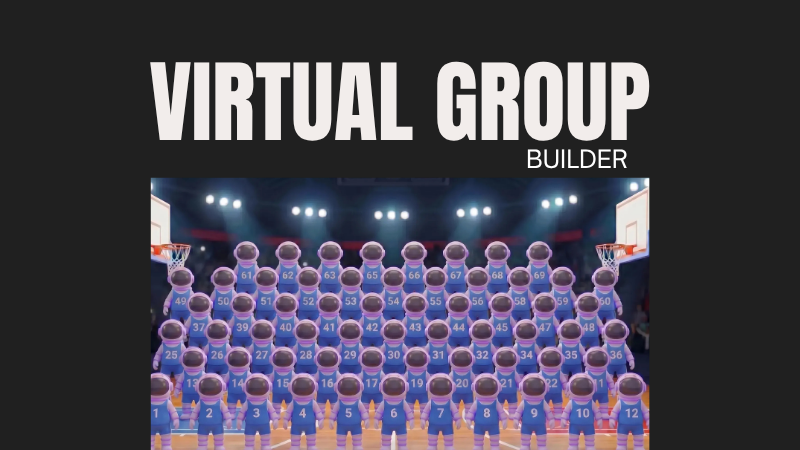
Virtual Group Builder is designed for photographers who want to offer professional group images when a traditional in-person group photo isn't possible.

That makes it especially useful for sports teams, schools, dance groups, cheer teams, clubs, all-star teams, and any Event where people are photographed individually but still need to appear together in a final group image.

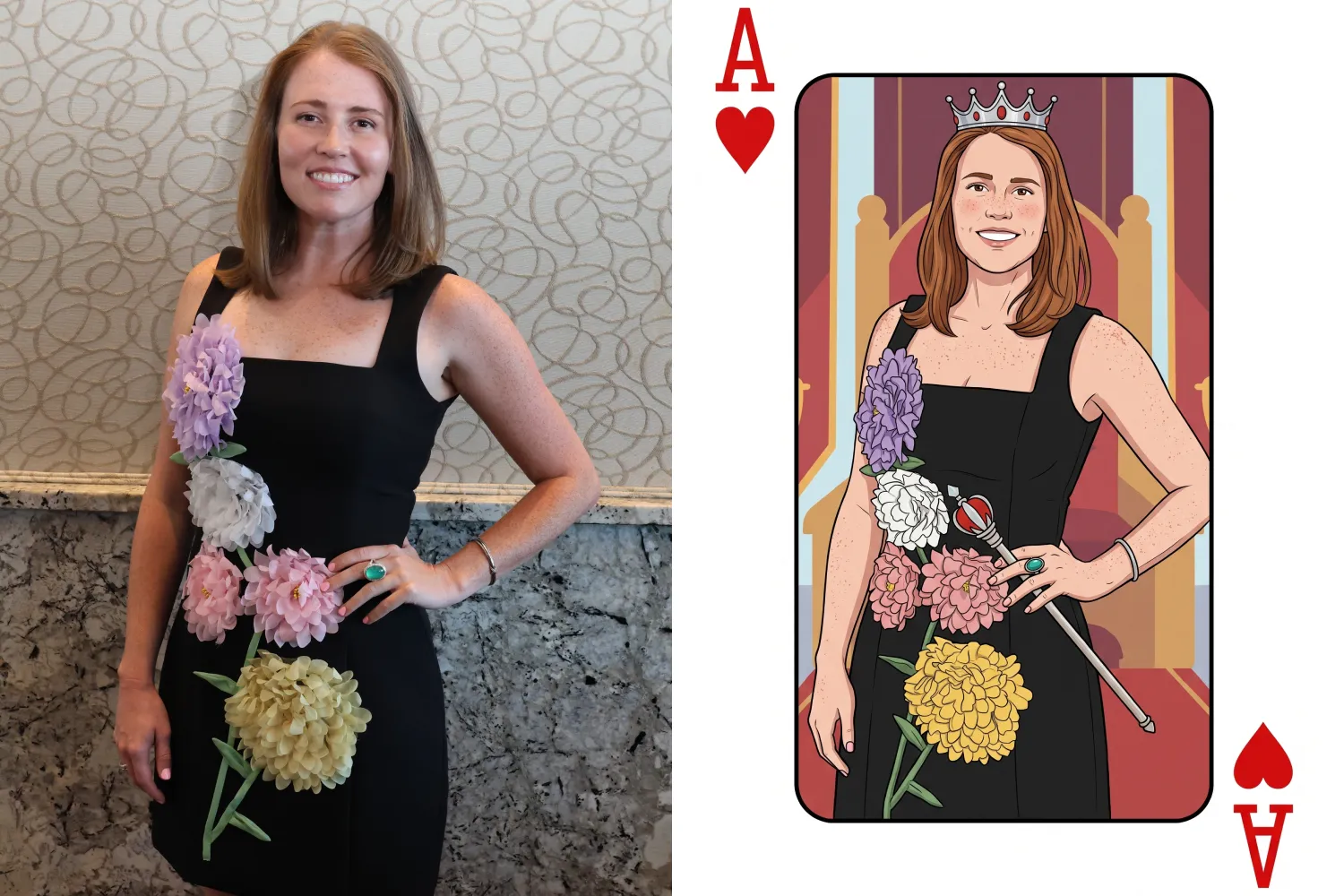
Instead of needing every participant posed together at the exact same time, photographers can build a finished group photo from individual background-removed cutouts. If someone was photographed later, added after the fact, or missed the original group setup, they can still be included.

That flexibility can be a big deal for volume photography.
Built Directly Into the NowCandid Dashboard

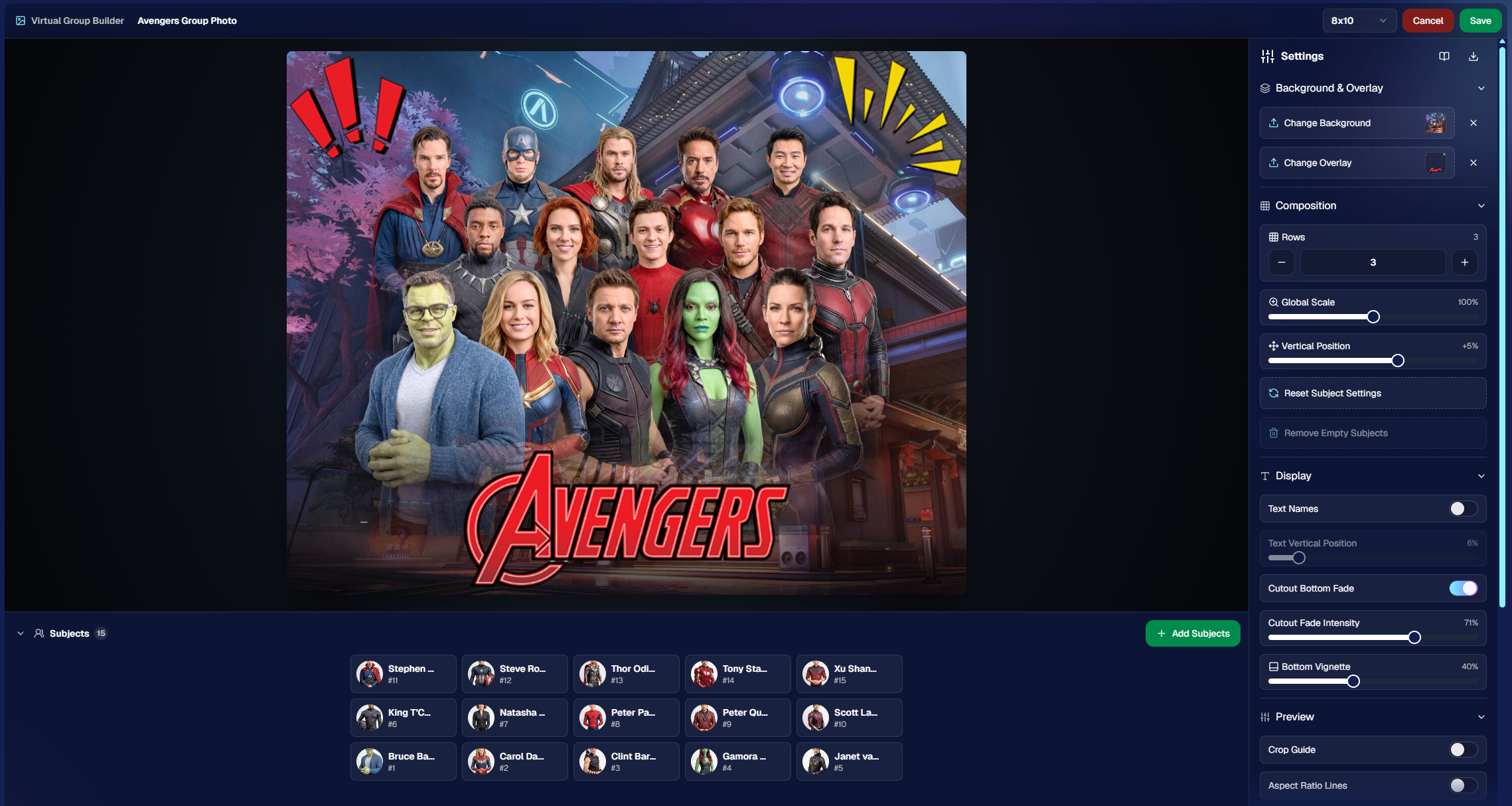
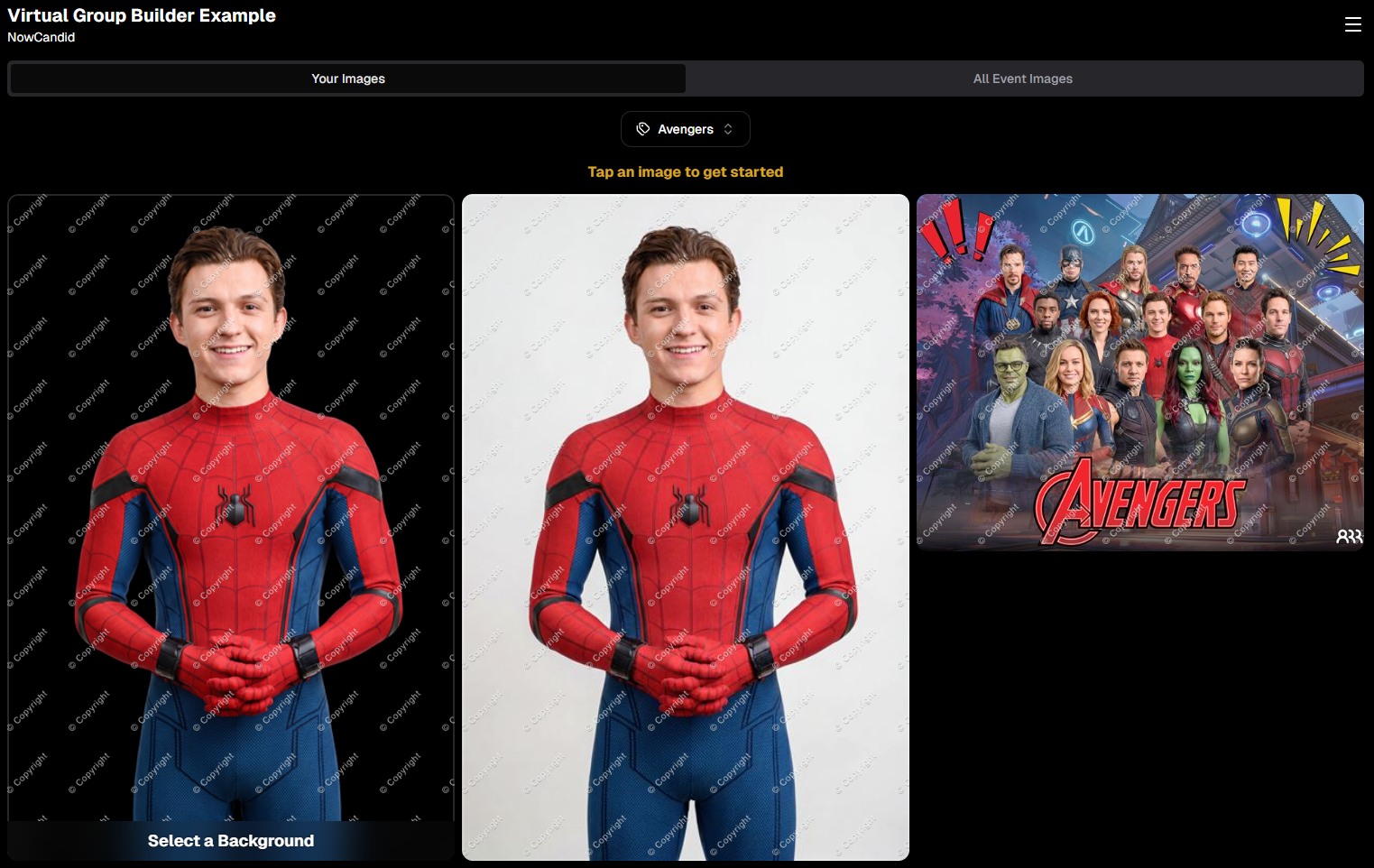
Virtual Group Builder lives directly inside NowCandid. From an Event page, photographers can click Virtual Groups in the sidebar menu and start building using the Event data they already have.

The builder is not a disconnected design tool. It works alongside our existing tools, including participant data, PhotoTags, background removal, cutouts, custom backgrounds, overlays, logos, and everything else.

So instead of downloading files from one place, designing in another, and uploading it back to the dashboard afterward, photographers can keep the process inside NowCandid from start to finish.

Virtual Group Builder also supports the Mobile Dashboard! We don't necessarily recommend making Virtual Groups on your phone - but hey, could be nice in a pinch!

From Capture to Cutouts to Finished Group 🚀

Virtual Group Builder pairs especially well with NowCandid’s live-uploading and background removal capabilities.

A photographer can shoot participants individually, upload images to NowCandid live (or after the event) use NowCandid’s background removal to create clean cutouts, and then bring those cutouts straight into the Virtual Group Builder.

As a quick note for those unfamiliar with NowCandid's background removal, those same cutouts can also be used for shopping with alternate backgrounds! Making them multi-purpose across the Event.

For photographers shooting sports, schools, dance, cheer, or other volume Events, this can save a serious amount of time.

Add the Right Subjects Quickly 👥

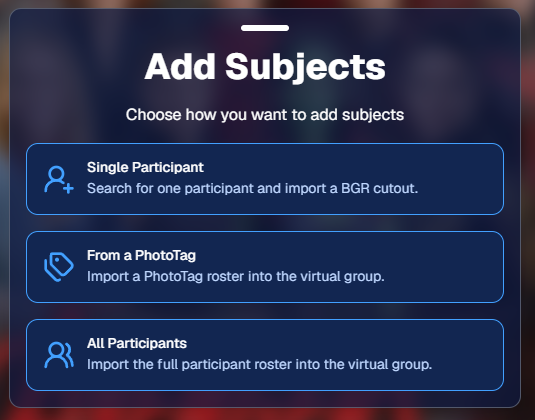
Virtual Group Builder gives photographers a few easy ways to add people to a group.

You can add one participant at a time, import everyone from a specific PhotoTag, or bring in all participants from the Event. This makes the builder flexible for both small custom groups and larger team or event-wide composites.

PhotoTags are especially powerful here. If your Event is organized by team, class, club, etc., you can use those PhotoTags to bring the right people into the group quickly.

For example, a sports photographer could import a single team. A school photographer could import a club or activity group. A graduation photographer could import participants from a specific ceremony.

Clean PhotoTags can turn what used to be a very manual process into just a few clicks. ✨
Helpful Safeguards for Missing Cutouts

Real-world events are messy. Sometimes a participant is missing a cutout. Sometimes a placeholder exists. Sometimes a photographer needs to know what is missing before moving forward.

Virtual Group Builder helps make that easier to catch.

When importing from a PhotoTag, photographers can see the participants in that PhotoTag before removing empty subjects. The Remove Empty Subjects option can remove participants with no cutouts as well as placeholders, but the workflow is designed to help photographers notice missing kids, players, or participants before finalizing the group.

That way, the tool keeps things fast without overlooking potential issues.

Smart Subject Ordering

Virtual Group Builder uses a practical ordering system to help preserve the order participants were photographed in.

Subjects are initially ordered from bottom left to top right based on the alphanumeric order of the first PNG filename. In plain English: if a photographer shoots and names files in a meaningful order, the builder can use that order as a helpful starting point.

This can be useful for sports teams photographed by jersey number, students photographed alphabetically, or groups photographed in a specific roster order.

And when the order needs to change, photographers can simply drag subjects into place.

Drag, Drop, Swap, and Adjust 🖱️

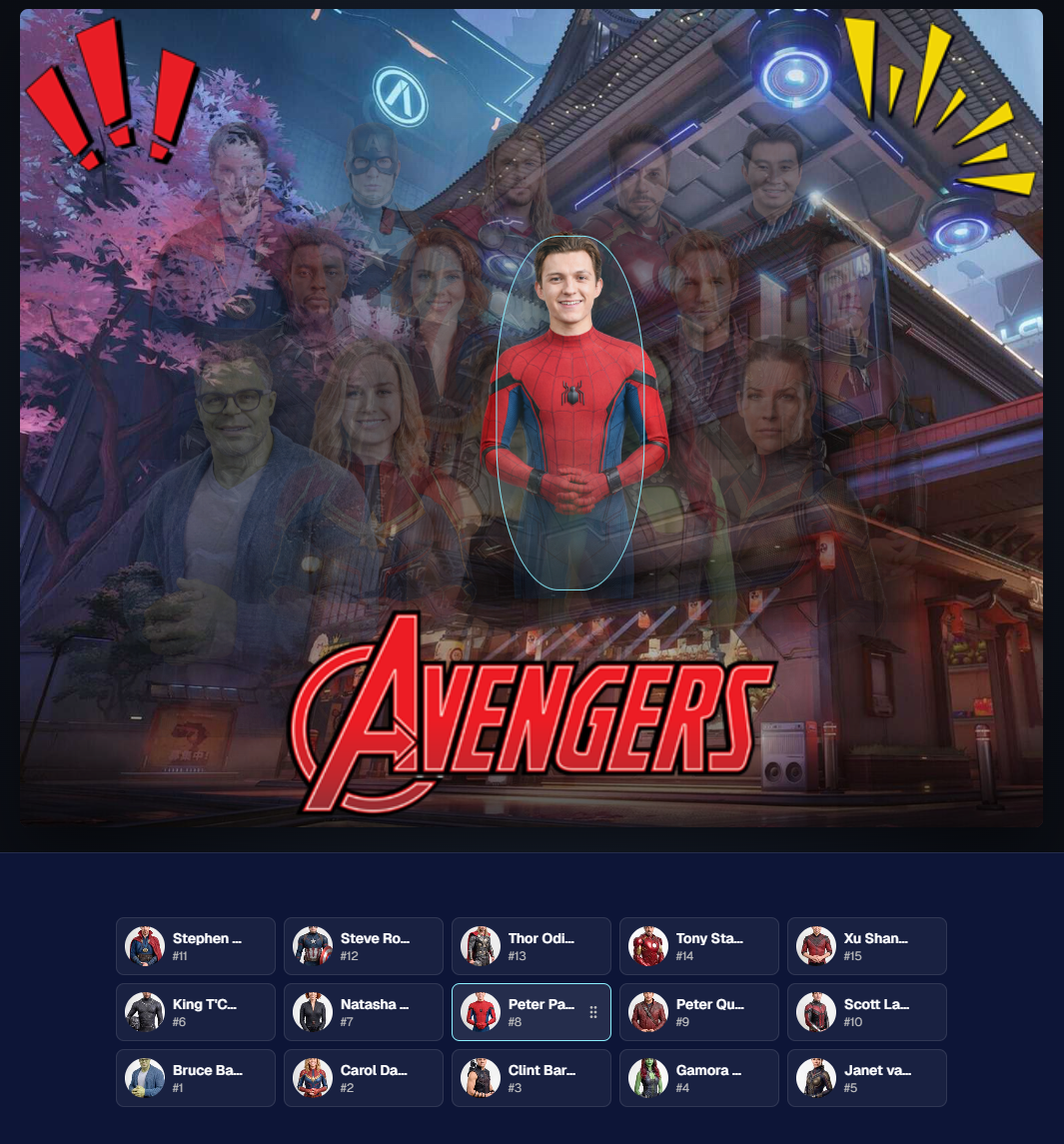
Reordering subjects is simple. Photographers can drag the cutouts directly on the group image or drag the subject tiles at the bottom of the page.

When a subject is dragged to a new location, it swaps with the destination Participant. This makes it easy to balance rows, adjust lineups, or move specific people into better positions.

The builder also includes group-level controls for layout and composition, including rows, global scale, vertical position, background, overlay, text names, crop guides, aspect ratio lines, bottom vignette, and cutout fade settings.

These controls help photographers quickly shape the whole group while still keeping the workflow approachable.
Fine-Tune Individual Subjects 🎛️

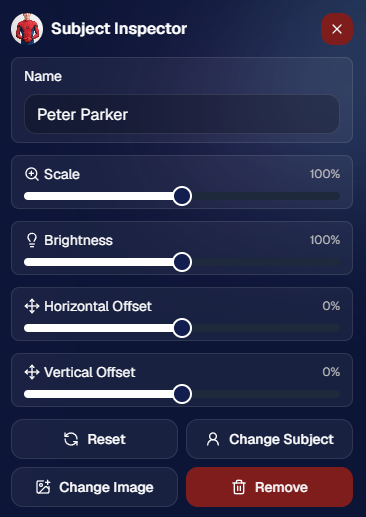
Sometimes one participant needs a small adjustment. Maybe they need to be slightly larger, shifted left or right, brightened, or swapped to a different PNG.

The Subject Inspector gives photographers individual control over each subject.

Photographers can adjust a subject’s name, scale, brightness, horizontal offset, and vertical offset. They can also reset the subject, change them to a different Participant, change the selected cutout, or remove the subject from the group entirely.

This is one of the biggest advantages of the builder: it is fast, but still gives you control when the final image needs a little extra polish.
Choose the Best Cutout for Each Participant 🖼️

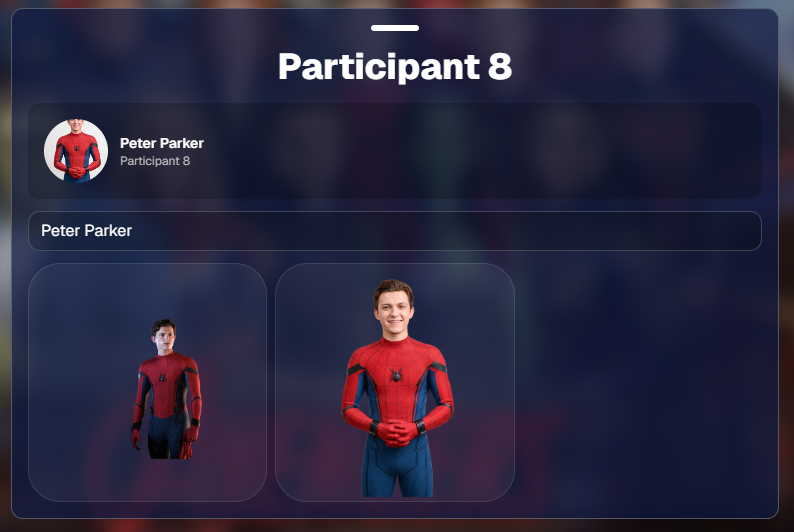
If a Participant has multiple cutouts available, photographers can choose which image works best for the group.

When adding subjects, photographers can also decide they want their incoming Participants to be using their first PNG or their latest PNG (alphanumerically determined using Folder Name and Image File Name).

Then subjects can also be selected to have their individual portrait swapped to a different one! This can be helpful when you want a variety of poses in your Virtual Group, or simply to swap a blinking kid's image to a
Backgrounds, Overlays, Logos, and Product Sizes 🎨

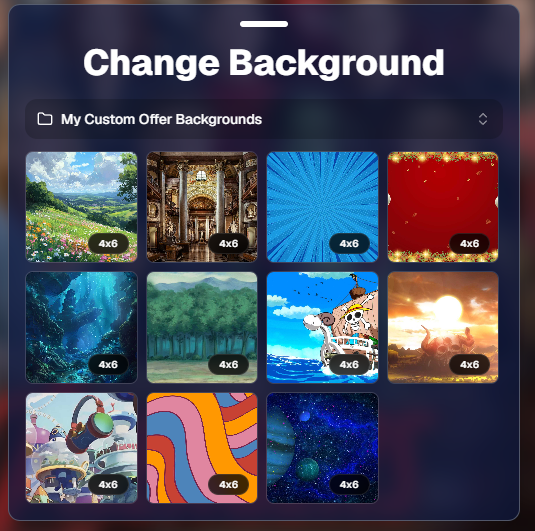
Virtual Group Builder gives photographers creative control over the final image.

Photographers can choose from NowCandid default backgrounds, use custom offer backgrounds, upload their own backgrounds, add overlays, and place account logos in the corners. This makes it easy to create anything from a clean traditional group image to a bold sports graphic or school-branded composite.

The builder supports common product-friendly formats, including 4×6, 5×7, 8×10, and 11×14. Crop guides and aspect ratio lines help photographers preview how the final image will fit the selected size.

There are also display options for subject names, including toggling names on or off and adjusting their vertical position. For teams, senior groups, school clubs, all-star rosters, or small graduation groups, names can make the final product feel more complete and commemorative.
Upload the Finished Group Back to the Event 📤

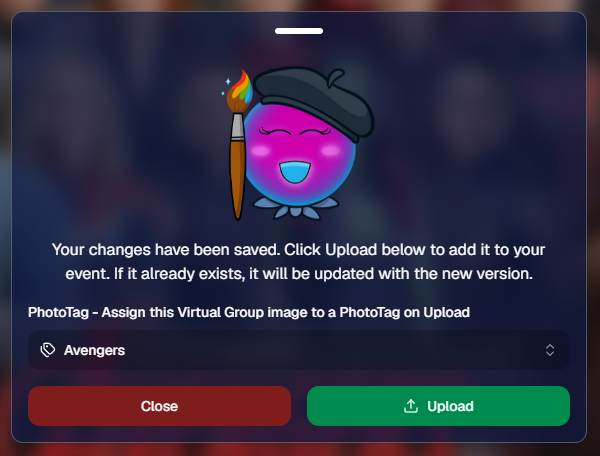
Once the virtual group is finished, photographers can save it and upload it back to the Event.

During upload, the group image can be assigned to a PhotoTag. This does two important things: it automatically shows the group image to participants with that same PhotoTag, and it makes the group photo searchable in the Event using that PhotoTag.

So if a photographer creates a group image for “Varsity Football,” they can assign it to that PhotoTag on upload. The image can then appear for the right participants and stay organized inside the Event.

That keeps the final product connected to the same Event structure used to build it.
Why This Is Such a Big Deal for Photographers

Virtual Group Builder is more than a design feature. It is a faster, more connected way to create and sell group photography products.

It helps photographers reduce manual design work, use the cutouts they already have, build from PhotoTags and participant data, add missing participants more easily, and get virtual group products online faster.

For volume photographers, that can mean less time spent assembling files and more time selling finished products. For customers, it means more group photo options. For events, it means group photography becomes more flexible, forgiving, and scalable.

Virtual Groups, Now Built Into the NowCandid Workflow ✨

Virtual Group Builder brings together live uploading, background removal, participant cutouts, PhotoTags, drag-and-drop group building, backgrounds, overlays, logos, subject names, crop previews, PhotoTag-based upload, and online selling.

When an Event is set up cleanly with consistent cutouts and PhotoTags, photographers can create a full virtual group in just a few clicks — then fine-tune it as needed.

It is simple, powerful, and built directly into NowCandid.

Whether you are creating a sports team composite, school group photo, graduation image, dance group, cheer team, all-star roster, or custom event product, Virtual Group Builder helps you get polished virtual group photos online faster.
Ready to try it?

Open an Event in your NowCandid Dashboard and click Virtual Groups in the sidebar menu to start building. 🎉

Related articles

Weekly Recap: Better Background Removal, Easier Mobile Downloads & Capture App 5.10 ✂️📱
Feature Updates
September 10, 2026

Weekly Recap: Better Background Removal, Easier Mobile Downloads & Capture App 5.10 ✂️📱

2
 minutes read
Hey photo friends! 👋

Candy here with another weekly recap! This week’s biggest improvements are in Background Removal, with better sports cutouts, and faster processing.

We’ve also made the mobile receipt download experience much easier, added a couple of helpful Capture App features, and cleaned up several Dashboard workflows.

✂️ Background Removal Keeps Getting Better

Background Removal got another round of quality and performance improvements this week:

Faster processing

  • BGR is now a bit quicker overall.

🏈 Better sports cutouts

  • Cutout quality has been improved, particularly for sports-related images.

📈 Continuous improvement system

  • We’ve also added a new system designed to help Background Removal continue improving over time as we further refine the process.

📱 Mobile Downloads Are Much Easier

The Web Receipt Download Page has been reworked on mobile to make getting images into your phone or sharing them much simpler.

🗂️ Info cards now use two columns

  • Just like desktop, which gets the actual image downloads closer to the top of the page.

📤 Download is now Share on mobile

  • Individual images now show Share instead of Download and open your device’s native share sheet.
  • That makes it easier to save an image to your Photos app, text it to someone, or send it directly into another app.

🖼️ Share All sends actual image files

  • The previous Download All option is now Share All on compatible mobile browsers.
  • Instead of creating one ZIP file, it attaches the images individually so you can more easily save the entire gallery to the Photos app (or send the images elsewhere).
  • If the browser can’t handle the share—for example, if there are too many images—it will automatically fall back to a ZIP like desktop.

📷 Capture App 5.10

iOS & Android App Store update — September 8

Two handy additions made their way into Capture App 5.10:

🔊 Audible scan confirmation

  • You’ll now hear a beep after successfully scanning a card, making it easier to know immediately that the scan worked.
  • Should help you and your hired photographers better know when a Scan Card has been succesfully scanned when using the Scanner ID Workflow!

📸 “TAKE PHOTO” placeholder is back

  • The familiar image placeholder has returned to the shooting workflow.
  • Should help new users or hired photographers know when the app is ready to receive images!

🛍️ Retail Improvements

🖼️ Overlay now appears in the cropper

  • If a shopper selects an Event overlay, they can now see it while adjusting their crop.

📱 Larger overlay preview on mobile

  • The image shown during the “Would you like to use this Event’s overlay?” step is now bigger on mobile.

✉️ Better mobile email receipts

  • Receipt emails should now display more reliably in a mobile-friendly layout across mobile email clients.

🧩 Memory Mate fix

  • Fixed an edge case where TKO images couldn’t be selected as the primary image when the Memory Mate configurator was opened from a Group Photo.

🍎 iOS 26 layout cleanup

  • Fixed a small spacing issue on the overlay-selection screen when Safari is using bottom-positioned tabs.

🖥️ Dashboard Updates

🏷️ Event names are easier to keep track of

  • Desktop Event pages now prefix the Event name in the header.

👥 Cleaner merged-participant display

  • Tabbed-in merged participants now have a subtle curved line visually connecting them to the main participant.

📊 Marketing History traffic fix

  • Fixed some retail web traffic chart dates being displayed incorrectly because of timezone differences.

🖼️ Virtual Group image picker fix

  • Double-clicking a blank participant will continue opening the Image Picker correctly after a refresh.

🎨 “Overlay” renamed to “Foreground” in Virtual Group Builder

  • This helps distinguish Virtual Group foreground artwork from full-frame Event overlays.

📄 Easier Manage Images pagination

  • When you’re beyond page one, page controls now also appear above the images so you don’t have to scroll all the way down just to switch pages.

🪪 Clearer Positive ID activity logs

  • Image Details now correctly reports “Image Positive ID’d to X” rather than describing the action as Tap-A-Face or categorizing it as Face Matching.

That’s the week!

Better cutouts are the biggest story, but the new mobile sharing workflow should also make a noticeable difference for customers trying to get their photos from a receipt onto their phones.

Keep creating magic,

Candy 🍬

Weekly Recap: Abandoned Cart Recovery, Batch AI Editing & Discount Links 🛒✨
Feature Updates
September 4, 2026

Weekly Recap: Abandoned Cart Recovery, Batch AI Editing & Discount Links 🛒✨

3
 minutes read
Hey photo friends! 👋

Candy here with another weekly recap! This week’s biggest addition is a new Abandoned Cart Recovery marketing message designed to help bring shoppers back and complete purchases they already started.

We’ve also made Quick Candy Image Studio more powerful for editing a selected group of images, added shareable discount links, and made several improvements across participant tools, Virtual Groups, and the Capture App.

Let’s jump in!

🛒 NEW: Abandoned Cart Recovery Marketing

Sometimes a customer gets all the way to building a cart... and then life happens.

NowCandid will now automatically follow up with those shoppers via text + email to encourage them to come back and finish their order.

📅 Abandoned cart messaging will go out once a week!

🛍️ Targets participants who created a cart but did not complete their purchase

🚫 Participants who have already ordered are excluded

1️⃣ Each participant can only receive one abandoned-cart follow-up per Event

📊 Sends are still recorded on the Event’s Marketing History page

This gives shoppers a helpful nudge to return to something they were already interested in buying—and hopefully turns a few more unfinished carts into completed sales. 📈

Note: NowCandid's abandoned cart rate is already very low. Even so, we expect this to boost your overall sales by about 0.3% or more!

🎨 Batch AI Editing Gets More Powerful

Quick Candy Image Studio on Manage Images continues to fill the gap between editing one image at a time and running Auto Editor across an entire folder or Event.

Select a handful of images, open Quick Candy Image Studio, and apply an AI edit across the selection.

This week, it also gained more of the controls available in the full Candy Image Studio:

👁️ Mark Original Invisible

✂️ Mark Destination Folder as Background Removal Folder

  • Available when Background Removal is enabled for the Event.

🖼️ Custom image-input nodes fixed

  • Nodes that require another image as an input now behave correctly through Quick Candy Image Studio.

This makes it much easier to apply the same edit to a small, intentional group of images without setting up a larger Auto Editor workflow.

👥 Participant List Improvements

🏷️ PhotoTags now appear as badges

  • Participant rows now show assigned PhotoTags directly, similar to the existing Additional Contact badge.

👨‍👩‍👧 Merged participants are easier to understand

  • Individual merged records now appear as separate, indented rows beneath the main merged participant.

🙈 Hidden PhotoTags stay hidden

  • Fixed hidden PhotoTags incorrectly appearing on Participant Details.

🧑‍🤝‍🧑 Virtual Group Builder Improvements

↩️ Better Undo behavior for sliders

  • CTRL/CMD + Z now behaves more naturally when adjusting slider values.

🖱️ Better drag-and-drop with large groups

  • The Subjects pane is easier to work with when there are dozens of participants.

🖼️ Full-resolution render consistency fix

  • Fixed an edge case where the final full-res Virtual Group could differ from the Builder preview.

🤖 Auto Editor & Background Removal

🙈 Hide Originals now handles BGR originals correctly

  • If Hide Originals is enabled and the original folder is marked for Background Removal, the original PNG will now be hidden too.

The same behavior now applies in Candy Image Studio.

📱 Capture App 5.9.3

iOS & Android OTA — September 1

📋 Shooting mode selector fixed on tablets

  • The popup is now scrollable, so options like Roster Check-In are always reachable.

📸 Photo Booth fix on iOS

  • Cancelling the countdown no longer accidentally disables the Event collage.

That’s the week!

Abandoned Cart Recovery is the big addition here, giving NowCandid another way to help turn existing shopper interest into completed orders. And with the improvements to Quick Candy Image Studio, you’ve got more flexibility for those “edit these five photos, not the entire folder” situations too.

Keep creating magic,

Candy 🍬

Weekly Recap: Scheduled Client Outreach, Smarter Virtual Groups & New Candy Image Styles 📅✨
Feature Updates
August 28, 2026

Weekly Recap: Scheduled Client Outreach, Smarter Virtual Groups & New Candy Image Styles 📅✨

5
 minutes read
Hey photo friends! 👋

Candy here with another weekly recap! This week’s biggest addition is a major upgrade to Client Outreach: you can now schedule texts and emails to send later. We’ve also added smarter Virtual Group tools, new Candy Image Studio looks, and a few useful retail and Dashboard fixes.

Let’s jump in!

📅 Client Outreach Can Now Be Scheduled

You can now schedule Client Outreach messages to send at a future date and time instead of having to send everything immediately.

Schedule texts or emails up to 60 days in advance

📋 New Scheduled page to see upcoming sends

Cancel a scheduled outreach before it goes out

💰 See estimated sends and cost before the scheduled time

🔔 Get notified when it sends

  • Dashboard Inbox notification
  • Mobile Dashboard push notification

This makes Client Outreach much more useful for planned reminders, follow-ups, announcements, and other messages you already know you’ll want to send later.

👥 Import from multiple Events at once

When building a Client Outreach list from Event contacts, you can now select multiple Events in a single import instead of adding them one at a time.

🏈 Virtual Group Builder Gets Smarter

Virtual Group Builder picked up several new controls this week:

🔢 New Auto Order By Jerseys button

  • Automatically reorder subjects based on their jersey numbers.
  • This is powered by Jersey Jotter, but Jersey Jotter does not need to be enabled on the Event for you to use it.

🧠 Improved Auto Headsize

  • Automatic subject sizing should now produce better results.

👤 Less disruptive participant additions

  • Adding one participant now places them at the bottom-right of the bottom row instead of automatically rearranging the entire group.

🌈 New Saturation slider

  • Adjust an individual subject’s saturation from the Subject Inspector.

🌑 Drop Shadow can now be disabled

  • There’s a new toggle if you prefer the group without subject shadows. Drop Shadow behavior also works more naturally with Cutout Fade.

🌫️ Simplified Cutout Fade

  • Cutout Fade and Cutout Fade Intensity have been combined into a single control with improved defaults and results.

↕️ More vertical positioning freedom

  • Subjects can now be moved significantly farther downward when needed.

🎛️ New Effects category

  • Some related controls have been reorganized to make the Builder easier to navigate.

🎨 New Candy Image Studio Looks

Two new low-cost styles are available:

🌸 Mayfair — 4¢

  • A polished filter-inspired look with its own distinct color treatment.

🌈 Lively

  • Similar in spirit to Clarendon, but with a different look and feel. Give it a try!

🛠️ Candy Image Studio fixes

✨ Fixed some nodes not working through Quick Candy Image Studio on Manage Images

🖼️ Fixed the Retouch node failing on especially large image files

🖥️ Dashboard Improvements

📣 Event Marketing History links are more visible

  • Three important links on the page are now displayed as cards, matching the approach used elsewhere in the Dashboard.

🏷️ Remove PhotoTags in bulk

  • Select multiple participants on the Participant List page and use the new Remove PhotoTags button to clear their PhotoTags at once.

📱 Mobile Dashboard

No app update required:

  • ⬅️ Previous Page
  • ➡️ Next Page

Both options are now available from the logo button / Quick Actions menu at the top of the Mobile Dashboard.

🛍️ Retail & Quic Fixes

📦 Group package visibility fixed

  • Packages containing group products will no longer incorrectly appear when an Event has no group images.

🤖 Auto Edited QuicPics/QuicPortraits images fixed

  • Fixed an issue where Event-level Auto Edits with Hide Originals enabled were not being texted once the edited image was ready.

That’s the week!

Scheduled Client Outreach opens up a lot more ways to plan customer communication ahead of time, while the new Virtual Group tools should make sports layouts quicker and easier to fine-tune.

Keep creating magic,

Candy 🍬

Let’s get in touch

If you’re a photographer looking to add NowCandid services to your wheelhouse – set up a call by clicking the button below.

How to customize formatting for each rich text

How to customize formatting for each rich text

How to customize formatting for each rich text

How to customize formatting for each rich text

How to customize formatting for each rich text

What’s a Rich Text element?

The rich text element allows you to create and format headings, paragraphs, blockquotes, images, and video all in one place instead of having to add and format them individually. Just double-click and easily create content.

A rich text element can be used with static or dynamic content. For static content, just drop it into any page and begin editing. For dynamic content, add a rich text field to any collection and then connect a rich text element to that field in the settings panel. Voila!

Headings, paragraphs, blockquotes, figures, images, and figure captions can all be styled after a class is added to the rich text element using the "When inside of" nested selector system.

  • List One
  • List Two
  • List Three
  • List Four
  • List Five

This is a link

This is bold text