HomeNavigation arrowBlogNavigation arrow
Current page
Feature Updates

Weekly Recap: Simple Check-In™, New Products Report, and Lots More ✨

Weekly Recap: Simple Check-In™, New Products Report, and Lots More ✨
Hello, my fabulous photographers!

Candy here, ready to sprinkle some sparkle on your day with our latest Weekly Recap. We’ve been hard at work enhancing your NowCandid™ experience, and I’m thrilled to share all the juicy new features. Let’s dive in!

1. Simple Check-In™ for Positive ID Events 🤳

We’re introducing a brand-new way to make your Name Lookup and Scanner ID™ Workflows even smoother:

  • Single QR Code: Print just one QR code for the entire event. Participants scan it, enter their name and contact info, and a “blank” participant is instantly created—no selfie required.
  • Photographer & Wallet Benefits: Photographers can now quickly search by name if the event uses Name Lookup, or if the participant adds the pass to Apple Wallet (Google Wallet coming very soon), you can scan them later for Scanner ID™.
  • No More Bulk Scan Cards: Skip printing individual codes for everyone—one event code can do it all!

Scan Cards are still great in many situations, so this isn't a replacement - just an addition! Something to make the Name Lookup & Scanner IDWorkflows even more flexible!

Accessible by clicking the QR code within a Positive ID Event's Management Page

2. New Products Report 📈

We’ve introduced a new Products Report on your NowCandid™ web dashboard:

  • Most-Purchased & Highest-Revenue Products: See which items or packages your clients love most.
  • Standard Filters: Use the same powerful search options you know—by event, date range, program type, Event Tag, and more.
  • Data-Driven Decisions: Identify your top performing items and make more informed Custom Offer adjustments!

If you’ve been curious which prints, downloads, or merch are hot, this is your new go-to spot!
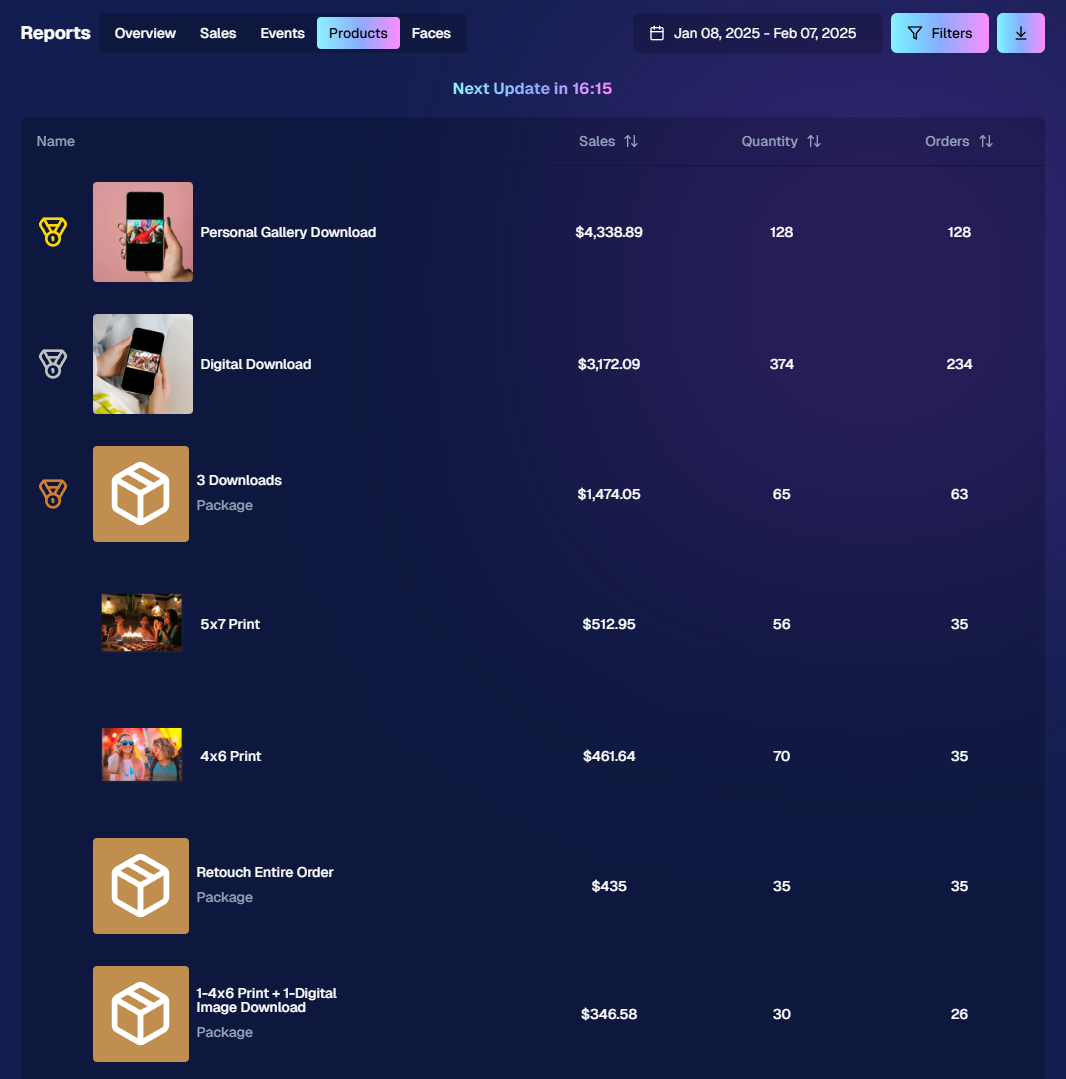
Accessible from the Home tab of the web dashboard

3. Image Management Additions:

Multi-Select Enhancements 🛠️

We’ve expanded multi-select capabilities in Manage Images to handle even more tasks at once:

  • GroupTags: Now you can edit or remove GroupTags™ for all selected images simultaneously.
  • Select All Visible: Quickly grab every image on the current page to speed up those bulk actions.

Accessible using the multi-select button within an Event's Manage Images page

New Folder-Wide Options 📂

We also added a new Edit Folder button when a folder is selected:

  • Change Folder Visibility: Toggle an entire folder’s images between visible or invisible.
  • Group Status: Mark them as Group Photos or individual images in one go.
  • GroupTag: Apply the same GroupTag™ to every image in the folder—super handy for sorting large event albums.

Mass management, simplified!

Accessible using the Edit Folder button within an Event's Manage Images page

4. Face Matching™ Formula Switch 🧩

We added a new toggle in Edit Event to adjust how strict or lenient our Face Matching™ algorithm is:

  • Stricter Matching for Kids: If you’re dealing with lots of little ones who keep popping up in the wrong gallery, flip this switch for fewer “extra” matches.
  • Default Remains Flexible: Our usual method still works great for most events. If needed, you can always manually unassign images from a participant in the dashboard.

Less confusion, more accurate galleries—everyone wins!
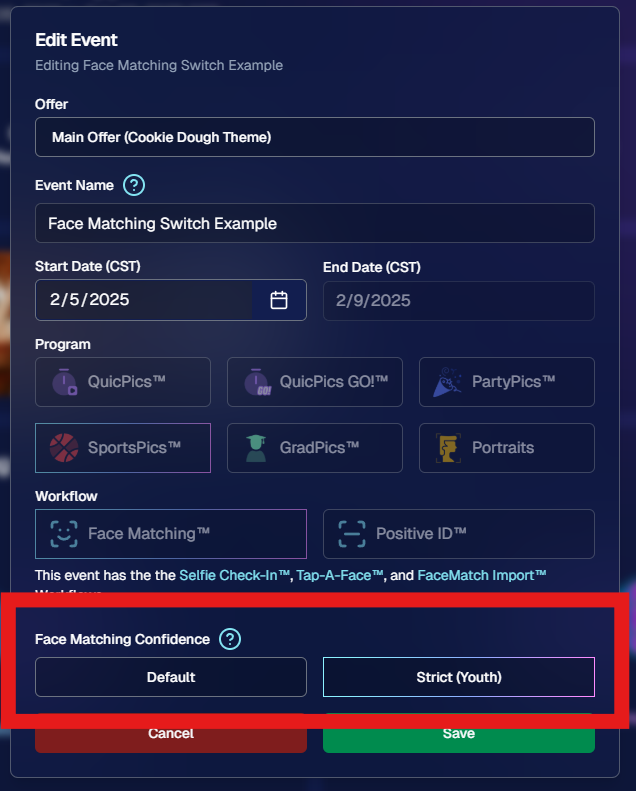
Accessible when editing a Face Matching type Event

5. Manage Images: New Filter Menu 🖼️

We’ve reorganized the Manage Images page with a dedicated menu for filters:

  • Cleaned-Up UI: Too many filters were crowding the page; now they’re in one easy-to-access spot.
  • Clear Active Filters: It’s easier to see what’s on and what’s off, plus you can remove filters with a single click.

Navigating your images should feel more intuitive and less cluttered than before.
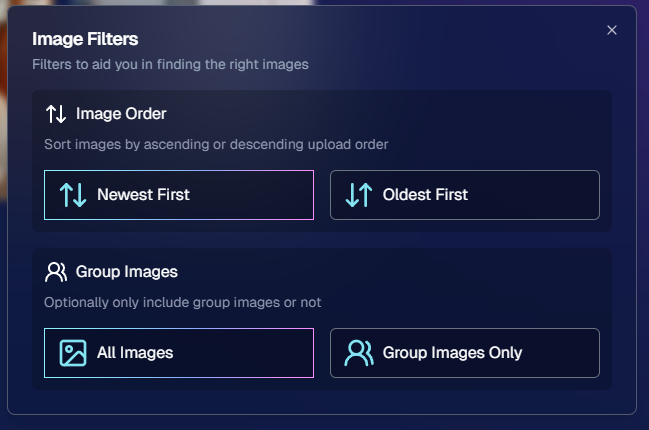
Accessible using the Filters button within an Event's Manage Images page

6. Image Timeline Screenshot Download ⏱️

Our Image Timeline feature now has a handy Download Screenshot button:

  • Quick Sharing: Snap a chart of your shooting pace or AI analysis and send it to your photographers or team.
  • Easy Feedback: Show them exactly where the busy or slow spots were without extra steps.

A small detail that can make a big difference for team communication.
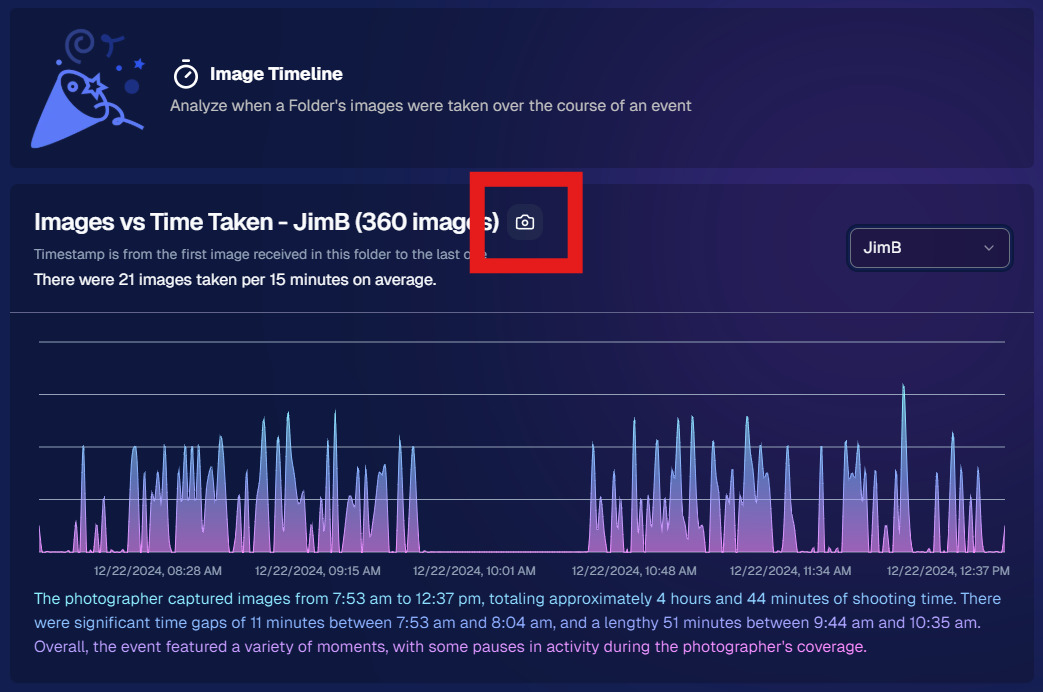
Accessible using the Camera-icon button on an Event's Image Timeline page

7. Event Tag Add Popup Improvements 🏷️

When adding events to a tag from the Event Tags page:

  • Select Multiple Events at Once: No need to add them one by one.
  • Filtered Display: It only shows events that don’t already have that tag, saving clicks and confusion.

A quicker way to keep your events organized and ready for deeper insights.
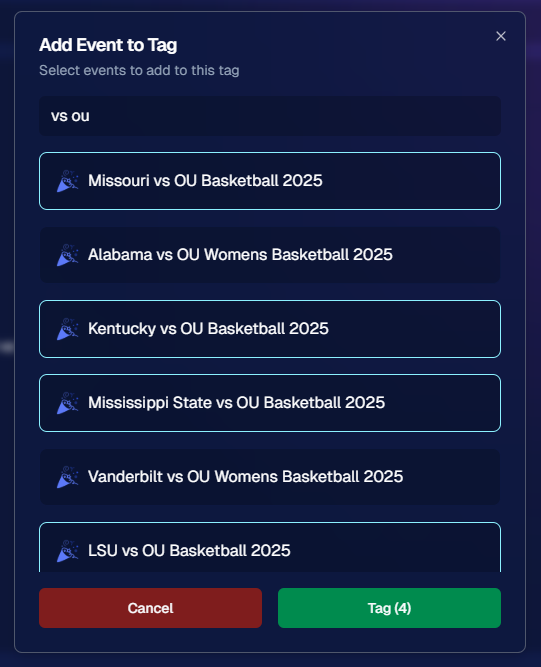
Accessible using the Add Events to Tag button on the Event Tags page of the Web Dashboard

8. Marketing Tweak: Day0 with Group-Only Galleries ✉️

If a participant’s personal gallery only contains Group Photos, Day0 marketing won’t trigger:

  • Fewer Unnecessary Texts/Emails: Prevents those “here’s your gallery!” messages when there’s not much for them to see yet.
  • Smarter Outreach: Focus your marketing on participants who have individual images waiting.

This slight change can tidy up the user experience for your SportsPics™ or GradPics™ events.

9. Capture App 4.13.71 (iOS Only) 🍏

Some app updates for iPhone/iPad users:

  • iPad UI Fix: Addresses a bug when launching in portrait mode.
  • Photo Booth Mode Backgrounds: Hidden on iPads running iOS < 17.
  • Event Number: Now appears next to the event name, so you’re less likely to shoot under the wrong event.
  • Volume Trigger Fix: The internal camera capture now works again for devices that had issues after recent iOS changes—great news for those using volume-based triggers!

That’s it for this Weekly Recap!

We hope these upgrades help you handle your events faster, deliver better experiences to your clients, and keep the momentum going all year long.

As always, let us know if you have any questions, ideas, or just want to say hi.

Cheers and sparkles,

Candy 🍬

Related articles

Weekly Recap: Tap-A-Face from the Dashboard & Smarter Roster Contacts 👤✨
Feature Updates
August 8, 2025

Weekly Recap: Tap-A-Face from the Dashboard & Smarter Roster Contacts 👤✨

3
 minutes read
Hey there, photo friends!

This week’s updates are small but mighty—because behind the scenes we’re cooking up some bigger projects that we can’t wait to share with you soon.

For now, here’s what’s fresh in your NowCandid™ Dashboard:

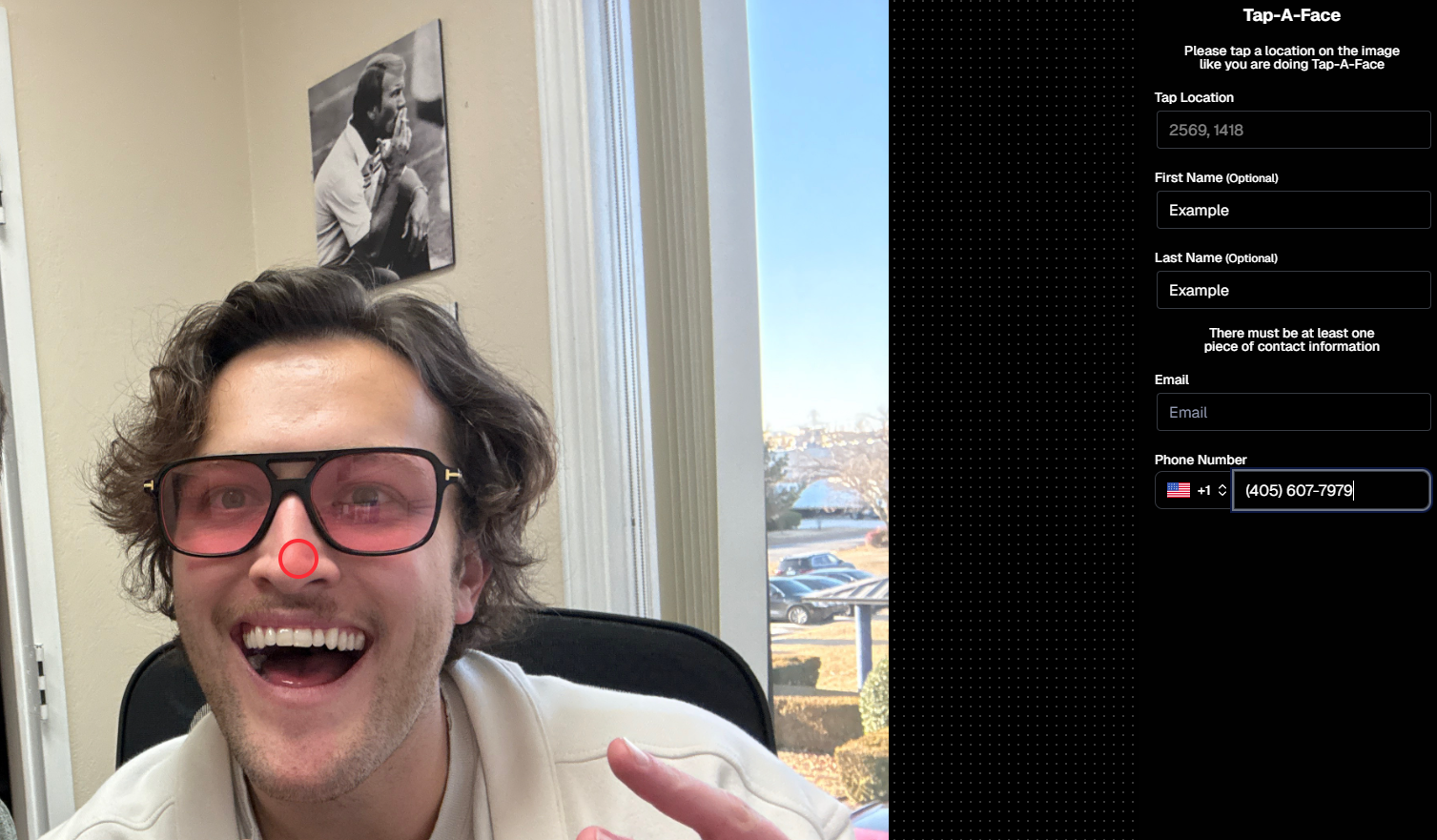
👆 Tap-A-Face… from the Web Dashboard!

You’ve always loved Tap-A-Face in the field—now you can do it right from your Dashboard.

From any image’s Image Details Page, head to the Participants tab and click the new Add via Tap-A-Face button. From there:

  1. Click a spot on the image where a face is
  2. Enter the contact info for the person

This will instantly create a new Participant in your Event, kick off Face Matching™, and start marketing their gallery right away. 📸💌

Manage Images -> Details, Logs, and More-> Participants -> Add via Tap-A-Face

📇 Roster Contacts, Upgraded

Contacts you add through Rosters are now much easier to work with! They’ll behave just like your regular Contacts & Participants—meaning:

  • They’re fully editable
  • They can be assigned multiple images without the previous first-image requirement

No more clunky workarounds—just smoother, faster contact management. 🙌

This change will also improve adding Contacts via the "Create Participant" button, as well as Contacts who add themselves to the Event via a Positive ID Event's Simple Check-In.

These kinds of Contacts will just show a silhouette for now, which we may adjust down the line!

That’s it for this week!

Stay tuned—because some very cool things are coming your way soon. 👀✨

Keep being amazing,

Candy 🍬

Weekly Recap: PhotoCoach Support, Acrylic Puzzles & More! 🧠🧩
Feature Updates
August 1, 2025

Weekly Recap: PhotoCoach Support, Acrylic Puzzles & More! 🧠🧩

4
 minutes read
Hey there, photo friends!

Candy here with some sweet new updates from your NowCandid™ Dashboard.

We've got a powerful new coaching tool, a fun new product to sell, and a bunch of workflow-boosting fixes to round it out.

Let’s dive in! ✨

🆕 New Feature: PhotoCoach

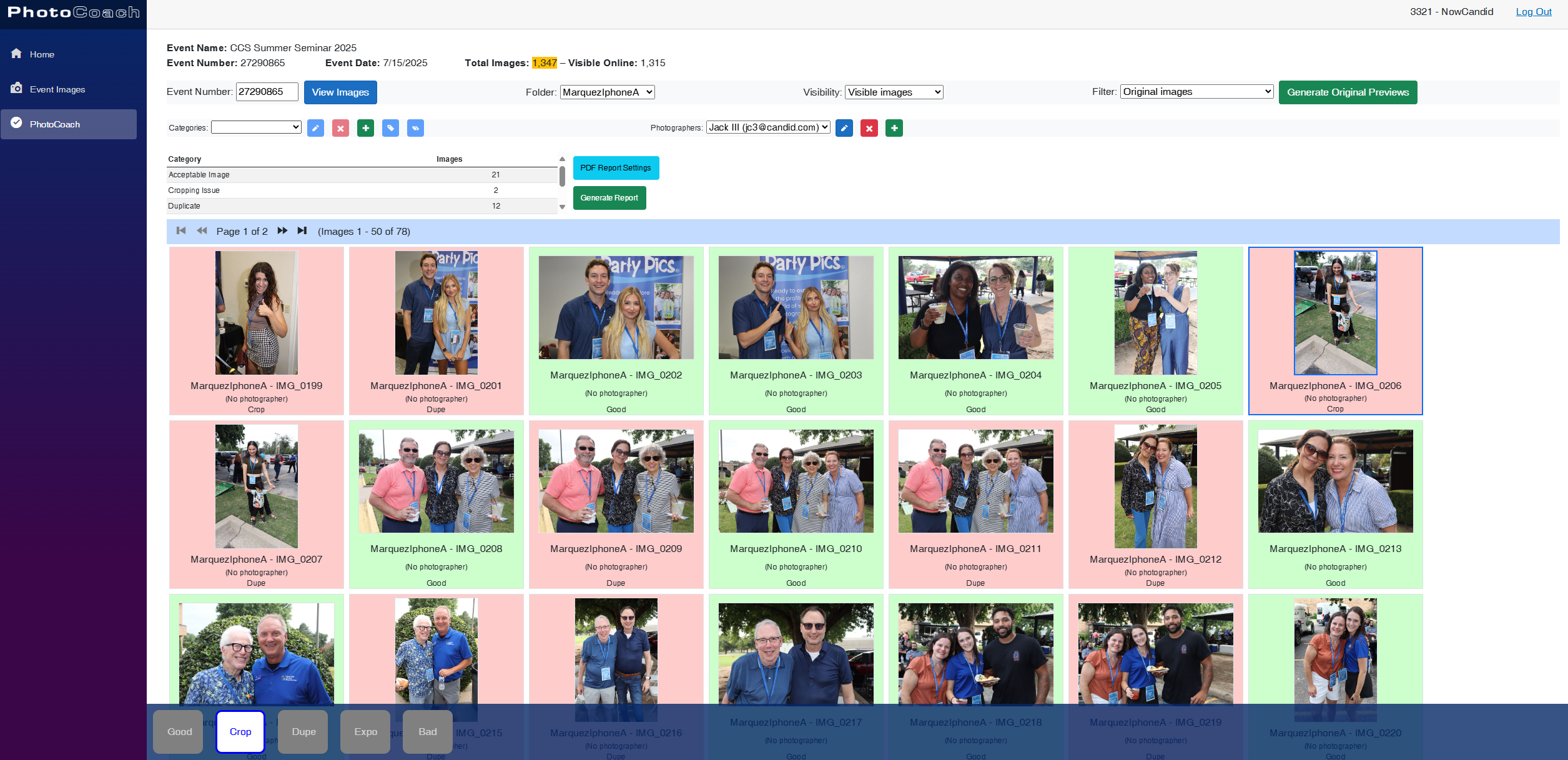
Introducing PhotoCoach—your new secret weapon for improving the quality of your photographers’ photos over time! 🧠📷

With PhotoCoach, you can:

  • • Review images from your Events and flag them with issues like "Acceptable," “Duplicate,” “Exposure Issue,” “Cropping Issue” and more (and make your own categories too!)
  • • Track photographer photo quality over time
  • • Send automatic feedback reports to your photographers with a breakdown of image counts & issue counts

It’s perfect for helping your team take more sellable images—leading to happier clients and stronger sales!

Find it now under Tools & More on your Dashboard and start coaching like a pro. 💪

Note: PhotoCoach is not new for CORE™ users (CORE™ is our sister-software at Candid Color Systems™), but it's new to NowCandid™! And it's had some feature improvements recently so it is now web-based! Woo!

It takes a little getting used to, but once you are, it's super easy and super fun!

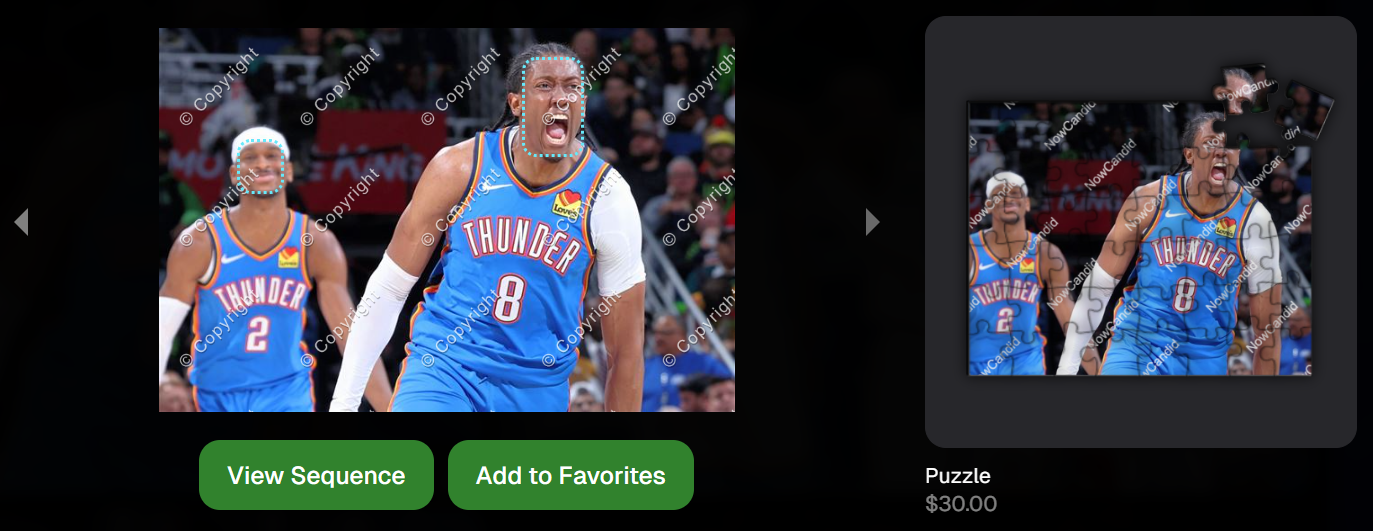
🧩 NEW: 8×10 Acrylic-Backed Puzzle

Puzzle fans, rejoice! 🎉 You can now sell a 56-piece acrylic-backed 8×10 puzzle, complete with cute live-rendered previews on the retail site.

Why customers will love it:

  • Unique gift or keepsake
  • Durable acrylic & display-worthy

Even the little detahced pieces in the top right live-render, yay! - Theme: Liquorice

🔗 URL Filtering Just Got Smarter

Now when shoppers apply filters on the retail site, those filters update the URL automatically—making filtered views shareable with friends & family!

Not much more to say about this one, just a cool touch! :)

🛠️ Misc Tweaks & Fixes

A roundup of small but mighty changes:

  • 📥 Dynamic Personal Gallery Downloads can now be purchased by shoppers via Favorites!
    • A great addition for action sports—gives customers a “buy all” option that scales with the number of images selected, even when shopping from an All Gallery.
  • 🧑‍🤝‍🧑 Group-by-Face filter popup now shows only unique faces
    • Applies to new Events only—re-run Group-by-Face on past Events if needed!
  • 🗂 BGR Folders are editable again via the “Edit Folder” option
  • 🖼 Retail site now scrolls past the cover photo if a filter is selected from the initial popup
    • A smoother experience when arriving to an All Images gallery
  • 🧍‍♀️ Selfie Check-In button transforms post-Face Matching
    • It now becomes a second Retail Site button after expiration
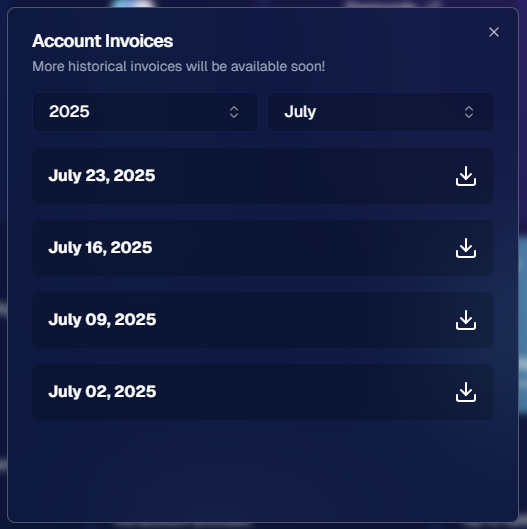
  • 🧾 Invoice History tool now displays all past invoices, not just recent ones

That’s everything for this week! 💫

Whether you're giving photo feedback, selling puzzles, or just tidying up your workflow—we’ve got your back.

More soon!
Candy 🍬

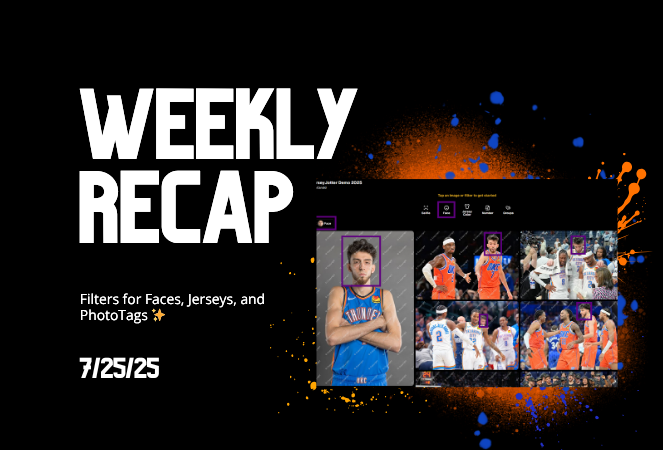
Weekly Recap: Filters for Faces, Jerseys, and PhotoTags ✨
Feature Updates
July 25, 2025

Weekly Recap: Filters for Faces, Jerseys, and PhotoTags ✨

5
 minutes read
Candy here with your scoop on all the sweet new updates from this week! 🍬

Let’s get right into it...

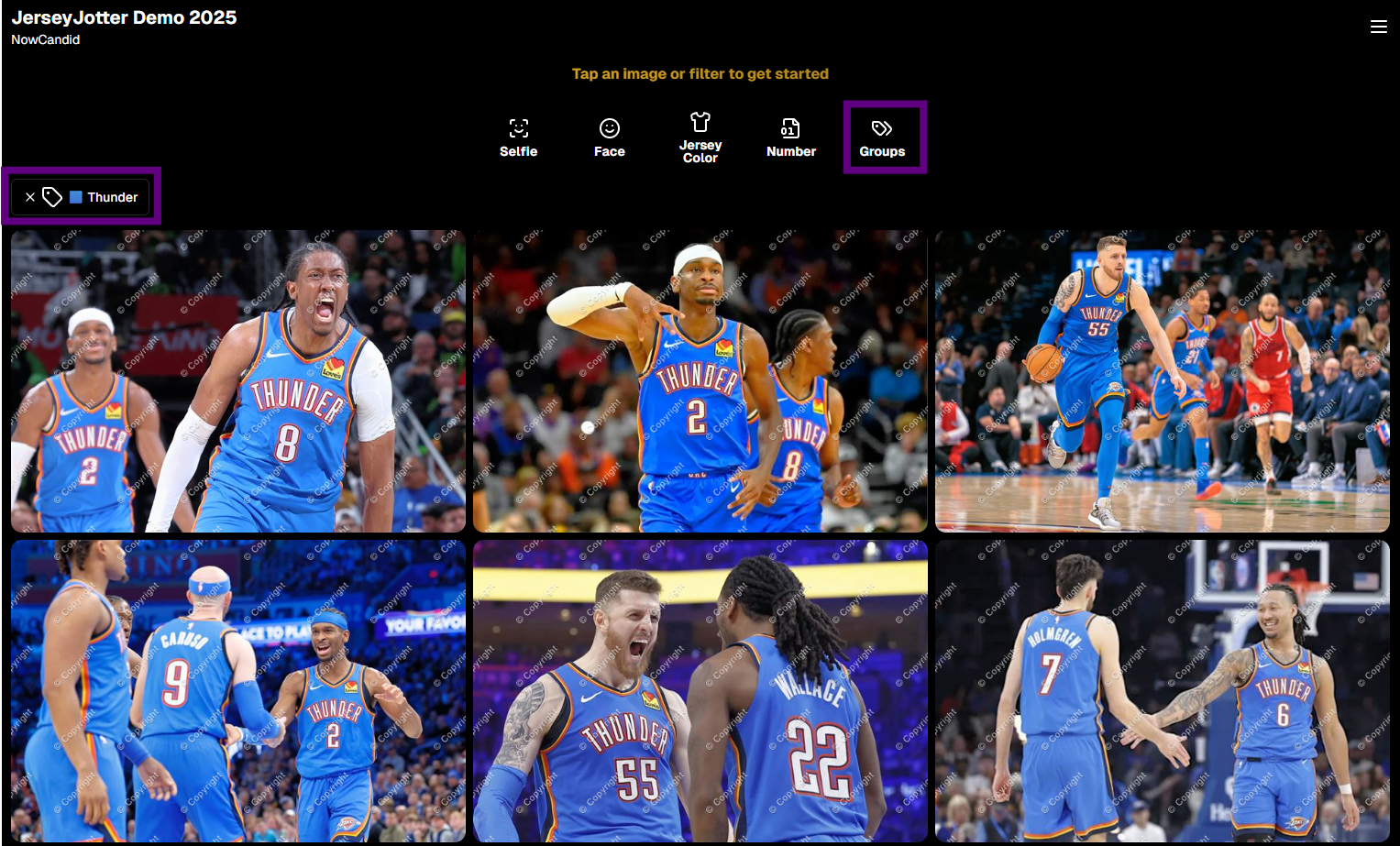
📸 Big News: PhotoTags Now Work as a Filter!

PhotoTags just got a major glow-up! 🌟

Instead of being a separate tab, they’re now integrated directly into the Filters section on the All Images Gallery. That means they now play nicely alongside JerseyJotter™ and Group-by-Face!

Whether you're shopping for cheerleaders, bands, dancers, or any other tagged group—this change makes it smoother than ever to find just the photos you care about.

Did you know? NowCandid is headquartered in Oklahoma City! Thunder Up!

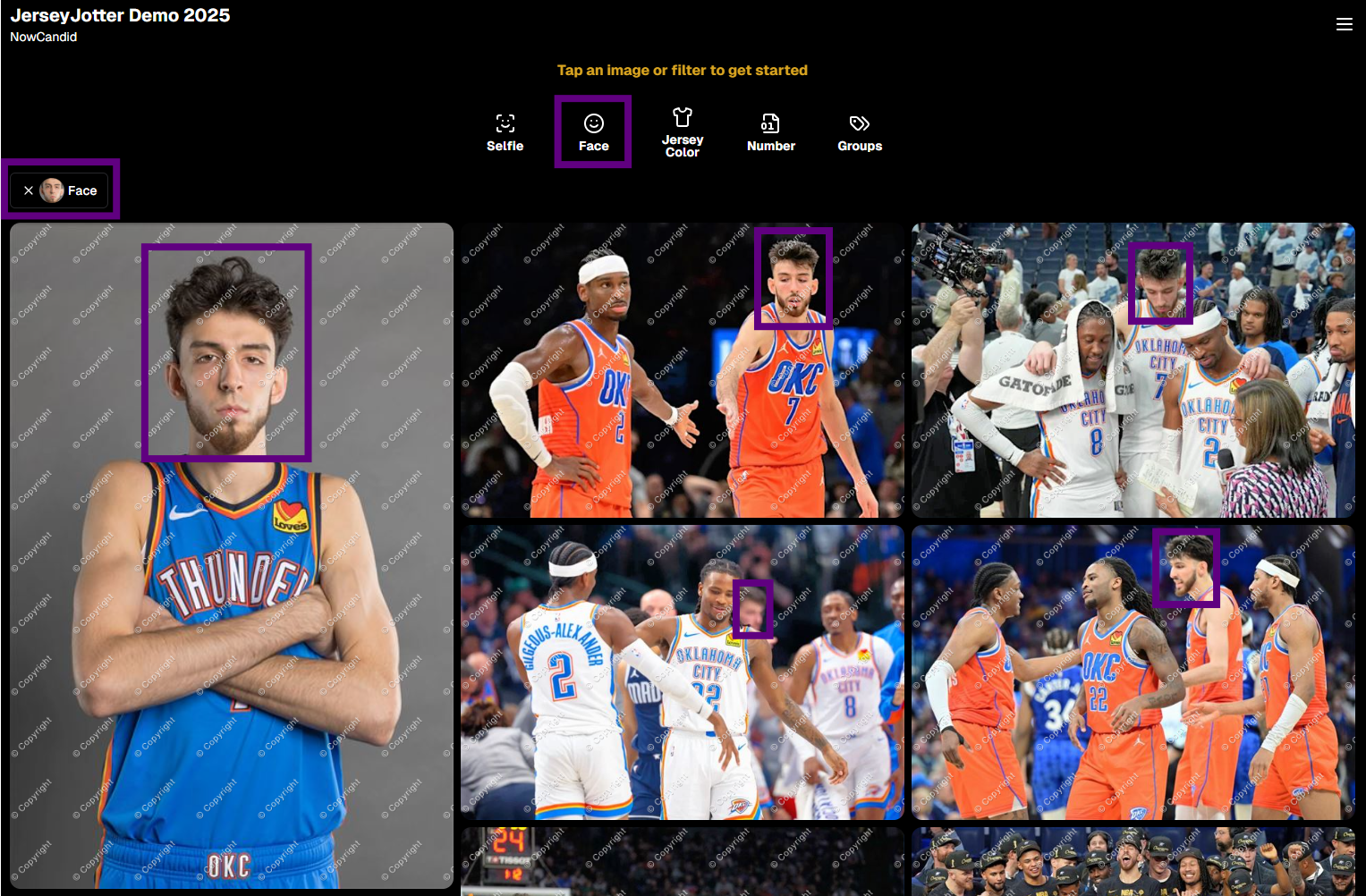
🧠 Big News: Group-by-Face is Now a Filter Too!

Group-by-Face fans rejoice! 🎭

Group-by-Face has been transformed into a Filter, too! Instead of whisking you away to a new page, selecting a face now just filters the All Images Gallery to show photos featuring that face. You can even browse faces via the Face filter menu.

And yes—it works with PhotoTags and JerseyJotter™, so you can filter for a specific face, a jersey number, AND a PhotoTag Group all at once. Woo!

Yup, it even got his blurry face over Cason Wallace's shoulder!

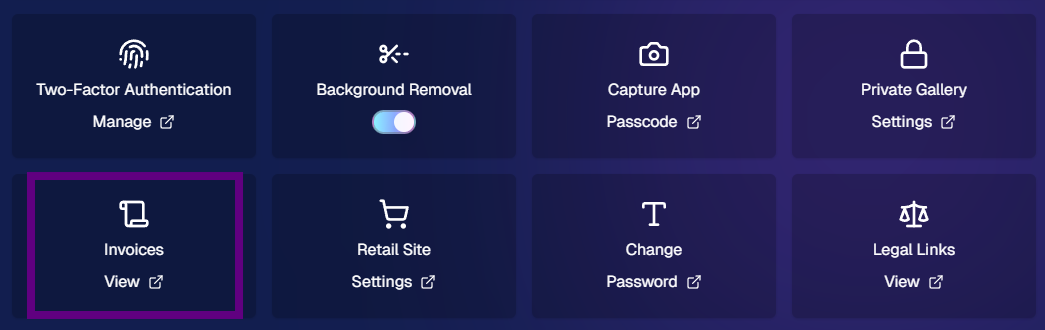
🧾 Big News: Invoice History in Profile Settings

Ever had an invoice go missing in your email inbox? We've got you covered!

You can now view and download past invoices directly from your Profile Settings page on the Web Dashboard. Whether you're keeping things tidy for tax season, tracking your account activity, or just trying to find that one receipt from a few months ago — this new Invoice History section gives you quick access to every invoice tied to your account.

No more digging through old emails. Just head to Settings → Profile → Invoice History and boom — organized, downloadable, and ready whenever you need it.

Another small quality-of-life boost to keep things running smoother behind the scenes. 🎟️✅

Accessible via Profile on the Web Dashboard.

⚙️ Other Notable Changes

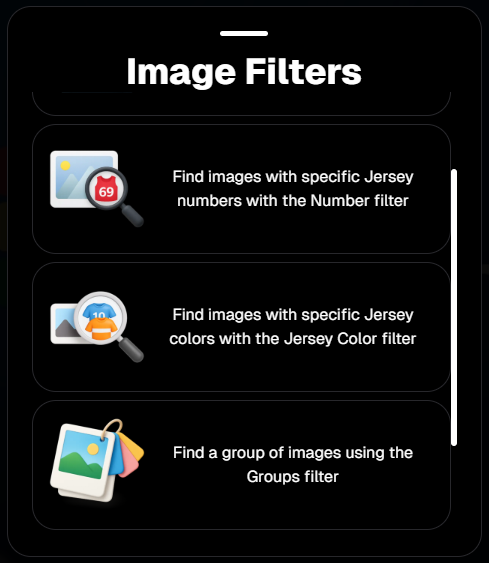
🔍 “Looking for More?” Button + All Images Filter Popups

We’ve added a new “Looking for More?” button at the bottom of personal image galleries — perfect for subjects who didn’t find quite everything they were hoping for. If your Event has the All Images Gallery turned on, this button will guide shoppers over to that gallery for a broader look.

And with all the recent upgrades like PhotoTags™, Group-by-Face, JerseyJotter™, and improved gallery tools, we’re confident that the All Images view is more helpful and shoppable than ever before!

🎛️ Bonus: When filters are enabled for your Event, the All Images Tab and All Gallery URL will now open a popup that clearly explains what filtering options are available for that particular event — making discovery even easier for your customers.

Clicking any option will open up that Filter's popup as well!

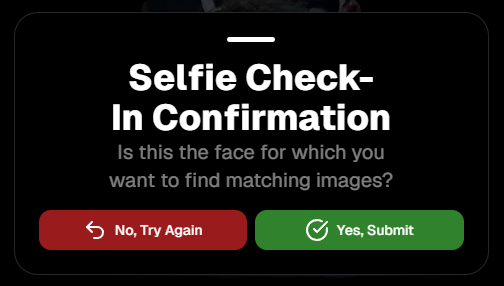
🤳 “Is This the Face?” Popup

When someone takes or uploads a selfie for Selfie Check-In, we now ask them:

“Is this the face for which you want to find matching images?”

This simple question will reduce the number of parents who accidentally upload selfies of themselves instead of their child!

We'll keep trying to get parents to not upload their own selfies :)

📱 QR Code Download for All Images Gallery

New button alert! You can now easily download the All Images Gallery QR Code to share at events—perfect for action sports and other workflows that rely on promoting the All Images Gallery.

Accessible via "Retail Site" from an Event's Management page.

📦 Order Details Page Improvements

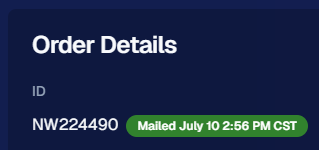
Want to know when an order was mailed out? You got it.

The Order Details page now shows the "mailed" timestamp when applicable, helping both photographers and customers stay informed.

Accessible via "Orders" from an Event's Management page.

🧰 Misc Fixes & Improvements

🧮 The JerseyJotter™' image counts when selecting Filters will now be affected by PhotoTag & Group-by-Face Filters as well

🫥 "Unassigned Images" count now excludes hidden/test images

💖 Favorites tab now works when picking images for multi-image products

🔒 GalleryGuard™ is all set for iOS26 — screenshot blocking stays strong

📴 Texting “NOPE” now unsubscribes users from all marketing campaigns

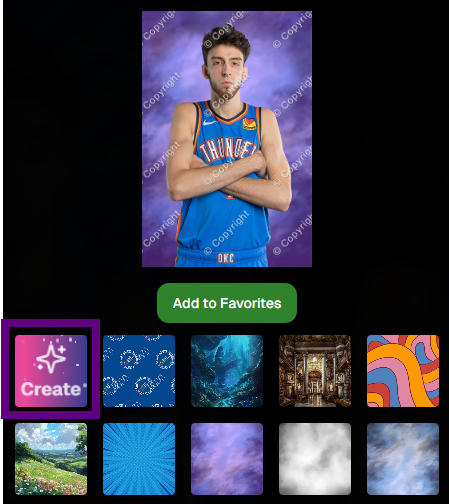
✨ New icon for AI-generated backgrounds — it’s clearer for those unfamiliar with the standard generative AI symbol

Did you know? We provide subjects with free AI background generation!

That’s it for this week!


As always, thanks for tagging along on all the improvements we’re rolling out to make your NowCandid experience smoother, smarter, and more fun 🎉

Cheers,
—Candy 💕

Let’s get in touch

If you’re a photographer looking to add NowCandid services to your wheelhouse – set up a call by clicking the button below.

How to customize formatting for each rich text

How to customize formatting for each rich text

How to customize formatting for each rich text

How to customize formatting for each rich text

How to customize formatting for each rich text

What’s a Rich Text element?

The rich text element allows you to create and format headings, paragraphs, blockquotes, images, and video all in one place instead of having to add and format them individually. Just double-click and easily create content.

A rich text element can be used with static or dynamic content. For static content, just drop it into any page and begin editing. For dynamic content, add a rich text field to any collection and then connect a rich text element to that field in the settings panel. Voila!

Headings, paragraphs, blockquotes, figures, images, and figure captions can all be styled after a class is added to the rich text element using the "When inside of" nested selector system.

  • List One
  • List Two
  • List Three
  • List Four
  • List Five

This is a link

This is bold text