HomeNavigation arrowBlogNavigation arrow
Current page
Feature Updates

Weekly Recap: Simple Check-In™, New Products Report, and Lots More ✨

Weekly Recap: Simple Check-In™, New Products Report, and Lots More ✨
Hello, my fabulous photographers!

Candy here, ready to sprinkle some sparkle on your day with our latest Weekly Recap. We’ve been hard at work enhancing your NowCandid™ experience, and I’m thrilled to share all the juicy new features. Let’s dive in!

1. Simple Check-In™ for Positive ID Events 🤳

We’re introducing a brand-new way to make your Name Lookup and Scanner ID™ Workflows even smoother:

  • Single QR Code: Print just one QR code for the entire event. Participants scan it, enter their name and contact info, and a “blank” participant is instantly created—no selfie required.
  • Photographer & Wallet Benefits: Photographers can now quickly search by name if the event uses Name Lookup, or if the participant adds the pass to Apple Wallet (Google Wallet coming very soon), you can scan them later for Scanner ID™.
  • No More Bulk Scan Cards: Skip printing individual codes for everyone—one event code can do it all!

Scan Cards are still great in many situations, so this isn't a replacement - just an addition! Something to make the Name Lookup & Scanner IDWorkflows even more flexible!

Accessible by clicking the QR code within a Positive ID Event's Management Page

2. New Products Report 📈

We’ve introduced a new Products Report on your NowCandid™ web dashboard:

  • Most-Purchased & Highest-Revenue Products: See which items or packages your clients love most.
  • Standard Filters: Use the same powerful search options you know—by event, date range, program type, Event Tag, and more.
  • Data-Driven Decisions: Identify your top performing items and make more informed Custom Offer adjustments!

If you’ve been curious which prints, downloads, or merch are hot, this is your new go-to spot!
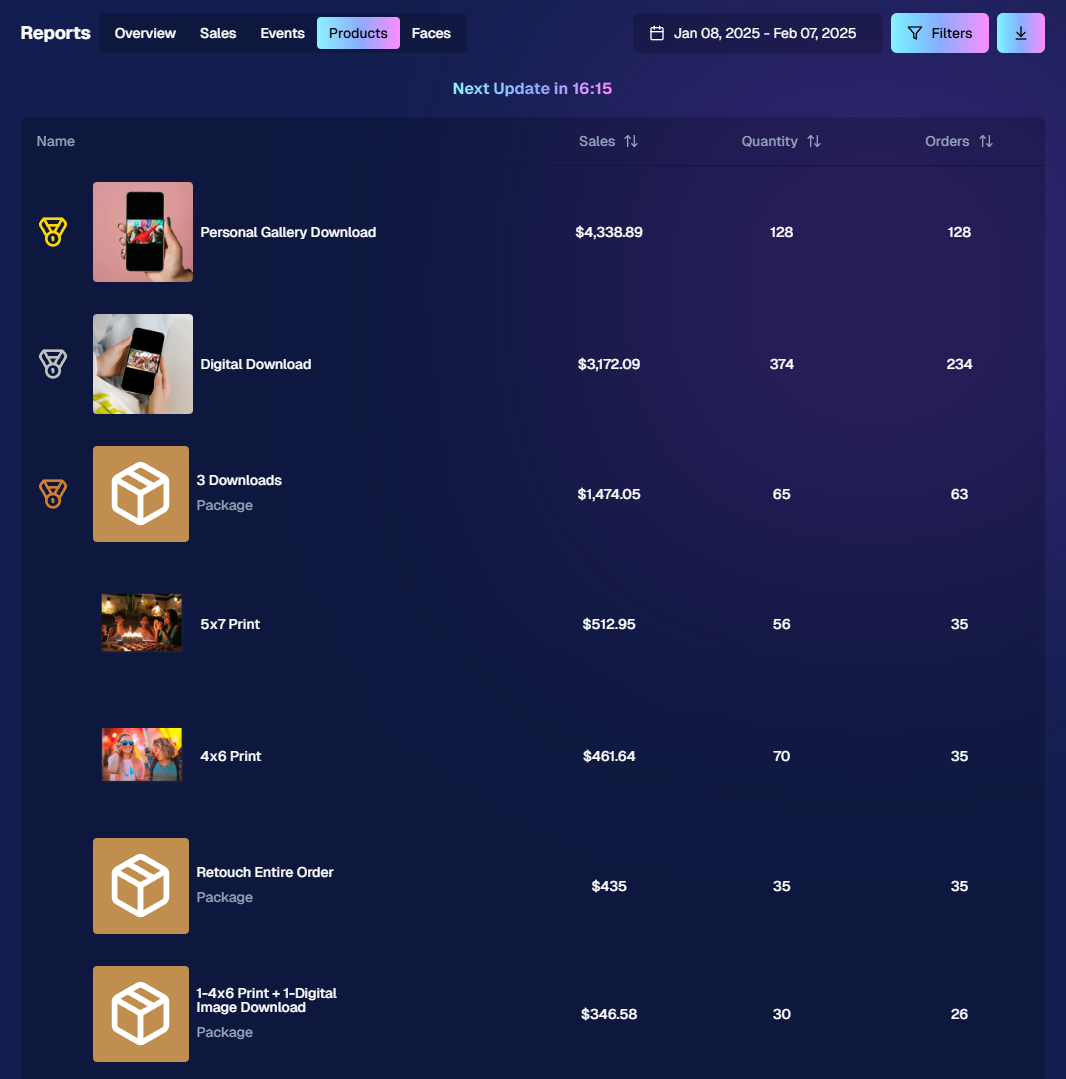
Accessible from the Home tab of the web dashboard

3. Image Management Additions:

Multi-Select Enhancements 🛠️

We’ve expanded multi-select capabilities in Manage Images to handle even more tasks at once:

  • GroupTags: Now you can edit or remove GroupTags™ for all selected images simultaneously.
  • Select All Visible: Quickly grab every image on the current page to speed up those bulk actions.

Accessible using the multi-select button within an Event's Manage Images page

New Folder-Wide Options 📂

We also added a new Edit Folder button when a folder is selected:

  • Change Folder Visibility: Toggle an entire folder’s images between visible or invisible.
  • Group Status: Mark them as Group Photos or individual images in one go.
  • GroupTag: Apply the same GroupTag™ to every image in the folder—super handy for sorting large event albums.

Mass management, simplified!

Accessible using the Edit Folder button within an Event's Manage Images page

4. Face Matching™ Formula Switch 🧩

We added a new toggle in Edit Event to adjust how strict or lenient our Face Matching™ algorithm is:

  • Stricter Matching for Kids: If you’re dealing with lots of little ones who keep popping up in the wrong gallery, flip this switch for fewer “extra” matches.
  • Default Remains Flexible: Our usual method still works great for most events. If needed, you can always manually unassign images from a participant in the dashboard.

Less confusion, more accurate galleries—everyone wins!
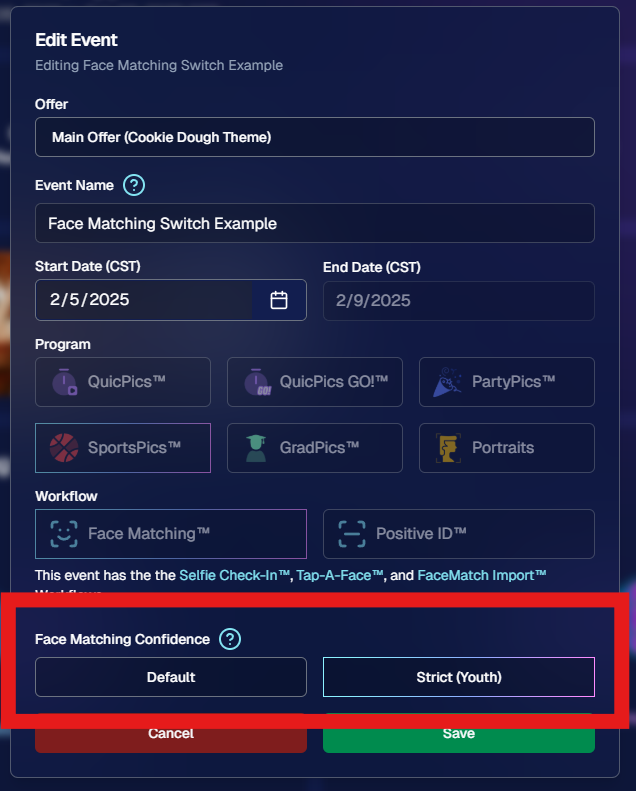
Accessible when editing a Face Matching type Event

5. Manage Images: New Filter Menu 🖼️

We’ve reorganized the Manage Images page with a dedicated menu for filters:

  • Cleaned-Up UI: Too many filters were crowding the page; now they’re in one easy-to-access spot.
  • Clear Active Filters: It’s easier to see what’s on and what’s off, plus you can remove filters with a single click.

Navigating your images should feel more intuitive and less cluttered than before.
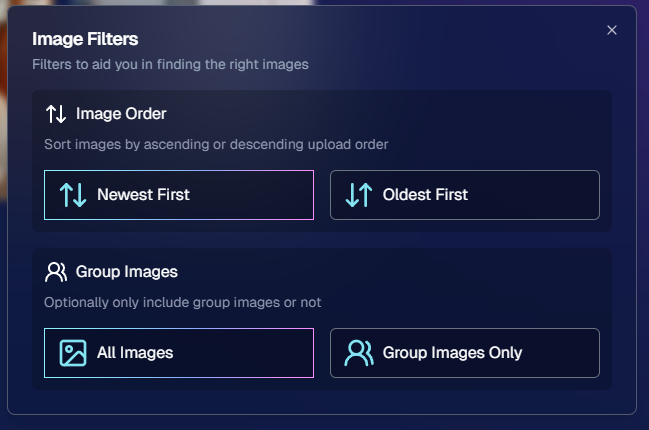
Accessible using the Filters button within an Event's Manage Images page

6. Image Timeline Screenshot Download ⏱️

Our Image Timeline feature now has a handy Download Screenshot button:

  • Quick Sharing: Snap a chart of your shooting pace or AI analysis and send it to your photographers or team.
  • Easy Feedback: Show them exactly where the busy or slow spots were without extra steps.

A small detail that can make a big difference for team communication.
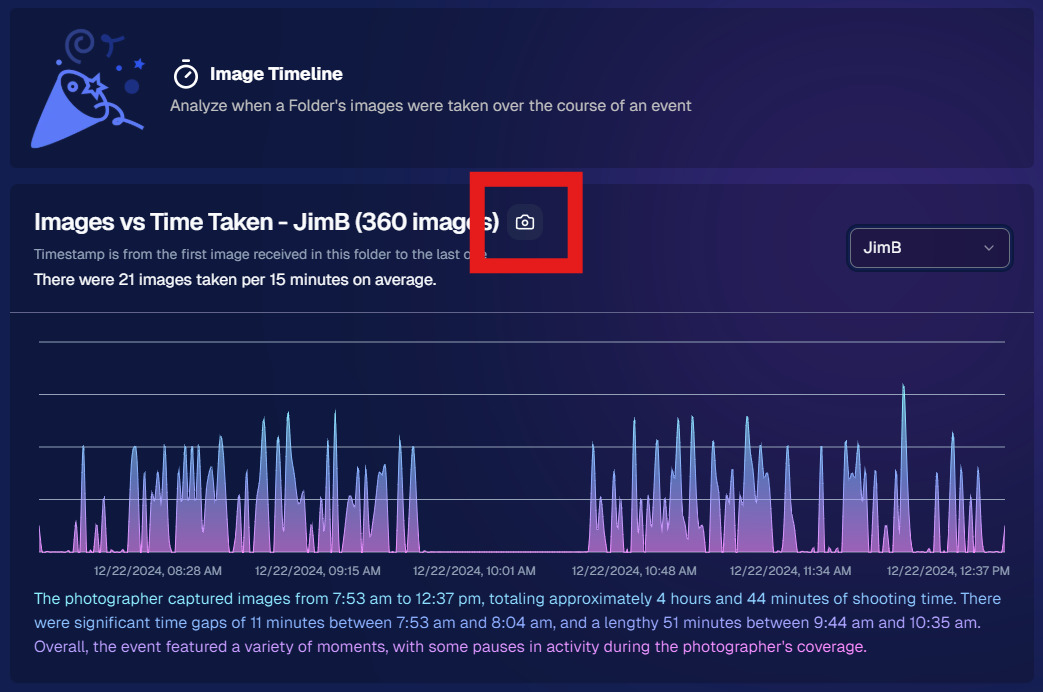
Accessible using the Camera-icon button on an Event's Image Timeline page

7. Event Tag Add Popup Improvements 🏷️

When adding events to a tag from the Event Tags page:

  • Select Multiple Events at Once: No need to add them one by one.
  • Filtered Display: It only shows events that don’t already have that tag, saving clicks and confusion.

A quicker way to keep your events organized and ready for deeper insights.
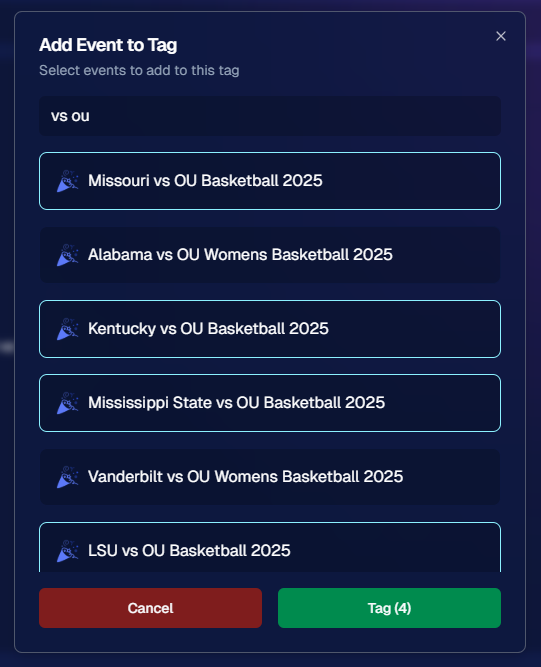
Accessible using the Add Events to Tag button on the Event Tags page of the Web Dashboard

8. Marketing Tweak: Day0 with Group-Only Galleries ✉️

If a participant’s personal gallery only contains Group Photos, Day0 marketing won’t trigger:

  • Fewer Unnecessary Texts/Emails: Prevents those “here’s your gallery!” messages when there’s not much for them to see yet.
  • Smarter Outreach: Focus your marketing on participants who have individual images waiting.

This slight change can tidy up the user experience for your SportsPics™ or GradPics™ events.

9. Capture App 4.13.71 (iOS Only) 🍏

Some app updates for iPhone/iPad users:

  • iPad UI Fix: Addresses a bug when launching in portrait mode.
  • Photo Booth Mode Backgrounds: Hidden on iPads running iOS < 17.
  • Event Number: Now appears next to the event name, so you’re less likely to shoot under the wrong event.
  • Volume Trigger Fix: The internal camera capture now works again for devices that had issues after recent iOS changes—great news for those using volume-based triggers!

That’s it for this Weekly Recap!

We hope these upgrades help you handle your events faster, deliver better experiences to your clients, and keep the momentum going all year long.

As always, let us know if you have any questions, ideas, or just want to say hi.

Cheers and sparkles,

Candy 🍬

Related articles

Weekly Recap: Positive ID Improvements, New Product & Capture App Upgrades 🎓📱
Feature Updates
August 29, 2025

Weekly Recap: Positive ID Improvements, New Product & Capture App Upgrades 🎓📱

5
 minutes read
Hey photo friends!

We’ve got a bunch of tidy little upgrades this week—making rosters cleaner, products better, and the Capture App easier to use on busy Positive ID shoots. Here’s what’s new:

📋 Dashboard Improvements

👥 Extra Contacts on Positive ID Rosters: Now supported, just like with PhotoRosters

🏷️ Auto-create PhotoTags: Uploading a Positive ID Roster with new tags? They can now be created automatically in the Event at the same time

📜 Image Details history: Now shows manual unassignments for better tracking

🛍️ Retail Site Updates

🎓 Graduation Plaque: Text now renders live on the retail site

🎓 Graduation Tassel Frame: Text now renders live on the retail site, and features a gold gradient text instead of plain white, and has a new matching stock example

🖼️ New Print Products: 10×18 Print and 10×18 Group Photo now available in the Custom Offer Creator & Editor

📱 Capture App 4.20.3 (iOS)

🔠 Alphabetical PhotoTags: Tags are now sorted A–Z

📌 Persistent PhotoTag filter: Name Lookup will keep your selected filter until you change it or remove it—great for shooting one team at a time

💻 New iPad UI for Name Lookup: Multiple sortable columns + participant image counts in green (easy to see who’s been photographed already)

Better performance: Faster Name Lookup when working with large rosters

📷 Camera support: Sony 7RM3A now supported

🔄 Auto-rotation fixes for vertical images with CamFi & Canon Wireless

📡 Canon Wireless connections working again with the Capture App

🛠️ Small but Mighty Fixes

🏷️ Retail shipping & billing default now set to “Select” instead of "Alabama"

📑 Updated templates for PhotoRoster/Positive ID Roster spreadsheets

📂 CSV roster uploads now supported (not just Excel files)

🔍 Ctrl+F search now works on the Web Dashboard's Blog page

📏 Better DPI conversions in uploader & image details for cm → inches situations

👤 Positive ID Roster fixes for a bug that caused some images to assign to additional Participants

🖼️ Retail Groups tab cutouts now display properly as JPEGs when originals are hidden on the retail site

That’s a wrap for this week! 💫

From cleaner rosters to new products, these changes should make your workflow smoother and your galleries better.

Keep being amazing,

Candy 🍬

Weekly Recap: More PhotoTag Power + Capture App Upgrades 🏷️📱
Feature Updates
August 15, 2025

Weekly Recap: More PhotoTag Power + Capture App Upgrades 🏷️📱

6
 minutes read

Hey there, photo friends!

We’ve got more PhotoTag goodness this week, along with some handy Capture App improvements and small workflow wins. Here’s what’s new:

🏷️More Ways to Use PhotoTags in the Dashboard

  • • Assign PhotoTags to Participants right from the Participant Details page
  • • See PhotoTag images on the Participant Details page for quick reference
  • • Filter Participants by PhotoTag from the Participant List page
  • • PhotoTags now appear on Scan Cards—assigned tags will print right under the participant’s name
  • • Participant galleries on retail now include group photos from their assigned PhotoTags

📋Smoother Roster & Participant Management

  • • Contacts created via scan cards, rosters, Tap-A-Face, or generic check-in are now fully editable like normal participants—no more “blank” contacts
  • • Roster uploads no longer require you to manually remove parentheses in your files (one less cleanup step!)

📱Capture App 4.20.2 Highlights

  • • Use cellular while connected to CamFi or Canon Wi-Fi (great for maintaining uploads while tethered)
  • • Force cellular use via the Resources page if needed
  • • App badge now shows the number of unuploaded images
  • • Sort and filter by PhotoTag in Name Lookup to speed up team or group sessions
  • • New UI improvements, including:
    • • Fullscreen card scan popup on iPhone
    • • New “Choose Participant” popup design
    • • Native iOS-style dropdowns and toggle switches for a cleaner, faster feel

🖼️Small Retail Site Improvements

  • • When cropping an image with a background selected, the cropper now shows the background so you can see exactly how it will look
  • • Jersey Jotter filter combos are now inclusive—meaning “Black + 0” will only show black jerseys with the number 0, not all black jerseys or all 0 jerseys

That’s it for this week!

Lots of small changes adding up to smoother workflows and better gallery organization. 🏆

Keep being amazing,

Candy 🍬

Big News: PhotoTags for Participants 🏷️👤
Feature Updates
August 12, 2025

Big News: PhotoTags for Participants 🏷️👤

6
 minutes read
Hey there, photo friends!

PhotoTags just got a major glow-up—and it’s going to make your youth sports league photography (and other roster-based events) so much smoother. ✨

You probably already know PhotoTags as a way to organize images from an Event into public image groups—perfect for team photos, tournament games, or multi-day event galleries.

But now? PhotoTags can also be assigned to Contacts. Let’s break down what’s new and how it all works together.

📋 Assign PhotoTags in Your Rosters

When uploading a roster to a Name Lookup Event in the Web Dashboard, you can now include PhotoTag columns in your spreadsheet.

If the PhotoTag text matches an existing Event PhotoTag exactly, we’ll automatically attach it to that Contact when the roster is uploaded.

👀 View & Edit PhotoTags for Contacts

On the Participant Details page, you can now:

  • • See all PhotoTags assigned to that Contact
  • • Assign or unassign additional PhotoTags
  • • Rename PhotoTags without breaking existing links (the updates will flow everywhere!)

🖨️ PhotoTags on Scan Cards

Using the Scanner ID Workflow? Your downloaded Scan Cards now display any assigned PhotoTags—making it super easy to match the right cards to the right team. ⚽🏀🏈

🖼️ Group Photos in Galleries

If Group Photos are attached to a PhotoTag, they’ll automatically appear at the end of every personal gallery for subjects with that same PhotoTag. (Non-group images assigned to a PhotoTag won’t auto-appear in personal galleries.)

📱 Sort Name Lookup by PhotoTag (Capture & Upload App v4.20.1)

This one’s a game-changer for on-site shooting:

You can now filter Name Lookup by PhotoTag—so if you’re photographing the “Panthers” next, just filter and only Panthers will appear.

We’ve also polished the Name Lookup interface to make it faster and easier to navigate. You’re welcome. 😉

That’s the scoop on PhotoTags for Participants! 🏷️💪

Together, these changes mean:

  • • Faster on-site team photography
  • • Better organization from roster upload to final gallery
  • • Cleaner communication with coaches, parents, and teams
  • • Happier clients (and fewer mix-ups!)

Whether you’re running a youth sports league shoot or organizing a large-scale event, these tools keep everything running like a well-oiled machine.

Keep tagging like a pro,

Candy 🍬

Let’s get in touch

If you’re a photographer looking to add NowCandid services to your wheelhouse – set up a call by clicking the button below.

How to customize formatting for each rich text

How to customize formatting for each rich text

How to customize formatting for each rich text

How to customize formatting for each rich text

How to customize formatting for each rich text

What’s a Rich Text element?

The rich text element allows you to create and format headings, paragraphs, blockquotes, images, and video all in one place instead of having to add and format them individually. Just double-click and easily create content.

A rich text element can be used with static or dynamic content. For static content, just drop it into any page and begin editing. For dynamic content, add a rich text field to any collection and then connect a rich text element to that field in the settings panel. Voila!

Headings, paragraphs, blockquotes, figures, images, and figure captions can all be styled after a class is added to the rich text element using the "When inside of" nested selector system.

  • List One
  • List Two
  • List Three
  • List Four
  • List Five

This is a link

This is bold text