HomeNavigation arrowBlogNavigation arrow
Current page
Feature Updates

Weekly Recap: Photo Release Features, Merged Participant Clarity & More!

Weekly Recap: Photo Release Features, Merged Participant Clarity & More!
Hello, my fabulous photographer friends!

‍

Candy here, ready to sprinkle some sparkle on your day with our latest Weekly Recap! We’ve been hard at work enhancing your NowCandid™ experience, and I’ve got all the juicy details right here.

‍

Let’s dive in!

‍

1. Photo Releases & The New Image Release Gallery

‍

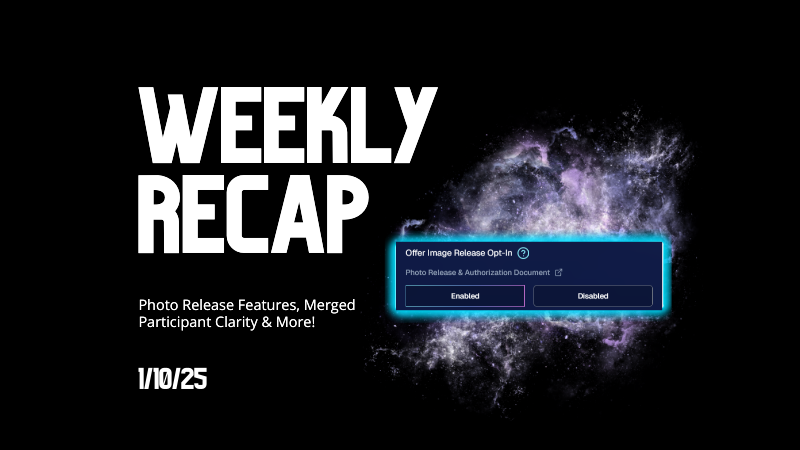
Collecting Releases

‍

Before using the pictures you take of your subjects in things like portfolios, websites, flyers, samples, and more - the best practice is to get a record of consent from your subjects before using photos of them for such things!

‍

So... we've made some additions to NowCandid™ that will expedite this process for everyone involved!

‍

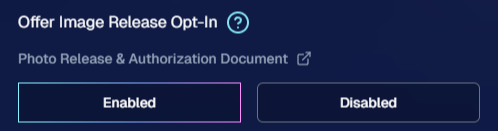
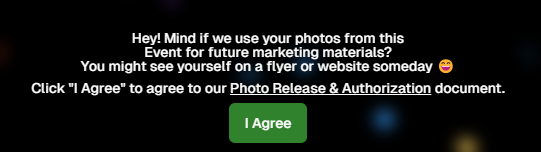
  • Enabled via Retail Site Settings: Head to your Account Profile, open the “Retail Site Settings,” and toggle whether to ask participants for a photo release when they complete Selfie Check-In™.
    ‍
  • Future Expansion: We plan to someday add this consent request to other locations in our Workflows, such as Scanner ID™ Check-Ins or after retail site checkout, so stay tuned!
‍

Found under "Retail Site Settings" in your account profile

‍

The post-Selfie Check-In messaging

‍

Image Release Gallery

‍

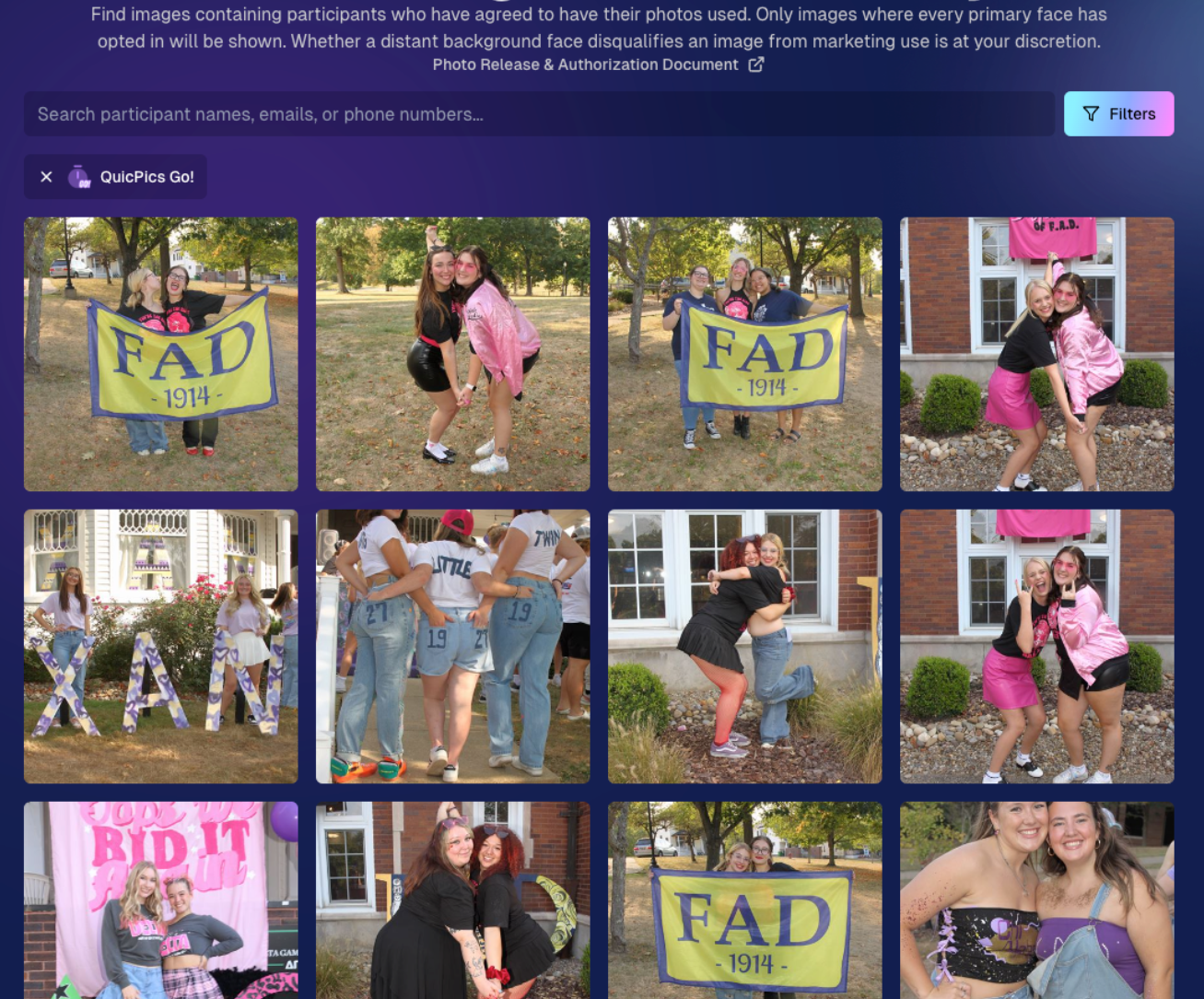
Once you’ve enabled Photo Releases, we’ve made viewing those fully released images a snap with the new Image Release Gallery!

‍

  • Fully Released Photos Only: This gallery shows images where every primary face in the picture has opted in for marketing use.
    ‍
  • Opt-Out Procedures: If someone changes their mind, NowCandid™ support can remove their release, and those images will disappear from the gallery.
    ‍
  • Easier Marketing & Inspiration: Enjoy a reliable stash of images for portfolios, websites, flyers, or sample products, all with peace of mind!

‍

This major addition simplifies the entire release process and keeps your marketing efforts on the right side of consent!

‍

Starting next week, this feature will be enabled by default for all NowCandid accounts! If you wish to disable it, that's up to you!
‍

An example of some images with only released faces in the new Image Release Gallery

‍

2. Improved Merged Participants Clarity

‍

We have also improved the photographer's experience and clarity when it comes to Merged Participants!

‍

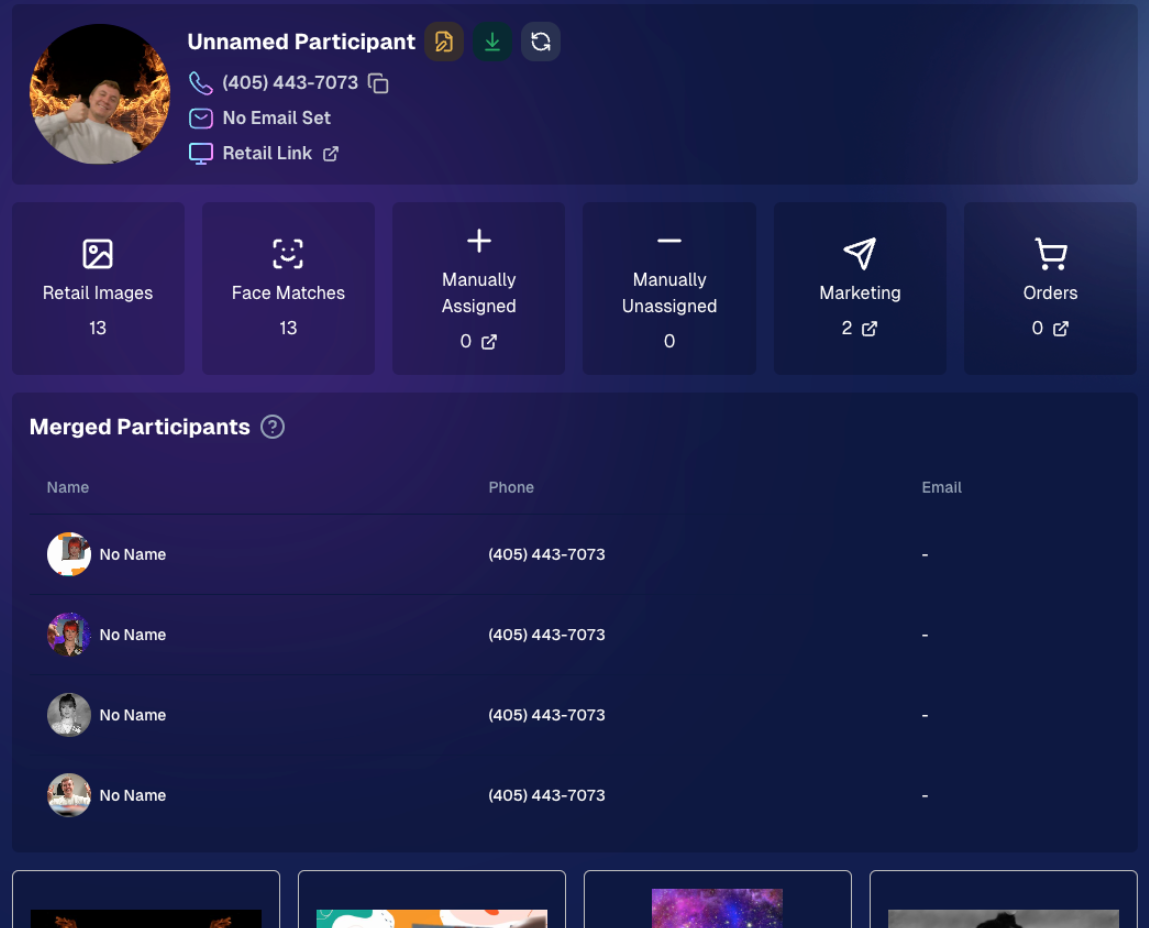
  • Multiple Names, One Contact: When two or more participants share a phone number, they now visibly merge under one participant in the Participant Manager, with all names separated by commas.
    ‍
  • Reduced Confusion: Parents with multiple kids at an event won’t be an enigma anymore. You’ll see each kid’s name instead of a single ambiguous participant.
    ‍
  • Same Smooth Experience for Families: Consumers won’t notice much change, but you’ll breathe easier knowing your records more clearly show who’s who.

‍

No more wondering why two kids keep “replacing” each other in the backend—our improved merging UI has your back!
‍

Example of multiple merged participants wrapped into one participant

‍

3. Group Photo Filter in Manage Images

‍

  • Just Group Photos: We’ve added a toggle to the Manage Images page that shows only images flagged as “Group Photos.”
    ‍
  • Sports & GroupTags™: Perfect for organizing big team shots or verifying no single-person images slipped in by accident.
    ‍
  • Future Tweaks Coming: We’re cooking up more ways to polish Group Photo and GroupTags™ functionalities, so watch this space!

‍

If you handle big groups (like sports teams or large gatherings), this quick filter simplifies your event workflow.

‍

New toggle button to switch between showing All Images and just Group Photos

‍

4. All Images Gallery Pagination

‍

  • Page-by-Page Browsing: We replaced the endless scroll in the NowCandid™ retail site’s All Images Gallery with a paginated view—complete with arrows to move between pages.
    ‍
  • Jump to Page: Customers can type or select a page number if they already know where to look.
    ‍
  • Less Scrolling, More Finding: Makes returning to a specific photo (especially one not in a personal gallery) a breeze.

‍

This update ensures customers spend less time hunting and more time admiring—or purchasing—the images they love.
‍

New retail site page navigation tools

‍

5. New Events List Filter

‍

One last small addition to mention... we added a way to filter down your Events list!

‍

This should make it easier than ever to browse through your upcoming Events as you plan and prepare for them.

‍

New Events list filter options

‍

That’s it for this week’s recap!

‍

We hope these changes help you manage your events more smoothly, give you extra confidence in your marketing, and offer your customers a cleaner, faster photo-browsing experience.

‍

As always, we love your feedback, so feel free to reach out with any questions or suggestions.

‍

Thank you for being an essential part of the NowCandid™ community. Keep capturing those unforgettable moments and creating smiles! 📸✨

‍

Cheers and sparkles,

‍

‍Candy 🍬

Related articles

Weekly Recap: Better PhotoTag Controls & Roster Improvements 📸✨
Feature Updates
September 24, 2026

Weekly Recap: Better PhotoTag Controls & Roster Improvements 📸✨

3
 minutes read
Hey photo friends! 👋

‍

Candy here with another weekly recap! This week brings some especially useful workflow upgrades, including better PhotoTag management in Manage Images, larger virtual group limits, and several improvements for large rosters and PhotoRosters.

‍

Let’s jump in!

‍

🏷️ Better PhotoTag Management in Manage Images

‍

You could already select multiple images and add a PhotoTag. Now you can clean them up just as easily.

‍

➖ New Remove PhotoTags option

  • Select multiple images in Manage Images and use the new Remove PhotoTags button to remove PhotoTags from the selection.

‍

🧹 Duplicate PhotoTag assignment fix

  • Fixed an issue where Edit Folder could assign the same PhotoTag to the same image multiple times.

‍

👥 Move PhotoTagged Group Photos to the Top

‍

There’s also a new Advanced Offer setting:

‍

PhotoTagged Group to Top of Gallery

‍

When enabled, PhotoTagged Group Photos will appear at the top of Personal Galleries instead of the bottom.

‍

We generally recommend leaving this off, but it can be useful for Events where Personal Galleries contain a very large number of individual images and you want important Group Photos to be easier to find.

‍

📥 Multi-Select Download Change

‍

Downloads started through the Selected Images sheet in Manage Images will now automatically retry if an individual download stalls.

‍

This should be helpful when working on slower or congested networks where one image hanging could otherwise interrupt a larger download.

‍

📋 Roster & PhotoRoster Improvements

‍

Several fixes this week make roster workflows more reliable:

‍

👥 Large roster uploads fixed

  • Fixed uploads for customers with more than 1,000 people in their spreadsheet.

‍

✉️ Malformed email handling improved

  • Fixed an edge case where an email containing a ? instead of an @ could stop the upload process partway through the roster.

‍

🔢 PhotoRoster Event counts fixed

  • Fixed cases where the number of Events associated with a PhotoRoster could display incorrectly.

‍

⚠️ Better PhotoRoster export errors

  • Exporting a PhotoRoster directly from an Event page now provides the same detailed error reporting you’d receive when exporting from the PhotoRoster page itself.

‍

🎨 Candy Image Studio Fix

‍

🔁 More reliable “Try Again” edits

  • Fixed an edge case where editing an Event image during a Try Again sequence could accidentally generate an entirely new image instead of using the existing edit as its starting point.

‍

🖼️ Participant Download Fix

‍

✨ Overlay downloads fixed for faux renders

  • Fixed Download with Overlay not working correctly for faux renders — cutouts displayed with an Event background.

‍

🧑‍🤝‍🧑 Virtual Groups

‍

If you create a lot of Virtual Groups for an Event, and need to download them for some reason - this will save you some time!

‍

📥 New Download All button

  • The Virtual Group List page can now automatically render and download all Virtual Groups for an Event instead of making you process them one at a time.

‍

👥 Up to 200 subjects per Virtual Group

  • The maximum subject limit in Virtual Group Builder has been increased to 200.

‍

That’s the week!

‍

Relatively light changes this week (compared to our usual weekly recaps at least) as we work on some important things behind the scenes!

‍

Keep creating magic,

Candy 🍬

Weekly Recap: Faster Payouts, New PhotoTag Details & Redesigned Marketing Emails 💸✨
Feature Updates
September 18, 2026

Weekly Recap: Faster Payouts, New PhotoTag Details & Redesigned Marketing Emails 💸✨

3
 minutes read
Hey photo friends! 👋

‍

Candy here with another weekly recap! This week brings faster, more frequent payouts, a much more informative home for PhotoTags, redesigned marketing emails, and another round of Background Removal quality improvements.

‍

Let’s jump in!

‍

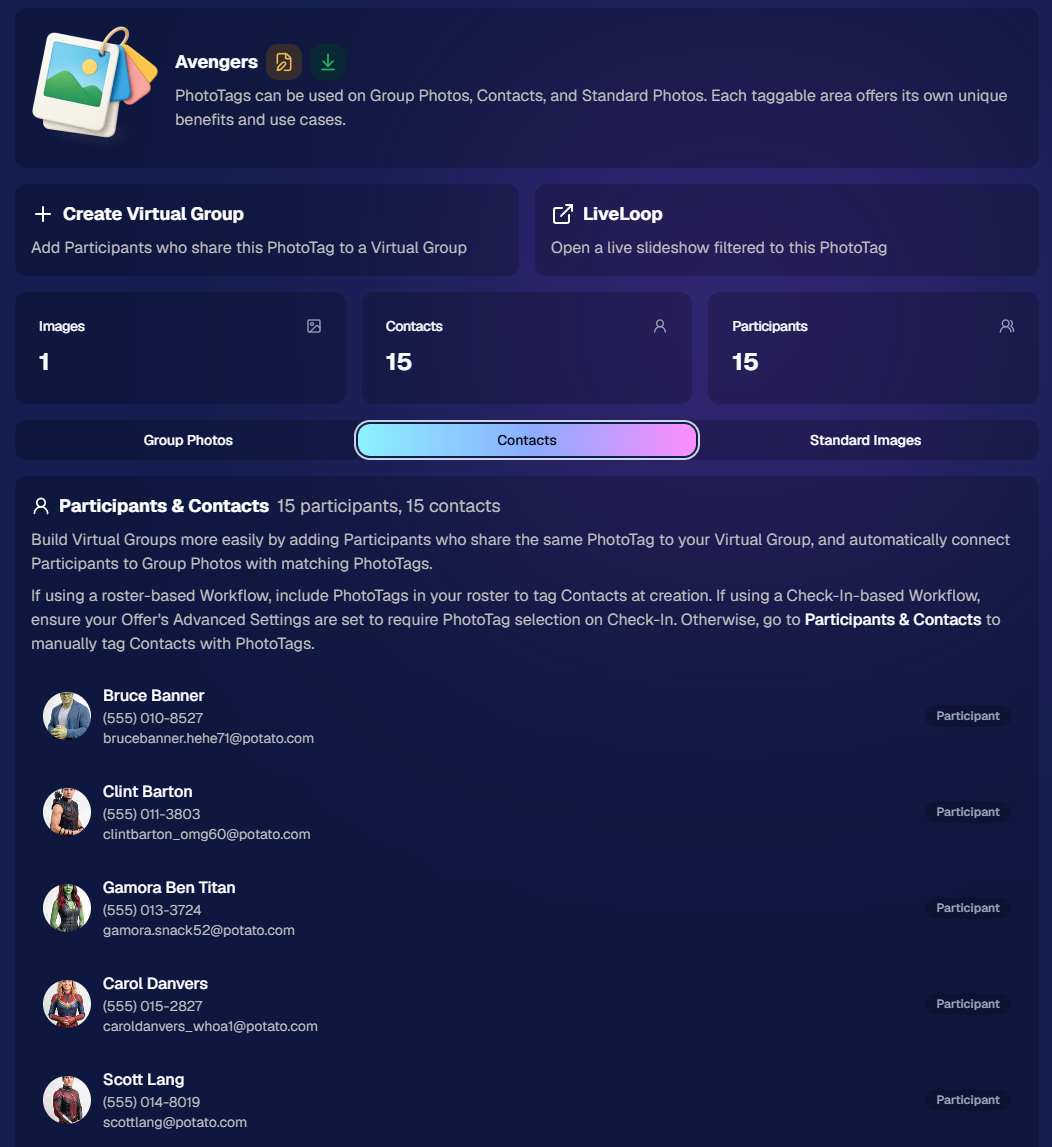
🏷️ NEW: PhotoTag Details Pages

‍

PhotoTags now have their own dedicated details pages.

‍

Click any PhotoTag from the PhotoTag List page to open a much more complete view of everything connected to it.

‍

From there, you can:

‍

  • ✏️ Edit the PhotoTag
    ‍
  • 👤 View tagged Participants and Contacts
    ‍
  • 👥 View tagged Group Photos
    ‍
  • 🖼️ View tagged Standard Photos

‍

This is a pretty big improvement for anyone learning or managing PhotoTags!

‍

PhotoTags can affect several different parts of an Event, and these pages make those relationships much easier to see in one place. They should also be especially helpful when training employees or helping someone understand exactly how a PhotoTag is being used.

‍

‍

💸 Faster, More Frequent Remittance Payments

‍

We’ve sped up our remittance schedule and are adding a second payment cycle each week, helping completed-order funds reach your bank account sooner.

‍

Previously, we sent your remittance statement on Wednesday, with the corresponding payment typically arriving in your bank account on Friday morning.

‍

Going forward:

‍

💰 Orders completed Friday through Tuesday will be included on your Wednesday remittance statement, with payment typically arriving Thursday

‍

💰 Orders completed Wednesday and Thursday will be included on a new Friday remittance statement, with payment typically arriving Monday

‍

That means the existing Wednesday payment cycle should now reach you about one day faster, while the new Friday cycle reduces the wait for orders completed later in the week.

‍

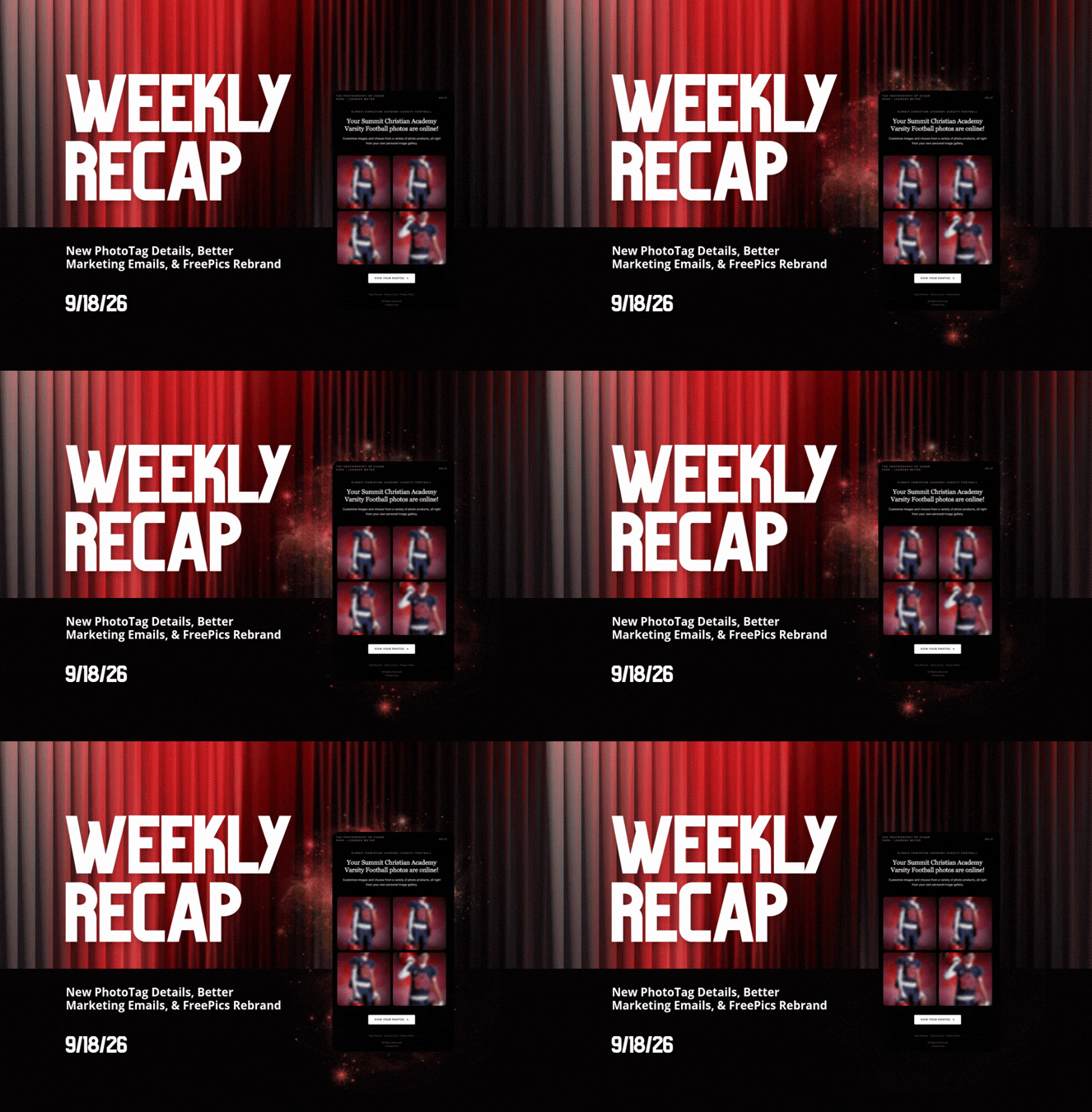
✉️ Marketing Emails Get a New Look

‍

Marketing emails have been redesigned with a cleaner, more modern layout.

‍

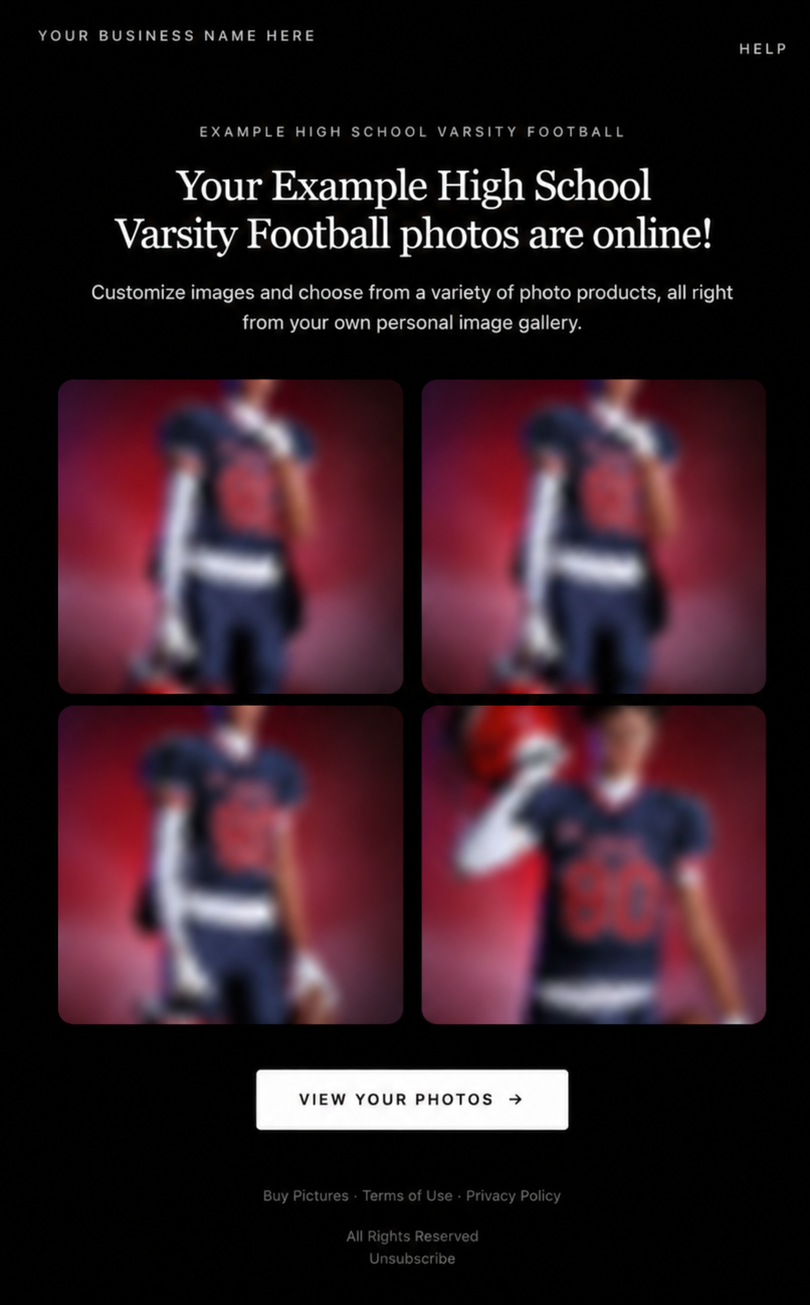
There’s also a bigger change to the way images are protected:

‍

  • 🌫️ Email image previews are now blurred
    ‍
  • 🛡️ This replaces the previous scrolling copyright treatment

‍

Blurring provides more consistent protection in situations where an email client might not properly render the scrolling copyright, or where the preview image is displayed outside an environment where GalleryGuard can protect it.

‍

Real email, but with business & event name replaced for privacy!

‍

Also: Minor Marketing Fix!

‍

We also fixed an edge case that could prevent a marketing campaign from starting when two different Participants shared only part of their contact information.

‍

For example, if two Participants had the same email address but different phone numbers, one Participant starting marketing should no longer incorrectly prevent the other from starting theirs.

‍

✂️ Better Background Removal

‍

Background Removal got another quality pass this week:

‍

  • 💇 Improved hair cutouts
    ‍
  • ⚽ Better handling of certain sports portrait props, particularly soccer balls sitting on the ground

‍

These changes continue our work to improve cutout quality across the kinds of images photographers are actually shooting.

‍

🆕 "Quic" Is Now "Free"

‍

The Quic programs have been rebranded to Free.

‍

Nothing about the pricing or functionality has changed — just the names:

‍

  • QuicPics → FreePics
    ‍
  • QuicPortraits → FreePortraits
    ‍
  • QuicPics GO! → FreePics GO!

‍

Same programs, same functionality, same pricing. Just a (hopefully) clearer name moving forward.

‍

🛍️ Retail Improvements

‍

✨ “Diamond Gloss” is now “Glossy Finish”

  • ‍We’ve renamed "Diamond Gloss" to Glossy Finish on the retail site to make the option clearer and easier for customers to understand.

‍

📱 More reliable iOS sharing

  • The native iOS share sheet used by the press-and-hold download feature should now open more reliably.

‍

👥 Group Digital Downloads now behave like regular Digital Downloads

  • When no overlay is selected — or the Event doesn’t have one — Group Digital Downloads can now provide the full-resolution, uncropped original.
  • That means the image can be available immediately from the email receipt and avoids problematic cropping steps on Group Photos that aren’t a standard 2:3 aspect ratio.

‍

📦 More accurate package previews

  • Fixed cases where Group and non-Group images could appear as previews for the wrong type of package product.

‍

🖥️ Dashboard Improvements

‍

📴 New offline screen

  • If your device is completely offline, the Dashboard now tells you instead of leaving you wondering whether the site is simply loading slowly.

‍

📅 Event Calendar color coding fixed

  • Events once again display the correct colors based on their Event Program.

‍

🖼️ Better Virtual Group Foreground management

  • The Foreground Picker now shows the names of your saved foregrounds. Click one to preview it, and you can also rename foregrounds for easier reuse later.

‍

✂️ Overwritten BGR images can reprocess

  • If you overwrite an image inside a folder marked for Background Removal, it can now be reprocessed as long as the replacement has the exact same dimensions as the original.
  • If the dimensions differ at all, the existing PNG will not be replaced.

‍

📋 Roster upload error fix

  • Fixed an edge case where a malformed email containing a # instead of an @ could stop the roster upload process and leave only the rows before that error imported.

‍

👤 Participant names on QR downloads

  • ‍QR download pages now display participant names in bold, making them easier to spot at a glance.

‍

📊 Clearer Sales & Shipping chart details

  • ‍Tooltips on the Event Details Sales & Shipping chart now break out Sales and Shipping separately on hover, adding some clarity.

‍

Capture App 5.10.1 (OTA)📱

‍

📱Selfie Check-In Station Mode fix

  • ‍The Continue button text has been shortened, and the Close button now stays accessible when PhotoTag Check-In is enabled.
  • Previously, the extra PhotoTag selection row could push the Close button off the bottom of the screen.

‍

That’s the week!

‍

The FreePics name change is the most visible update, but the new PhotoTag Details pages may be one of the most useful additions for teams working with PhotoTags regularly.

‍

Keep creating magic,

Candy 🍬

How to Make FreePics Work for Your Photography Business 📸✨
NowCandid 101
September 14, 2026

How to Make FreePics Work for Your Photography Business 📸✨

6
 minutes read
In honor of our QuicPics Program’s rebrand to FreePics, we wanted to take a fresh look at some helpful info, best practices, and booking strategies for using FreePics and service photography successfully!

‍

Giving photos away for free might not sound like an obvious way to make money.

‍

But with the right setup, FreePics can be a powerful business tool — whether you’re getting paid by an event organizer, working with a sponsor, building the cost into ticket sales, developing relationships with venues, or simply using free photos to get your name in front of more potential customers.

‍

And depending on the kind of experience you want to offer, you now have three different Programs to choose from: FreePics, FreePics GO!, and FreePortraits.

‍

First: What Is FreePics?

‍

FreePics is designed for photographers who want to provide images to subjects at no cost to the person being photographed.

‍

Instead of relying on each participant to purchase their own images, the photography can be funded another way — or used as a marketing tool to help generate future business.

‍

That opens up a lot of possibilities.

‍

Ways to “Sell” FreePics 💸

‍

1. Work Through an Event Organizer

‍

One of the simplest approaches is to have the event organizer pay for photography as part of the event itself.

‍

That could include:

  • Reunions
  • Luncheons
  • Galas
  • Corporate parties
  • Balls
  • Private events
  • Community events

‍

Instead of charging individual guests for their photos, the organizer pays you for your time and coverage.

‍

This can make the photography feel like another included event amenity — just like entertainment, décor, or catering.

‍

The original FreePics training material even suggested photographers may be able to charge a few hundred dollars per hour, per photographer, depending on the event and market.

‍

2. Find an Event Sponsor

‍

Another option is to have a sponsor cover the photography.

‍

In exchange, you can incorporate the sponsor’s branding into the experience, including branded image artwork or overlays.

‍

That gives the sponsor something more memorable than a banner or table sign: photos attendees may actually save, share, and revisit.

‍

Sponsorship pricing will naturally depend on the event, audience, and sponsor, but this type of arrangement may support a much higher overall photography budget than selling directly to individual attendees.

‍

3. Build Photography Into Ticket Sales 🎟️

‍

If every attendee is going to receive photos, another option is to simply include the photography cost in the ticket price.

‍

A relatively small increase per ticket can add up quickly across a large event.

‍

For example, an organizer could add a photography fee to each admission ticket, then use that revenue to pay for event coverage while letting every guest access their photos afterward.

‍

Participants feel like they’re getting something included with admission, while the photographer still gets paid.

‍

4. Partner With Party Planners or Venues 🤝

‍

FreePics can also be a great tool for building recurring relationships.

‍

A photographer can establish themselves as the go-to photographer for a planner or venue and create an arrangement that works for everyone involved.

‍

That could mean a commission, referral agreement, preferred-vendor relationship, or another setup that encourages the planner or venue to continue sending events your way.

‍

Instead of thinking about a single event, you’re using FreePics to help build a steady pipeline of future bookings.

‍

5. Use FreePics as Marketing for Your Own Business 📣

‍

You don’t necessarily have to make money directly from every FreePics Event.

‍

Sometimes, the value is the exposure.

‍

Offering free photography at the right event can introduce your business to dozens or even hundreds of potential customers.

‍

Because participants receive their images directly, you have an opportunity to put your business and branding in front of them while creating a positive interaction with your photography.

‍

That can turn one promotional event into future:

  • Event bookings
  • Portrait sessions
  • School or sports opportunities
  • Corporate work
  • Referrals
  • Repeat customers

‍

Sometimes the free photo is the product.

‍

Sometimes it’s the advertisement. 👀

‍

Which Free Program Should You Use?

‍

This is where the three Programs start to differ.

‍

FreePics — Best for Most Events ⭐

‍

For most photographers, FreePics is the best all-around option.

‍

It provides the full FreePics experience and gives you the most flexibility in how images are delivered to participants.

‍

If you simply want to photograph an event and make it easy for subjects to receive their images for free, start here.

‍

It costs more per image than the other Free Programs, but you’re paying for the broader experience and flexibility.

‍

Best for:

  • Parties
  • Galas
  • Corporate events
  • Reunions
  • Sponsored events
  • General event photography
  • Most situations where you want free image delivery

‍

FreePics GO! — Best for a Gallery-First Experience 🖼️

‍

FreePics GO! is a gallery-only experience, which allows it to cost less per image than standard FreePics.

‍

But the gallery format also gives it some unique advantages.

‍

FreePics GO! is especially useful if you want participants to clearly see that they can download different versions of their images — such as versions without overlay artwork.

‍

It can also be a better choice when using Background Removal, because participants can browse different background options before deciding which version of an image they want to download.

‍

And because subjects are already browsing through a gallery, FreePics GO! gives you a stronger opportunity to showcase physical products and other potential upsells alongside their free images.

‍

Best for:

  • No-overlay option is important
  • Sponsored events with branded artwork
  • Background Removal workflows
  • Events where you want subjects choosing between different image treatments
  • Photographers who want to promote prints or physical products
  • Situations where keeping per-image costs lower is important

‍

FreePortraits — Best for Headshots 👤

‍

FreePortraits takes the FreePics concept and adapts it specifically for headshot-style photography.

‍

Because the workflow is more limited — with only one image file sent out per image — it can be offered at a lower per-image cost than standard FreePics.

‍

If your Event is centered around individual portraits rather than a larger event gallery, that limitation can actually make perfect sense.

‍

Best for:

  • Corporate headshots
  • Conferences
  • Professional networking events
  • Employee portraits
  • Profile photos
  • Other single-image portrait workflows

‍

If you want the FreePics experience but you’re really photographing headshots, FreePortraits is likely the better fit.

‍

A Simple Way to Choose 🍬

‍

When in doubt:

‍

Use FreePics for the best general-purpose experience.

‍

Choose FreePics GO! when the gallery itself adds value — especially for Background Removal choices and physical-product upsells.

‍

Choose FreePortraits when you’re photographing headshots and only need to deliver one finished image file per image.

‍

The goal with all three is the same: make it easy to get great images into your subjects’ hands while giving you flexibility in how the photography fits into your business.

‍

Free Doesn’t Have to Mean Unprofitable 🚀

‍

FreePics is less about giving your work away and more about deciding who is paying for the experience — and what value the photography creates.

‍

Maybe the event organizer pays you.

‍

Maybe a sponsor does.

‍

Maybe the cost is included in admission.

‍

Maybe a venue relationship brings you more bookings.

‍

Or maybe the Event itself acts as marketing that introduces your photography business to a whole new group of people.

‍

There are plenty of ways to make free photos make business sense.

‍

And with FreePics, FreePics GO!, and FreePortraits, you can choose the version that fits the Event instead of forcing every job into the same workflow. 📸✨

‍

Cheers,

— Candy 🍬

Let’s get in touch

If you’re a photographer looking to add NowCandid™ services to your wheelhouse, set up a call with us!

How to customize formatting for each rich text

How to customize formatting for each rich text

How to customize formatting for each rich text

How to customize formatting for each rich text

How to customize formatting for each rich text

‍

‍

What’s a Rich Text element?

The rich text element allows you to create and format headings, paragraphs, blockquotes, images, and video all in one place instead of having to add and format them individually. Just double-click and easily create content.

A rich text element can be used with static or dynamic content. For static content, just drop it into any page and begin editing. For dynamic content, add a rich text field to any collection and then connect a rich text element to that field in the settings panel. Voila!

Headings, paragraphs, blockquotes, figures, images, and figure captions can all be styled after a class is added to the rich text element using the "When inside of" nested selector system.

  • List One
  • List Two
  • List Three
  • List Four
  • List Five

This is a link

This is bold text

‍

  • ‍

‍