Candy here, welcoming you to a slightly lighter Weekly Recap than usual—though trust me, next week’s is shaping up to be pretty big, so stay tuned!
Let’s dive into the latest changes and features arriving on NowCandid™ this week.
1. Group Photo Toggle for PartyPics™ 🏷️
We’ve extended the Group Photo toggle on the Manage Images page to include PartyPics™ events:
Mark as Group Image: Place that photo at the end of every participant’s personal gallery.
Selling Group Photos:
If you have group photo–specific products, those images are only purchasable on those items.
If not, they’re sold on your normal product lineup.
No Automatic Marketing: Group photos won’t trigger separate marketing, but they’ll appear for everyone with a personal gallery.
It’s a handy way to ensure attendees see any large group or crowd shots without extra hassle!
2. Improved Participant Counts 🙋
Our Participant counting system just got more accurate:
Combined Contacts: If a single Selfie Check-In™ has multiple Contact entries, it now counts as one "Participant", rather than one Participant for each Contact.
Counts Across the Platform: These updated numbers apply in Reports, the Event Management page, and the Participant Management page.
Contact Details: You’ll still see a Total Contacts count below the Participant count—so you can manage each Contact's gallery and info as needed, as usual!
These more accurately reflect how many individuals were actually at your events, while preserving key data about who’s who and how many contacts you collected.
3. Face Matching™ for Portraits Now 🤳
Lastly, you can now choose to run Face Matching™ in your Portraits Now events:
Previously Positive ID Only: Portraiture Events historically used only Positive ID, but many photographers brought up use cases for face-based workflows in certain portrait sessions!
Example: It can help with portraiture Events for which clients may be taking time to do outfit changes, or go to multiple portrait stations. Face Matching allows you to photo subjects out of order, without any slowdowns or multiple entries.
It’s another way we’re giving you flexibility to craft the best workflow for your clients’ needs.
That’s it for this week, folks!
Sometimes even small updates can have a big impact on your Workflow! So thanks for staying tuned.
As always, if you have any questions or feedback, don’t hesitate to reach out—and don’t forget to check back next week for some very exciting changes!
When you've been in the event photography business for nearly two decades, you've seen just about everything.
But every once in a while, a new tool comes along that changes the game.
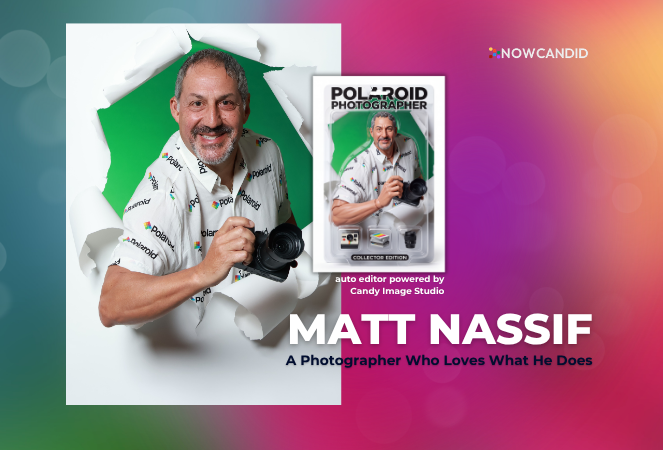
For Matt Nassif of Joe Photo Tampa, that tool has been NowCandid's Auto Editor.
Nearly 20 Years of Capturing Memories
Joe Photo Tampa has been photographing events across Florida for almost 20 years. Matt credits much of that journey to his longtime friend and mentor, Ed Kempf of Impact Photography/Joe Photo Iowa.
Back in 2007, Ed introduced Matt to Candid Color Systems, inviting him to visit Oklahoma and see everything CCS had to offer firsthand. That visit marked the beginning of a partnership that continues nearly two decades later.
"I'll be going into my 20th year this fall and feel incredibly blessed to have CCS as my lab. I'm also grateful for my mentor Ed, who has guided me throughout the years."
When NowCandid was just getting started, Matt was there from the beginning. After reconnecting with Jack at a photography conference in Las Vegas in early 2020, he became one of the platform's original beta testers, working closely with the development team to help shape the software.
Today, Matt has been using NowCandid for six years and believes Joe Photo Tampa is one of the platform's largest users.
Taking a Chance on Something New
When Matt first learned about the Auto Editor through a NowCandid newsletter, he immediately saw an opportunity.
One of his long-time clients was celebrating their 20th anniversary, with more than 600 guests expected to attend. Rather than offering another standard event experience, Matt wanted to surprise attendees with something they'd never seen before.
The result?
A huge success.
More than 180 guests participated in the Auto Editor experience.
"It was a TOTAL hit."
Like many photographers, Matt admits he was initially hesitant because of the AI component.
"My biggest hesitation was simply not knowing anything about AI."
Fortunately, a little guidance helped turn uncertainty into excitement.
Creating an Experience Guests Remember
By his third Auto Editor event, Matt had found his rhythm.
"What surprised me the most is how fun, different, and interactive the Auto Editor is."
Guests weren't just participating. They were bringing their friends back to experience it themselves.
"Guests would receive their character on their phone, then come back with more friends so they could try it too. That's a win-win for Joe Photo Tampa!"
The response from event hosts has been equally enthusiastic.
"My customers loved the product, and their guests were showing off their images and posting them online."
More Than a Fun Feature: A Business Opportunity
While the guest experience has been exciting, the business results have been just as impressive.
At Matt's second Auto Editor event, one guest loved the experience so much that she booked Joe Photo Tampa on the spot for another event just 72 hours later.
"The product sells itself."
Matt also sees Auto Editor opening doors in an increasingly competitive market.
"This is an upsell product that can definitely compete with the photo booth world."
Instead of simply taking another picture, photographers can offer clients an interactive experience that guests talk about long after the event ends.
Advice for Fellow Photographers
Matt's advice for photographers considering Auto Editor is simple:
"If not now, when?"
He encourages photographers to spend some time experimenting before introducing it to clients.
"Try it at the office. Test it. Learn what prompts work best for your style and events."
He also offers one important reminder:
"AI isn't perfect. It takes some patience to learn what works best. Once you get your prompts dialed in, it becomes an incredible product."
A Photographer Who Loves What He Does
Whether it's corporate events, parties, or celebrations, Matt simply loves photographing people.
His photography style?
Fun. Outgoing. Professional.
And when it comes to camera gear...
"I bleed Nikon."
Thank You, Joe Photo Tampa!
Matt has been an incredible partner to NowCandid from the very beginning! From helping beta test the platform to embracing new features like Auto Editor and sharing honest feedback along the way.
We're incredibly grateful for photographers like Matt who continue to push the platform forward while creating unforgettable experiences for their clients.
Thank you, Matt, for being part of the NowCandid family. We can't wait to see what you create next.
They need a workflow that helps them capture images, connect those images to the right customers, sell products online, fulfill orders, and support the customer experience after the sale.
That is where NowCandid is different.
NowCandid is backed by Candid Color Systems, a company with its own professional photo lab, fulfillment operation, software tools, and decades of experience supporting high-volume photographers. That means we are not just a software platform connected to someone else’s lab. We are part of a company that helps support more of the full process — from capture to customer order to finished product.
And for photographers, that matters.
A Real One-Stop Shop
Many photography platforms focus on software first. They help photographers build galleries, collect orders, or send customers to an online shopping experience. But when it comes to printing and fulfillment, they often rely on third-party lab partnerships.
NowCandid is built differently.
Because NowCandid is part of Candid Color Systems, sales flow through a company that actually has its own professional photo lab. That gives us a more complete view of the process and a stronger ability to support photographers from start to finish. Your workflow does not stop when a customer clicks “order.” That order still needs to be produced, fulfilled, shipped, and supported. With NowCandid and Candid Color Systems working together, the software and fulfillment side are more closely connected.
Why Software + Fulfillment Matters
When software and fulfillment are separated, things can get complicated.
If a photographer has a question about an order, product, shipment, or customer issue, the answer may depend on multiple companies. The software provider may point to the lab. The lab may not have full visibility into the retail or customer experience. Support can become fragmented, and accountability can get fuzzy.
NowCandid helps reduce that disconnect. We can see and support more of the full customer journey. From the event setup to online ordering to lab fulfillment, our team has a broader view of what is happening and a better ability to help. That does not just make support easier. It makes the entire experience feel more connected for your customers.
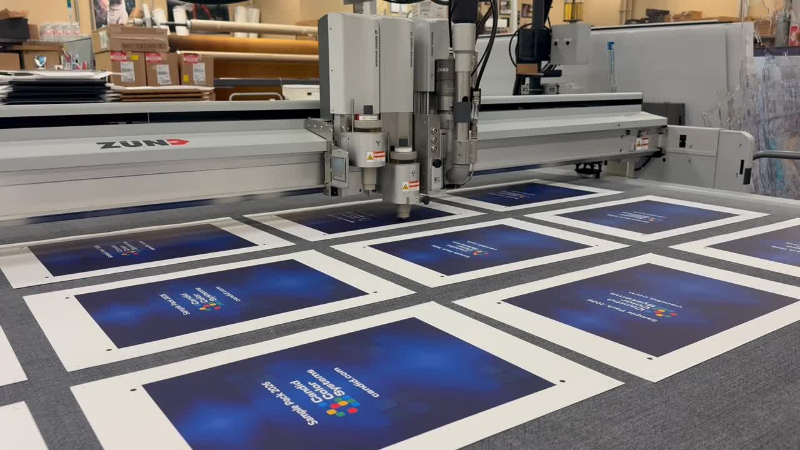
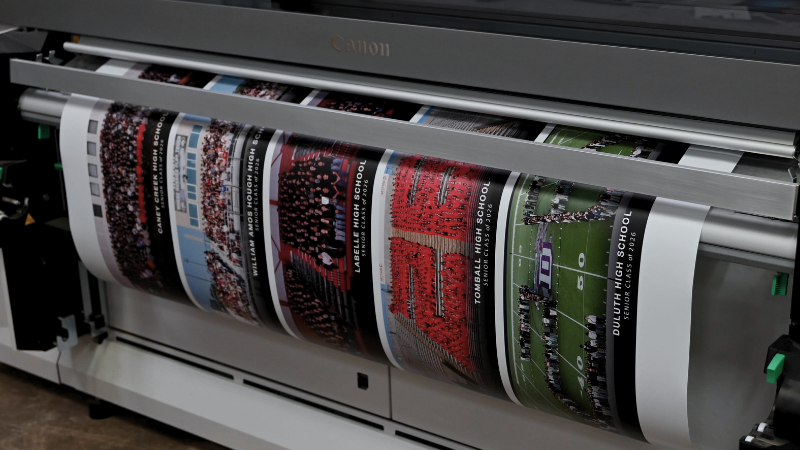
Behind every NowCandid order is connected fulfillment through Candid Color Systems’ professional lab—turning online photo sales into finished products ready for customers.
Built to Help Photographers Keep More of What They Earn
A connected software and lab model also helps us keep the photographer’s bottom line in mind.
When a platform has to rely heavily on outside fulfillment partnerships, those additional layers can affect pricing, margins, support, and flexibility. With NowCandid, sales are driven through Candid Color Systems’ lab, which helps us control more of the process and pass savings on to photographers where possible.
The goal is simple: give photographers a powerful platform without stacking on unnecessary complexity.
NowCandid helps photographers sell prints, downloads, packages, and products online while keeping fulfillment connected through the same company behind the platform.
One Platform. More Accountability.
Photographers already have enough moving pieces to manage.
They are planning events, managing equipment, working with schools, leagues, graduates, families, and event organizers, training staff, uploading images, answering customer questions, and trying to sell more photos.
They should not have to wonder who is responsible when software, retail, production, and fulfillment do not line up.
NowCandid’s one-stop shop approach gives photographers a more connected path:
Capture and upload images
Match photos to the right customers
Deliver galleries by text or email
Sell prints, downloads, packages, and products online
Fulfill orders through Candid Color Systems’ professional lab
Support customers with more complete visibility into the process
It is not just about convenience. It is about confidence.
Why This Matters for High-Volume Photography
For high-volume photographers, small workflow problems can become big problems fast.
A delay in fulfillment, a product question, a customer support issue, or a disconnected order process can impact hundreds or thousands of customers during a busy season.
That is why a true one-stop shop matters.
NowCandid is designed for photographers who need more than a gallery. It is built for photographers who need a complete path from photo day to payday — with software, sales, marketing, fulfillment, and support working together.
From online order to finished product, NowCandid is backed by Candid Color Systems’ professional lab—helping photographers keep software, sales, printing, and fulfillment connected.
The NowCandid Difference
NowCandid combines flexible photography workflows with online photo sales, automated marketing, customer galleries, AI-powered tools, and professional lab fulfillment through Candid Color Systems.
That makes NowCandid more than just software.
It is a connected capture-to-commerce solution backed by a company that understands both the technology and the lab side of high-volume photography.
For photographers, that means fewer disconnected systems, clearer support, and a more complete platform built to help them capture, sell, and deliver with confidence.
Ready to See How NowCandid Works?
If you are looking for photography software that connects more of the process — from capture to online sales to fulfillment — NowCandid was built for you.
Candy here with a big one this week: Discounts are officially here! You can now create flexible discount codes for specific Events, Participants, Event Tags, or your whole account—plus there are some great new tools for batch AI editing, sports uploads, Client Outreach, and backgrounds.
Let’s jump in!
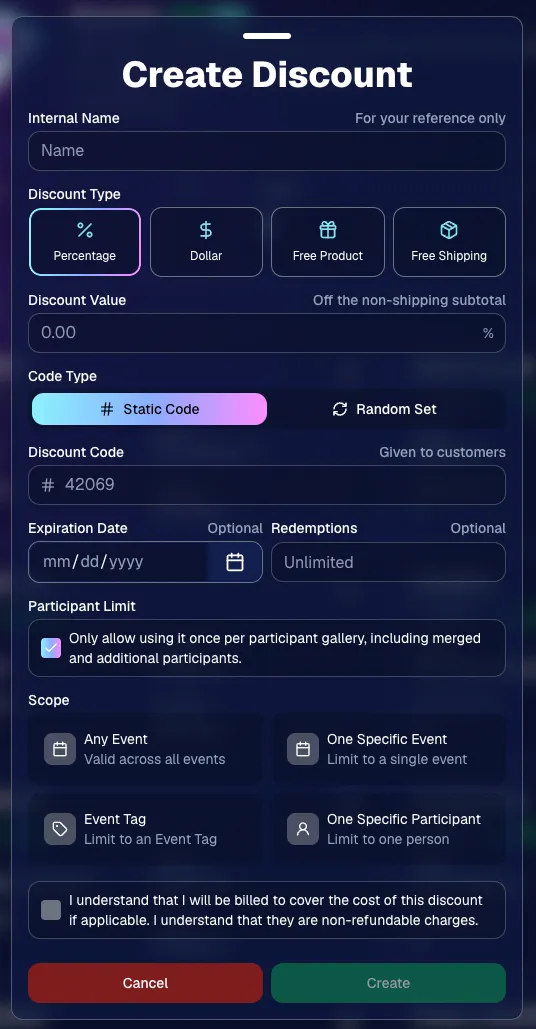
💸 NEW: Discounts
You can now create and manage your own discounts directly in NowCandid.
Discounts you create can apply to:
🎟️ A specific Event
🏷️ An entire Event Tag
👤 A specific Participant
🌐 All of your Events
And you can choose from several discount types:
📉 Percentage off
💵 Dollar amount off
🎁 Free product
🚚 Free shipping
🔐 Flexible code options
🔤 Create a static 4–8 character code
Best for creating a limited time discount for all of your customers
🎲 Generate random one-time-use codes
Best for distributing "coach gifts" for sports leagues
👤 You can also limit a discount to one use per Participant Gallery
Automatically on for random one-time-use codes
A few important rules:
Discounts apply to the pre-shipping subtotal (except for Free Shipping discounts)
If a discount exceeds the product cost, you are responsible for the difference and will be billed
The maximum discount value is $500
For example, a 100% off discount on a $1,000 order would still leave the customer responsible for $500.
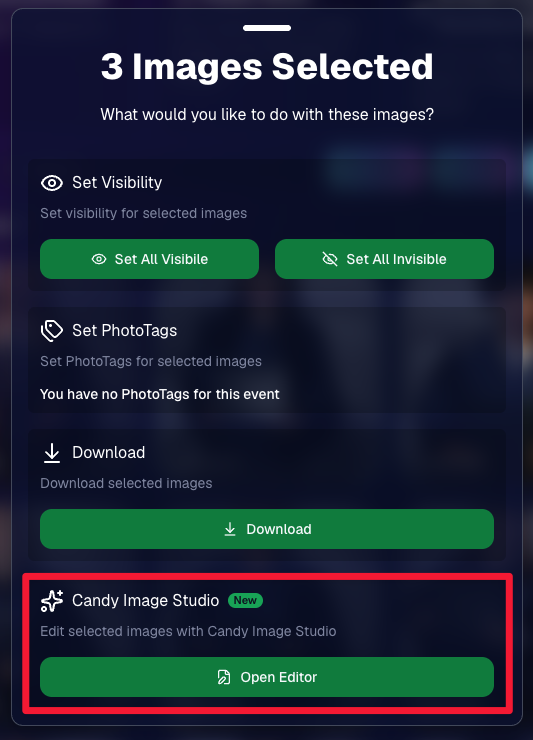
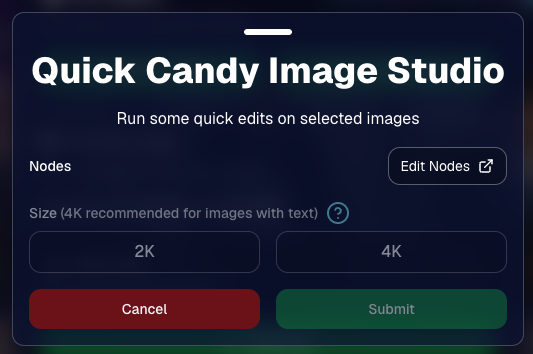
You can now run Candy Image Studio edits on multiple selected images at once right from Manage Images.
✨ Select multiple images
🍬 Open the new mini Candy Image Studio editor
🖼️ Apply an edit to the selected group
This gives you a nice middle ground between editing images one-by-one and setting up Auto Editor for an entire roll or Event.
📤 Better SportsPics Upload Controls
SportsPics Events now have more useful options directly in the Image Upload settings:
👥 Mark All Images Group
Automatically mark every uploaded image as a Group Photo.
🏷️ Assign a PhotoTag during upload
If the Event has PhotoTags, you can choose one and automatically apply it to every uploaded image.
This is especially handy when uploading to a Face Matching Event, to ensure the images don't go out to subjects via Face Matching before you have a chance to mark them as Group/Team Photos!
✉️ Client Outreach email designer improved
Candy is better at remembering and sticking to instructions from earlier revisions when you’re making revisions to an outreach email.
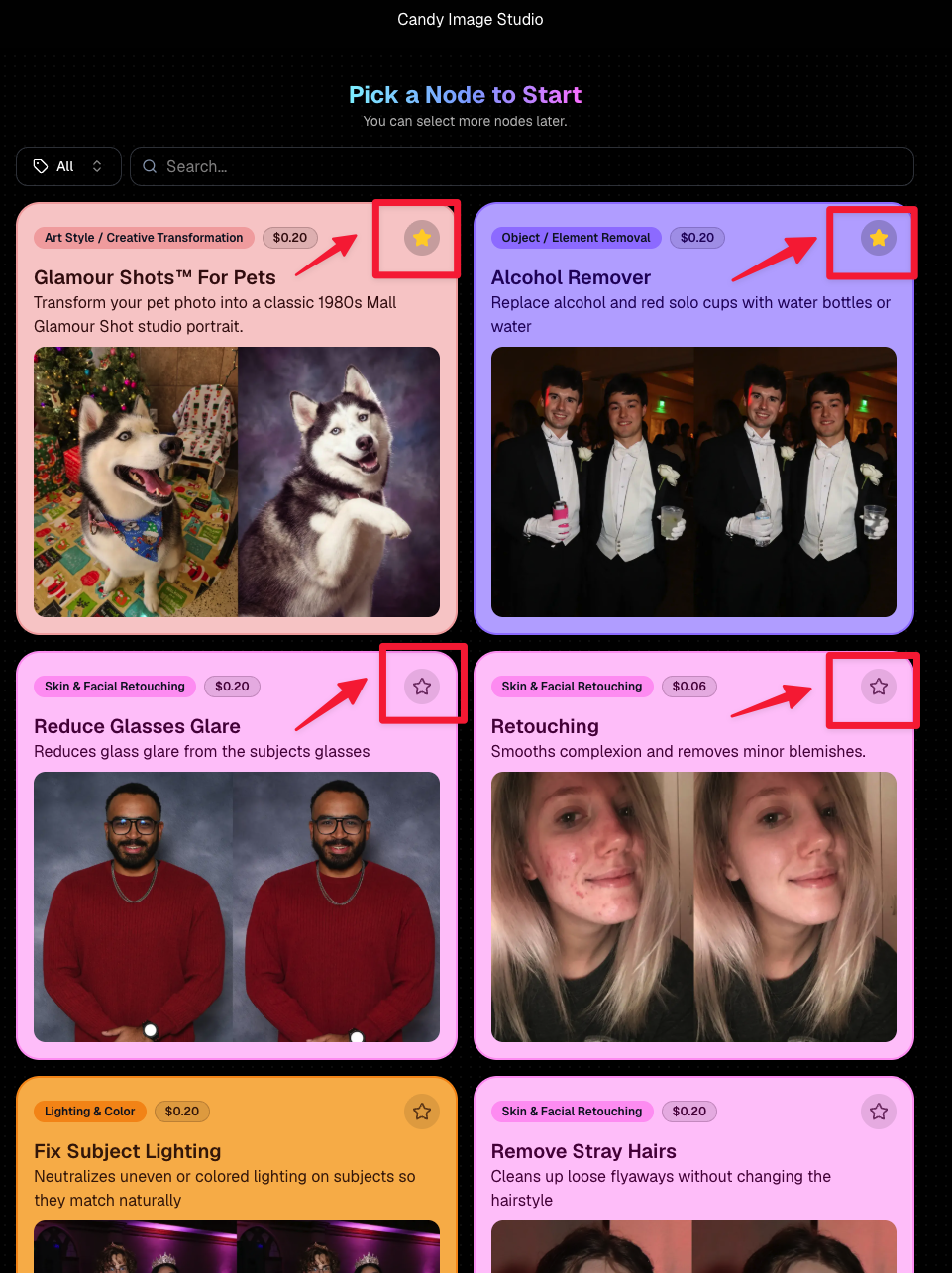
⭐ Favorite your most-used nodes
Click the star in the top-right of a node to move it toward the top of the list in Candy Image Studio or Auto Editor.
Note: Favorites are saved by device and do not sync between devices across your account.
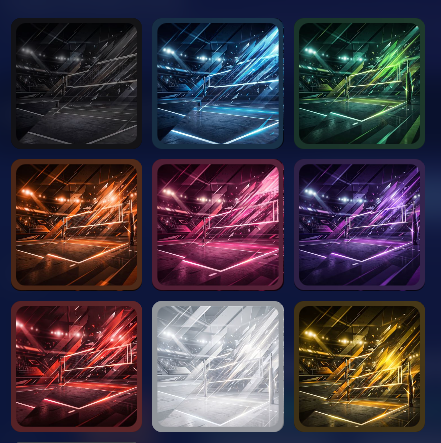
🖼️ 39 New Default Background Sets
We added 39 new background sets for Offers and Virtual Groups!
New additions span categories like:
🔥 Flames
🏭 Industrial
💡 Light – Bars
⚡ Lightning
🏈 Locker Room
⚽ Soccer
🏐 Volleyball
⛳ Golf
🎬 Spotlight
Between these new additions, custom uploads, and the AI Background Generator, you’ve got plenty of ways to build a look that fits your Events.
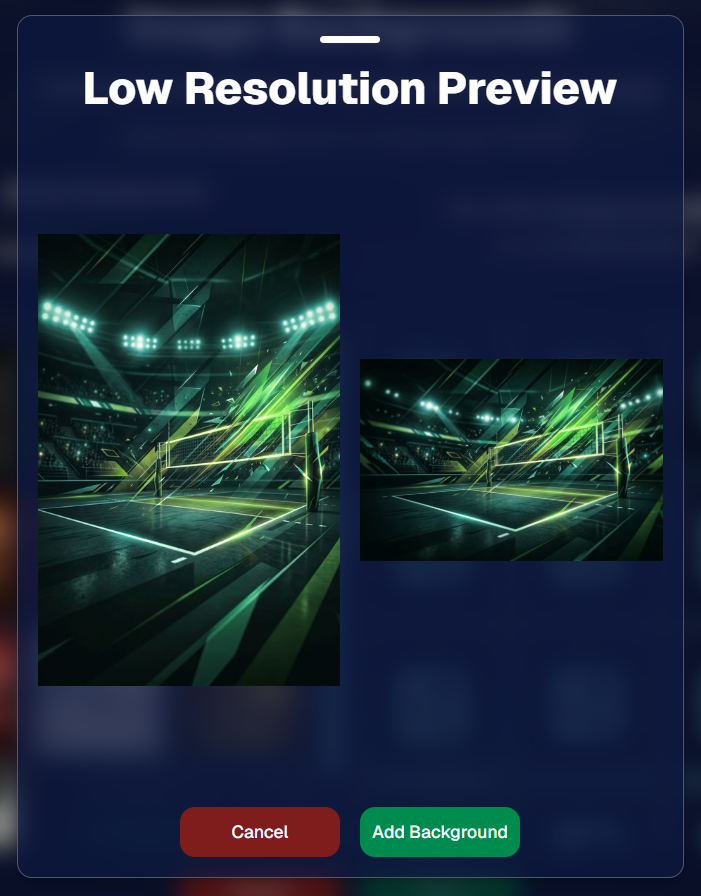
Example: New Volleyball Backgrounds!
A closer look at one of the examples above!
🧑🤝🧑 PhotoRoster & PhotoTag Improvements
🏷️ PhotoTags carry into new PhotoRosters
When creating a PhotoRoster by importing Selfie Check-Ins, participant PhotoTags will now save into the PhotoRoster too!
🧹 Duplicate PhotoTag import fix
Fixed an edge case where PhotoTags could be imported twice creating duplicates.
✂️ Background Removal Update
👥 Background Removal no longer runs on Group Photos
Group Photos are not meant to go through Background Removal! Though it can kind of work, typical team photo poses are not recommended for Background Removal (picture floating subjects who were previously sitting on a bench or bleachers).
🛍️ Retail: Duplicate Download Warning
Retail now helps prevent accidental duplicate digital purchases.
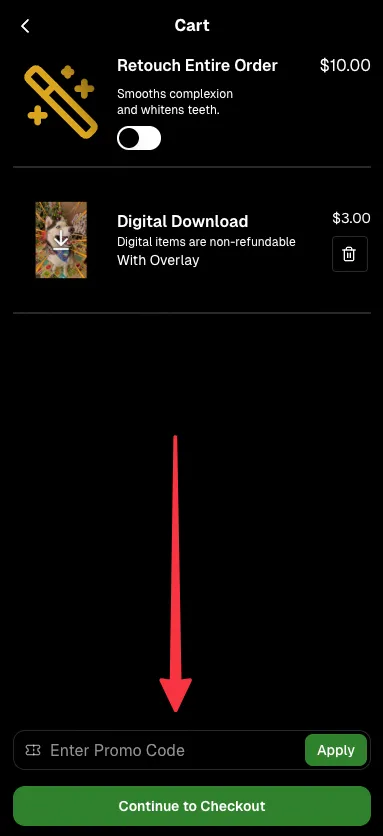
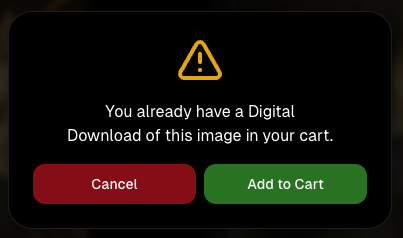
⚠️ If a shopper tries to add a digital download product (or package that includes one) that already contains the same image, crop, and artwork settings as a digital image already in their cart, they’ll see a new: “You already have a Digital Download of this image in your cart” popup.
➕ They can still add it anyway if they really want to!
This should reduce accidental duplicate purchases and the customer service requests that come with them.
Little improvements to make the platform better and better.
🛠️ Dashboard Fixes & Cleanup
🪟 Fixed popups flickering when background data refreshed
🎯 Fixed Unassigned filters/counts in edge cases involving cutouts of AI edits
🧑🤝🧑 Fixed Virtual Group row settings reverting to auto after deleting a subject
That’s the week!
Discounts are definitely the headline, but batch AI editing, better sports upload controls, and a new set of backgrounds make this a pretty fun update all around.
The rich text element allows you to create and format headings, paragraphs, blockquotes, images, and video all in one place instead of having to add and format them individually. Just double-click and easily create content.
A rich text element can be used with static or dynamic content. For static content, just drop it into any page and begin editing. For dynamic content, add a rich text field to any collection and then connect a rich text element to that field in the settings panel. Voila!
Headings, paragraphs, blockquotes, figures, images, and figure captions can all be styled after a class is added to the rich text element using the "When inside of" nested selector system.


.png)




.svg)


