HomeNavigation arrowBlogNavigation arrow
Current page
Feature Updates

Weekly Recap: Virtual Group Builder, Client Outreach Updates & Smarter Retail Support 🎉📸

Weekly Recap: Virtual Group Builder, Client Outreach Updates & Smarter Retail Support 🎉📸
Hey photo friends! 👋

This is a big week! The headline feature is one many sports and volume photographers are going to love: An all-new Virtual Group Builder is now available directly on the Dashboard.

We’ve also added new Candy Image Studio tools, improved Client Outreach behavior, refreshed image assignment tools, and made retail support easier for shoppers and photographers alike.

Let’s jump in!

🧑‍🤝‍🧑 Big New Feature: Virtual Group Builder

You can now build Virtual Groups directly on the Dashboard — with Mobile Dashboard support too!

Find it from an Event page by clicking Virtual Groups in the sidebar menu.

With Virtual Group Builder, you can:

👥 Import participants from the full Event, one at a time, or everyone with a specific PhotoTag

✂️ Use participant cutouts to build polished group images

🏷️ Build groups quickly when your Event has consistent cutouts and participants tagged with PhotoTags

🖼️ Create Virtual Groups in 4×6, 5×7, 8×10, or 11×14 formats

🎨 Choose from NowCandid default backgrounds, upload custom backgrounds, and add overlays

🧢 Add account logos to the corners

🔤 Toggle subject names on or off

📐 Preview crop lines and aspect ratio lines

🖱️ Zoom, pan, drag, reorder, resize, brighten, and position subjects

You can also adjust group-level settings like background, overlay, overall scale, vertical position, bottom shadow falloff, and individual cutout fade to help hide cropped legs.

When your Event is set up cleanly with cutouts and PhotoTags, you can create a full Virtual Group in just a few clicks. ✨

Docs page: https://app.nowcandid.com/docs/image-management/virtual-groups
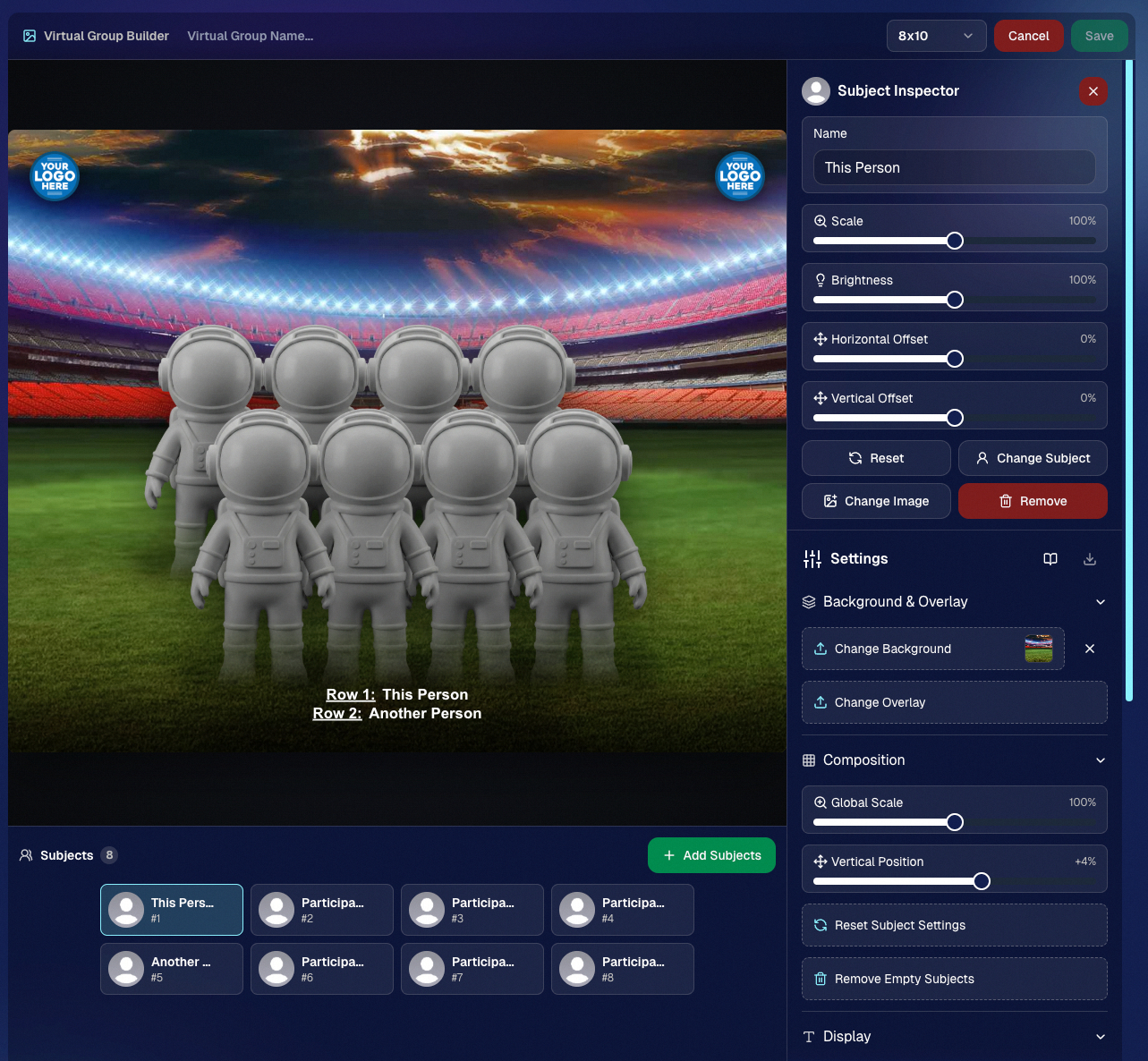
Desktop Dashboard view of the new Virtual Group Builder

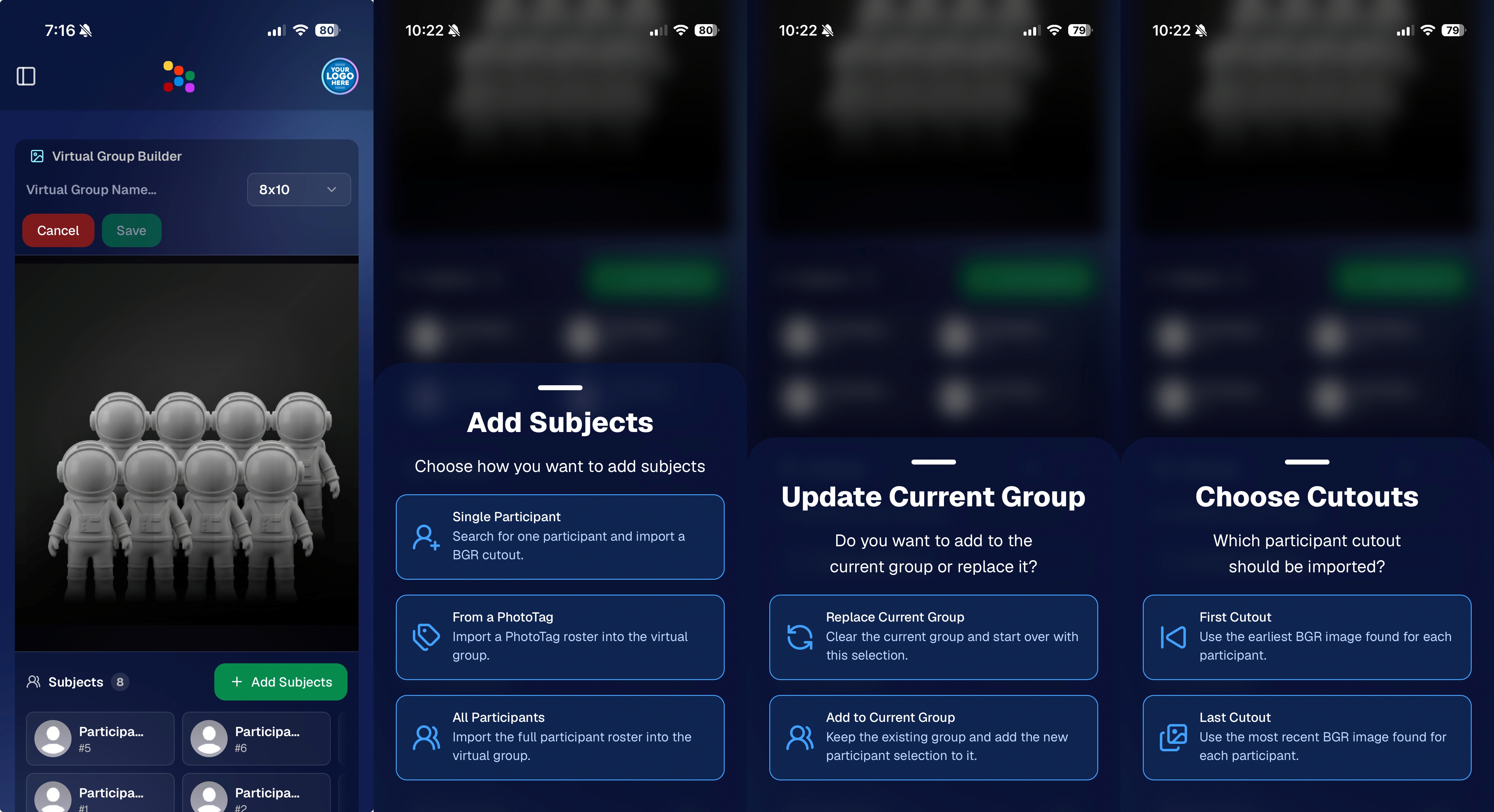
Mobile Dashboard view of the new Virtual Group Builder

🎓 Candy Image Studio: New Graduation Tools

Candy Image Studio got some very timely upgrades for graduation season:

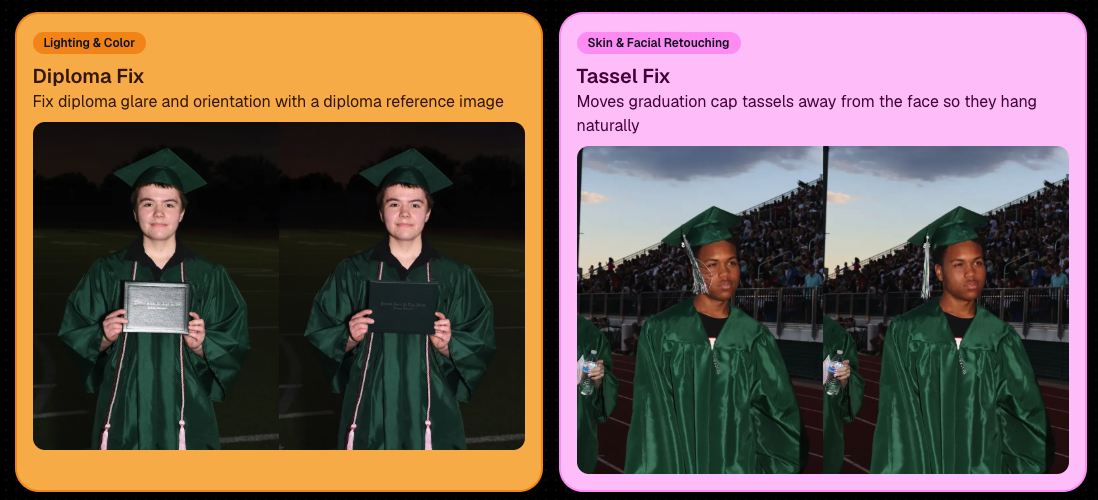
🎓 New “Diploma Fix” node

  • Helps fix diploma orientation and glare. You’ll need to upload a reference diploma so Candy knows what the diploma should look like, including details like school name, emblem, fonts, and colors.

🎗️ New “Tassel Fix” node

  • Helps adjust graduation tassels that are covering a subject’s face — similar to Stray Hair Removal, but tailored specifically for grad tassels.

👓 Improved Reduce Glass Glare

  • This node is now more reliable and less likely to accidentally add glasses to subjects who aren’t wearing them.
📣 Client Outreach Improvements

Client Outreach got a few useful updates to help save money and keep lists cleaner:

🚫 Unsubscribed contacts excluded by default

  • Imported Client Outreach contacts now exclude unsubscribed contacts unless you choose to include them.

🔘 New “Include unsubscribed contacts” toggle

  • You can still include them if needed, but the default helps avoid spending on contacts who can’t receive your outreach.

👀 Show Hidden on Client Lists

  • The Client Outreach list page now has a Show Hidden option, similar to Offers and PhotoRoster organizations.

🧭 Client List sidebar shortcut

  • The Client Outreach sidebar item now takes you back to the Client List page more clearly.

🖼️ Image Management & Dashboard Upgrades

🧩 Image Release Gallery redesign

  • The Image Release Gallery now uses a masonry layout like retail, supports lightboxes with arrow key navigation, has CMD/CTRL+F search support, and saves filters in the URL.

🧑‍💻 Manual Assignment page refresh

  • The Participant Manual Assignment page has a cleaner, more intuitive UI.

Camera star ratings on Image Details

  • If your camera includes star ratings, they now appear on the Image Details page.

⬇️ Image Details convenience buttons

  • Image Details now includes quick actions to download or open in Candy Image Studio.

🏷️ PhotoTag ampersand fix

  • PhotoTag names with ampersands now save correctly.

🧍 Merged participant name fix

  • Manual Assignment now shows the selected participant’s name instead of the first merged participant’s name.

🔙 Event sidebar remembers filters

  • When going back to the Event List from an Event Overview page, your filters are remembered as long as you haven’t refreshed.

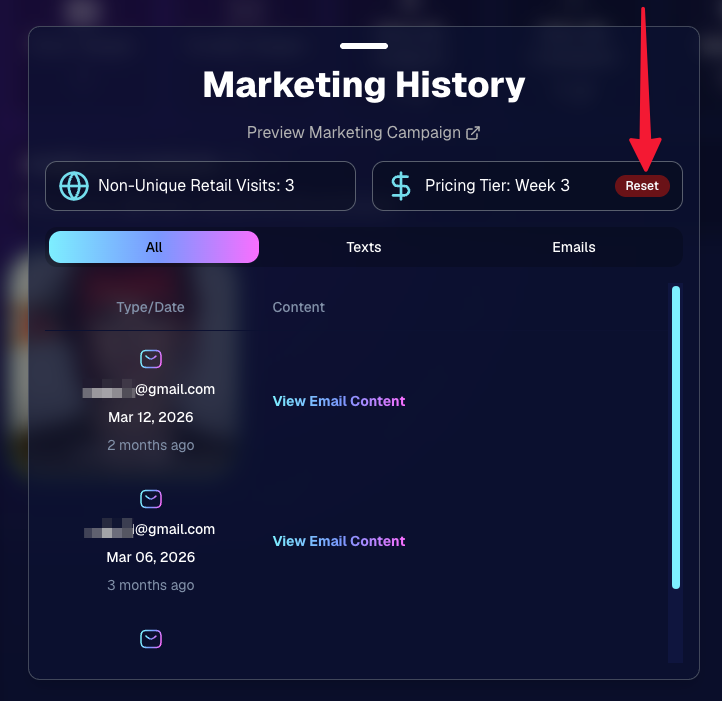
🔁 Pricing tier reset button

  • Participant marketing history now includes a button to reset a participant’s pricing tier start date, useful if support wants to re-offer first-week pricing.
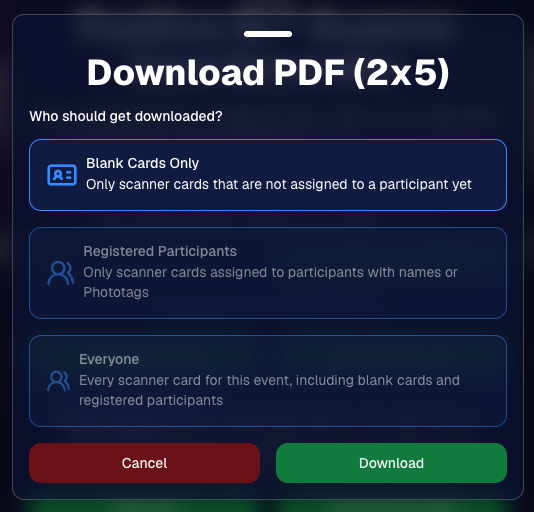
🪪 Positive ID QR Code downloader options

  • You can now download blank cards only, registered participants only, or everyone, making scan card PDFs easier to manage for multi-workflow sports events.
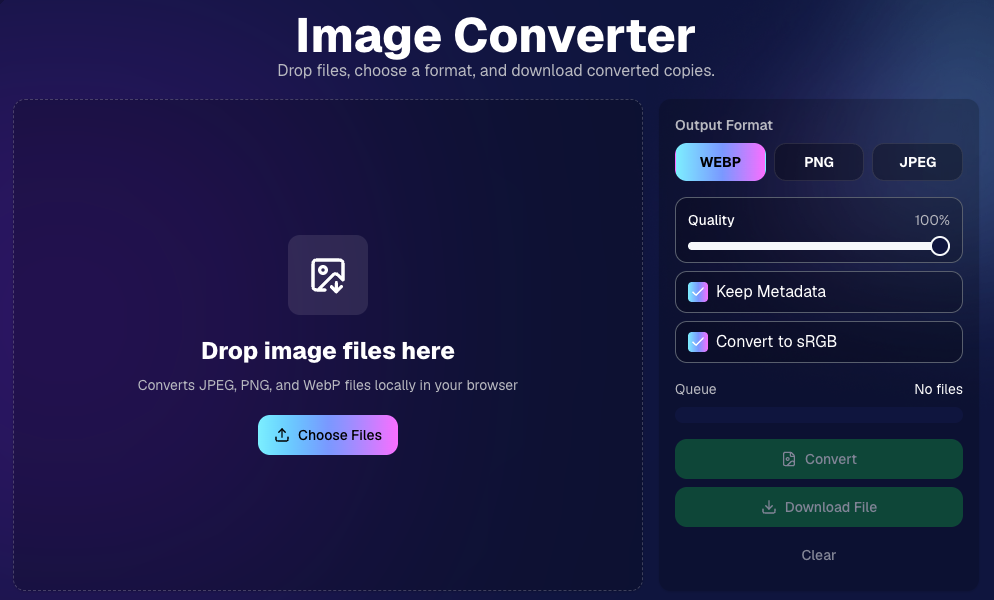
🛠️ New Tool: Image Converter

There’s a new tool under Tools & More → Image Converter.

Use it to:

🔄 Convert images to WEBP, PNG, or JPEG

🎨 Convert images to sRGB

Handy for preparing files before uploading them to NowCandid Events.
📚 New Capture App Camera Docs

We added a dedicated docs page for confirmed camera models that work with the Capture App.

More cameras may work than what’s listed, but this page focuses on models we’ve confirmed.

Docs page: https://app.nowcandid.com/docs/capture-app/cameras

🛍️ Retail Improvements

📬 New Contact Us form on retail

  • The Contact Us popup now includes a form that sends support an email with helpful details automatically included, such as browser info, window size, retail link, Event details, and order number when available. This should make support faster and reduce back-and-forth.

🖼️ Overlay step now comes before cropping

  • This prepares retail for future improvements while keeping product customization clearer.

🗓️ Smarter Year captions

  • Certain products now default the Year caption to the Event start year or participant Day 0 year instead of the current year. Helpful for late-December events or older graduation galleries.

🌍 International order fix

  • Fixed an edge case where some international orders could send multiple receipts and incorrectly show that the order wasn’t submitted.

🤳 Selfie Check-In & Capture App Updates

📶 Clearer Selfie Check-In upload errors

  • If a selfie upload fails, subjects now see a more specific error reason — like upload speed being too slow — so they know what to try next.

📱 Capture App 5.6.3 OTA update

  • Contact Info Settings now says Tap-A-Face or Type & Take based on the Event program
  • The 1000×1000 reference image requirement has been removed for Selfie Check-In Station and Roster Check-In, especially helpful for Android devices with lower-resolution cameras

That’s the week!

Virtual Group Builder is the big one, especially for sports and volume workflows — but between Client Outreach, Candy Image Studio, Image Converter, and retail support improvements, there’s a lot here to make your next Event easier to manage.

Keep creating magic,

Candy 🍬

Related articles

NowCandid 101: The Capture & Upload App
NowCandid 101
December 5, 2023

NowCandid 101: The Capture & Upload App

8
 minutes read
Capture & Upload Quick Bullet Points:

Hello there photo wizards, Candy here! 📸

It's time for another session of NowCandid 101. Today, we're diving into the Capture & Upload app. Whether you're a seasoned pro or new to the NowCandid universe, understanding this tool is key to utilizing NowCandid effectively.

The Two Primary Functions of the Capture & Upload App:

Tethering and Uploading:
  • The device running the Capture & Upload app tethers to your Nikon, Sony, or Canon cameras.
  • Images are uploaded to the cloud as you take photos, ready for immediate marketing and sales. 🌐💫
  • This not only boosts sales, but also cuts down on post-event workload, and enhances your customer experience.
Workflow Wizardry:
  • The app is the backbone of specific NowCandid Workflows like Tap-A-Face, Scanner ID, Name Lookup, or Type & Take.
  • It pairs photos with your subjects, ensuring every photo finds its way to the right phone or inbox, right away. 📲

Platform Availability and Recommendations:

  • You can find the app on both Apple and Microsoft App Stores.
  • Whether a Microsoft Surface Go 3, or an Apple 10th Generation iPad, the app functionality is essentially the same - though the Apple experience may be a bit more consistent.
  • Compatible with iPads, iPhones, and Windows tablets (like the trusty Surface Go 3).
  • A pro tip: Opt for an LTE-enabled device to stay connected and upload images in real-time, saving you from poor venue WiFi quality and troublesome WiFi hotspots. 🌍✨

Optional but Optimal for Selfie Check-In:

  • Using the Selfie Check-In Workflow? The app here is optional but highly recommended.
  • It allows for live-uploading, adding an extra layer of efficiency. However, you can also choose to upload images post-event using the NowCandid Web Dashboard. Once uploaded, images match with Selfies and begin marketing right away.

In the dynamic world of event photography, staying ahead is all about using the right tools effectively.

The Capture & Upload app is one such tool, designed to make your work easier, faster, and more profitable. So why wait? Embrace the future of photography with NowCandid’s Capture & Upload app, and watch your business soar! 🚀🌟

That's it for today's NowCandid 101. Stay tuned for more tips, tricks, and insights to keep your photography business on the cutting edge. Links to view the app store pages for each version of the app can be found below:

Download the App (Windows)

Download the App (Apple iOS)

Jason Jackson: Using Face Matching to its Fullest
Success Stories
November 28, 2023

Jason Jackson: Using Face Matching to its Fullest

6
 minutes read

Welcome to another inspiring success story from the world of NowCandid!

In this feature, we're shining the spotlight on Jason Jackson, a talented photographer based in Texas.

Jason Jackson of TSS Photography

Jason's recent venture at a collegiate ring ceremony using NowCandid's GradPics Now Program and Selfie Check-In Workflow showcases the transformative power of our platform in the realm of event photography.

The Numbers

Jason Jackson's latest Event, a collegiate ring ceremony, has been a resounding success. Utilizing the GradPics Now Program alongside the Selfie Check-In Workflow, he managed to generate an impressive $5000 in sales with 122 participants, all within just two weeks of the Event!

This feat translates to an average of over $39 in sales per participant, all while earning an outstanding 78.8% profit margin as well.

The Power of More Photos

Something that played a part in Jason's success was how many photos he took – well over 2000! For only 122 participants!

Taking a higher number of photos correlates strongly with increased sales, and Jason's recent experience backs up that idea even more.

Jason elaborated, "Our key takeaway: taking more pictures significantly boosts sales. The broader the selection, the more they're inclined to purchase!"

His conclusion is clear – a wider range of images encourages more (and larger) orders, a concept NowCandid's Face Matching technology effortlessly supports by accurately pairing each photo with the right individual, allowing you (the photographer) unlimited freedom to take as many photos as you want.

Multiple poses, family photos, portraits, even shots of your subjects in action! No matter how many photos you take of your subjects, NowCandid's Face Matching has you covered.

Family Photo Station Enhances Sales

Jason's introduction of a family photo station also proved to be a strategic move in maximizing sales. This approach demonstrates how creative thinking and adapting to circumstances can substantially elevate sales performance in Event photography.

"We adapted to rain at the event by moving the family photo station indoors during the morning session," Jason explained. "The decision to retain this setup for the afternoon significantly boosted overall participation."

Embracing Opportunities with NowCandid

Jason Jackson's story is a powerful story of the potential that new innovations in photography sales have brought about. It also exemplifies how leveraging NowCandid's tools and features can transform standard Events into even more lucrative opportunities for photographers.

For more insights and success stories from the world of NowCandid, stay tuned!
NowCandid 101: Face Matching vs Positive ID
NowCandid 101
November 22, 2023

NowCandid 101: Face Matching vs Positive ID

6
 minutes read

Hello there, Candy here!

Welcome to the first entry in our "NowCandid 101" series! Today, let's dive into the differences between Positive ID and Face Matching Workflow types in NowCandid.

Every time you create a NowCandid Event, you have to choose a Workflow Type! The two options are Face Matching, and Positive ID.

NowCandid has 6 Workflows, that can be split into two categories.

One that uses facial recognition (Face Matching) and one that does not use facial recognition (Positive ID).

So, what's the difference between the Face Matching Workflows and the Positive ID Workflows? Let's get into it.

Face Matching Workflows 🤖

What Are They?

Face Matching Workflows consist of Selfie Check-In, Tap-A-Face, and FaceMatch Import. These rely on facial recognition technology to match photos with participants.

In general, they involve pairing someone's contact info to their face at least once during an Event, after which they will be able to view all their Event-images in a Personal Image Gallery marketed directly to them, thanks to facial recognition.

How Do They Work?

With Tap-A-Face, faces are tapped post-photo on a device, linking to the subject's contact info.

Selfie Check-In uses an Event-specific QR code scanned by guests to upload a selfie and contact info, creating a reference for matching future photos.

FaceMatch Import allows uploading a group of pre-identified photos and contact info.

Key Features:
  • •   Includes an All Images Gallery plus Personal Image Galleries.
  • •   Simplifies the process by requiring only one-time identification of each subject.

Positive ID Workflows 🆔

What Are They?

Positive ID Workflows include Scanner ID, Name Lookup, and Type & Take. These Workflows do not use facial recognition. Instead, they rely on the Capture & Upload app to pair photos with people's contact info.

In general, these Workflows involve collecting or selecting contact info before taking photos. Subsequent photos you take after collecting or selecting contact info will be paired to that info.

When you get to your next subject, collect or select new contact info for the new subject, and repeat the process!

How Do They Work?

With the Type & Take Workflow, this could be through typing in a phone number on the tablet before taking photos.

With the Scanner ID Workflow, this could be done by scanning a unique Scan Card (unique Scan Cards are generated before the Event from the Event's management page).

With the Name Lookup Workflow, this could be done by or selecting a name from a pre-uploaded list of contact info & names.

Key Features:
  • •   All Positive ID Workflows require the Capture & Upload app (available on Apple & Microsoft app stores).
  • •   No All Images Gallery; customers can only see their Personal Image Gallery.
  • •   Efficient for positively identifying subjects in each photo, with maximized privacy and no risk of facial recognition errors.

Choosing the Right Workflow 🤔

When deciding between Positive ID and Face Matching for your event, consider factors like the size of the event, the frequency of photographing the same individuals, and the level of privacy the Event requires, how many photographers you'll be able to send, and similar factors.

Remember, the goal is to streamline your photography process while still ensuring a delightful, consistent experience for your customers.

Stay tuned for more entries in the "NowCandid 101" series!

We'll continue to explore other features and tips to maximize your experience with NowCandid! 🌟

Let’s get in touch

If you’re a photographer looking to add NowCandid services to your wheelhouse – set up a call by clicking the button below.

How to customize formatting for each rich text

How to customize formatting for each rich text

How to customize formatting for each rich text

How to customize formatting for each rich text

How to customize formatting for each rich text

What’s a Rich Text element?

The rich text element allows you to create and format headings, paragraphs, blockquotes, images, and video all in one place instead of having to add and format them individually. Just double-click and easily create content.

A rich text element can be used with static or dynamic content. For static content, just drop it into any page and begin editing. For dynamic content, add a rich text field to any collection and then connect a rich text element to that field in the settings panel. Voila!

Headings, paragraphs, blockquotes, figures, images, and figure captions can all be styled after a class is added to the rich text element using the "When inside of" nested selector system.

  • List One
  • List Two
  • List Three
  • List Four
  • List Five

This is a link

This is bold text