HomeNavigation arrowBlogNavigation arrow
Current page
Feature Updates

Weekly Recap: Express Checkout Confirmations, Capture App Speed Testing, and a New Lightroom Classic Plugin

Weekly Recap: Express Checkout Confirmations, Capture App Speed Testing, and a New Lightroom Classic Plugin
Hey photo friends! 👋


This week’s updates are all about clearer customer actions, smoother retail performance, and new tools that speed up upload workflows. Plus, a strong round of Capture App polish (iOS & Android OTA) and some important Dashboard + Marketing fixes.

Let’s jump in. ✨

🛍️ Retail: Fewer Mis-clicks, Better Previews, Faster Feel

✅ Express Checkout confirmation (all express checkouts)

All express checkout flows now show a confirmation popup that clearly displays the shipping address selected, with options to place the order or go back. It also includes an invalid address popup.

Previously, people would sometimes purchase without double checking their express-checkout-method's default shipping address. So, this change is designed to reduce address mistakes and improve customer experience!
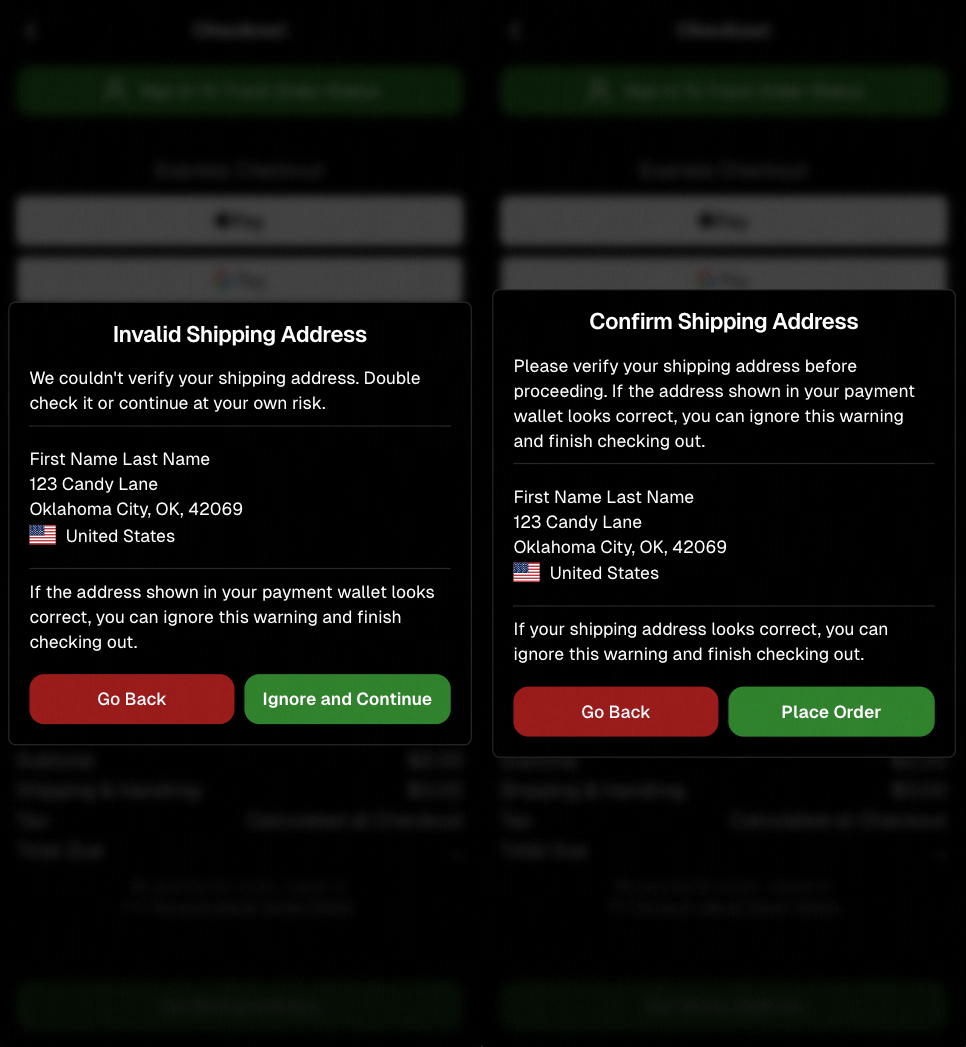
Confirmation popup now clearly displays shipping address confirmation.

🧠 Better UI + performance improvements

  • Improved local rendering (performance, memory usage, and task handling) — originally aimed to improve the retail experience on low-end devices, but it should make most devices feel faster!

  • Native “leave page” confirmation on supported browsers/devices (desktop + Samsung back button) when navigating away from an event page (refresh/back).
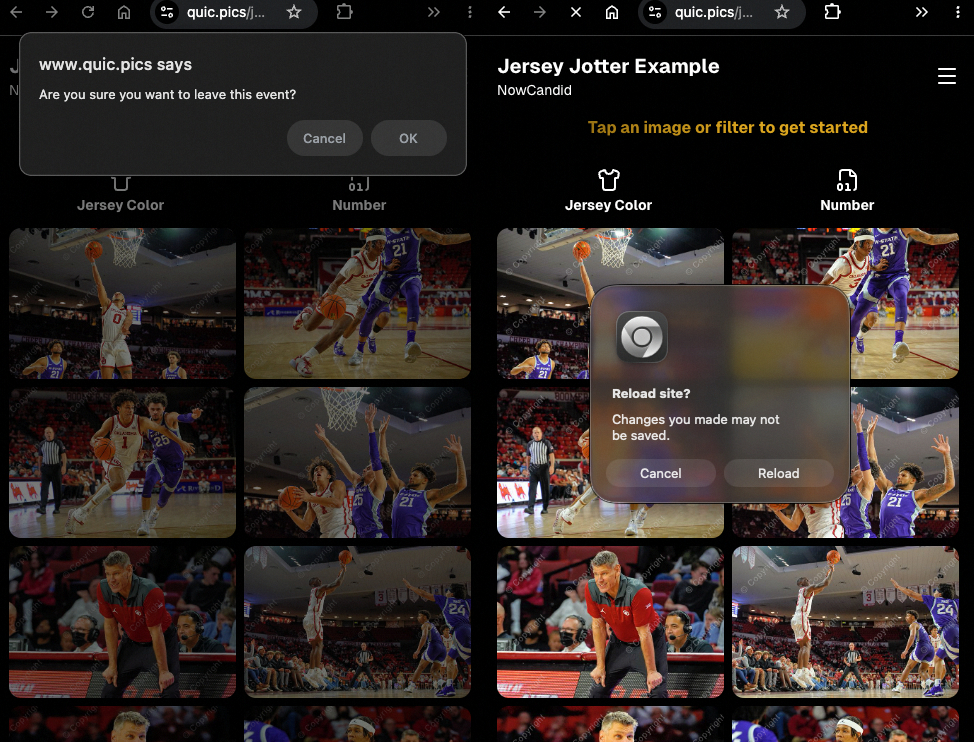
Leave page confirmation

🖼️ Clearer package download expectations + better pickers

  • Personal Gallery Downloads on store sheet and package editor now show “+X Images” in the configurator when there are more than 4 images—so customers don’t think they only get what’s previewed.
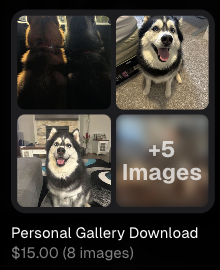
Personal Gallery Download "+X Images"

    • Personal Gallery Download products inside packages can now be clicked to preview contents.

    • Desktop product/package image pickers are now two columns (like mobile), allowing larger image preview during selection.
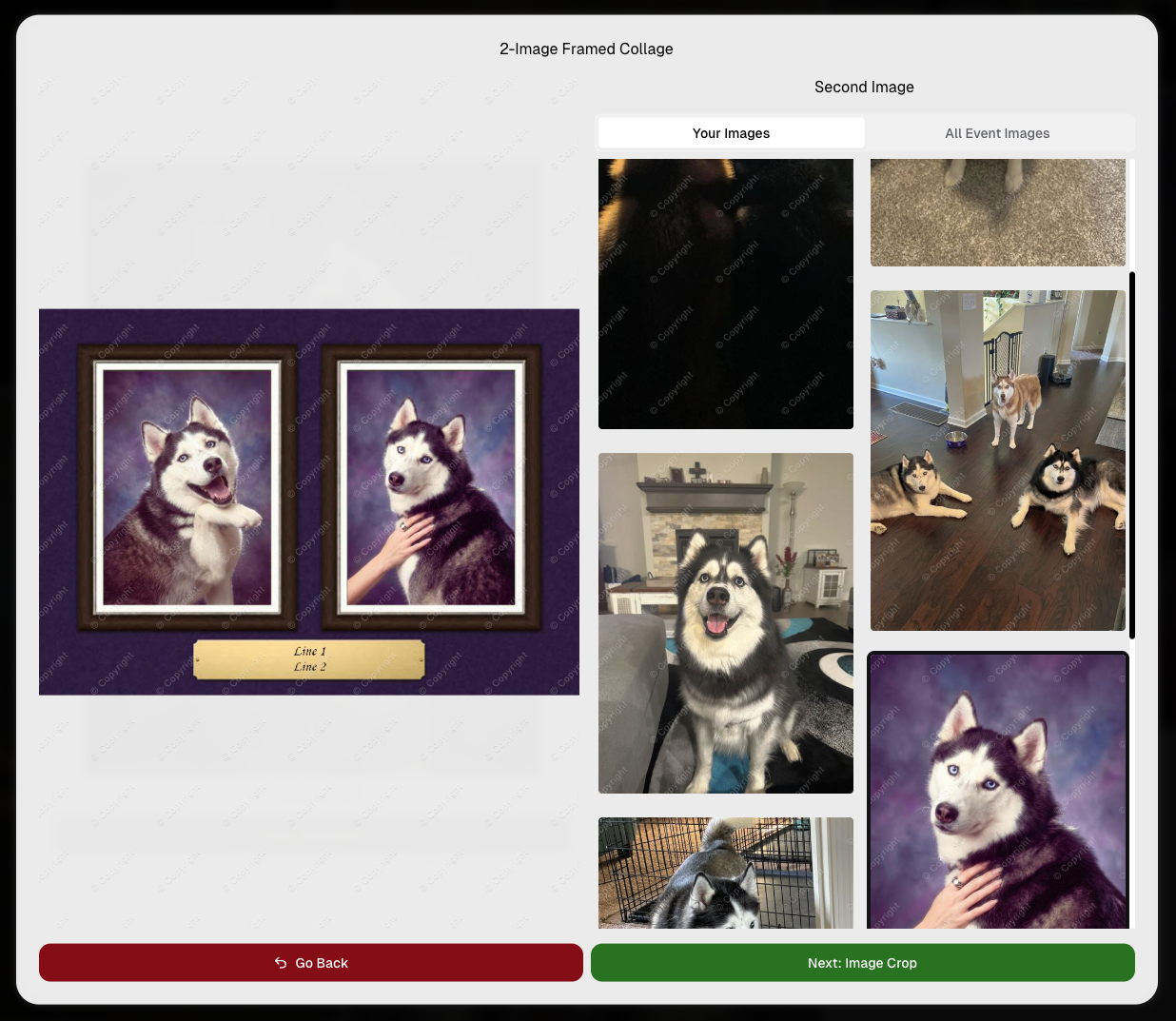
    Larger two column image previews

      • Image Filters landing popup now includes “Browse all photos without a filter” so customers who think they must pick a filter know they can also just browse!
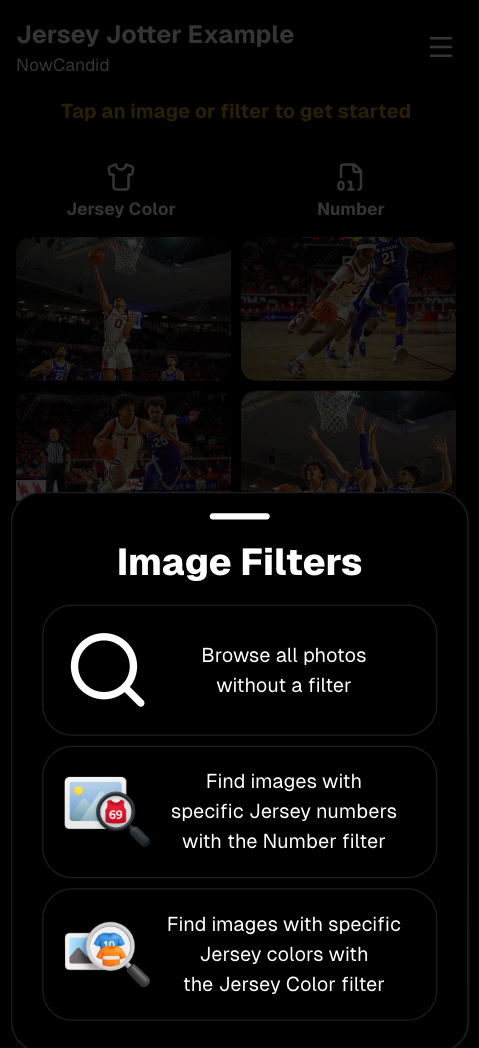
      Image Filters landing popup

      🧩 Retail fixes worth noting

      • Fixed a slashed discount amount showing on week 3 when there is no higher amount.
      • Fixed a GalleryGuard edge case that could close the retail site on some Android devices that support mobile context menus when long-pressing.
      • Fixed a race condition where a Group-by-Face gallery loaded from URL params could show default results instead of the filtered view.
      • Fixed an edge case where manually assigned images marked as group could behave like non-group images on retail.

      📱 Capture App OTA: 5.6.1 & 5.6.2 (iOS & Android)

      🌐 NEW: Network Speed Test (5.6.1)

      A new Network Speed Test button is available in Resources. Tap Run Test to check download speed, upload speed, and latency to NowCandid servers (so results may differ from Google/Ookla). It’s a quick test (downloads 5 MB, uploads 2 MB) and is useful for diagnosing weak or congested service during events.

      Mbps is a standard measurement for connection speeds, and 1 megabit per second (Mbps) is 0.125 Megabytes per second (MB/s). So 8 Mbps is 1 Megabyte per second, max. For example, with images that are 10 Megabytes in size, a speed of 8 Mbps would take a minimum of 10 seconds to upload. When speeds are very slow, image uploads may be impossible due to uploads timing out and restarting. In these cases, open the app when you have a stronger connection and all your images will start going up!
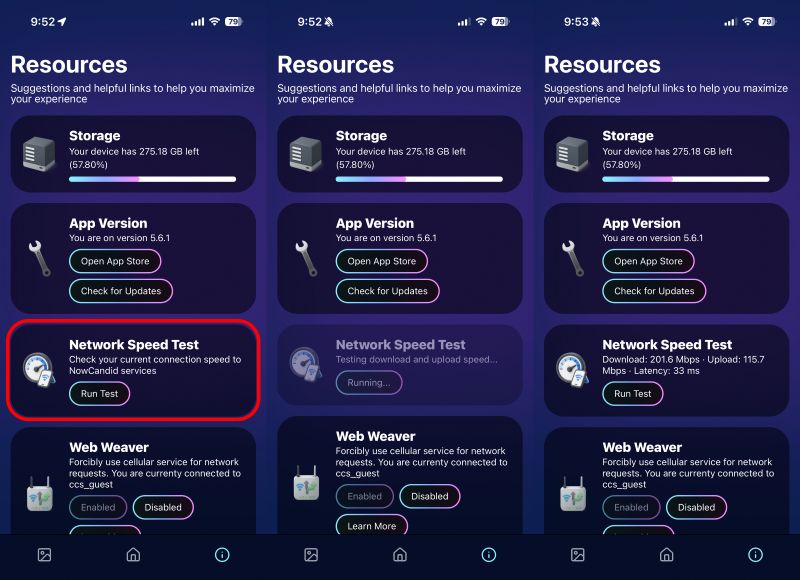
      Network Speed Test

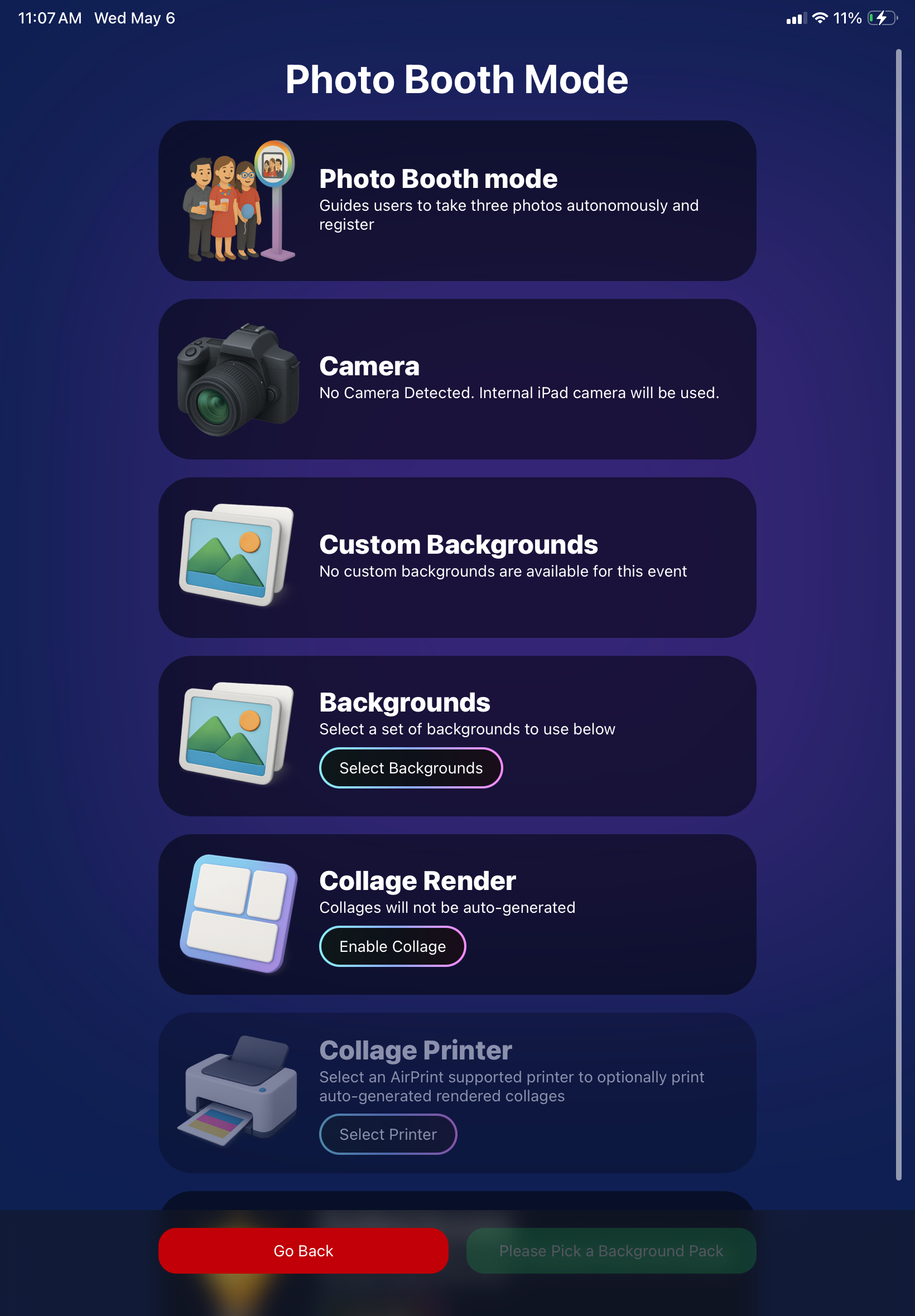
      🎪 Photo Booth + Selfie Check-In Station UI upgrades (5.6.2)

      • Photo Booth landing page updated to be more user-friendly (always-visible scrollbar, updated text, sticky go back/continue buttons, red/green emphasis, and a popup explaining why Continue is greyed out).
      • Selfie Check-In Station landing page updated with red/green Go Back / Begin buttons.
      • New dropdown icon beside Group Photo toggle (when an event has PhotoTags) to better display there are additional options to assign PhotoTags.
      • Fixed edge case cancel/continue behavior on Selfie Check-In Station when no contact info was entered.
      🧩 NEW: Lightroom Classic Plugin (Official)

      We’ve launched an official Lightroom Classic plugin to upload images to NowCandid events directly from Lightroom Classic.

      Key notes:

      • Lightroom Classic only
      • Same image rules apply (color profile, DPI, etc.)
      • Uses Capture App login
      • Only events within 60 days of event start date show in the selector
      • Image Details → Logs will show “Uploaded from NowCandid Lightroom Plugin”
      • Docs include guide/download/installation: https://app.nowcandid.com/docs/tools-more/lightroom
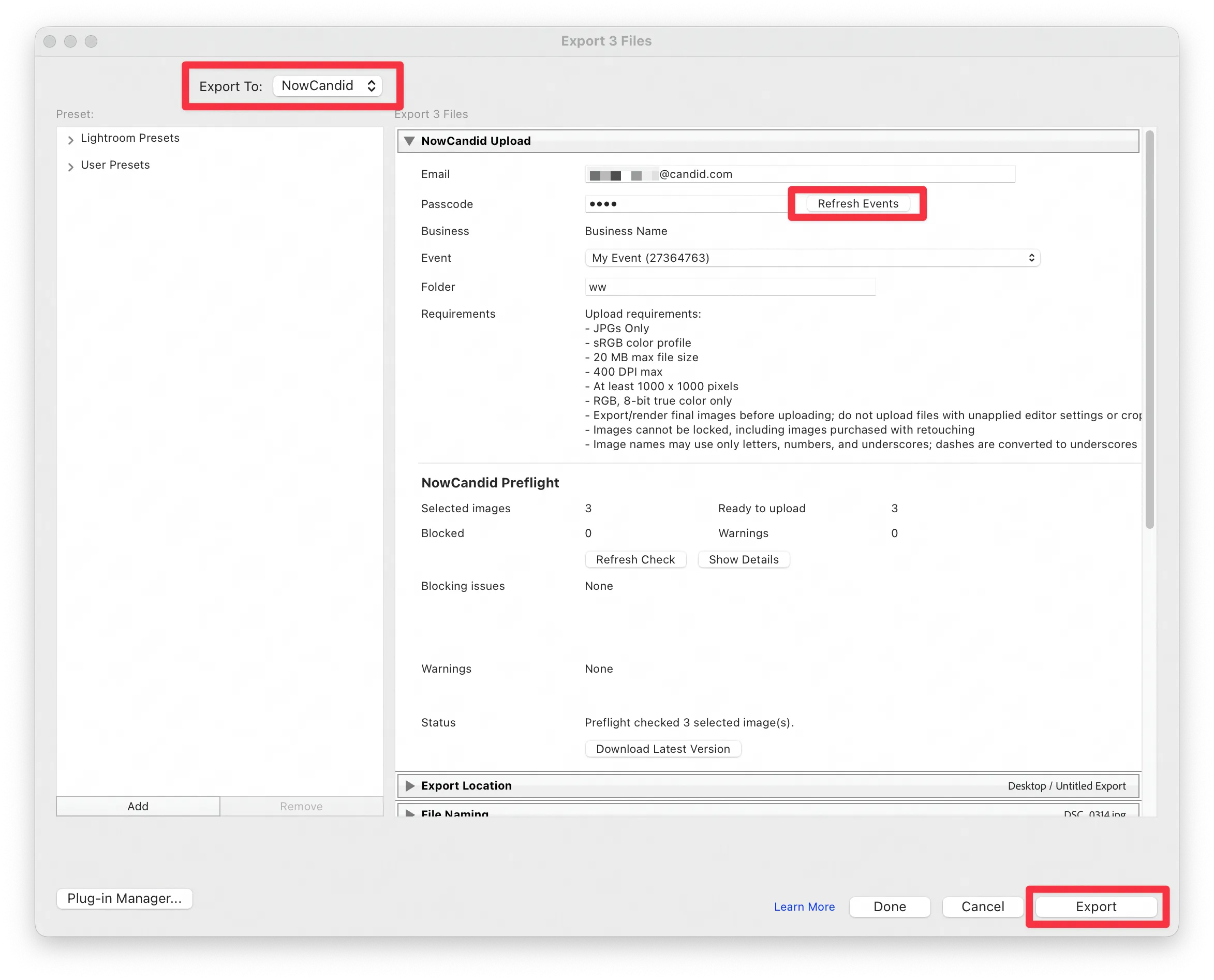
      Lightroom Classic Plugin

      Upload from NowCandid Lightroom Plugin

      🖥️ Dashboard: Upload & Roster Clarity + Small UX Wins

      • Event roster upload and PhotoRoster upload now warn about every unrecognized column, making it easier to spot misspellings (especially for optional columns).
      • Participant list page download now puts additional contacts into columns instead of rows.
      • Participant list download now puts merged contacts into their own row if they have different first/last names.
      • Image upload naming cleanup:
        • spaces/parentheses now automatically become underscores (e.g., Image (2)Image_2)
        • names ending in z now get a trailing underscore (e.g., ImagezImagez_)
      • Candy got even better at using the new Docs for responses.
      • Password reset now shows a clear “Your link has expired” screen (links expire after 24 hours).
      • Fixed participant filter inside another participant’s manual assign/unassign page not working properly.
      • Participant Details PhotoTag assignment UI: merged participants no longer incorrectly show PhotoTags as assigned.
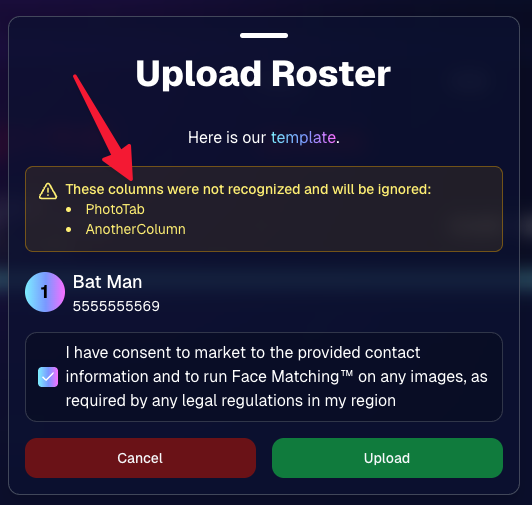
      Upload Roster now warns about every unrecognized column.

      📣 Marketing Fixes

      • Fixed edge cases where galleries that were only AI-edited images could cause follow-up email marketing issues and show as 0 images on Participant List.
      • Fixed Day0 marketing edge case not starting if gallery is just AI-edited images.
      • SMS gallery links now include “View photos:” before the gallery URL to reduce confusion where some users thought the gallery link was an unsubscribe link.

      That’s the week! 💫

      Between the Lightroom Classic plugin, the Capture App’s new Network Speed Test, and retail improvements that reduce confusion (and improve performance), this week was packed with practical wins you’ll feel right away.

      Keep it sparkly,

      Candy
      Related articles

      Weekly Recap: Auto Headsize for Virtual Groups, New BGR Report, HEIC Conversion & More
      Feature Updates
      June 19, 2026

      Weekly Recap: Auto Headsize for Virtual Groups, New BGR Report, HEIC Conversion & More

      5
       minutes read

      This week’s updates include some helpful improvements across Virtual Group Builder, reporting, image conversion, participant management, and folder downloads.

      The biggest highlight is a new Auto Headsize option in Virtual Group Builder, designed to give you a much better starting point when building virtual groups. We also added a new BGR Report to help you see which backgrounds are being ordered most, plus a few quality-of-life improvements throughout the Dashboard.

      Let’s take a look!

      🧑‍🤝‍🧑 Virtual Group Builder Improvements

      ✨ New Auto Headsize button

      Virtual Group Builder now has a new Auto Headsize button.

      This feature automatically detects faces and adjusts the scale and vertical offset of all cutouts so that subjects have roughly the same head size and are closer to eye level.

      That means when you’re building a virtual group, you should have a much better starting point before making your final manual adjustments.

      🏷️ Improved PhotoTag import behavior

      We improved the behavior when importing a PhotoTag into Virtual Group Builder, helping that workflow feel smoother when adding subjects from a specific PhotoTag.

      🚀 Upload fix for new from-scratch Virtual Groups

      Fixed an issue where uploads were not uploading properly when working from /new on a from-scratch Virtual Group instead of an existing one.

      👥 Smarter default subject behavior

      Virtual Group Builder now skips the initial “add to group or replace group” popup when the only subjects in the group are the default 8 subjects.

      🖼️ Bottom logo spacing improved

      Bottom logos are now spaced the same distance from the bottom as top logos are from the top.

      📊 Reporting Updates

      📈 Events and Sales Report tables now have sortable columns

      The Events Report and Sales Report tables now support sortable columns, making it easier to review and organize report data directly in the table.

      🎨 New BGR Report

      There is now a new BGR Report that shows the most ordered backgrounds for BGR images.

      The report shows:

      • How many orders a background has
      • How many items a background has

      Important note: if you upload the same background to multiple Events, those will show up as different backgrounds in the report. To avoid that, use the background import feature.

      🖼️ Image Converter Update

      📱 HEIC conversion is now supported

      The Image Convert page at tools/convert now supports converting from HEIC files.

      This should be helpful when working with images from devices that commonly save in HEIC format.

      👥 Participant List Update

      🏷️ Set PhotoTags for selected participants

      On the Participant List page, the selected participants popup now includes a new option to set PhotoTags for those selected participants.

      This gives you another way to update participant organization in bulk.

      📂 Manage Images Update

      ⬇️ Download Folder improvements

      The Download Folder feature on the Manage Images page now includes an X/X counter while downloading.

      We also improved the behavior when downloading a folder with hundreds of images, which should make larger folder downloads clearer and more manageable.

      That’s the week!

      This week’s updates should make several everyday workflows smoother: Virtual Group Builder now has a stronger starting point with Auto Headsize, BGR background performance is easier to review, HEIC files are easier to convert, participant PhotoTags are easier to update, and large folder downloads are clearer.

      Keep creating magic,
      Candy 🍬

      Introducing Virtual Group Builder: Create Virtual Group Photos Faster in NowCandid ✨
      Feature Updates
      June 12, 2026

      Introducing Virtual Group Builder: Create Virtual Group Photos Faster in NowCandid ✨

      8
       minutes read
      Virtual group photos can be incredibly valuable for photographers — but let’s be honest, they have not always been incredibly fun to make!

      Traditionally, creating a virtual group means jumping between multiple tools. You photograph each subject, create cutouts, export files, open design software, place everyone manually, resize and align the group, add names, save the finished image, upload it somewhere else, and then reconnect that image to the right customers.

      That is a lot of steps for one group photo!

      NowCandid’s Virtual Group Builder makes the process much simpler. Photographers can now create polished virtual group images directly inside the NowCandid Dashboard using the same Participants, cutouts, PhotoTags, backgrounds, and Event data already connected to their Event.

      It is fast, flexible, and built to help photographers get virtual groups online and ready to sell with far less hassle. 🎉

      A New Way to Build Virtual Group Photos

      Virtual Group Builder is designed for photographers who want to offer professional group images when a traditional in-person group photo isn't possible.

      That makes it especially useful for sports teams, schools, dance groups, cheer teams, clubs, all-star teams, and any Event where people are photographed individually but still need to appear together in a final group image.

      Instead of needing every participant posed together at the exact same time, photographers can build a finished group photo from individual background-removed cutouts. If someone was photographed later, added after the fact, or missed the original group setup, they can still be included.

      That flexibility can be a big deal for volume photography.

      Built Directly Into the NowCandid Dashboard

      Virtual Group Builder lives directly inside NowCandid. From an Event page, photographers can click Virtual Groups in the sidebar menu and start building using the Event data they already have.

      The builder is not a disconnected design tool. It works alongside our existing tools, including participant data, PhotoTags, background removal, cutouts, custom backgrounds, overlays, logos, and everything else.

      So instead of downloading files from one place, designing in another, and uploading it back to the dashboard afterward, photographers can keep the process inside NowCandid from start to finish.

      Virtual Group Builder also supports the Mobile Dashboard! We don't necessarily recommend making Virtual Groups on your phone - but hey, could be nice in a pinch!

      From Capture to Cutouts to Finished Group 🚀

      Virtual Group Builder pairs especially well with NowCandid’s live-uploading and background removal capabilities.

      A photographer can shoot participants individually, upload images to NowCandid live (or after the event) use NowCandid’s background removal to create clean cutouts, and then bring those cutouts straight into the Virtual Group Builder.

      As a quick note for those unfamiliar with NowCandid's background removal, those same cutouts can also be used for shopping with alternate backgrounds! Making them multi-purpose across the Event.

      For photographers shooting sports, schools, dance, cheer, or other volume Events, this can save a serious amount of time.

      Add the Right Subjects Quickly 👥

      Virtual Group Builder gives photographers a few easy ways to add people to a group.

      You can add one participant at a time, import everyone from a specific PhotoTag, or bring in all participants from the Event. This makes the builder flexible for both small custom groups and larger team or event-wide composites.

      PhotoTags are especially powerful here. If your Event is organized by team, class, club, etc., you can use those PhotoTags to bring the right people into the group quickly.

      For example, a sports photographer could import a single team. A school photographer could import a club or activity group. A graduation photographer could import participants from a specific ceremony.

      Clean PhotoTags can turn what used to be a very manual process into just a few clicks. ✨

      Helpful Safeguards for Missing Cutouts

      Real-world events are messy. Sometimes a participant is missing a cutout. Sometimes a placeholder exists. Sometimes a photographer needs to know what is missing before moving forward.

      Virtual Group Builder helps make that easier to catch.

      When importing from a PhotoTag, photographers can see the participants in that PhotoTag before removing empty subjects. The Remove Empty Subjects option can remove participants with no cutouts as well as placeholders, but the workflow is designed to help photographers notice missing kids, players, or participants before finalizing the group.

      That way, the tool keeps things fast without overlooking potential issues.

      Smart Subject Ordering

      Virtual Group Builder uses a practical ordering system to help preserve the order participants were photographed in.

      Subjects are initially ordered from bottom left to top right based on the alphanumeric order of the first PNG filename. In plain English: if a photographer shoots and names files in a meaningful order, the builder can use that order as a helpful starting point.

      This can be useful for sports teams photographed by jersey number, students photographed alphabetically, or groups photographed in a specific roster order.

      And when the order needs to change, photographers can simply drag subjects into place.

      Drag, Drop, Swap, and Adjust 🖱️

      Reordering subjects is simple. Photographers can drag the cutouts directly on the group image or drag the subject tiles at the bottom of the page.

      When a subject is dragged to a new location, it swaps with the destination Participant. This makes it easy to balance rows, adjust lineups, or move specific people into better positions.

      The builder also includes group-level controls for layout and composition, including rows, global scale, vertical position, background, overlay, text names, crop guides, aspect ratio lines, bottom vignette, and cutout fade settings.

      These controls help photographers quickly shape the whole group while still keeping the workflow approachable.

      Fine-Tune Individual Subjects 🎛️

      Sometimes one participant needs a small adjustment. Maybe they need to be slightly larger, shifted left or right, brightened, or swapped to a different PNG.

      The Subject Inspector gives photographers individual control over each subject.

      Photographers can adjust a subject’s name, scale, brightness, horizontal offset, and vertical offset. They can also reset the subject, change them to a different Participant, change the selected cutout, or remove the subject from the group entirely.

      This is one of the biggest advantages of the builder: it is fast, but still gives you control when the final image needs a little extra polish.

      Choose the Best Cutout for Each Participant 🖼️

      If a Participant has multiple cutouts available, photographers can choose which image works best for the group.

      When adding subjects, photographers can also decide they want their incoming Participants to be using their first PNG or their latest PNG (alphanumerically determined using Folder Name and Image File Name).

      Then subjects can also be selected to have their individual portrait swapped to a different one! This can be helpful when you want a variety of poses in your Virtual Group, or simply to swap a blinking kid's image to a

      Backgrounds, Overlays, Logos, and Product Sizes 🎨

      Virtual Group Builder gives photographers creative control over the final image.

      Photographers can choose from NowCandid default backgrounds, use custom offer backgrounds, upload their own backgrounds, add overlays, and place account logos in the corners. This makes it easy to create anything from a clean traditional group image to a bold sports graphic or school-branded composite.

      The builder supports common product-friendly formats, including 4×6, 5×7, 8×10, and 11×14. Crop guides and aspect ratio lines help photographers preview how the final image will fit the selected size.

      There are also display options for subject names, including toggling names on or off and adjusting their vertical position. For teams, senior groups, school clubs, all-star rosters, or small graduation groups, names can make the final product feel more complete and commemorative.

      Upload the Finished Group Back to the Event 📤

      Once the virtual group is finished, photographers can save it and upload it back to the Event.

      During upload, the group image can be assigned to a PhotoTag. This does two important things: it automatically shows the group image to participants with that same PhotoTag, and it makes the group photo searchable in the Event using that PhotoTag.

      So if a photographer creates a group image for “Varsity Football,” they can assign it to that PhotoTag on upload. The image can then appear for the right participants and stay organized inside the Event.

      That keeps the final product connected to the same Event structure used to build it.

      Why This Is Such a Big Deal for Photographers

      Virtual Group Builder is more than a design feature. It is a faster, more connected way to create and sell group photography products.

      It helps photographers reduce manual design work, use the cutouts they already have, build from PhotoTags and participant data, add missing participants more easily, and get virtual group products online faster.

      For volume photographers, that can mean less time spent assembling files and more time selling finished products. For customers, it means more group photo options. For events, it means group photography becomes more flexible, forgiving, and scalable.

      Virtual Groups, Now Built Into the NowCandid Workflow ✨

      Virtual Group Builder brings together live uploading, background removal, participant cutouts, PhotoTags, drag-and-drop group building, backgrounds, overlays, logos, subject names, crop previews, PhotoTag-based upload, and online selling.

      When an Event is set up cleanly with consistent cutouts and PhotoTags, photographers can create a full virtual group in just a few clicks — then fine-tune it as needed.

      It is simple, powerful, and built directly into NowCandid.

      Whether you are creating a sports team composite, school group photo, graduation image, dance group, cheer team, all-star roster, or custom event product, Virtual Group Builder helps you get polished virtual group photos online faster.

      Ready to try it?

      Open an Event in your NowCandid Dashboard and click Virtual Groups in the sidebar menu to start building. 🎉

      Weekly Recap: Faster Participant Downloads, Better BGR Details & Customizable Product Badges 📸✨
      Feature Updates
      June 12, 2026

      Weekly Recap: Faster Participant Downloads, Better BGR Details & Customizable Product Badges 📸✨

      2
       minutes read
      Hey photo friends! 👋

      Candy here with a lighter update this week—but still plenty of handy improvements across the Dashboard and Retail site. This week’s changes focus on making participant data faster to work with, improving BGR/AI image visibility, and adding clearer product signals for shoppers.

      Let’s take a look!

      👥 Participant & Contact Improvements

      Faster participant download sheets

      • • The participant download sheet on the Event Participant List page now generates much faster, especially for large Events.

      🪪 Scan cards with images but no contact info are easier to find

      • • If an Event has scan cards that already have images but no contact information, they’ll now appear above the participant table.
      • • You can click one to view the images and add contact information, turning it into a full Participant!

      🏷️ PhotoTags in Participant image lightboxes

      • • On the Participant Details page, image lightboxes now show PhotoTag assignments just like Manage Images does—with the ability to edit them right there.

      📊 Order average on Event Overview

      • • The Event Overview page now shows order average on the Orders chart.

      🖼️ BGR, AI & Image Detail Improvements

      🔍 Preview Original now works for BGR images

      • • On Manage Images, you can now use Preview Original in the lightbox for BGR images, not just AI images.
      • • Pro tip: use the \ key to toggle original preview.

      📂 Original Folder shown for BGR and AI images

      • • The lightbox now shows the original image’s folder for BGR and AI images.

      🧾 Image Details now available for BGR images

      • • BGR images now support the Image Details page anywhere the lightbox previously showed Details, Participants, Logs.

      👥 Original participant list shown for BGR/AI images

      • • For BGR images and AI images uploaded directly from Candy Image Studio or Auto Editor, Image Details now shows the participants from the original image.

      📍 Face box positioning fix

      • • Fixed an edge case where face boxes could shift out of place after resizing the webpage or content.

      🧑‍🤝‍🧑 Virtual Group Builder

      🖼️ Improved logo placement

      • • Logo placement in Virtual Group Builder has been updated so logos fit better within the default crop across supported aspect ratios.

      🧭 Dashboard Navigation & Reports

      🔙 Better browser Back behavior

      • • When returning to the Event List page with filters applied, browser back navigation should now behave better and reapply your search/filter state.

      📊 Report filters save in the URL

      • • Report filters now support refreshing, browser history, and shareable filtered views (they're now saved in the URL).

      🏠 Recent Orders count fixed

      • • Fixed an item count issue in the Recent Orders section on the Home/Landing page.

      🛍️ Retail Updates

      🏷️ New “Customizable” badge

      • • Products that include meaningful customization (color or style choices available) now show a Customizable badge on the store sheet. Products where the only customization is captions are not included.

      🖼️ Personal Gallery Download wording update

      • • The Personal Gallery Download sheet now says “Group Photos are not included” instead of “Team Photos are not included” for non-sports Events.

      That’s the week!

      A smaller update, but a useful one—faster participant exports, clearer BGR/AI image details, better filtered navigation, and improved product clarity for shoppers.

      Keep creating magic,

      Candy 🍬

      Let’s get in touch

      If you’re a photographer looking to add NowCandid services to your wheelhouse – set up a call by clicking the button below.

      How to customize formatting for each rich text

      How to customize formatting for each rich text

      How to customize formatting for each rich text

      How to customize formatting for each rich text

      How to customize formatting for each rich text
      How to customize formatting for each rich text

      What’s a Rich Text element?

      The rich text element allows you to create and format headings, paragraphs, blockquotes, images, and video all in one place instead of having to add and format them individually. Just double-click and easily create content.

      A rich text element can be used with static or dynamic content. For static content, just drop it into any page and begin editing. For dynamic content, add a rich text field to any collection and then connect a rich text element to that field in the settings panel. Voila!

      Headings, paragraphs, blockquotes, figures, images, and figure captions can all be styled after a class is added to the rich text element using the "When inside of" nested selector system.

      • List One
      • List Two
      • List Three
      • List Four
      • List Five

      This is a link

      This is bold text