HomeNavigation arrowBlogNavigation arrow
Current page
Feature Updates

Weekly Recap: Better Background Removal, Easier Mobile Downloads & Capture App 5.10 ✂️📱

Weekly Recap: Better Background Removal, Easier Mobile Downloads & Capture App 5.10 ✂️📱
Hey photo friends! 👋

Candy here with another weekly recap! This week’s biggest improvements are in Background Removal, with better sports cutouts, and faster processing.

We’ve also made the mobile receipt download experience much easier, added a couple of helpful Capture App features, and cleaned up several Dashboard workflows.

✂️ Background Removal Keeps Getting Better

Background Removal got another round of quality and performance improvements this week:

Faster processing

  • BGR is now a bit quicker overall.

🏈 Better sports cutouts

  • Cutout quality has been improved, particularly for sports-related images.

📈 Continuous improvement system

  • We’ve also added a new system designed to help Background Removal continue improving over time as we further refine the process.

📱 Mobile Downloads Are Much Easier

The Web Receipt Download Page has been reworked on mobile to make getting images into your phone or sharing them much simpler.

🗂️ Info cards now use two columns

  • Just like desktop, which gets the actual image downloads closer to the top of the page.

📤 Download is now Share on mobile

  • Individual images now show Share instead of Download and open your device’s native share sheet.
  • That makes it easier to save an image to your Photos app, text it to someone, or send it directly into another app.

🖼️ Share All sends actual image files

  • The previous Download All option is now Share All on compatible mobile browsers.
  • Instead of creating one ZIP file, it attaches the images individually so you can more easily save the entire gallery to the Photos app (or send the images elsewhere).
  • If the browser can’t handle the share—for example, if there are too many images—it will automatically fall back to a ZIP like desktop.

📷 Capture App 5.10

iOS & Android App Store update — September 8

Two handy additions made their way into Capture App 5.10:

🔊 Audible scan confirmation

  • You’ll now hear a beep after successfully scanning a card, making it easier to know immediately that the scan worked.
  • Should help you and your hired photographers better know when a Scan Card has been succesfully scanned when using the Scanner ID Workflow!

📸 “TAKE PHOTO” placeholder is back

  • The familiar image placeholder has returned to the shooting workflow.
  • Should help new users or hired photographers know when the app is ready to receive images!

🛍️ Retail Improvements

🖼️ Overlay now appears in the cropper

  • If a shopper selects an Event overlay, they can now see it while adjusting their crop.

📱 Larger overlay preview on mobile

  • The image shown during the “Would you like to use this Event’s overlay?” step is now bigger on mobile.

✉️ Better mobile email receipts

  • Receipt emails should now display more reliably in a mobile-friendly layout across mobile email clients.

🧩 Memory Mate fix

  • Fixed an edge case where TKO images couldn’t be selected as the primary image when the Memory Mate configurator was opened from a Group Photo.

🍎 iOS 26 layout cleanup

  • Fixed a small spacing issue on the overlay-selection screen when Safari is using bottom-positioned tabs.

🖥️ Dashboard Updates

🏷️ Event names are easier to keep track of

  • Desktop Event pages now prefix the Event name in the header.

👥 Cleaner merged-participant display

  • Tabbed-in merged participants now have a subtle curved line visually connecting them to the main participant.

📊 Marketing History traffic fix

  • Fixed some retail web traffic chart dates being displayed incorrectly because of timezone differences.

🖼️ Virtual Group image picker fix

  • Double-clicking a blank participant will continue opening the Image Picker correctly after a refresh.

🎨 “Overlay” renamed to “Foreground” in Virtual Group Builder

  • This helps distinguish Virtual Group foreground artwork from full-frame Event overlays.

📄 Easier Manage Images pagination

  • When you’re beyond page one, page controls now also appear above the images so you don’t have to scroll all the way down just to switch pages.

🪪 Clearer Positive ID activity logs

  • Image Details now correctly reports “Image Positive ID’d to X” rather than describing the action as Tap-A-Face or categorizing it as Face Matching.

That’s the week!

Better cutouts are the biggest story, but the new mobile sharing workflow should also make a noticeable difference for customers trying to get their photos from a receipt onto their phones.

Keep creating magic,

Candy 🍬

Related articles

Weekly Recap: iOS 4.16 Updates, Order History Links & More! ✨
Feature Updates
March 14, 2025

Weekly Recap: iOS 4.16 Updates, Order History Links & More! ✨

6
 minutes read
Hello, my fabulous photographers!

Candy here, and welcome to this week’s Weekly Recap. We’ve been busy fine-tuning your NowCandid™ experience with a host of practical updates—from enhanced iOS features to smarter marketing and reporting tools.

Whether you're managing events on the go or perfecting your galleries, these improvements are designed to streamline your workflow and boost your productivity.

Let’s dive into this week’s updates!

1. iOS 4.16 Updates 🍏

Our latest version, iOS 4.16, brings a host of new features and UI improvements to make your workflow smoother:

  • • Camera Permissions Required:

    The app now requires camera permissions on startup—reducing issues caused by accidental declines.
  • • New “Resources” Page:

    Our info page has been revamped into a “Resources” page that mirrors the dashboard site. It now includes detailed button descriptions and a stylish UI.
  • • Device Storage Indicator:

    Check your remaining storage right from the Resources page, so you know when it’s time to free up space.
  • • Low Disk Space Login Block:

    If your device has less than 1GB of free space, logging into an event is disabled—ensuring you can always upload your images without hiccups.
  • • New Event Landing Page:

    A more detailed UI now lets you view image overlays and see descriptive shooting buttons before you dive into capturing photos.
  • • Photo Booth Landing Page:

    View custom background files and camera info, among other helpful items—and also a handy link to teach you about Guided Access!
  • • Vertical Liveview Support:

    For Sony and Canon users, you can now manually set the Photo Booth liveview to vertical. (Nikon auto-orients, and iPad cameras are always vertical.)
  • • Other UI Refinements & Performance Tweaks:

    We’ve polished numerous small details to boost overall efficiency.

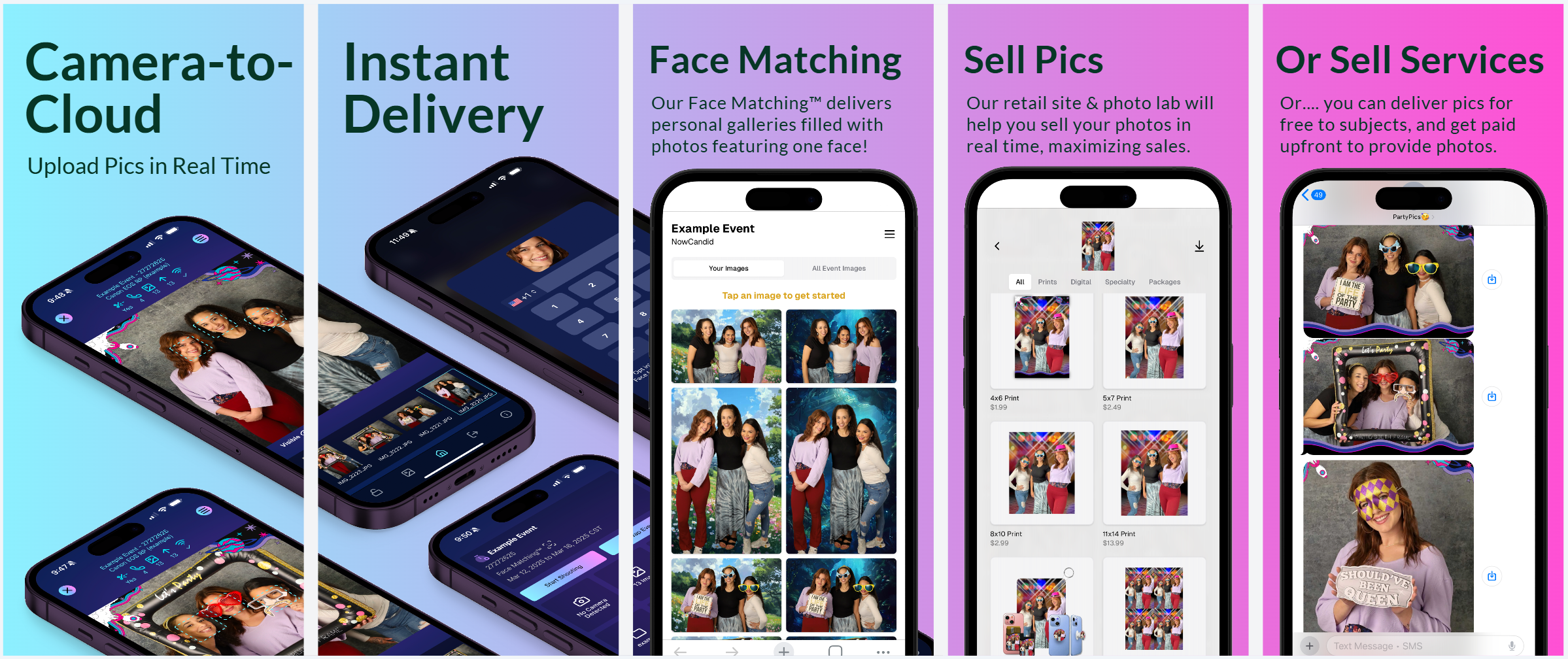
New screenshots for the app store!

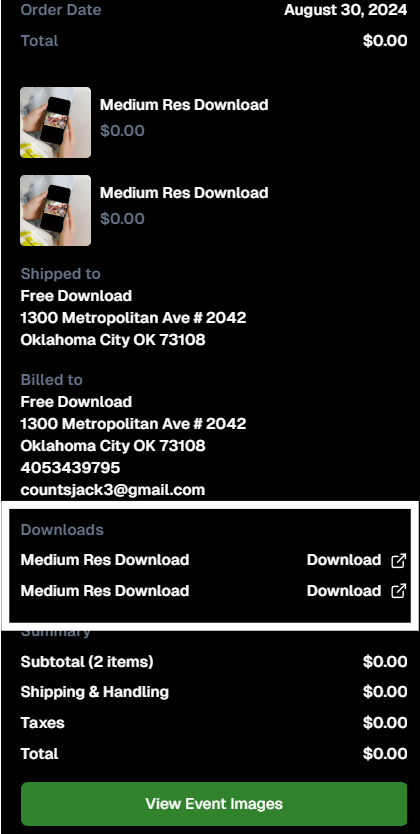
2. Accessible Download Links 📥

Great news for your customers—and for you, too!

  • • Order History:

    End customers now access their download links from past orders via their Order History (if they were signed in at the time of the order).
  • • Order Details:

    Photographers can also access links to ordered downloads from an Order's Details page in the dashboard.

IF they're signed in, permanent access to their purchased downloads

3. Hold Marketing Feature ⏸️

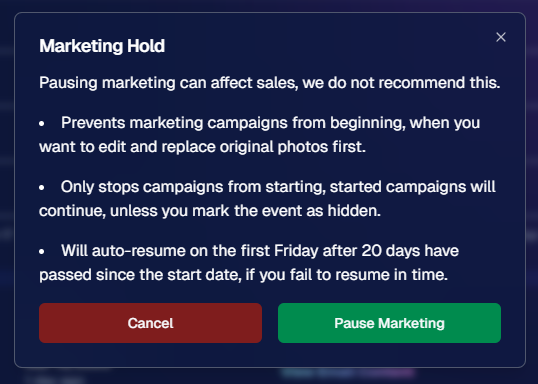
Need to pause your marketing while you fine-tune your images? Our new Hold Marketing option is here to help:

  • • Pause Campaigns:

    On an Event’s Marketing Page, you can halt new marketing messages from starting. (Started campaigns continue unless you mark the event as hidden.)
  • • Auto-Resume:

    If you forget, the campaign will auto-resume on the first Friday after 20 days from the event’s start date.
  • • Optional Use:

    While not generally recommended, this feature is perfect for unique situations—like editing and replacing photos before releasing marketing.

Found in an Event's Marketing Page

4. Event Management Portal Updates 🌐

Our Event Management Portal (access via quic.pics/portal) just got an upgrade:

  • • Enhanced Image Downloading:

    Now you can download images with custom backgrounds directly from the portal.
  • • Multi-Select & New Filters:

    Enjoy improved multi-select options and refined tools, just like on the main dashboard.
  • • Consistent Tools:

    Most of the updates we’ve applied to the primary dashboard lately are now available here as well, making it easier for your photographers to manage active, recent, or upcoming events.

5. Group-by-Face™ Upgrades 👥

Our Group-by-Face™ feature just got even better!

  • • Improved Accuracy:

    We’ve refined things to ensure fewer false matches when using this feature.
  • • In Case You Didn't Know:

    In a Face Matching™ event, simply head to the Manage Images page and select “Group-by-Face™” to run it.

    This adds clickable boxes around faces on the retail site, directing users to galleries of images featuring that face.

That’s this week’s Weekly Recap!

We hope these updates—ranging from UI enhancements to new marketing tools—make your NowCandid™ experience even more efficient and enjoyable.

As always, we’d love to hear your feedback.

Cheers and sparkles,

Candy 🍬
Weekly Recap: Extended Face Matching™ & Image Overwrite Upgrades! ✨
Feature Updates
March 7, 2025

Weekly Recap: Extended Face Matching™ & Image Overwrite Upgrades! ✨

4
 minutes read
Hello, my fabulous photographers!

Candy here, and welcome to this week’s Weekly Recap.

We’ve got some exciting updates that will make your NowCandid™ events even smoother—so grab a coffee and let’s dive in!

Extended Face Matching™ Window

Great news for Face Matching™ events! We’ve extended the Face Matching™ window to last 30 days from your event’s start date. Here’s what that means:

  • • Longer Matching Period:

    Previously, Face Matching™ ended when the event concluded. Now, images uploaded even several weeks late will still find their matches, as Selfie Check-In™ remains live for the full 30 days!
  • • Consistent Marketing:

    Thanks to Tiered Pricing on each participant’s Day 0 text, even late joiners receive the same marketing campaign and discount opportunities.
  • • Event End Date Still Matters:

    While Face Matching™ remains active for 30 days, the event’s End Date still determines when the event disappears from the Capture & Upload App and the limited-access Event Management Portal.
  • • Flexible Event Management:

    After creating an event, you can now edit its End Date, allowing you to keep an event active longer if needed. Plus, on the All Images Gallery, Selfie Check-In™ is prominently displayed for Face Matching™ events—making it easier for stragglers to get their images.

This extended window opens up new opportunities and helps ensure no one misses out on their photos!

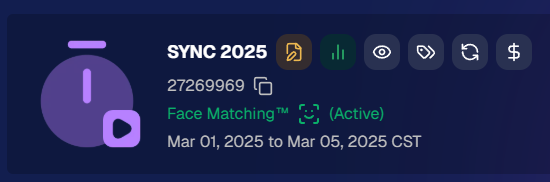
an expired event (mar 7), with face matching™ still active

Image Overwrite Feature in the Web Dashboard 🔄

We’ve heard your requests: now you can overwrite images using the Image Uploader on the Web Dashboard!

  • • Edit & Replace:

    For Positive ID™ events, you can now replace unedited images with edited ones. The new, updated images will slot directly into each participant’s retail gallery and your Manage Images page, replacing the originals seamlessly.
  • • Enhanced Workflow for Positive ID™:

    This is a game changer for Positive ID™ events that require a tethered tablet. You can take photos, assign them during the event, then edit and replace them later—all without disrupting your marketing.
  • • Important Reminder:

    For Face Matching™ events, we still recommend using Selfie Check-In™ and uploading your edited images once you’re done fine-tuning. And always export in the proper sRGB color profile for printing and uploading.

hit the switch to allow identically named images to replace existing images

Miscellaneous Updates ⚙️

  • • Press & Hold Download Fix:

    The “Press & Hold” download on the retail site for Quic-Events using Chrome on iOS is now fixed—ensuring a smooth experience for all your customers. (The Free Download product was available for those who had issues previously, so no worries! People still got their pics.)

That’s it for this week’s recap!

These updates are designed to extend your event’s image matching capabilities, streamline your image editing workflow, and improve overall user experience.

As always, your feedback is invaluable—drop us a line if you have any questions or suggestions.

Thanks for being an essential part of the NowCandid™ community, and keep capturing those unforgettable moments!

Cheers and sparkles,

Candy 🍬

Weekly Recap: QuicPortraits™, QuicPics™ Updates & More! ✨
Feature Updates
February 28, 2025

Weekly Recap: QuicPortraits™, QuicPics™ Updates & More! ✨

5
 minutes read
Hello, my wonderful photographers!

Candy here, bringing you another Weekly Recap packed with fresh features and improvements to your NowCandid™ experience. Let’s dive right in!

1. Introducing QuicPortraits™ 📸

We’re thrilled to add a new Program to our lineup—QuicPortraits™—joining PartyPics™, GradPics™, Portraits, SportsPics™, QuicPics™, and QuicPics GO™:

  • • One-Time Text Limit: Each image can only be texted out once—perfect for headshots or single-family portraits where you only need to share each image a single time.
  • • Why?: Because of this limit, QuicPortraits™ costs less to use than QuicPics™. It’s a budget-friendly version of the same great service designed specifically for portrait & headshot photography.
  • • No Extra Setup: If you already know how QuicPics™ works, you’ll feel right at home with QuicPortraits™!

A new Quic-Program, with different functionality and pricing!

2. QuicPortraits™ & QuicPics™ Feature Additions 🤳

These upgrades apply to Quic-Events created AFTER today’s system deployment (March 1st):

  • • “Images Are Arriving Soon” Records: View text records in your event’s Marketing History page.
  • • Render Previews for Texted-Out Images: Know exactly when and to whom each image was sent—complete with a small preview.
  • • Unsubscribe Keyword “NOPE”: “Images Are Arriving Soon” texts use “NOPE” for event-based unsubscribes, aligning with other NowCandid™ marketing.
  • • Future Integrations: Under-the-hood improvements now let us potentially add advanced NowCandid™ features (like background removal) to QuicPics™ down the road!
  • • No App Update Required: Older Capture & Upload App versions can handle QuicPortraits™; they just won’t display its icon. For the icon, see iOS version 4.13.72 below.

And good news for existing QuicPics™ fans—our behind-the-scenes tweaks should speed up QuicPics™ deliveries even more!

For when you're curious, or need some help checking on a customer's images!

3. Capture & Upload App for iOS (4.13.72) 🍎

We’ve rolled out Version 4.13.72 with the following fixes and updates:

New Icon: You’ll now see a QuicPortraits™ icon (older app versions don’t show it, but will still function fine).

Photo Booth Mode:

  • • Added two new default backgrounds.
  • • Fixed old artwork sticking around when switching events.
  • • Corrected face tap location on custom background or filtered images.
  • • Fixed bug where filters sometimes failed to apply on uploaded images.

If you’re on iOS, make sure to update for the smoothest experience!

That’s it for this Weekly Recap, folks!

QuicPortraits™ adds a brand-new, simpler way to handle headshots and single-user portrait sessions, while QuicPics™ receives behind-the-scenes speed boosts and more detailed marketing records.

Next week’s recap might be even juicier—stay tuned!

Candy 🍬

Let’s get in touch

If you’re a photographer looking to add NowCandid services to your wheelhouse – set up a call by clicking the button below.

How to customize formatting for each rich text

How to customize formatting for each rich text

How to customize formatting for each rich text

How to customize formatting for each rich text

How to customize formatting for each rich text

What’s a Rich Text element?

The rich text element allows you to create and format headings, paragraphs, blockquotes, images, and video all in one place instead of having to add and format them individually. Just double-click and easily create content.

A rich text element can be used with static or dynamic content. For static content, just drop it into any page and begin editing. For dynamic content, add a rich text field to any collection and then connect a rich text element to that field in the settings panel. Voila!

Headings, paragraphs, blockquotes, figures, images, and figure captions can all be styled after a class is added to the rich text element using the "When inside of" nested selector system.

  • List One
  • List Two
  • List Three
  • List Four
  • List Five

This is a link

This is bold text